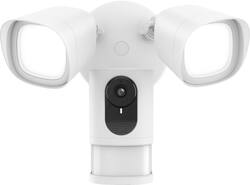
eufy Security - Security Floodlight Camera - White
- Key Specs
- Video Camera Resolution: Full HD (1080p) (Refers to the number of pixels, both horizontally and vertically, used to capture video/images. The higher the resolution the finer the detail that can be seen.)
- Field Of View: 140 degrees (The area of a target, measured as an angle from the location of viewing, that can be observed.)
- Night Vision: true
- Number Of Cameras Included: 1
- Camera Power Source: Hard wired
- Works With: Amazon Alexa, Google Home (Compatible with or able to be connected to other smart devices or applications.)
- Wireless Connectivity: Wi-Fi (The manner in which a device sends data to another device over a short distance without the use of wires or cables.)
- Maximum Operating Temperature: 122 degrees fahrenheit (The highest recommended ambient (surrounding) temperature in which the product can ideally operate stated by the manufacturer. Generally long-term exposure of the product to temperatures more than the maximum can result in ineffective operation.)
- Storage Type: DVR
- Indoor Or Outdoor Use: Outdoor (Indicates the appropriate environment product was designed to be used in.)
- Minimum Operating Temperature: -4 degrees fahrenheit (The lowest recommended ambient (surrounding) temperature in which the product can ideally operate stated by the manufacturer. Generally long-term exposure of the product to temperatures less than the minimum can result in ineffective operation.)
- Audio Communication: 2-way (1-way communication devices allow a user to hear detected audio, while 2-way communication adds the ability for a user to talk back through the device.)
- General
- Brand: eufy Security
- Model Number: T84201W1
- Product Name: Security Floodlight Camera
- Color: White
- Camera
- Video Camera Resolution: Full HD (1080p) (Refers to the number of pixels, both horizontally and vertically, used to capture video/images. The higher the resolution the finer the detail that can be seen.)
- Camera Resolution: 1080 (Refers to the number of pixels, both horizontally and vertically, used to capture video/images. The higher the resolution the finer the detail that can be seen.)
- Field Of View: 140 degrees (The area of a target, measured as an angle from the location of viewing, that can be observed.)
- Night Vision: true
- Night Vision Image: Color
- Number Of Cameras Included: 1
- Power
- Camera Power Source: Hard wired
- Voltage: 110 volts (Amount of power needed to support an electrical current.)
- Compatibility
- App Compatible: true (The product can be connected to a program or software application on a mobile device, which then receives collected data from the product.)
- Compatibility: Most Android and iOS devices
- Operating System Compatibility: Android, Apple iOS
- Works With: Amazon Alexa, Google Home (Compatible with or able to be connected to other smart devices or applications.)
- Connectivity
- Camera Connectivity: Wired, Wireless (Security system cameras can be set up in several ways. Wired cameras require cables for power and footage transmission, while wire-free cameras don't need cables for either. Wireless cameras still require cables for receiving power but are able to transmit footage via a wireless network.)
- Wireless Connectivity: Wi-Fi (The manner in which a device sends data to another device over a short distance without the use of wires or cables.)
- Frequency Band: 2.4 GHz (Bands may be grouped into categories such as low- and high-band VHF (Very High Frequency), low- and high-band UHF (Ultra High Frequency), or certain frequency channels (measured in MHz or GHz). Generally, higher frequencies transmit information faster but have shorter range than lower frequencies.)
- Recording & Playback
- Streaming Video: true (The ability to transmit a live video feed from the product.)
- Records Audio: true
- Subscription: None
- Performance
- Maximum Operating Temperature: 122 degrees fahrenheit (The highest recommended ambient (surrounding) temperature in which the product can ideally operate stated by the manufacturer. Generally long-term exposure of the product to temperatures more than the maximum can result in ineffective operation.)
- Indoor Or Outdoor Use: Outdoor (Indicates the appropriate environment product was designed to be used in.)
- Minimum Operating Temperature: -4 degrees fahrenheit (The lowest recommended ambient (surrounding) temperature in which the product can ideally operate stated by the manufacturer. Generally long-term exposure of the product to temperatures less than the minimum can result in ineffective operation.)
- Storage
- Storage Type: DVR
- Lighting
- Lighting Type: Floodlight
- Features
- Audio Communication: 2-way (1-way communication devices allow a user to hear detected audio, while 2-way communication adds the ability for a user to talk back through the device.)
- Auto-On Detection: Motion
- Mount Type: Wall mount
- Alarm Type: Audible
- Alarm Location: On camera
- Dimensions
- Product Height: 12.2 inches (The out of box height of the item. Height is measured as the vertical distance from the bottom of the item to the top as it would be primarily used or placed.)
- Product Width: 7.87 inches (The out of box width of the item. Width is measured as the horizontal distance from one side of the item to the other as it would be primarily used or placed.)
- Product Depth: 7.09 inches (The out of box depth of the item. Depth is measured as the distance from the front of the item to the back as it would be primarily used or placed.)
- Product Weight: 3.02 pounds (The out of box weight of the item.)
- Sensor
- Sensors: Motion sensor (Detects stimuli such as heat, light, sound, motion, or pressure and responds accordingly by operating a control or initiating a function of the device.)
- Included
- Cable(s) Included: true
- Warranty
- Warranty - Parts: 1 year
- Warranty - Labor: 1 year
- Other
- UPC: 848061058901
Monitor your property and capture 1080p footage with this eufy smart floodlight camera. The super-bright 2500-lumen motion-activated lights provide excellent illumination for nighttime recording. This eufy smart floodlight camera offers the option to livestream HD video from your smartphone, and two-way audio communication lets you interact with visitors from afar.
- Floodlight camera: Comes equipped with a Wi-Fi camera and two 2500-lumen LED bulbs for day and night viewing.
- Notifications keep you informed: Receive motion and sound detection notifications for peace of mind while you're away.
- Motion detection: Set a trigger that starts recording automatically after motion is detected.
- Two-way communication: The built-in microphone and speaker let you hear what happens around the camera and talk back through your phone.
- Built-in 100dB siren: Creates a loud 100dB alarm as harsh warning to scare off any unwanted visitors.
- Capture everything in HD: Its vivid 1080p resolution allows you to see small details on your screen.
- 140° field of view: Captures a wide area of your property for high-level security all the time.
- Convenient video storage: The camera has built-in 4GB local storage for storing about 14 days of recordings.
- Connects to your Wi-Fi network: Ensures convenience and simple setup.
- Works with Alexa or Google Assistant: You can activate or dim the floodlights via the voice command and check in anytime on what's happening outside your home.
Whats Included
- eufy Security Floodlight Camera
- Power cord
- Mounting plate
- Installation hook
- Central screw
- Central screw cap
- Three plate screws
- Owner's manual
Product Manuals
A: You leave the switch on that controls the light fixture. Then you can control it via the app. You can turn on the lights, adjust brightness, schedule times for lights to be on, or you can just leave it on motion detection.
A: Yes and yes. You can have the app installed on multiple devices and signed in under your user name. If you want you can also have others with their own Eufy account that you grant varying amounts of access to (from administrator to view only with access and on some or all of the devices on your account). Each device/ app version can individually select the level of notification you want to receive. Very versatile.
Q: Do you need the Ring Service contract for this to operate correctly ?
A: No, you do not need Ring contract as Ring and Eufy are two separate companies. You just need to download Eufy app in order to use it I really enjoy Eufy so far as it's so responsive compared to Ring that recently got some issues with its service (slow response to movement, etc)
A: That's how I use mine mounted about 20 ft up to the bottom of the sofit the angle is plenty wide I can see about 75ish feet ether ways and it works great.
A: That's not how the storage system works. It has nothing to do with 14 days. It's whenever the card is full. Once the card is full, it starts getting overwritten with new data.
Q: Is there a power cord to connect the camera to a 110 vac outlet? If so, how long is it?
A: There is a power cord you can use if you choose not to hardwire, it is only approx 2 ft
Q: Can I be mounted horizontal?
A: I guess ... the camera and the lights can be separately adjusted in orientation once mounted and the mounting screw is in the center of the mounting plate so rotating the mounting plate is not an issue. Be warned, however that unlike most other outdoor camera set ups EUFY does not allow you to change the orientation of the video display. If your camera is not adjusted to a vertical orientation then you will have to view your video off kilter.
Q: Are light bulbs easy to replace? Can original light bulbs be changed to brighter ones?
A: Had the camera about a year and both lights are out already. Very disappointing because the camera is good.
People also viewed
 $64.99The price was $69.99
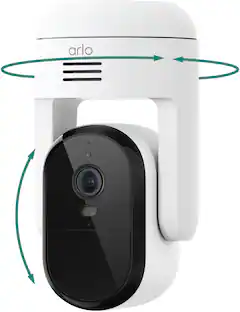 $44.99The price was $59.99
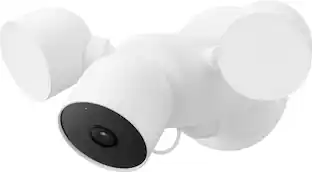 $258.00The price was $279.99
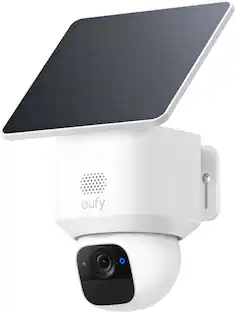 $99.99The price was $149.99
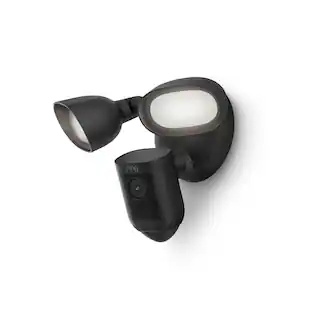
Today's top picks
 $479.99The price was $729.99
 $69.99The price was $129.99
 $199.99The price was $249.99
 $49.99The price was $62.99