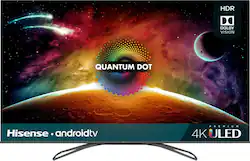
Access multiple streaming apps with this Hisense 4K smart TV. The FALD display supports HDR imaging for vivid colors and excellent brightness. Connect multiple devices simultaneously using the four HDMI ports, and access the USB 2.0 and USB 3.0 ports to support storage device access. This Hisense 4K smart TV features Wi-Fi, Bluetooth and Ethernet connectivity for increased versatility.

Q: Are the quantum dot aspects comparable to Samsung or Vizio?
A: It's comparable to the Vizio P series quantum 2019 if not better because of the much better OS and pretty close to Samsung q80 2019 model at less than half the price.trust me I checked every tv out in person before I pulled the trigger.
A: On my 65H9F TV interface no lag or freezing at all!
A: The 65H9F does offer true 120Hz native panel refresh rate.
Q: Does this tv have Dolby Digital Plus passthrough?
A: The H9F does offer Dolby Digital Plus pass through.
A: Go to Rtings.com and search "Compare tvs" The Hisense H8F is a tad bit better than the 2018 Q6F because it is a Fully Backlit Panel. The Q6F is only edge lit. They haven't done a test on the H9f yet but my assumption is that it'll be an exponential difference between your Q6F and this H9F. Pull the trigger if you can
Q: How is the H9F in a dark room can it be to bright and any problem with dead pixels .
A: No dead pixels, and for it being in a darkroom I thought the TV turned off there for a minute because the dark in the TV is so great. It has the truest black I've ever seen in a TV. I highly recommended it
Q: Can you get the Amazon Prime Video app on this?
A: Just bought this TV as of 11/15/2019 and there is no Prime Video in the Play Store even after an update to the TV. I had to manually install it onto the TV. The following instructions will help install Prime Video onto this Hisense H9F TV and possibly other Android TVs as well. 1. Put the latest "Prime Video APK" (search Google) on the root of a flash drive (FAT32 preferred). 2. Plug flash drive into TV. A prompt may come up to show the flash drive and if you would like to "Open" it. Open the flash drive. (If this doesn't come up, go download a "file explorer" from the Play Store and install a file explorer.) Browse for the "Prime Video APK" and select it and install. 3. A prompt will show up about installing this "Unknown source." Click okay or yes, and this should take you to settings to check, "Allow unknown sources". Check "Allow." 4. Click okay to install the "Prime Video APK" and now the Prime Video app should be in the Google Apps now.
A: Uniformity is great, no discernable issues. Just watched a 2 hour 4k movie and the back of the unit is cool to the touch.