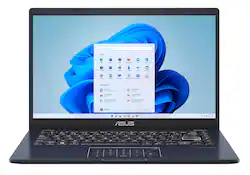
ASUS - 14.0" Laptop - Intel Celeron N4500 - 4GB Memory - 128GB eMMC - Star - Black
Model: E410KA-TB.CL4128BK
SKU: 6498803
This item is no longer available in new condition. See similar items below
Customers love the 14.0" Laptop's ease of use, attractive price, and lightweight design. Many appreciate its performance and battery life, finding it suitable for everyday tasks. However, some users mention that the RAM could be improved and that the laptop may get warm during use. Overall, it's considered a good value for its size and capabilities.
Bottom Line: For the price, this is a great option for those needing a computer for simple to moderate tasks. Windows will operate fine once optimized, and all the Linux distros I tried work out of the box. Full Review: My original laptop broke beyond repair, and I needed to replace it on the cheap. I am the sole income provider in the household, and my wife is going on year three of cancer treatment and surgeries. The used laptops I saw in the low price range always had something wrong or missing that would cost more money to rectify. I settled on the ASUS 14-inch E410KA 128GB since it met my price range and was brand new; I picked it up for $180. I first tried Lubuntu, Linux Mint, Ubuntu, and Fedora. All were installed without any issues and supported all hardware (including WiFi) in the live session and once installed. Performing tasks was snappy, with little to no lag. The only issues I observed were that Lubuntu had screen tearing and all the distros had issues with YouTube video playback, but I could watch Pluto TV in the browser just fine. YouTube videos would struggle to play at 480p and be choppy and pixelated. The Bluetooth app Mint used couldn’t find my mouse, but there were no problems with that in the other distros. CPU usage was minimal, and RAM usage was between 500MB and 1.2GB on clean boot, depending on distro; LXQT was the lightest and GNOME the heaviest. 128GB disk never presented any free space issues. The problems I had I think are due to the provided drivers in the kernel or Linux software used, not a problem with the laptop itself. Quick note: To boot the live session on some distros, you must disable Secure Boot in the BIOS since UEFI is not fully supported yet. To boot into the BIOS, power off the laptop. Then, press and hold the F2 key (don’t let it go) and press the power button. Hold F2 until the BIOS screen loads. Don’t continually tap F2. It may not register and boot to the OS; just press and hold. Easy. With that said, I would stick with Ubuntu or Fedora with the GNOME desktop. The look and feel are modern, and the performance was good. Alas, I need a backup computer for my work provided laptop in the event it breaks since I work from home in another town, and it would be weeks to months before work could get it replaced. For this, I do require Windows for the functions I perform. Otherwise, I would stay with Linux on the ASUS for personal use. From Microsoft directly, I downloaded Windows 11 22H2 (the latest at the time of this writing) and created my USB thumb drive installer. This laptop has a Celeron processor, so you must exercise patience. Windows takes time to install drivers and several rounds of patches, with the monthly cumulative updates being the largest offender. All hardware drivers were installed through Windows Update, and Device Manager shows all are installed. Once Windows Update showed nothing was pending, I ran a quick manual Defender scan, and after exiting Windows S mode, I proceeded to optimize by stopping and disabling unneeded services, scheduled tasks, startup items, and uninstalling apps and software I don’t need. Further tweaks: I unpinned or uninstalled what I did not need on the Taskbar and Start menu, set a static pagefile to 6GB (1.5x installed memory), disabled powercfg hibernation, repaired component store corruption with DISM and system files with SFC, and ran drive optimization. I now have clean-booting Windows with minimal CPU usage and RAM using about 1.7GB. Keep in mind that this cannot be accurately compared to Linux RAM usage because Windows uses prefetch by loading frequently used apps into memory for faster performance. The more memory you have, the more Windows will use. After installing all the applications I need, both for personal and work use, I still have 80GB free on the disk. I can run multiple applications simultaneously without problems: a browser with multiple tabs open, a spreadsheet, the calculator, password database, Notepad, etc. Pluto TV playback works just fine, and so does YouTube playback. I believe YouTube playback works better in Windows than Linux since Task Manager shows Edge being able to use hardware acceleration (the GPU) instead of relying solely on the CPU. I do wish the laptop had a 1080p screen, but I can make do with the 1366x768 just fine by hiding the Taskbar and configuring Edge to set the overall zoom level to 90%. This grants full access to all available screen real estate and viewing websites. I also sit in my recliner with a laptop tray on my legs. So, I do not use an external monitor, but it does have HDMI out. The laptop is very lightweight. Sitting on my lap tray for hours, my legs never suffer any fatigue. It does not have a cooling fan since the CPU is low spec and relies on natural ventilation. This makes the laptop absolutely silent. The top left side of the keyboard can get warm if you push the CPU to 100% for a period of time, but it never gets too hot. Rule of thumb for electronics: It’s only too hot if you can’t keep your finger on it. Normal usage has shown the laptop stays at room temperature. The touchpad is small enough that the palms of my hands do not touch it while typing. That can cause the cursor to inadvertently select something or pull my active window focus away. No worries about that. (I had to disable the touchpad on my last laptop for that reason.) I don’t use the touchpad calculator, but it is a nice feature. I tried it once and found the sensitivity to be sporadic. Sometimes it would register my press and others not. Then, you have to be careful not to press too hard to click the mouse. The keyboard has a nice feel and is easy to type on. (This whole review was written on this laptop!) The keys have a short throw and do not have a loud click. You’ll be able to type without annoying others or yourself. The power button is also not next to the Backspace key, where you do not need to be concerned about accidentally turning off the laptop in the middle of working. Oh, and the Best Buy specs sheet states there is no built-in camera. There is. I tested it briefly, and it works, but just enough to say it’s got a camera. The built-in mic picks up a lot of hiss and background noise, but it works. Speakers are good enough, but I recommend using a good quality headset with a microphone or headphones (wired or wireless). Battery life has been excellent so far. I have gone days with several hour sessions at a time without needing to plug in if you refrain from video playback. That, of course, will be harder on resources. Once a month, a Windows cumulative update will be pushed from Microsoft, and the laptop will need about an hour and a half to install and reboot. Don’t plan on doing anything else, as the CPU will spike at 100%. Outside of that, it’s ready for me to use after loading the desktop. I’m not a PC gamer, nor would I recommend this for gaming. If you are a retro gamer and play the old DOS games via Dosbox, then it will be just fine, but I wouldn’t push it beyond that. You could do some light image editing, but definitely not any video capture or editing. Overall, I’m happy with my purchase, and it serves my purposes well for only $180. I hope you found this helpful! David P. CompTIA A+, Security+ Microsoft MCP, MCSA
Posted by David
The ASUS 14.0" Laptop with Intel Celeron N4500, 4GB Memory, and 128GB eMMC storage in Star Black is a reliable choice. It's lightweight, making it easy to carry around. The processor ensures smooth performance for everyday tasks, and the 128GB eMMC storage provides ample space. Ideal for those on a budget seeking efficiency and portability.
Posted by DashB
Asus computer is the bomb! My son is happy with this for school! It’s fast and light weight! Nice vivid colors
Posted by Beatbuylover
The vast majority of our reviews come from verified purchases. Reviews from customers may include My Best Buy members, employees, and Tech Insider Network members (as tagged). Select reviewers may receive discounted products, promotional considerations or entries into drawings for honest, helpful reviews.