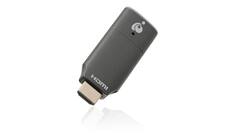
IOGEAR - Mini Wireless 4K Screen Sharing - Black
Model: GWAVR4K
SKU: 6474768
This item is no longer available in new condition. See similar items below
Customers love the Mini Wireless 4K Screen Sharing for its easy setup, wireless connection, and portability. They appreciate how it can act as a Google Cast, MiraCast, or Apple AirPlay device, making it versatile for different devices. The screen sharing solution is praised for working incredibly well. However, some customers have concerns about the video quality, finding it not ideal for video content.
The vast majority of our reviews come from verified purchases. Reviews from customers may include My Best Buy members, employees, and Tech Insider Network members (as tagged). Select reviewers may receive discounted products, promotional considerations or entries into drawings for honest, helpful reviews.
Easy to use very straight to the point plug and play
Posted by Brown
When I received the item, I thought that I would see a marked improvement when casting to my Samsung Smart TV but it performs about the same as the TV’s built-in casting ability. It does what it is supposed to do, but I found myself wondering if I needed one after all. But let me start at the beginning… Last year I streamed the Superbowl to my TV from my desktop PC, and noticed there was a bit of lag when viewing both screens at once, so I set my TV as the main viewing screen in the settings and it appeared to work just fine since I wasn’t comparing what I was seeing in my PC screen and what was cast to my TV. Fast forward to this year. The packaging is entirely recyclable, thanks for NOT using Styrofoam, ioGear! The contents consist of the streaming stick, quick start guide, warranty card and the proprietary cable that connects to the device as well as power. An AC adapter is not included but I had an empty USB port in my TV that provides the power needed to operate the “stick”. Setup was a breeze, insert the stick into an open HDMI port, connect the cable to power and you’ll see it glow blue. Then by following the instructions, connect the device to your network. Voila. On your PC or mobile device you need to use Airplay or screen mirroring, select the device from the list and start casting. If viewing both screens at once, you might see exactly what I feared: that there is noticeable “lag” from the original source. I checked my network and it was operating at top speed without other devices hogging bandwidth, so it must be an inherent issue that exists when using a wireless casting device. The reason I wanted to try wireless video transmission was because I didn’t want to use an HDMI cable because of the location, but that’s exactly what I ended up doing, lifting the edge of the carpet to run the cable underneath, beneath the carpet from the PC to the TV. I was disappointed with the performance, but someone with an older TV, might benefit from the added wireless capabilities. Just don’t expect quality in neither video nor sound…
Posted by Bill
This is a screen sharing solution that works incredibly well, but it’s a niche product for limited purposes. From my perspective, it’s main use is for sharing content from your phone to an older “dumb” HDTV and cutting the wire when using a projector. I think it’s best suited for use when traveling and giving presentations with a projector. For other things, like turning an older TV into a smart TV, I don’t know why you would pick this device over Roku, Fire Stick or Google TV. Having said that, for my purposes, it works fantastic and I recommend it for that limited use. IN THE BOX You get the iogear device itself, which is similar to a Fire Stick, but thinner, a micro-USB cable that splits into two cables. One end of the cable is the USB type A port (traditional rectangle port you’re used to seeing) and the other end of the cable is what appears to be the wireless transmitter, with some extra length so you have the ability to get the best reception depending on your setup. Other than that, you get a helpful start guide and that’s it. No USB wall power adapter, but surely you have an extra one around the house in 2022, should you need it. SETUP It’s pretty darn simple. You plug the iogear device into an open HDMI port of your TV, projector, or monitor. Then you plug in the power. If your TV, computer, projector has a USB slot for power you can plug it in there. Otherwise, you’ll have to get a wall adapter and power it through a plug in the wall. When you change the input on your device that’s displaying the image, a “home screen” gives you all the information you need to complete setup. There’s even a QR code for you to scan to take you to the device’s homepage on your phone (which is nice). But basically, you connect to the Wi-FI network, from your phone or computer, and then from you there you go to a browser and enter in the IP address which takes you to a page to connect your iogear to the internet. Based on my testing, the purpose of connecting your iogear to your internet is to permit you to access the internet while you’re connected to the iogear (so you can stream things). It also allows any device to connect to it from the internet itself, without having to connect to the iogear network. Once that’s done, you’re good to go. You simply need to case your screen to your output device. STREAMING QUALITY AND USE Iogear claims it can support 4K up to 30 FPS and up to 30 feet away. I didn’t really test the distance by measuring, but I could stand across the room and it worked just fine. As a quick aside, I use a Samsung phone and a Windows computer. So I can’t speak to the actual screen mirroring on iOS devices, but I’m certain it’s as simple a process with Android phones and Windows computer. For me, I swipe down on my phone and go to the “Smart View” button which brings up a list of devices to share my phone’s screen with. Luckily, the iogear device’s name is easy to find (assuming your phone brings up multiple options). Clicking on that and some permissions immediately had my phone’s screen on the display. From my Windows computing perspective, (I’m using Windows 11, which I’m new to…) I found the option to share my screen under settings, display, connect to a wireless display. Then a screen popped up and showed me the iogear and it connected immediately without issues. The bigger issue, and this applies to most if not all, wireless mirroring devices/programs is scaling. So my phone immediately showed a small truncated screen. And the phone’s display was adjusted for scaling as well. However, when you rotate your screen horizontally, the screen fills up. From my Windows computer, the screen was stretched out and looked funky. But a few adjustments on my computer itself, I got the aspect ratio where things weren’t stretched out. But all this depends on your monitor/projector/TV (I was testing on a wide screen computer monitor). So it’s not always plug and play (at least speaking re using a Windows computer), but it’s a few minor resolution adjustments and you’re good to go. Not a big deal, but just know the screen may not fit perfectly, or might need some adjustments. Which is easy to do. From a quality standpoint, I was impressed. I’ve mirrored my phone on a Google TV before and there was significant lag. This iogear device had some lag, the animations of screen swiping wasn’t perfect, but it was much better. Watching movies, streaming from my phone, was a pleasure. The picture quality was really solid. From my computer, same compliment. I ran a presentation through it, and it was as if my computer was plugged into the projector. WHO’S THIS FOR? The one main thing to consider about this device, is who is it for? You might already have an Amazon Fire Stick, Apple TV or Google TV. And if you do, you are able to mirror your devices to those (for Google TV, I can stream my computer through Chrome). SO this device seems duplicative. However, for me, and this is just my opinion, this is best suited for business users who travel and give presentations. For me, it works perfect. I can walk into a new building, bring my projector and connect my screens wirelessly without concern of a dropped signal. Having the ability to mirror my phone is just a plus. If I’m in the hotel, it’s nice carrying this tiny dongle and being able to watch whatever I want without the limitations of hotel cable. CONCLUSION The iogear delivers. Is easy to setup, easy to use, the image quality is phenomenal. But it’s a bit duplicative for most people. Unless you simply rely on your phone for your entertainment (or computer) you are probably better served with another streaming device. But for those who travel frequently and/or give presentations, this device can be extremely useful.
Posted by callmeageeth