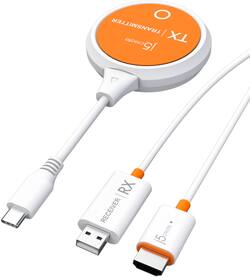
j5create - ScreenCast USB-C® Wireless Display HDMI™ Extender - White
Model: JVAW62
SKU: 6465108
This item is no longer available in new condition. See similar items below
The j5created Screencast Wireless Display Adapter and USB-C Wireless Display HDMI Extender alone and in combination is an ingenious design and both work great! Perfect for business or pleasure road trips, the j5create Screen Cast is so easy to use and works perfectly on a variety of operating systems and devices. It works with Android, Windows, iOS and macOS, laptops, tablets, cell phones and iPad. It is a wireless display adapter that allows screen casting from a multitude of devices to an HDTV. The only requirement of the TV is that it have an HDMI port, and if the TV has a USB connection to power the Screen Cast the USB would connect there, otherwise simply plug the USB into an electrical outlet adapter. An internet connection to mirror your device on the TV is not a requirement but is necessary to update firmware. The directions are written well, easy to follow, and can be easily found on the j5create website through QR codes that show up on the TV when the connection begins. If there are any problems with the connection, simply take a pin and reset the Screencast by inserting it into the pinhole on the HDMI connection of the Screencast. To enhance this Screencast device, j5create has designed and marketed the USB-C Wireless Display HDMI Extender that can cast HDMI to any TV from the same diversity of devices (with the exception of cell phones) but without using the internet. The USB-C Wireless Display HDMI Extender creates a direct connection between the mobile device and the TV. It will cast HDMI content without the internet because it creates a dedicated connection that mirrors everything on the device directly to another display. It works great for me with the windows laptop and with the iPad. To use, the Screencast must be set up as described above. Then the HDMI Extender needs to connect to a mobile device having a USB-C connection. The HDMI extender is then paired with the Screencast after the Screencast connected to the HDMI TV connection and powered by either the TV’s USB or and electrical adapter. To pair, press the lighted circle on the HDMI extender. Once the light on the HDMI extender quits blinking, which for me has only been a few seconds, it will turn solid white, and the HDMI image will then project onto the TV display. Again, if there are any issues with the connection, simply reset the HDMI connection of the Screencast by using a pin and inserting it into the pinhole and try to pair and connect again. Be sure that your firmware is up to date and the directions to do so, if it does not happen semi-automatically, are on the j5create website. This is a great device that is small, light, easy to transport and works with a variety of media. There is no software to install, no app to download, it is really a plug and play design and I definitely recommend it. I wish I would have had it back in the day when I lugged a lot of equipment to give a presentation on the road.
Posted by SwigglesMilam
I was wanting to use the J5 Create - ScreenCast USB C to stream from my gaming laptop (running windows 10 Home) to my big screen TV (LG ) to play games…specifically one of the high end FPS. I knew it was a stretch and I figured I would probably not be able to and I was right and wrong. Anyway let me start with the set up. Out of the box the instructions were pretty strait forward and there was a nice QR code that took you right to the instruction and a video. I would recommend doing that. Like most people that fancy themselves “techie” I just dove in and started plugging things in. I got to the set up screen on my tv and nothing was happening. The set up screen stated that it would start mirroring automatically but it didn’t. So I tailed tucked… I dove into the instructions for a careful read. I made sure the HDMI was seated properly and the that the USB A that powers the receiver on the HDMI was seated and all was well there. Then I put the broadcaster piece (the orange puck with the usb C) into my laptop and made sure it was seated. My laptop is new and a gaming laptop so I assumed it was DP output. If it’s a thunderbolt it is. It was. All was ready and still nothing. I went into display settings settings on my laptop and simply selected “connect to wireless display” and boom I was off and running. I did not see that little clue in the instructions anywhere. But that worked! NOTE: At this point I was connecting from my laptop to the J5create Cast receiver on the TV and not broadcasting from the J5 Broadcaster puck. (I did not catch that at the time). I pulled up the game and it loaded. There was a little lag but I was pretty optimistic. I was able to play it but there was times when it lagged. I played for about 10 minutes and the lag was a little irritating but the large screen was really cool. To be fair I have the HDMI receiver and the USB A behind my TV which the instructions said not to have the USB A behind your TV or in a cabinet due to that being the receiving part and it could affect latency and create the lag. The J5Create does come with a USB A extender and I plugged it into a USB Adapter into the wall and not the back of the tv and made sure the receiver was not blocked by my tv (see pics). I then realized that the J5 puck was not being used and only the laptop to the receiver was connected. Moving the receiver did help out with the lag but I was not sure if my laptop was connected 5g to the receiver or 2.4 and I wanted to make sure it was 5g and from the broadcaster to the receiver to optimize the connection. If you do connect the receiver to your laptop or iPhone or any other device you must re-pair the receiver to the broadcaster puck for it to work. You do this by pressing a paperclip end into the receiver for 2 seconds and it puts it into paring mode. then you plug in the puck into your laptop and make sure the light on the puck is flashing and boom after a few seconds delay… it starts mirroring just like it supposed to! Super cool. I like how you can use the J5 broadcaster (i call orange puck) or go direct with your device to the receiver. Very versatile. Note: The fastest connection I got with the least amount of lag was with the broadcaster ands receiver on 5 g with the receiver not behind the tv. Streaming the web and video were a breeze. The J5create is also an awesome business tool as well. Being able to plug into any HDMI ported monitor from my laptop or tablet and go direct from device to device or bypass the device and go from the broadcaster to the receiver to your tv is pretty awesome.
Posted by JC1503
This gets the job done but there is a delay in audio when displaying video especially when using zoom or teams calls
Posted by JorgeG
Customers recognize the ScreenCast USB-C® Wireless Display HDMI™ Extender for its plug-and-play functionality and straightforward setup. Many users appreciate the convenience of using it as a wireless HDMI cable. However, some customers have mentioned experiencing lag, which can cause audio and video to be out of sync.
The vast majority of our reviews come from verified purchases. Reviews from customers may include My Best Buy members, employees, and Tech Insider Network members (as tagged). Select reviewers may receive discounted products, promotional considerations or entries into drawings for honest, helpful reviews.