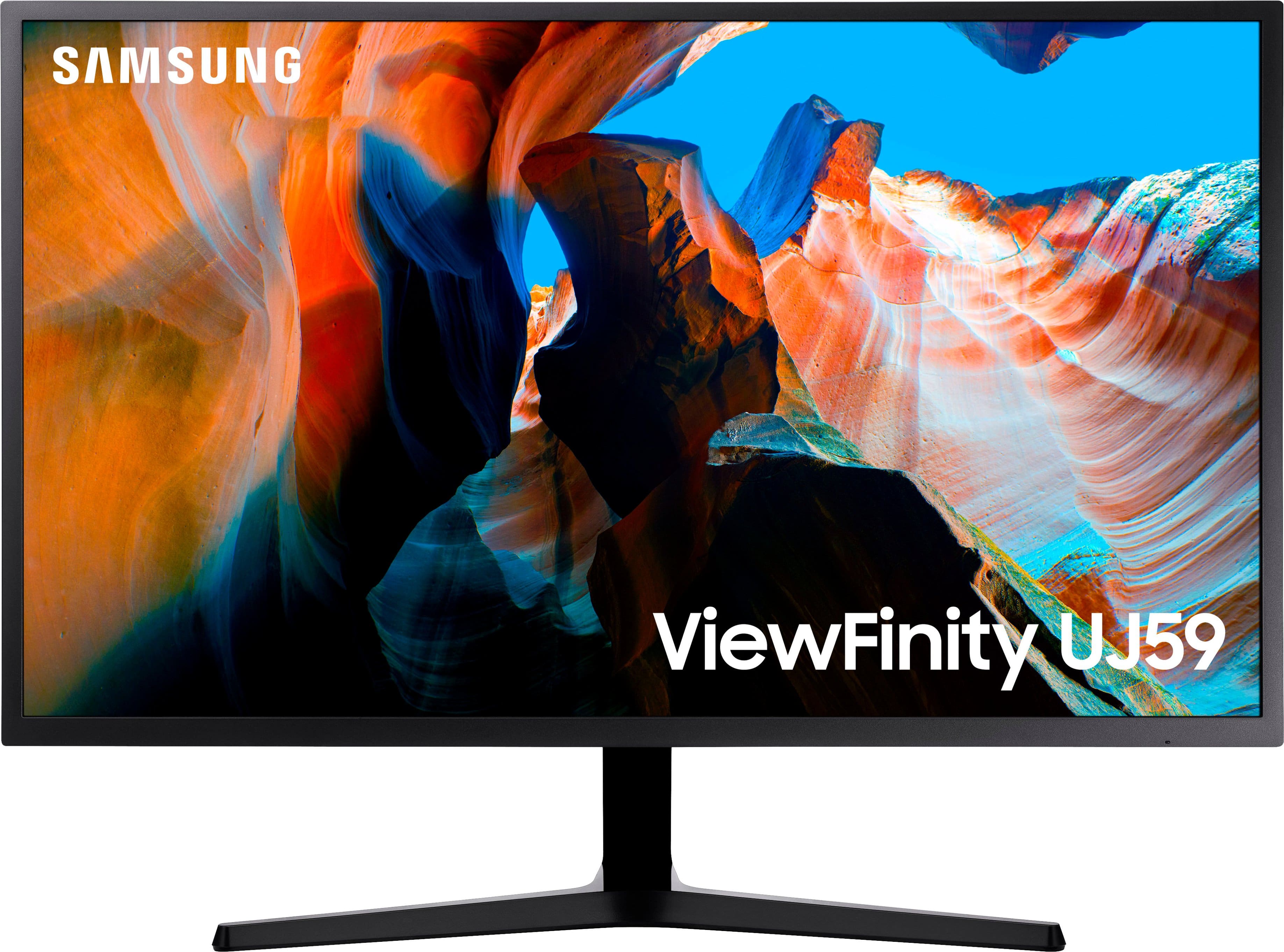
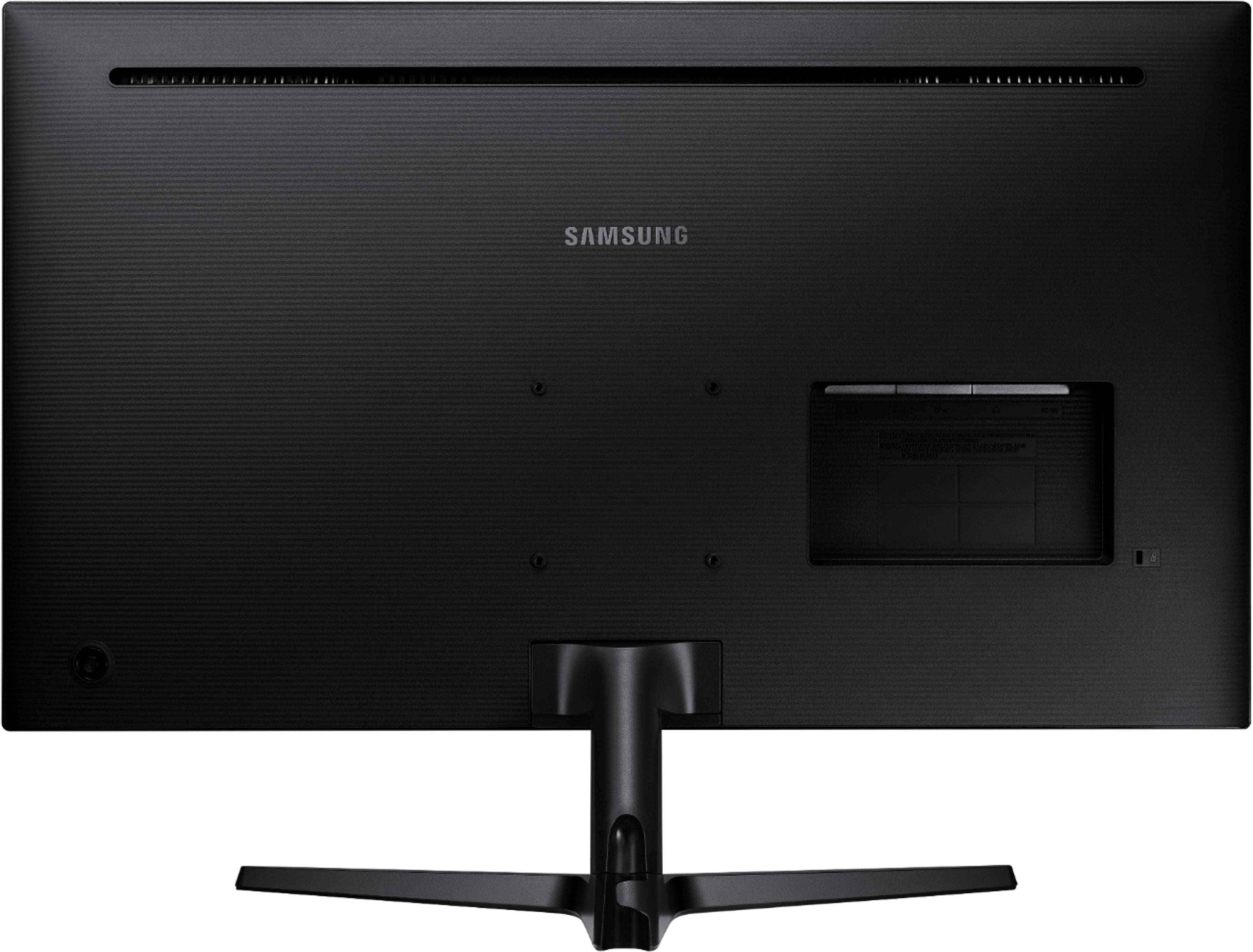
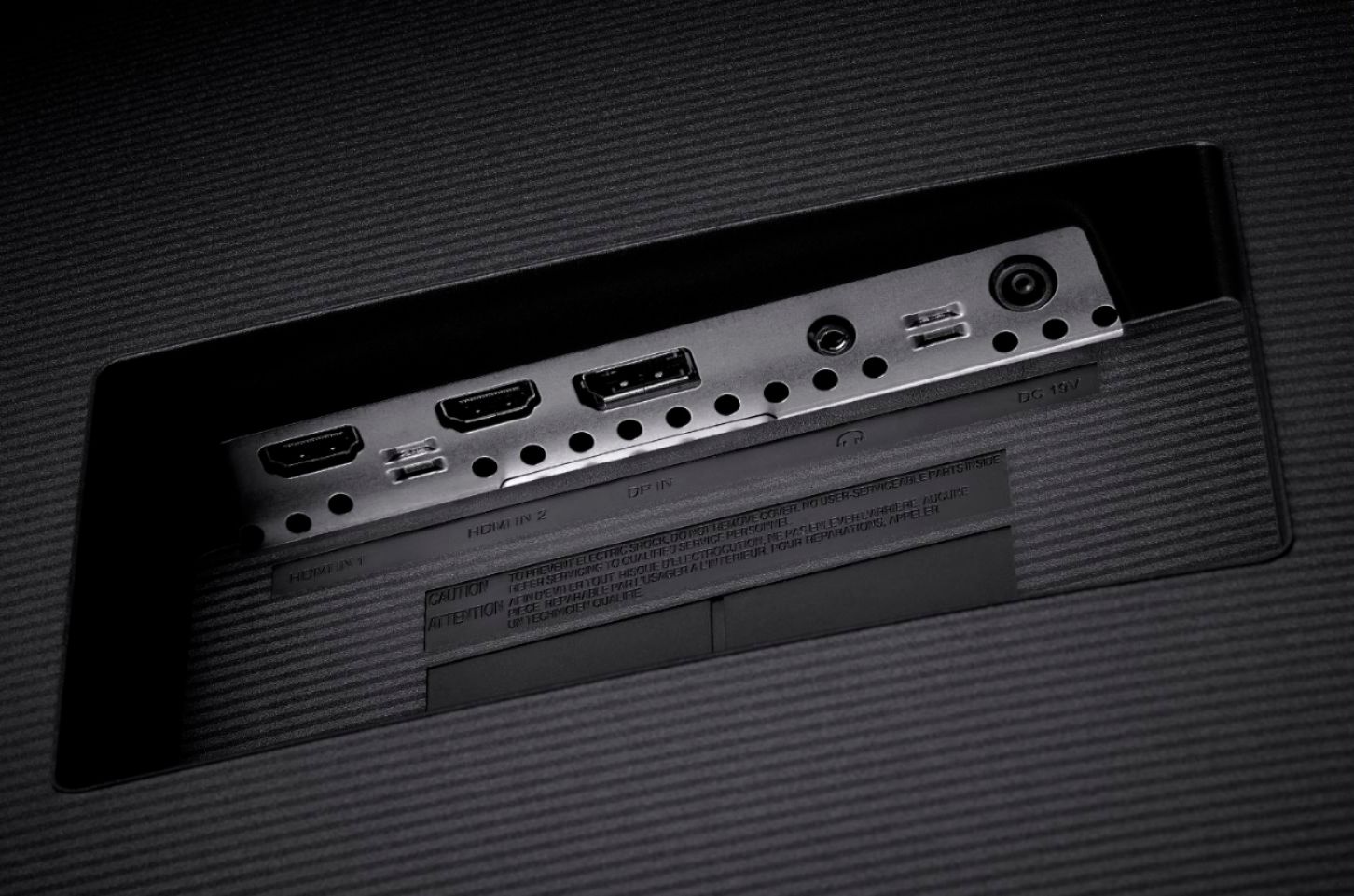
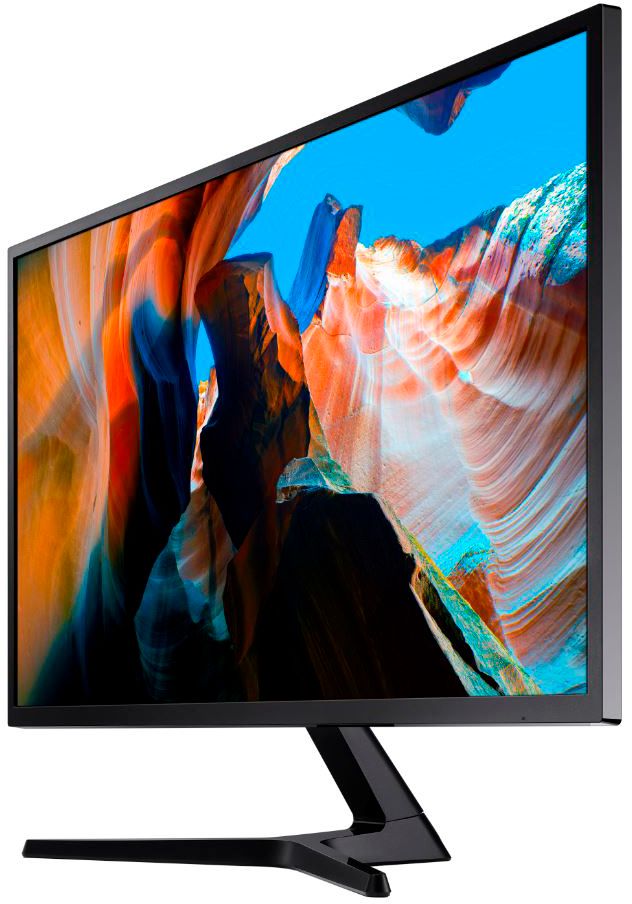
A:AnswerLook at your gaming PC and determine what type of video connectors you can use. If you have Displayport or HDMI, this will work out of the box. If you have a different cable, you may need to find a cable that can convert. For example, I have a Displayport to USBC (for MacBook Pro) cable.
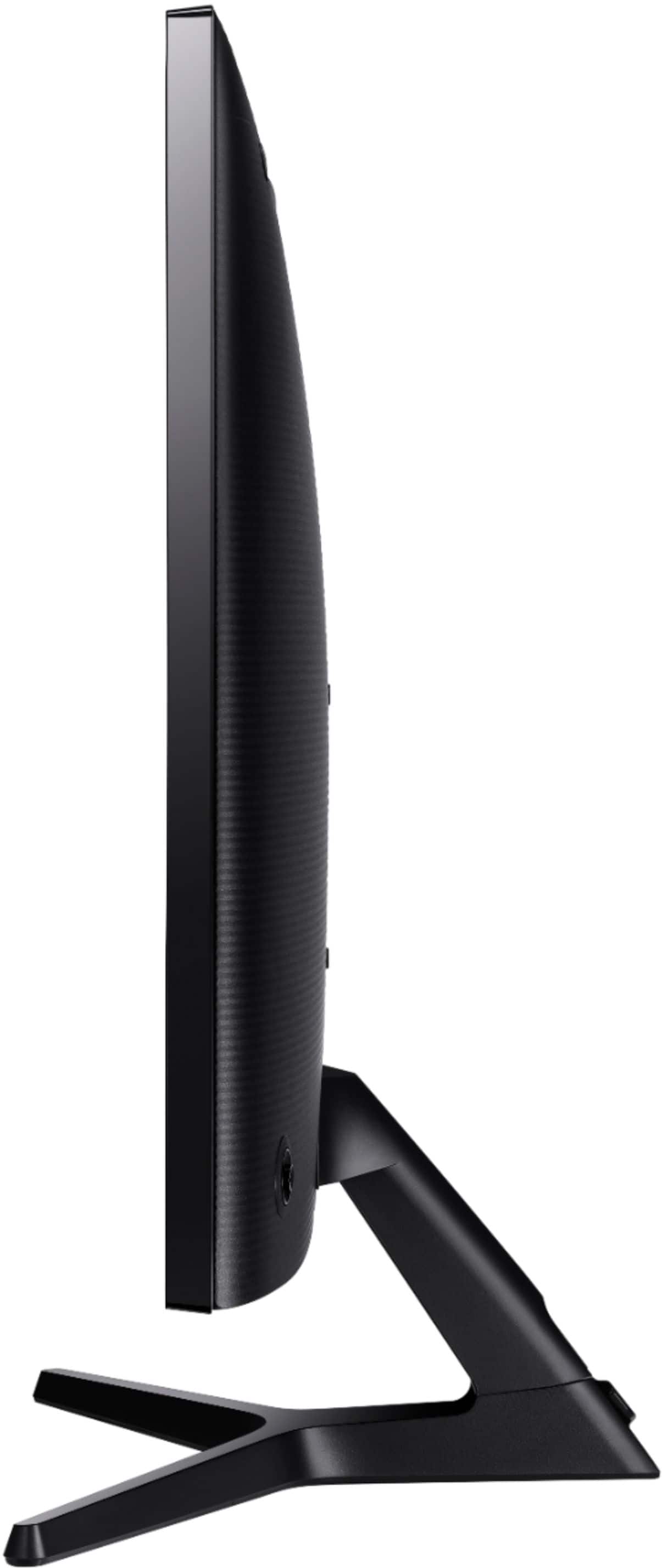
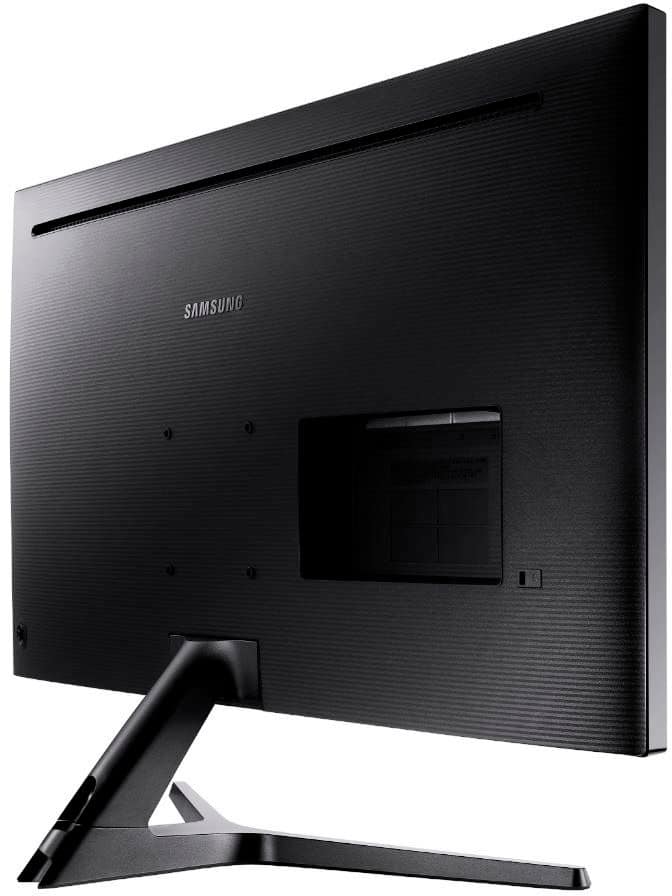
A:AnswerAll of the settings are configured via a button on the back. It acts like a toggle switch that can be moved to one of four positions to select menu options and then the button can be pushed in to select an item. Very similar to most remote controls.
A:AnswerIt has options to change the tone to warmer or cooler tones, so shifts towards blue or red in the tint spectrum. It also has an eye saver mode that I believe filters out a lot of the blue light.
A:AnswerYes, you can switch between 2 HDMI ports and 1 Display port for up to three connections. To switch between computers you'd need to change the display source using the toggle on the back of the monitor. I do this for different input feeds without issue. It does attempt to detect which is the active display source when turning it on/waking it from sleep mode.
A:AnswerThere is a headphone jack, idk why it doesn't tell you but you should be able to use the device your plugging into the monitor as well to get audio