Main Content

Customer Ratings & Reviews

$189.99

Customer reviews

Rating 4.3 out of 5 stars with 154 reviews

Rating Filter

Rating by feature

  • Value

    Rating 4.0 out of 5 stars

  • Quality

    Rating 4.5 out of 5 stars

  • Ease of Use

    Rating 4.2 out of 5 stars

Pros mentioned filter

Cons mentioned filter

81%would recommend to a friend
The vast majority of our reviews come from verified purchases. Reviews from customers may include My Best Buy members, employees, and Tech Insider Network members (as tagged). Select reviewers may receive discounted products, promotional considerations or entries into drawings for honest, helpful reviews.
Page 1 Showing 1-20 of 154 reviews
  • Pros mentioned:
    Overall performance

    Rated 5 out of 5 stars

    Rog raikiri II Xbox wireless

    |
    |
    Posted . Owned for less than 1 week when reviewed.
    This reviewer received promo considerations or sweepstakes entry for writing a review.

    Best feeling in the controller no stick drift no problems no issues best controller in 2026

    I would recommend this to a friend
  • Pros mentioned:
    Overall performance, Rgb lighting

    Rated 5 out of 5 stars

    Recommend

    |
    |
    Posted . Owned for 1 week when reviewed.
    This reviewer received promo considerations or sweepstakes entry for writing a review.

    The controller works perfectly in every single game and that rgb design its crazy 10/10

    I would recommend this to a friend
  • Pros mentioned:
    Button quality

    Rated 5 out of 5 stars

    Rog raikiri ii

    |
    |
    Posted . Owned for 1 month when reviewed.
    This reviewer received promo considerations or sweepstakes entry for writing a review.

    Tmr sticks and micro switche buttons sofar been great

    I would recommend this to a friend
  • Pros mentioned:
    Ergonomics

    Rated 4 out of 5 stars

    Lighting effects and customization is very nice.

    |
    |
    Posted . Owned for less than 1 week when reviewed.
    This reviewer received promo considerations or sweepstakes entry for writing a review.

    I like this controller, it feels good in the hands but having to use your pc to adjust the settings could be a let down if your a xbox only player. Took me a few days to get used to the short triggers for FPS games but now i’m hitting shots I never hit before.

    I would recommend this to a friend
  • Pros mentioned:
    Overall performance

    Rated 5 out of 5 stars

    The real Elite Xbox controller

    |
    |
    Posted .
    This reviewer received promo considerations or sweepstakes entry for writing a review.

    Absolutely worth the money. The new TMR sticks feel incredible and I don't have to worry about drift anymore. I have many Xbox controllers, including an Elite Series 2 (and DualSense for PS5), and this is the best controller I've used yet. If you're on the fence, give it a try. I love mine.

    I would recommend this to a friend
  • Rated 5 out of 5 stars

    Might as well be an Elite 3

    |
    |
    Posted .
    This reviewer received promo considerations or sweepstakes entry for writing a review.

    Software without armory crate is pretty good even tho it's web based. The compact and light weight feel vs the elite 2 is so good. I've been waiting for Microsoft to come out with an elite 3 and this scratching that itch. Only minor thing I wish it had was more grips texture on the front of the controller like the elite 2.

    I would recommend this to a friend
  • Rated 5 out of 5 stars

    Came from Victrix Gambit, did not disappoint

    |
    |
    Posted . Owned for 1 month when reviewed.
    This reviewer received promo considerations or sweepstakes entry for writing a review.

    I'm very picky about paddles and polling rate. I was able to overclock this to 1,000 and it reflects that on the Xbox. The back paddles/buttons are perfect. They have a similar placement as the victrix BFG but I do not accidentally press them like I did with the BFG. Very clicky, software is easy to use. Can map buttons without software or PC(but to get the firmware update you need the PC) love the color rgb mode selections and the 2.4hz dongle option. I did a polling rate test and SOMEHOW it's showing the same speed on the wireless dongle as it showed wired(0.93ms average at 950hz) big win, worth the money. Also it's durable. I would have broken the shoulder buttons by now if they were breakable like the victrix gambit(broke 3 of those just being spastic)

    I would recommend this to a friend
  • Pros mentioned:
    Overall performance

    Rated 4 out of 5 stars

    Hurry up and buy

    |
    |
    Posted .
    This reviewer received promo considerations or sweepstakes entry for writing a review.

    I love this controller it works amazingly well and I'm surprised it's one of my favorite controllers

    I would recommend this to a friend
  • Pros mentioned:
    Overall performance

    Rated 5 out of 5 stars

    My favorite controller ever❤️

    |
    |
    Posted .
    This reviewer received promo considerations or sweepstakes entry for writing a review.

    I love it!! My first pro controller. I love how it sinc the rgb lights wit my Xbox ally x, and the bulwark dock!!

    I would recommend this to a friend
  • Rated 4 out of 5 stars

    For xbox ally x

    |
    |
    Posted .
    This reviewer received promo considerations or sweepstakes entry for writing a review.

    Lightweight nice grip connected to my xbox ally x best thing in it its lightweight but I don’t like the buttons

    I would recommend this to a friend
  • Pros mentioned:
    Battery life, Button quality
    Cons mentioned:
    Connectivity
    Tech Insider Network Member

    Rated 4 out of 5 stars

    Good controller with bad software integration

    |
    Tech Insider Network Member
    Posted .
    This reviewer received promo considerations or sweepstakes entry for writing a review.

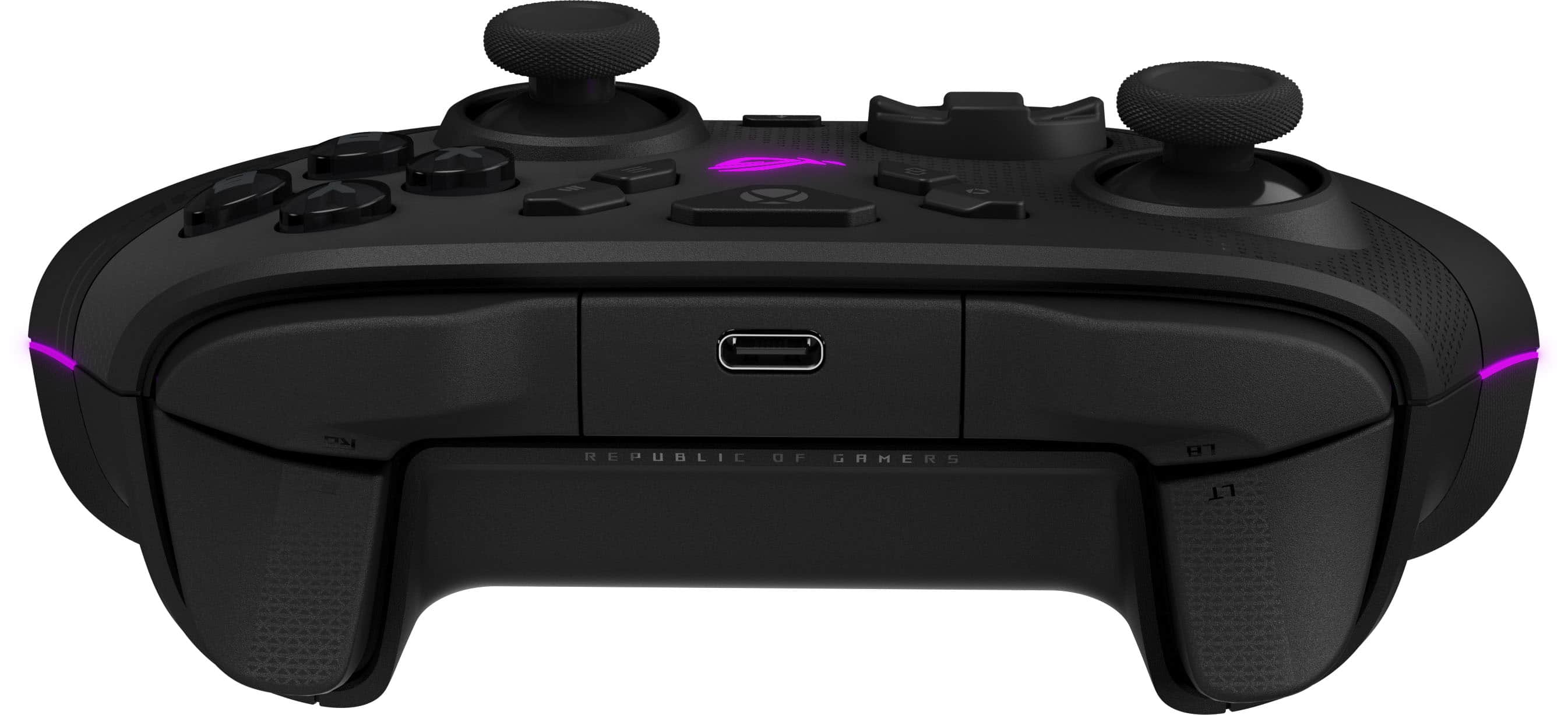
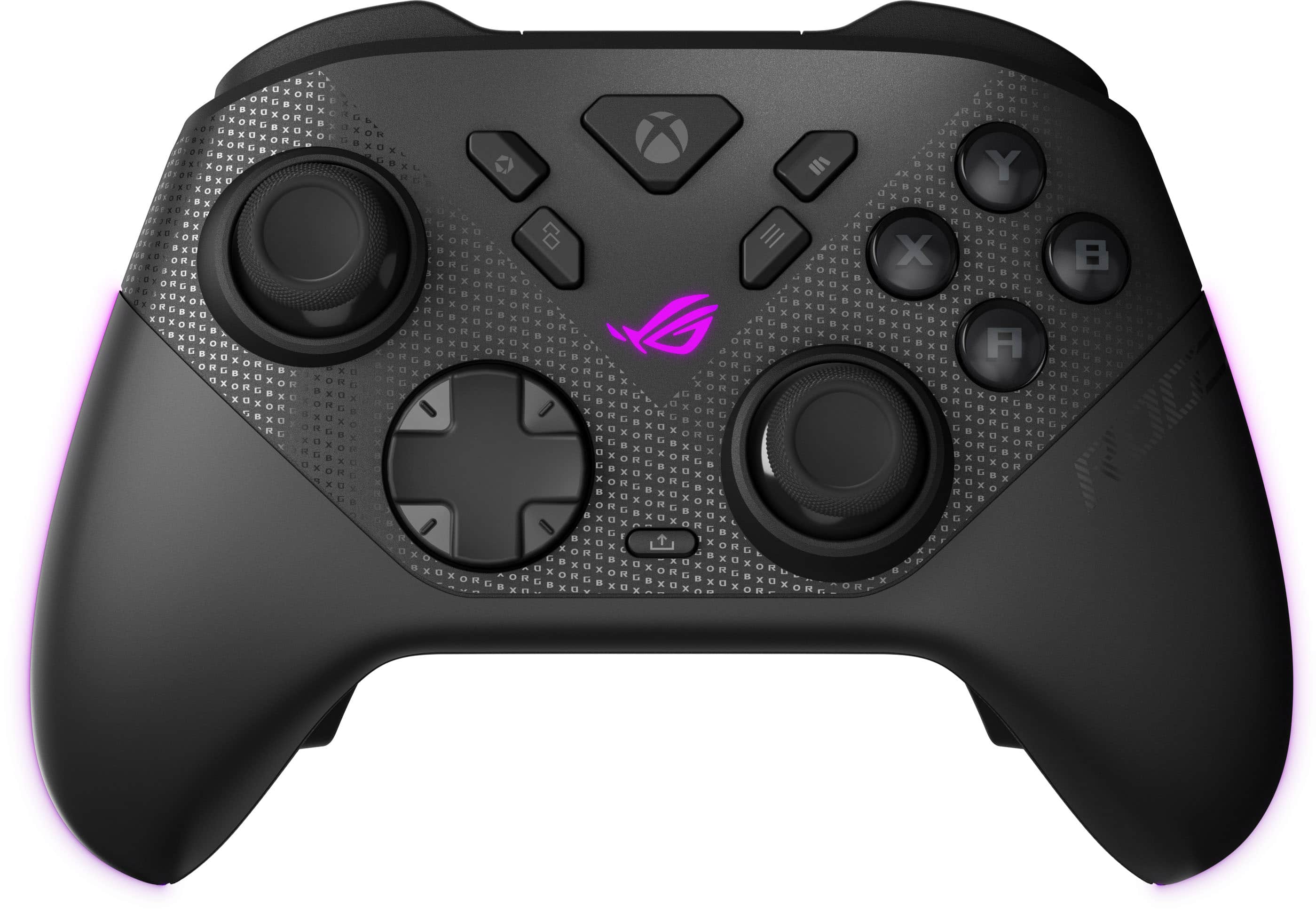
    _____ *Pros: -Great build materials and build quality -Precise and accurate TMR joysticks -Satisfyingly clickity D-pad and face buttons -1,000Hz polling rate on PC via USB-C cable or 2.4GHz USB receiver -USB dongle compartment right on the gamepad -Easy to toggle between the full-travel and short-throw shoulder triggers for different types of games -Fast and easy pairing -Stable Bluetooth connection with low latency -Three ways to connect – USB receiver, Bluetooth, and cable -Very comfortable for long gaming sessions -Excellent battery life _____ *Neutral: -The Asus ROG Ally buttons are useless for PC gaming _____ *Cons: -Asus Gear Link and Armoury Crate often did not detect the gamepad (tried Bluetooth, USB-C cable, and USB dongle). -No on-the-fly mapping and profile switching – you have to use the Asus app on the PC to make changes. The Asus Raikiri II gamepad is an excellent gamepad if you’re going to use it primarily or entirely as a PC gamepad. The controller is relatively light despite its high-tech internals and components and long battery life, and it feels ergonomically very comfortable in-hand even during long gaming sessions. The RGB lighting is not in-your-face obnoxious, and if you can manage to get the Raikiri II recognized by the Armoury Crate app or the web browser-based Gear Link utility, then you can customize many aspects of the game pad, such as lighting, dead zone adjustments, responsive curves, and button remapping. Up to five different profiles can be customized and saved, but there is, unfortunately, no on-the-fly method of switching between the profiles – you have to connect to the PC Armoury Crate app and make the switch, which is very frustrating for gamers who plan to use the controller across different platforms and across different genres of games. As for me personally, the lack of an on-device, on-the-fly profile switching is not a huge deal since I’m mostly a non-pro PC gamer and I’m pretty content with the out-of-the box factory calibration and settings. But I presume pro or competitive gamers will mighty be frustrated by such an oversight made by Asus. Hopefully Asus will release a mobile app that can make profile switching easier or introduce the feature via a future firmware update. I tried using both the desktop Armoury Crate app and the web-based Gear Link app, and my experience with both was so-so. The Raikiri II did not get detected 100% reliably, even when using a seemingly sure-fire solution like the USB-C cable connection method. It fared the worst via Bluetooth, and I had the best success via the USB receiver. It was highly frustrating and shocking, really, that Asus is SO bad at this. I have high-end gamepads from Turtle Beach (Victrix Pro BFG) and SCUF (Envision Pro v2), and I never experienced such software issues – they just worked out of the box and detected the gamepad every time, all the time. Fortunately for me, the gamepad was ready-to-go out of the box and plug-and-play, and it was easily recognized by all the games and emulators I tried it with. When I’m playing games with the Raikiri II, that’s when the gamepad really shines. As mentioned earlier, the gamepad is relatively light and highly comfortable to grip and hold, and the tunneling magnetoresistance (TMR) joysticks plus the micro-switch inputs (ABXY buttons, D-pad, bumpers, and rear buttons) led to highly fun, accurate, and satisfactorily tactile experience. I love feeling and hearing the clickity sounds that the buttons make, and thanks to the responsiveness and low latency, my hands did not get sore as quickly compared to generic, low-cost gamepads that are available all over the place. As you can probably tell by now, I have a strongly mixed feeling about the Asus Raikiri II gamepad. On one hand, I love its excellent hardware – premium build materials and components and quality in-hand feel, high-tech, predictable, and anti-drift TMR joysticks, satisfyingly clickity buttons and triggers, long battery life, and excellent compatibility with games. But on the other hand, the experience is more than moderately ruined by the lackluster software (Armoury Crate and Gear Link) and poor planning by the design and engineering team that worked on the Raikiri II. Hopefully, Asus will do the RIGHT THING, and keep on improving and updating the Raikiri II instead of crossing it off as a loss and implementing the user-requested features into the Raikiri 3 or whatever thee next-gen gamepad they want to release next. Although the gamepad is nice, hardware-wise, and it’s fun to play games with, I cannot rate it higher than 3.5 Stars, because the Raikiri II feels like an incomplete product that Asus, hopefully, will not give up on. I honestly will not recommend this to my friends who play games across multiple platforms (Xbox, PC, ROG Ally) due to software issues. And it would be a “maybe recommend” if they are exclusively PC gamers. Asus is normally known for quality and reliable products, so I sincerely hope they do right and keep on refining and updating the Raikiri II. So in simple terms, do your proper research and know what type of gamer you are before you drop your hard-earned coin on the Raikiri II gamepad. It could be a good fit for you or it might not.

    No, I would not recommend this to a friend
  • Pros mentioned:
    Overall performance

    Rated 5 out of 5 stars

    You wont be disappointed

    |
    |
    Posted .
    This reviewer received promo considerations or sweepstakes entry for writing a review.

    Best controller ever for xbox ally x its just amazing

    I would recommend this to a friend
  • Rated 5 out of 5 stars

    ROG... yes please

    |
    |
    Posted . Owned for less than 1 week when reviewed.
    This reviewer received promo considerations or sweepstakes entry for writing a review.

    Man, this new controller is seriously next level! It feels so good in my hands, and the build quality is just top-notch. Playing games on it is a dream, everything feels so responsive and precise. I'm hitting shots I never thought possible before. Honestly, if you're into gaming, you need to check this thing out.

    I would recommend this to a friend
  • Pros mentioned:
    Button quality, Ergonomics, Overall performance
    Tech Insider Network Member

    Rated 4 out of 5 stars

    Nothing ground-breaking; Great, with some issues.

    |
    Tech Insider Network Member
    Posted .
    This reviewer received promo considerations or sweepstakes entry for writing a review.

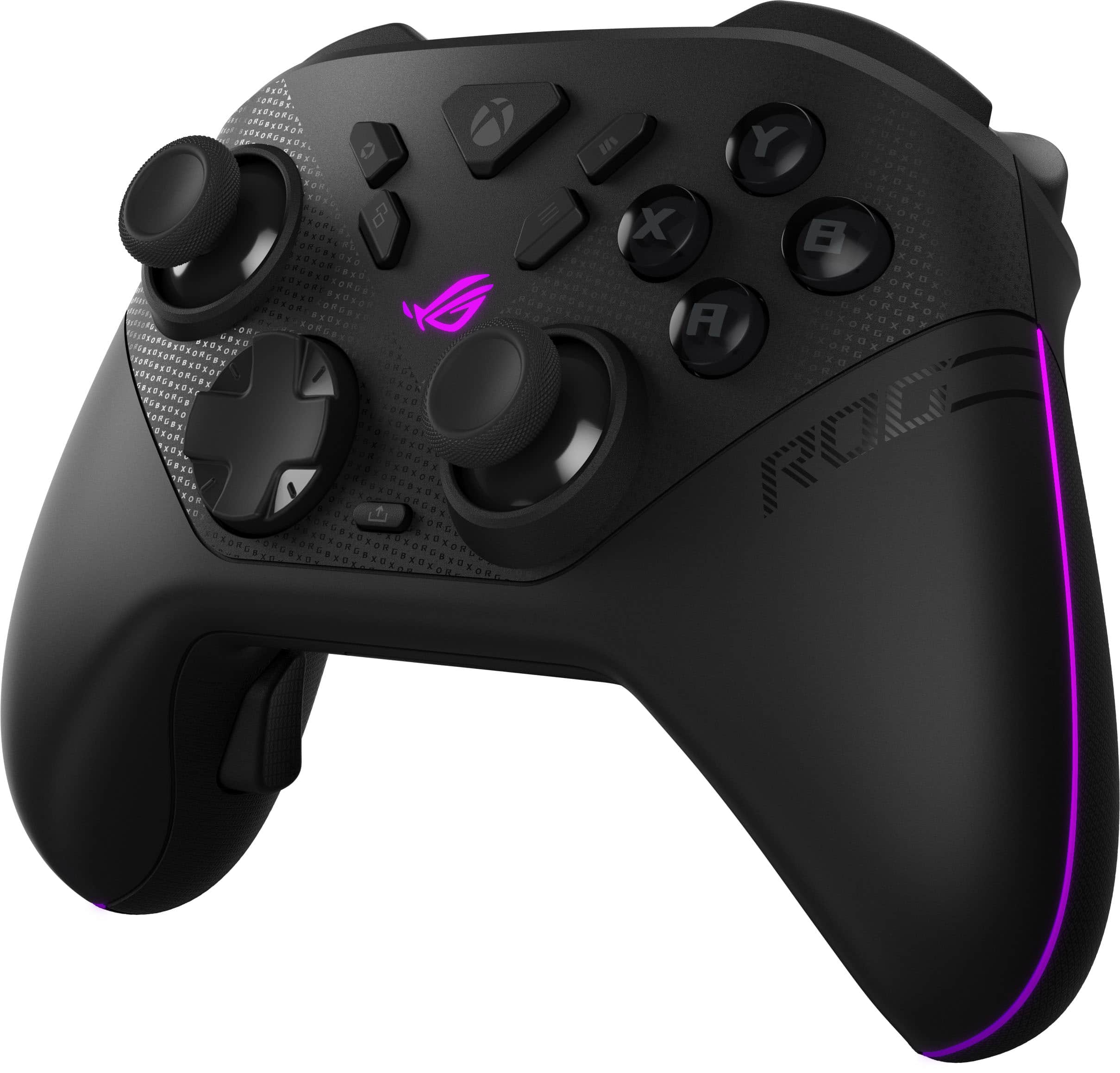
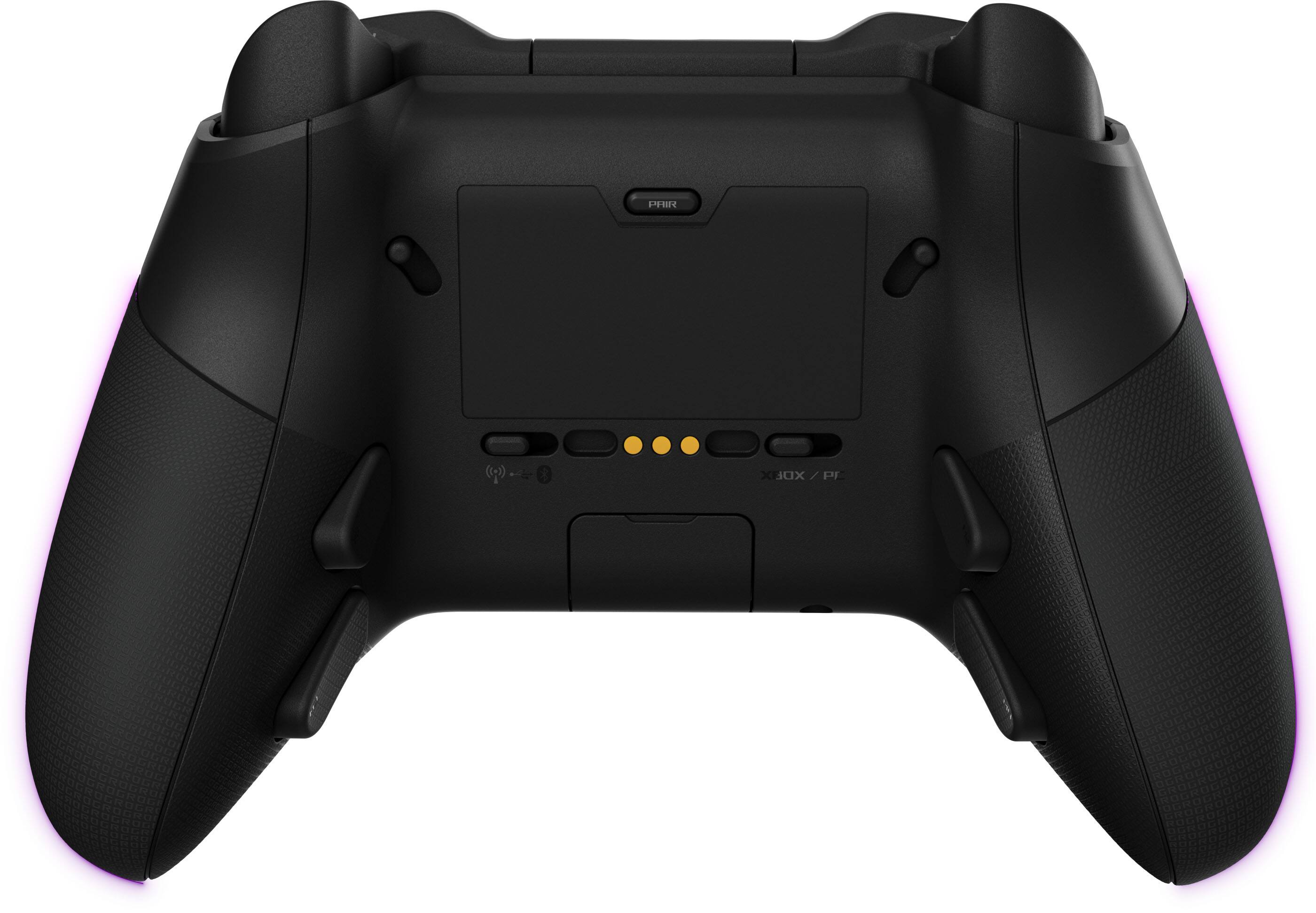
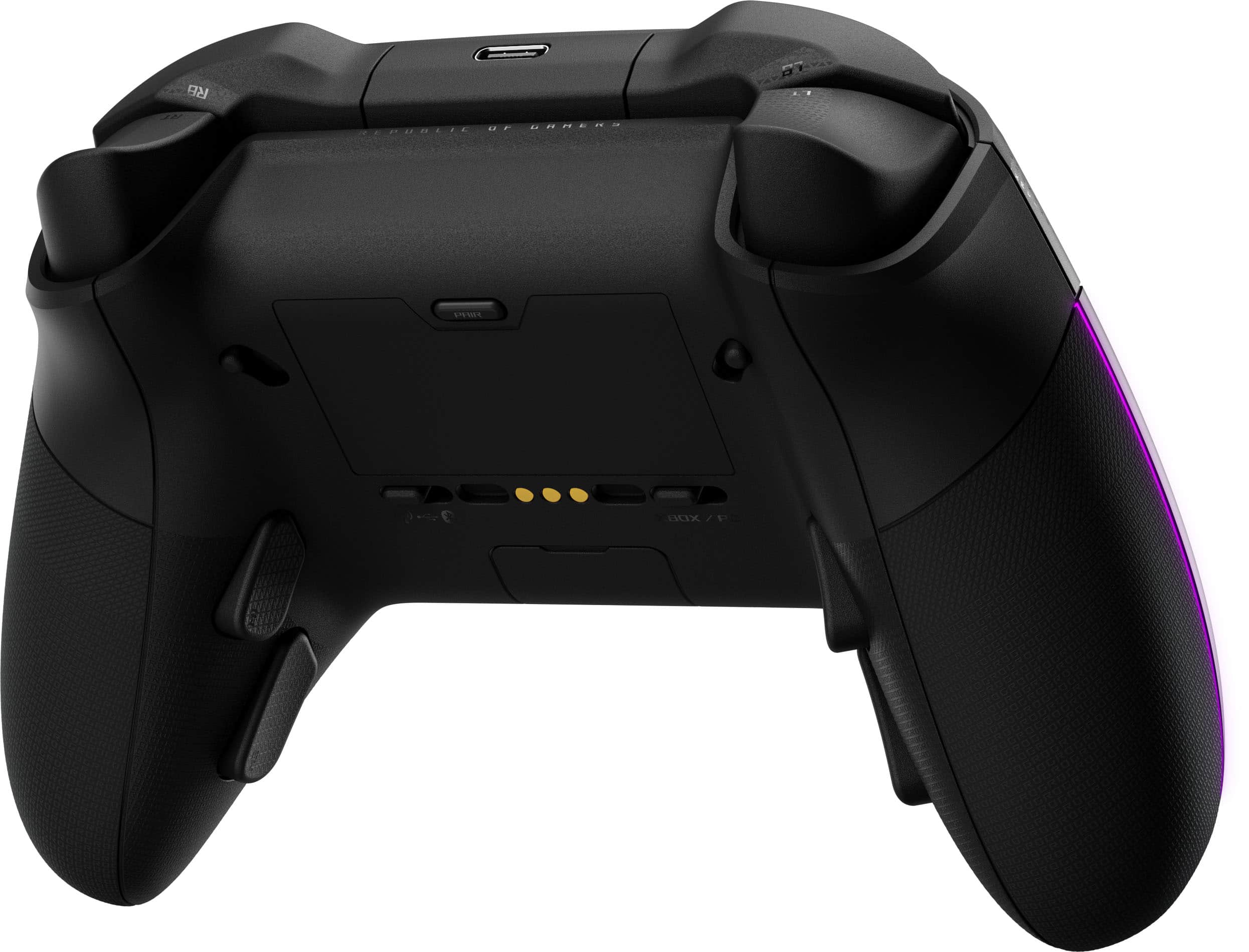
    I've been getting into various "Pro" and "Premium" type controllers, here lately and I was super excited to see that Asus was releasing a new ROG Raikiri II controller refresh to their original (which I never had). Since I already have an Asus ROG Strix G18 laptop (with an RTX 4080), I figured this would pair beautifully with it. Does it? Let's find out... The unboxing experience did feel Premium. Inside the box is a very nice case, which houses mostly everything (minus the little "feet" for the dock, which are stored elsewhere in the box). Inside the case is the controller itself, the dock, two "longer" thumbsticks (mostly for FPS use) and the cable...all neatly wrapped and packaged. The wireless dongle is housed in a small port with cover on the rear of the controller. The case also has a "cutout" in the back for the cable to pass into, if you want to leave the dock inside, with the controller. While the unboxing experience was pretty great, the setup itself can use some work. After connecting the dock to my laptop via the included cable and plugging in the wireless dongle into the front of the dock, I placed the controller on the dock to charge for the day. During the entire day and into the next, it kept flashing "purple", which indicated it was charging, but I never figured out how to know that it was fully charged (more on this, below)...because the charge indicator never changed or did anything different. While this was charging, I opened up my Armory Crate to see if it showed in there - wasn't sure how well it would be built-into Asus's native app. Aside from checking Armory Crate for updates, which did detect some updates for the controller, It's not supported very well, here - it literally shows and identifies the controller, then there's a link to click for "Gear Link", which is the web-based utility to manage the settings. Now, I use Firefox for everything. So, I was surprised to see that, upon clicking Gear Link, I'm prompted that this does not function within Firefox and will only work within Edge and Chrome...YUCK. So, I go begrudgingly go into Edge, create a shortcut for it there for future reference, and am met with the screen at which I need to turn the controller on. Now, this is where the fun starts (this is sarcasm, btw). I do what is typical of like, 99% of controller...press or press and hold the Xbox button for a few seconds. Nothing. Long story short, after a few hours of trying to figure out how to get this thing to power on, I discover there's a very, very tiny 3-way toggle button on the rear side of the controller, off-centered...which toggles between the dongle (left), cable-only (middle and the default) or Bluetooth (right). Now, yes, this is mostly on me for not looking at the manual or a controller diagram, etc (in my defense, I've been going thru the Flu or something similar over the past week and haven't felt well)....but I forgot that some "Pro" controllers have this toggle switch. Most of mine do not, so I didn't even think about that...I switch it over and it magically comes alive like it's supposed to. I did also want to add that once I did this, when docked and charging, the controller icon now glows "green" to indicate that it's charged. Now that this initial hurdle is out of the way, the first think I check in Gear Link is for Firmware updates for both the dongle and the controller. Thankfully, this says it's fully updated (I'm guessing that's what the Armory Crate update did, while it was on charge?). I poked around in the other settings, which are very nice, intuitive and well laid-out. I played around with the Dead Zones, button mappings, etc. Everything is fine and seems to function great, here. I launched Arc Raiders and give it a whirl. Everything feels sleek and fluid. The controller is light-weight and feels great in the hand. Vibration is set to 80% by default and feels fine, there. There's no stick drift or anything similar that I could detect. No noticeable delays or lag with the controller to actions within the game. The bumper stop buttons lock the bumpers properly, enabling hairline presses to fire your gun, etc, instead of having to do a full press. All the buttons have a very nice mechanical click to them. I also tested this with the new Marathon Server Slam (which isn't great on controller, but still, it's something new!), Vampire Survivors, Megabonk, Hades II and Deep Rock Galactic Survivors. No glaring issues in any of those. However, my biggest gripe with this controller are with the 4 buttons surrounding the Xbox button. I know there's special buttons on here for the ROG Ally and Ally X (the upper ones, called "Command Center" and "Library"), but they are in the worst spot possible. My muscle memory reaches for these, every...single...time. The typical Xbox "View" and "Menu" buttons are the bottom two, with the all-important "Menu" button being RIGHT ABOVE the right Analog stick. This is annoying, as this means I've got to work my thumb up, over and around the stick to press it. Oh and there is no way to swap them. I tried using Gear Link to see if it would let me move the bottom "View" and "Menu" buttons to the upper two, and just move that functionality, below - I don't care if the buttons and their icons don't match to their mapped functionality. Nope, can't do. I'm gonna be honest - this will probably prevent me from using this as my primary controller... Some other issues I have - I've not been able to find a quick way to swap the mappings of the 4 rear buttons on the back of the controller, between games. Most FPS games I play, I at least map A and B to the rear paddles for my jumps and crouch/slides, etc. But some other games I play (non FPS), I map L1 and B (like in Nioh 3, for example), or something similar. There's no quick profile toggle that I've found, without having to go into the Gear Link app before playing the game that you need the different mappings for, which I find slightly annoying. Perhaps build in a feature to where we can use one of the useless "extra" ROG Ally buttons (for the 95% of us that aren't using this controller for that) as a "profile switch" option or to cycle between button mapping settings. My final issue is...if the controller is powered on and placed on the dock, it just stays on indefinitely...even with it set to sleep after 5 minutes (the sleep default was 3 minutes, but I changed it to 5). I'd love to see it say, power off automatically when placed on the dock and turn on when removed from the dock - much like my Gamesir G7 Pro does. So, all-in-all, what do I think about this controller? It's nothing ground breaking and I feel like it could have used some fine-tuning and a bit more thought before launching. It's certainly didn't "WOW" me and my final impression was a bit different than my initial impression when unboxing everything, once I started drilling down to the details of things. Overall, build quality, features and functions get a 5/5. Setup is a 3/5, as I felt it was very cumbersome and not very self-explanatory, without having to look things up. As for the app, I'm giving it a 3.5/5 - it looks nice, but is lacking some "duh" options/features, limited programmability (mostly with being unable to remap the useless ROG Ally buttons) and isn't compatible with Firefox, which is a major bummer for me. When compatibility like this is the case, I'd like to see an "optional" program or Windows App for Gear Link...as a web-based software isn't any more convenient, due to this. Total Score: I'm giving this a 4/5, as I feel this is a good middle-ground between setup, the web-based software and the controller itself (build quality, features, etc).

    No, I would not recommend this to a friend
  • Rated 5 out of 5 stars

    Amazing

    |
    |
    Posted . Owned for 2 weeks when reviewed.
    This reviewer received promo considerations or sweepstakes entry for writing a review.

    I love the 3 different ways this can connect. Very comfy to use. Comes with a nice case and you can charge it while in the case! One of my favorite purchases in a while.

    I would recommend this to a friend
  • Rated 5 out of 5 stars

    Great controller for PC

    |
    |
    Posted .
    This reviewer received promo considerations or sweepstakes entry for writing a review.

    Excellent purchase, there's no drift in the joysticks!

    I would recommend this to a friend
  • Pros mentioned:
    Battery life, Button quality, Rgb lighting
    Tech Insider Network Member

    Rated 5 out of 5 stars

    Pretty much the perfect gaming controller

    |
    Tech Insider Network Member
    Posted .
    This reviewer received promo considerations or sweepstakes entry for writing a review.

    I’ve been using the Asus ROG Raikiri II wireless controller for about a week now, and it’s become my go to for all my Xbox sessions. I have a Victrix controller as well as a handful of original controllers, and without a doubt, the Raikiri is more comfortable to hold and use for long sessions. I really like how short the travel is on the buttons. Rapid use of the buttons is made easier due to that short travel, and fingers don’t feel so worn out after extended sessions. The TMR sticks are without a doubt a game-changer; I haven’t gotten any drift at all and aiming feels precise and smooth without any of the annoying stick wobble I’ve dealt with on the OG controllers. The back paddles come in handy. I told myself I would never use such things, but after trying them out, I find I use them all the time for jumping or reloading without taking my thumbs off the sticks. There is a switch that allows for an adjustable short pull for the triggers that makes rapid firing in shooters way more responsive. Battery life is really good (I’ve gone days without charging), the RGB lighting around the edge looks awesome, and switching between 2.4GHz, Bluetooth, or wired is seamless. The software customization requires a PC, but once set up, it stays put. I’m impressed with the Raikiri II. It is the best controller in my gaming room right now.

    I would recommend this to a friend
  • Pros mentioned:
    Battery life, Rgb lighting
    Tech Insider Network Member

    Rated 4 out of 5 stars

    Everything but the kitchen sink!

    |
    Tech Insider Network Member
    Posted .
    This reviewer received promo considerations or sweepstakes entry for writing a review.

    As a fan of everything ASUS, I was pretty excited to give this controller a try with my Xbox. There are a lot of nice features to point out, as well as a few things that could be remedied in future versions. Let’s get into it. ~~~~ First, the very few features that I would like to see changed in a future version. It may be easier said than done, but I would prefer a dedicated Xbox licensed app that could be added to your console through Xbox live, for setup, mapping, sensitivity, RGB effects, etc. As it stands, you can only enter deep customization through the web based tool Gear Link. This is another issue I have. ASUS has a dedicated hardware app called Armoury Crate, but when I initially tried to set the Raikiri II up on my laptop, it forced me to use the web app, instead of the Armoury Crate app. Why?! I do not care for web based apps, because I feel like they are less secure. This was a bit annoying after unboxing, and quickly gave me a bit of a bummer feeling. Once I was forced to open the Gear Link tool, I did find that it worked flawlessly. All of the customization options were present and easy to adjust (see attached screenshots). After a quick few minutes looking around the options, I ejected the controller and went to my Xbox. I plugged the included USB dongle into the front port of my Xbox and fired it up. The Xbox immediately saw the controller and I was off to the races. ~~~~ The good far outweighs the bad with this controller. As a lifelong gamer, I have used about every controller on every platform since the original Atari was introduced. The ASUS Raikiri II is a near perfect piece of hardware. The size is comfortable in my hands and the build quality is among the best of any controller I have ever used. The weight feels much lighter than the standard Xbox controller, but I suspect that is because the ASUS is rechargeable, which I prefer much more over having to replace two AA batteries in the Xbox controller. Not to mention, ASUS have also provided a dock/stand that plugs into any USB power source that cradles the Raikiri and charges it while not in use. ~~~~ The in game action and feel of this controller is tactile and solid in every way. The dual mode triggers allow for shorter, more precise, faster travel clicks, or the standard long travel feel most everyone is used to. The short travel is great when precision and quickness are required in some titles. For the most part, I do prefer the classic feel of the triggers and have left them alone. There are also four custom buttons on the underside of the controller (see photo). You can customize these to make your gaming more personal, but I have honestly found that they are positioned to where I accidentally press them more often than not. As an older gamer that is used to a standard controller layout, I have decided to leave these inactive for now, but I may revisit them in a future title. The RGB logo and side lighting is a nice touch and does look pretty cool when playing in a dimly lit environment. The lighting is also fully customizable via the Gear Link web app if you choose. ~~~~ With a stellar battery life and Tri-Mode connectivity, this controller has your connection covered whether you are playing on a PC via Bluetooth, USB-C wired, or at 2.4GHz with the provided dongle. ~~~~ ASUS have also provided a really nice zippered clam-shell case for travel. The case easily stores the dock, the controller, and the nice braided USB-C cable. Another great feature of the case is the fact that it has a little rubber flap that opens up so you can actually charge the controller while it is inside! The case also has two extra joystick caps in their own slots. ~~~~ In conclusion, I do believe this is the best controller I have used to date. Time will tell if they will release a controller that will be compatible with the PlayStation, or even better, one that is universal for all gaming platforms, but until then, I am satisfied using this with my Xbox and it has exceeded my expectations on what a third party controller can provide for a gaming console. *** PROS *** Excellent build quality and design Tactile feel and fully customizable Extremely long battery life Nice braided USB-C cable included Charging dock included Zippered case included Rechargeable RGB *** CONS *** No dedicated Xbox app App is web based

    I would recommend this to a friend
  • Pros mentioned:
    Battery life, Button quality, Ergonomics
    Tech Insider Network Member

    Rated 5 out of 5 stars

    The Ultimate Controller for PC and Xbox Consoles

    |
    Tech Insider Network Member
    Posted .
    This reviewer received promo considerations or sweepstakes entry for writing a review.

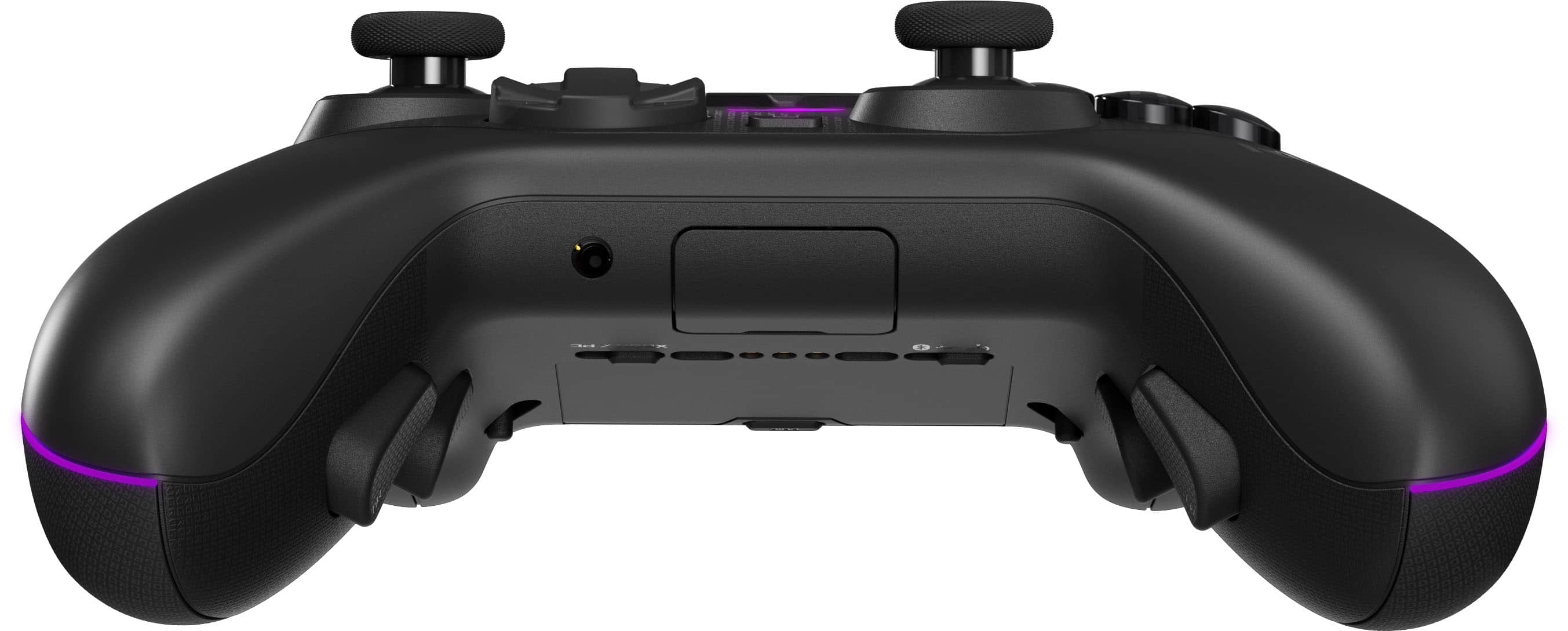
    I’ve used many various controllers, from cheap Bluetooth only controllers to moderately priced 8BitDo controllers, to the pricey Xbox Elite Series 2 Controller. The ASUS Raikiri II Xbox Wireless Controller may be one of the nicest gaming controllers I’ve ever used. Its features, long battery life, and versatile connectivity make for a compelling contender amongst other pro level controllers. Right from the get-go, you get an impressive number of items within the box. The controller comes in a hard padded case. While that case may seem both standard and boring, I was pleasantly surprised to see that the case not only fits the charging cradle within it, but also features a passthrough hole so that you may charge your controller while the case is zipped shut. I’m not on the go enough with my controller that I would take advantage of such a thing, but it’s a welcome and thoughtful feature. Additionally, the case contains two extra, longer thumbsticks, and enough room for the charging cable itself. The box itself contains riser stands for the charging cradle when used outside the travel case, some basic documentation and a sticker pack. The 2.4GHz wireless USB-A dongle sits in a compartment on the back of the controller itself, so it’s hard to lose. The controller itself, compared to the Xbox Elite 2, is slightly smaller but felt comfortable in my medium-to-large hands. At no point did I feel it was too small or had to contort my fingers to reach any button. It’s got all the standard buttons for a controller, plus a few more. There are two extra face buttons on either side of the Xbox button itself. These are defaulted to the R3 and L3 stick presses by default unless you are using it with an Ally handheld console, in which case it maps to the Commend Center and Library buttons. On the back of the controller there are four programable trigger buttons and toggles for your left and right shoulder triggers to travel full range or act like buttons. There are also toggles for connectivity modes: wireless with the dongle, wired USB, and Bluetooth along with PC or XBOX. All the buttons feel very comfortable with a tactile and audible click just like a mouse button. The button click sounds aren’t terribly loud, but if you are in a quiet space – say, using headphones – others near you will definitely hear the clicks of the controller. The four back grip buttons I find are easy to access and not easy to accidentally hit. I think these are a massive improvement over the paddle style back buttons on the Xbox Elite 2 controller. I clicky feel of all the button presses just feels good. The lighting on the controller isn’t too extreme. There’s a center logo in the middle of the controller and a thin line on either edge of the controller grips. This lighting is fully customizable from a PC. The charging cradle is also a nice addition. On the back it has a USB-C port so it can charge and a USB-A port on the front so you can put the wireless dongle in, letting you both charge and connect to your PC wireless and only take up a single port. There are two little risers to place on the bottom of the cradle when using outside of the travel case that lifts up the controller and tilts it slightly towards you at an angle. Both of the above, again, are small but thoughtful features. The controller fits perfectly into the cradle and while I don’t think I’ve had issues with it seating properly, it doesn’t drop in and sit well and sturdy enough that I have confidence it has been placed in correctly. It’s very minor, but it does make me do a double check wiggle every time I place it in there to ensure the charging pins are lined up correctly. Setting up and using it is pretty straightforward. My gaming PC recognized it right away using the 2.4Ghz wireless dongle and all my games and gaming clients saw it as an XBOX controller. I will say that my gaming desktop is also an ASUS ROG brand, so my desktop’s ASUS Armoury Crate Software instantly saw and updated the firmware on the controller, something I think you would need to manually deal with without having a computer in the same brand. That said, that particular software cannot be used to edit any controller features. In order to customize the controller, you must go to the Asus Gear Link web portal. For better or worse, there is no downloadable software. Personally, I don’t have a problem with a web based system for customizing features, but I do understand that not having a software download could potentially limit functionality if the website is ever taken down or you have a lack of internet access. It is also worth noting that there is no mobile app or access to this site – something that also can limit you. That all said, the web portal works great and provides a vast amount of customization options. You can adjust the trigger sensitivity, the curvature on each sticks dead zone, threshold, and response, vibration, power settings, lighting and calibration. Lighting, if you also happen to have an ASUS ROG desktop or handheld, can be synced in the Armoury Crate software. And, of course, you can adjust not just the two extra front buttons, but all four back trigger buttons. It should be noted that the button mappings can only replicate other existing button mappings – as of now there’s no macro support. The Gear Link web portal also sports different profiles but there is a big however here: there is no way to edit or adjust profiles from the controller itself. While there is a method for mapping the back triggers to other buttons manually, that’s not quite the same. So, if you are using it on an XBOX console and want to swap profiles, you would need to connect it to a PC first. I hope a firmware update can fix this in the future. Speaking of using this with an XBOX console, it is worth noting that to use it wirelessly you will still need to use the 2.4Ghz wireless USB dongle. Of course, this is a small area where the first party Xbox Elite controller has home advantage – along with being able to customize on the console itself. Yes, this is officially Xbox licensed and works as if an Xbox controller in every other regard, but it sems that Microsoft only keeps their proprietary wireless protocol to themselves. Lastly, ASUS claims an impressive 50-hour battery life. While I’m sure the presence of lighting, vibration, and if you’re connecting headphones to it will affect that, I can say that with some heavy use I’ve not had to charge it in over a week. That said, the presence of the cradle on my desk also makes it easy to keep it fully charged and ready to go. This is undoubtedly not a cheap controller and it’s hard for me to say if the price tag is worth all the features. I think if you’re a more casual gamer, you would need to really look at everything and decide for yourself. If you’re a bit more of a hardcore gamer, I think it’s worth the price. Comparatively, it’s about the same as the Xbox Elite 2 – the full setup, not the core - but it does have far more PC compatibility and features. If you’re in the market for an Xbox console and PC controller, I feel ASUS ROG Raikiri II excels and beats the competition.

    I would recommend this to a friend
  • Pros mentioned:
    Battery life, Button quality
    Tech Insider Network Member

    Rated 5 out of 5 stars

    Great Xbox Controller

    |
    Tech Insider Network Member
    Posted .
    This reviewer received promo considerations or sweepstakes entry for writing a review.

    With an Xbox Elite Series 3 controller nowhere in sight, I came to the Raikiri II in hopes that it could be a sort of spiritual Series 3 controller and, aside from a few minor quibbles, it mostly fits the bill. It’s a lightweight and well-built controller that’s customizable in all the ways you’d expect from a high-end gamepad. In terms of what you get with the Raikiri II, it’s very similar to what you would see from the Xbox Elite controllers. The case includes a charging dock that allows for charging inside the case or it can be removed and placed on a desk or entertainment center, like the Xbox Elite Series controller. There is also a set of risers for the charging dock included, which is a nice addition but mostly unnecessary in my opinion. There are 2 tall thumbsticks included in addition to the standard short ones that are installed on the controller and the thumbsticks can be pulled off and replaced without any tools. The braided USB-C to USB-A cable for charging and wired usage is nice and long at about 2.5 meters. The Raikiri II feels about the same size as a standard Xbox Series controller, which means it’s very easy to get your hands around. The grips have a nice subtle rubberized finish and in general it feels very good to hold. The overall build quality is good, especially considering how lightweight it is, though I have held better from other brands. The buttons and D-pad all use micro-switches and feel good with not much wobble. The TMR thumbsticks have a non-adjustable tension that feels about the same as what a standard Xbox Series controller would offer. Around the back, there are 4 programmable buttons and some mode switches, and 2 switches for adjusting the trigger. The triggers can either be full travel or short. The short travel essentially turns them into digital buttons like the bumpers. I have used other controllers that offer more steps in between, but I personally never got much use out of those half-steps so I don’t miss them here. For wireless connectivity, the controller uses a USB-A receiver that’s very small and stores in a compartment on the underside of the controller. It can also connect via Bluetooth. It’s worth noting that while the Raikiri II is an officially licensed Xbox controller, it does not have the Xbox wireless connectivity built in and you do have to plug the receiver into your Xbox to use it wirelessly. In addition to the standard view/menu buttons next to the Xbox button, there are 2 more buttons for accessing Asus’ Armoury Crate and the Xbox Library. Unfortunately, neither of them seem to work on any device that I have, including my non-Xbox ROG Ally X and 2 other Asus PC’s. I’ve had no issues using this controller. It’s comfortable, responsive, and for the most part I more or less forgot about it while I was using it, which is a good thing. The thumbsticks feel particularly smooth. I do accidentally press the rear buttons quite a bit, but this is an issue with how I grip controllers and not unique to the Raikiri II in particular, so I keep those disabled, which they are by default. The wireless connection has been rock solid on both PC and Xbox. The only issue I’ve had is with the View/Menu buttons. Since they are so close to the (for me) non-functional Armoury Crate and Library buttons I find myself pressing those instead of them. I think it would have made more sense to swap their positions so that the View/Menu buttons were on top instead. The controller is customized inside a web-based app called Gear Link. It’s nice that there isn’t any software that needs to be installed. The app is laid out well and it’s easy to customize button mapping and dead zones. You can save up to 5 custom profiles. The Armoury Crate and Library buttons can also be remapped to make them usable in Gear Link as well. It’s unfortunate that for an Xbox controller there isn't an Xbox app to accompany it though since this is an Xbox controller. I haven’t been able to fully run down the battery yet - Asus rates the battery life at up to 50 hours, but this is with lighting, audio, and vibration disabled. I can sort of understand rating the battery life based on turning off RGB and in general I’m not using the built-in 3.5mm on this controller, but there really isn’t a scenario where I’d be disabling vibration and I think the battery rating should take that into account. That being said, it feels like at least 20-30 hours can be reasonably expected if you’re just disabling the RGB. The RGB lighting is fine, but I ended up just leaving the ROG logo illuminated so I had an indication of whether the controller was on or off. So overall I think the Raikiri II is a great Xbox or PC controller, especially if you’re pairing it with an Xbox Ally for a type of ‘docked’ mode setup. Maybe one of these days Microsoft will come out with a proper successor to the Elite controller, but for now this feels like the closest modern equivalent.

    I would recommend this to a friend
Sponsored