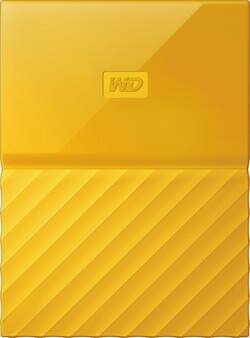
WD - My Passport 4TB External USB 3.0 Portable Hard Drive - Yellow
- Key Specs
- Storage Drive Type: HDD (Traditional, mechanical hard disk drives are the most common type of storage because they're relatively inexpensive and offer huge capacities. However, they also generate both noise and heat. Solid state drives, also known as SSDs, are many times faster than hard disk drives and have no moving parts to wear out, but typically offer less capacity for the same price.)
- Interface(s): USB 3.0 (Refers to the types of connections that devices use to interact and communicate with each other.)
- General
- Product Name: My Passport 4TB External USB 3.0 Portable Hard Drive
- Brand: WD
- Model Number: WDBYFT0040BYL-WESN
- Performance
- Storage Drive Type: HDD (Traditional, mechanical hard disk drives are the most common type of storage because they're relatively inexpensive and offer huge capacities. However, they also generate both noise and heat. Solid state drives, also known as SSDs, are many times faster than hard disk drives and have no moving parts to wear out, but typically offer less capacity for the same price.)
- Compatibility
- Internal Or External: External
- External Hard Drive Type: Portable (Physical characteristics of the hard drive, including size, weight and how you connect to your device.)
- Interface(s): USB 3.0 (Refers to the types of connections that devices use to interact and communicate with each other.)
- Minimum System Requirements: Microsoft Windows 7 / 8 / 10
- Features
- Security Features: Password Protection
- Data Encryption: true
- Encryption Algorithm: 256-bit AES (The algorithm standard used to encrypt data on a device.)
- Power
- Power Source: USB port
- Dimensions
- Product Height: 0.8 inches (The out of box height of the item. Height is measured as the vertical distance from the bottom of the item to the top as it would be primarily used or placed.)
- Product Width: 4.3 inches (The out of box width of the item. Width is measured as the horizontal distance from one side of the item to the other as it would be primarily used or placed.)
- Product Weight: 8.8 ounces (The out of box weight of the item.)
- Included
- Included Software: WD Security, WD Drive Utilities, WD Backup
- Other
- UPC: 718037849539
WD's automatic, continuous backup software works quietly in the background to help protect your data using minimal PC resources. Whenever you add or change a file, it's instantly backed up.
Offering high capacity in a compact drive, My Passport is the ideal companion for anyone with lots of videos, photos, music, and files that they want to help protect and take on the road.
Use WD Security to set password protection and hardware encryption and protect your files from unauthorized use or access.
- USB 3.0 interface: Offers an easy-to-use connection to devices. Backward compatible with USB 2.0 for simple connection to your computer.
- Data transfer rates up to 5 Gbps with USB 3.0: Enable a rapid response when updating files.
- Automatic backup options: Allow you to use compatible software to back up your files to the server.
- Password protection and 256-bit AES hardware encryption: Help keep your files secure.
- Portable design: Lets you take your data on the go.
- *500GB of WD2go® cloud storage PLUS FILERECOVERY® software included FREE! Only @ BBY: One year cloud storage & Filerecovery license with included WD Discovery software
Whats Included
- Portable hard drive
- USB 3.0 cable
- WD Discovery™ software with WD Backup™, WD Security™ and WD Drive Utilities™
- Quick install guide
Q: Does this work well with Xbox One?
A: This item works great with the Xbox One. Simply plug it in while the system is on and the Xbox One will handle the rest. No noticeable lag in game load times at all. In fact, it may be a little faster. Best of all, plenty of room for games - load all you want for some time to come.
A: Affirm, it has the same functions as a USB drive, is a bit larger though, but not too large to prevent easy handling
A: No extra backup program needed. It comes with a company program, I personally don't use this program. Works very well with Windows 10
Q: is this product works with mac mook pro?
A: Yes but you have to format it first. So far it's working great.
A: Yes, no problem, this is exactly the reason why I bought it (multiple times).
Q: does it require anything extra to install this on laptop
A: No, this can be plugged in and used directly on a Windows 7 / 8 / 10 PC that has a USB 2 or 3 port.
Q: Is this USB powered or externally powered?
A: USB only
Q: it shows drive E:/ how do you change it. Need drive F:/
A: 1. Close all the files you have open on the drive. 2. Right click on the My Computer (or This PC on Win10) icon and select mange. 3. Once that window comes up go to Disk Management on the left side. 4. Right click on the drive letter (should be listed at the top). 5. There is an option there to change the drive letter and paths. 6. Select the drive, click change, select the desired drive letter and then hit OK. Another way to get the Computer Management screen up is hold down the windows key and hit R to open a run prompt. enter in "compmgmt.msc" without the quotes and hit enter. Then pick up from step 3 above.