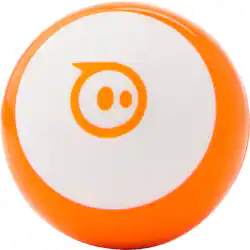
Sphero - Mini App Enabled Robotic Ball - Orange
Model: M001ORW
SKU: 5859513
This item is no longer available in new condition. See similar items below
Customers have good things to say about the Mini App Enabled Robotic Ball, particularly its ease of use, size, and programming capabilities. The app is user-friendly, and users find the ball fun and appreciate its battery life and compatibility. Some concerns were raised about the price, control, connectivity, and charging.
Does everything it says it does.Easy to setup with my Note 8.One thing I will say is be careful with the plastic case its extremely fragile.My thumb got stuck when the the plastic snapped off.
This review is from Sphero - Mini App Enabled Robotic Ball - Pink
Posted by Mannyskillz
Sphero is best known for Star Wars toys (BB-8 and others). The Sphero Mini uses a lot of the same technology in a small (ping pong ball sized) package. It includes Blue Tooth, accelerometer, gyroscope, and LED lighting components along with an app to control and move the Sphero Mini. This little robotic ball has a lot of potential but requires a lot of patience and effort to master. One huge problem is a lack of instructions to use it. There is no "quick start" guide, just three somewhat cryptic diagrams on the box flaps which show the app, separating the ball and charging it. Sphero really likes packaging. To use the Sphero Mini for the first time you have to remove tape holding an outer band around the package, slide off that band, then untape the plastic storage cube from the lower portion of the box. The lower box contains a charging cable, a bag of tiny bowling pins & traffic cones and a document. You pull out the document, expecting (logically) it to be instructions but find to your dismay that it is just a long list of legal disclaimers and warnings in numerous languages! Someone at Sphero is really worried about being sued but apparently not concerned about helping their customers use their product. Open the plastic cube and you have the Sphero Mini in your hands. But you then have to carefully remove a clear tape which secures the two halves of the ball. Once you do that, carefully squeeze the ball to separate it and access the device inside to charge it up. Then attach a micro USB cable to the inner device, plug it into a power source and wait. The inner ball with light up and cycle through multiple colors while charging. Eventually (after two hours the first time) the light changes to a solid green when fully charged. Put the ball back together and it is ready. While charging up the Sphero, download the Sphero Mini app (available for both iPhone and Android). When you open the app for the first time you again encounter a ridiculously long legal document which you must scroll down and accept in order to use it. Then a colorful animation plays, along with some techno-music and a Connect screen appears. Tap “Connect” and an update with download and the device will connect via Blue Tooth. Next you have to “Aim” the ball. Again, there are no instructions but I found that you have to touch a white ball in a blue/green circle on the app to activate a blue light on the Sphero Mini, then carefully move the white ball in a circle it until causes the blue light on the Sphero Mini to point in your direction. This orients the ball for all games. After this process, the app shifts to “Joystick” which is a simple large blue circle used to move the Sphero Mini in the direction you choose. Again, there are no instructions in the app! At the corners of the app screen you can access drive settings (Joystick, Slingshot, Tilt and Face Drive), connect to a different robot, some settings (color of LED in ball can be varied, music volume, some nearly useless FAQs and “Support” which is just an email link to Sphero) and some games. The drive modes are fun but require some patience to master but all work. Face Drive is clever, using your phone’s face camera to read your expressions in order to move the ball, but results will vary based upon your phone’s camera. I haven’t played with the games much. Again, lack of instructions made it unclear what you have to do but it appears that you use the Sphero Mini as a trackball to manipulate actions on your phone screen. They didn’t hold my interest for long. One big complaint I have about the app is the very tiny, low contrast type used. It just adds to the frustration of no instructions. One use to which I put the Sphero Mini was as a toy for my little Yorkie. She was fascinated by the moving ball and the changing colors, chasing it and barking at it. I would not recommend that you try this with bigger dogs because they will just eat the Sphero Mini and that would not be a good dietary supplement. The Sphero Mini works fine on hard floors and low carpet but gets caught by thicker carpeting. It seems fairly durable but over the long-term I wonder how the outer shell will hold up to the need to unsnap it for charging every time you use it. Replacement shells in a variety of colors cost about $15. Running time before recharge is about 45 minutes but I doubt that you would play with it that long at any session. Then you are facing a long (1-2 hour) charging time. The box mentions coding but I saw no way to access any coding function. Maybe it is there but hidden like so much else. Overall, the Sphero Mini gives you a lot of potential for the price but the app really needs a lot of work. Someone at Sphero needs to pay less to the lawyers and more to someone who can help out its users with some decent instructions and guides! This is a good toy for gamers but definitely not for small children or for those who need step-by-step guidance.
This review is from Sphero - Mini App Enabled Robotic Ball - White
Posted by JimC
If you've seen other Sphero products, the Minis are very similar but much smaller, about the size of a golf ball. The package includes a charging cable and tiny cones and other obstacles. The acrylic box it comes with is re-usable. They connect to a phone or tablet that supports the Sphero Mini app or using the Sphero Edu apps, via Bluetooth Smart (No pairing required). They go quite fast for the size, and the shells are strong enough to take some hits. Unlike the Sphero (full-size balls), it's not water-proof and in order to charge them, the shell opens in two, and with the internals exposed, there's a micro-usb port. The shells can be bought separately. We got the white and the pink. The color ones have a stripe around the shell. The Balls light up (There's a full spectrum of colors configurable on the app), so I think the white looks better. The Edu app is interesting particularly in technology classes or similar settings, or with curious older kids that want to create movement programs, while the Mini app is pure gaming fun. There are various controller settings (Joystick, Slingshot, tilting, etc.), and a 'face' mode that's supposed to work by changing facial expressions, although my kids couldn't make it work. The Mini app also has a game controller mode where there are a few skill games to choose from, and the games are controlled by holding the Mini similarly to a trackball. My 10-year old likes these games a lot. Two issues I found that can be a concern to some: • When trying to control more than one Mini, the app distinguishes by their factory-set code, but they cannot yet be renamed. • Doesn't work with Amazon Fire tablets: There is no Mini app on the Amazon app store and the Edu app doesn't work with Kindle Fire tablets. It would've been great for me because my kinds use the Amazon FreeTime service.
This review is from Sphero - Mini App Enabled Robotic Ball - White
Posted by emiliosic
The vast majority of our reviews come from verified purchases. Reviews from customers may include My Best Buy members, employees, and Tech Insider Network members (as tagged). Select reviewers may receive discounted products, promotional considerations or entries into drawings for honest, helpful reviews.