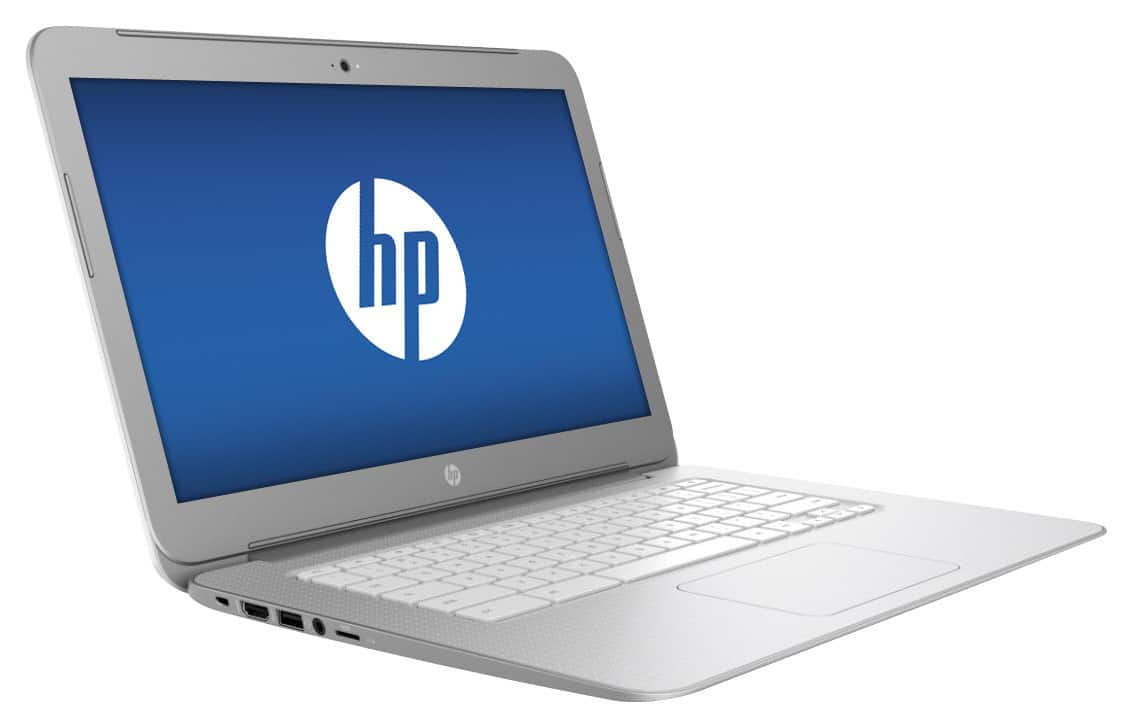
A:AnswerGood question. Chromebooks do not support Microsoft Office files or any other 3rd party software. If you do want to open Excel or Word files on a Chromebook, you can open it using Google's version of Microsoft Office. For example, Google has Google Docs instead of Word.
I hope this helps.
A:AnswerThe printer has to be Google Cloud Print Compatible not just a wifi printer. Many printers from various manufacturers are compatible but not all of them. You can't just go out to a website and download drivers for a Chromebook like a Windows or Mac machine.
A:AnswerGreat question. Whether it is the right fit for your college student depends on many different factors. Chromebook run the Chrome OS versus a traditional laptop that runs Windows or OS X. Chrome OS is, essentially, the Chrome browser in operating system form. It’s designed to use your Google account to centralize as much of your work as possible, and store it all in the cloud. Most of the applications you’ll use are web-based, and almost all of them will store their data online. That’s the beauty of Chrome OS: If something were to happen to your laptop, ideally you’d be back up and running quickly just by logging in to another one.
Chromebooks come with serious limitations. Since they’re designed to be “terminals” rather than your main computer, they don’t have powerful graphics cards, they don’t generally offer a ton of storage, and often use low power processors. Some may have high-end screens and keyboards, but they’ll still have drawbacks over a traditional laptop. If your child needs to use Microsoft Office for assignments, it will not be available for download onto the Chromebook because it can only download programs from the Google App Store and not any other 3rd party software. It does have Google Docs to replace Microsoft Word.
That means that whatever the school’s recommended specs are, you’ll probably need to scale them back a bit to reflect the fact that Chromebooks do most of their work on the web. It also means you need to be comfortable with everything you do being online and in the cloud. But, if that’s okay with you, they can be great little machines.
A:AnswerBased on the specs of this Chromebook it does not contain an Ethernet port. I am not sure if it will work (because I do not use it personally) but you can try using "USB to Ethernet Adapter". You can find the adapter at Best Buy as well.
A:AnswerI purchased my first Chromebook in late 2010 and I'm still using the same one in my response to your question. No, you won't need to purchase an anti virus program if you are going to do basic laptop stuff. If you plan on interchanging memory stick from someone's unsure/unsafe computer to your laptop - then you may end up transferring a virus. My memory sticks, computers and other transferable items have always been secured, thus I've never had to purchase a virus program. I had basic knowledge as well in relation to computers, and now when I use our desktop that has Windows 10, I always end up downloading Google chrome because its a much more basic system. Just know this, the Chromebook brain (hub) is the inbound/outbound monitoring system. You and the website you are accessing has to be streamlined through this main hub system. One exception is when you upload something directly from your memory stick (or other source) onto your laptop hard drive. I have received a newer Chromebook 2 as a past gift, but I actually continue to use my original one until it crashes (i'm safely backed up). I'm old school thinking - if it ain't broke, don't fix it. However, in my current interpretation of that is if it ain't broke, don't switch it. Take care.
A:AnswerHi there! Apologies for the delay in responses. There is a built in webcam for taking pictures, videos, and doing video chats. this video should help: http://supportvideos.ext.hp.com/detail/video/3813744353001/using-the-webcam-on-your-hp-chromebook