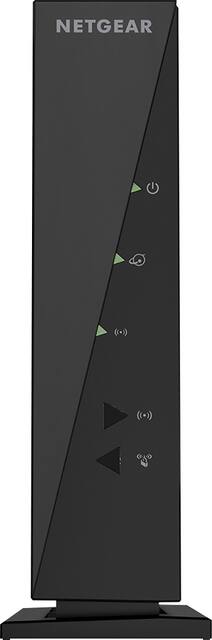
NETGEAR - Wireless-N Router - Black
- Key Specs
- Wi-Fi Mesh System: false (A single wireless network consisting of a main router (connected directly to a modem) that connects to a series of satellite modules or nodes placed around the home. Routers with this capability promote stronger, faster wireless signals as well as increase Wi-Fi coverage by reducing interference and eliminating dead zones.)
- Number Of LAN Ports: 4 (Number of devices able to be connected to the Local Area Network (LAN). LAN ports allow wired connections to other networking devices (wireless access points, range extenders, etc.) in order to share the internet connection received through a WAN port.)
- General
- Product Name: Wireless-N Router
- Brand: NETGEAR
- Model Number: WNR2000-100NAS
- Security
- Data Encryption: true
- Encryption Type: WEP, WPA-PSK, WPA2-PSK (The security protocols or certification programs that protect the Wi-Fi network.)
- Firewall Type: NAT, SPI (The method the firewall uses to filter and process data to increase network security, primarily by blocking malicious traffic requests while allowing legitimate traffic through.)
- Security Features: WiFi Protected Access® (WPA/WPA2—PSK) and WEP; Double firewall protection (SPI and NAT firewall); Denial-of-service (DoS) attack prevention; Exposed Host (DMZ) for secure gaming
- Parental Controls: true (Allows user to block unwanted content, signals, channels, networks, etc. from being received or accessed.)
- Network
- Ethernet Standard: 10/100 (Each standard is a variation of the IEEE 802.3 set of computer networking technologies known as Ethernet. New versions evolved to include higher bandwidth, different physical media, and other new and improved features. Standards are often denoted by speeds (in Megabits per second). For example, a 10/100/1000 Ethernet port transmits at 10 Mbps, 100 Mbps, and 1000 Mbps (1 Gbps).)
- Number of Antennas: 0
- Frequency Band: 2.4 GHz (Bands may be grouped into categories such as low- and high-band VHF (Very High Frequency), low- and high-band UHF (Ultra High Frequency), or certain frequency channels (measured in MHz or GHz). Generally, higher frequencies transmit information faster but have shorter range than lower frequencies.)
- Wireless Networking Standard: Wi-Fi 4 (The wireless networking standard used by the device. Each iteration of the standard developed by the Wi-Fi Alliance corresponds to an existing IEEE 802.11 protocol; for example, standard 802.11ac (or AC) is termed Wi-Fi 5. Refers specifically to the standard the device is designed to use, but ultimately determines product interoperability and backward compatibility including previous versions.)
- Wireless Standard: N (The wireless networking protocol used by the device. Each iteration of the protocol is based on the 802.11 standard developed by the Institute of Electrical and Electronics Engineers (IEEE) Standards Association. Denoted by letters following 802.11 (802.11a, 802.11ac, etc.), each version, published in alphabetical order, encompasses all previous versions.)
- Number of 2.4Ghz Streams: 1 (A router's streams are like lanes on a highway. The more streams a router has, the less traffic congestion. Because the 2.4 GHz band is used to transmit wireless signals to a wide variety of devices, there is often high amounts of traffic on that stream. But with multiple streams, each can be designated to a specific device for optimal performance. For example, if one 2.4 GHz stream is assigned to one device, such as a desktop computer, it leaves the remaining streams open for guest users, devices that use more data, or devices with specific band compatibility.)
- Number of 5.0Ghz Streams: 0 (A router's streams are like lanes on a highway. The more streams a router has, the less traffic congestion. The 5.0 GHz band provides high speed, short-range data transmission and typically has less traffic than the 2.4 GHz band. With multiple streams, each can be designated to a specific device for optimal performance. For example, if one 5.0 GHz stream is assigned to one device, such as a streaming media player, it leaves the remaining streams open for guest users, devices that need less data, or devices with specific band compatibility.)
- Wi-Fi Mesh System: false (A single wireless network consisting of a main router (connected directly to a modem) that connects to a series of satellite modules or nodes placed around the home. Routers with this capability promote stronger, faster wireless signals as well as increase Wi-Fi coverage by reducing interference and eliminating dead zones.)
- Certifications Listings & Approvals
- ENERGY STAR Certified: false (Devices carrying the ENERGY STAR service mark, such as computer products and peripherals, kitchen appliances, and other products, generally use 20% to 30% less energy than required by federal standards.)
- Features
- App Compatible: true (The product can be connected to a program or software application on a mobile device, which then receives collected data from the product.)
- App Name: NETGEAR genie® App
- Beamforming: false (A signal processing technique that enables a router to focus a Wi-Fi signal in a specific direction. The router determines where a connected device in the network is located and projects a stronger signal in that specific direction. This can result in faster and higher quality data transfer as well as reduced signal interference.)
- Integrated Modem: true
- Auto Connect: true
- Auto Detecting: true
- Wireless: true
- Ports
- Number Of WAN Ports: 1 (Number of devices able to be connected to the Wide Area Network (WAN). This type of port may simply be labeled "Internet," and it allows the device to share its internet connection with all devices connected to it via LAN ports.)
- Port Type(s): RJ-45 (USB 2.0 connects external drives, gaming controllers, smartphones, MP3 players and other accessories.USB 3.0 transfers data faster than USB 2.0, but only when used with USB 3.0 devices.USB Type-C provides fast speeds and versatile power, featuring connectors with identical ends that plug in upside down or right side up. Adapters allow for video as well as backward compatibility.Thunderbolt provides ultra-high bandwidth for fast data transfer between devices featuring a Thunderbolt or MiniDisplayPort connection.HDMI allows you to connect a projector or display HD media on your HDTV or monitor.Media card slots allow you to transfer photos from your digital camera or camcorder.)
- Number Of LAN Ports: 4 (Number of devices able to be connected to the Local Area Network (LAN). LAN ports allow wired connections to other networking devices (wireless access points, range extenders, etc.) in order to share the internet connection received through a WAN port.)
- Speed
- Wired Speed: 100 megabits per second (The maximum rate at which data is transferred between a network device and router using an Ethernet cable.)
- Gigabit Ethernet Speed: true (Supports the gigabit Ethernet networking standard, which has a data rate of at least one gigabit per second, or 1,000 Mbps.)
- Auto Speed Sensing: true
- Compatibility
- System Requirements: Microsoft Windows ME, 2000, XP or Vista; Mac OS; UNIX; Linux; Internet Explorer 5.0; built-in 802.11n or 802.11b/g wireless networking or draft-N (802.11n) or 802.11b/g network adapter; broadband cable or DSL network with Ethernet connection (The software that a product must have for it to be able to integrate with another product.)
- Bluetooth Enabled: false (The device is capable of communicating with another device via Bluetooth, provided they are within the required range of each other. A Bluetooth-enabled device must also be the same Bluetooth version or higher than the accessory it is intended to pair with.)
- Dimensions
- Product Height: 1.4 inches (The out of box height of the item. Height is measured as the vertical distance from the bottom of the item to the top as it would be primarily used or placed.)
- Product Length: 5.1 inches (The out of box length of the item. Length is measured as the longest dimension of the item.)
- Product Width: 7 inches (The out of box width of the item. Width is measured as the horizontal distance from one side of the item to the other as it would be primarily used or placed.)
- Product Weight: 0.88 pounds (The out of box weight of the item.)
- Warranty
- Manufacturer's Warranty - Parts: 1 year
- Manufacturer's Warranty - Labor: 1-year
- Other
- UPC: 606449059151
Keep your Wi-Fi connection strong anywhere in the house with this NETGEAR router. Monitor your network with the NETGEAR genie app, keep track of your kids with parental controls, and use multiple devices simultaneously for downloading, gaming and more
- Wireless-N: Get a more reliable Wi-Fi connection throughout a small-to-medium home. This router lets you work and play online with data speeds of up to 300 Mbps.
- QoS (Quality of Service): Optimize your Wi-Fi. Maintain a strong connection during any task by prioritizing HD streaming, gaming and more.
- Built-in Ethernet connections: Attach an external hard drive or connect other wired devices. This router has 4 Gigabit LAN ports and 1 Gigabit WAN port.
- NETGEAR genie ® app: Make the most of your home network. Monitor, connect, and control your router from anywhere, plus share files, repair issues, and more. Download for iOS and Android devices.
- Internet security: Protect your information with WPA/WPA2-PSK, WEP, Double Firewall (SPI and NAT) and DoS protection. Plus, this router lets you manage parental controls, guest networks and more.
- System requirements: Microsoft Windows 7, 8, 10, Vista, XP, 2000, Mac OS, UNIX, or Linux, Microsoft Internet Explorer 5.0, Firefox 2.0, or Safari 1.4 browsers or higher.
Whats Included
- NETGEAR Wireless-N Router
- Stand
- Ethernet cable and power adapter
- Software CD-ROM
- Owner's manual
Q: About how many devices can be connected on the Wifi and still run effectively
A: Well we have 2 laptops, 2 computers and 2 Ipads, also 1 LG phone and 2 Samsung phones and have no problems. And also play xbox on 2 different places. Hope this helps
Q: do you have cable modem & wireless router & telephone
A: Yes, this router works with internet and telephone simultaneously. I have the triple-play package (phone, internet, tv) from Cable Vision, and I am happy with this router's bandwidth/speed and performance.
Q: how many devices can connect to the wireless router?
A: Depends, but at the same time can be 15 or more
Q: Does this router have to be connected to a modem?
A: Yes, you must have a modem, which you'll get when you sign up for Internet service. You'll then get the signal to the modem, then connect the router. You'll also have to connect your laptop to the router initially, to configure it, set your wireless network name (SSID) and wireless password. You can then disconnect the cable, and surf wirelessly from then on.
Q: New Question: Using wired desktop and and Wireless Laptop with Netgear Wireless-N Router
A: Your list of connections are correct. Make sure to use the correct port from router to cable modem! A wireless laptop (or any other wireless device) can connect automatically IF the device is correctly configured to do so. This means naming your network on the router and setting up security. Use your desktop for these tasks. Files on one computer will not be visible ("shared") to other computers unless you specifically set it up to do so.
Q: I have dsl and wonder how yo hook up router to it?
A: Easy, connect the LAN cable from your DSL modem to the router! That's it!
Q: does this work with windows 7
A: Yes
Q: How to find you IP Address on N300 Netgear?
A: Start >>> run >>> type in "cmd" this will open a dos prompt. In that window type in "ipconfig" and hit enter. One of the values listed will be your ip on the local lan.