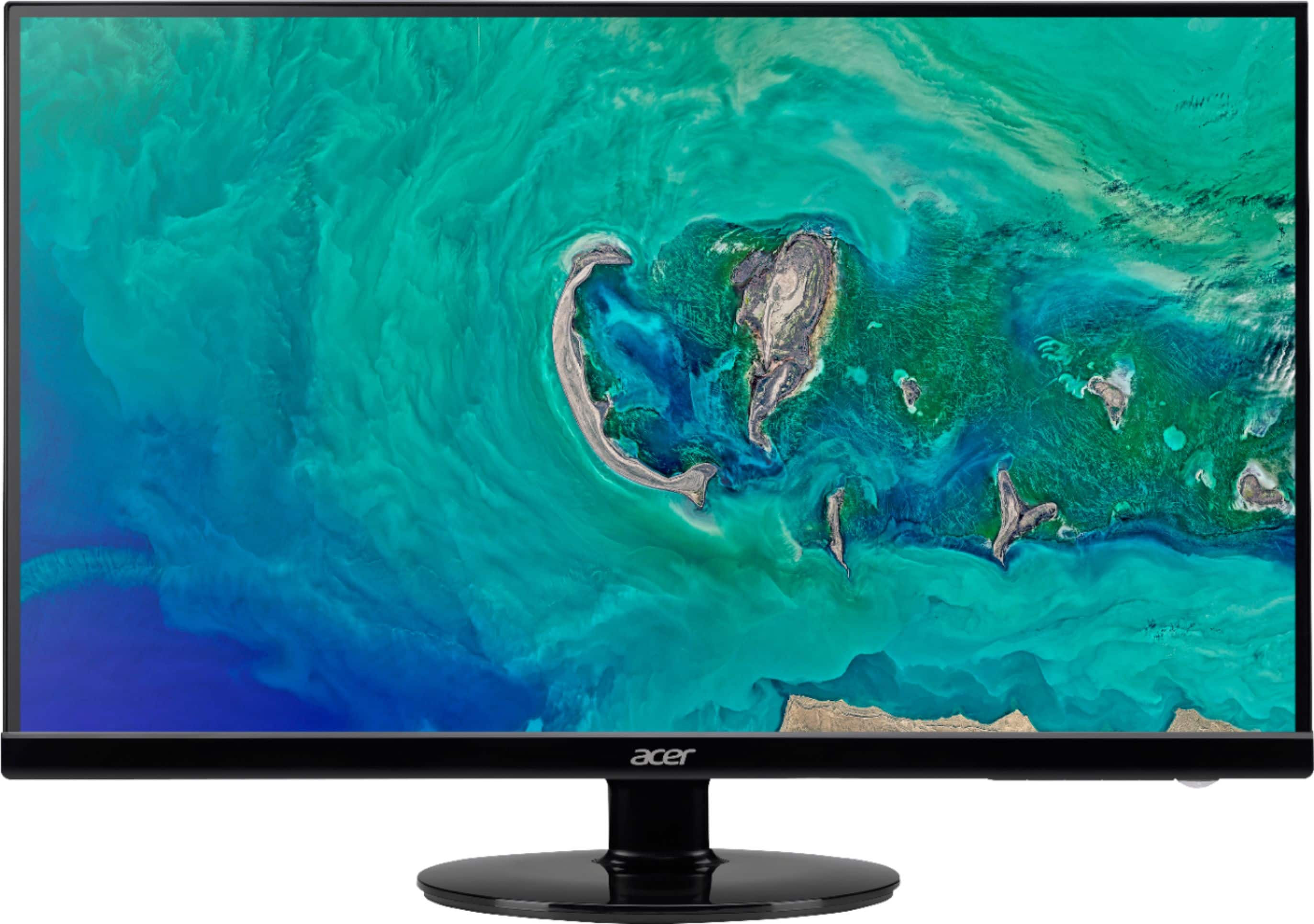
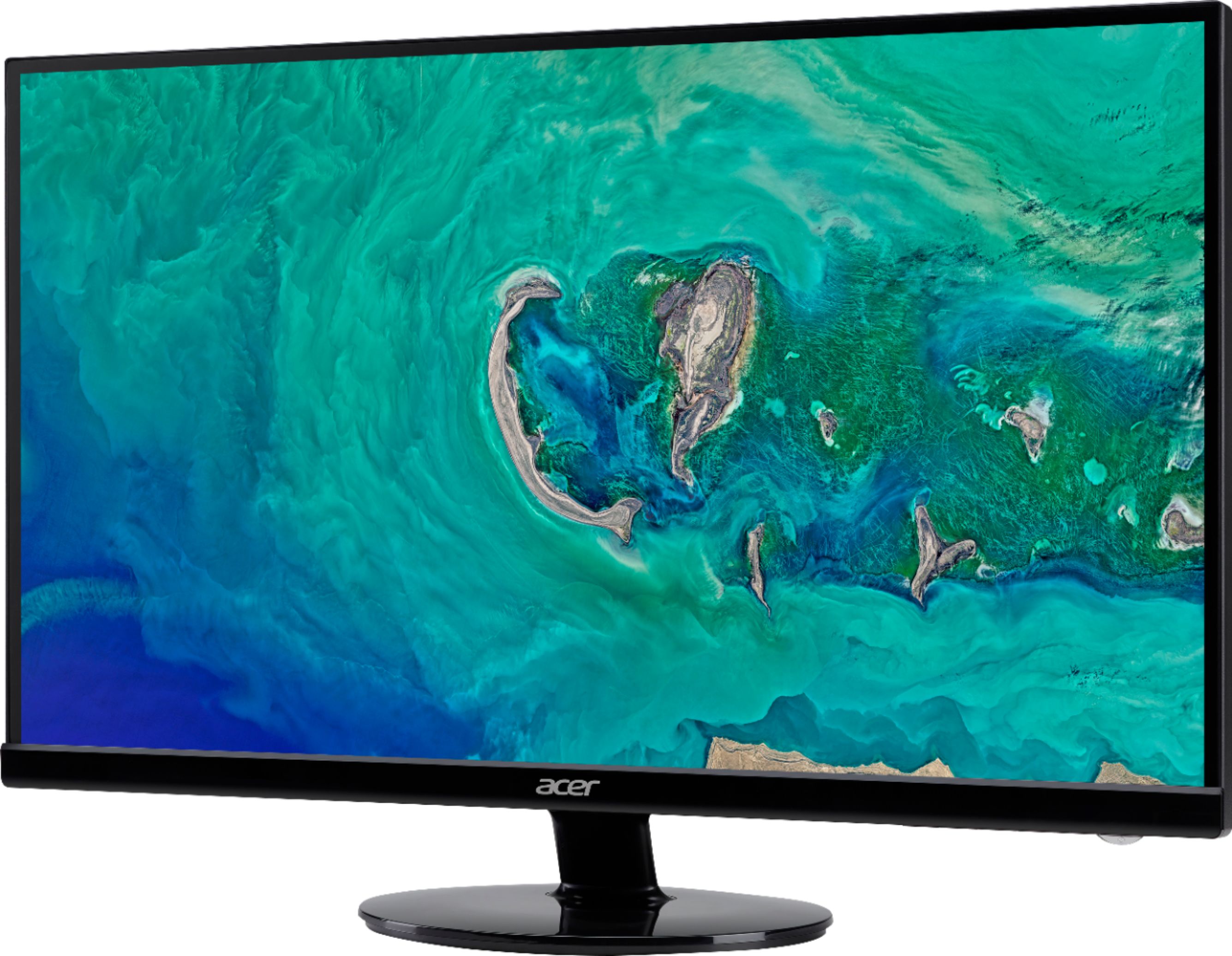
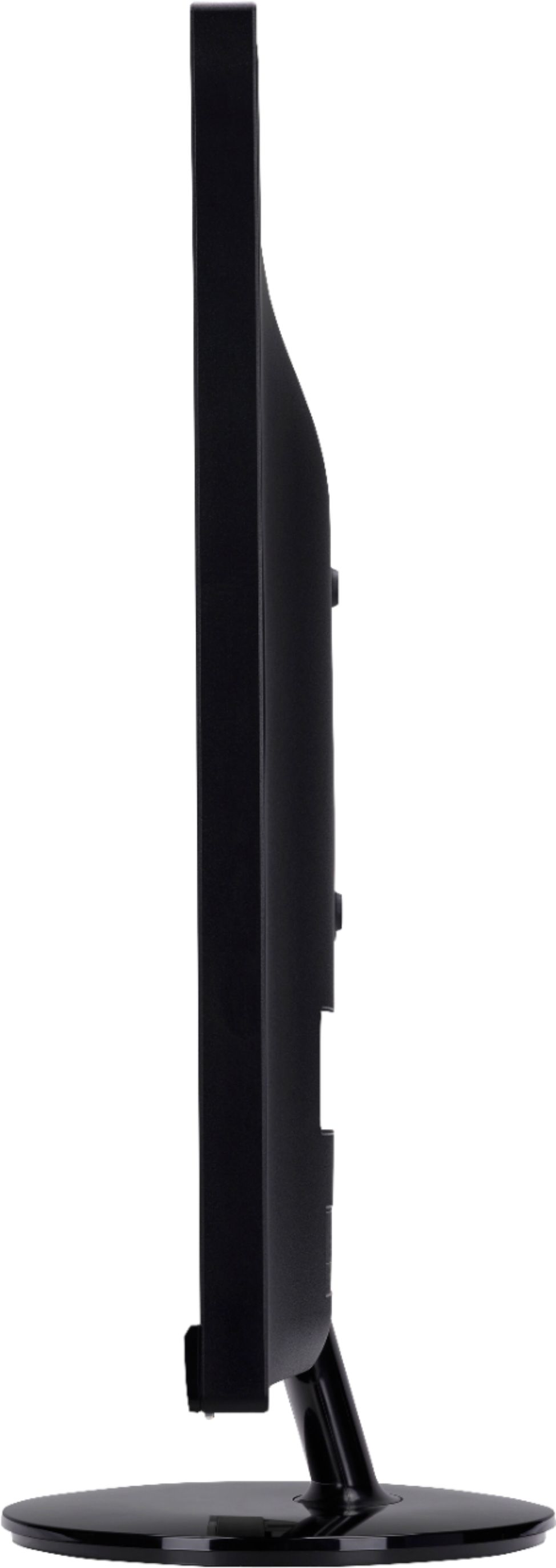
A:AnswerI believe you probably put the assemble head that little aluminum metal clip-on backward it is supposed to be tilted backward slightly and then you can move it forward but if you reverse it's going to be extremely tilted backward whereas if it was tilt if it was the other way it would have been slightly tilted backward and then you could lean it forward it's a very I should I say it almost identical where you can place that metal connector between the Monitor and the base similarly just reverse it push it down and if it's already in the correct position just try leaning it forward it's a flexible connector it has a lot of tension in it which means it was May to hold the monitor straight up but it is still also flexible to tilting backward or forward.
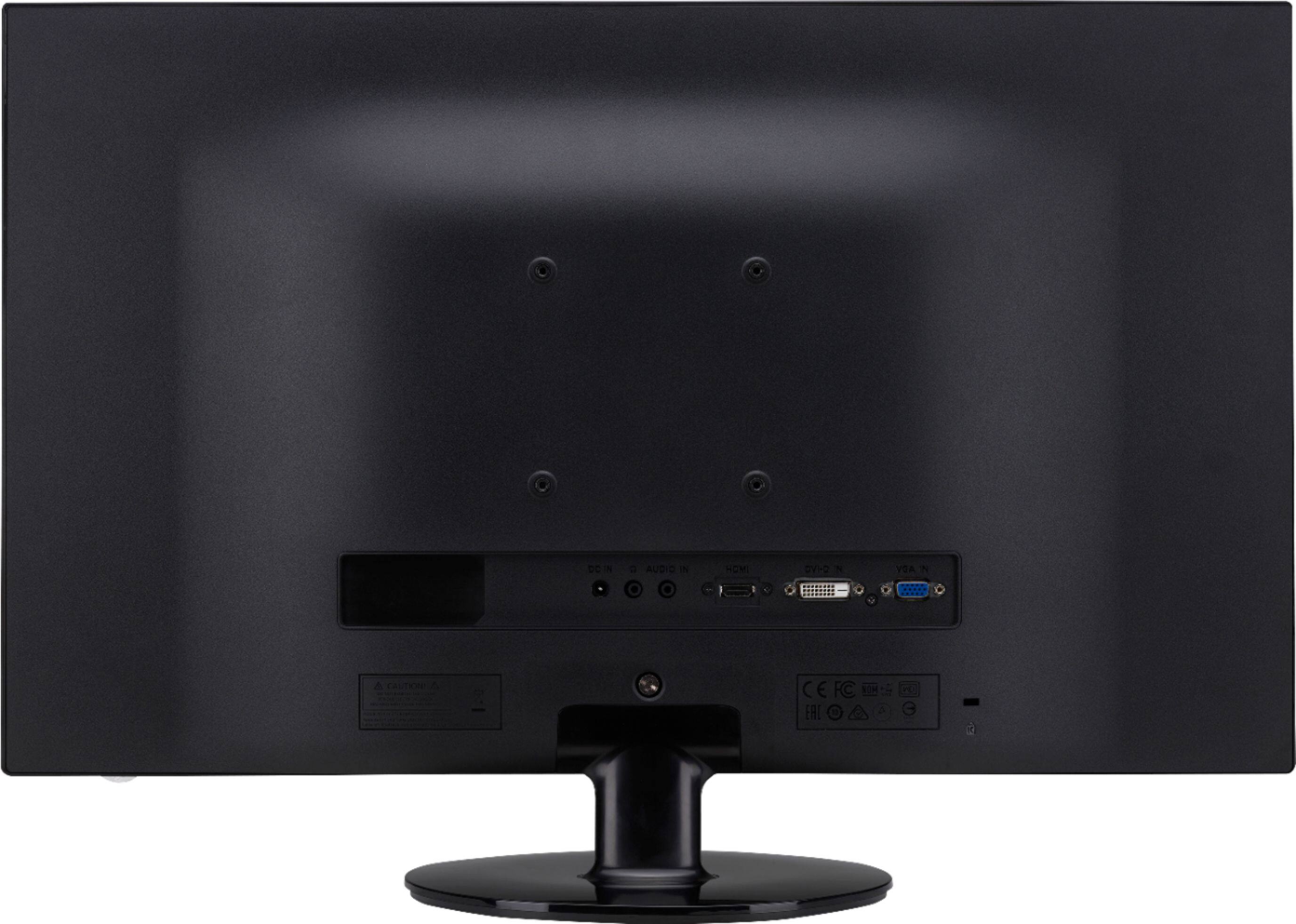
A:AnswerThis monitor has three different connections to allow you to connect to a laptop. This has HDMI, VGA and DVI connections. Check your laptop to see which connection it has, and purchase the cable of choice. Hope this helps.
A:AnswerYes, the cable will depend on what kind of MacBook Pro you have. If you have HDMI out, you just can use a regular HDMI cable. If you have mini displayport, you can use a special mini displayport to HDMI cable, or if you have the Apple VGA/DVI adapters, you can use those (commonly used to connect to business projectors). Thunderbolt ports are the same as mini displayport for this purpose.