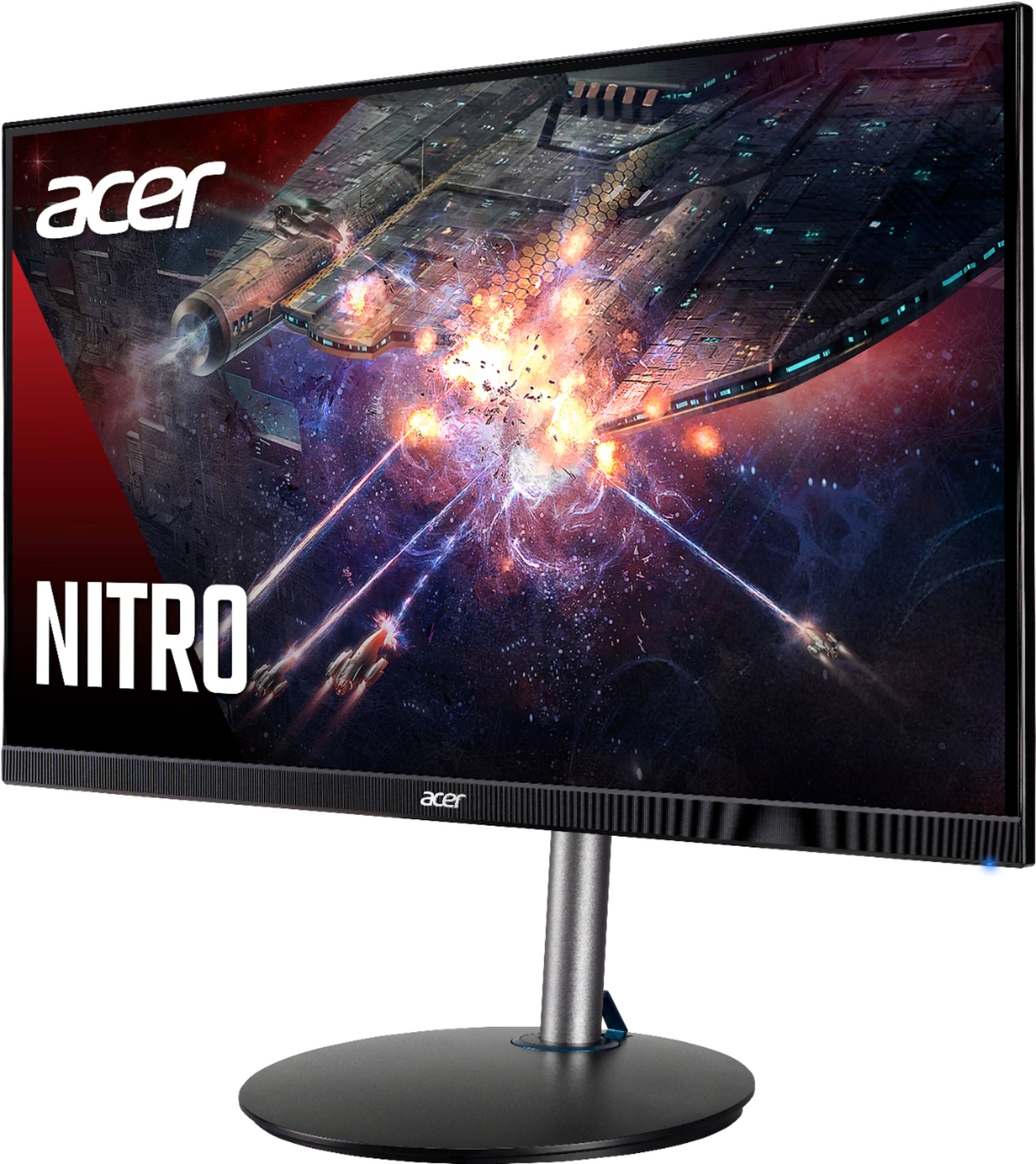
A:AnswerThere isn't an option in the settings to factory reset this monitor. For assistance with your Nitro monitor please contact support at 866-695-2237; they are available 24/7 for in-warranty products.
A:AnswerI don't know but I noticed this monitor takes a much longer time to detect a signal than any other I've used, about 10 to 20 seconds. It's very weird because other monitors will detect a signal instantly.
A:AnswerWhile this monitor supports up to 165hz refresh rate, Acer has not tested this monitor on an Xbox console. You might post your question on the Acer Community where there are many users that post questions and offer help and advice on Acer products. The link is: https://community.acer.com/
A:AnswerTry a different cable and use a direct connection rather than using an adapter to test the monitor. If you are still unable to get a signal please call Acer support at 866-695-2237.
A:Answeri have but the monitor itself when i put the refresh rate number on it says 60 I have played with almost every setting and still cant seem to change the refresh rate. Ive turned on performance mode but in conclusion this monitor is not capable of doing 120hz for ps5.
A:AnswerAcer has not tested this specific monitor with the PS5 so we are unable to confirm if it will support 120hz, however below are instructions for configuring the PS5 for Performance mode. There is no need to change any settings on the monitor itself, however, you will need to adjust settings on the PS5.
Go to Settings:
Go to Saved data and game/APP settings
Select Game presents
Select Performance mode or resolution mode
Select Performance mode
Relaunch the game
A:AnswerWhile Acer does not test many gaming applications we would recommend you check that the computer meets the system requirements of the application/game to determine if it will work. You might also post your question on the Acer Community where there are many users that post questions and offer help and advice on Acer products. The link is: https://community.acer.com/