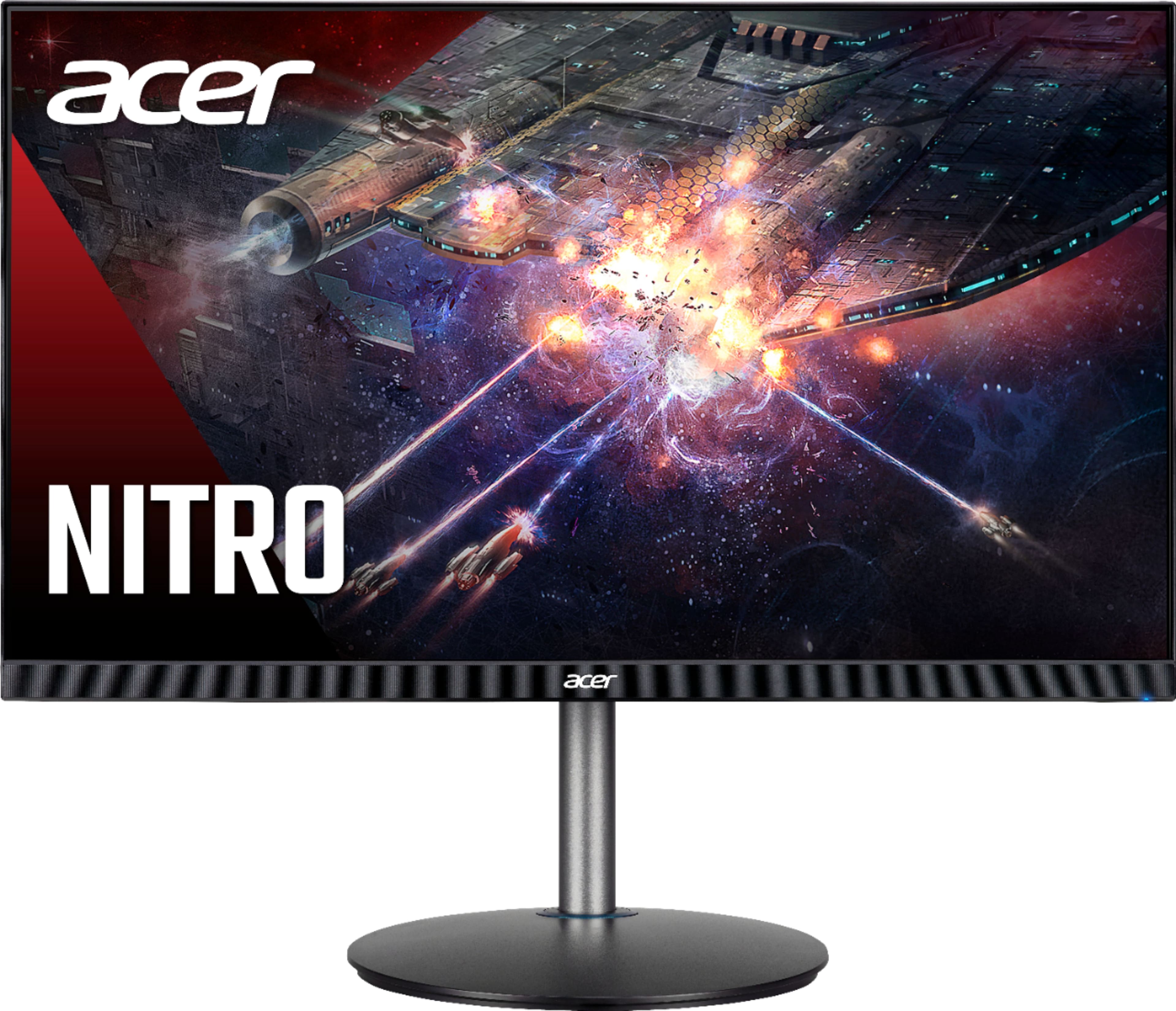
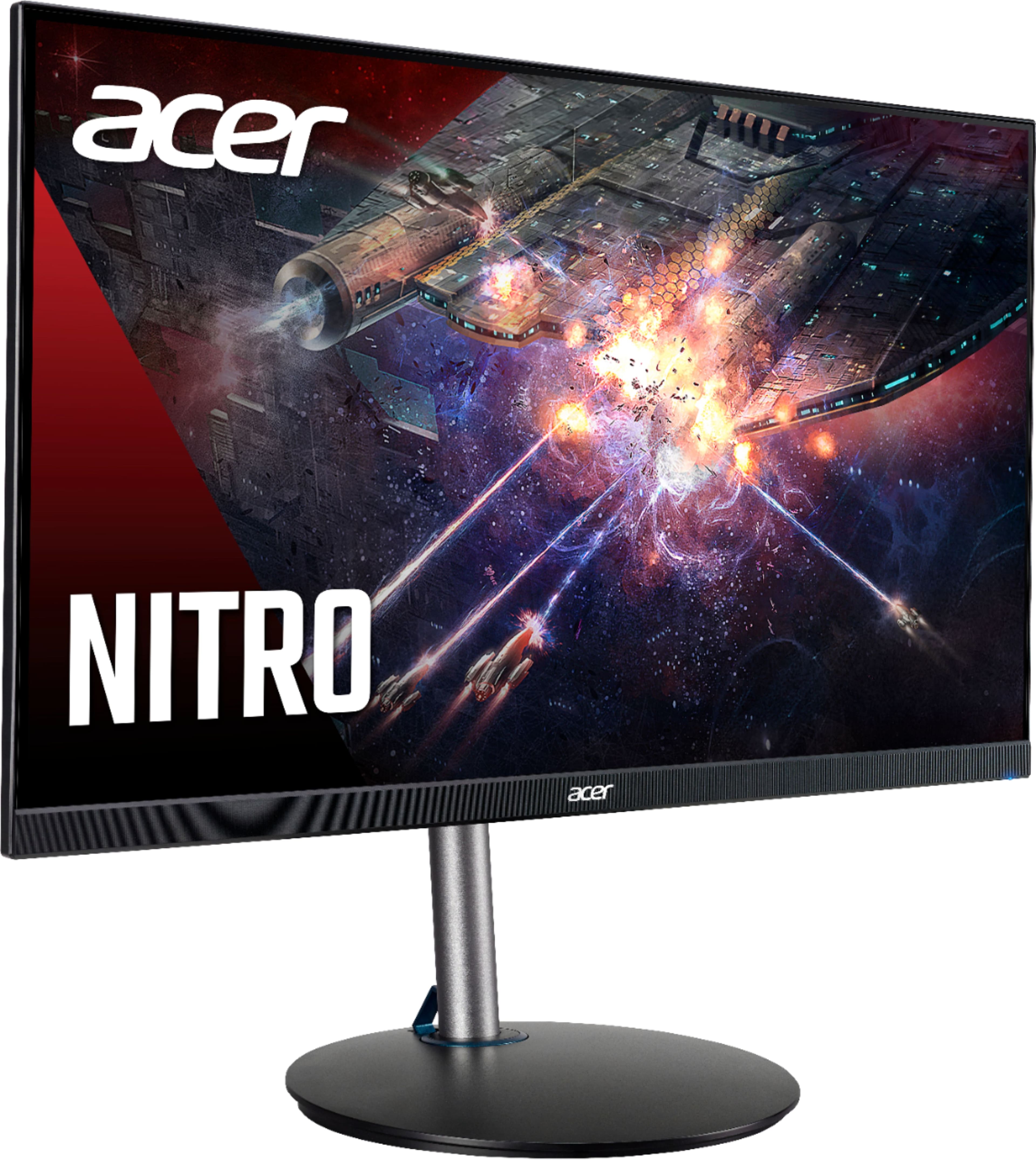
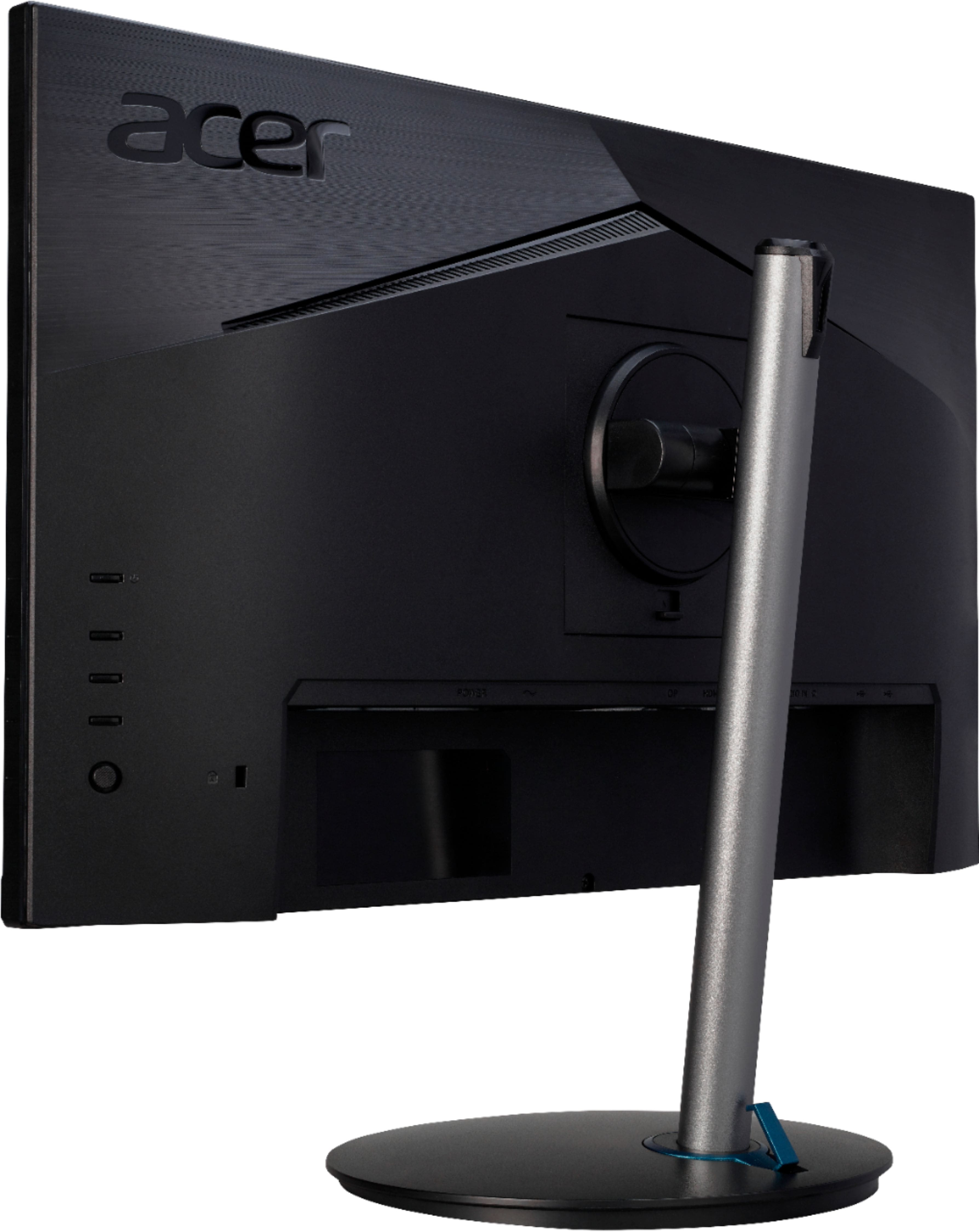
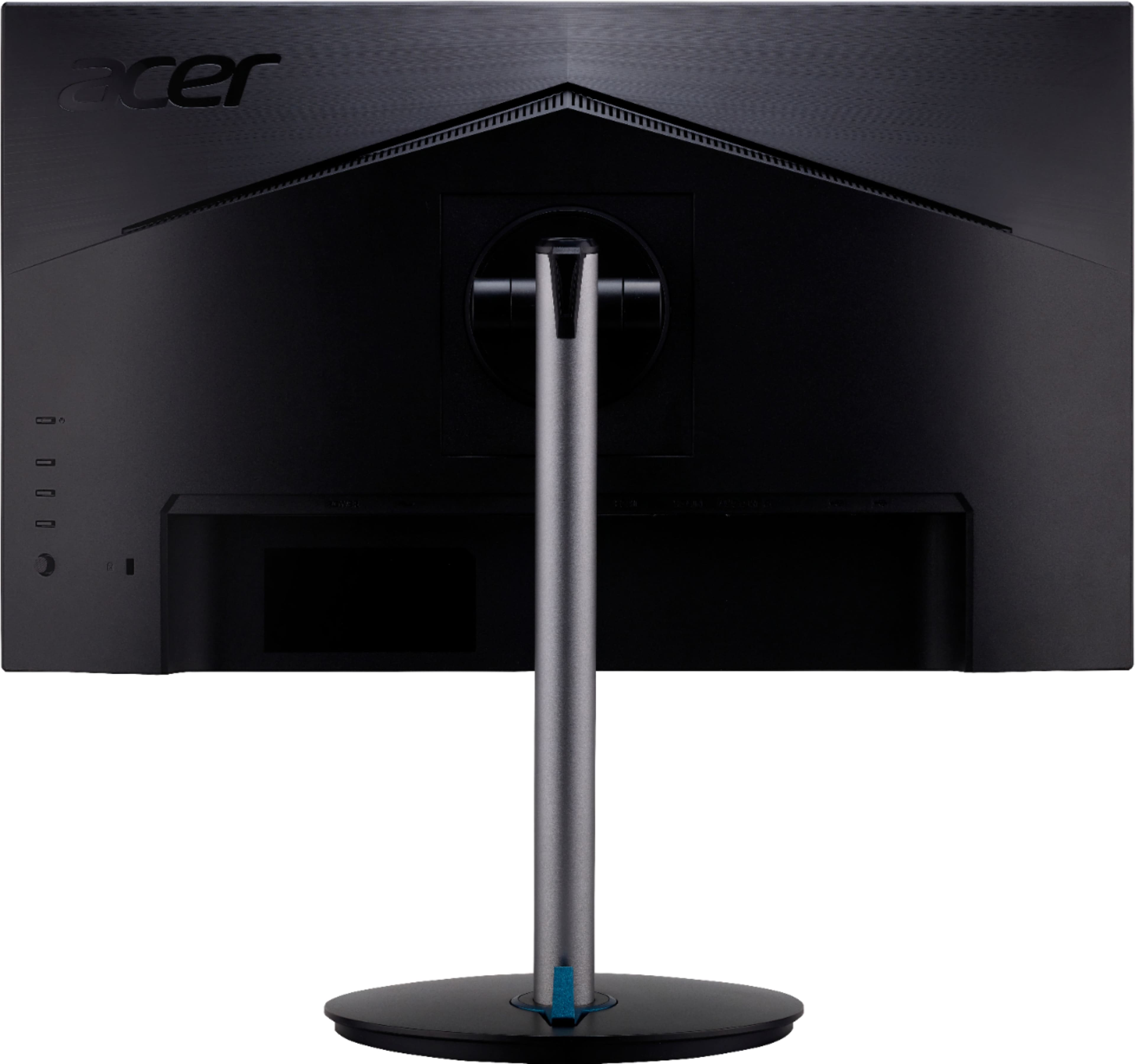
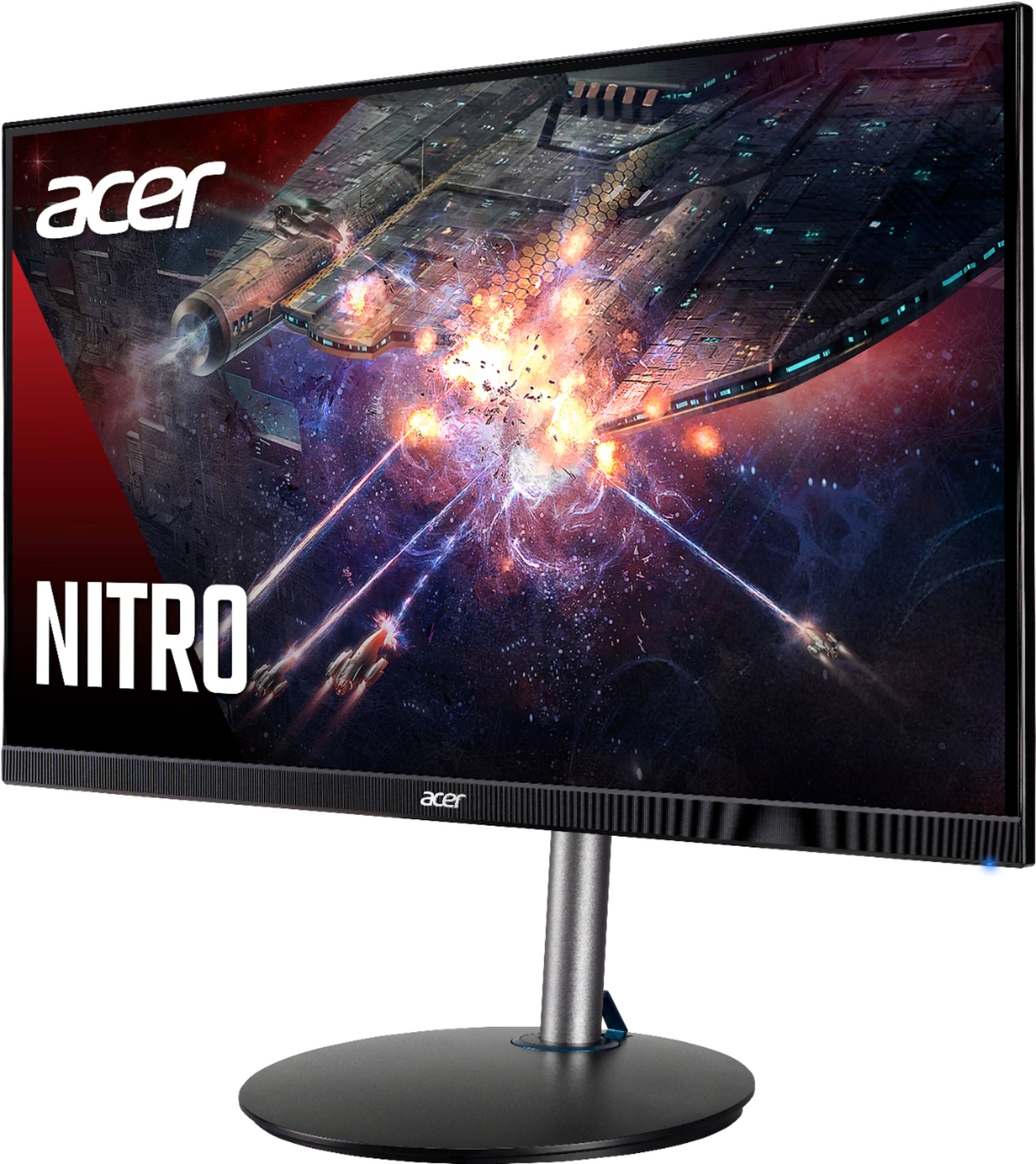
A:AnswerAccording to Rtings.com, this monitor is "G-Sync Compatible", which means that NVIDIA's drivers will communicate with the monitor's Freesync drivers. There isn't a special chip to support G-Sync like in "Native" G-Sync monitors, but it'll mostly work the same if you have an NVIDIA 10-series or newer card.
A:AnswerWe have not specifically tested this monitor with the PS5 so we are unable to confirm if it will support 120hz, however we are providing instructions for configuring the PS5 for Performance mode. There is no need to change any settings in the monitor, however, you will need to adjust a setting on the PS5.
1. Go to Settings
2. Go to Saved data and game/APP settings
3. Select Game presents
4. Select Performance mode or resolution mode
5. Select Performance mode
6. Relaunch the game
A:AnswerI am guessing is HDR is disabled on the monitor but enabled inside PS4 settings. I would say disable HDR on both because you won’t see any difference
A:AnswerEven though the monitor supports up to 165hz, the Xbox series X supports up to 120hz, which is the max you will get when connected to that console.
A:AnswerI don't own a PS4 to test on my monitor, but I did plug in my Switch via the Dock and it works fine (all through the HDMI cable). Are you sure you are picking the right output in the monitor settings?