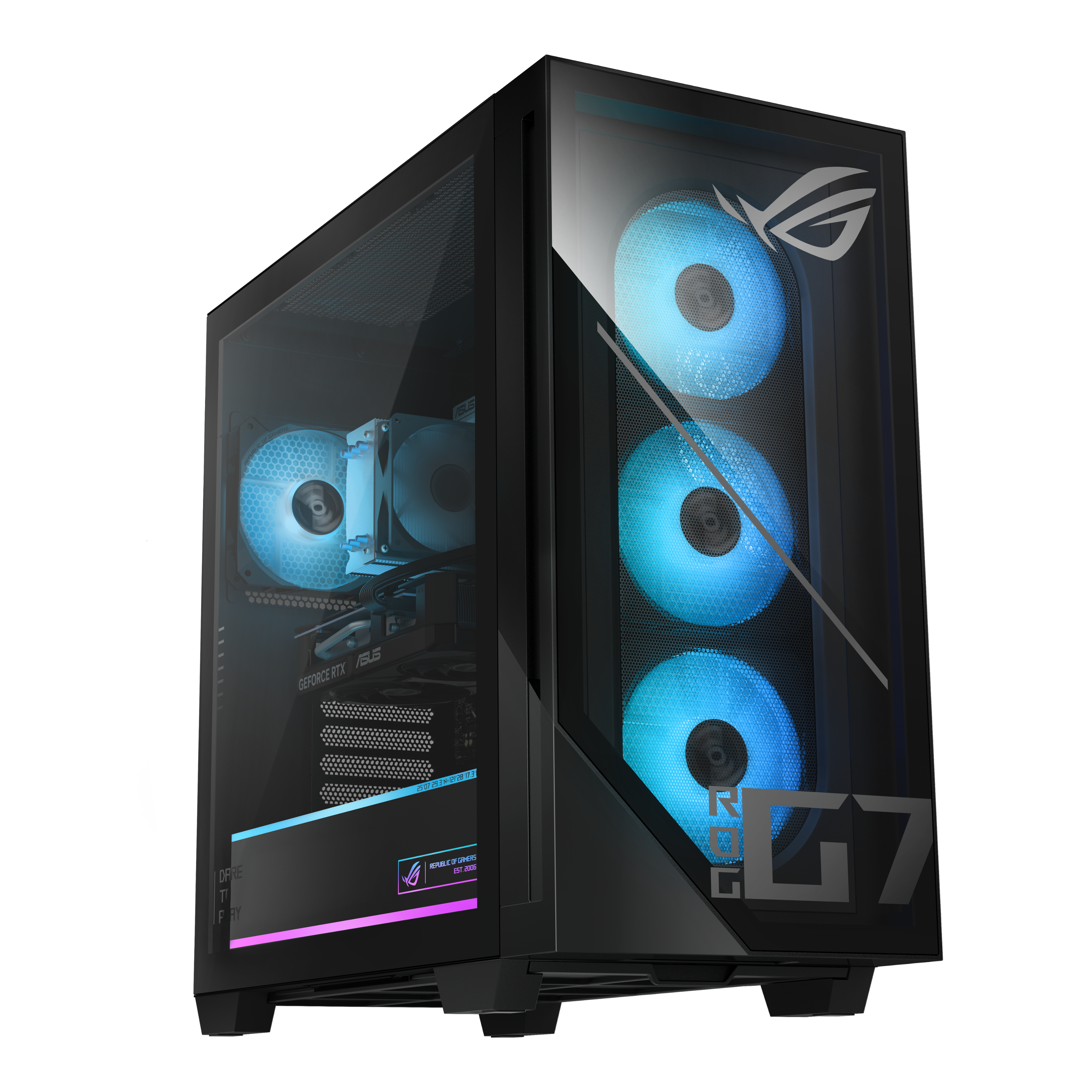
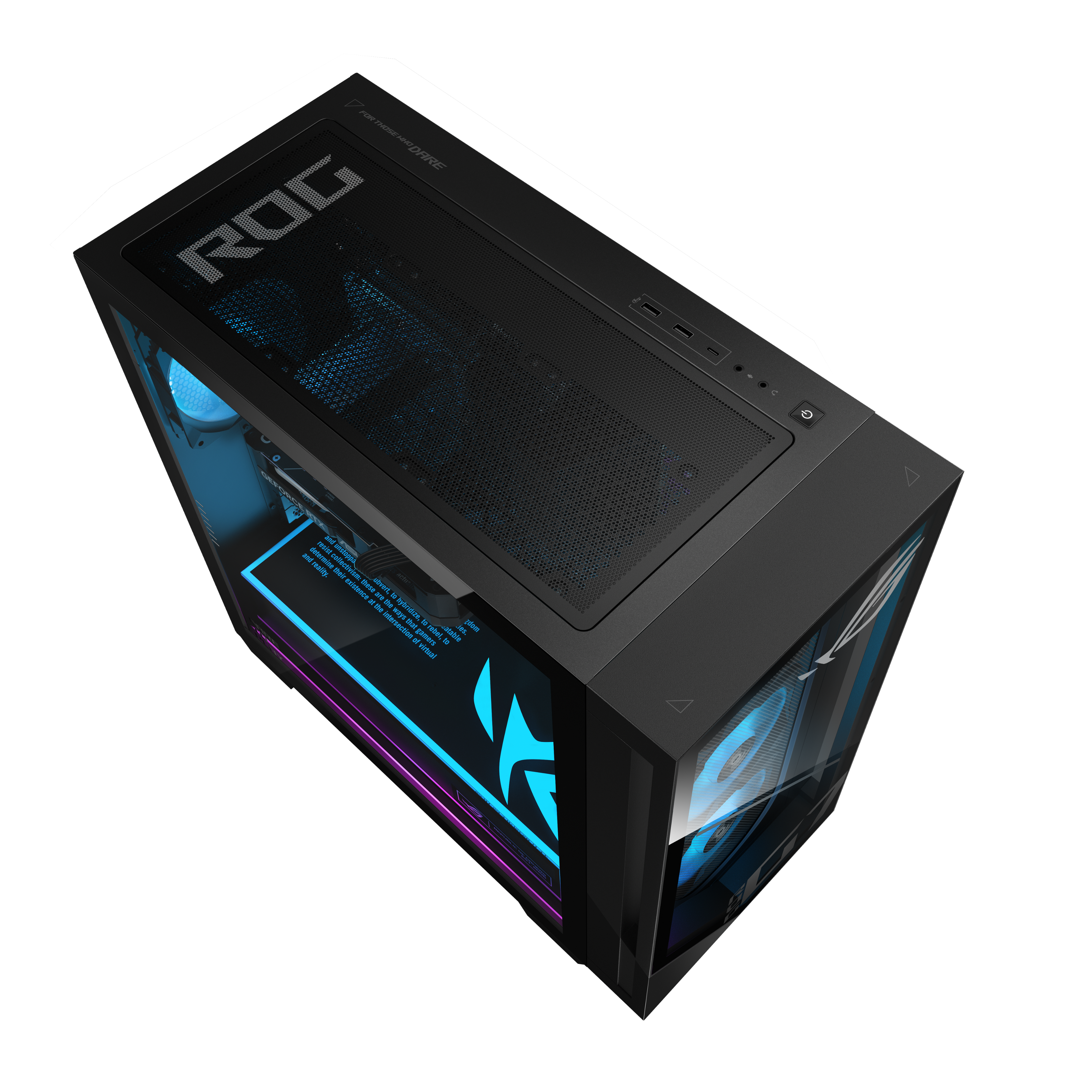
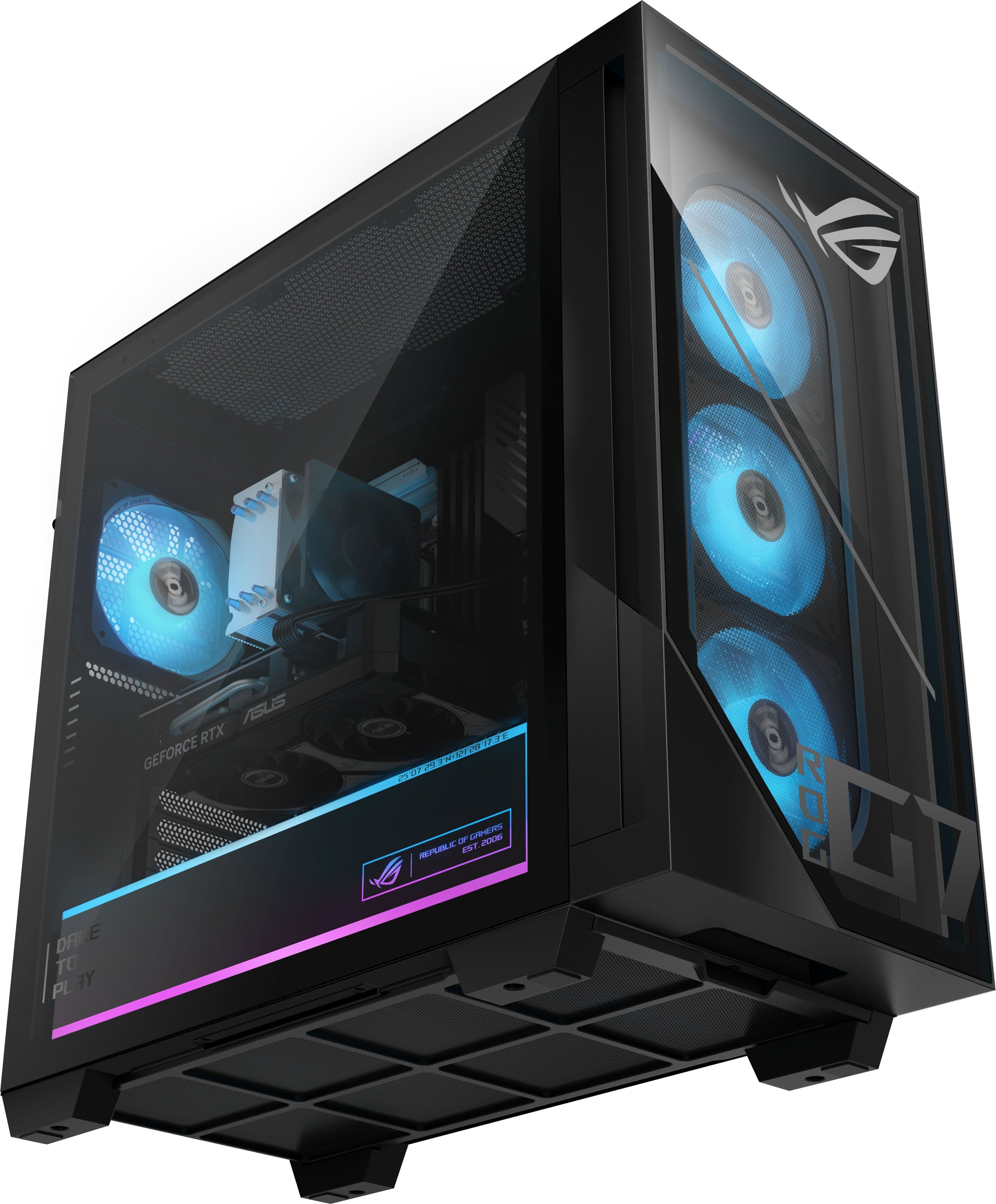
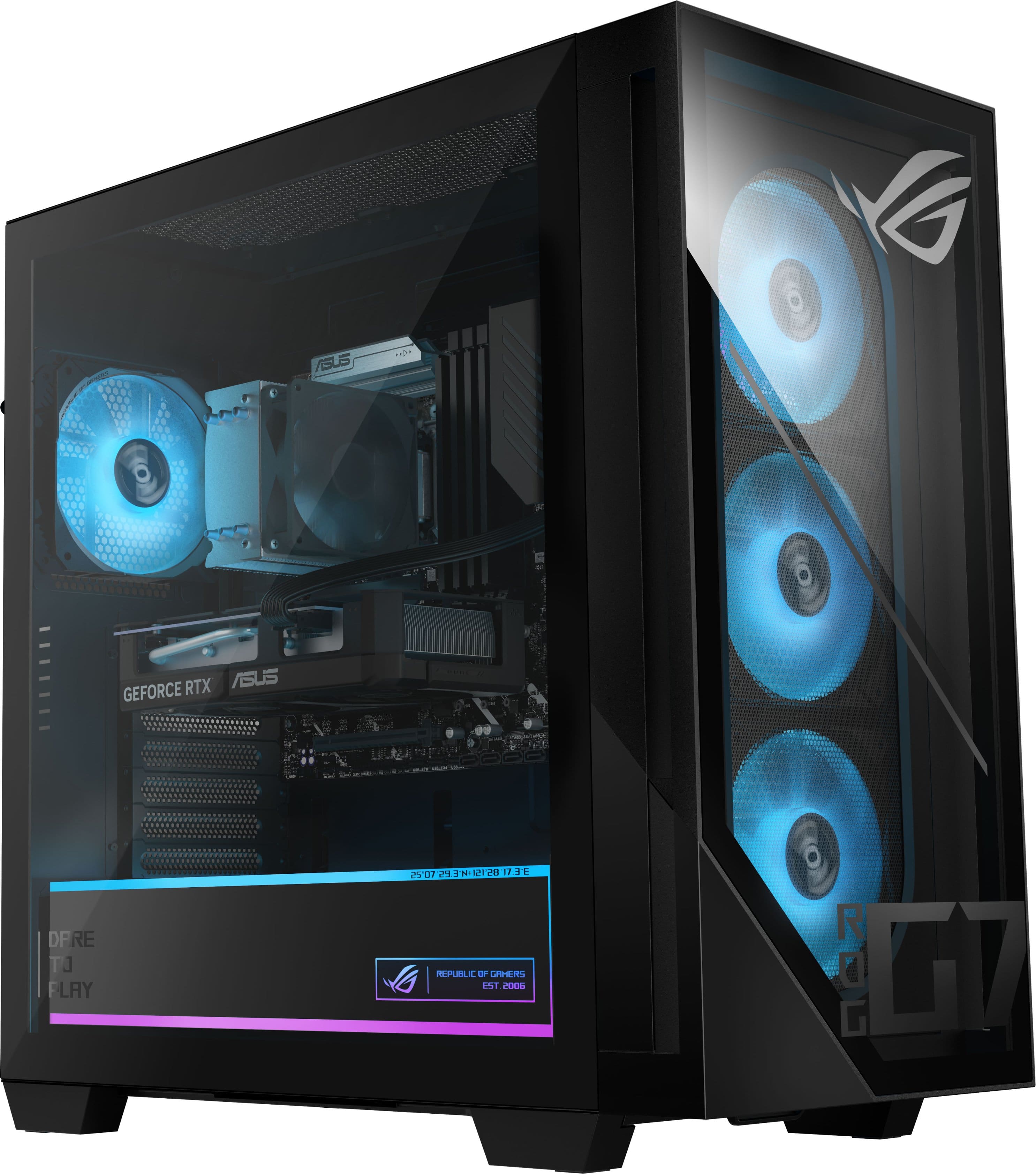
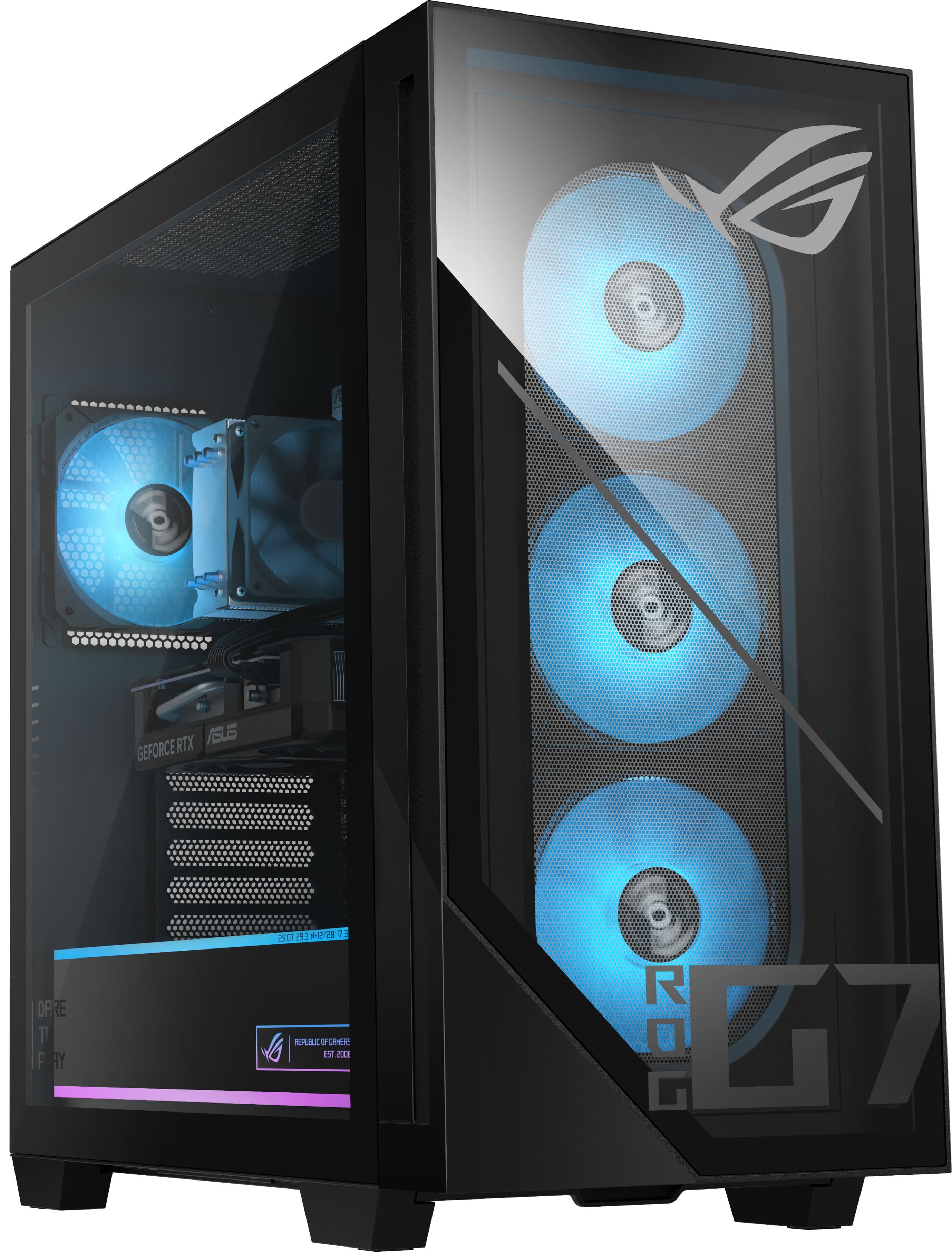
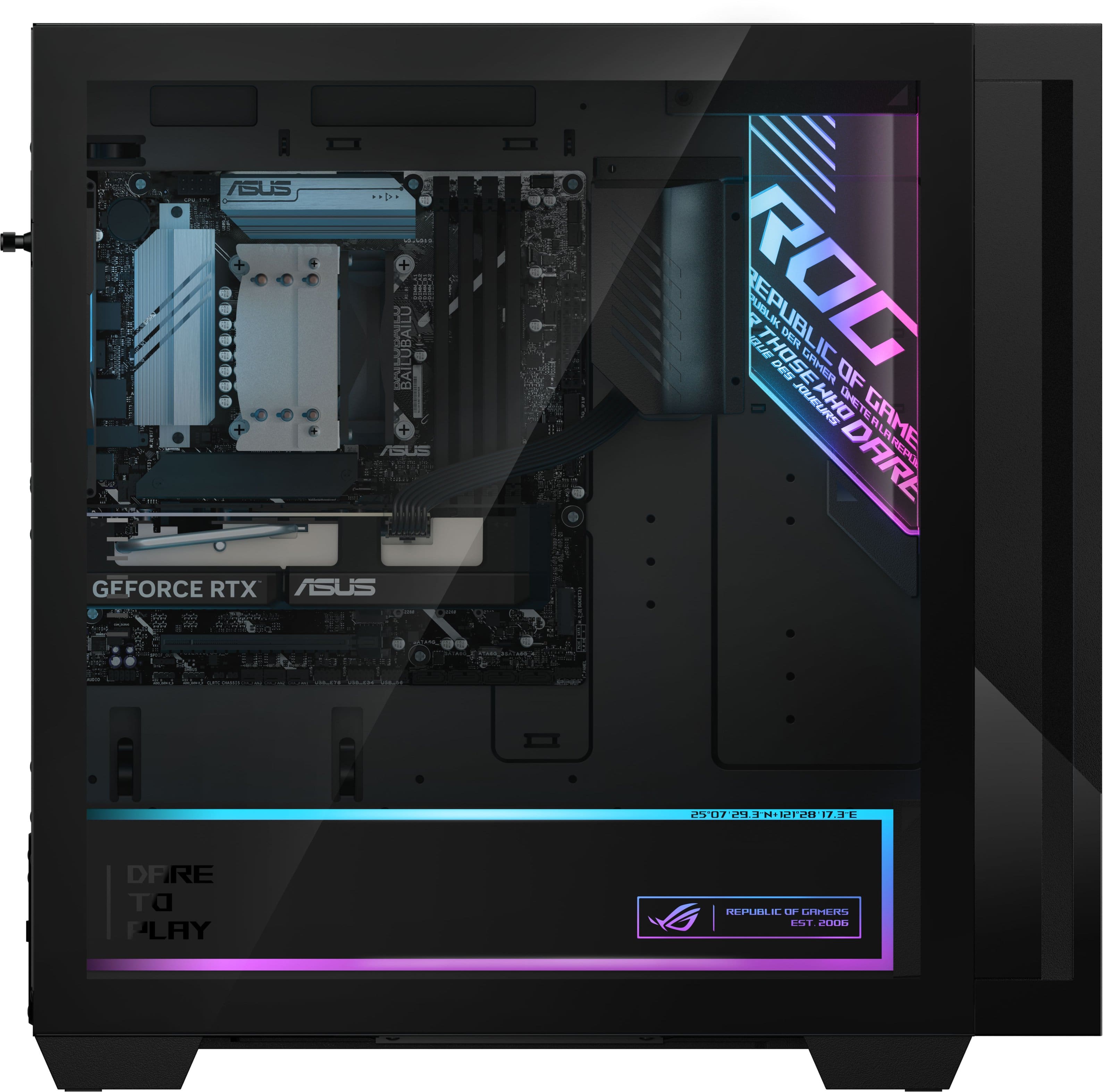
A:AnswerThe ASUS ROG G700TF desktop includes the tower, power cable, and preinstalled components. It typically does not come with HDMI or DisplayPort cables, but it does include a wired mouse and keyboard.
A:AnswerNo, the ASUS ROG G700TF Gaming Desktop does not ship with any plastic covers or stickers on the CPU, GPU, or internal cooling components that need to be removed before use.
A:AnswerThe fact that browsing works but games won't load suggests your Wi-Fi router or firewall is actively blocking the specific ports or IPs required by game servers, or there's an issue with your DNS. Try these targeted troubleshooting steps: 1. Fix DNS and IP RoutingGames often require direct connections that standard web browsing bypasses. Flush DNS: Type cmd into the Windows search bar, right-click Command Prompt and run as administrator. Type ipconfig /flushdns and hit Enter.Change DNS: Go to Settings > Network & Internet > Properties, and manually set your DNS server addresses to 8.8.8.8 (Google DNS) or 1.1.1.1 (Cloudflare). 2. Check Router Ports and Firewalls, home routers often have stricter firewalls and parental controls than mobile hotspots. Firewall Check: Temporarily disable your antivirus or Windows Firewall to see if games load. If they do, add the game to the exception list. Router Settings: Check if your home router has specific gaming ports closed or if a setting like Quality of Service (QoS) is heavily restricting game traffic.
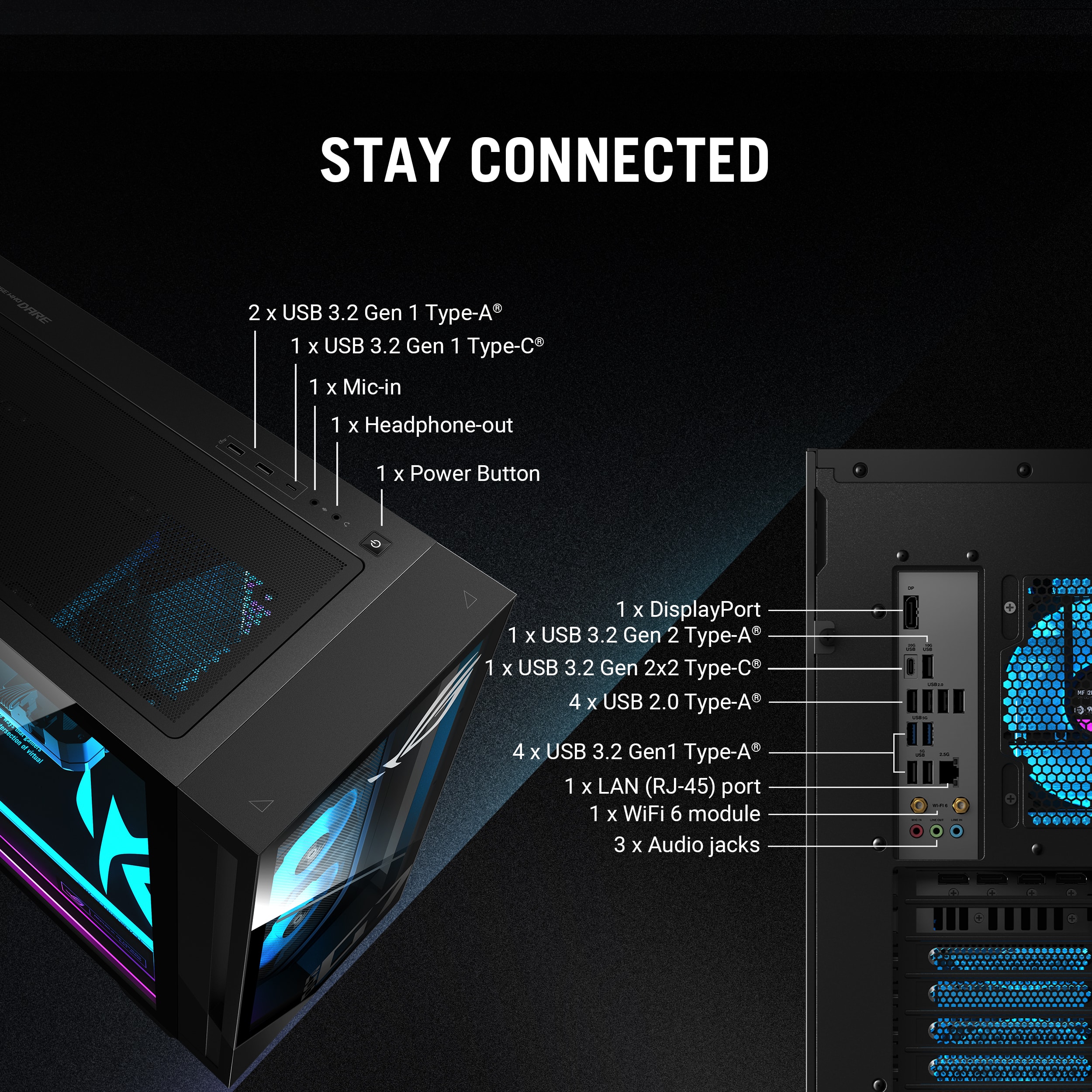
A:AnswerThe ASUS G700TF desktop does support three monitors. It comes equipped with 3 × DisplayPort 2.1, 1 × HDMI 2.1, 1 × DisplayPort 1.4, and 1 × HDMI 1.4 outputs.
A:AnswerThe ASUS ROG G700TF is a gaming desktop PC and does not come with a built‑in audio system such as speakers. It supports high‑definition audio through its standard output ports and is equipped with 3 audio jacks (line‑out, line‑in, and microphone‑in). External speakers, headphones, or a headset are required for sound playback.
A:AnswerTo fix your ASUS ROG G700TF that won't power on, perform a hard power reset: unplug the power cord from the wall and the back of the PC, hold the power button down for 60 seconds to drain residual "flea" power, and reconnect directly to a verified wall outlet.
A:AnswerTry these steps:
Check for LED Lights: Are any LED lights illuminating on your PC (e.g., motherboard, power button, fans) when you try to power it on?
Power Supply Check: If there are no lights at all, this often points to a power issue.
Safety First: Please ensure your PC is unplugged from the wall outlet before proceeding.
PSU Switch: Locate the power supply unit (PSU) at the back of your PC. Check for a physical on/off switch (often labeled 'I' for on and 'O' for off) and ensure it's in the 'on' position.
Reseat Power Cable: Completely unplug the main power cable from both the back of your PC and the wall outlet. Wait a few seconds, then firmly plug it back into both ends, ensuring a snug connection.
After these steps, plug your PC back into the wall and try to power it on again. Please let us know if any lights appear or if the issue persists.
A:AnswerNot a dumb question at all, and technically no. What is required by the user to install would be the wifi adapters which is really just two connectors that are in the back of the pc(Not inside in the PC),other than that just plug in PSU cable and you are ready to go.
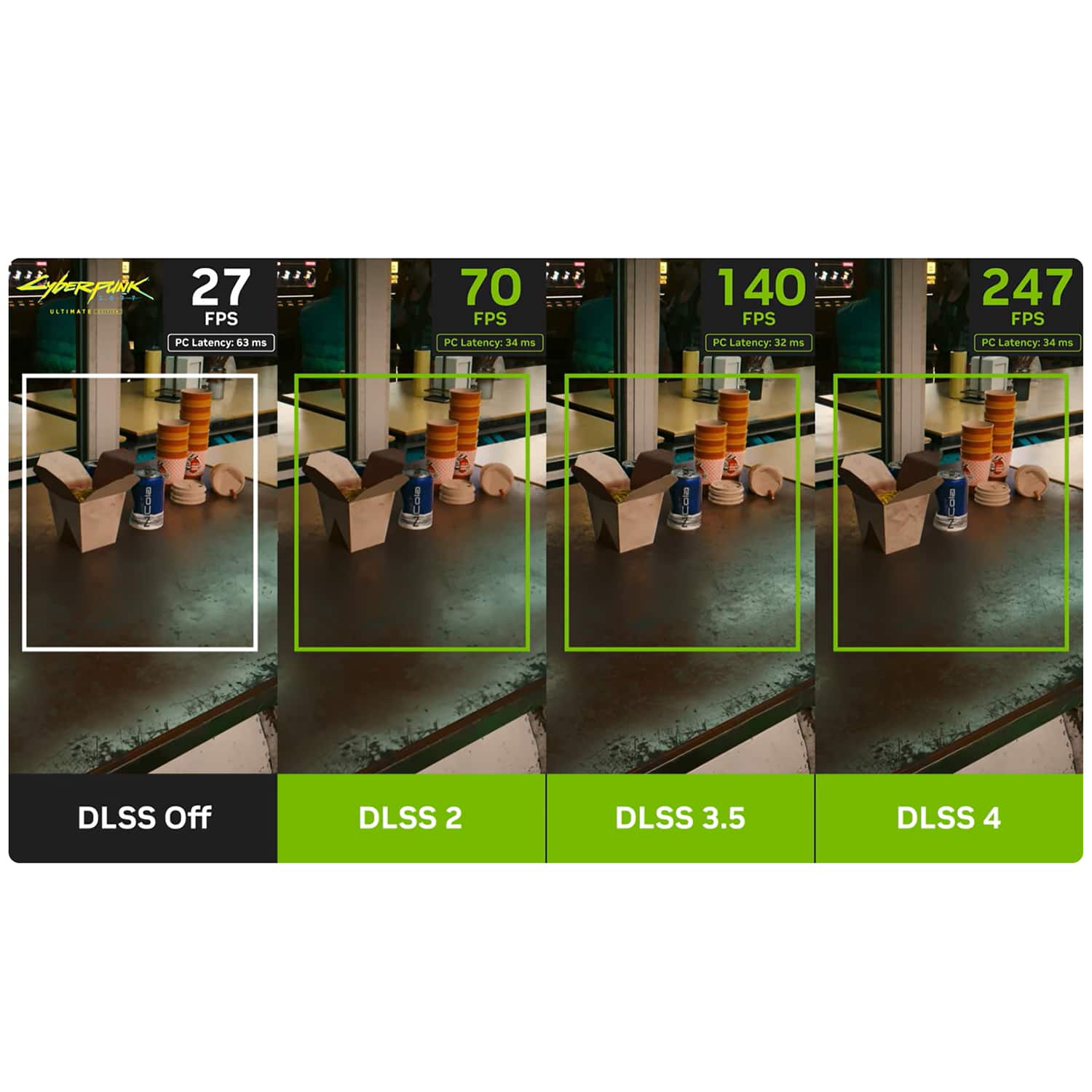
A:AnswerIt’s great for all types of games it will run Minecraft with ease, definitely get him this computer he will love it. FPS depends on what you’re playing and what you have graphics set to but for some games I’ve seen it get up to 500 fps on high settings