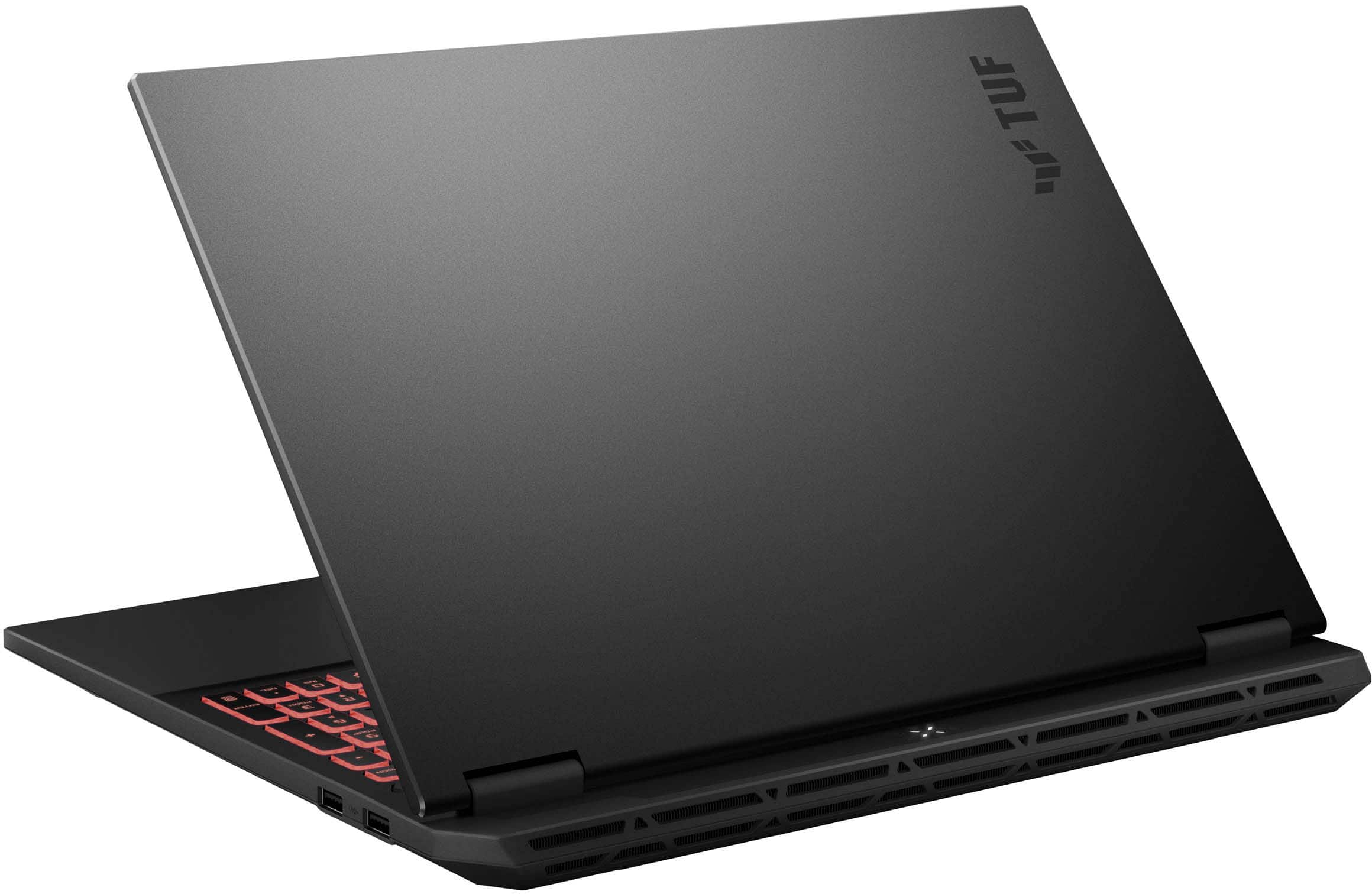
A:AnswerOn the ASUS TUF A16 (FA608UP), you do not need to physically disable the integrated graphics (iGPU) in the BIOS. Instead, you can bypass it entirely by enabling "Ultimate Mode" in the ASUS Armoury Crate or G-Helper software. This forces the laptop display to wire directly to the dedicated GPU. If you strictly want to disable the iGPU in Windows (for example, if you are troubleshooting a driver issue), you can do so safely:
1. Press the Windows Key + X and select Device Manager from the list.
2. Expand the Display adapters category.
3. Right-click on your integrated graphics (typically listed as AMD Radeon Graphics) and select Disable device.
4. Your screen will flicker briefly as it switches entirely to your dedicated graphics card.(Note: Do not click "Uninstall device," as this removes your display drivers.)
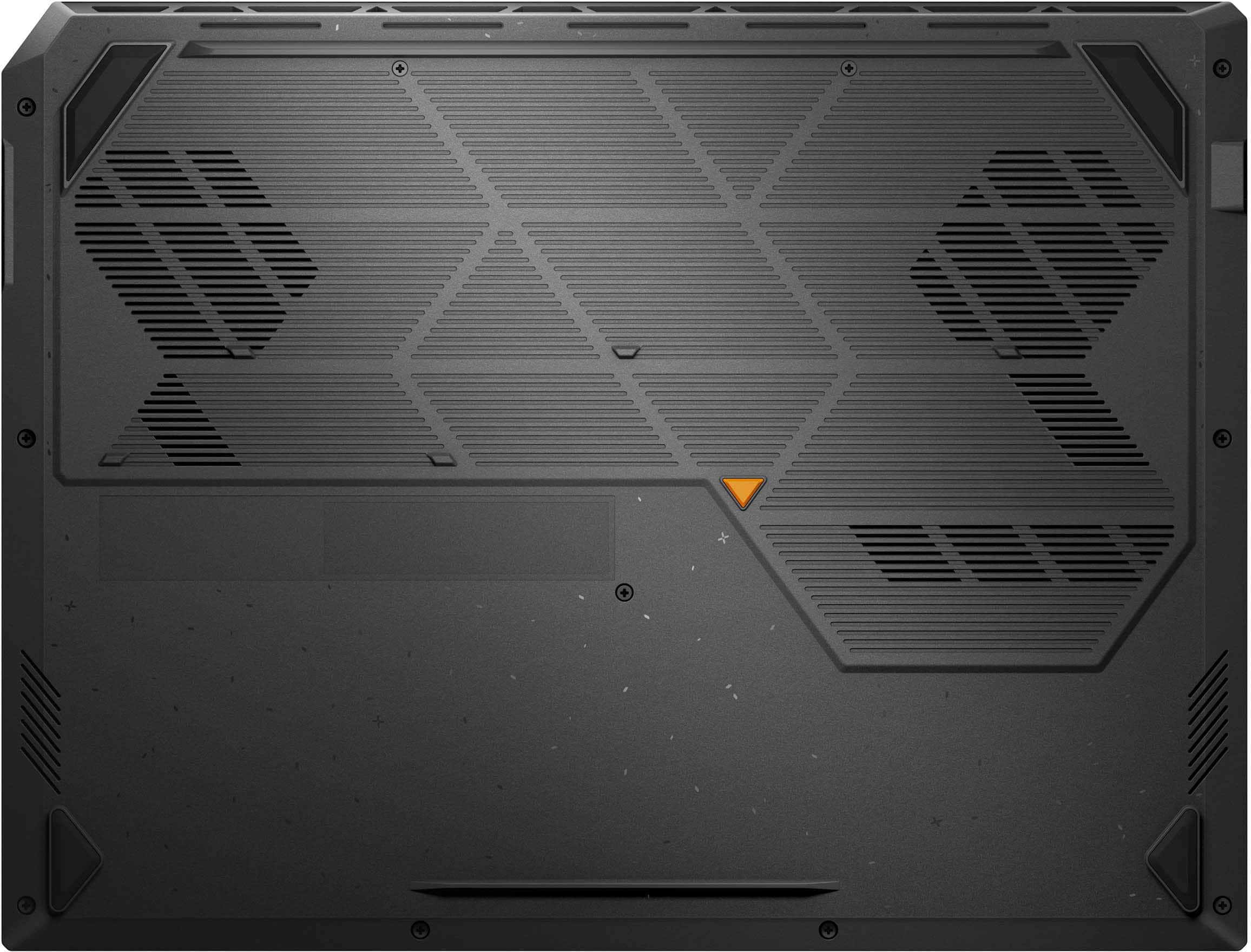
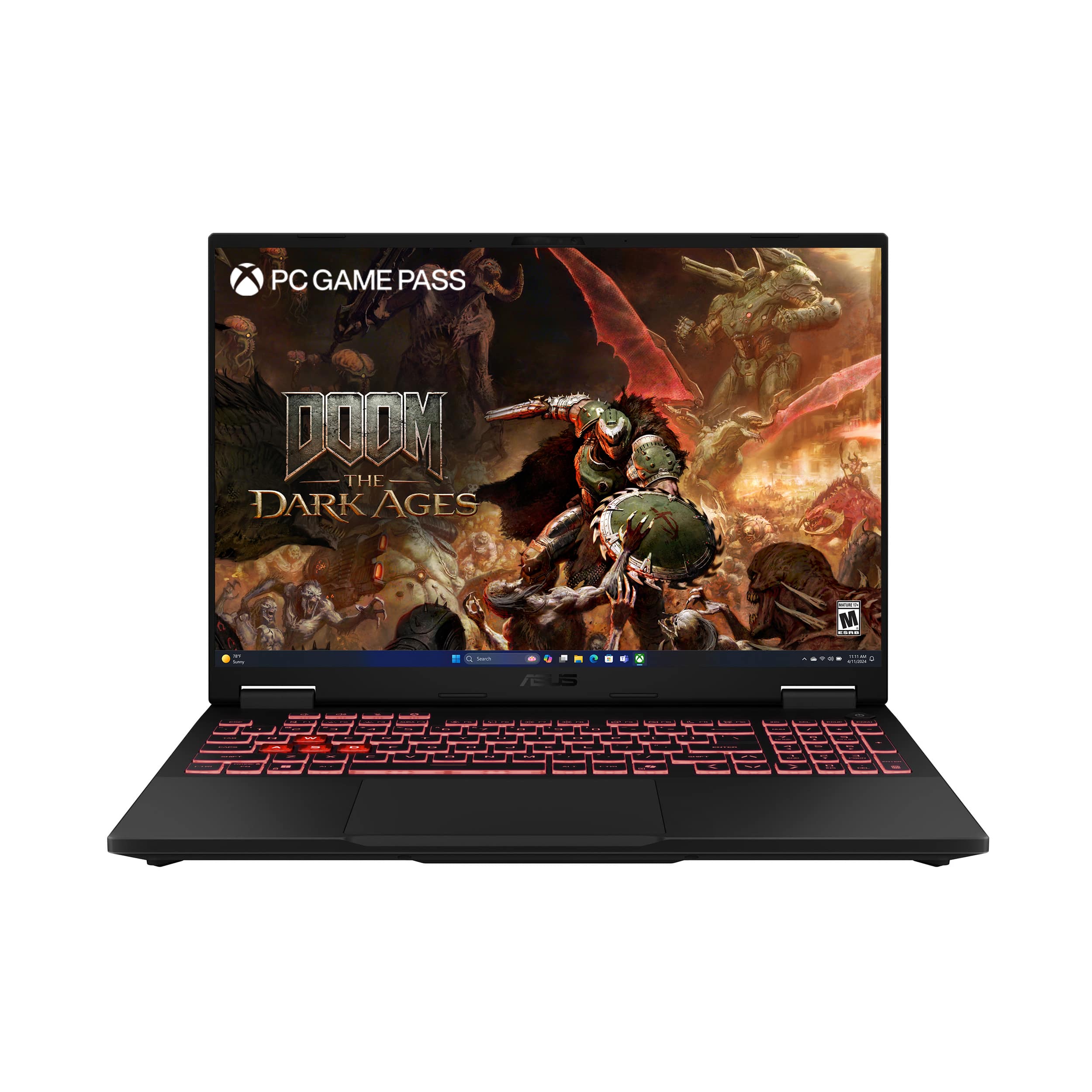
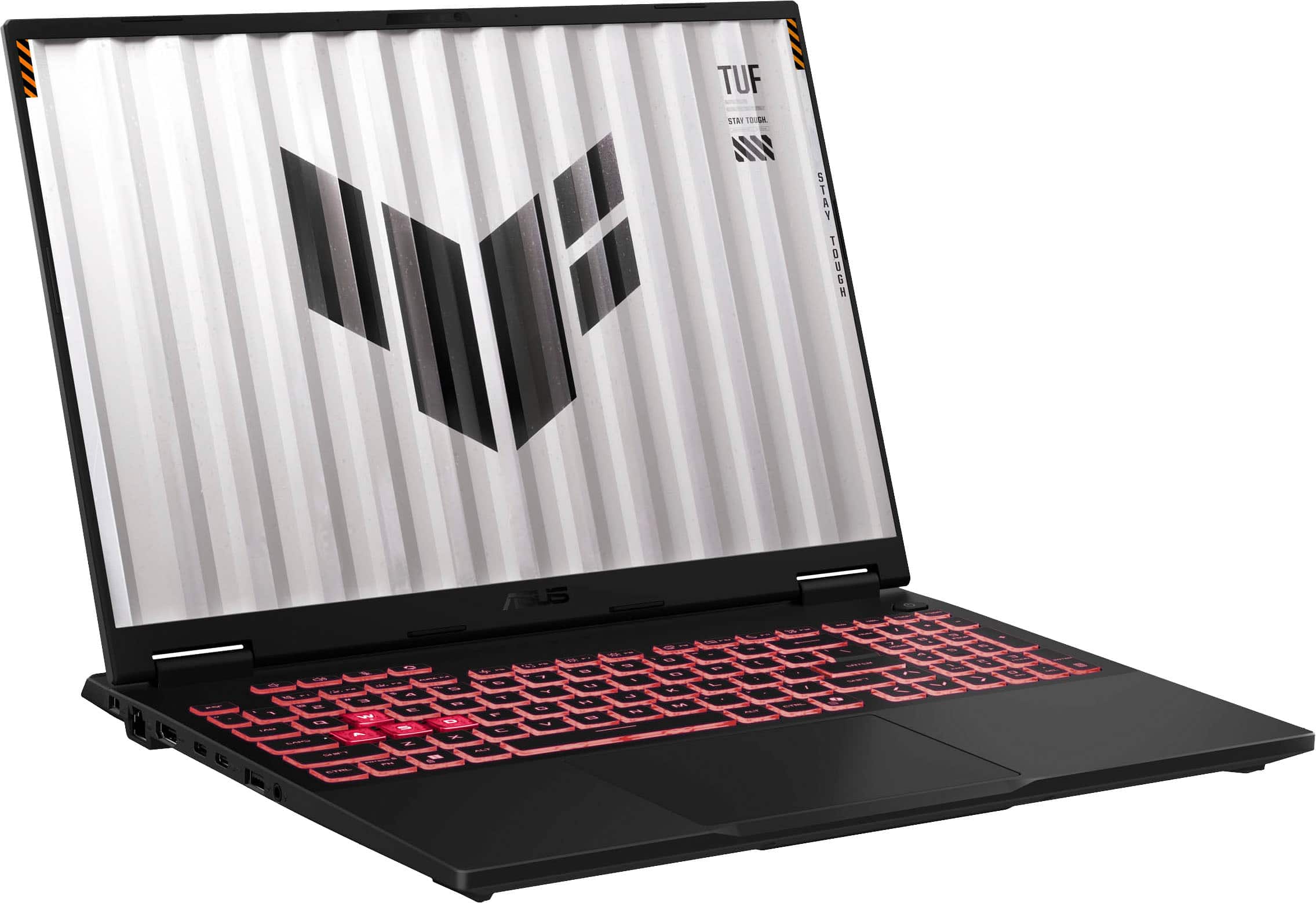
A:AnswerThe ASUS FA608UP Gaming Laptop is equipped with two M.2 2280 PCIe Gen4 slots, one running at Gen4 ×4 and the second slot at Gen4 ×2, and each slot supports up to 2TB SSD capacity.
A:AnswerThe ASUS TUF Gaming A16 FA608UP laptop has 5 USB ports in total.
1 × USB 4.0 Type‑C (supports DisplayPort)
1 × USB 3.2 Gen 2 Type‑C (supports DisplayPort and Power Delivery)
2 × USB 3.2 Gen 2 Type‑A
1 × USB 2.0 Type‑A
A:AnswerThe ASUS FA608UP Gaming Laptop laptop is shipped with pre‑configured system and recovery partitions, which reserve part of the SSD for essential files. As a result, the main C: drive may appear smaller than expected. If you prefer a different setup, you can use Windows’ built‑in Disk Management tools to resize or merge partitions, or perform a clean install to create a single large partition.
A:AnswerThe ASUS FA608UP Gaming Laptop is compatible with any standard 3.5mm wired headphones, Bluetooth headphones/earbuds, and USB or dongle‑based gaming headsets.
A:AnswerThe ASUS FA608UP provides full support for Bluetooth headphones, including the Beats Solo 4, offering both wireless and wired connection options for reliable audio performance.
A:AnswerThe ASUS TUF Gaming A16 (FA608UP) has a 90Wh battery that delivers up to 14 hours of battery life under light workloads like web browsing and video playback.
A:AnswerTo upgrade your ASUS FA608UP laptop from Windows 11 Home to Windows 11 Pro, you’ll need to purchase a Windows 11 Pro product key directly from Microsoft. Once you have the key, you can enter it in Settings → System → Activation → Change product key to unlock the Pro features.
![TUF ... Foos 1 SA 1OUok T P .. re V ALMA A .. 0 .. F - A .. ... I ! - .. PP - - - 1 1 1 E S 4 % S A 5 & 7 . B I 9 - O - - / - 1An Q W E R T Y U I O P 4 [ I ] I 7 H.- B a 9 - EAP A S D . F G H J K L 1 ; - ENTER 4 - 5 b + UPT Z x C V N M . - 1 / SET 1 N e - .- HIE CIM - de .. - ALT ALT LIM - ...](https://pisces.bbystatic.com/image2/BestBuy_US/images/products/26287391-efce-470e-a8af-91d3197bdabd.jpg)