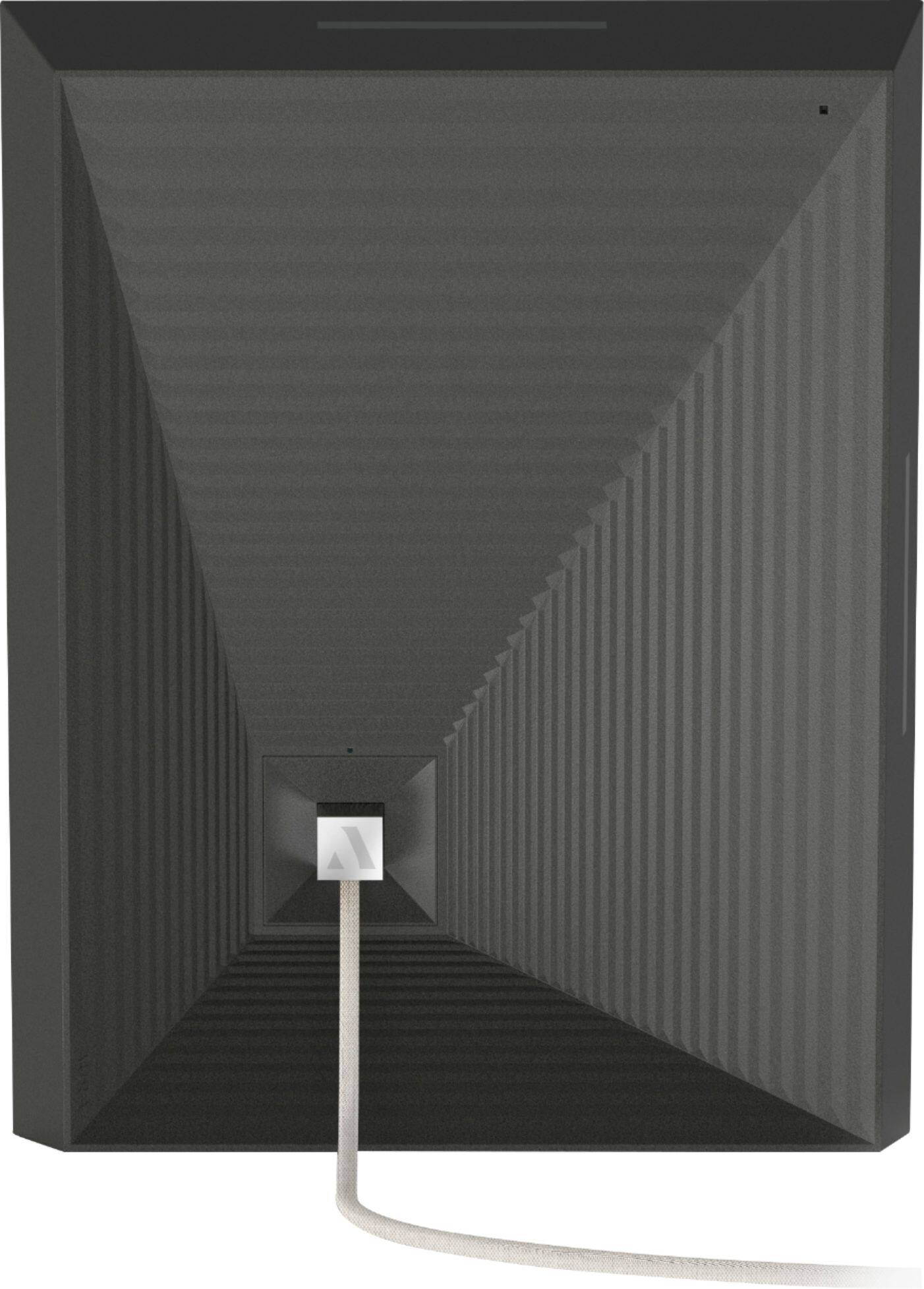
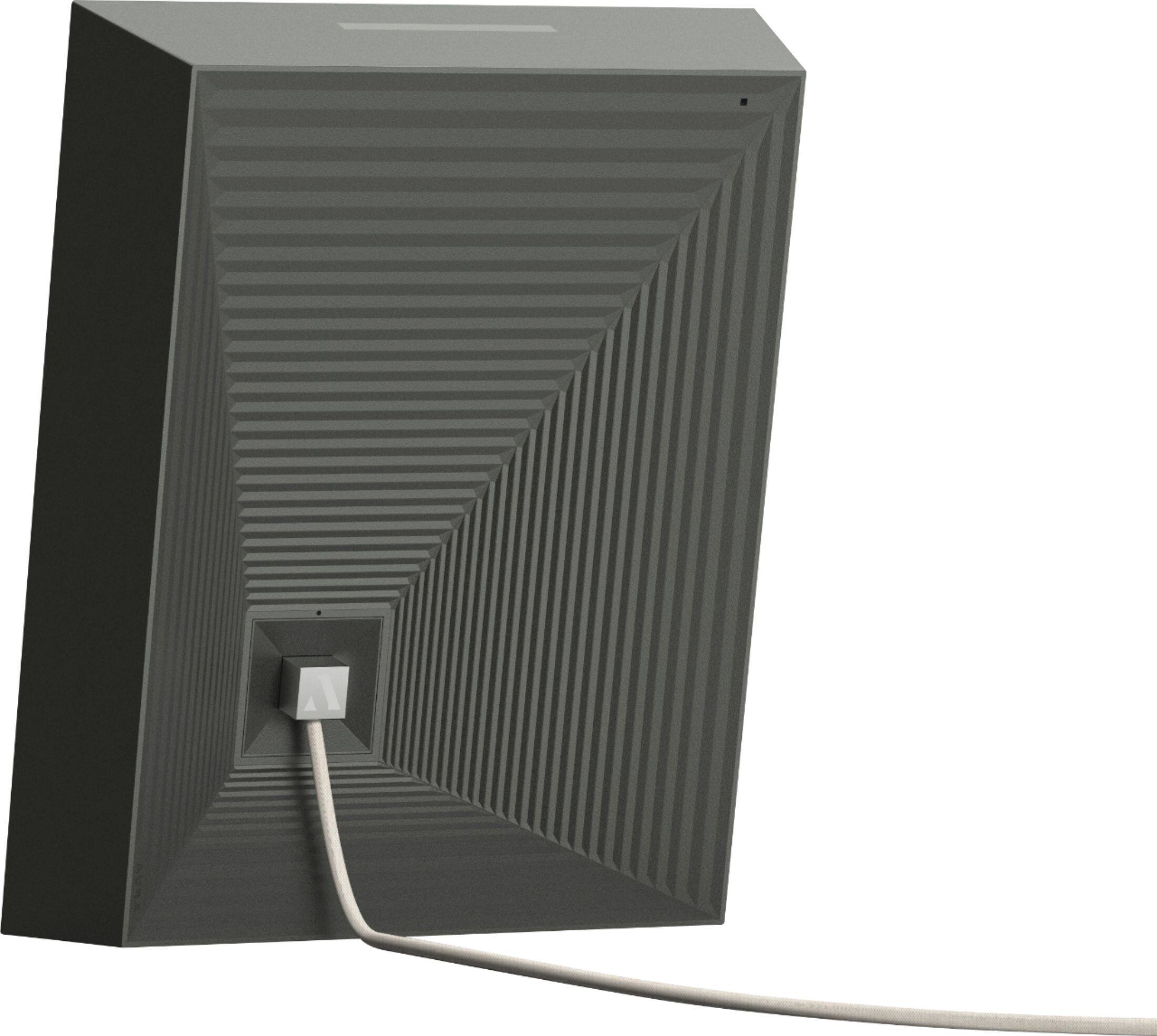
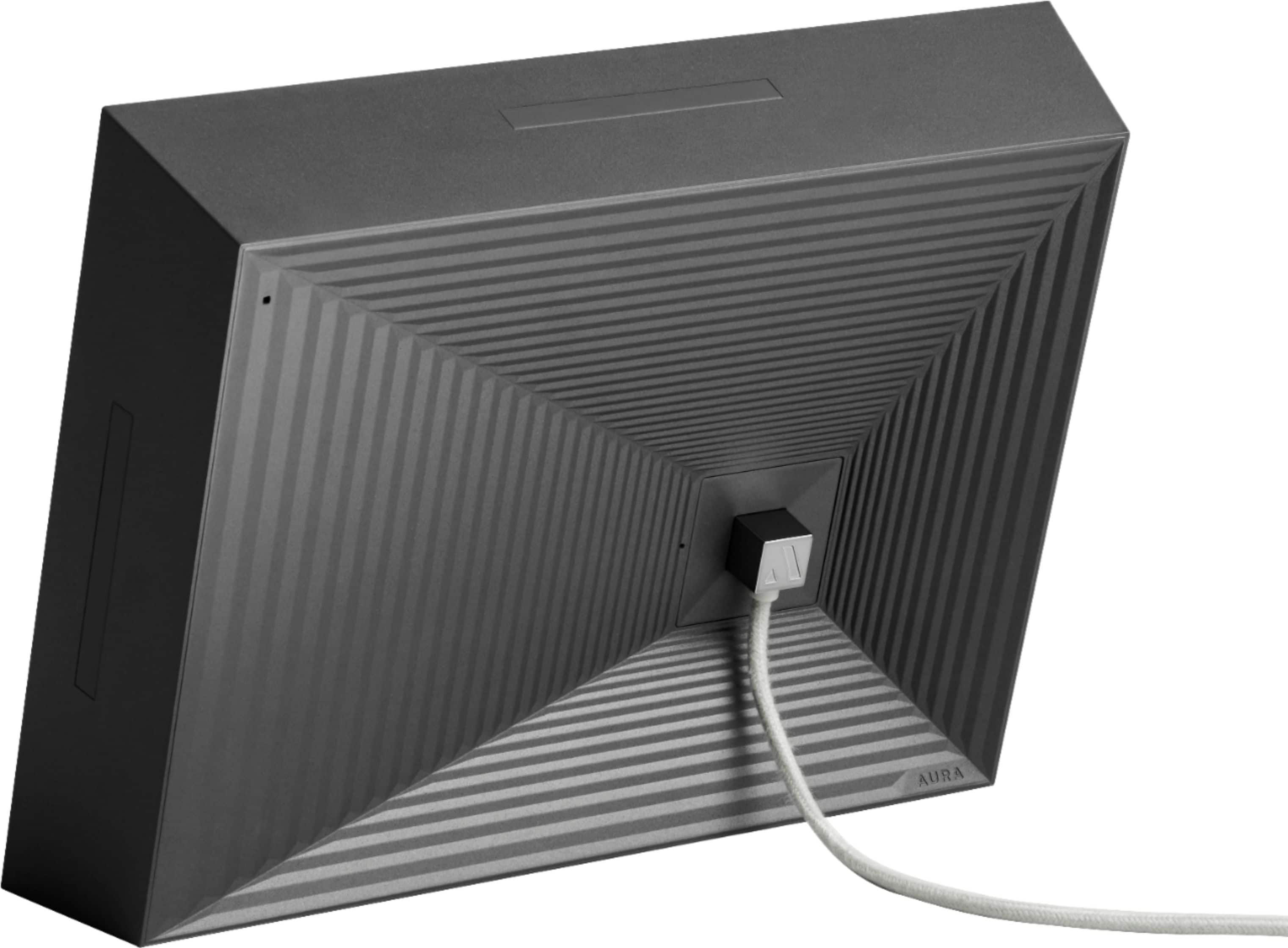
A:Answer Not a fan of neglecting hardware...why not both? If wifi signal went out, tower or cable line on the block, but still had power, could use it wifi free indefinitely, in fact, would never need wifi, as it does not require one to be "tech savvy" to move sd card full of pics to frame...far from a hassle, it is the only sure fire way of knowing you will always have the pics you desire no matter what, and no fear of internet intruders hacking or data miners(Facebook and google are the two biggest,oh and amazon, three top corp affiliated with this) stealing or copying and stealing precious private memories...no, I believe this needs to be rectified, the ppl have to demand control in possession over their personal items, and pics are one the most intimate, though the big 3 companies mentioned are looking to take everything online, streaming, even video games, but it's not a good trend and the poorest among us will suffer the most in all The end, when only the more affluent can afford indef wifi signal, or ppl are forced to pay exorbitant amounts for wifi bc it is monopolized.