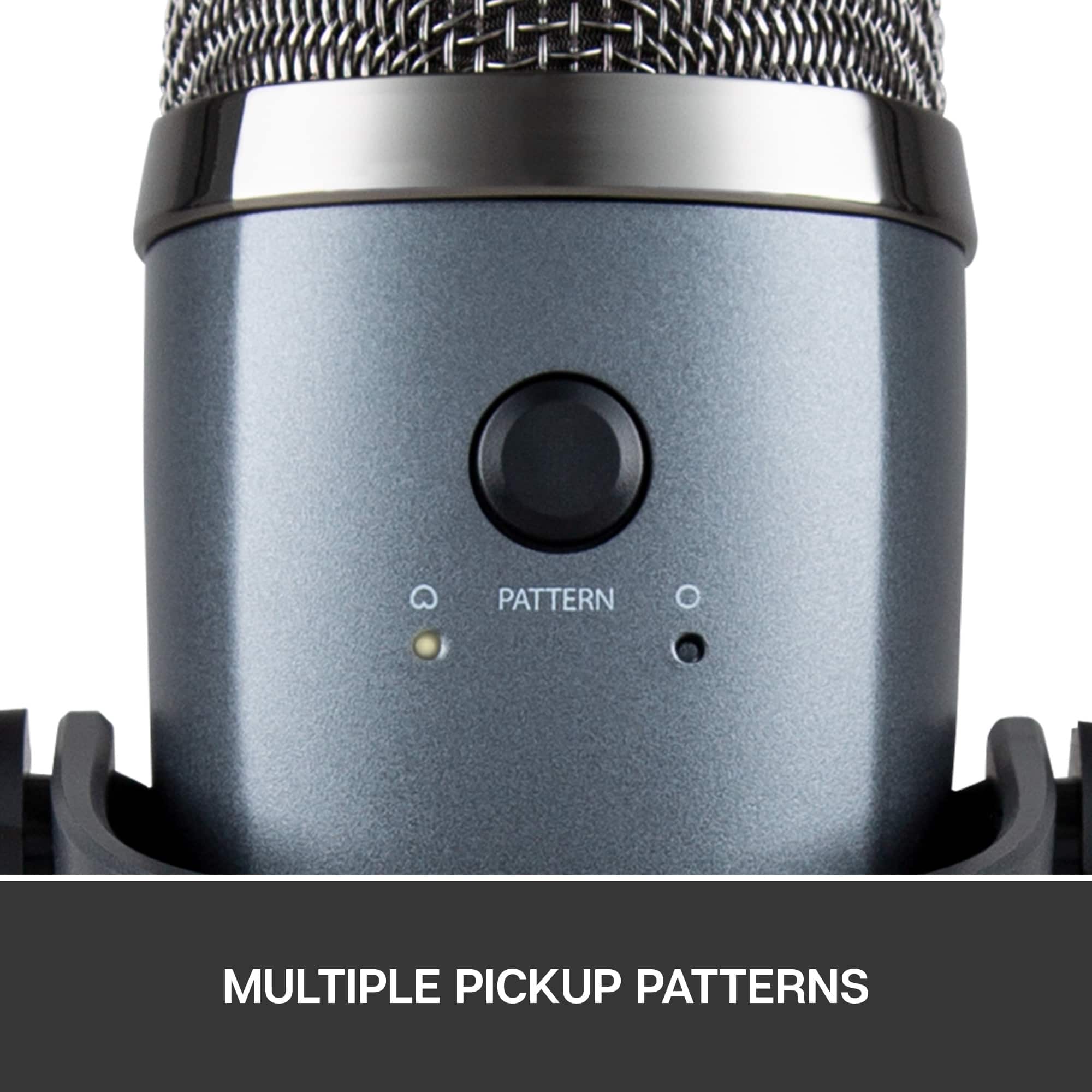
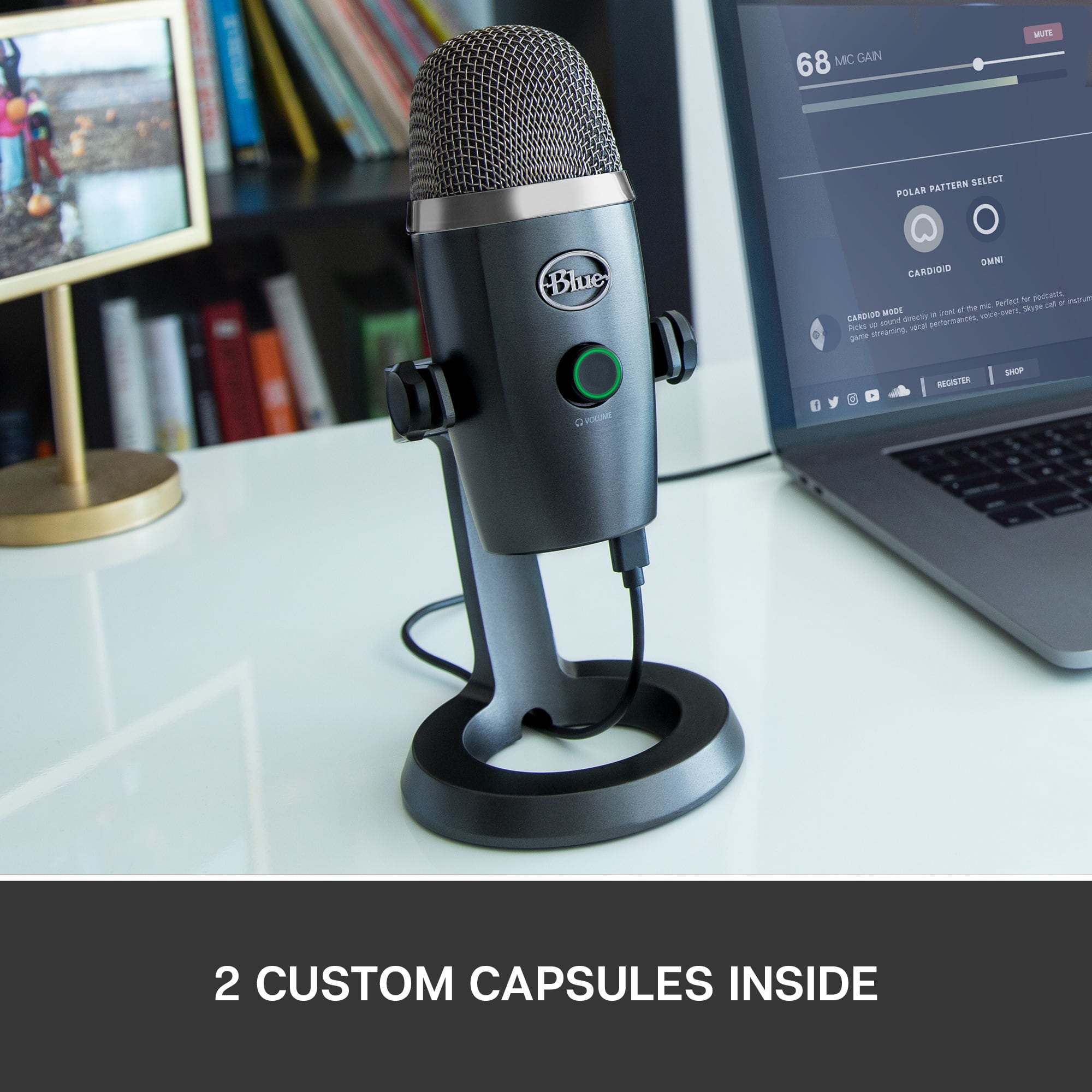
A:AnswerHi Harry, The Yeti Nano should work for a Zoom Zumba class when you play music. You can use either setting, Cardioid or Omni-Directional. If you're using the Cardioid setting, be sure that the speaker is behind you or somewhere in front of the Nano. With Omni-Directional, you won't have to worry all that much about where your speaker is positioned, but a stereo setting would be best for music which is available on the Yeti and Yeti X microphones.
A:AnswerI dont think so. I am wondering something of the same thing. It doesnt seem to be able to do so. But hopefully it pick up a bluetooth speaker. I need that for my zoom zumba class
A:AnswerHello,
Typically, when you want good sound you want to use separate audio, anyway.
It might seem like a pain at first but, you get used to it pretty quickly.
Download a free audio recording software (coughcoughAudacitycough) onto your PC/laptop and record there while recording video, separately, with your camera.
Then, you can clean up your audio before synching it to your video in a free video editing software (coughVSDCcough).
(Mute any audio that was picked up by your onboard camera mic)
Here's a tip: Roll video and audio - then clap your hands a couple times in view of the camera before starting your introduction. Just like the clappers you see in 'behind the scenes' video of movies it'll help you synch your audio.
You'll also have the bonus of being able to do clean voiceovers and narrations while you show shorter clips of video.
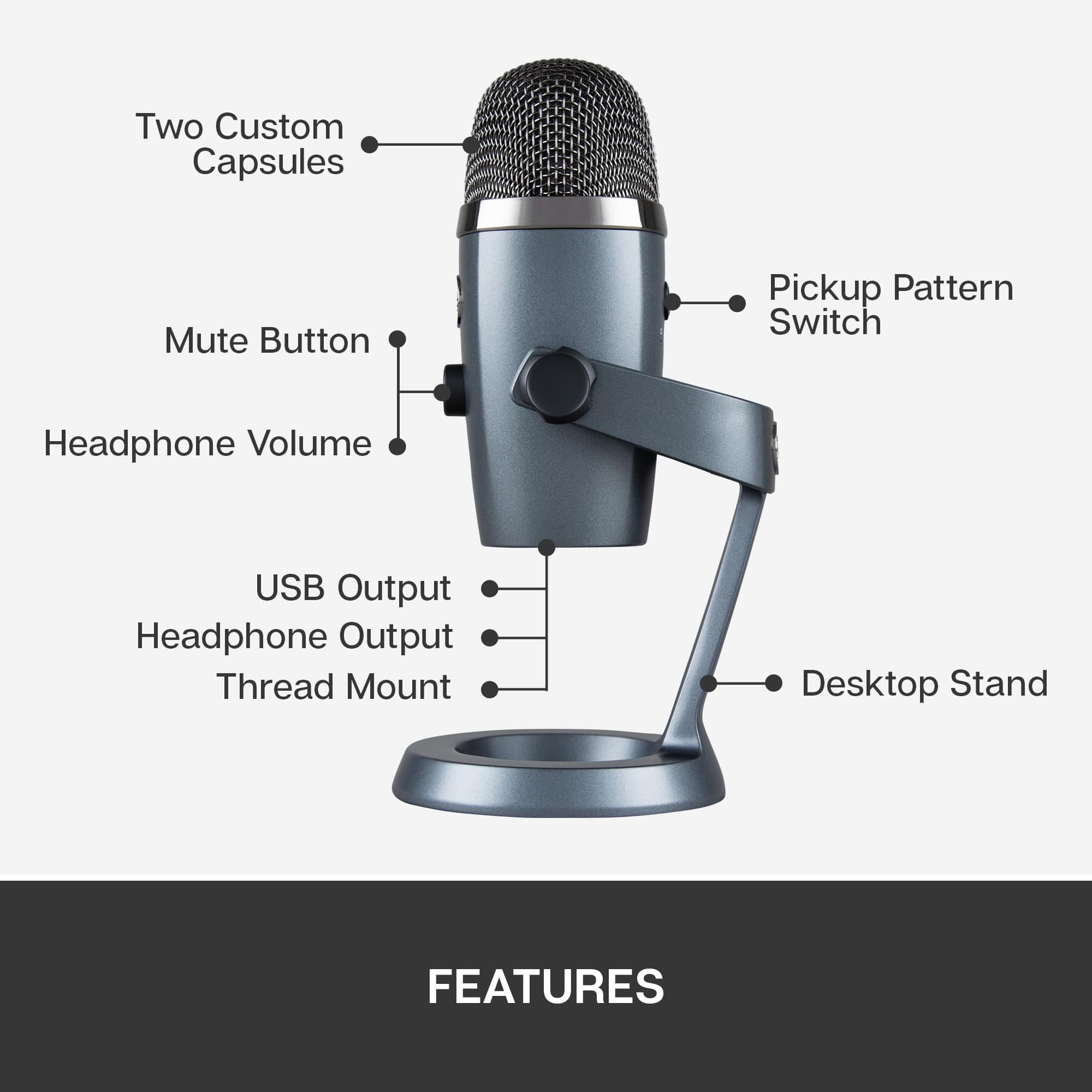
A:AnswerHello JustinDMusic! The Blue Yeti Nano Microphone (or any of the Blue mics) don't have a noise reduction feature, as they are meant to capture the sound in its entirety depending on the polar pattern you select. The Nano offers 2 patters; Cardioid or Omnidirectional. Cardioid will focused on what's directly in front of the mic (i.e. your voice) whereas Omnidirectional will pick up sound all around the microphone, so if you're in a conference room in example, or outside and want to capture sounds all around you. Some higher end Blue models (i.e. the Yeti) will offer more patterns like Stereo (for music recording) or Bidirectional (for interviews), and also a Mic Gain, where you can adjust how much sound is capture from the mic.
A:AnswerI hope it works well with my zoom zumba class with music from my bluetooth. I know yoga is talking . But its kinda of similar. I need it to pic up the music tho. I will do some talking for the intro and at the end of class.
A:AnswerHello,
I found a $20 YOUSHARES arm on Amazon by searching for 'Yeti Nano boom arm'.
Don't get one with the fancy cables pre-strung through them because they're the wrong ones.
Just a basic arm will do.
A:AnswerHello Buddyshow, we are sorry to hear that Blue Yeti started acting funny for you. At the end of this message, I have attached our Support page for the microphone. There, you'll be able to double check your computer's settings and go over some FAQ's to solve the issue. Worst case scenario, if you're under warranty, you can get it replaced. Hope you have a great rest of your day. Keep killing it with the live streams! https://www.bluemic.com/en-us/yeti-support/
A:AnswerHello, it is possible to use multiple USB mics on one device via third party software or third party hardware interfaces. It is not possible to plug and play with multiple devices unless you have one of these other options installed.
A:AnswerHello Squibs. The Yeti Nano is great for Zoom calls and recording live vocals! It has a frequency range of 20Hz-20kHz, so it will handle even the highest pitches.
A:AnswerThis does in her face with dragon and a few other voice to text programs. There are a number of booms available for it as well as straight adjustable stands.
A:AnswerHello, both are great options for gaming! The Yeti will feature more pickup patterns, if you ever decide to explore other lanes such as podcasting or interviewing. The Yeti Nano is an excellent choice if only one person, yourself, will be recording.
A:AnswerHello, it is possible to connect your Yeti Nano to your iPhone/iPad via an adapter.
https://blog.bluemic.com/news/how-to-use-blue-usb-microphones-with-an-iphone-ipad-or-android-device/