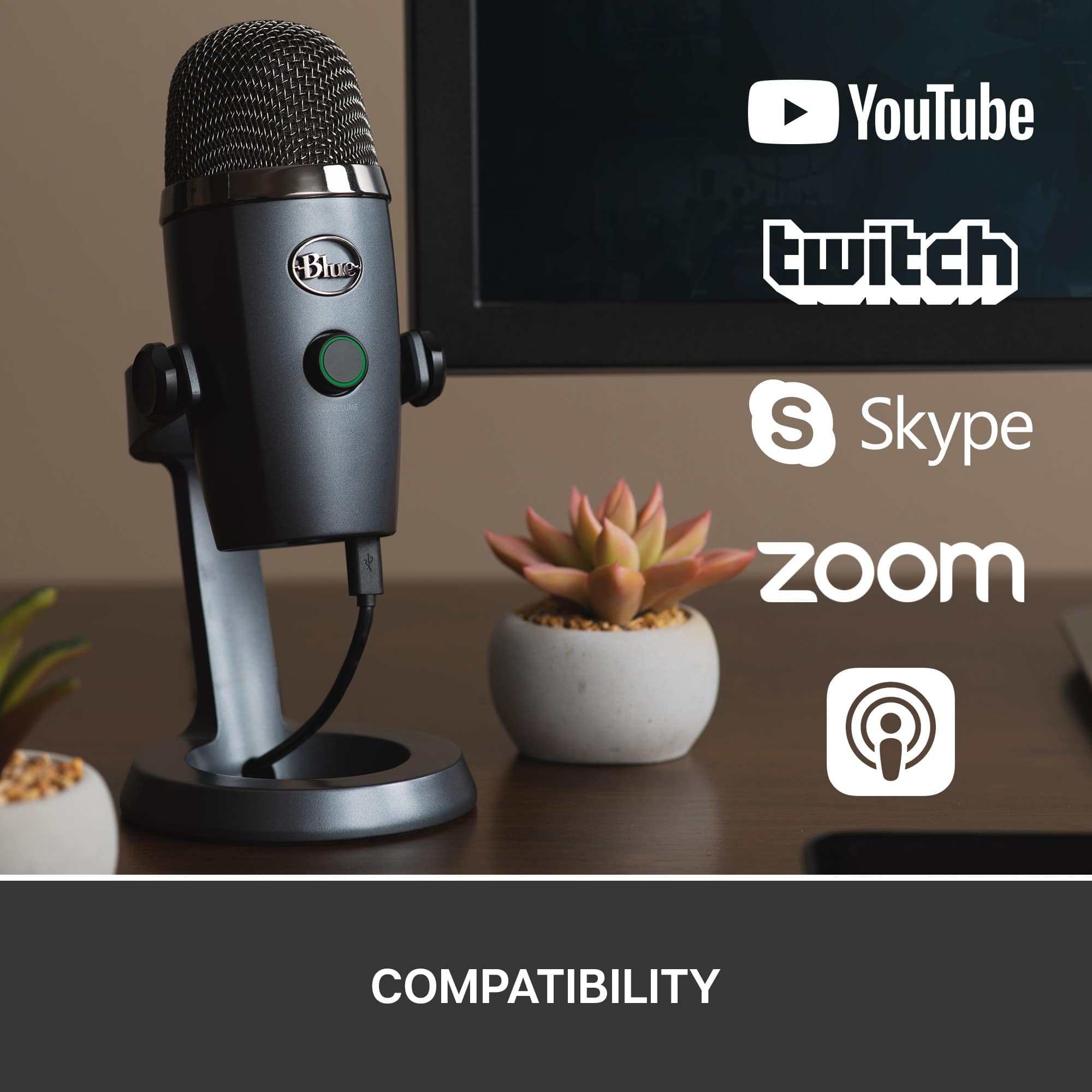
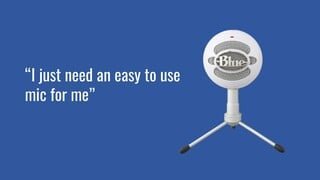
A:AnswerYes, I use this for my windows laptop and iMac with zero issues on either. This is literally plug and use with no additional software required.
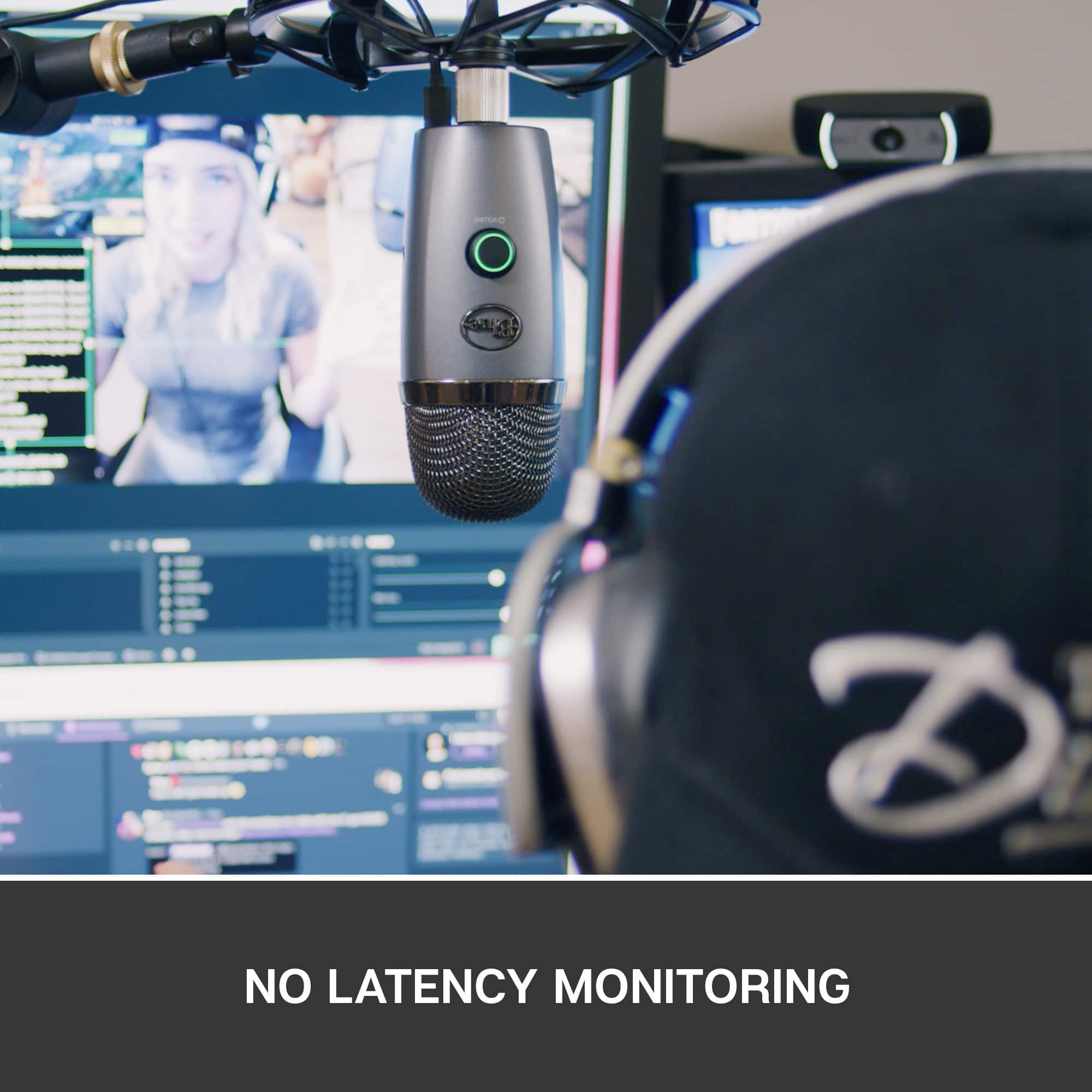
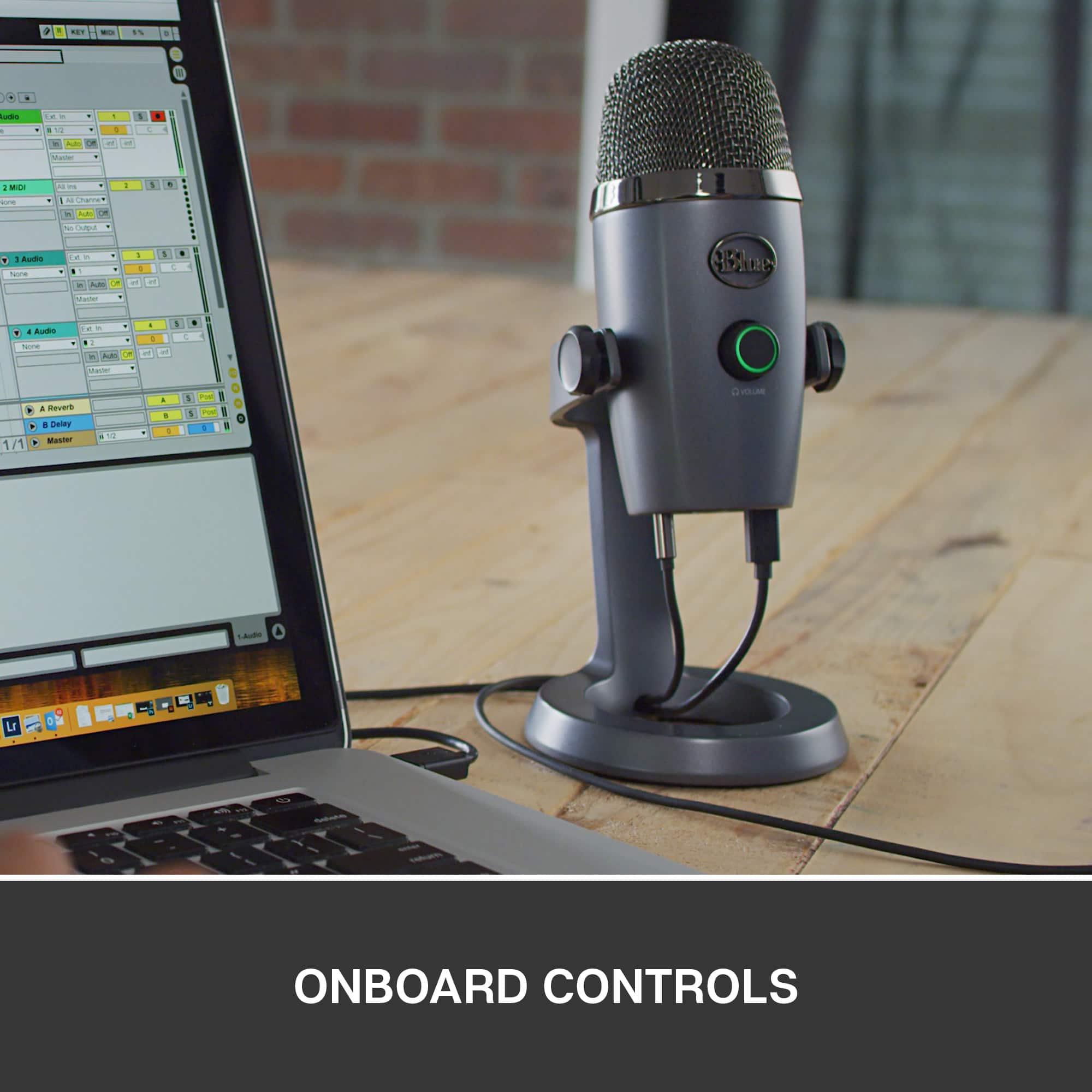
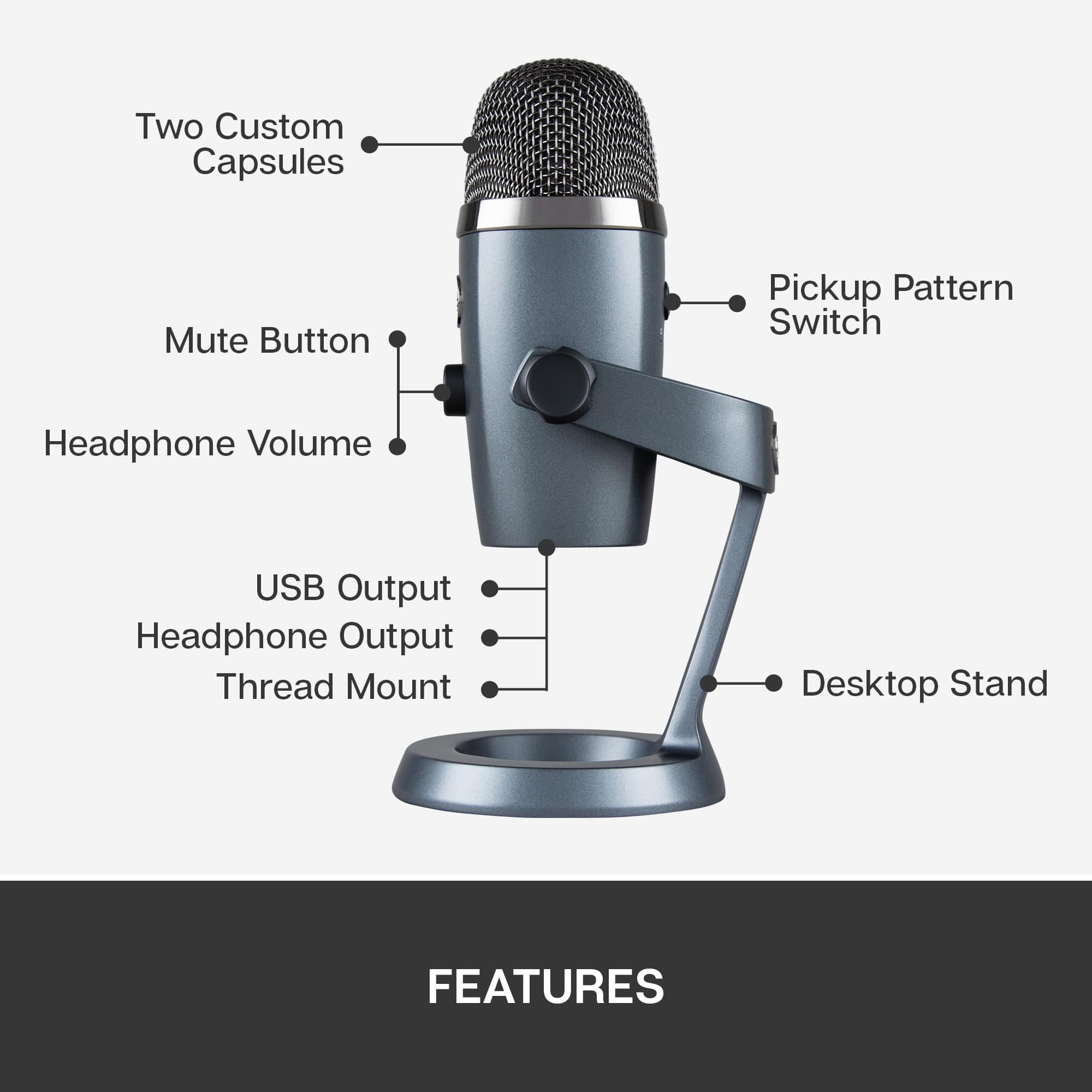
A:AnswerYou can connect your headset to the bottom of the Yeti Nano with a 3.5 mm headphone connection. Set your PC audio to the Yeti nano mic to put audio through its 3.5 mm headphone out, to your headset. You can use the volume knob on the mic for your headset volume. For software: https://www.bluemic.com/en-us/products/sherpa/ Or if you need support: https://support.bluedesigns.com/hc/en-us - Will, Blue.
A:AnswerYes, as long as you have a USB-C to USB-A OTG adapter. Note that certain apps may not have support for a microphone. It is also recommended that you plug the microphone in before starting up the app.
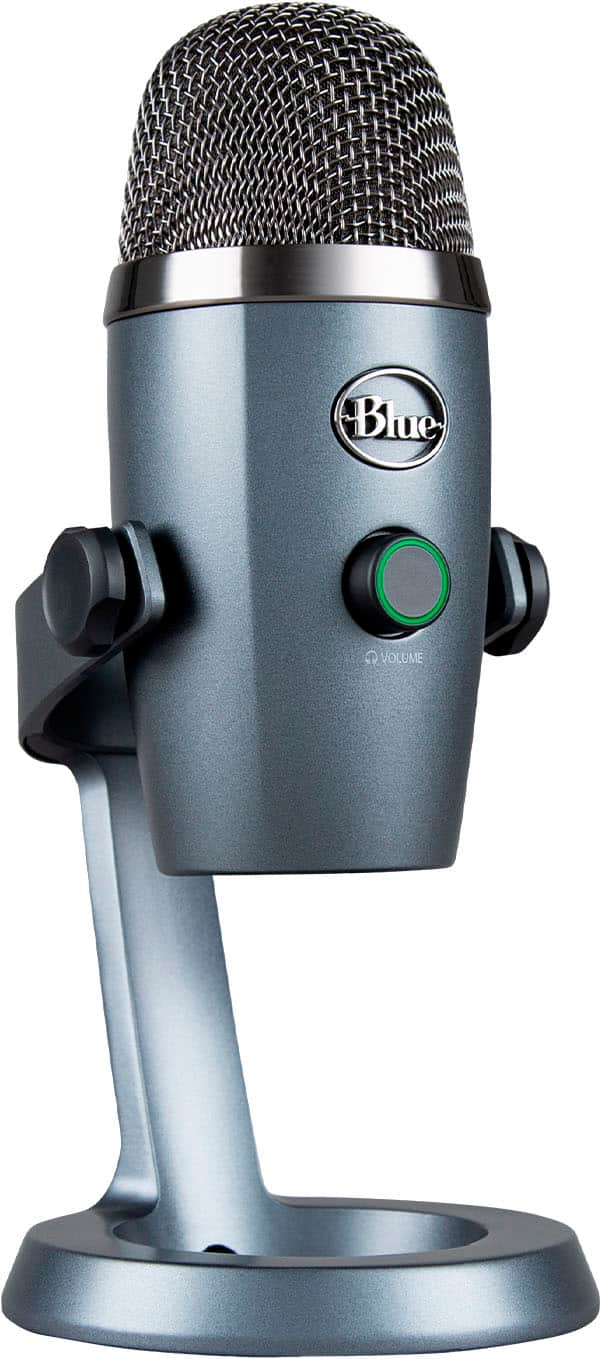
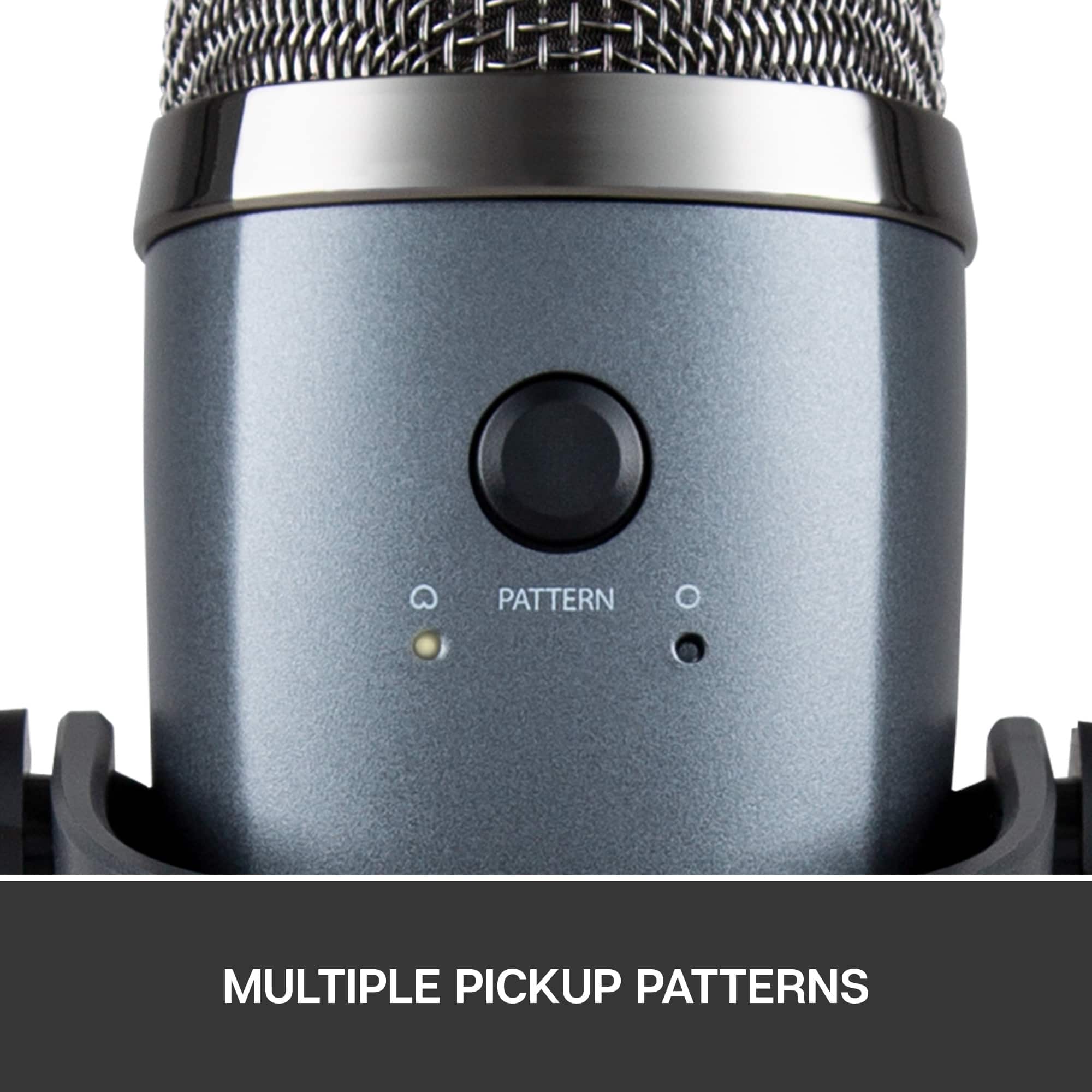
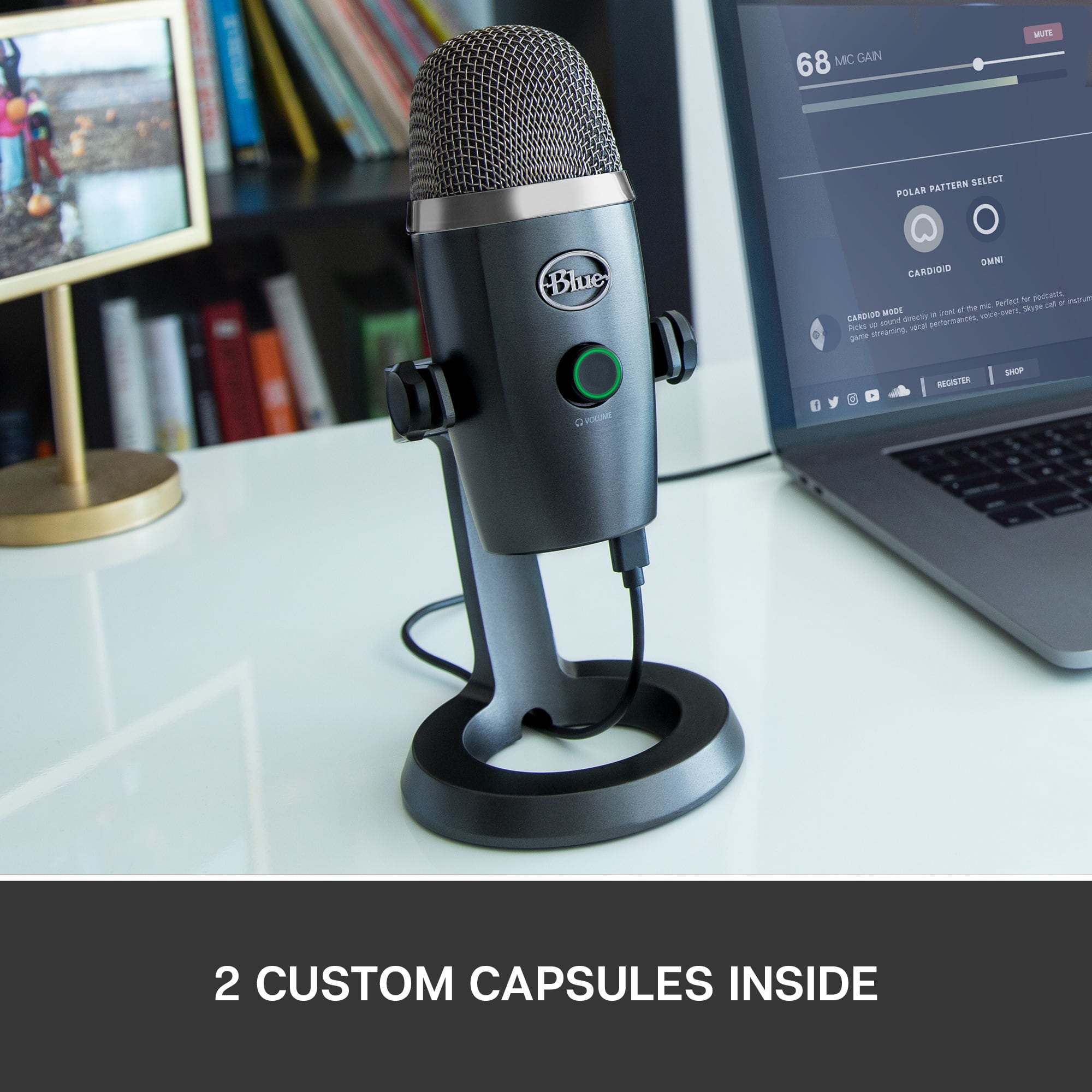
A:AnswerHello Chelsea. The Yeti Nano has a standard microphone mount thread on the bottom. As far as mounting is concerned, it is the same as a standard Yeti. The Nano is different from the Yeti in that it has only 2 modes for capturing audio: Omnidirectional (all around), and Cardioid (right in front). There are a few other differences, but that's the main thing.
A:Answerif people are sitting close to the mic Around a table, you can just use the Omni pattern to pick up audio from around the mic without the need of a second mic , but if people are sitting far and you need 2 mics to work at the same time, all you need to do is to add 2 audio capture sources ( 2 USB yeti nanos) in your recording program and that’s it ....
A:AnswerHi 4string,
The Yeti operates on a standard USB interface. You would need to try some sort of adapter in order to plug it into XLR, however don't expect it to operate with the attributes that XLR hard-wired devices carry.
-Logitech
A:Answermy mom could've used this last year . She just retired. She had all her classes on zoom. wow. The timing was off but at least they would be able to hear better.
A:AnswerYou can! All you need is a y-splitter with both audio and mic female connectors and a male 3 ringed connector + aux cable. And you can just connect it to the controller through headphone jack and then connect the aux cable to the mic female connector and into the microphone itself. Then just connect the headphones to the audio female side. And the USB can go to a wall outlet or the console/external power source
A:AnswerNo. On a computer you can control the volume with the included software. Also, if you're recording directly through a 3rd party audio program, the program itself may have a volume control. For example, if you were using the audio capture component of Roxio EMC you could adjust the mic volume through the programs UI. Just FYI, Blue recently discontinued several of their mics to narrow their product line. One of those, the "Raspberry", has a volume control knob on the mic. That model is still readily available through a variety of sellers. It's portable and approximately the same price range as the Nano. That said, the style very different cosmetically, and has a single capsule pattern with an internal acoustic difuser to reduce sibilance and background noise. I hope this is helpful.
A:AnswerThis requires no additional software. You just plug it in and the computer will typically recognize it automatically. You may have to adjust audio settings for the mic, but I’ve not experienced that myself.