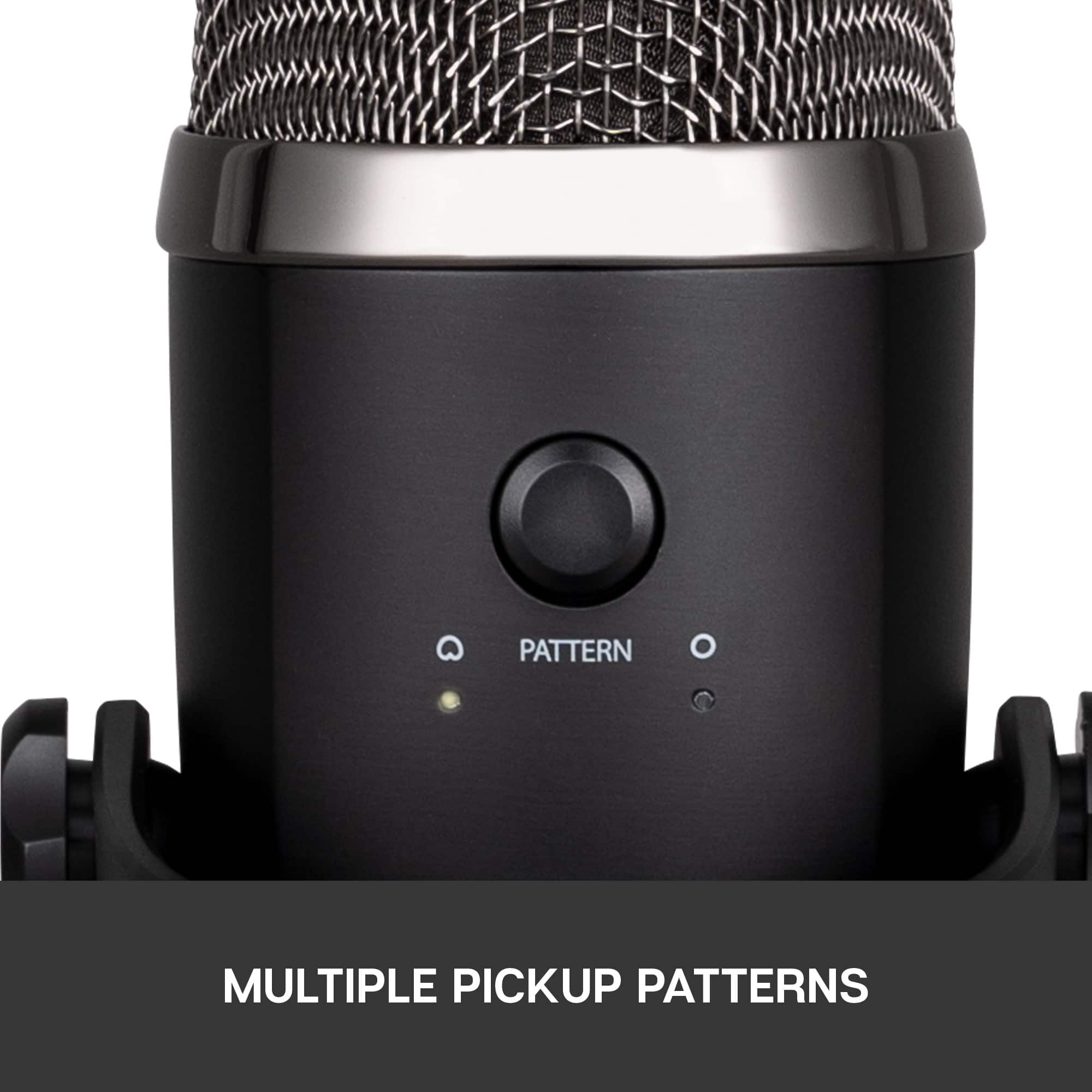
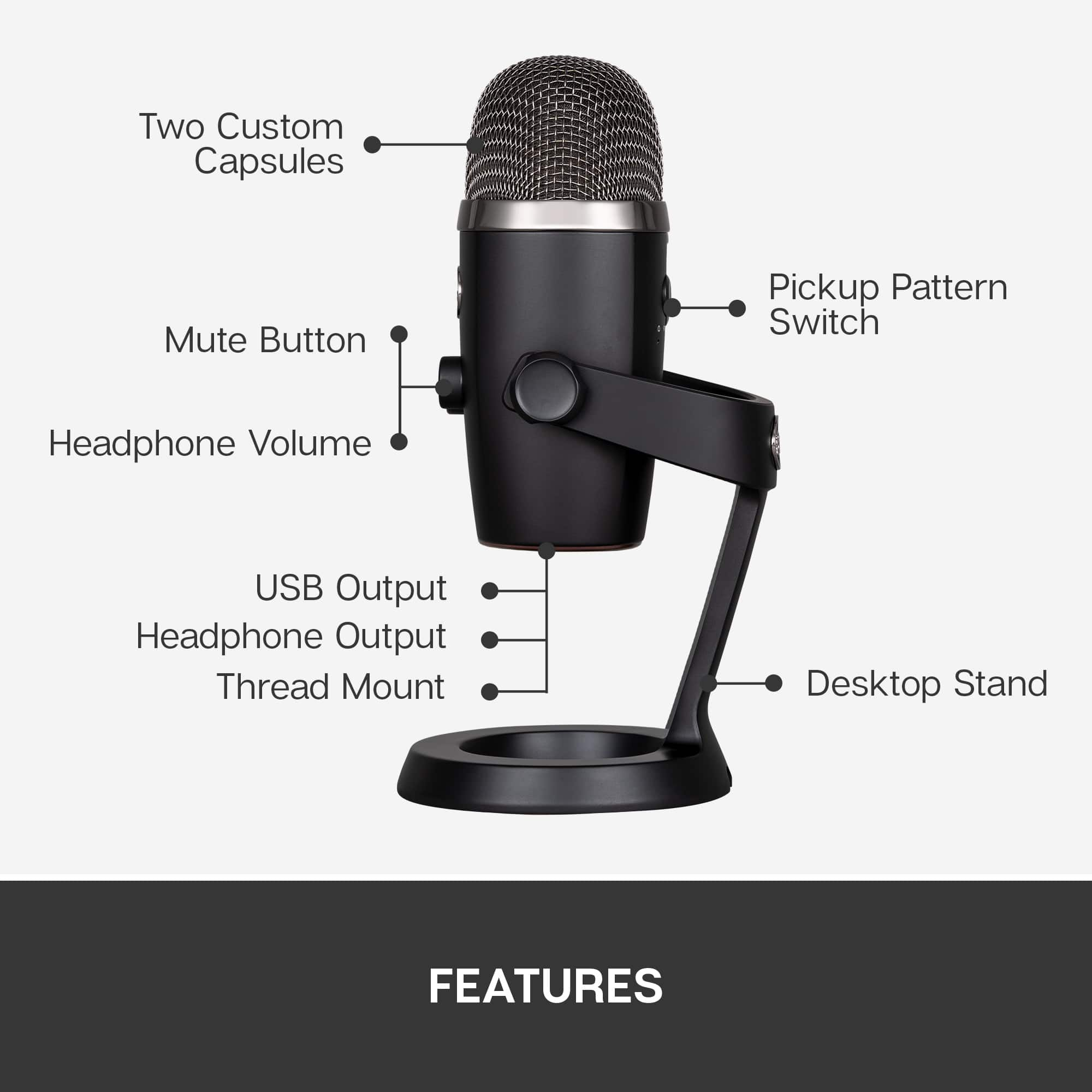
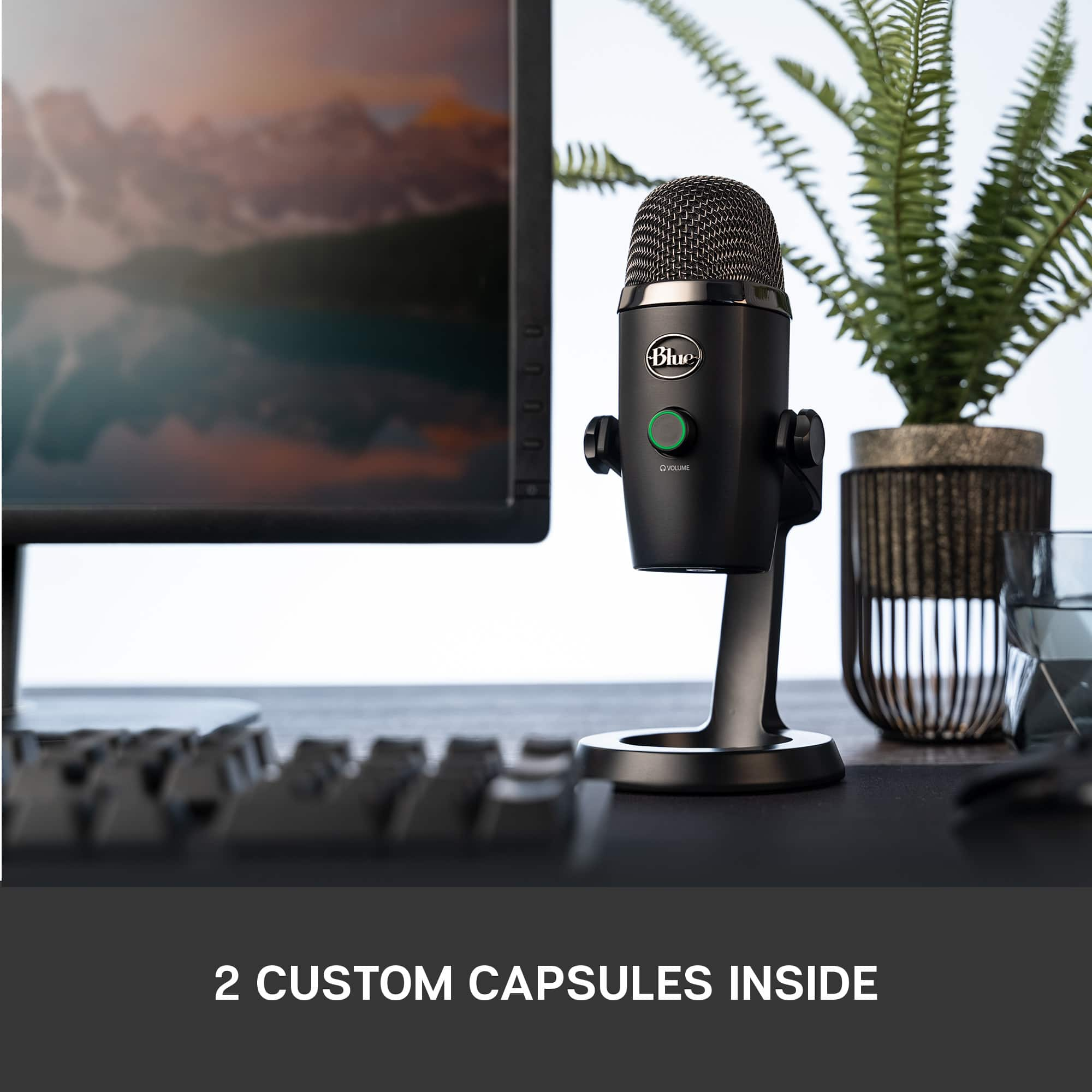
A:AnswerHello Richard, the $99 model is the Yeti Nano, while the $129 model is the original Yeti. There are a few differences between the two models. The biggest difference is that the Yeti is a 3 capsule design that can go between 4 different polar patterns: Cardioid (in front of the mic), Bi-Directional (front and back), Omnidirectional (all around), Stereo (Left/Right). The Yeti Nano has 2 capsules and can switch between Cardioid and Omnidirectional polar patterns. For interviews, you would use the Omnidirectional pattern on the Nano and Omnidirectional or Bi-Directional patterns on the Yeti.
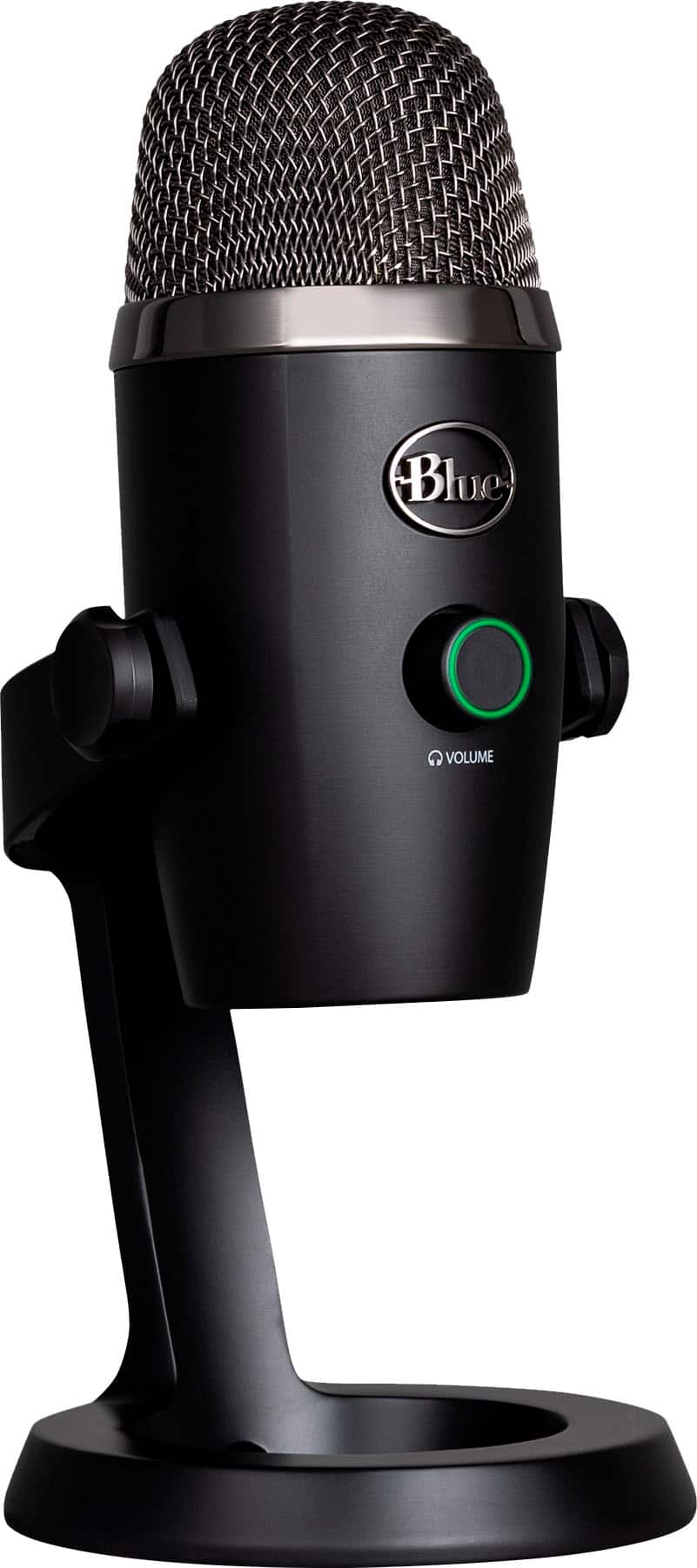
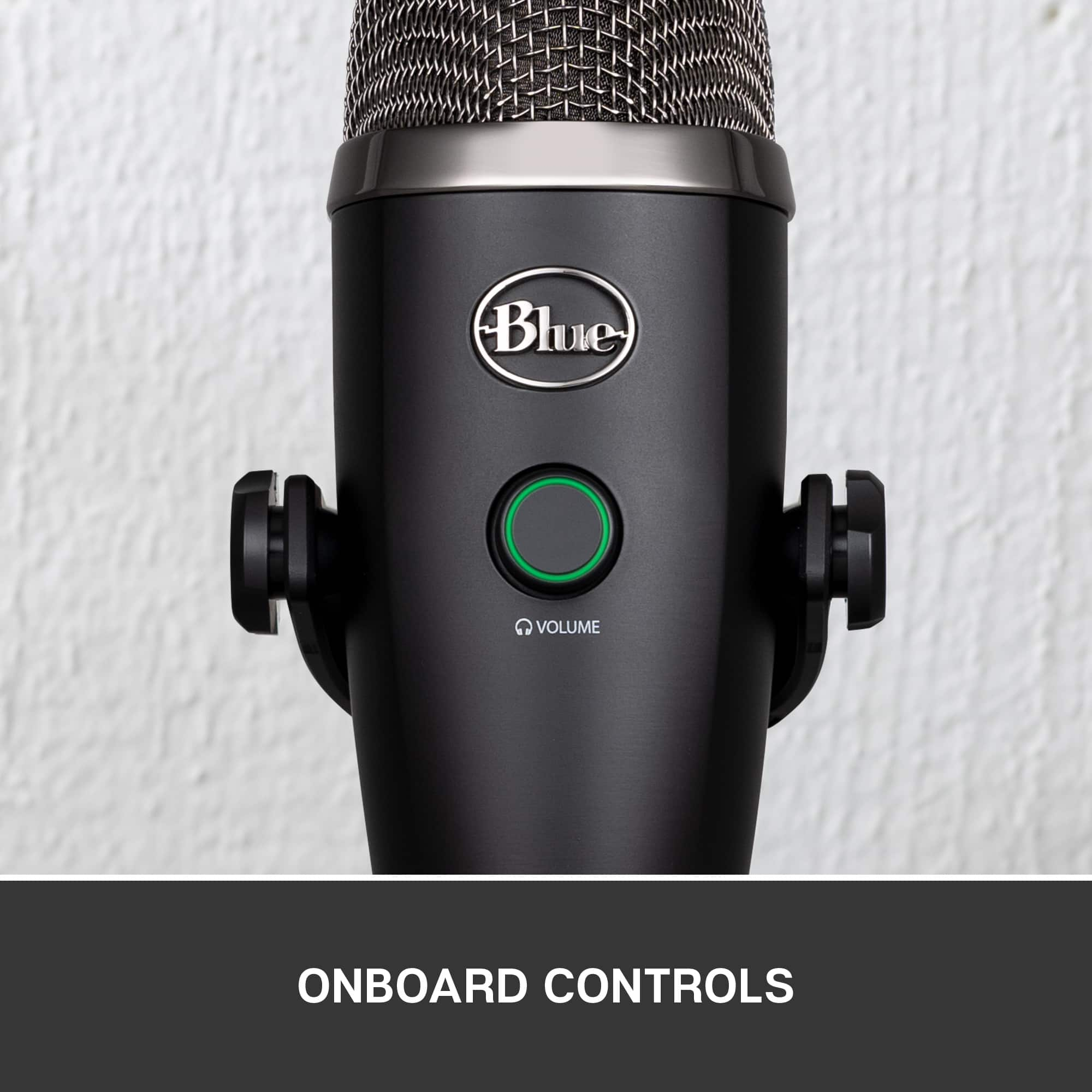
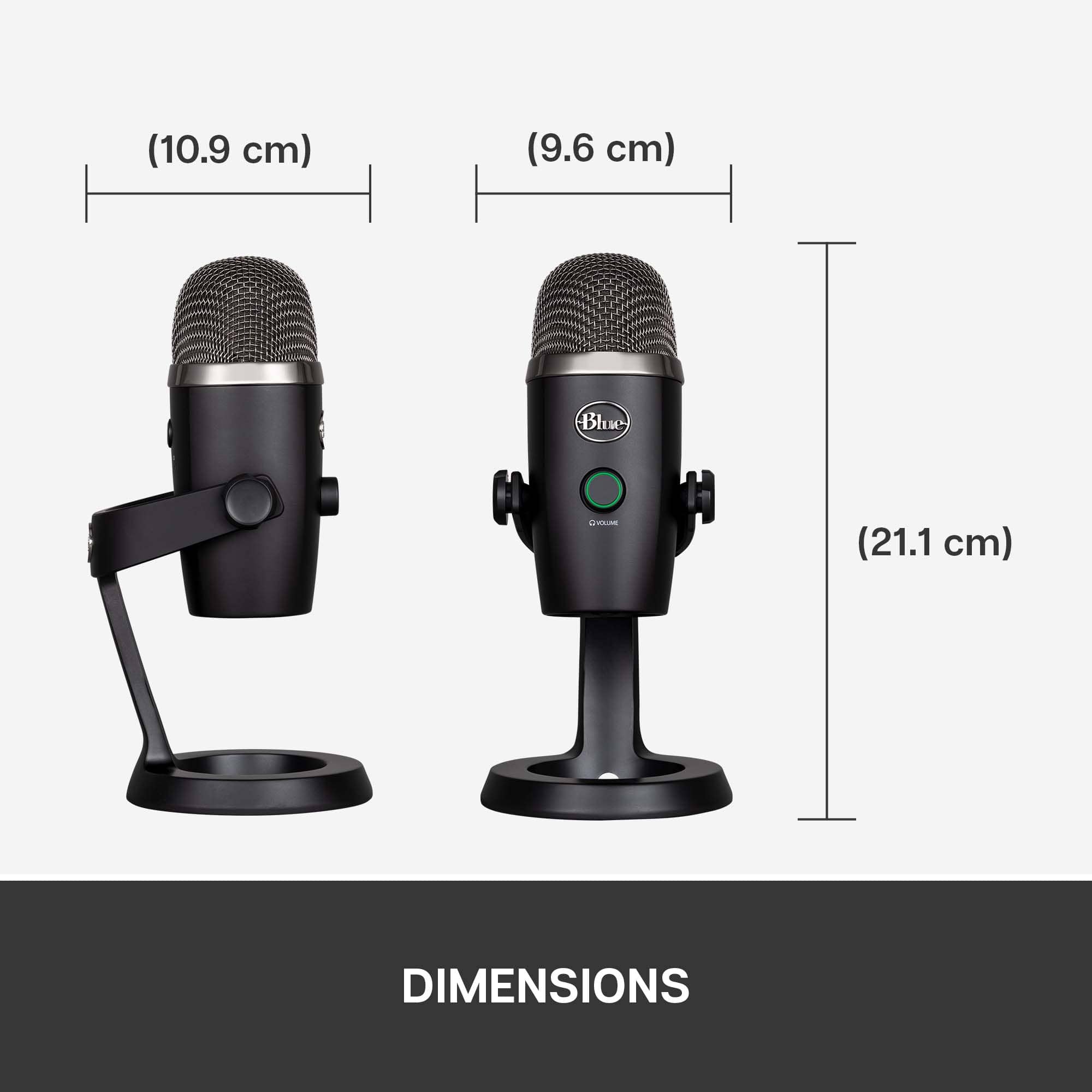
A:AnswerYes. It's a click button on the front of the microphone, which is also the volume adjuster. It has an LED ring that is red when muted, and green when active.
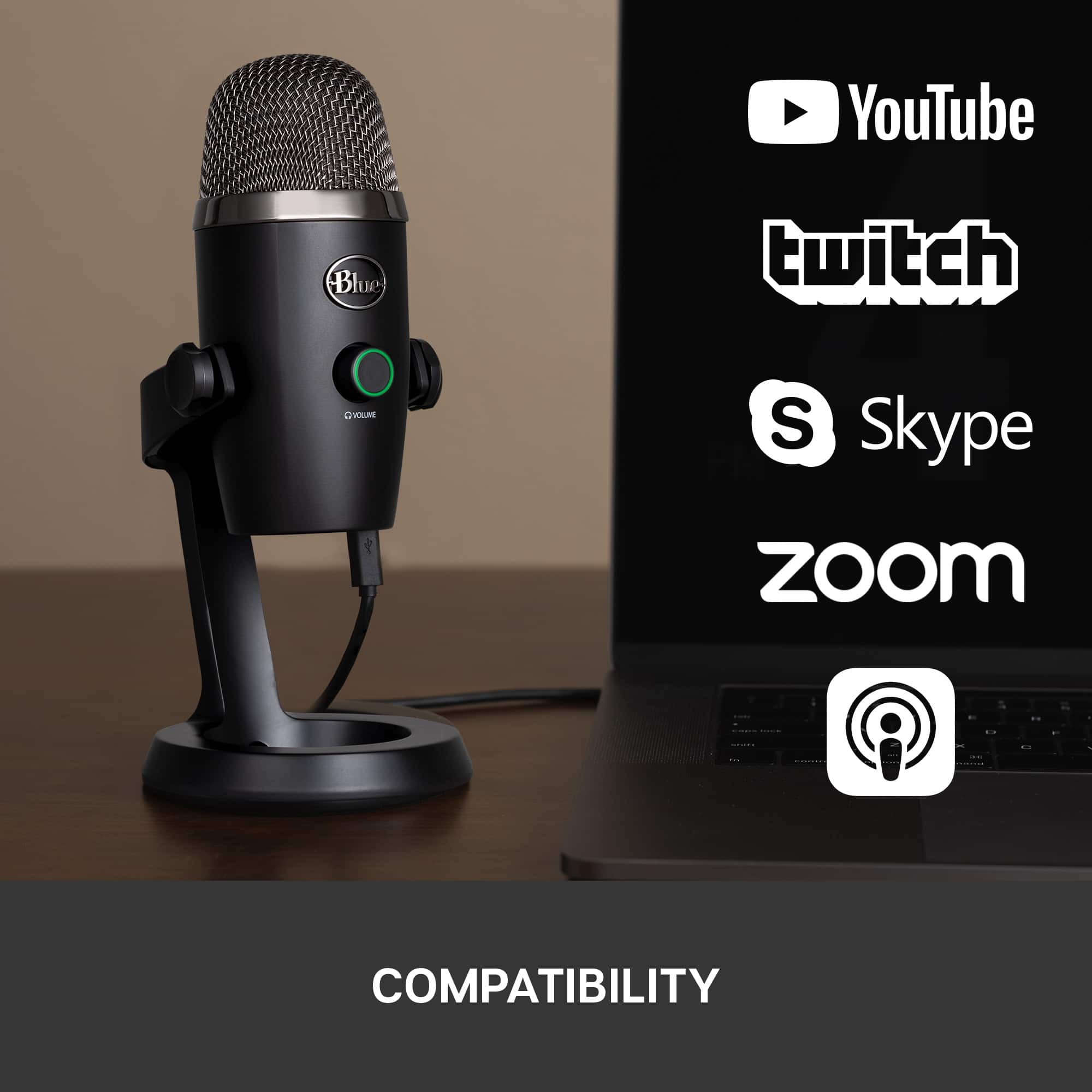
A:AnswerYes. It's a USB-A to Micro-USB cable, 2 meters in length. The Micro-USB end is for the mic, while the USB-A end is for the computer or other device you're connecting to.
A:AnswerThere are two things that could help. First is making sure your microphone is on the cardiod mode. While this mode is enabled, make sure to position your microphone with the volume knob facing your mouth. Your voice will sound the clearest this way BUT also ignoring any sounds directly behind your microphone. So the best position for the microphone will be in-between you and your keyboard. Secondly, buying a microphone arm holder will be great to minimize noise. What this allows you to do is position your microphone very close to your mouth, 1-5 inches away. This will let you turn down your microphone’s sensitivity (otherwise known as gain) which will pickup less noise around the blue yeti nano, such as your keyboard. I hope this helps.
A:AnswerYes it’s great for live-streaming a small music group. Just use the Omni Directional setting when recording live music for a fuller room live sound.
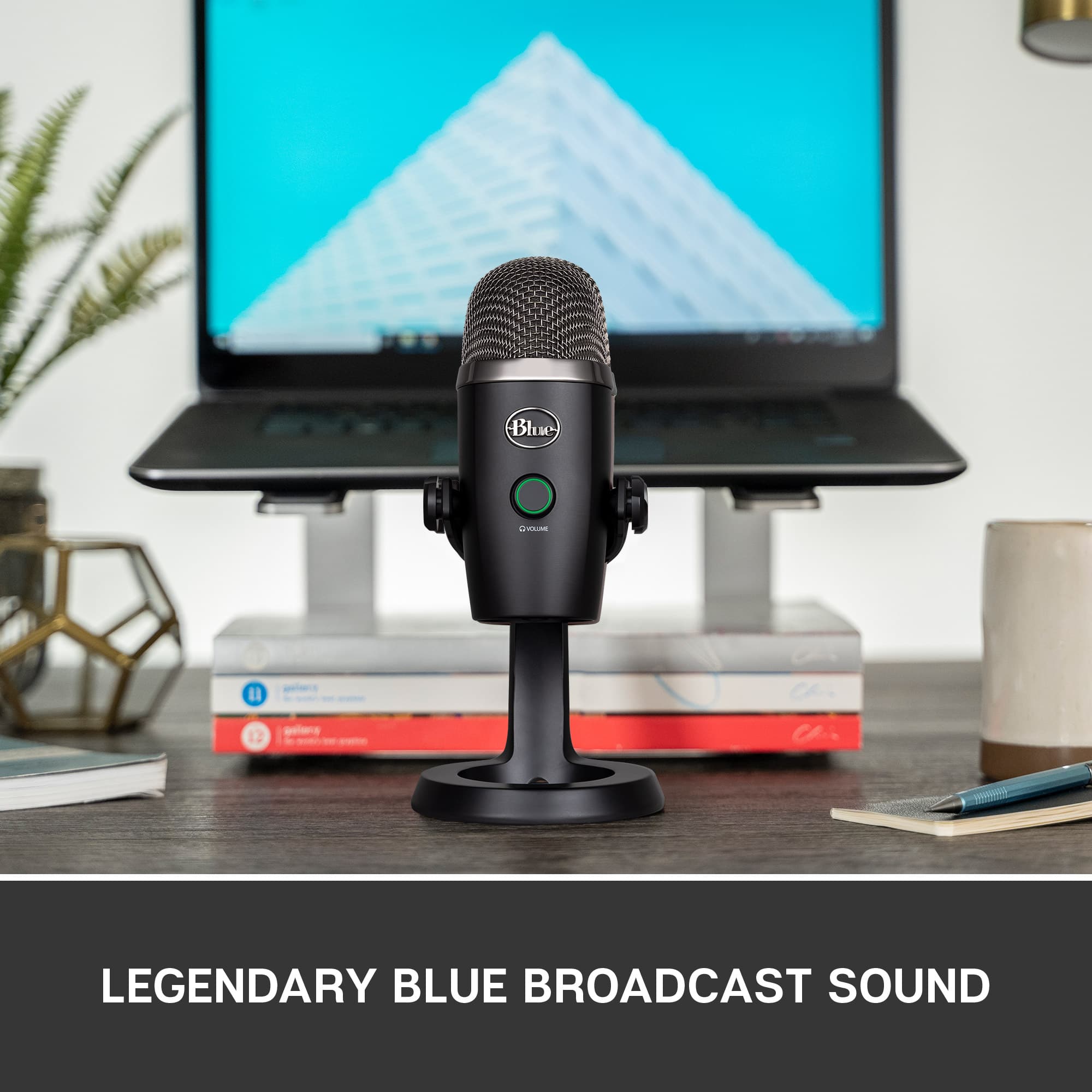
A:AnswerThis mic has a very nice, warm and clear audio, so people would love your audio on your zoom video calls, yoga and cooking classes. Quality of audio is just lovely on this mic and definitely makes a difference in the quality of the content that you creat.
A:AnswerHello Dre! For the Yeti Nano Premium Wired Multi-Pattern USB Condenser Microphone and all other Yeti mics, make sure to download the free G Hub software https://www.logitechg.com/en-us/innovation/g-hub.html, where you'll be able to to control most of your sound options, like the EQ, the Gain and all other options. As for the sidetone option (how much of yourself your hear when talking to the mic), there is not a specific function in G Hub for this, but if you right click your speaker icon at the bottom right of your desktop, then select Sounds, then the Recording tab, then your right click Yeti Nano and select Properties, select the Levels tab at the top, and you'll be able to adjust your mic level from there. - Mathieu from Logitech
A:AnswerSort Of. You’d need to use both USB ports, one for the mic and one for the Bluetooth adapter of your headset. You’re better off getting a wired headset with a mic and plug it into your controller.
A:AnswerHello Braden, although the Yeti Nano was built and designed for PC's, the Yeti Nano will work Xbox. You'll have to make sure to follow Xbox's requirements in order to use it. Thank you, have a great day. -Ricky from Logitech