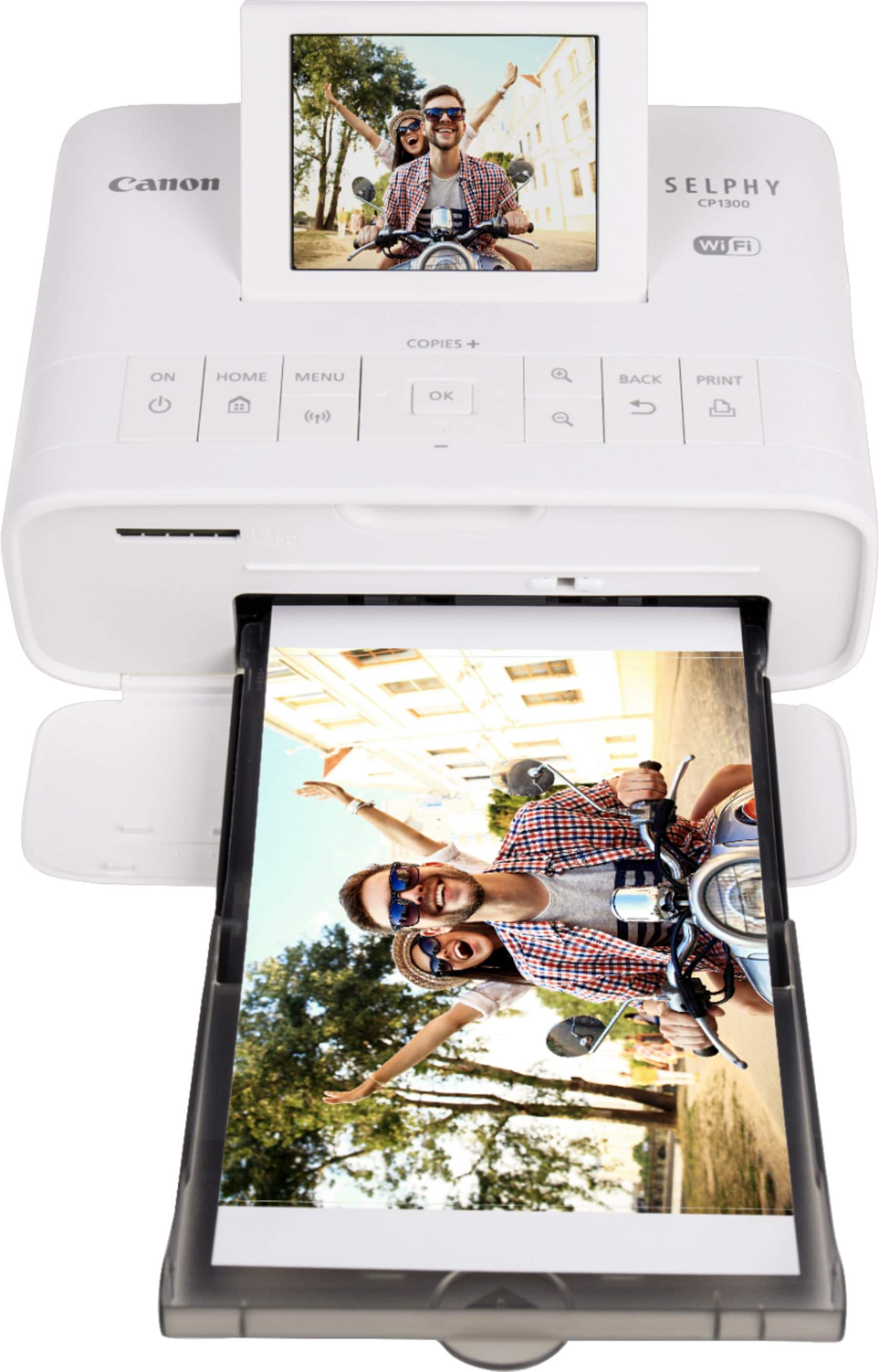
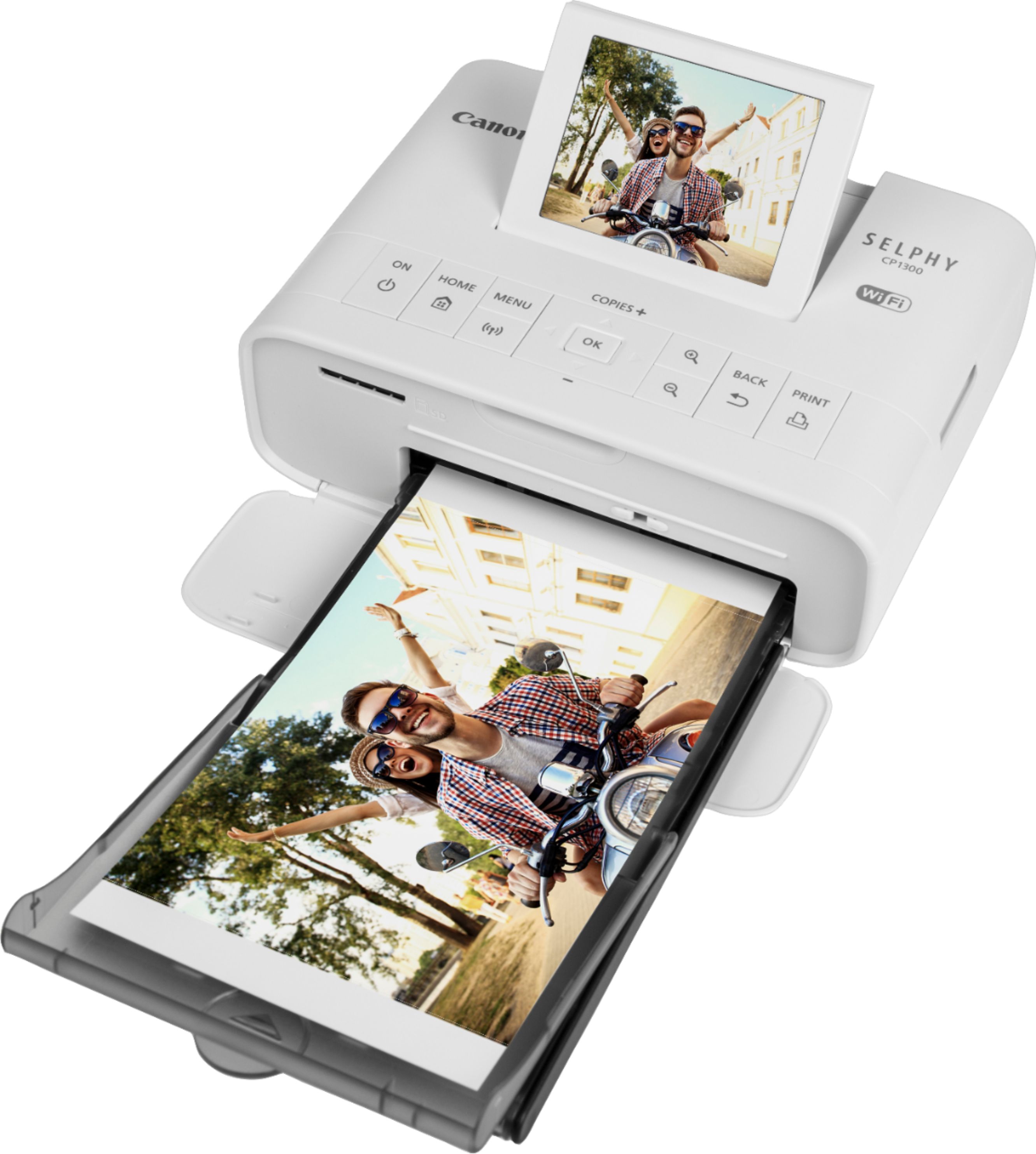
A:AnswerYou have to use the Canon paper made specifically for this printer. That paper has tabs on it to grab the print as it is going through the printer.
A:AnswerI did use it for an event as a photo booth printer, It takes take a while for the photos to pint in that setting, so I would recommend setting up 1-3 phone cameras so one can be printing and the others can be taking more photos. Easy to use, photos came out great. Don't forget that you will have to download a 2nd app so that you can put more than 1 photo on the sheet. If the people you are photographing can wait and come back 15 minutes later for photo pickup, this will work.
A:AnswerI’ve had my printer a little over a month and am very satisfied with it. While I haven’t kept track of the number of prints I’ve made the starter pack printed the exact number of prints it said it would. The way the ribbon works I’m pretty sure it will. The extra paper packs come with ribbon as well as paper. Print quality is great and mines still going strong.
A:AnswerNo...you must use the Canon photo printer paper. It prints in four color process: yellow first, pulls the paper back through, then red, pulls the paper back through, etc...
A:AnswerThe printer will come with a tray, paper and ink. But know that the first ink and paper will not do a bunch of prints. Buy the box which has 108 sheets and 3 ink cartridges. The printer will tell u when to change ink or to add paper. The power cord comes with it. It is wireless but i have never hooked it up this way.
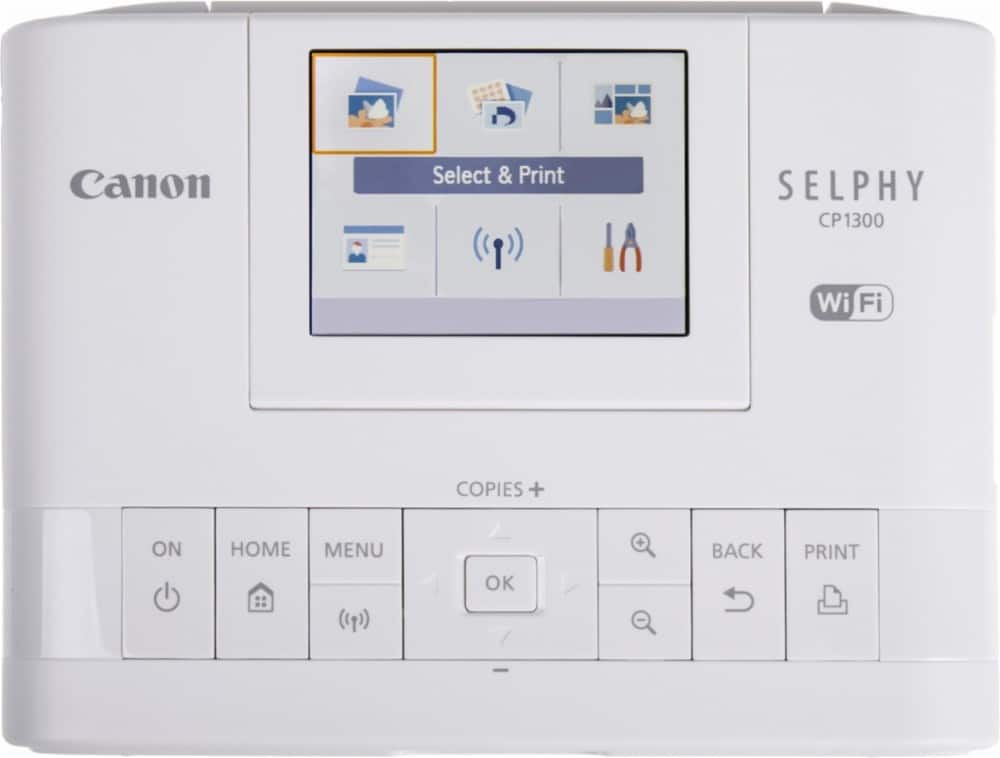
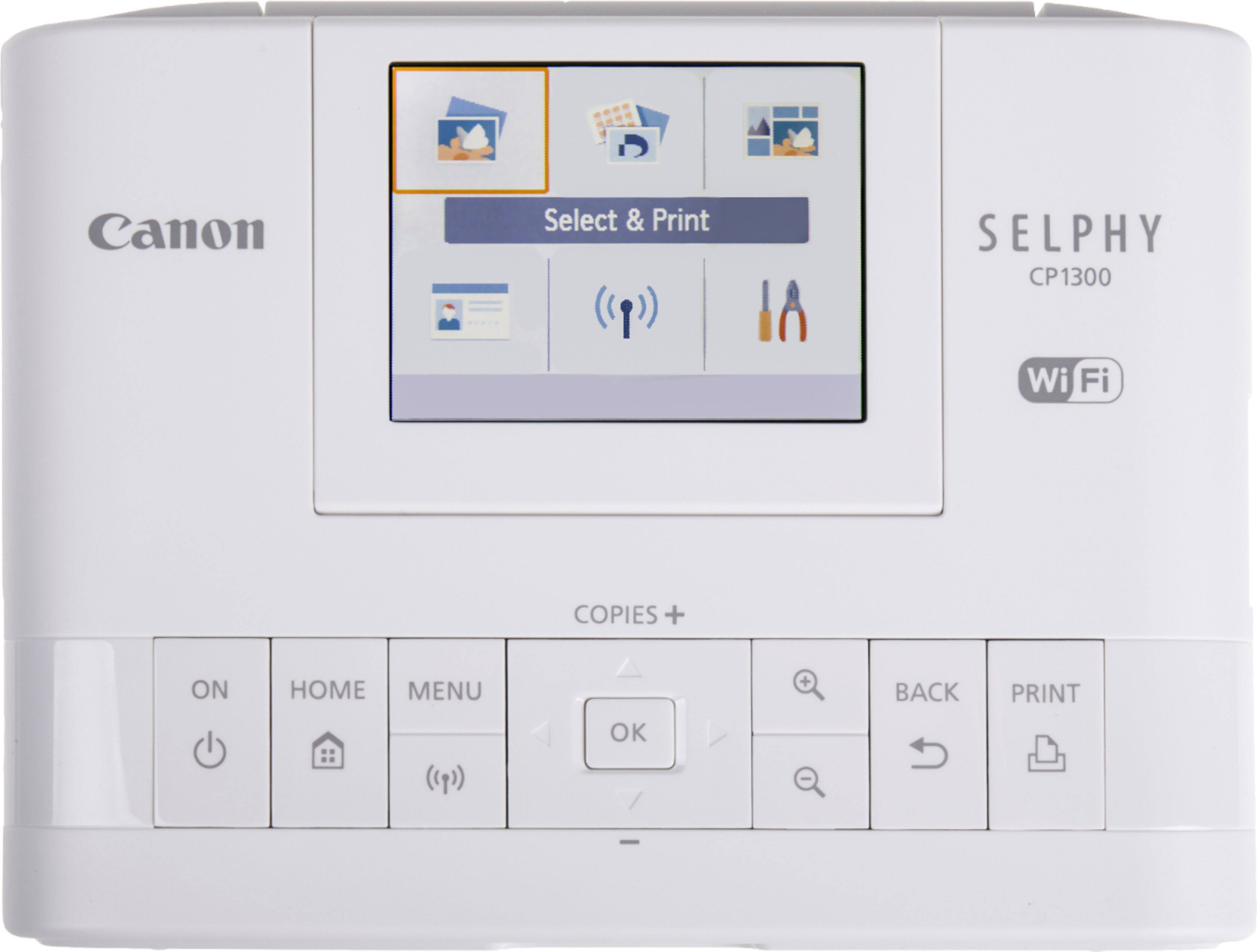
A:AnswerNo SIM card, that's what your wireless provider gives you to connect to their service. You can connect with any device that has a Wifi option, so any brand phone, tablet or computer will work. You just turn on Wifi, push the wifi button on the printer and then select the printer on your device. Once connected, you go to the photo, choose print on your device, and choose that printer. You can also password protect it.
You can also insert an SD card. (We use a micro SD with adapter. ) No phone app required.