A:AnswerIt haves a variety of vpn apps including the one you mentioned just download it via Google play store on the Google tv and use your vpn so easily
A:AnswerYou should be able to. I have multiple Google home speakers throughout the house and I am able to tell it to play things on the TV. I believe you can also now create a speaker group which can now include the TV, where you'd be able to play on all of them at the same time.
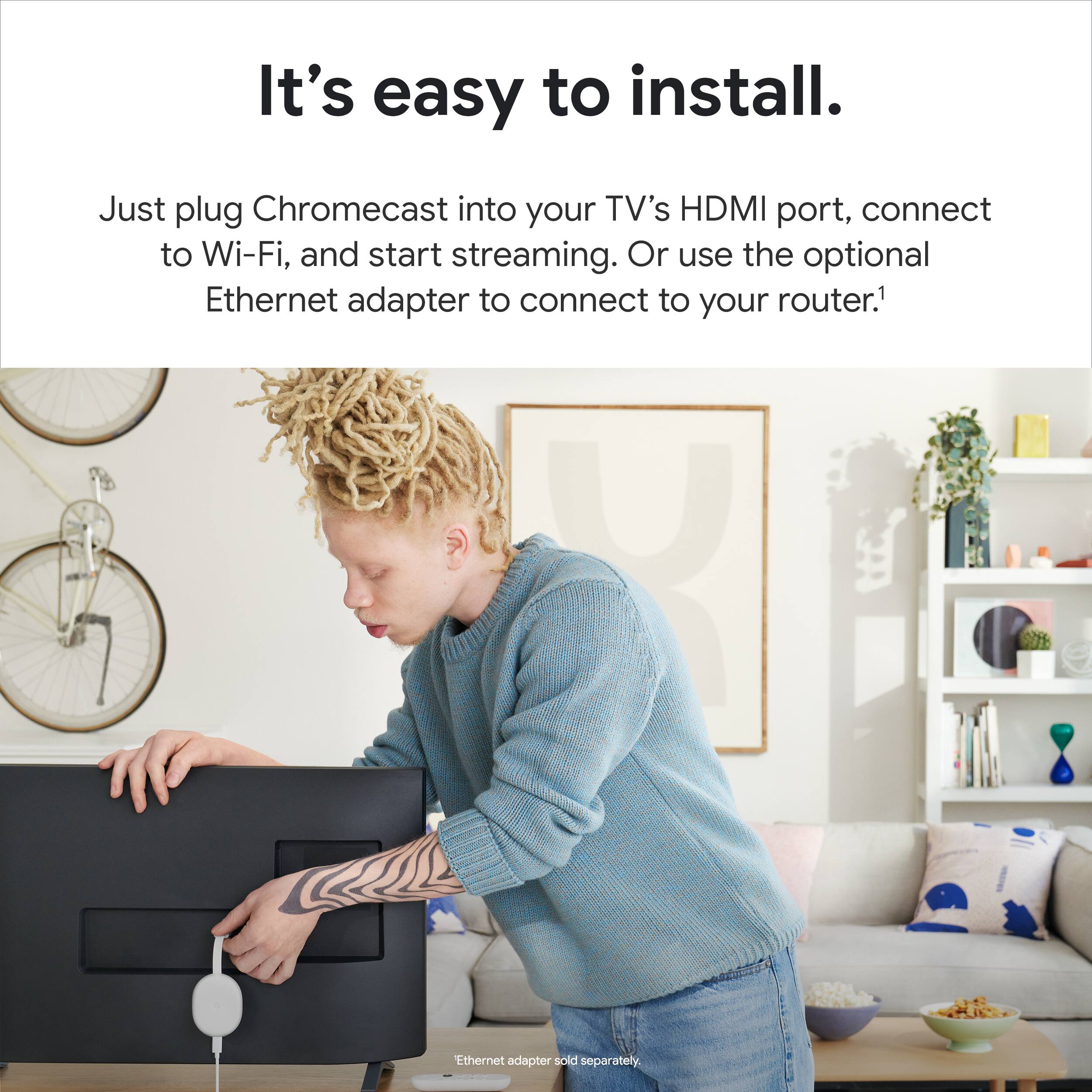
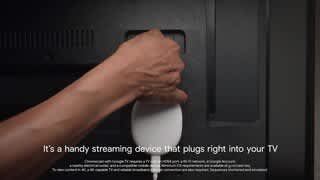
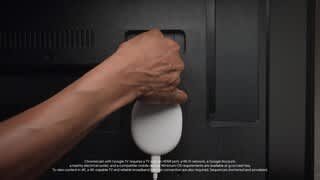
A:AnswerYes, as long as the TV has an HDMI inout for the Chromecast with Google TV to be plugged in. To know more about the requirements you need for the Chromecast with Google TV, you can visit this link: https://support.google.com/chromecast/answer/7022492
A:AnswerIt is more easier with google tv. I used to have chromecast before, then I bought this Google TV, perfect works on samsung with HD and 4K quality. I am sure you will enjoy it as well.
A:AnswerNo. To be able to control the Sony Bravia TV with Android with the Chromecast with Google TV remote, the HDMI dongle needs to be plugged in to the TV as it is through HDMI port that the remote gets programmed to be able to control it. Remote itself is not a programmable stand-alone Universal Remote Control. I hope this makes sense.
A:AnswerThere is a new service/app called Locast (I'm not affiliated in anyway) that is moving to many markets and streams local live OTA channels in a nice menu style channel guide. If you have Sling (and maybe other TV services) it will integrate into their menu so you never have to leave Sling for streaming or locals. This is also a subscription service, but only $5/month - Donation. So long story short, there is not a antenna connection, but there are ways to get locals.
A:AnswerAbsolutely! YouTube TV is included in the list of cast-enabled apps. There are 6500 plus partner apps that are available to use with Chromecast with Google TV.
Check out this link to see the complete list of partner apps: https://store.google.com/us/product/gtv_apps_and_partners
A:AnswerYou may want to check and try these steps and see if it'll resolve your concern:
- Your device(Android/iOS) and Chromecast device should be within 15 feet (4 meters) of each other. The Chromecast or TV with Chromecast built-in should be 15 feet (4 meters) away from the router, or less.
- Make sure both your Chromecast device and Android device are both connected to the same Wi-Fi network channel, either 2.4 GHz or 5 GHz.
- Reboot Chromecast by unplugging it from the power source. (Disconnect from power source not from TV's HDMI port)
If the above steps don't resolve the issue, you may try to perform a factory reset. Keep in mind that when you perform a factory reset, all info or data on your Chromecast will be deleted and you'll have to re-setup after. You can check this link on how to factory reset your Chromecast: https://support.google.com/chromecast/answer/6254654
Observe if the issue carry on. If yes, you can reach out to us anytime so we can assist you. You can contact us here: https://support.google.com/chromecast/gethelp
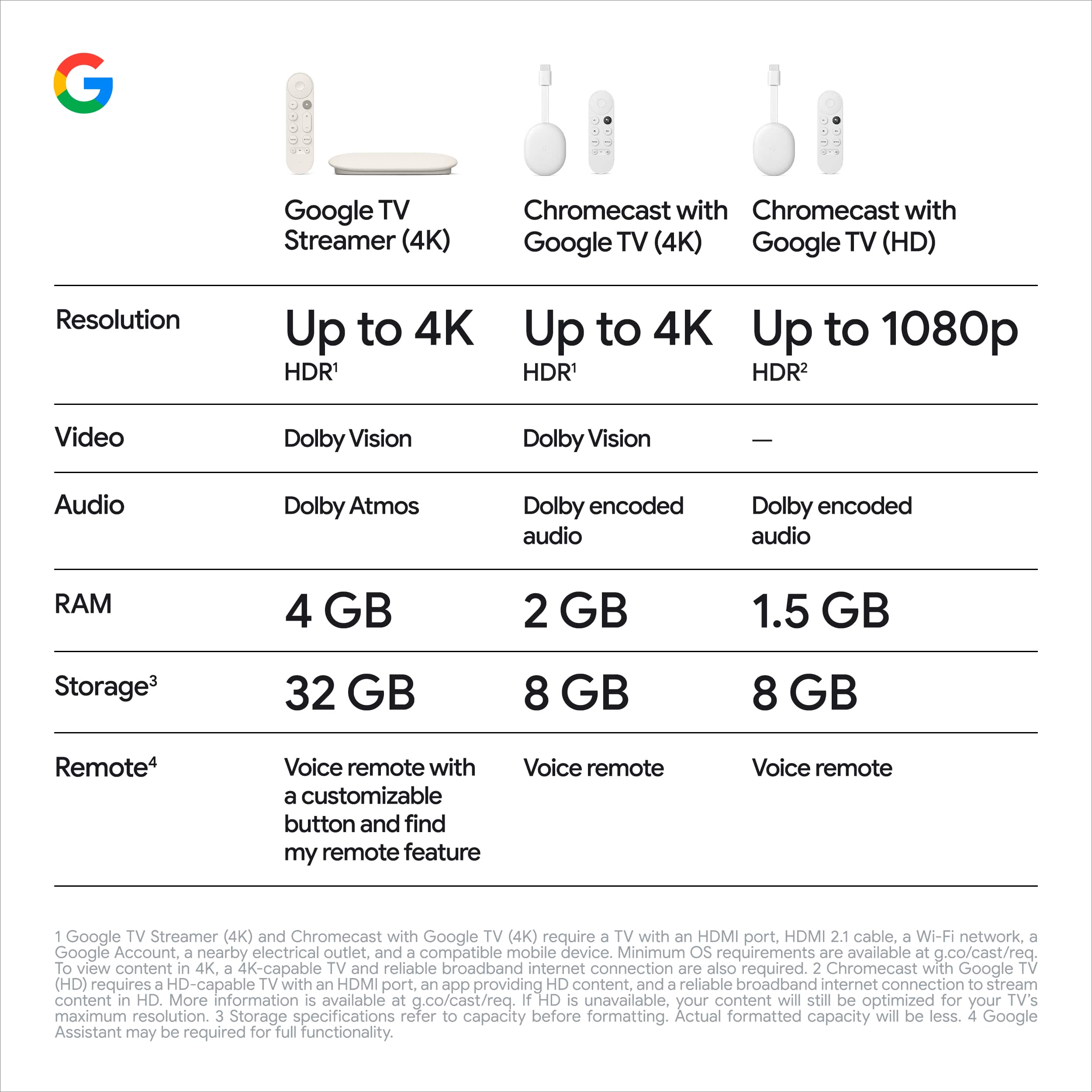
A:AnswerChromecast with Google TV has an internal 8GB storage where you can download and run apps and games. Chromecast with Google TV has access to more than 6,500 apps that you can download from Google Play Store. You can take a look at the following link to view which apps are available: https://tv.google/
A:AnswerStay tuned to our social channels—Stadia functionality is coming in the first half of 2021. Given the success of Chromecast with Google TV, we wanted to ensure the experience is right for our users before adding gaming functionality. For now, Chromecast Ultra will continue to support Stadia gameplay on the biggest screens in your home.
A:AnswerThe Chromecast with Google TV is a streaming device. You'll be able to watch from video apps that are downloaded to the device or video apps that are on your phone. Please be advised that some video apps like Netflix or YouTube TV would require a subscription in order to enjoy their services. Here is a link that can guide you on how to cast using Chromecast: https://support.google.com/chromecast/answer/6006232
A:AnswerNo. Your Chromecast’s HDR settings are turned on automatically, so the colors in your video may appear too saturated if you play SDR content. To fix the color, you’ll need to turn on Match content.
A:AnswerPBS is included in the list of cast-enabled apps. However, Spectrum TV app is not included, but if you're using an Android device, you can mirror your phone screen to the Chromecast to watch content from the Spectrum TV app. You can check this link on how to cast your Android screen: https://support.google.com/chromecast/answer/6059461
You can check this link for the list of cast-enabled apps: https://store.google.com/us/product/gtv_apps_and_partners
A:AnswerYoutube TV has their own feature where you can set what shows to record and at what time. And you can watch the program using your Chromecast with Google TV by opening your Youtube TV app and choosing the show that you recorded in your library. Please be advised that you would need to have a subscription with Youtube TV.
A:AnswerNo. Chromecast with Google TV doesn't have an internet browser built-in. We recommend checking this link to check cast-enabled apps that will work with your Chromecast: https://store.google.com/us/product/gtv_apps_and_partners
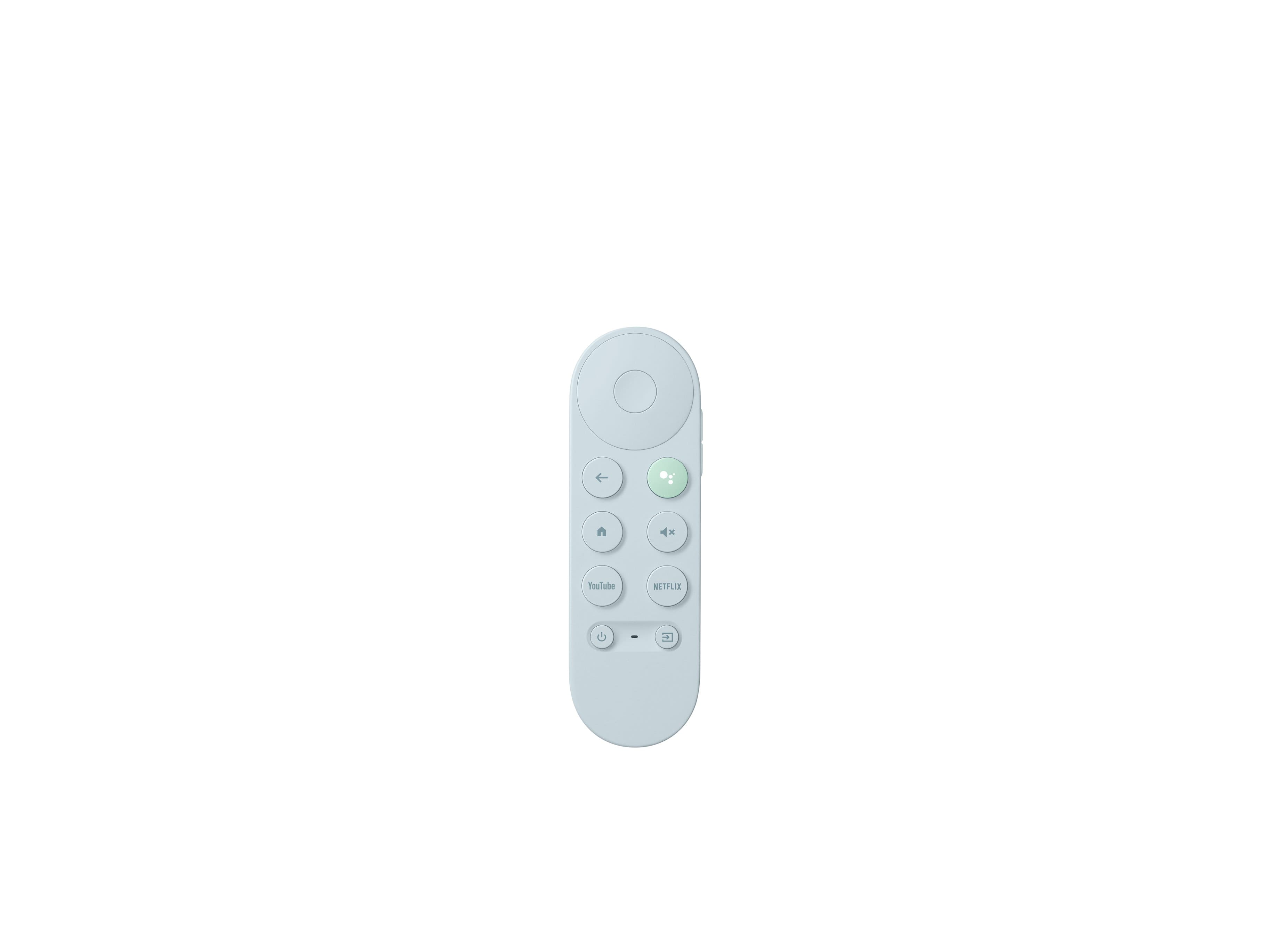
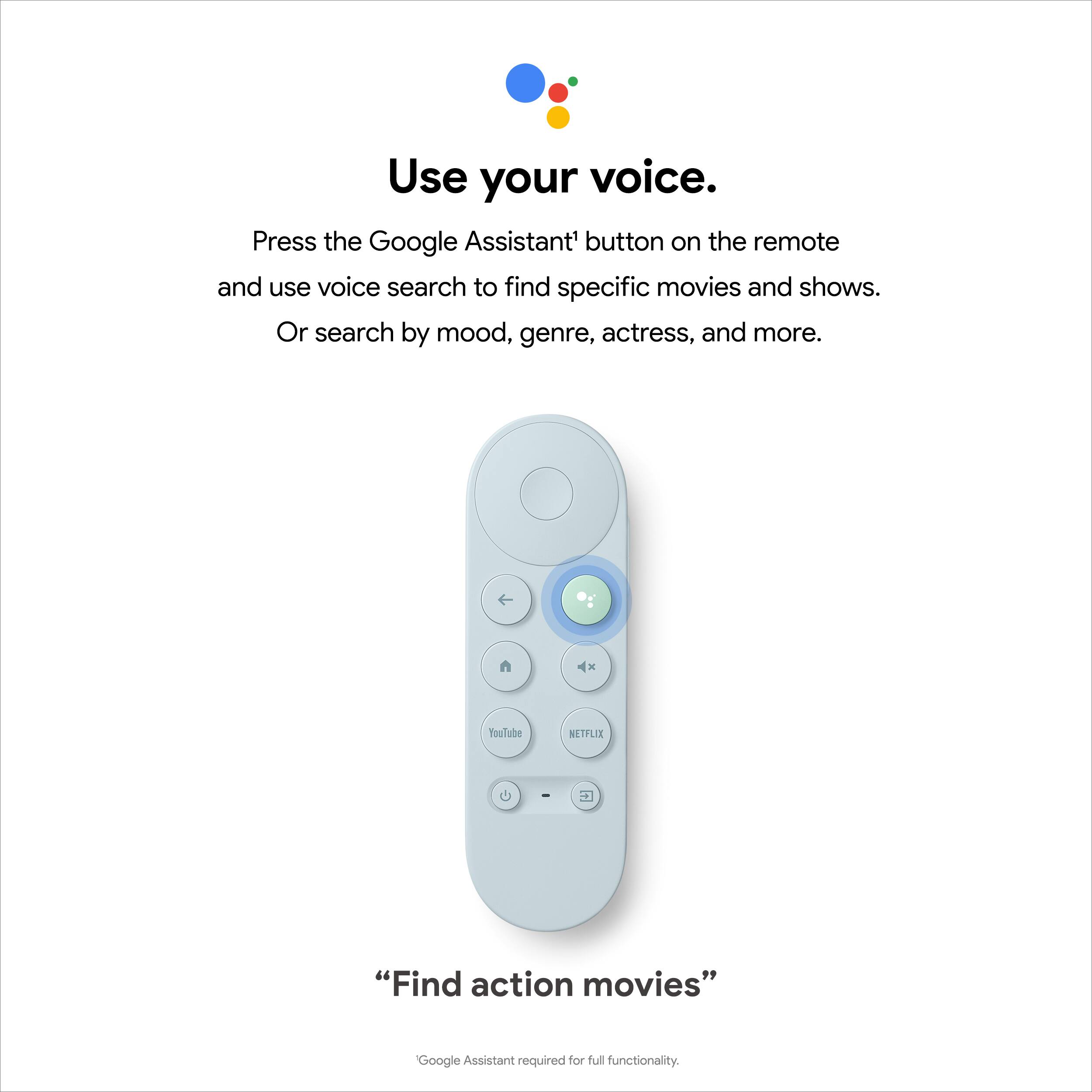
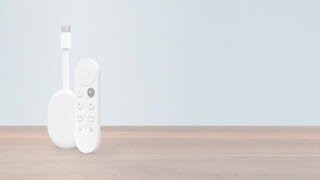
A:AnswerYes. Chromecast with Google TV and the voice remote is connected via Bluetooth. Chromecast with Google TV uses Bluetooth 4.2 and also uses Infrared (IR) to control your TV like turning it on and off and controlling the volume. It may work through a wall as long as it is within normal Bluetooth range.
A:AnswerThe Chromecast needs to have WiFi access to be able to stream content. Just a Bluetooth connection with your phone will not work here, unfortunately.