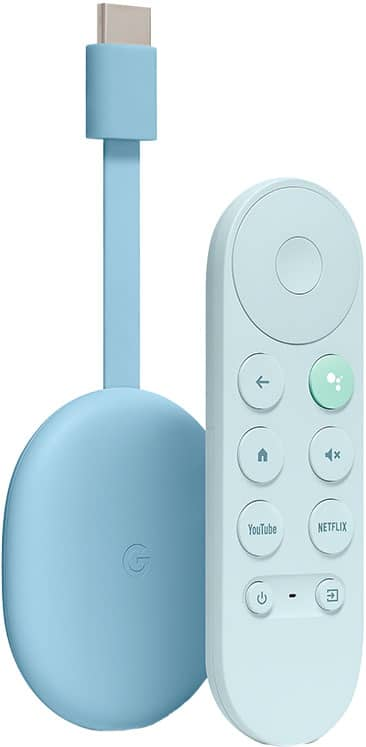
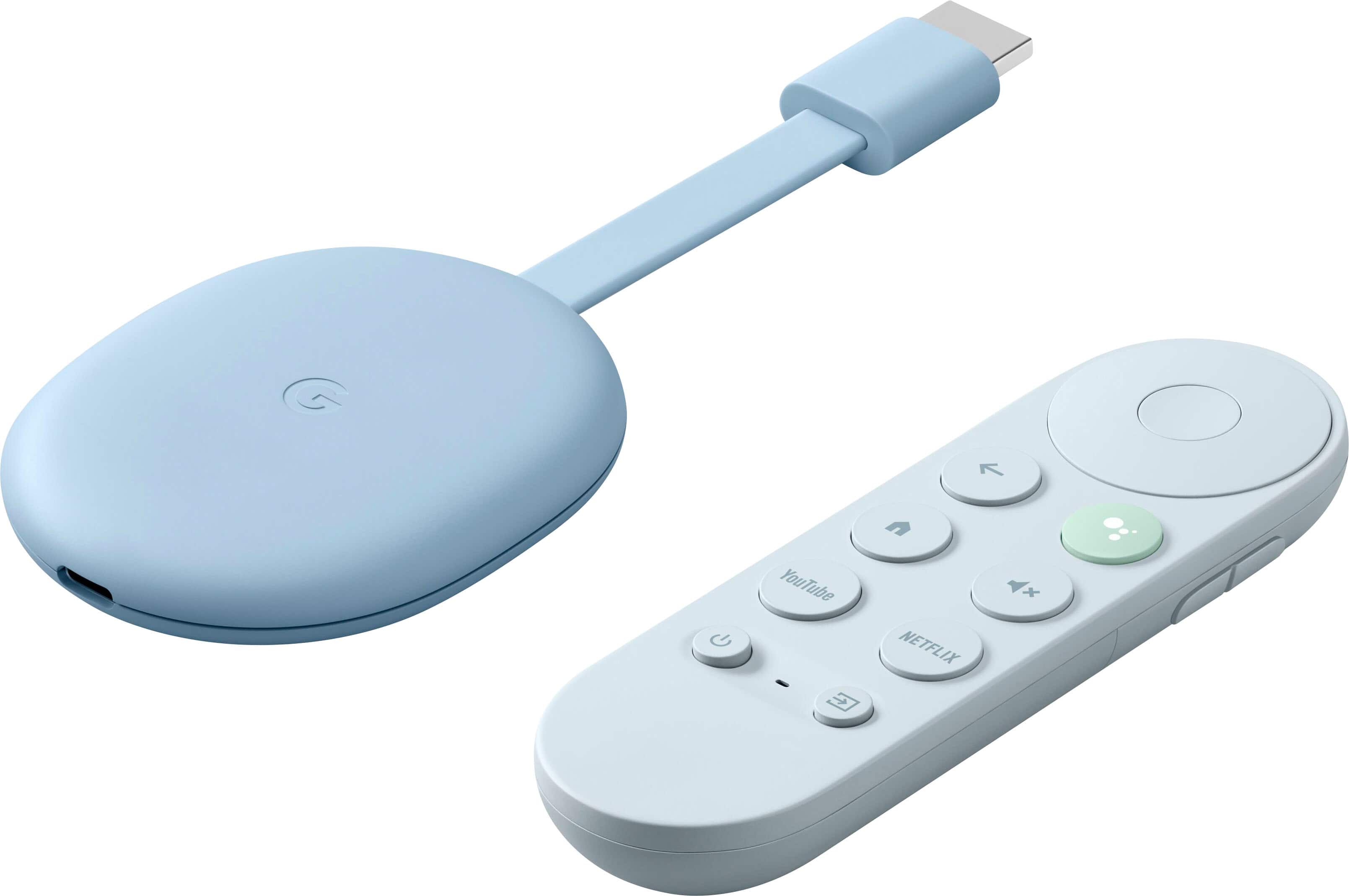
A:AnswerYes, Chromecast with Google TV is compatible to work with Google Home speakers and displays, including the first generation Google Home Minis. You can create an audio group for the devices using the Google Home app.
Also, you can pair your Google Home Mini with Chromecast with Google TV via Bluetooth for playing your music, podcasts and more. We recommend unpairing and reconnecting the devices if you experience a delay.
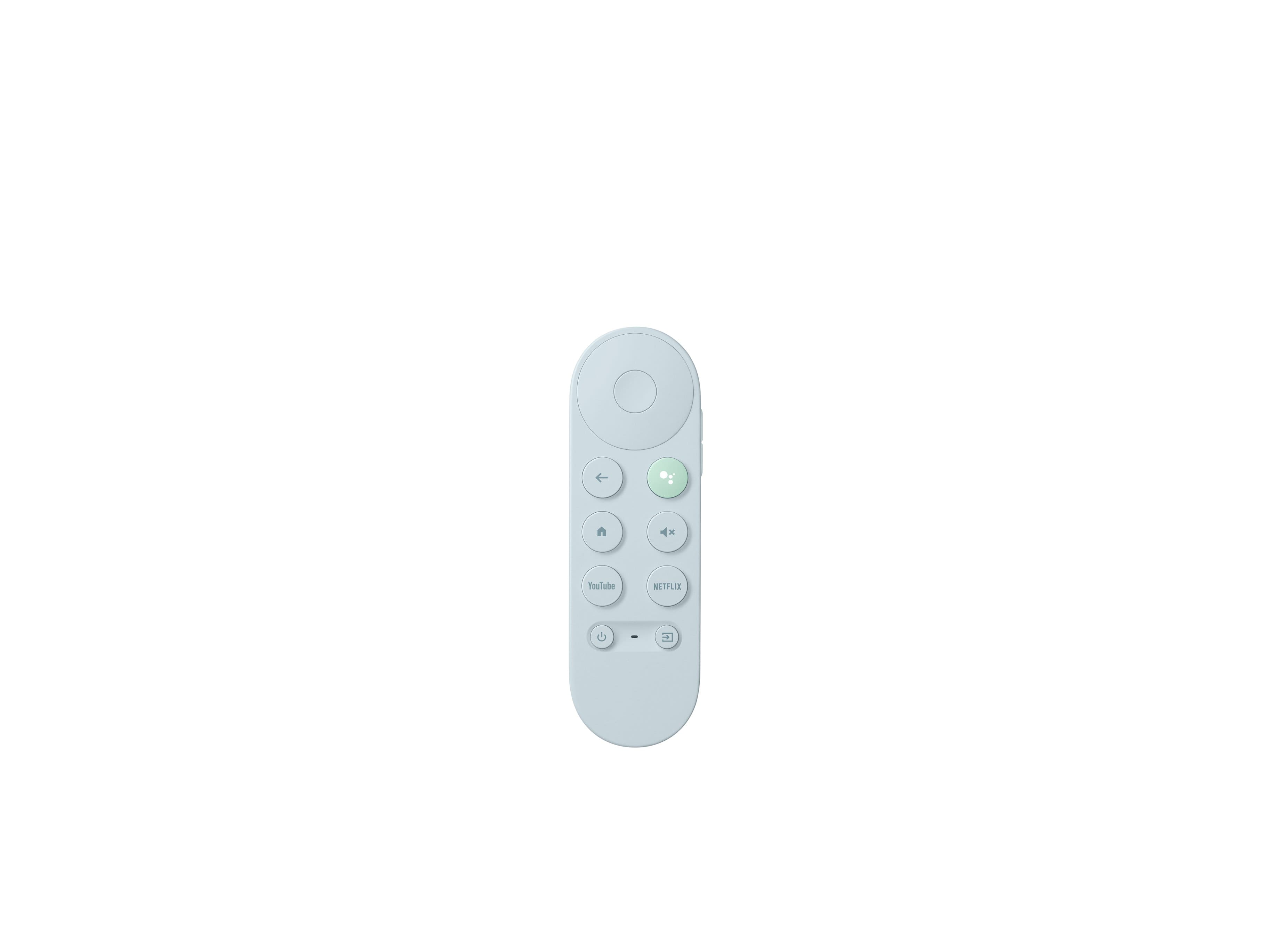
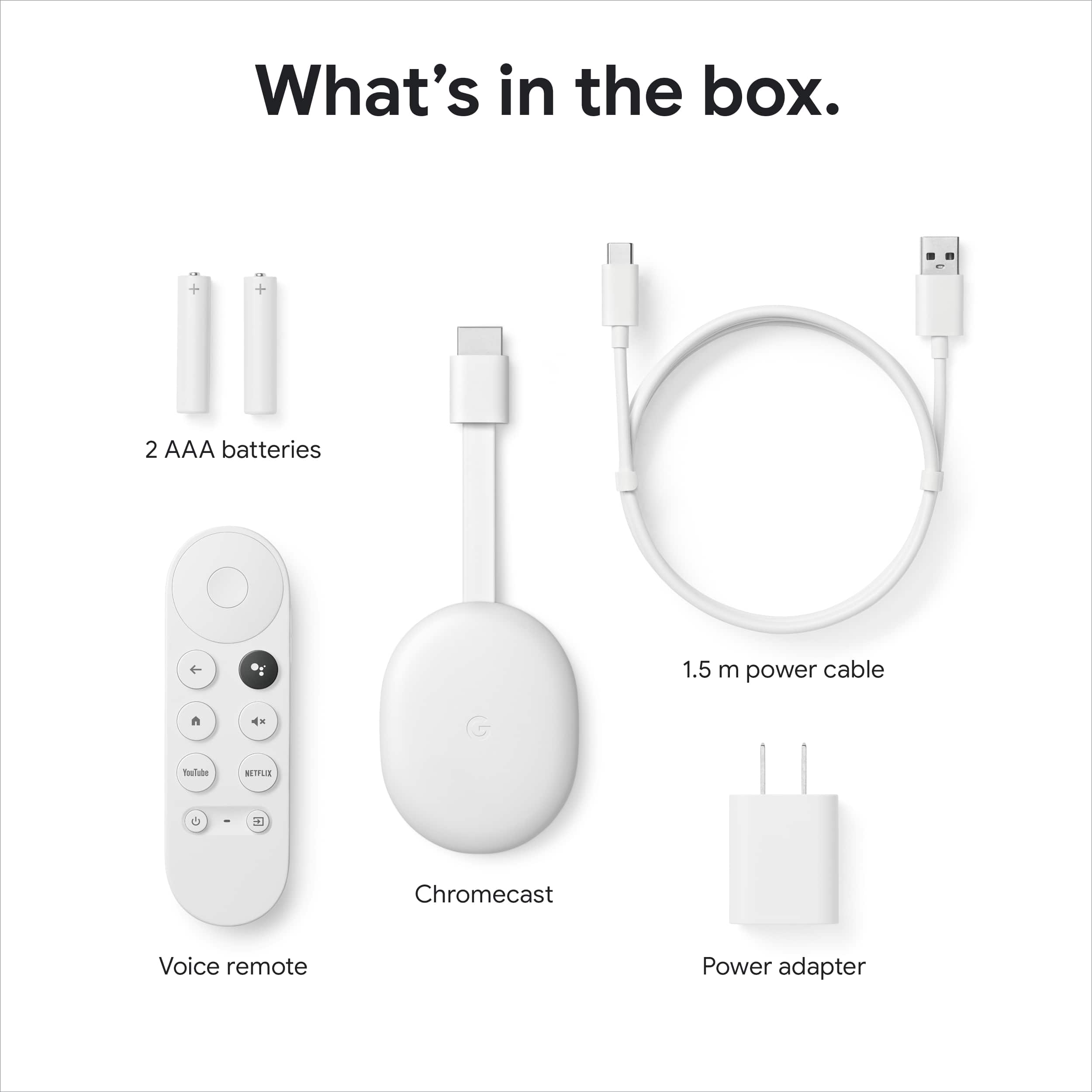
A:AnswerHi there. Yes, you can purchase the Voice Remote for Chromecast with Google TV separately. Here's a link with more details: https://support.google.com/chromecast/answer/10089168?sjid=3992406894331275146-NC
A:AnswerThanks for asking, kleenax. The Google TV Streamer (4K) has a variety of apps available to download directly from the Google Play Store. Check out this link with more information: https://support.google.com/googletv/answer/10050570?hl=en#zippy=
A:AnswerHey there. Thanks for bringing this to our attention. We recommend reaching out to the retailer directly so they may be able to get you the proper items.
A:AnswerHey there, good question. The Uzzu app is not natively supported on the Chromecast with Google TV (4K). To access Uzzu content, please consider utilizing a compatible third-party IPTV application
A:AnswerHi Snowynorth. Those are great questions. Yes, you can cast your screen as a mirror using the Chromecast with Google TV (4K). However, the next question is a bit tricky. It depends on the content you want to cast. Some streaming apps, such as sports apps, may not be able to cast due to copyright restrictions.
A:AnswerHey Leslie, to watch Google Drive files on your TV with Chromecast, you'll need to screencast from your phone or tablet. This will mirror your device's screen onto the TV.
A:AnswerHi Billy, you need to download the Google Home app on your mobile to get the option to cast directly to your Chromecast with Google TV (4K) and have iOS 16.0 or later. Take a look at this article to learn how to cast: https://support.google.com/chromecast/answer/6006232?hl=en&sjid=17370562173772852116-NA
A:AnswerHello Harvey. Thanks for contacting us. We're sorry to hear you're having trouble casting some apps to your TV with your Google Chromecast with Google TV (4K). To provide the most accurate solution, please contact us by clicking on this link: https://support.google.com/googlenest/gethelp
A:AnswerHey there. Yes, our Chromecast with Google TV (4K) device is compatible with your Vizio TV.
By connecting a Chromecast, you'll be able to access a wider range of apps and services.
A:AnswerHey there. Yes, it is possible to access local channels with a Chromecast with Google TV (4K) device. However, the specific method for accessing them depends on your preferred viewing method.
Please check this article for more information:
https://support.google.com/fiber/answer/12244429?hl=en&sjid=7297562184938030126-NA#:~:text=Learn%20more%20about%20TV%20services.
A:AnswerHi there, thanks for your question! To see which apps you can cast from your phone to your TV, click on this link: https://store.google.com/us/product/gtv_apps_and_partners?hl=en-US
A:AnswerNo. It can’t be programmed to that out of the box. I would recommend a more specialized solution like a raspberry pi with software that can do this.
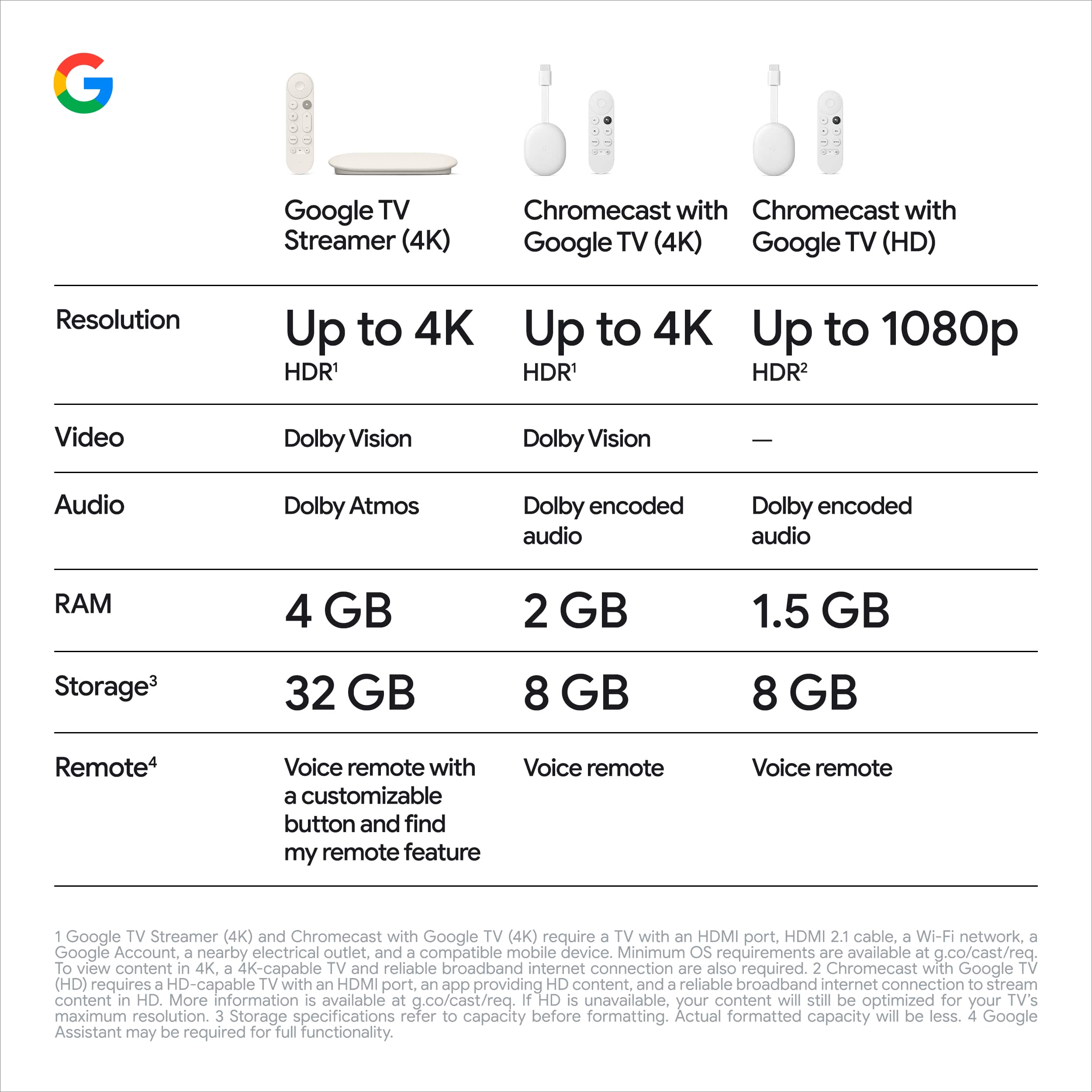
A:AnswerHi there, Dragonfly. Thanks for the inquiry. The difference between Chromecast with Google TV (4K) and Chromecast HD is in resolution and certain features. For the feature and functionality they're just the same. The Chromecast with Google TV (4K) supports streaming content in up to 4K Ultra HD resolution, providing a higher quality and sharper image if your TV supports 4K while the Chromecast with Google TV (HD) supports streaming content up to 1080p Full HD resolution. Both devices are integrated with Google TV experience that provides a user-friendly interface plus content recommendations. Both Chromecast models can work with older TVs that do not have smart capabilities. They connect to your TV via the HDMI port and require a separate power source, usually through a USB connection. If you have more questions, we recommend reaching out to our dedicated team of specialists on the Google Help Center here: https://support.google.com/googlenest/gethelp
A:AnswerHey there, Don. Thanks for your question. The Chromecast with Google TV (4K) itself does not stream regular local channels. However, to watch using your devices, you may need to download the app of the streaming services that you like and subscribe to use their services. Some popular options include streaming services like YouTube TV, Hulu + Live TV, Sling TV, and others. These services often provide live streaming of local channels alongside a variety of other content. If you have more questions and answers, we recommend reaching out to our dedicated team of specialists on the Google Help Center here: https://support.google.com/googlenest/gethelp