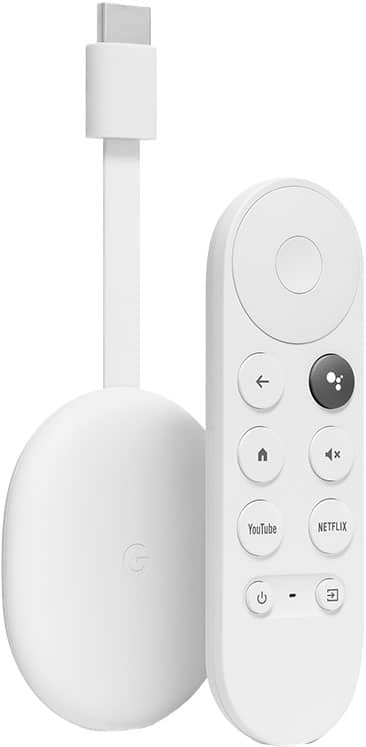
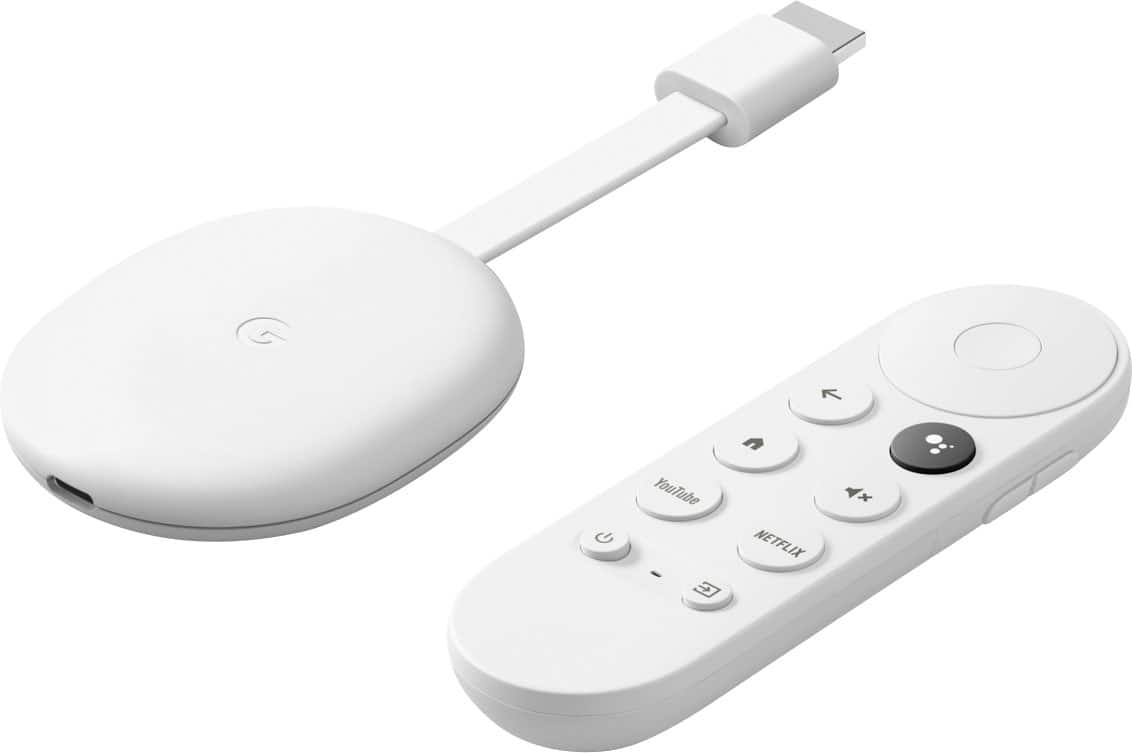
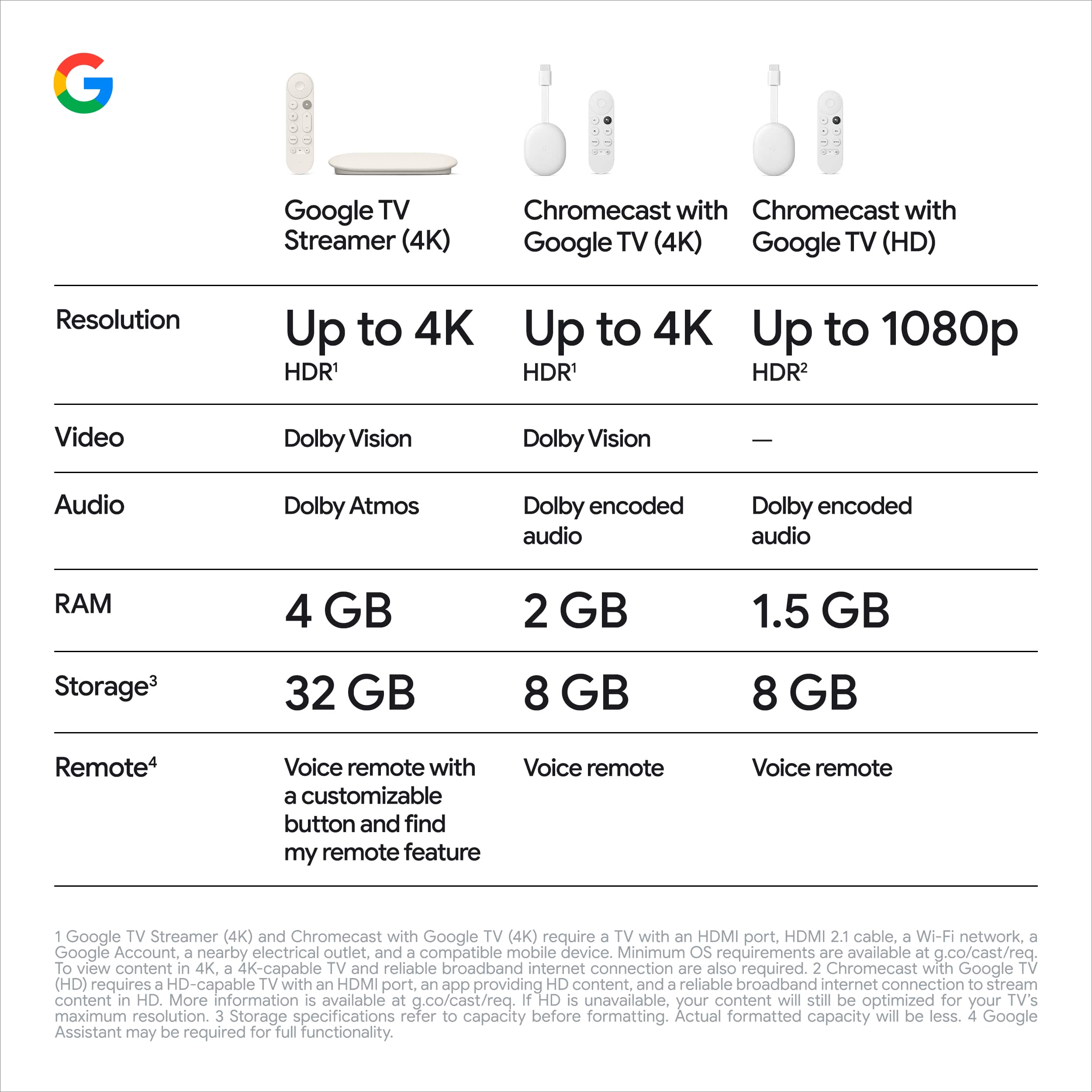
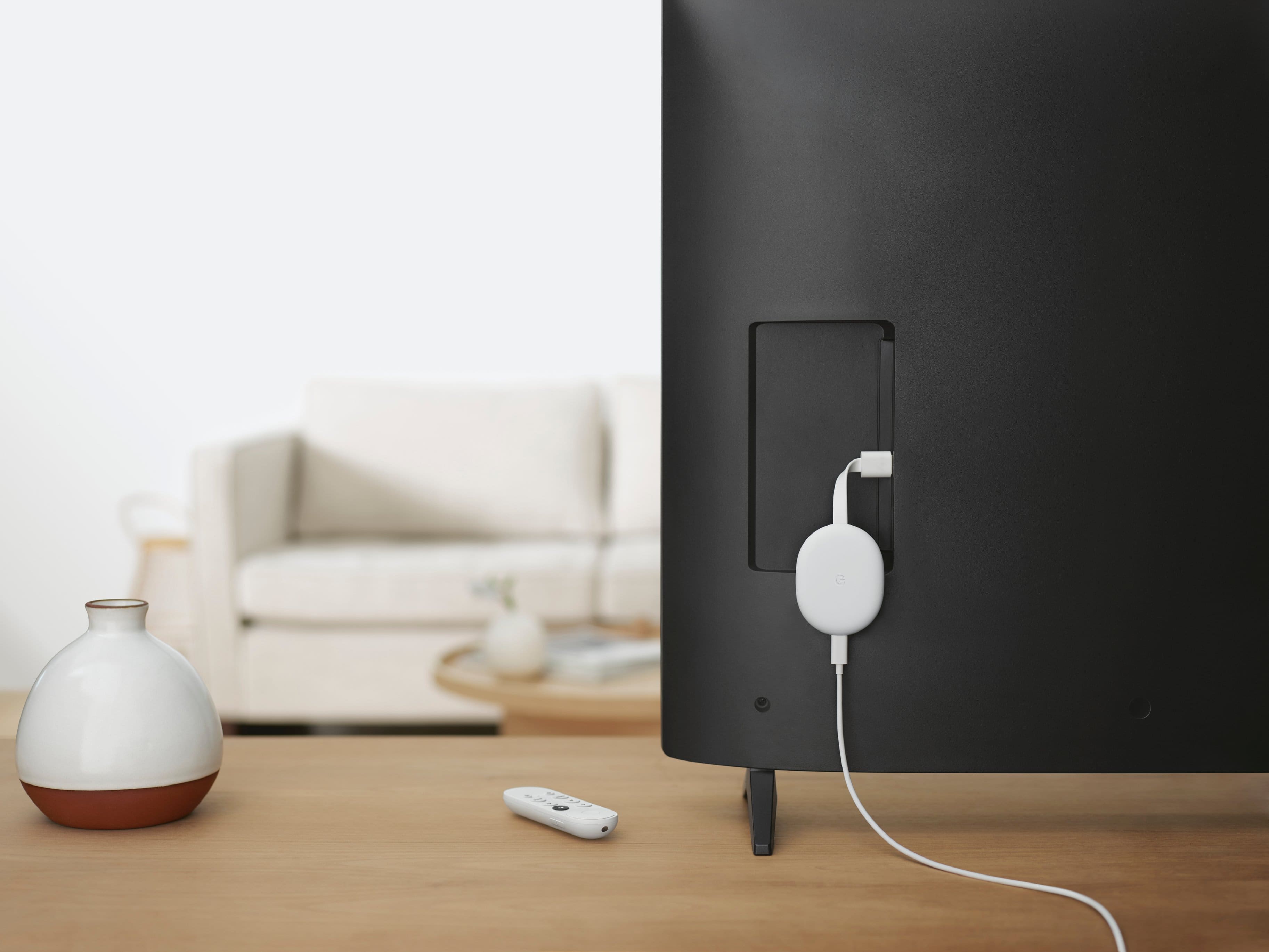
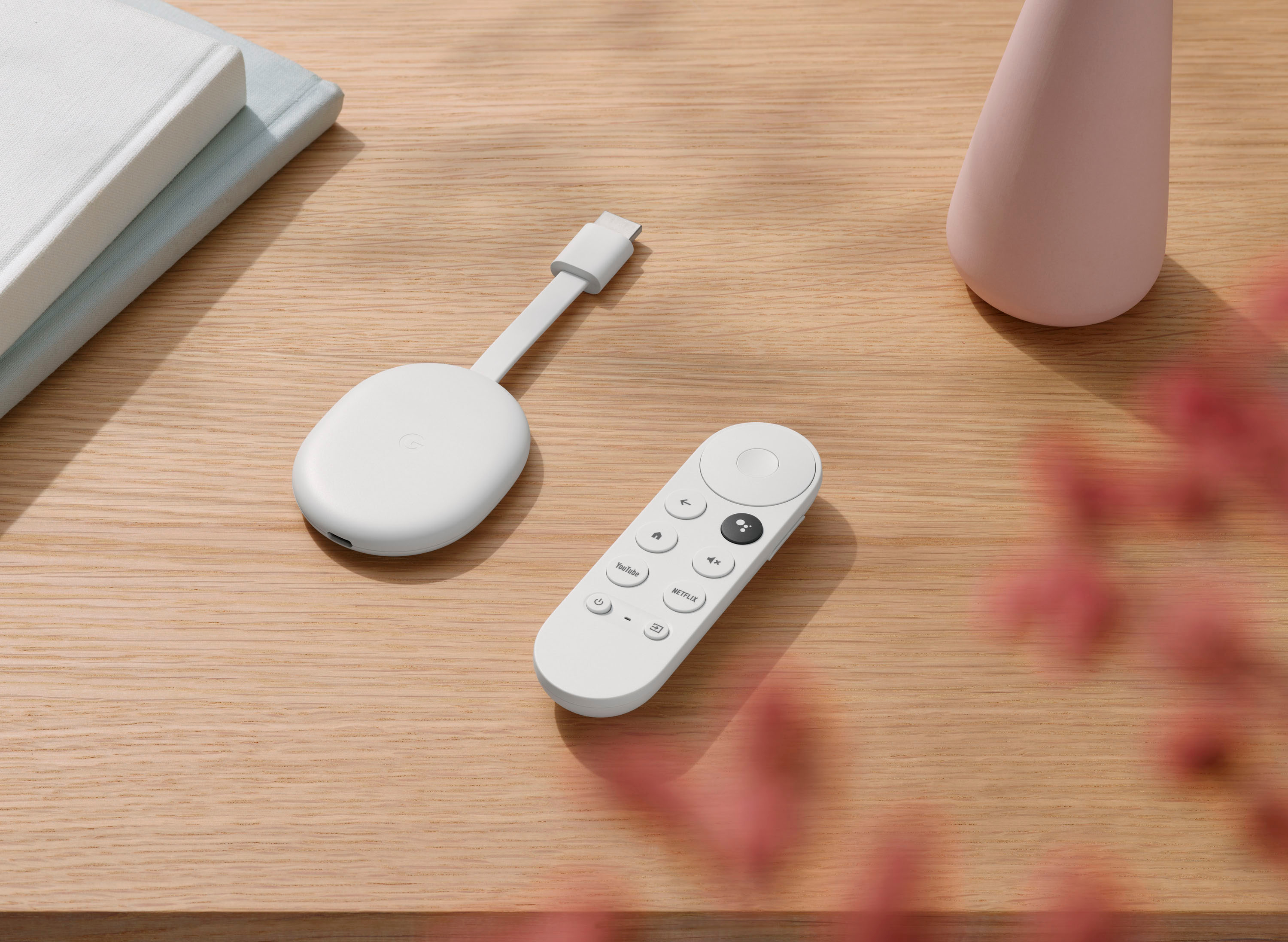
A:AnswerAbsolutely! Hulu is included on the list of cast-enabled apps and will work with Chromecast with Google TV. Please note that while Chromecast doesn't require any subscription to use, you will need to subscribe to the services of some partnering apps such as YouTube TV, Netflix, Hulu, HBO Max, Brit Box, Prime Video, and many more to stream movies and other video contents. You may check this link to see the list of cast-enabled apps: https://store.google.com/au/product/gtv_apps_and_partners
A:AnswerWe do apologize for the inconvenience. We recommend contacting our support team again through this link: https://support.google.com/chromecast/gethelp
A:AnswerNo. Chromecast is a Wi-Fi enabled device. It requires to be connected to a stable Wi-Fi network, to be able to stream videos seamlessly. Availability and performance of certain features, services, and applications are device and network dependent. Although mobile data or hotspot connection may work, we do not recommend it for the reason that it can have issues with bandwidth availability, data limits and usage fees.
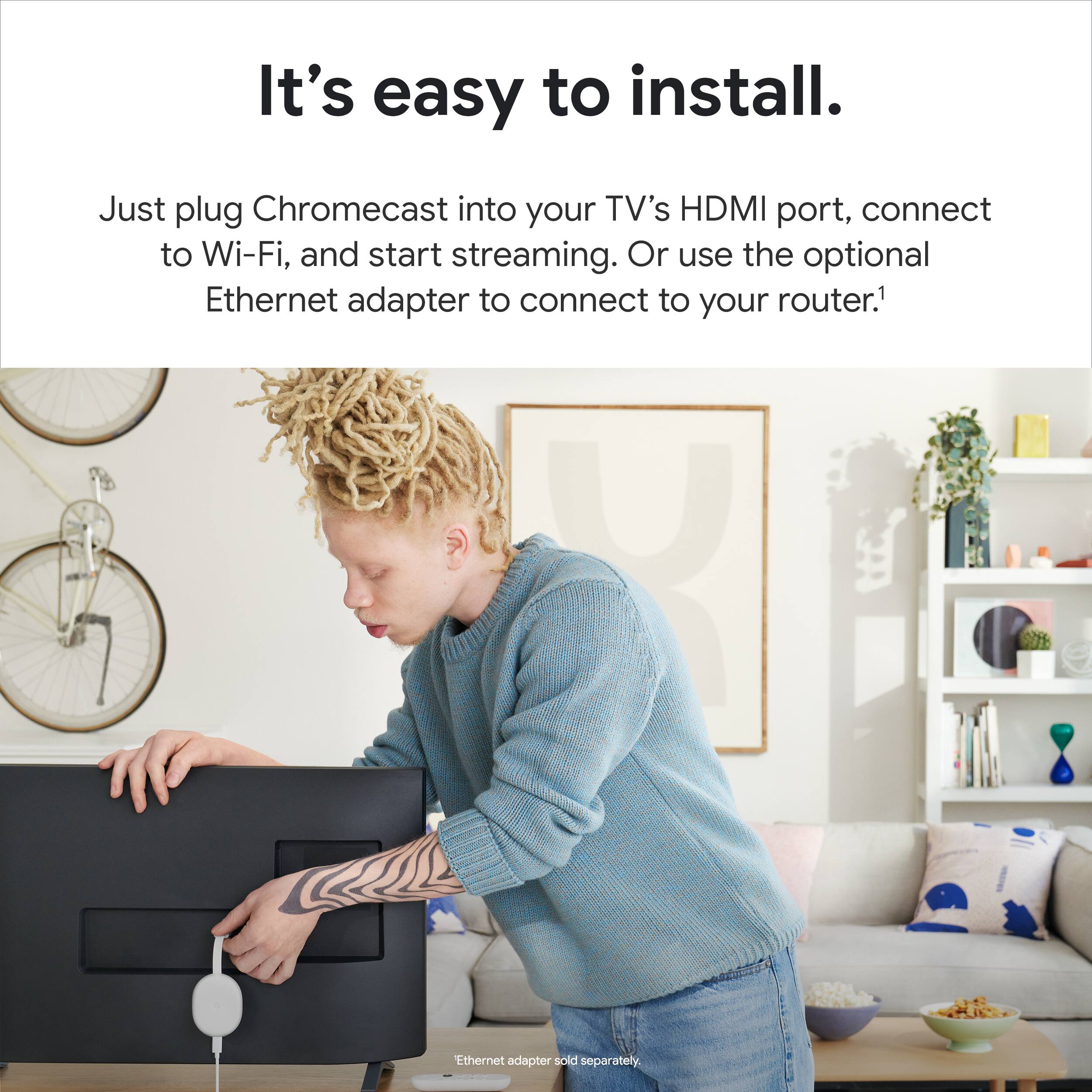
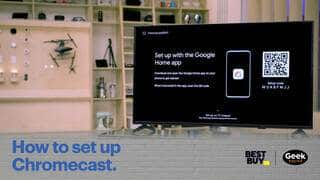
Take a look at this link for the setup requirements and guide on how to setup Chromecast with Google TV and Voice Remote: https://support.google.com/chromecast/answer/10109990
If you need further assistance with your device you can reach us on our Google Help page here: https://support.google.com/chromecast/gethelp
A:AnswerYou can check which apps are available on the Play Store at tv.google and learn how to install the apps here: https://support.google.com/googletv/answer/10050570
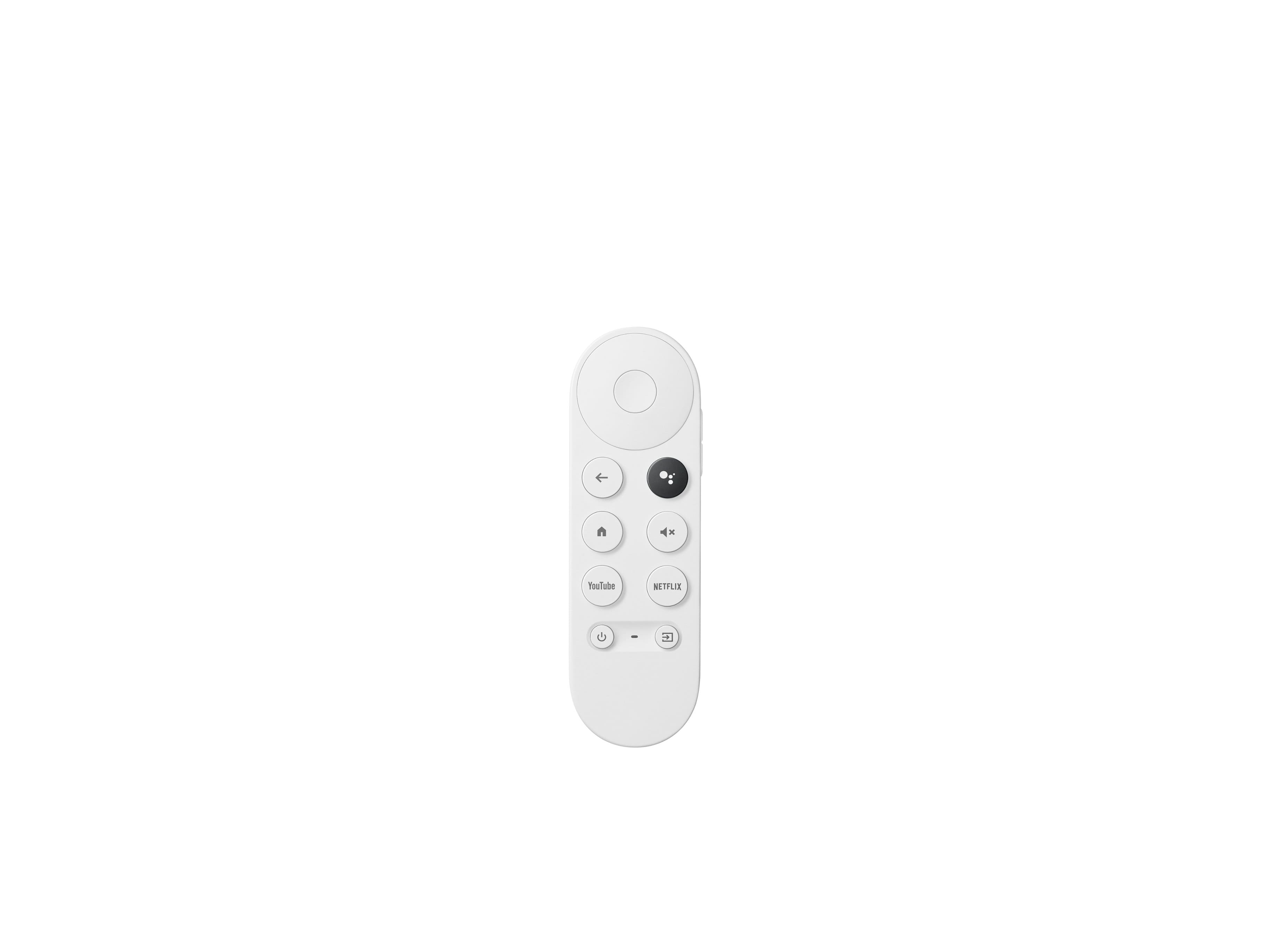
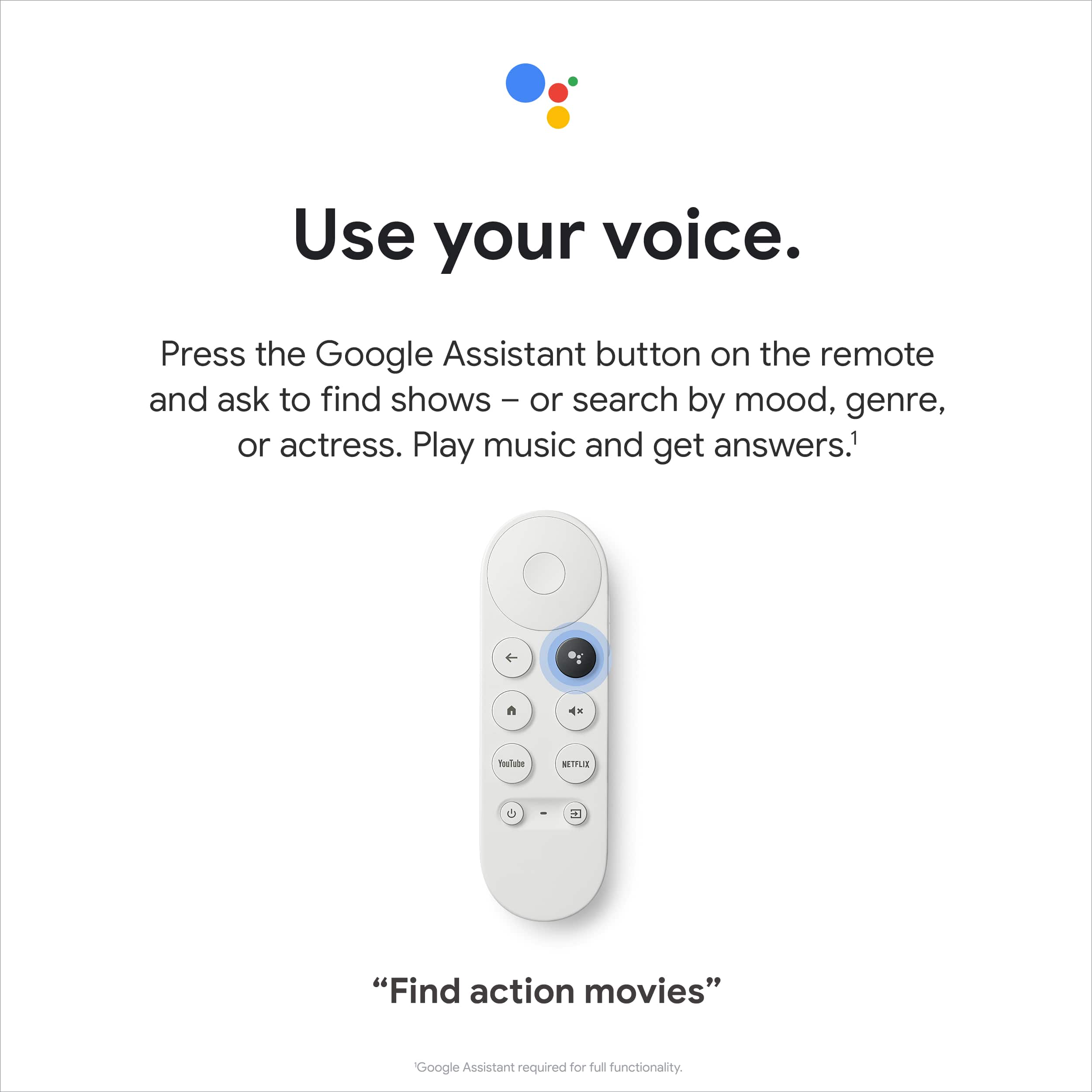
A:AnswerYou can configure your Chromecast Voice Remote to control devices like your TV. You can set up the volume, power, and input buttons. Normally, you can configure these buttons when you first set up the Chromecast with Google TV. You can also set them up in Google TV settings. If you need further assistance with setting this up, you can reach us on our Google Help page here: https://support.google.com/chromecast/gethelp
A:AnswerThere is an option in settings where you can sync your remote to your TV and sound system. There you can designate which source for volume you want the Google remote to control.
A:AnswerYes Downloader is available in Google Play store on the device.
And yes you can install 3rd party apps BUT for some reason, which I haven't been able to figure out, some 3rd party apps never show up in the apps list. You actually have to go all the way into device settings to your installed apps and look for the app and open/manage it from there. Plus, there is no "recently used apps" list on the home screen like there is on Fire TV Stick. If there were then the apps not showing up in the regular apps list wouldn't be so much of a problem.
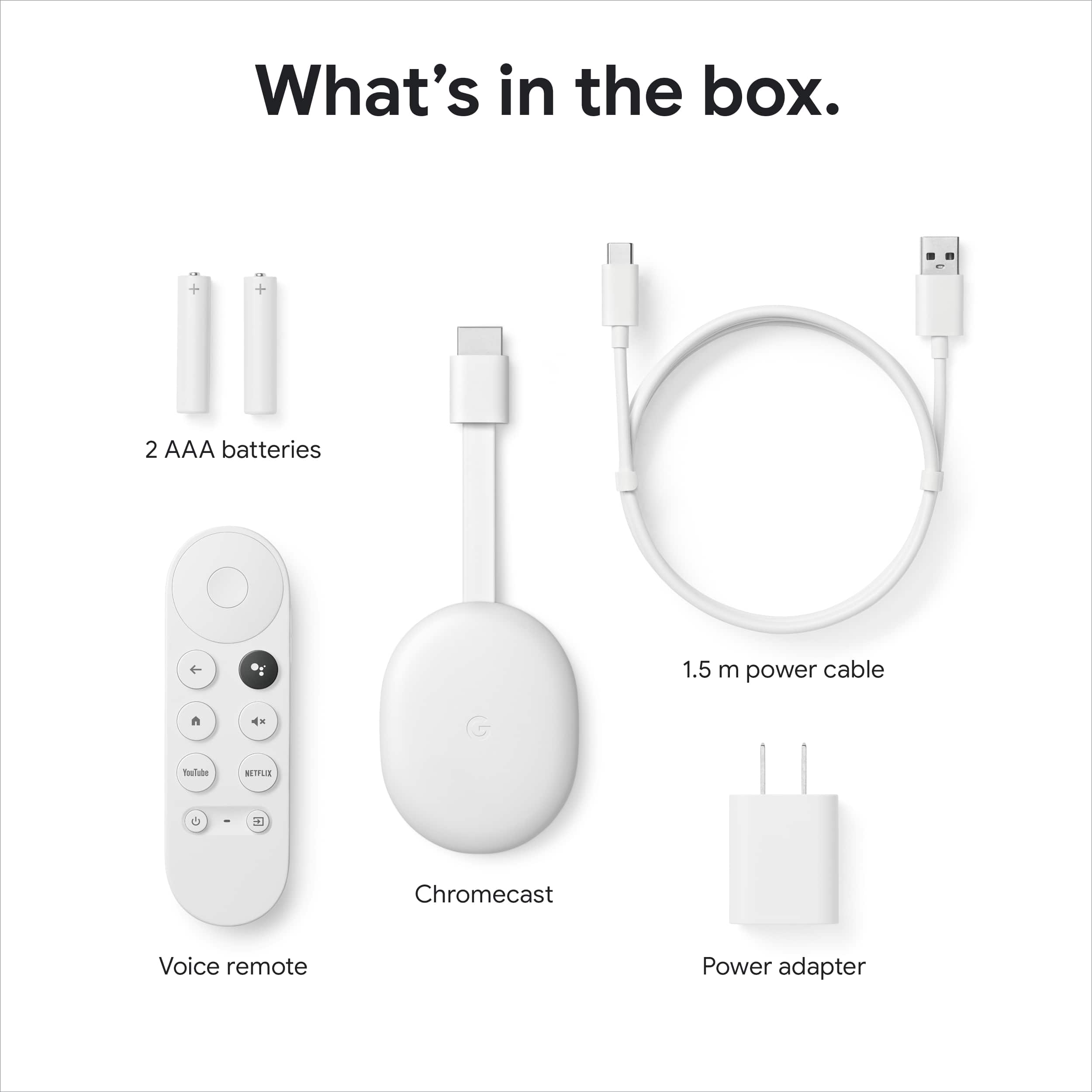
Also, keep in mind there are no play, ffw/Rew buttons on the remote which is very inconvenient, along with volume buttons being on the side of the remote.
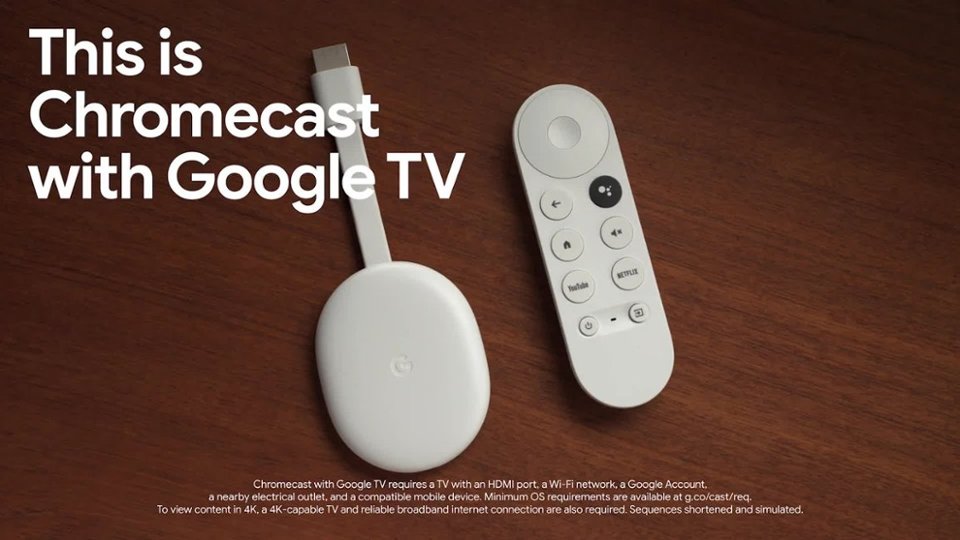
A:AnswerGoogle TV is already included in the new version of the Chromecast. You would need to have a Google Account and a Wi-Fi internet connection for you to use the device.
A:AnswerPeacock is included on the list on supported cast-enabled app. However, both TUDB and beIN is not included on the list of supported cast-enabled apps. But, if you have an Android device, you can mirror your phone screen to the Chromecast to watch content.
You may check the following support article for more information:
Cast your Android screen: https://support.google.com/chromecast/answer/6059461
Keep in mind that while Chromecast doesn't require any subscription to use, you will need to subscribe to the services of some partnering apps such as YouTube TV, Netflix, Hulu, HBO Max, Brit Box, Prime Video, and many more to stream movies and other video contents. List of cast-enabled apps: https://store.google.com/us/product/gtv_apps_and_partners