A:AnswerWe recommend using Chromecast in its country of purchase as each country requires different compliance standards that may prevent Chromecast or some of its features from functioning as intended.
A:AnswerYes, you can use cast-enabled apps on your iOS devices running iOS 12.0 or later to stream to your TV with Chromecast. Please keep in mind, your TV needs to have an HDMI port for Chromecast to plug into.
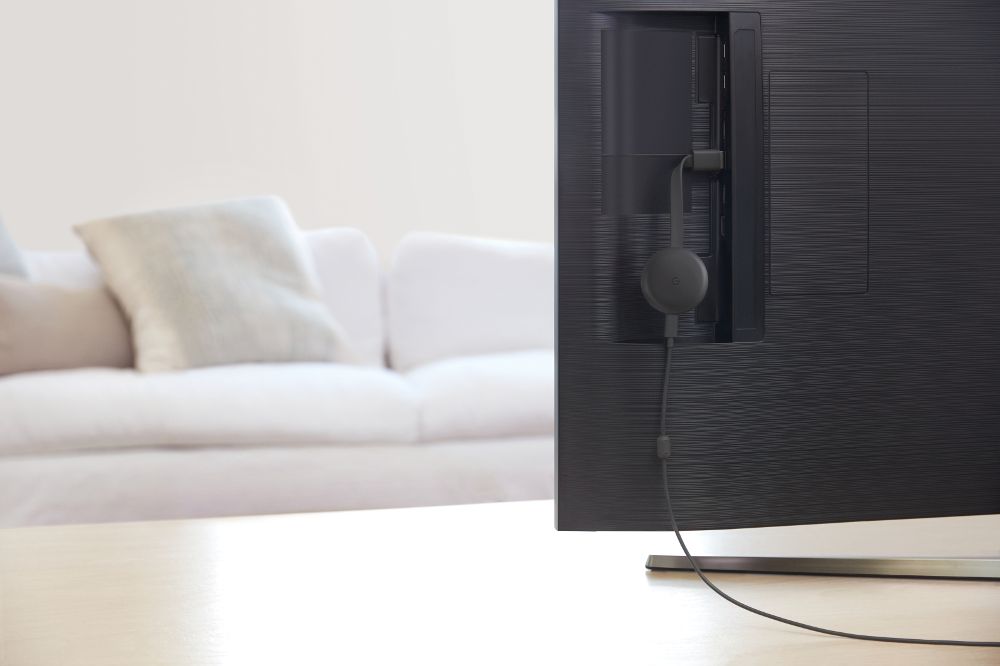
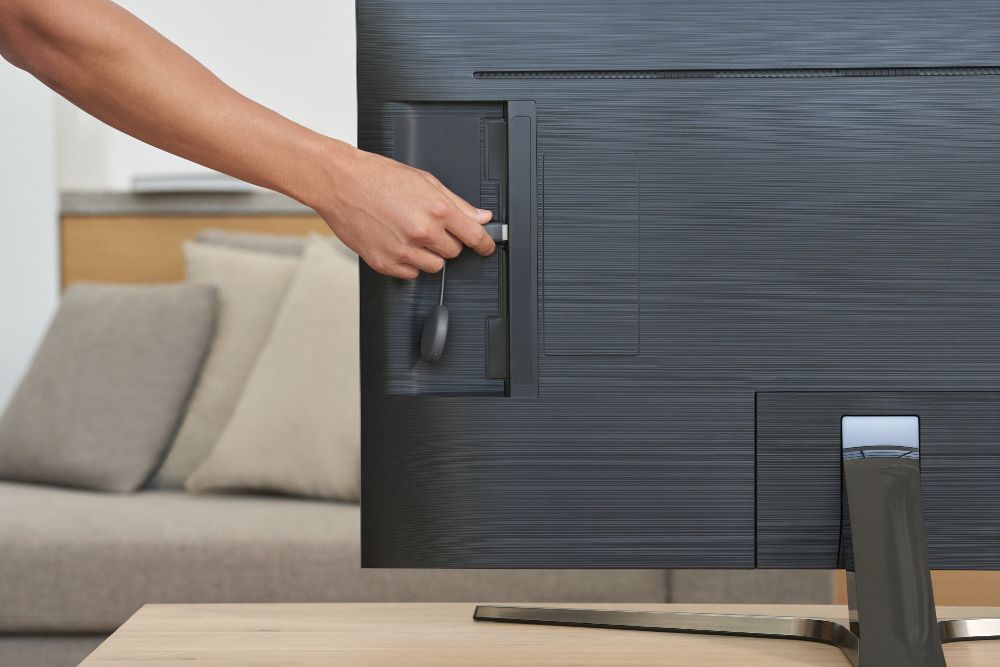
A:AnswerThe first thing you do is download the app to ur cell phone. Plug in the chrome cast behind ur tv. App will pick up the chrome cast and u will name it. (Example: living room, bedroom and etc.) then u will watch anything on ur phone to ur actual big screen tv.
A:AnswerYes, you can cast Fox Sports to your TV from your laptop or phone with Chromecast.
Once Chromecast setup is complete. Here is how you can cast from your laptop:
- Log into your Fox Sports account on Google Chrome browser.
- Select the "3 dots" at the top right corner of the webpage, then select "Cast".
- Choose your Chromecast in the list.
On your phone, you can log into Fox Sports app, and you will see the "Cast" logo. You can click and choose your Chromecast.
A:Answer100% yes, you tube and Google are same company, it works seamlessly together. I recommend the ultra chromecast over the regular, works so much better
A:AnswerAll Chromecasts work with Android phones running Android 5.0 and higher, Android tablet running Android 6.0 and higher and an iPhone or iPad with iOS 12.0 or later.
A:AnswerNo, I don't think an upgrade will help with these problems. The newer version sometimes takes several attempts to connect. Problems turning off and audio and video don't always sync.
A:AnswerIf you have an Android phone, you can mirror the screen of your phone to a monitor or a TV with an HDMI port. But you can only mirror the video as you will still need the microphone of your phone to talk back and Chromecast itself doesn't have a microphone.
A:AnswerI use the Google Home app (check the apple store) from my Android devices and have no problem casting my screen to the TV. I Use it often for training videos.
A:AnswerYour laptop doesn't need to be close to your TV. But in order to have a strong and reliable streaming experience, we recommend keeping your streaming source (phone/tablet/laptop) and your Chromecast within 15-20 feet range of your router.
A:AnswerWe recommend a broadband Wi-Fi network for reliable connection. You need to have both your smart device and your Chromecast connect to the same network, and a hotspot may not be capable of handling the internet traffic.
A:AnswerYes, you can cast any Chromecast enabled-app installed on your iPhone to your TV via Chromecast. You can also cast content using Google Chrome browser on your phone.