A:AnswerIf it's a smart TV you shouldn't need this device. You could use the browser in the TV to do this.
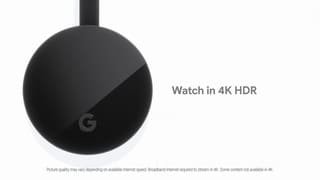
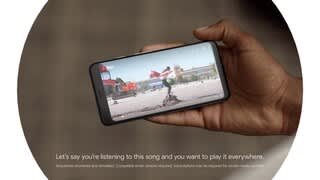
You could do what you're asking using the Chromecast mirroring feature. You install the Google Home app, in the main page there's a cast option that allows you to send whatever is on your device screen to the TV.
A:AnswerSome media apps are compatible, I know Netflix is for example. When you fire those up, a cast icon appears and you can send the stream to your TV. I don't know if that service is compatible BUT if it's not, you can mirror the screen of your device to the TV using the Google Home app. There are questions about the quality of the mirrored content... I'd just do some surfing to find out if your service's app supports Chromecast.
A:AnswerYou're kinda asking the wrong questions. You can send whatever is on your device to the TV. Browser doesn't matter.
First, you need to install the Google Home app on whatever device you want to cast from. Certain services, like Netflix, support casting and when you use the apps they offer a cast icon you hit to tell the app to put out the whatever to the TV instead of the screen of the device the app is running on. If you want to watch other things that don't support casting, you use the Google Home app to mirror the screen of your device to the TV. There is an option in the main screen of the Home app.
A:AnswerThis device doesn't do channels. Whatever device you're casting content from is your remote.
For example, I use my Google Pixel phone. I watch Netflix thru the Netflix app on my phone. I can connect to the Chromecast device from my phone and when I watch a show, a cat icon appears that allies me to send the show to the TV screen instead of my phone screen. If I want to watch a different show on Netflix, I change it thru the app on my phone.
A:AnswerDon’t know. I use it with iPhones and iPads. But the Android app for Chromecast is available. However, no matter the device, it only works out of apps like Amazon Prime Video or YouTube, or any app containing the code to do casting to a TV. You can’t just open your pictures folder and think you can cast to your TV. That takes different hardware.
A:AnswerYou can cast your entire desktop through Chrome browser. There is a cast button on Chrome which will have options to cast either browser or the entire desktop. Try it out!
A:AnswerThis isn't that kind of device, look into the other options. This uses your phone or tablet or ? as the smart device and really just created a wireless connection to the TV.
If you use a TV app on your device, sure you can cast that but it seems like another solution would suit you better.