A:AnswerI have not found a way to cap FPS at 120 through setting on the panel itself. Ps5 May have this setting, being able to go over 120 will not hurt you, however
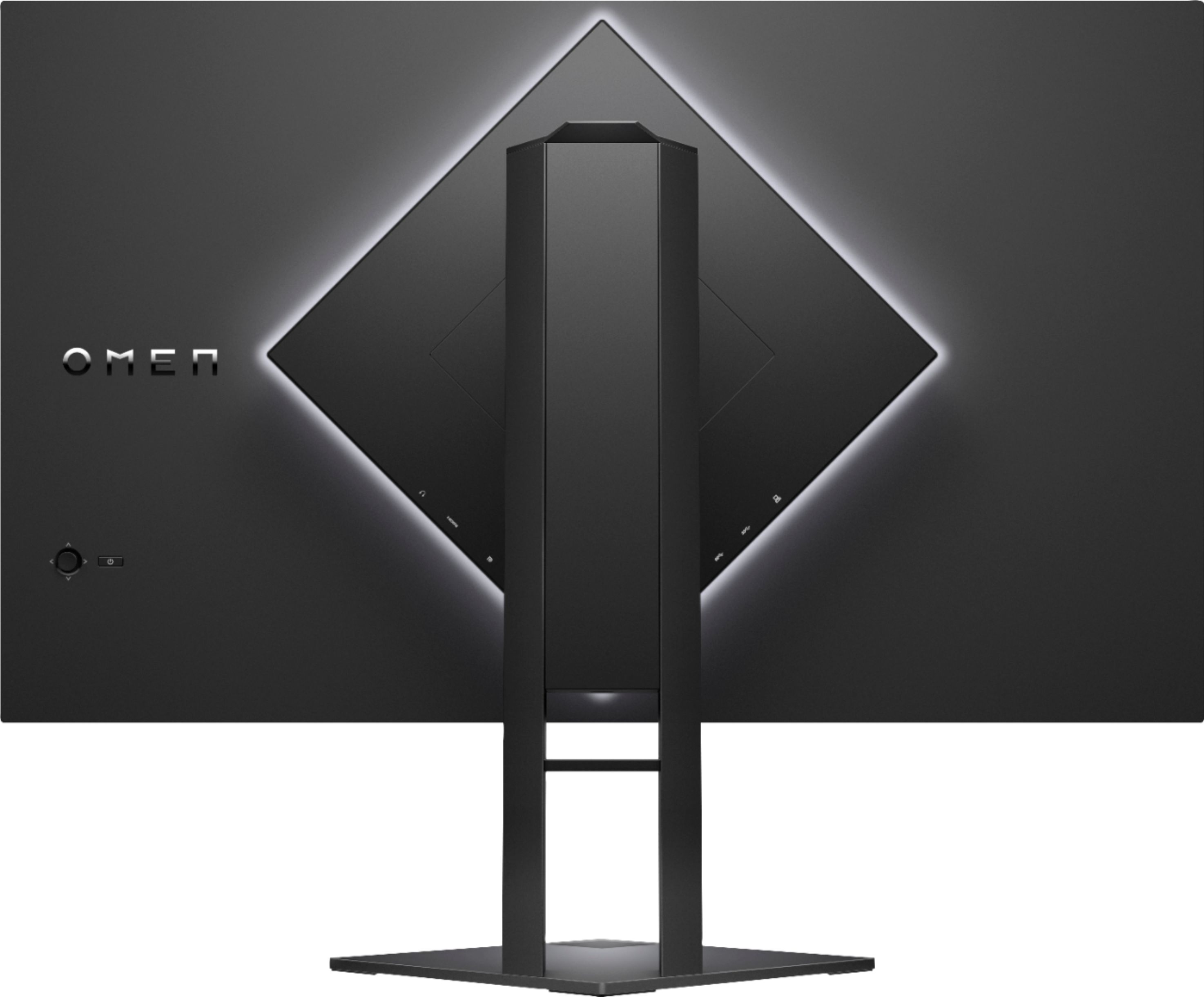
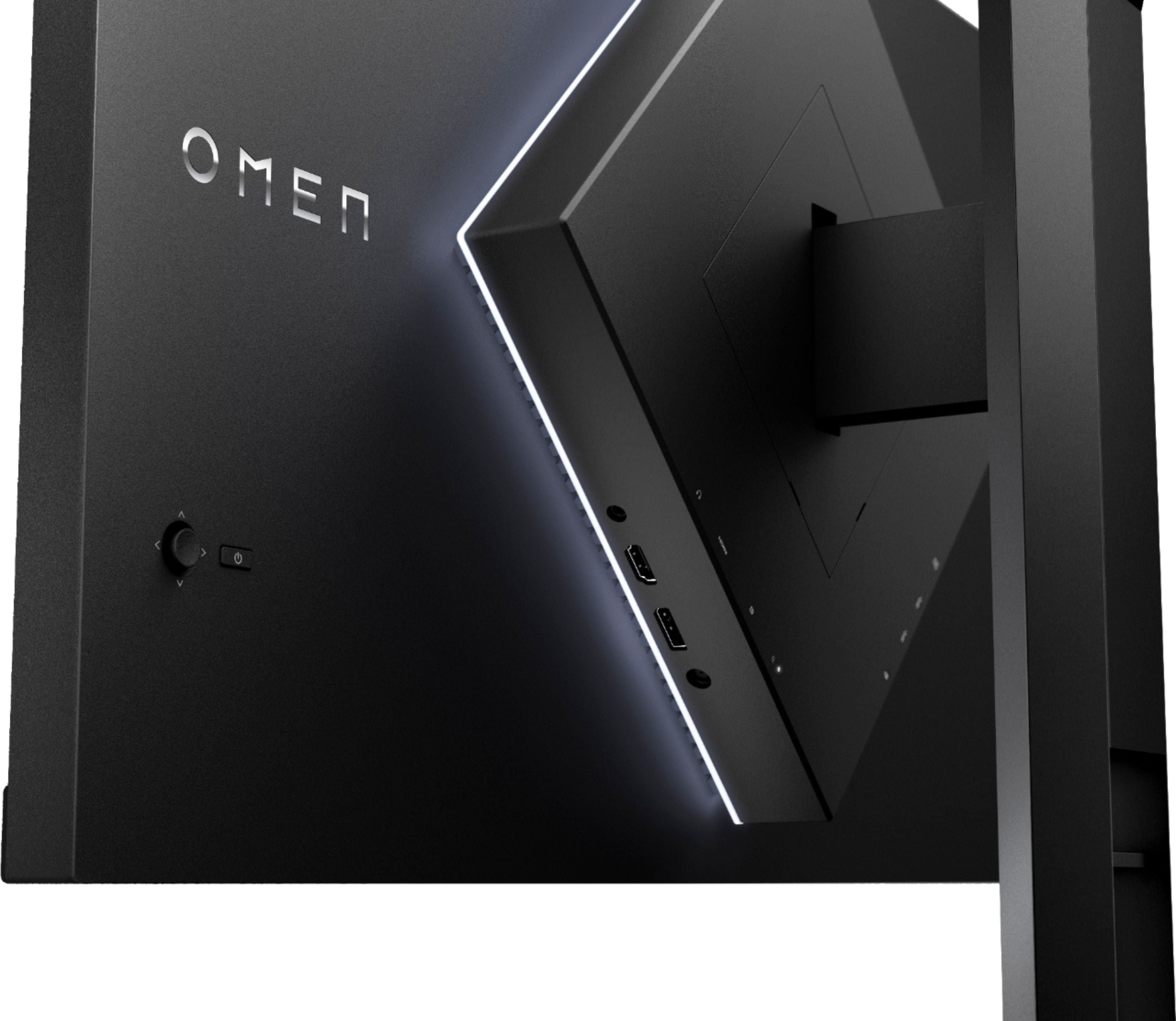
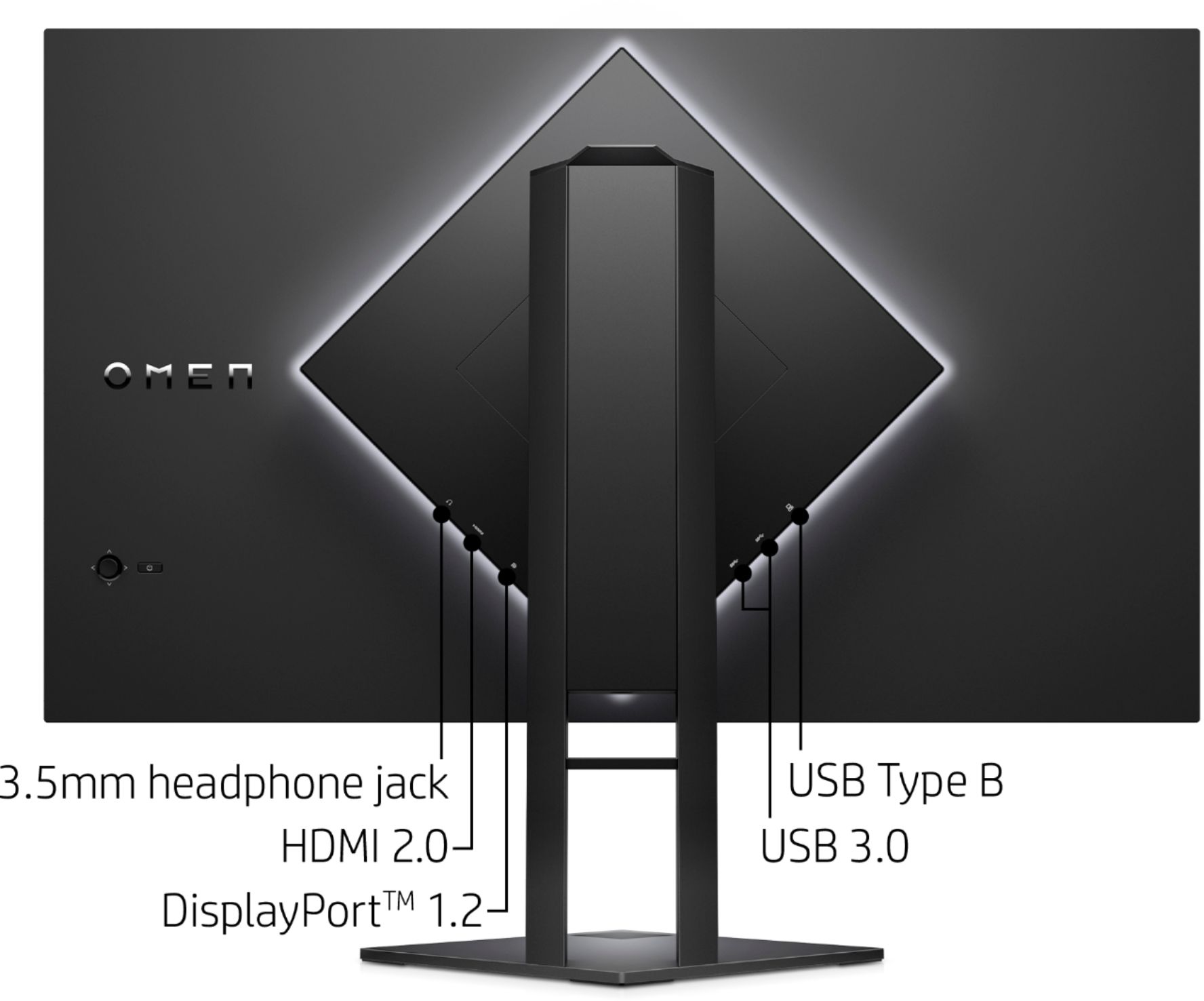
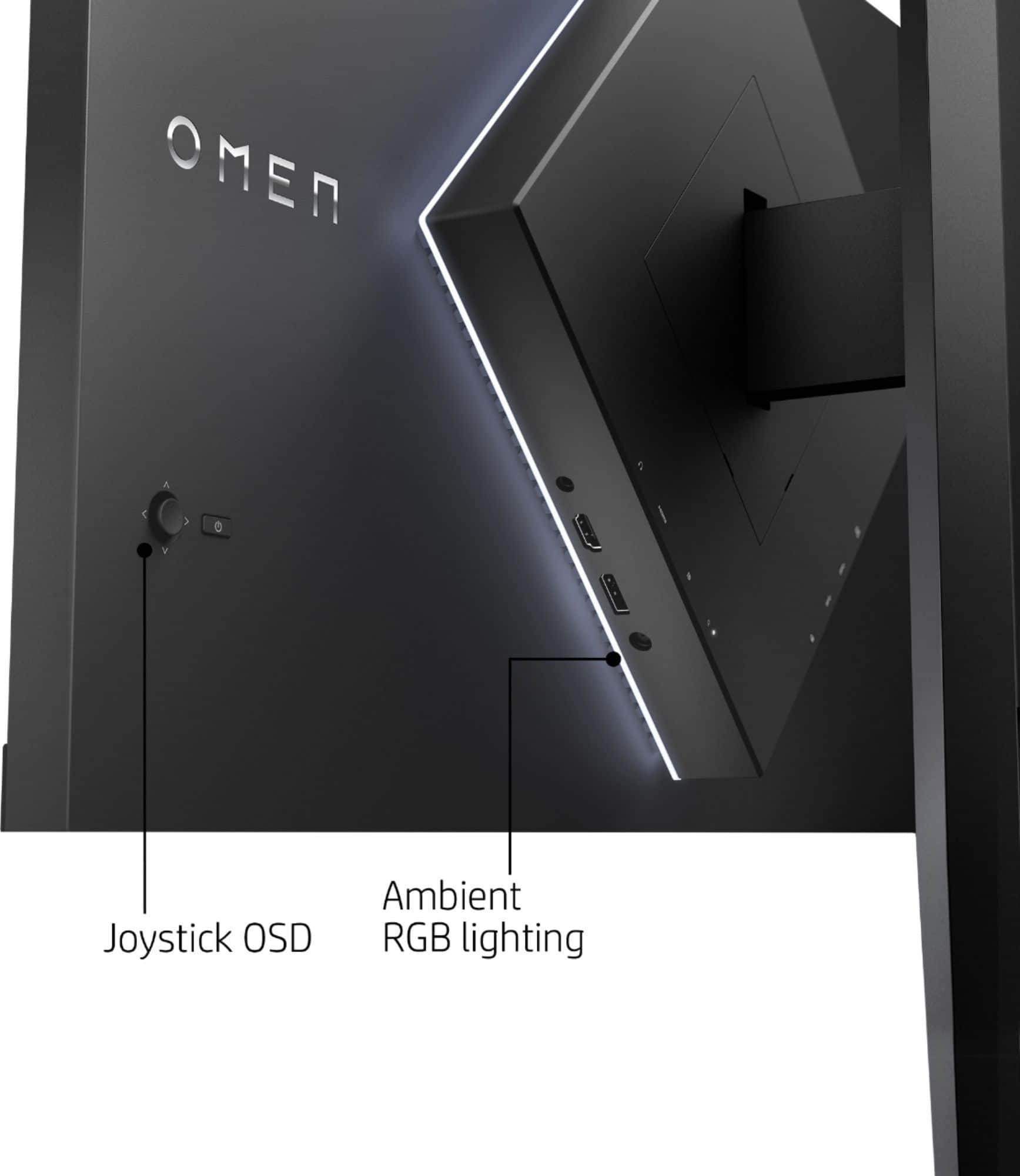
A:Answeryou can use all the option with the bottons on the back but if you want to use it on the app you can connect your hdm from your pc to the monitor or a USB
A:AnswerYes it would be a great choice. I use my monitor for both work and play. I've played Witcher 3, LoL, Squad, GTFO and Warzone on this monitor without any issues. Looks and performs amazingly!
A:AnswerCould be related to the cable you are using to connect the monitor, so hdmi or DisplayPort may be loose or degraded. If hooking up to PC with graphics card overclocked too hard it will flicker, check power connections for power on options, I have had 0 issues in regard to power.
A:Answeryes but theu software. I am able to do it thru the software of my gpu. Using windows software can do it just not as good of results. Monitor is capable of super sampling
A:AnswerFOV = Field Of View, that is how much you can move to to the sides of a display's center and still see the screen as intended. The OTHER FOV/Field Of View is in actual games is similar in that it dictates how much of the "standard" view you see which if changed can allow for a wilder view of the world around you.
A:AnswerHere are the specs given:
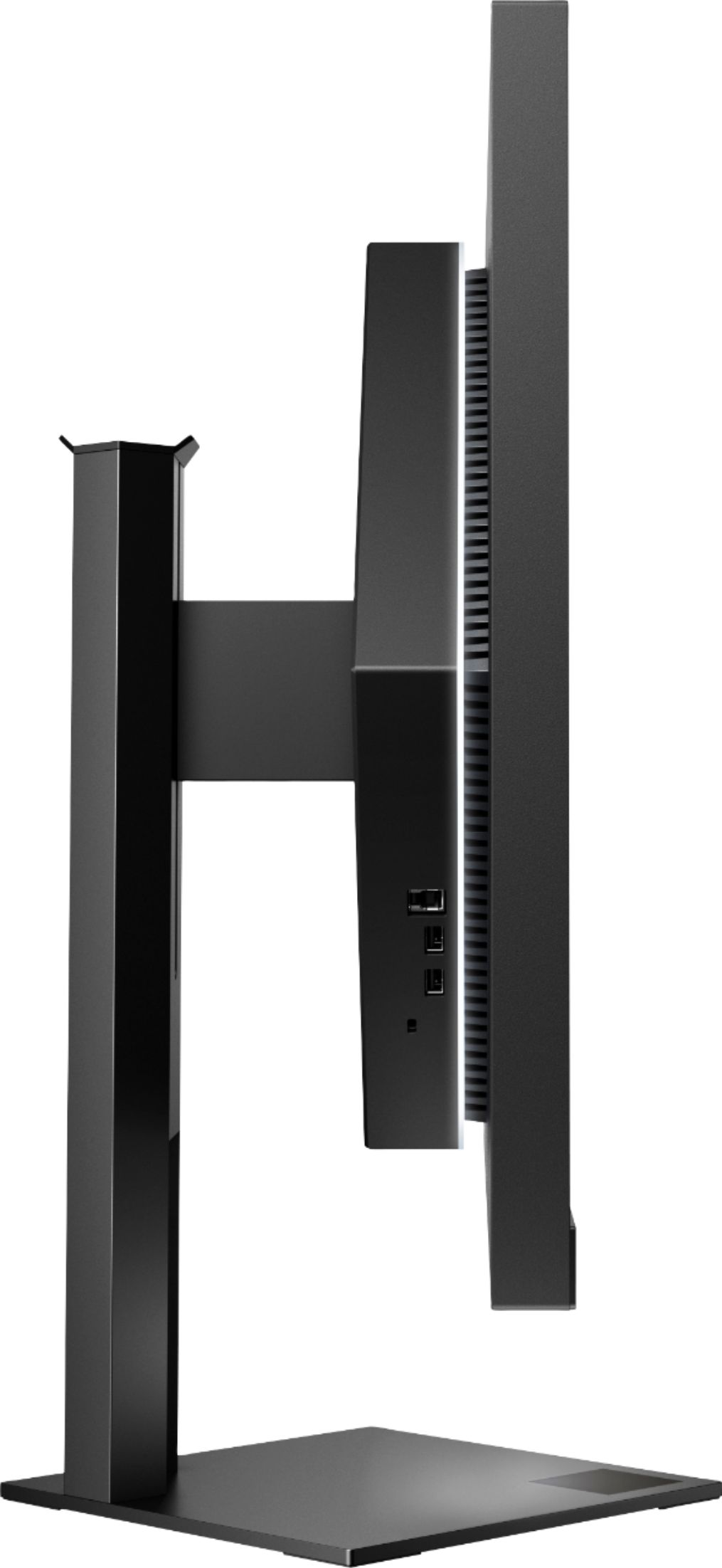
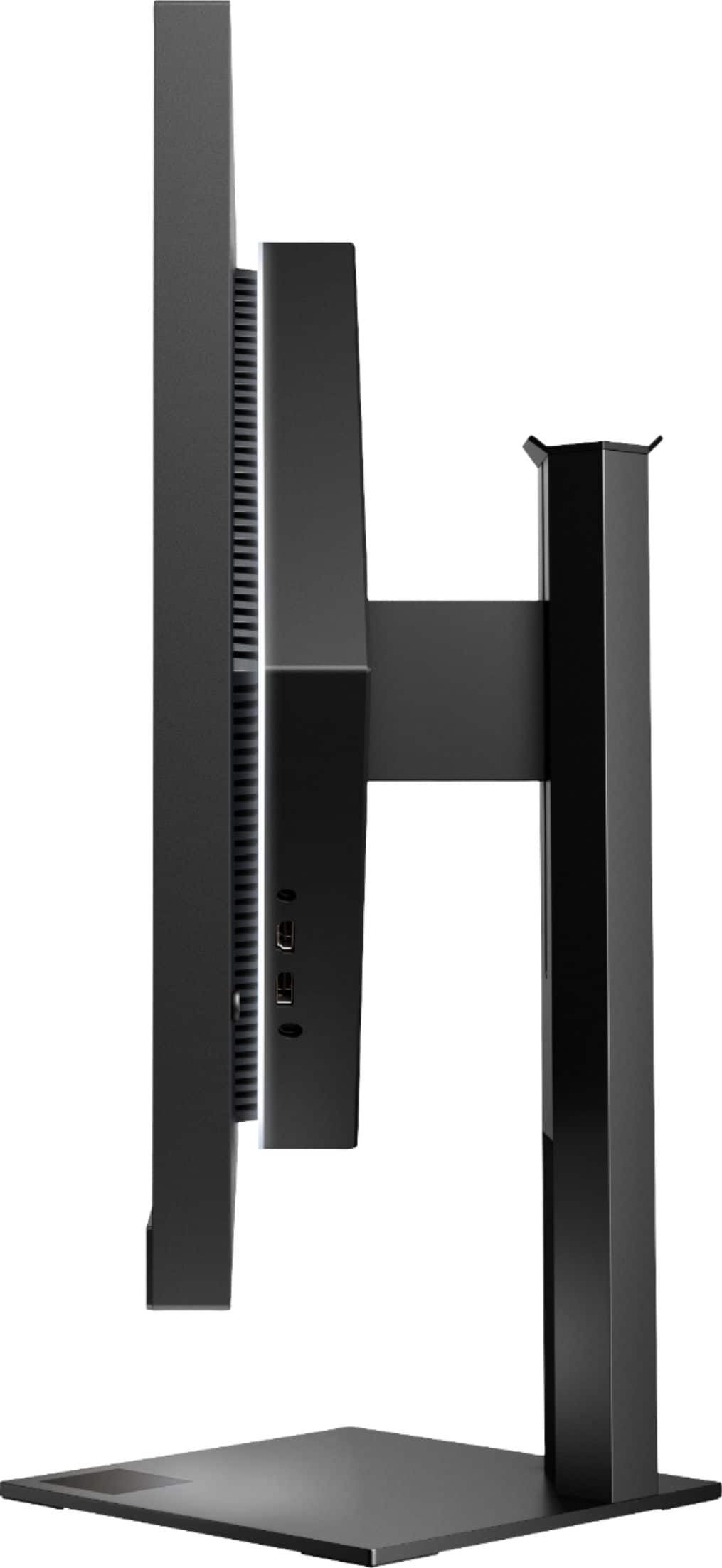
VESA Wall Mount StandardInfo 100mm x 100mm
Here is a link to the User Guide. Page 6 describes attaching the VESA mounting bracket:
http://h10032.www1.hp.com/ctg/Manual/c06636426