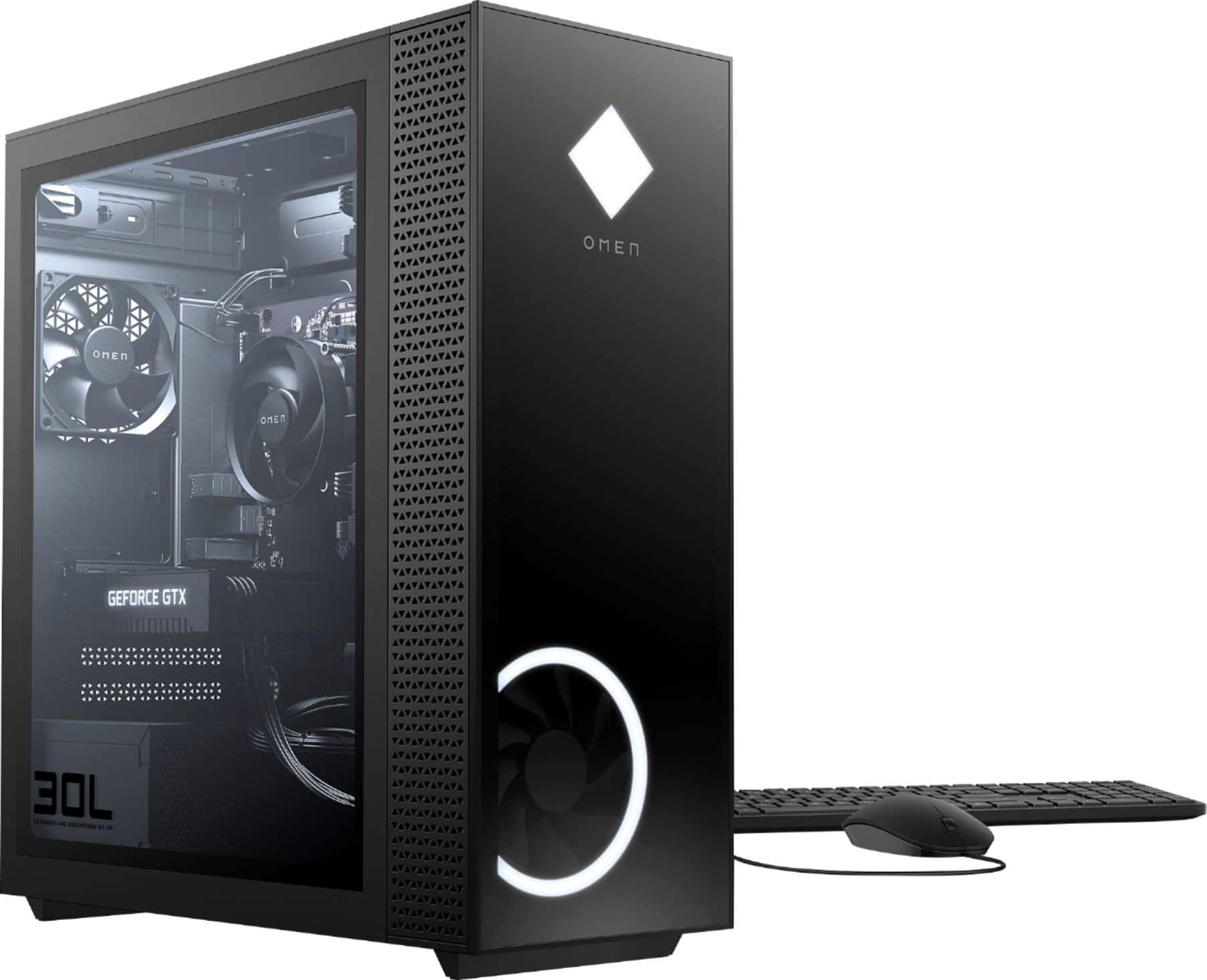
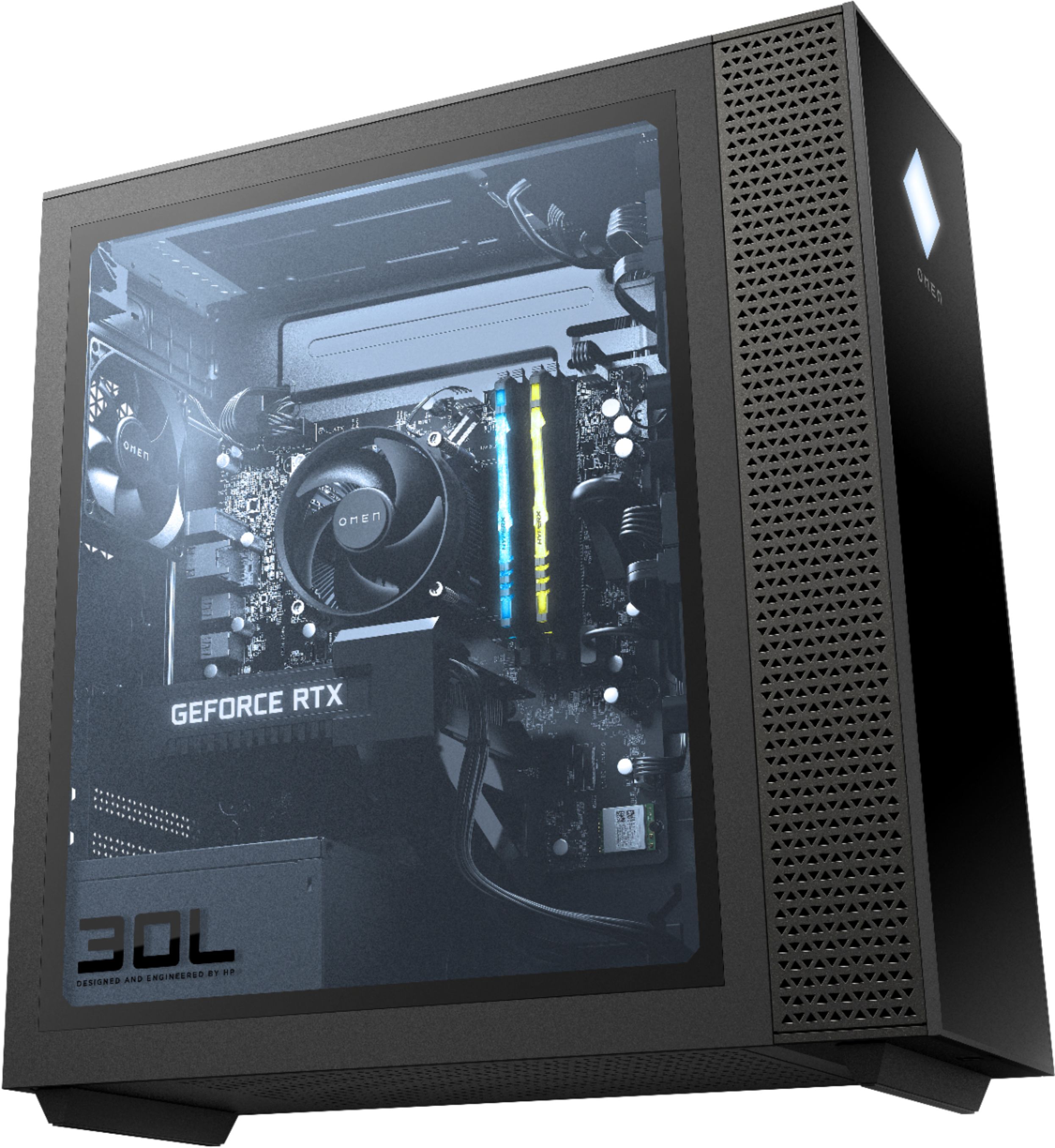
A:AnswerNo special way, just pull the levels at the ends of the ram sticks to the open position. Remove the current ram stick and placed the new ones in. There will be a little resistance, you'll have to push until the levers click and lock in place. You'll hear a little click when they are locked in. Just restart the computer, it should recognize the ram. Essentially a plug and play.
A:AnswerHere is a youtube video showing how to remove, and replace the side panel of a similar Omen.
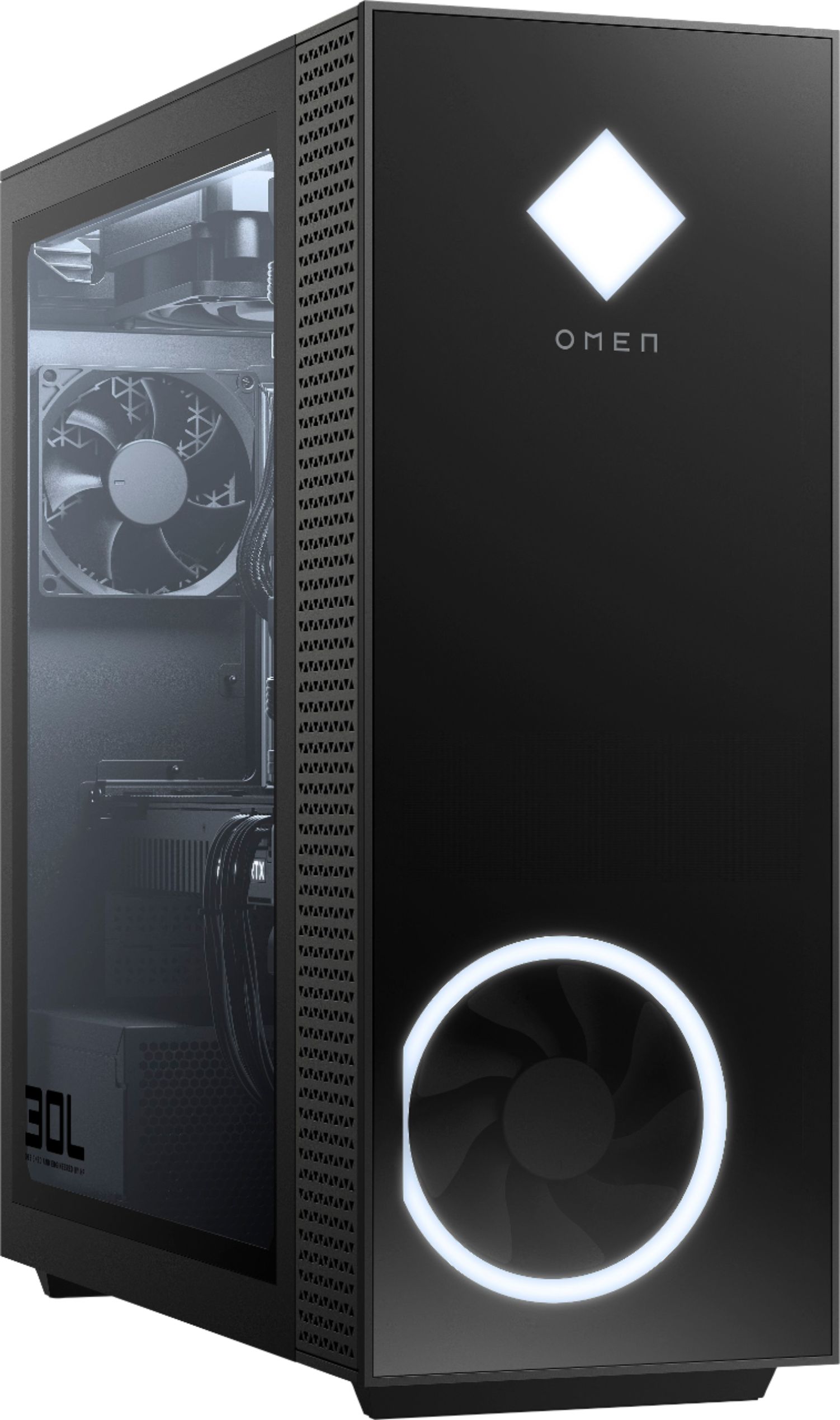
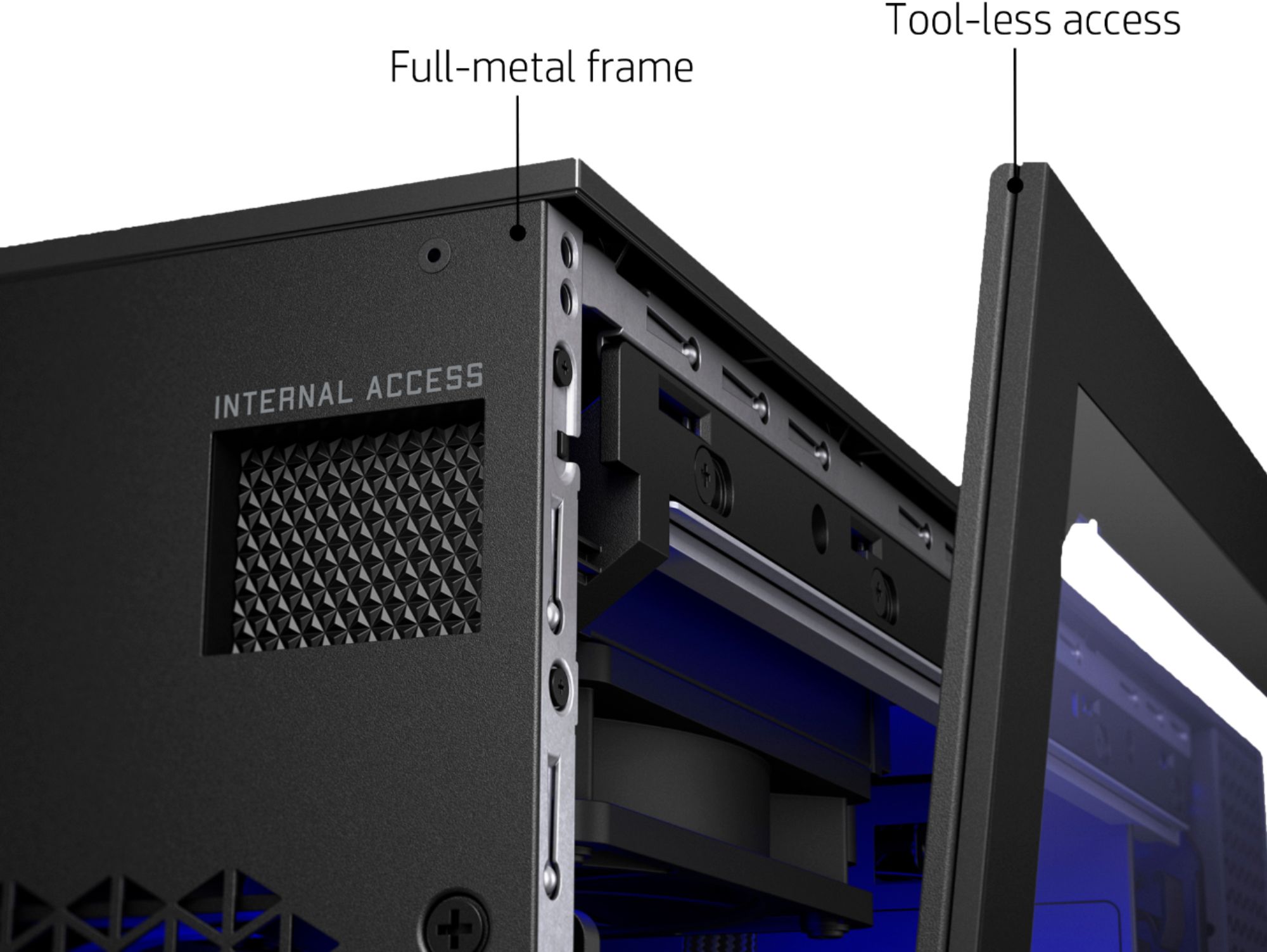
To remove the panel you depress the side panel access latch and the panel pops open remaining hinge at the bottom. Close the panel opening a little and the panel will come out easily. Replacement is the reverse. Align the bottom of the panel hinge with the opening, and then snap the top end closed.
https://www.youtube.com/watch?v=P17Prgre0fU
A:AnswerUsing this interactive parts locator, use the external system view and you can see the parts. Using the parts list you can select SSD drive and see where it goes. Sorry this is so cryptic, but the service and upgrading guide is not yet available for this model. That shows more detail and steps to add parts.
http://h10032.www1.hp.com/ctg/Manual/c06592760
A:AnswerYes you may be able to. Here are the available expansion slots:
Expansion slots
One PCIe Gen 3 x16 socket (for discrete graphic card)
One M.2 socket 1, key A
One M.2 socket 3, key M for SSD (PCIe Gen 3 x4)
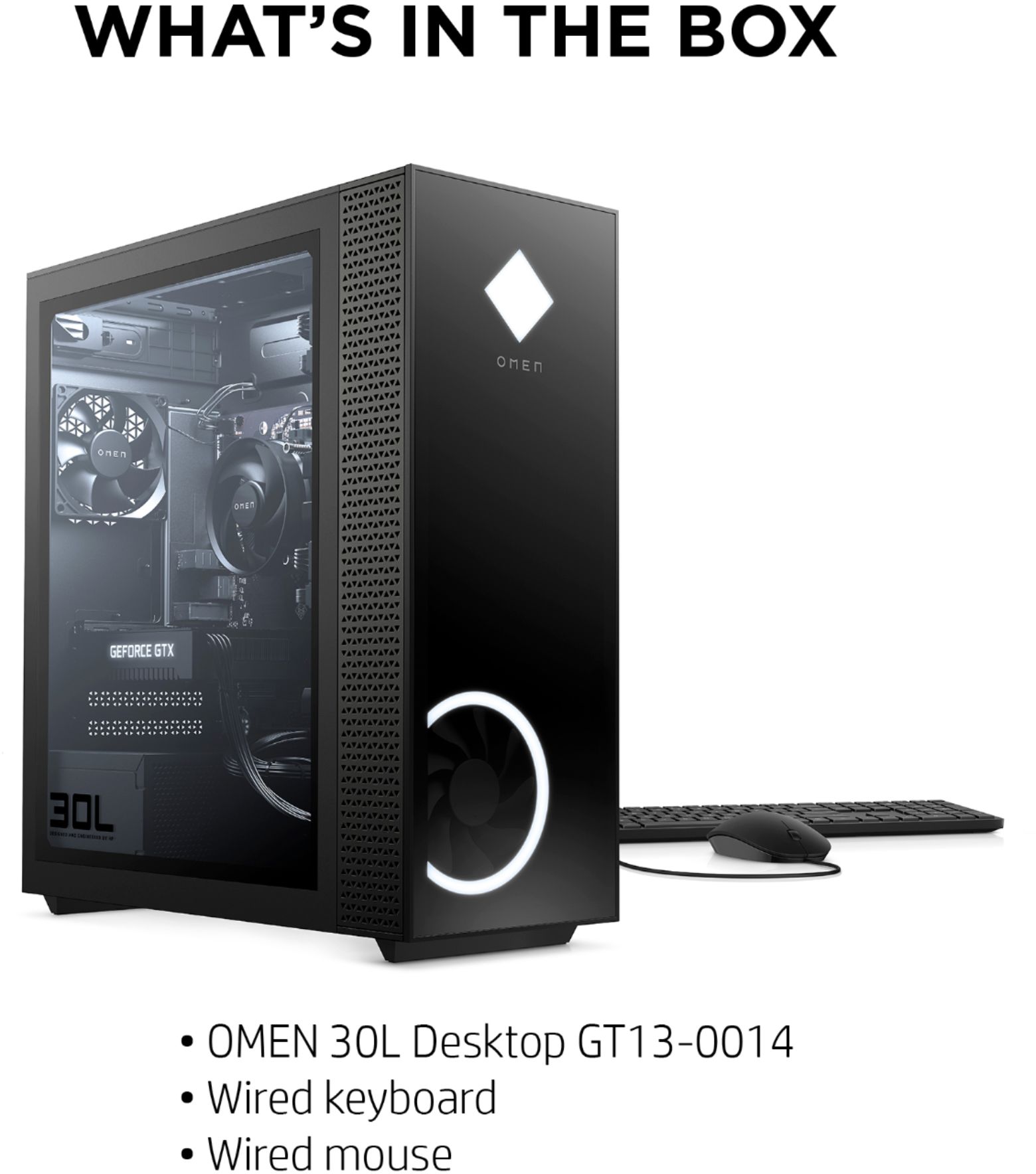
A:AnswerHi Alex, the HP spec sheet does not list the model number of the mouse and keyboard it comes with. Based on the photos it looks like it is just a standard mouse with left and right click and the mouse scroll wheel.
A:AnswerThe card will fit but, you will be required to upgrade the power supply first. This PC only has a 500w and the 3080ti requires 750w. Hope this helps
A:AnswerYes,
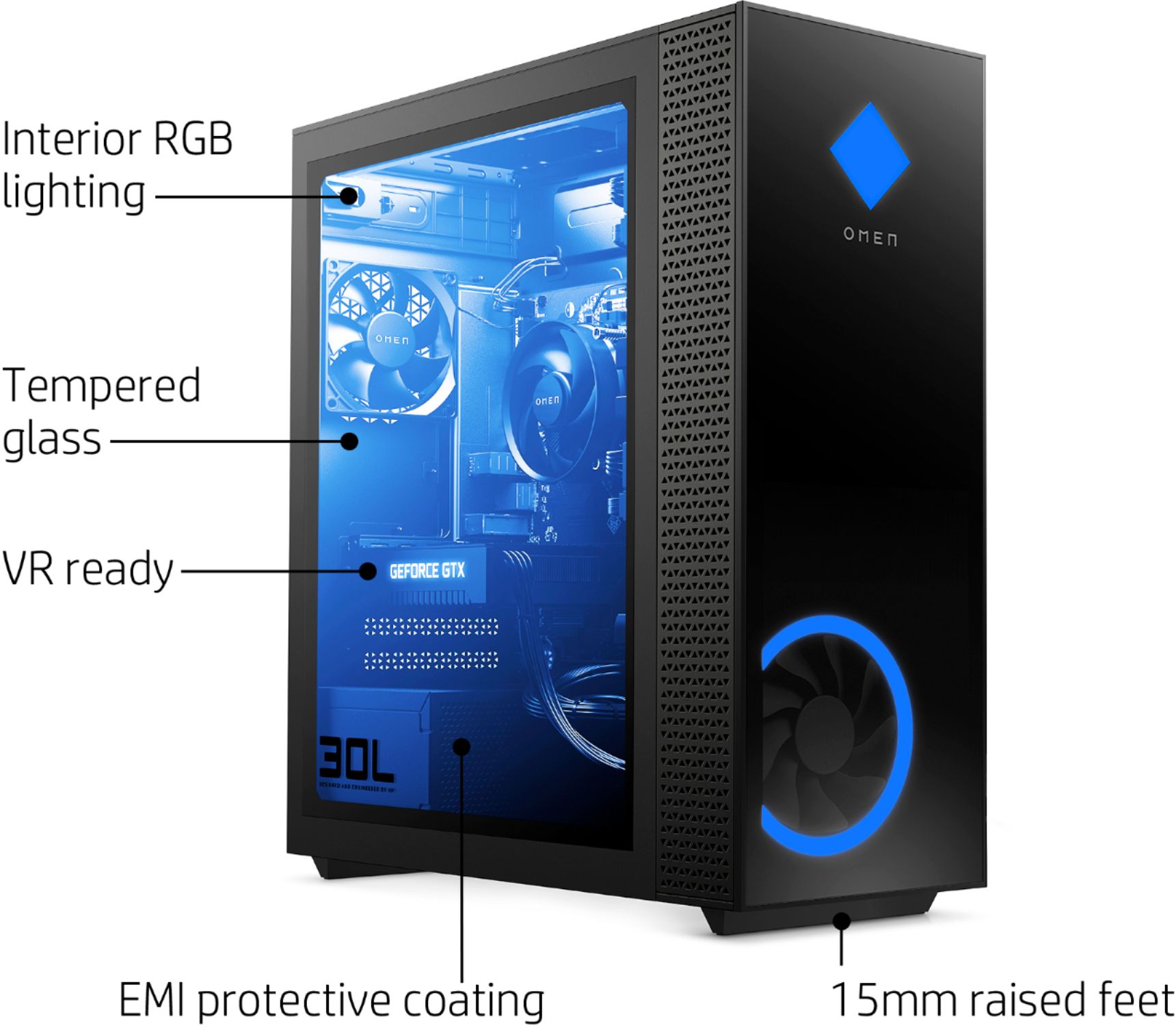
You can remove the 120mm fan bracket at the top of the case (from the inside).
It has 2 screws holding it in place (this is the same bracket used for liquid cooling).
Then punch out the 4 metal blanks that are attached to the bracket. Install the 120mm fan.
A:AnswerThis link has some things you can try to fix the issue. https://www.thewindowsclub.com/automatic-repair-couldnt-repair-pc . You can also check the status of your HP warranty at this link. https://support.hp.com/us-en/checkwarranty
A:AnswerFor that amount of concurrent use, you really should upgrade to 16 gigabytes. With 8, the computer will need to regularly swap data to and from the hard drive, and you will notice the slowldown.
A:AnswerUnfortunately, the specs that we have available don't say for sure, but it appears to be a 120 mm fan. The HP support team would be able to give you a more definitive answer.