A:AnswerThank you for your inquiry! To use your Apple TV 4K with the Insignia™ 24" Class F20 Series LED HD Smart Fire TV, you will need to connect it using an HDMI cable. The TV does not come with an HDMI cable included, so you will need to purchase one separately if you don't already have one. Keith | Insignia Support
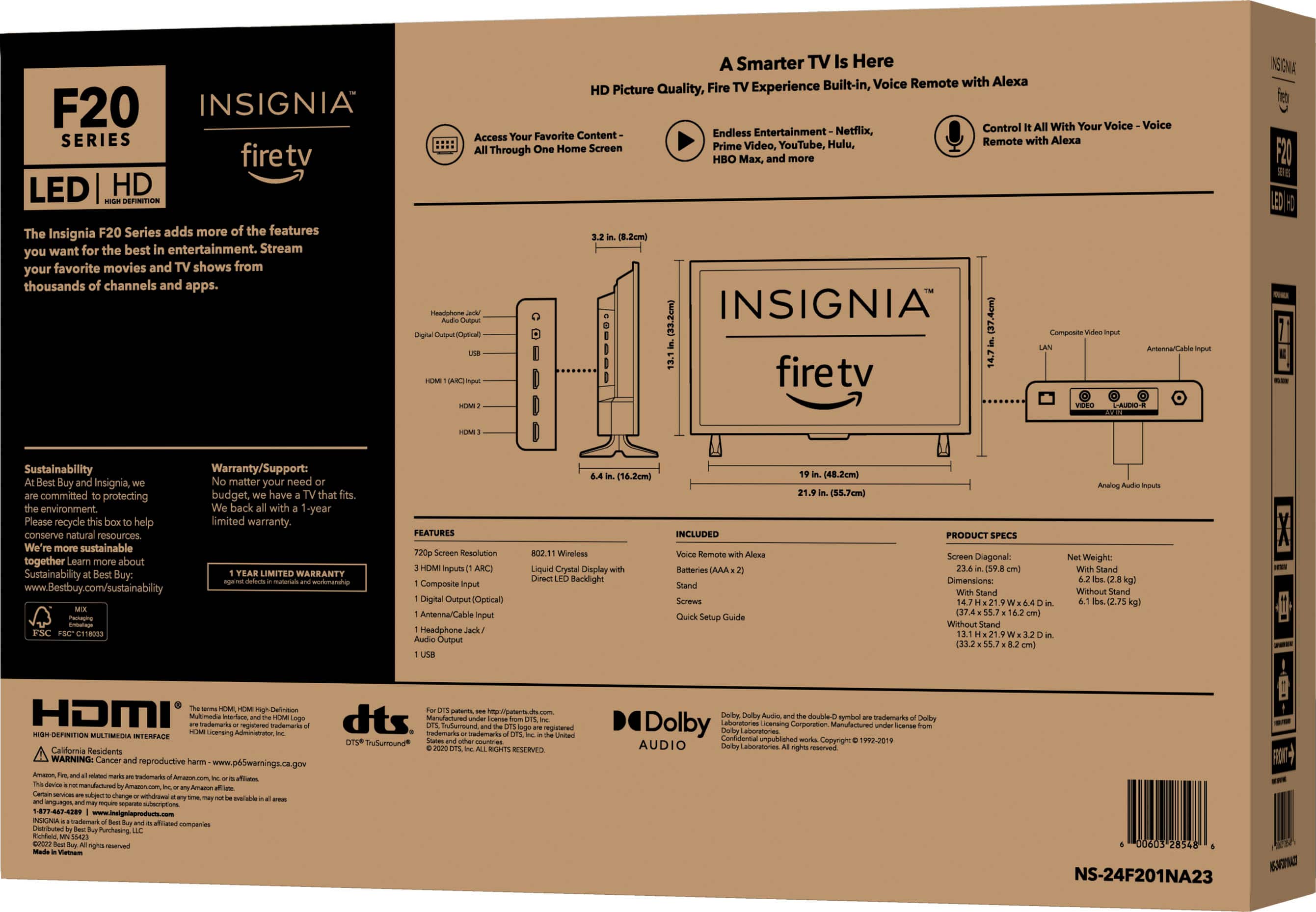
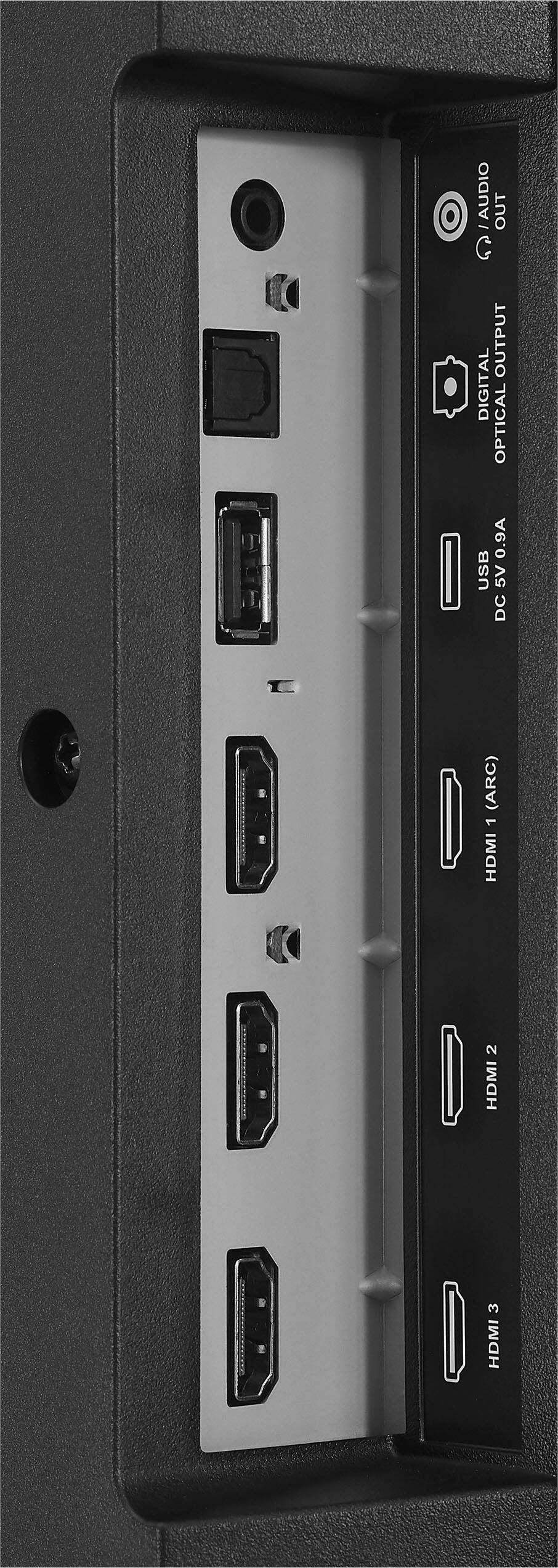
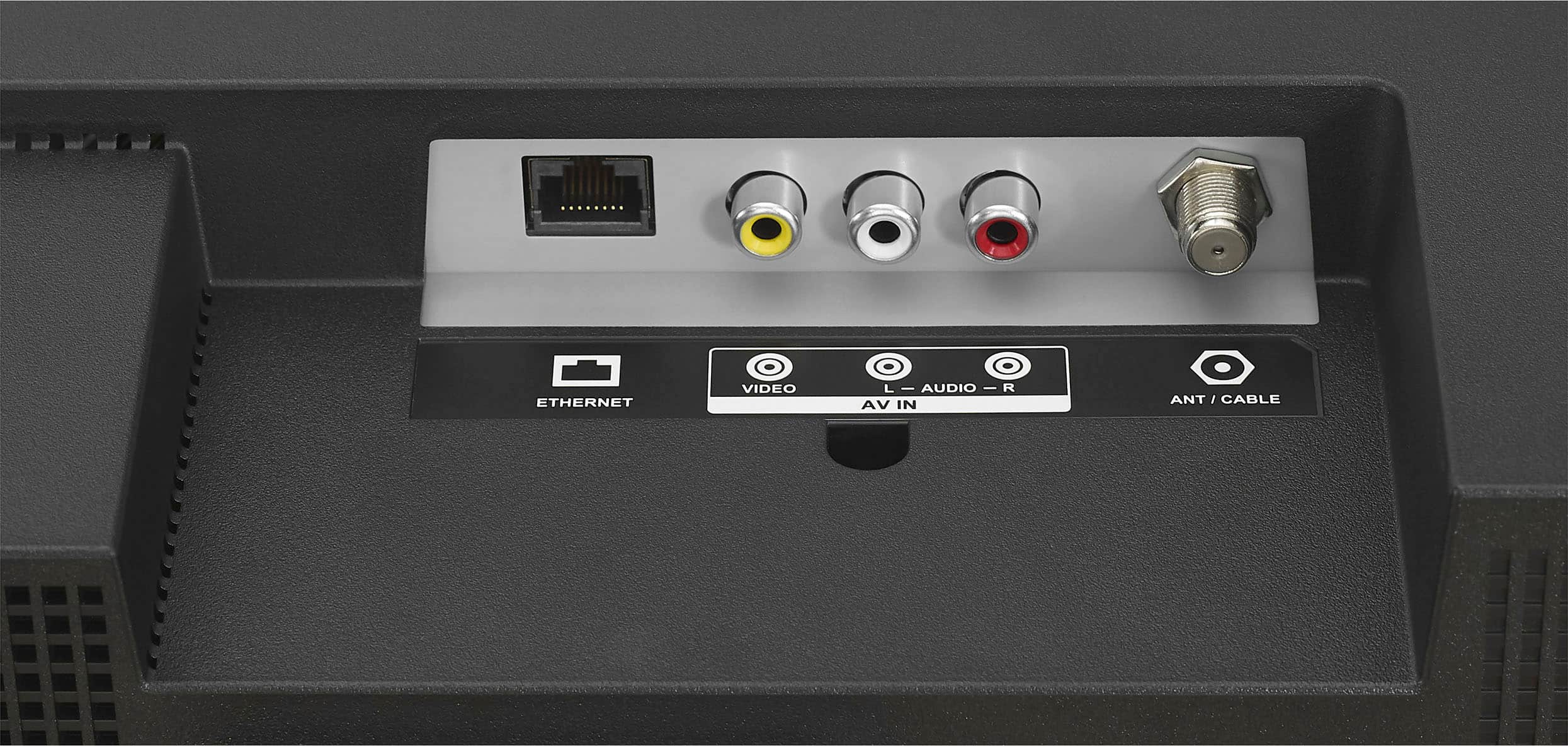
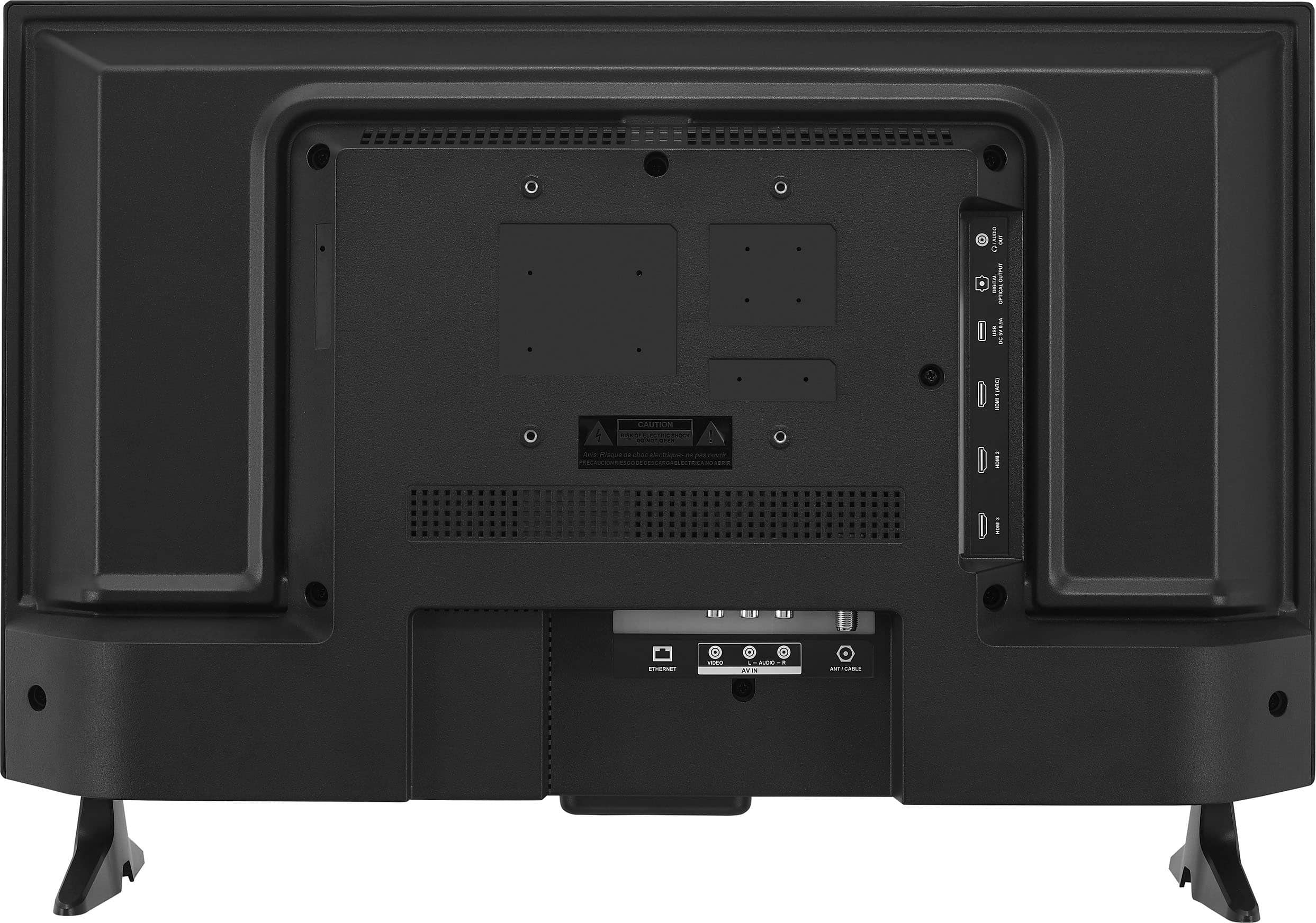
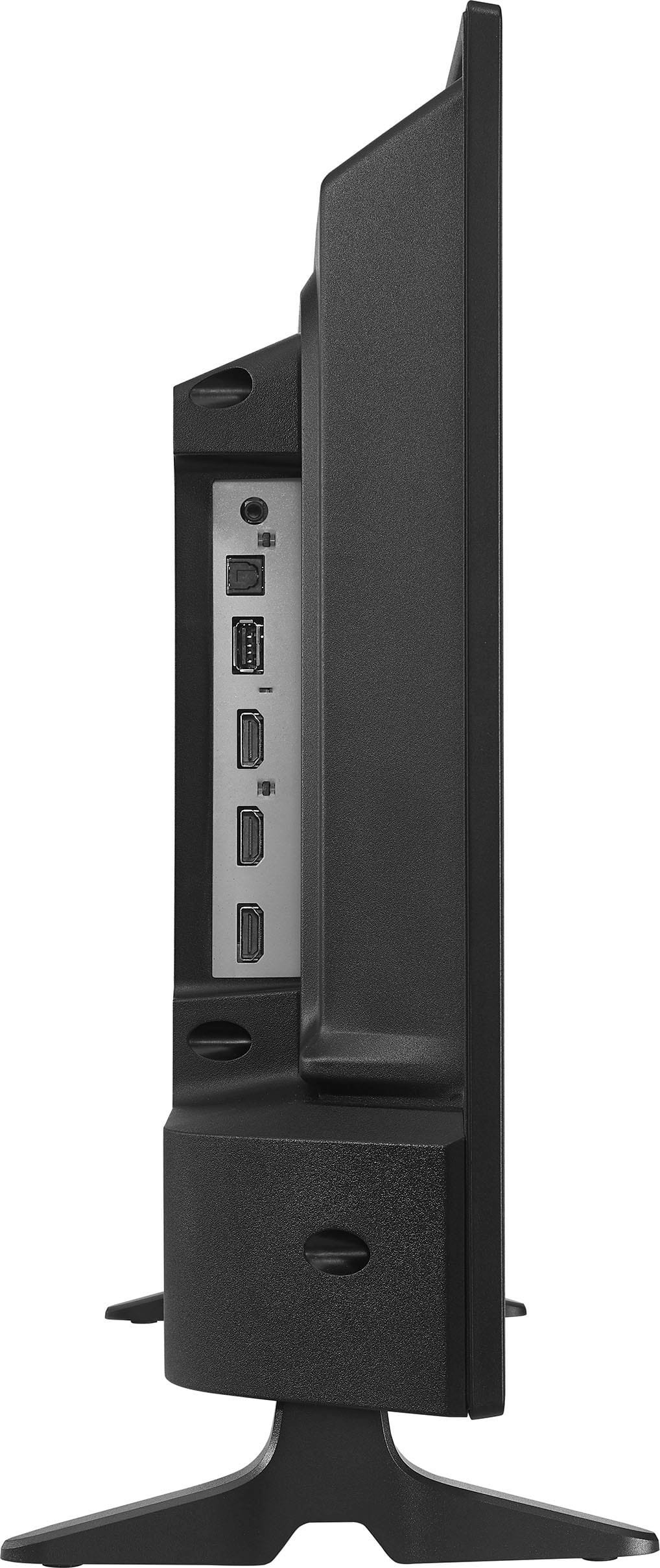
A:AnswerYes, the Insignia™ 24" Class F20 Series LED HD Smart Fire TV has three HDMI ports. This allows you to connect various devices like gaming consoles, Blu-ray players, or streaming devices.
If you have any other questions or need further assistance, feel free to ask! - -Ed | Insignia Support | https://www.bestbuy.com/site/brands/best-buy-brands/pcmcat1596746025285.c?id=pcmcat1596746025285
A:AnswerIf you intend to receive over=the-air broadcast TV you will need an external antenna. This set is designed for people who intend to use it primarily for streaming over the Internet.
A:AnswerYou can use Apple Airplay or screen mirroring to cast wireless to this TV. It does take some minor setup.
From main menu go to the gear icon and select it. Then look for a display option and select it. There will be a list of options that includes the AirPlay and Screen mirroring.
If you would prefer to connect to the TV wired, you will need an HDMI cable and one of the adapters listed below.
Depending on the iPhone you have you can use one of these:
iPhone with lightning connector - https://www.bestbuy.com/site/apple-lightning-digital-a-v-adapter-white/7007013.p?skuId=7007013
iPhone with USB Type-C connector - https://www.bestbuy.com/site/apple-usb-type-c-digital-av-multiport-adapter-white/5596800.p?skuId=5596800
A:AnswerYES,
I HAVE ADDED BLUETOOTH HEADPHONES AND THEY WORK GREAT, JUST GO TO SETTINGS,
BLUETOOTH + OTHER CONTROLLERS, TURN YOUR BT ITEM ON AND IT WILL SHOW UP IN THE LIST, THEN CLICK CENTER BUTTON ok TO CONNECT IT, WAIT A FEW THEN IT WILL SAY CONNECTED.
A:AnswerYes - click on the settings button, a window will appear on the right. Scroll down to "sleep timer" and there are multiple options for pre-set amounts of time
A:AnswerPROBABLY NOT,
SINCE THIS TV IS RUN BY AMAZON
OTHER REVIEWS HAVE SAID THAT THE AMZ
PROGRAMMING BLOCKS THE CABLE PROVIDERS PROGRAMMING SO NO,
BUT IT CAN RUN DIFFERENT HDMI STICKS FROM GOOGLE AND MAYBE ROKU,
SO THE HDMI WORKS WITH DIFF BRAND TV STICKS.
A:AnswerJUST CONNECT THE MOUSE TO YOUR PC OR LAPTOP AND THEN CONNECT THE VIDEO FROM YOUR PC OR LAPTOP TO THE TV WITH HDMI OR DP TO HDMI ADAPTER, THEN THE MOUSE ON YOUR PC WILL SHOW UP ON THE SCREE,
AND IF YOU NEED TO TYPE JUST PRESS THE CENTER BUTTON IN THE CIRCLE, AN ONSCREEN TV KEYBOARD WILL APPEAR AND YOU CAN TYPE ONTO THAT WITH THE CIRCLE BUTTON UP DOWN ECT AND CENTER IS OK OR ENTER.
A:AnswerYES IT WORKS GREAT,
HD = 13.. x 9.. or XGA
BUT IT CAN ALSO RUN 19x10 RESOLUTION
FROM A LAPTOP OR PC,
IT HAS GREAT COLOR,
AND TONS OF PICTURE SETTINGS,
BUT YOU CAN SEE THE PIXELS UP CLOSE,
NOT A PROBLEM THOUGH AS THE REST OF IT IS SO NICE AND ADJUSTABLE,
WHEN FIRST SET UP, DO MINIMUM. THEN GO TO SETTINGS AND TURN OFF ADVERTIZING ON HOME PAGE AND OFF ADD SNOOPING ECT, JUST GO TO SETTINGS THEN PREFERENCES AND TURN ALL THE ADDS AND DATA COLLECTION OFF.
SUPER FUN TV WAIT UNTIL IT IS ON SALE.
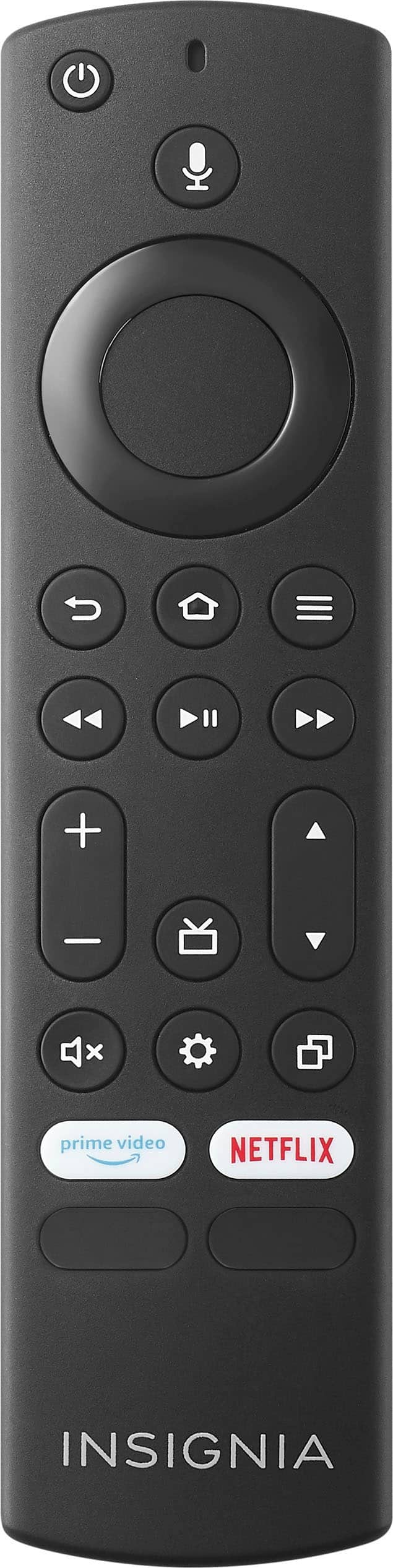
A:AnswerTHE BUTTON ON THE TV REMOTE
HAS A SHORT CUT TO THAT SETTING,
IT IS THE BUTTON BELOW THE TV GUIDE BUTTON,
IT WILL SHOW ONSCREEN ON THE RIGHT EDGE,
THEN USE THE CIRCLE RING TO PRESS DOWN DOWN DOWN ECT TO PICTURE
THEN PRESS CENTER = OK
THEN DOWN TO CONTRAST,
ALSO CAN TURN DOWN THE BRIGHTNESS WILL MAKE THE PICTURE LOOK BETTER,
TRY BACKLIGHT 80% CONTRAST 90% THEN LOWER THE BRIGHTNESS TO -0- OR -20% AND SEE HOW IT LOOKS. TONS OF WAYS TO ADJUST FOR ANY ROOM OR LIGHTING.
A:AnswerThe Insignia™ - 24" Class F20 Series LED HD Smart Fire TV does not support MP4 playback via the USB port; it only supports JPEG files. Patricia | Insignia Support https://www.bestbuy.com/site/insignia-24-class-f20-series-led-hd-smart-fire-tv/6491295.p?skuId=6491295