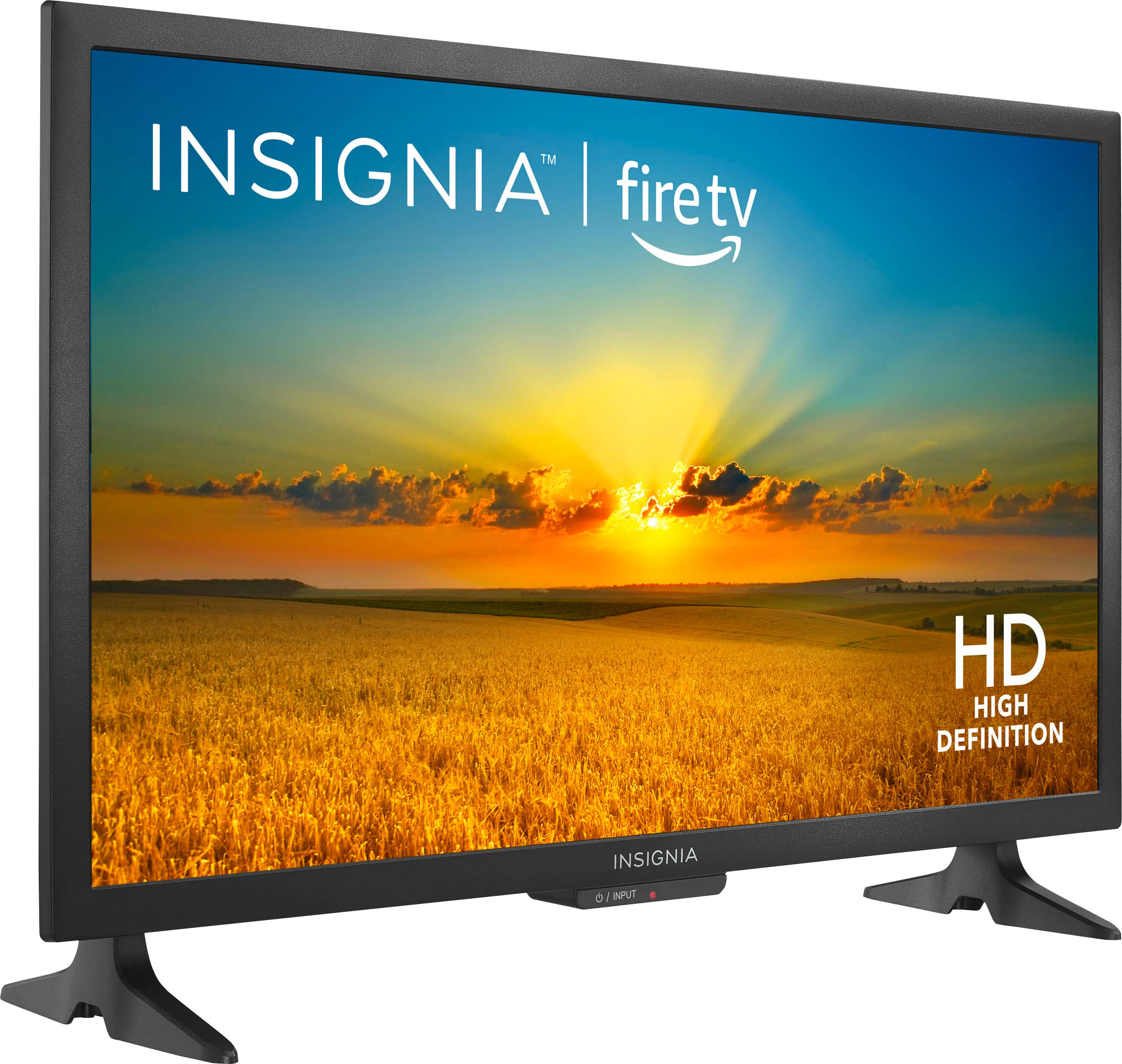
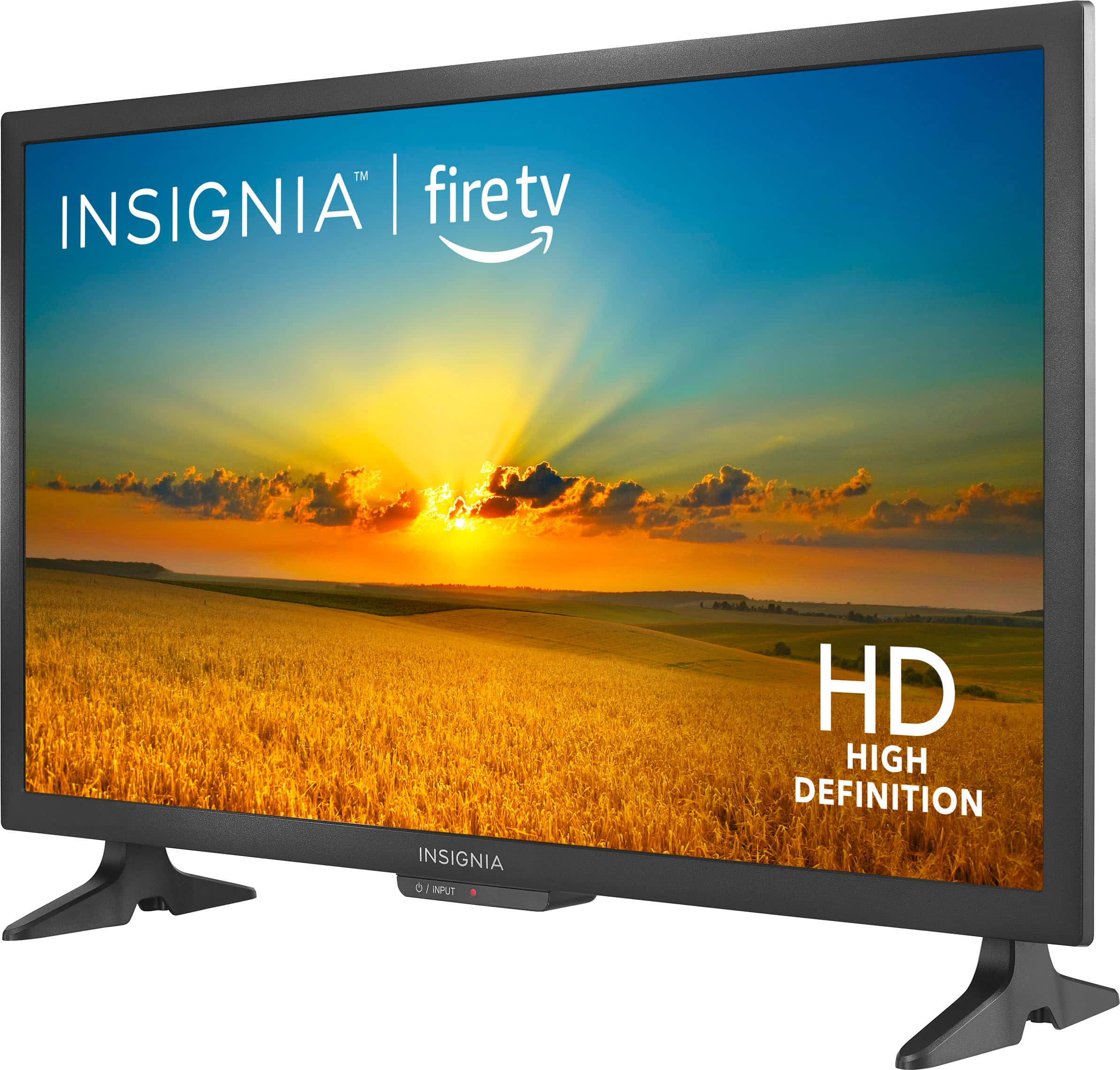
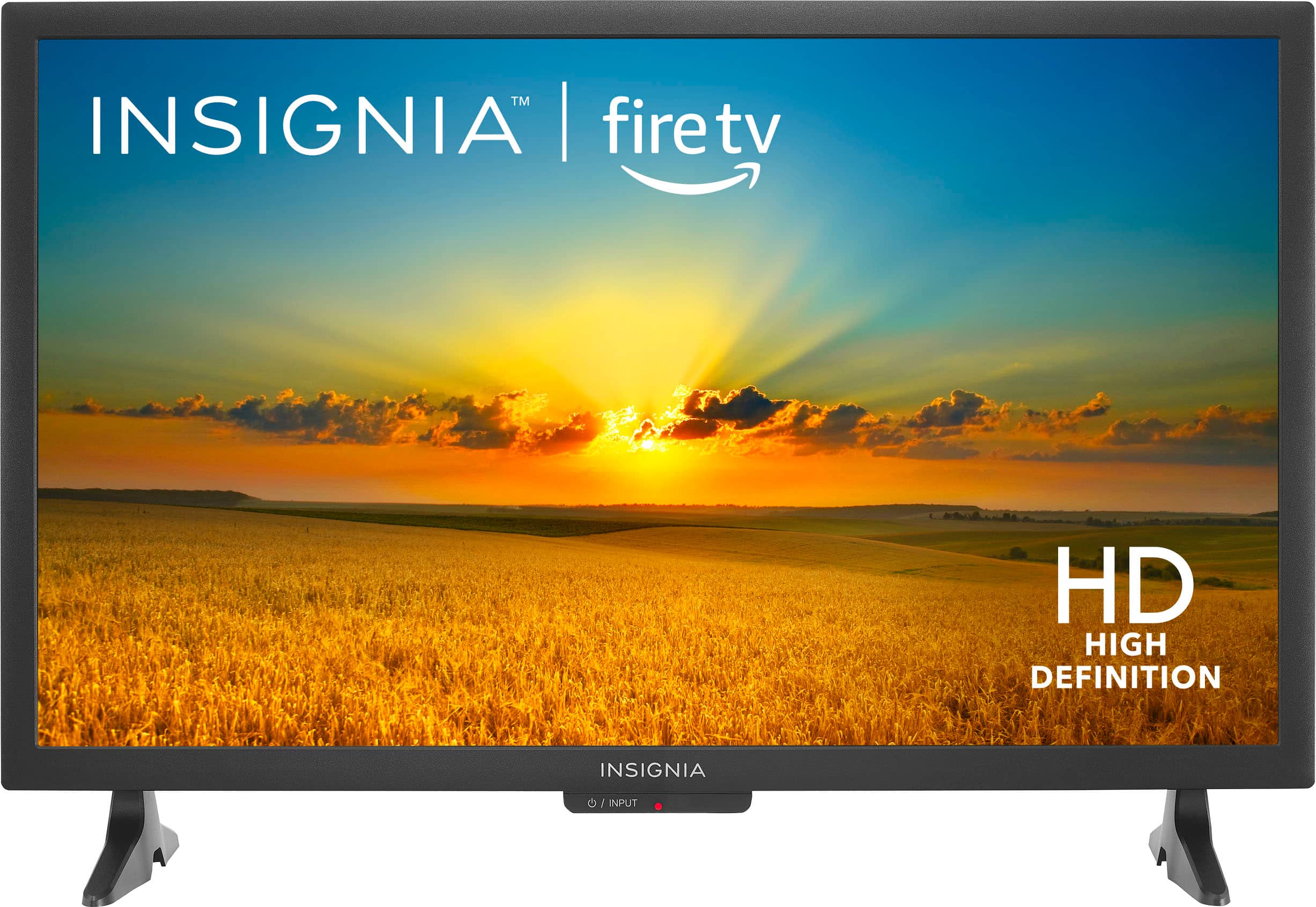
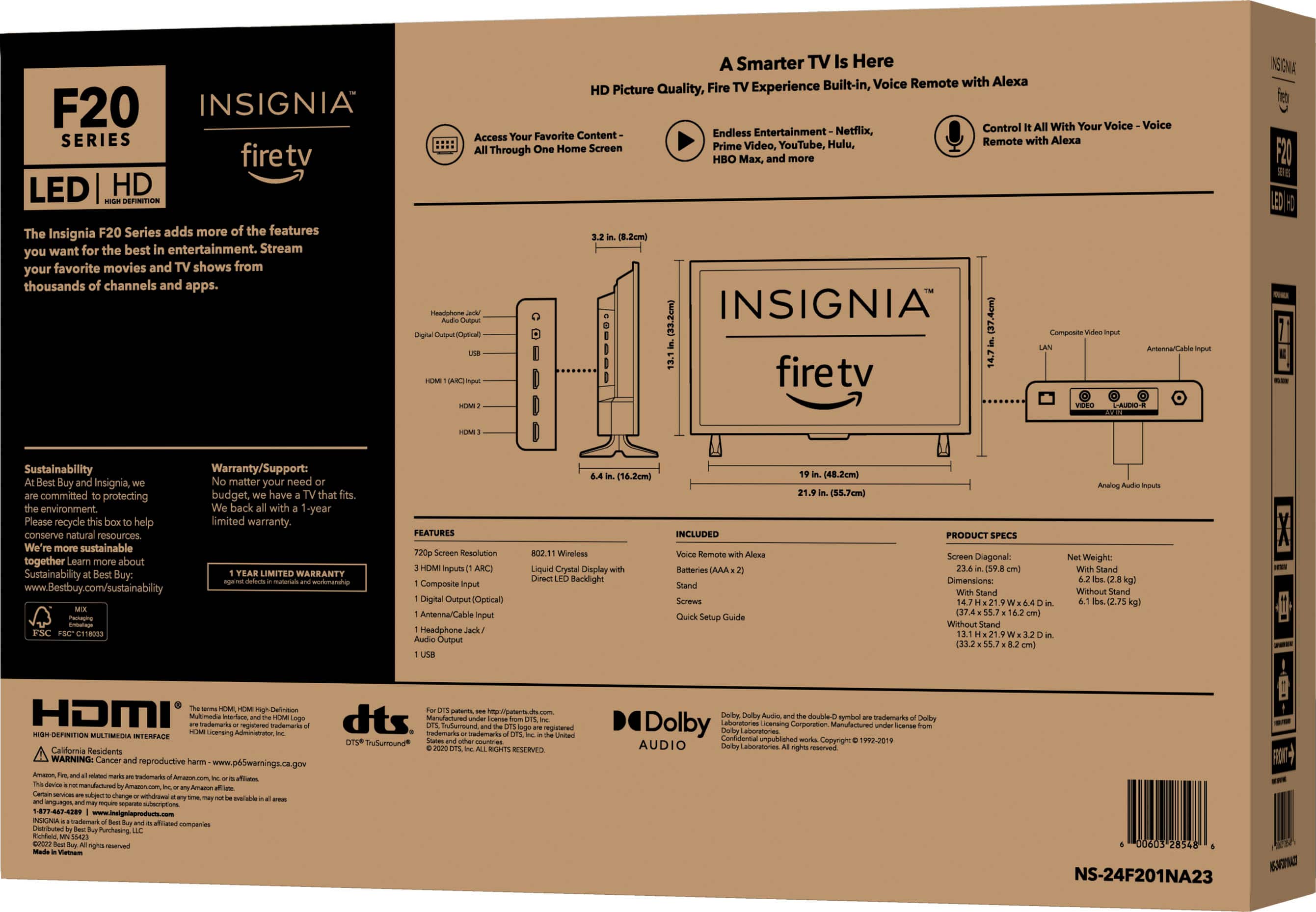
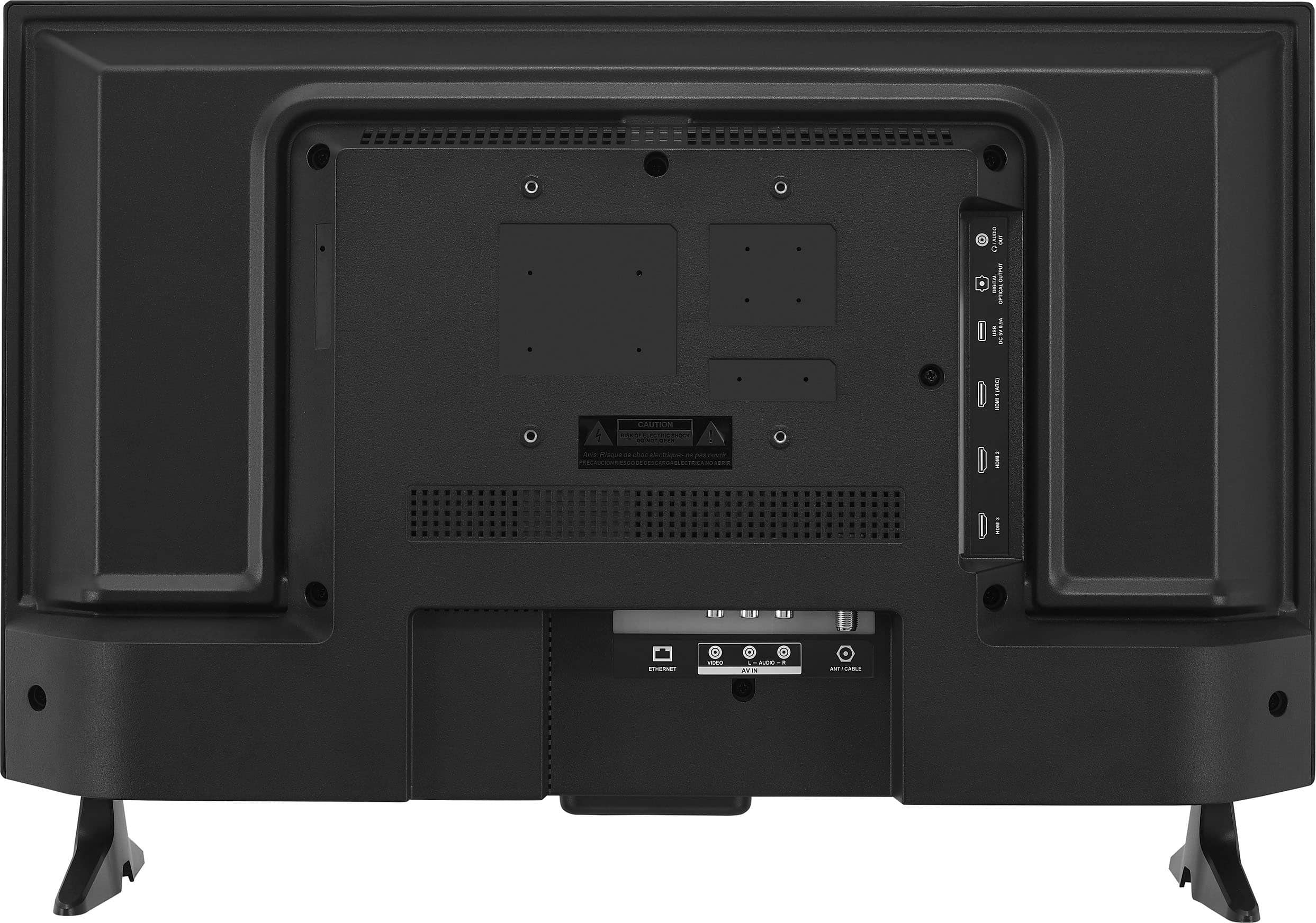
A:AnswerHi Insignia Customer, thank you for reaching out. The product height of the TV with the stand is 14.7 inches, while the product height without the stand is 13.1 inches. I hope this information is helpful, and if you have any further questions, please feel free to ask! - Carl | Insignia Support
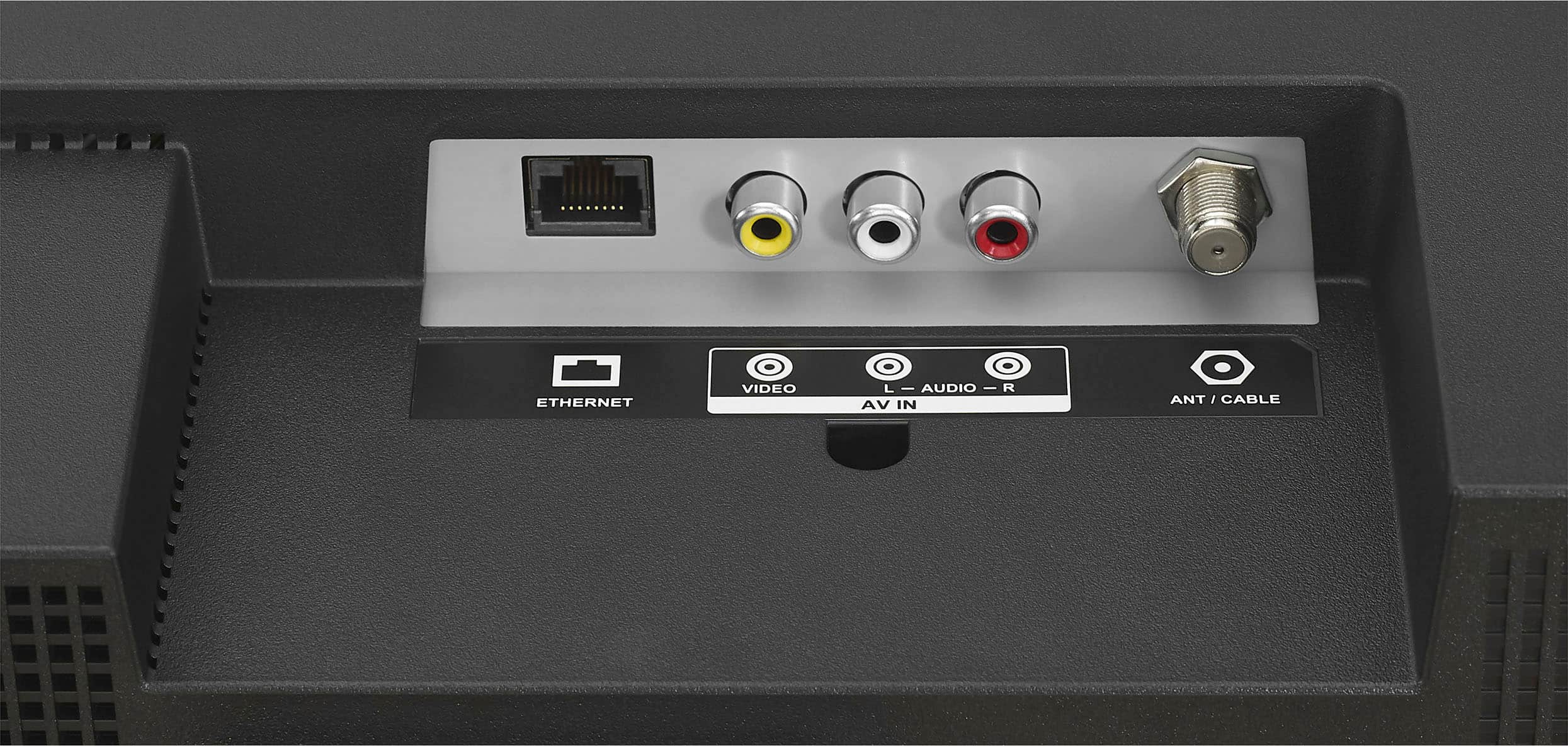
A:AnswerI believe your question is how do you get the antenna/coax cable connection to display on the TV. If that is the case, when the TV starts up it should be on the Home screen. You will want to use the remote to go left, well or right, to get to the Inputs selection. The icon is a rectangle with an arrow pointing from left to the right. On the Inputs screen, use the remote and scroll down, then use the remote to scroll to Antenna. After this I'm unsure but it looks like one should choose the Antenna Channels option.
A:AnswerIt seems there might be some confusion in your question. The Insignia™ 24” Class F20 Series LED Full HD Smart Fire TV (Model: NS-24F202NA23, SKU: 6490138, UPC: 600603285998) does not run on webOS. Instead, it operates on the Fire TV operating system developed by Amazon. WebOS is a different smart TV platform, primarily used by LG TVs, and isn’t associated with Insignia or Fire TV Edition devices.
Here’s what you’re actually looking at with this Insignia model:
• Model: NS-24F202NA23
• SKU: 6490138 (Best Buy specific)
• UPC: 600603285998
• Operating System: Fire TV OS (not webOS)
• Display: 24-inch LED, Full HD (1080p resolution for this specific variant, though some F20 Series models like NS-24F201NA23 are 720p)
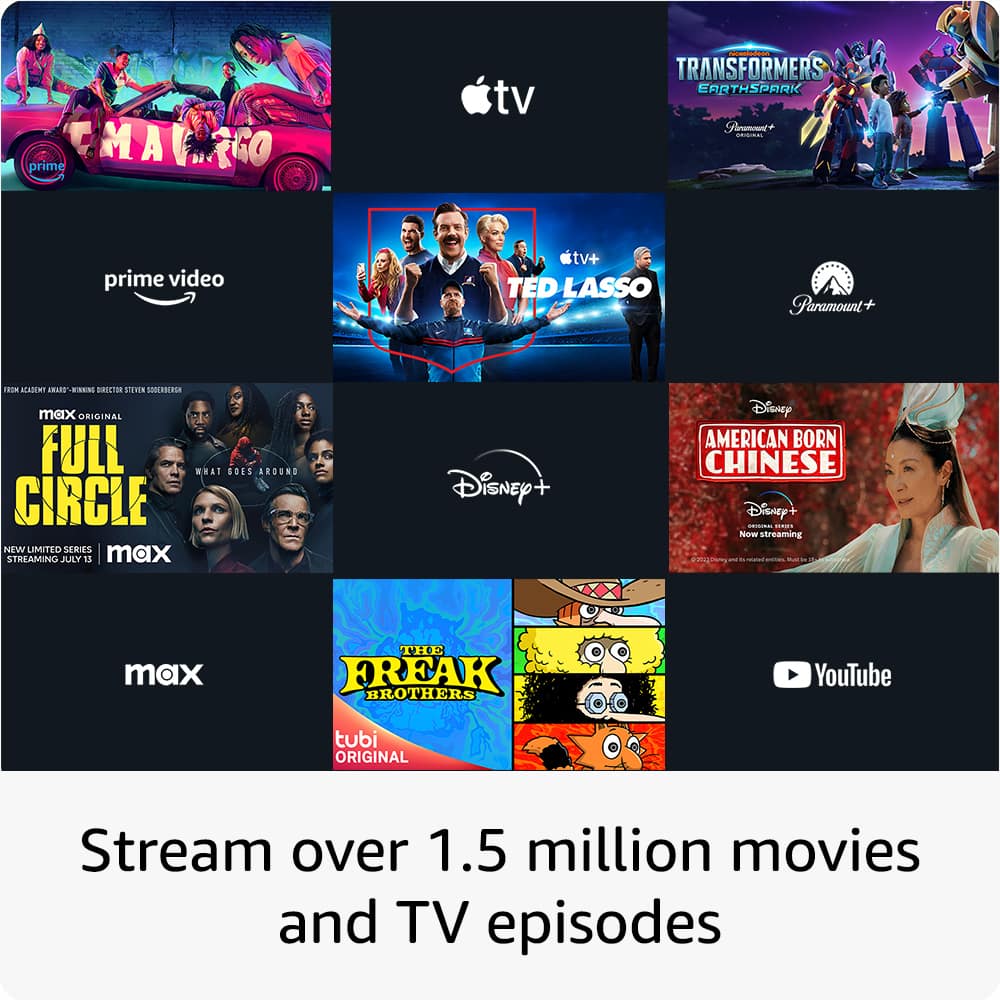
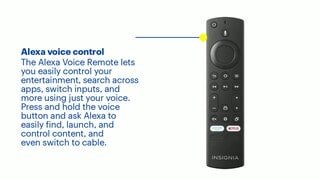
• Features: Includes Alexa Voice Remote, access to streaming apps (e.g., Netflix, Prime Video, Hulu), and live TV integration via antenna or cable.
The Fire TV OS provides a seamless interface for streaming content, voice control via Alexa, and app downloads through the Amazon Appstore. If you were asking about webOS compatibility or features, this TV doesn’t use that system—it’s built entirely around Amazon’s Fire TV ecosystem. If you meant something different by “webOS Insignia,” feel free to clarify! Otherwise, this is a Fire TV-powered smart TV, not a webOS one.
A:AnswerHi HikeBike, thank you for your interest to our Insignia™ - 24" Class F20 Series LED HD Smart Fire TV. It is compatible with VESA pattern 100 × 100 for simple and safe wall mounting. Ivy | Insignia Support | https://www.bestbuy.com/site/insignia-24-class-f20-series-led-hd-smart-fire-tv/6491295.p?skuId=6491295
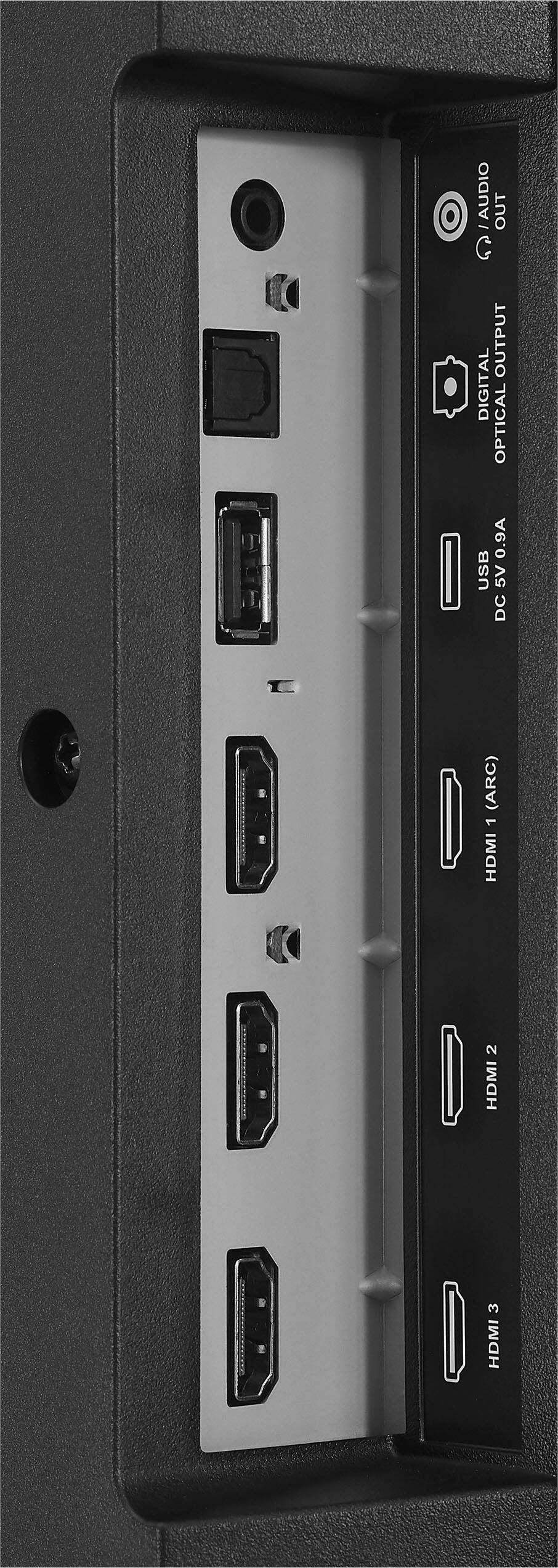
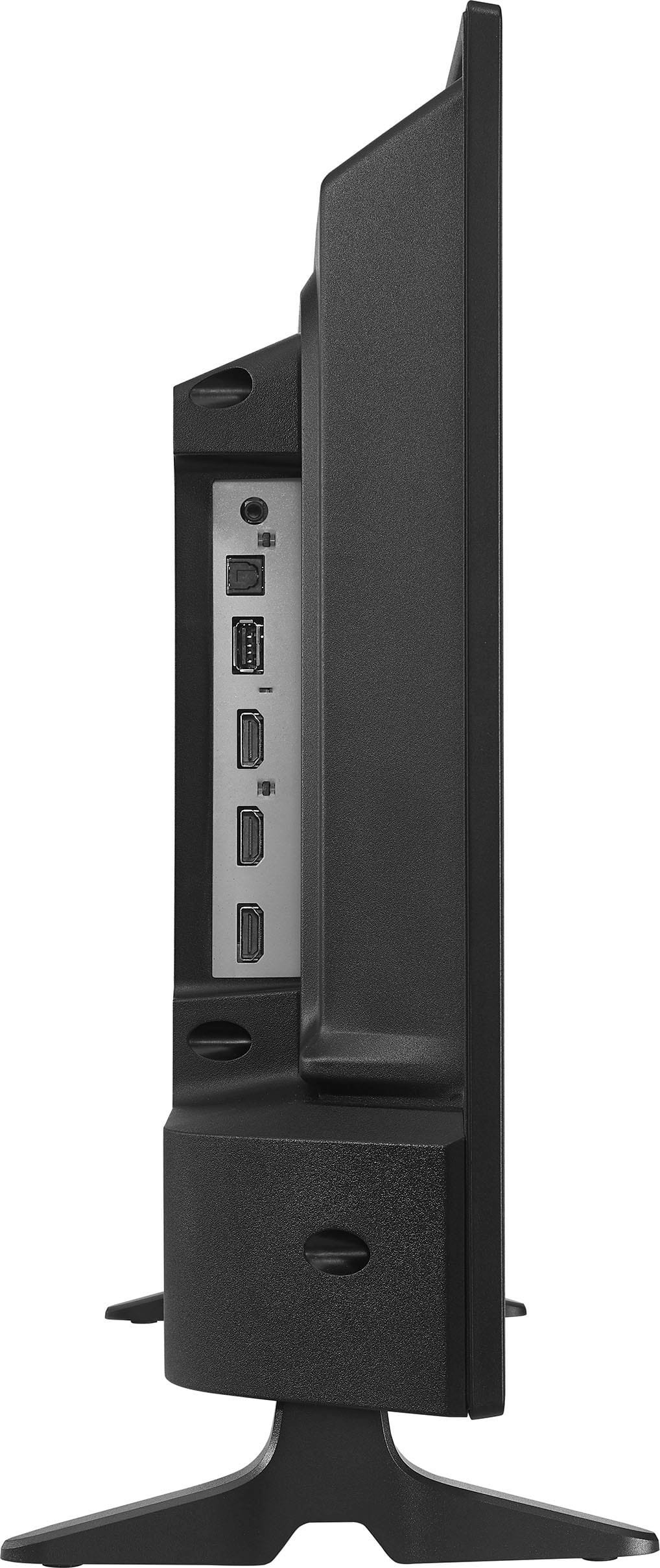
A:AnswerHi there, we appreciate your inquiry! To hook up the HDMI cable to your Insignia NS-24F201NA23 TV, follow these steps: (1) Turn off your TV and any devices you’ll be connecting with the HDMI cable. (2) Locate the HDMI input ports on the back of your Insignia TV. They are usually labeled as HDMI 1, HDMI 2, etc. (3) Plug one end of the HDMI cable into the HDMI output port on your device (e.g., cable box, gaming console, laptop). (4) Plug the other end of the HDMI cable into the HDMI input port on your Insignia TV. (5) Turn on your TV and the device you connected with the HDMI cable. (6) Use your TV remote to select the HDMI input source that you plugged the cable into (e.g., HDMI 1, HDMI 2). (7) Your device’s screen should now be displayed on your Insignia TV. You may need to adjust the input settings on your device to ensure the proper display. That’s it! Your HDMI cable is now successfully connected to your Insignia NS-24F201NA23 TV. For more information about this product, you may click this link: https://www.bestbuy.com/site/insignia-24-class-f20-series-led-hd-smart-fire-tv/6491295.p?skuId=6491295. -Carlo, Insignia Support
A:AnswerHi BluetoothOrNot, we do apologize for the confusion. This Insignia™ - 24" Class F20 Series LED HD Smart Fire TV has a Bluetooth feature. To access it, you can go to "Home" > "Settings" > "Controllers & Bluetooth Devices". If you have any additional questions, feel free to reach us. Have a great day! Patricia | Insignia Support https://www.bestbuy.com/site/brands/best-buy-brands/pcmcat1596746025285.c?id=pcmcat1596746025285