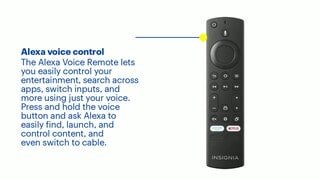
A:AnswerHi there! We appreciate you for reaching us out regarding your concern. I understand that you are stuck and unable to select your language in the process of setting up your TV. For this reason, the remote is not completely paired with the TV, here's what you need to do:
>Turn off the TV and unplug it from power
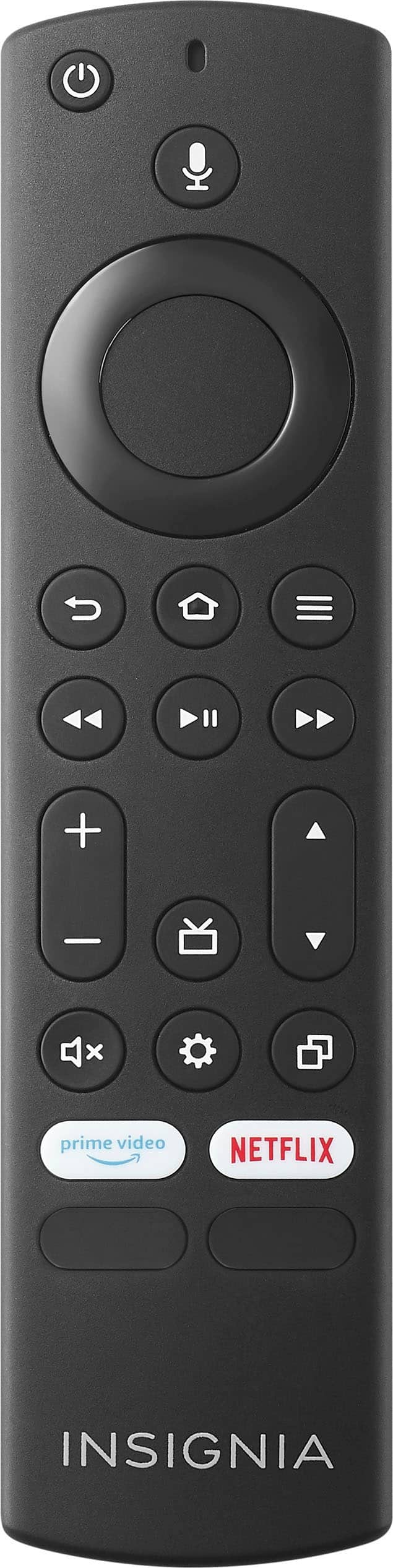
>While the TV is off, press and hold the "MENU" button, "BACK" button, and the "LEFT" side of the navigation ring at the same time for 12 seconds.
>Remove the batteries from the remote, then plug in and turn on the TV with the power button on the TV.
>Wait for the Home screen to appear, then replace the batteries in the remote.
>Wait for up to one minute for the remote to pair with the TV.
If issue persist, please contact our Insignia Support for further assistance. |Angelica| Insignia Support| https://www.bestbuy.com/site/insignia-24-class-f20-series-led-hd-smart-fire-tv/6491295.p?skuId=6491295
A:AnswerHi Jake,
This all application that you are needed is listed to your TV apps. simply download it and sign-in.
Insignia Support
Alvin
www.insigniaproducts.com
A:AnswerTo delete unwanted over-the-air channels on your Insignia™ 24" Class F20 Series LED HD Smart Fire TV, follow these steps:
1. Press the Home button on your remote to go to the main menu.
2. Navigate to Settings: Scroll down and select Settings.
3. Select Live TV: Go to Live TV > Channel Management.
4. Manage Channels: Here, you can see a list of all scanned channels. Select the channels you want to delete and remove them from the list.
This should help you clean up your channel list and keep only the ones you want to watch.
If you have any questions or need further assistance, please don't hesitate to reach out. Thank you for choosing Insignia! - Emman | Insignia Support | https://www.bestbuy.com/site/brands/best-buy-brands/pcmcat1596746025285.c?id=pcmcat1596746025285
A:AnswerIt has a ton of different CC modes including the most common ones and some I've never even heard of. you can also change the size of the captioning as well as the background and foreground colors. It's easy to turn on and off just by going to the settings and toggling it on or off
A:AnswerI just bought this today:
I used wireless internet connection.
I connected my AirPod Pro 2nd Gen earbuds
I can mirror from my iPhone.
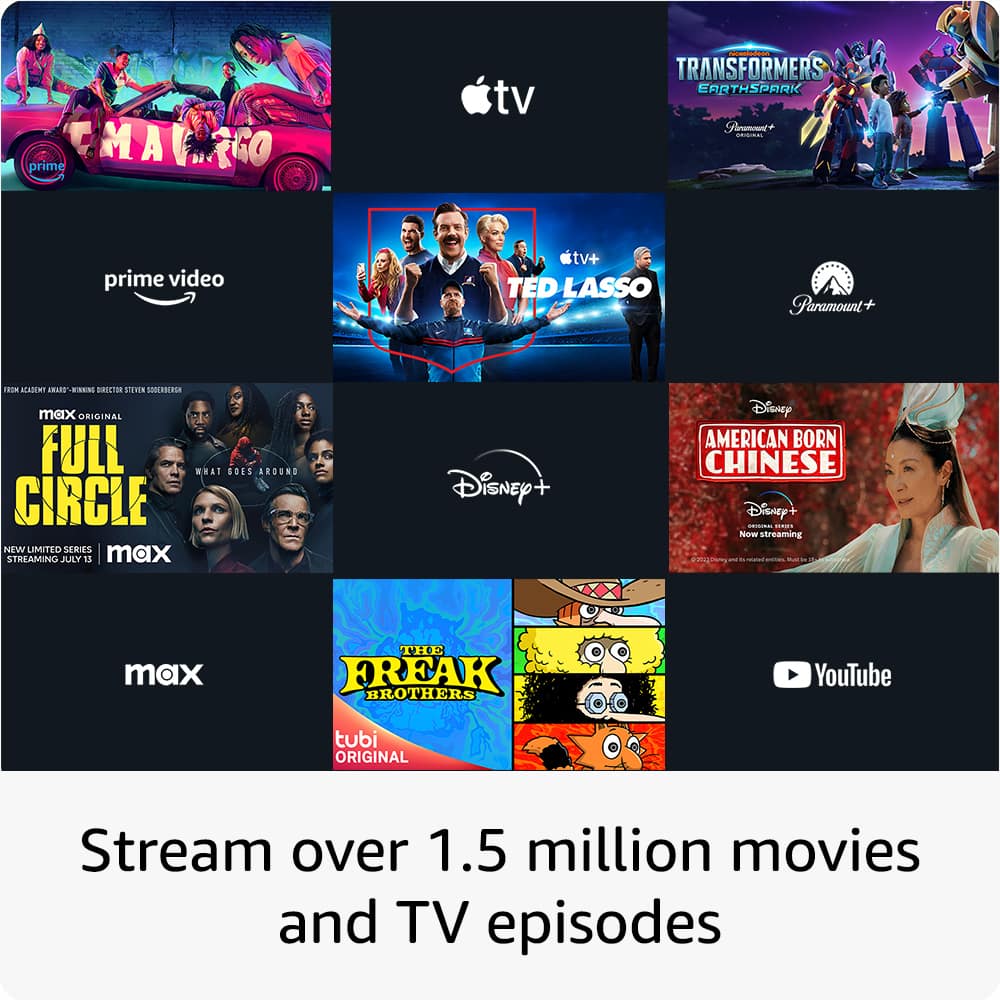
I am using Sling, Amazon Prime, Netflix, HBO Max, Hulu, Peacock, Apple+.
This is being used in my huge closet as my exercise video player (from my iWatch).
Nice.
A:AnswerTo sync the picture and sound on your Insignia 24" Class F20 Series LED HD Smart Fire TV, you can try the following steps:
1. Adjust Audio Settings:
- Go to Settings on your TV.
- Navigate to Display & Sounds > Audio.
- Look for an option called Lip Sync or Audio Delay and adjust it until the audio matches the video.
2. Check for Firmware Updates:
- Go to Settings > Device & Software > About > Check for System Update.
- If an update is available, follow the on-screen instructions to install it.
3. Power Cycle the TV:
- Unplug the TV from the power outlet.
- Wait for about 1-2 minutes.
- Plug the TV back in and turn it on.
4. Reset the TV to Factory Settings:
- Go to Settings > Device & Software > Reset to Factory Defaults.
- Note that this will erase all your settings and installed apps, so you may need to set up the TV again.
5. Check External Devices:
- If you are using external devices like a soundbar or a streaming device, make sure their firmware is up to date.
- Ensure all cables are securely connected.
If these steps don't resolve the issue, it might be a hardware problem, and you may need to contact Insignia customer support for further assistance.
I hope this helps! If you have any other questions, feel free to ask.