A:AnswerThe Fire TV Edition television does not support expandable storage.
You could try to do a Factory Reset, using the included Voice Remote, go Home > Settings > Device & Software > Reset to Factory Defaults.
For product support please call 1-877-467-4289 available from 8am to 9pm CT daily
David M. - Insignia Support
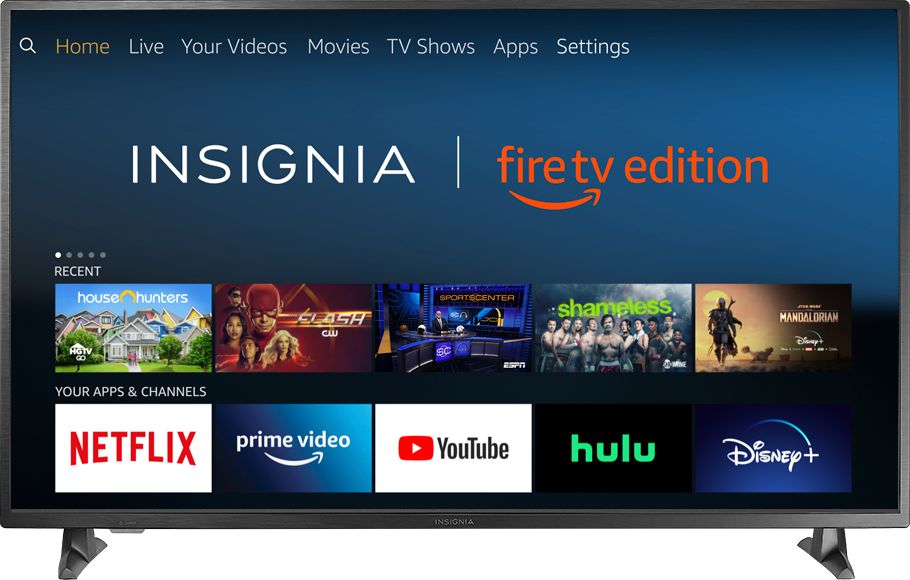
A:AnswerPress the Home button to go to the Home screen and look for the Inputs row,
highlight the input you want to watch and press select.
To watch Fire TV Edition TV Help Videos, please visit:
https://www.amazon.com/gp/help/customer/display.html?nodeId=202162190
David M. - Insignia Support
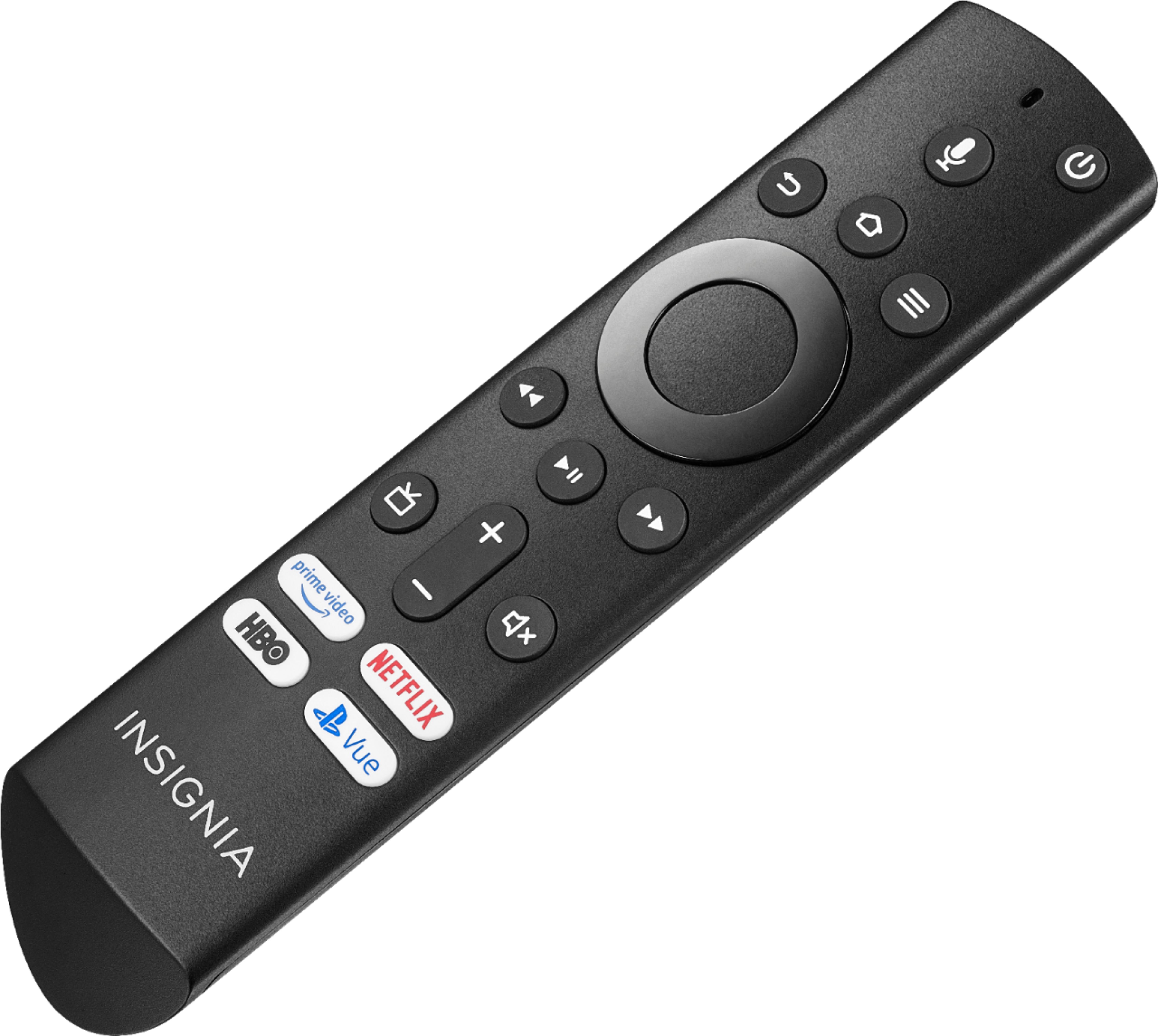
A:AnswerUse the included Voice Remote to control your Fire TV Edition television.
To watch Fire TV Edition TV Help Videos, please visit:
https://www.amazon.com/gp/help/customer/display.html?nodeId=202162190
David M. - Insignia Support
A:AnswerHi, Shell.
I am sorry to read about this situation. I would really love to provide you with alternative for your product. this is why I kindly as you to reach us at https://www.insigniaproducts.com/contact-us so we can properly assist you.
Alexander G. - Insignia Support
A:AnswerTo search for available apps to download, please visit:
amazon.com > Menu - Shop By Category > Fire TV > Fire TV Apps & Channels > Refine by Device Type select Fire TV Edition TV and search.
David M. - Insignia Support
A:AnswerThe replacement remote for the Fire TV Edition television is available at Best Buy; Model: NS-RCFNA-19. Try to press the Home button for 1 minute to pair the remote to the Fire TV Edition television.
For product support please call 1-877-467-4289 available from 8am to 9pm CT daily.
David M. - Insignia Support
A:AnswerThe Facebook Watch TV app is available on Amazon Fire TV
For more information, please visit: https://www.facebook.com/help/watchfortv
David M. - Toshiba Support
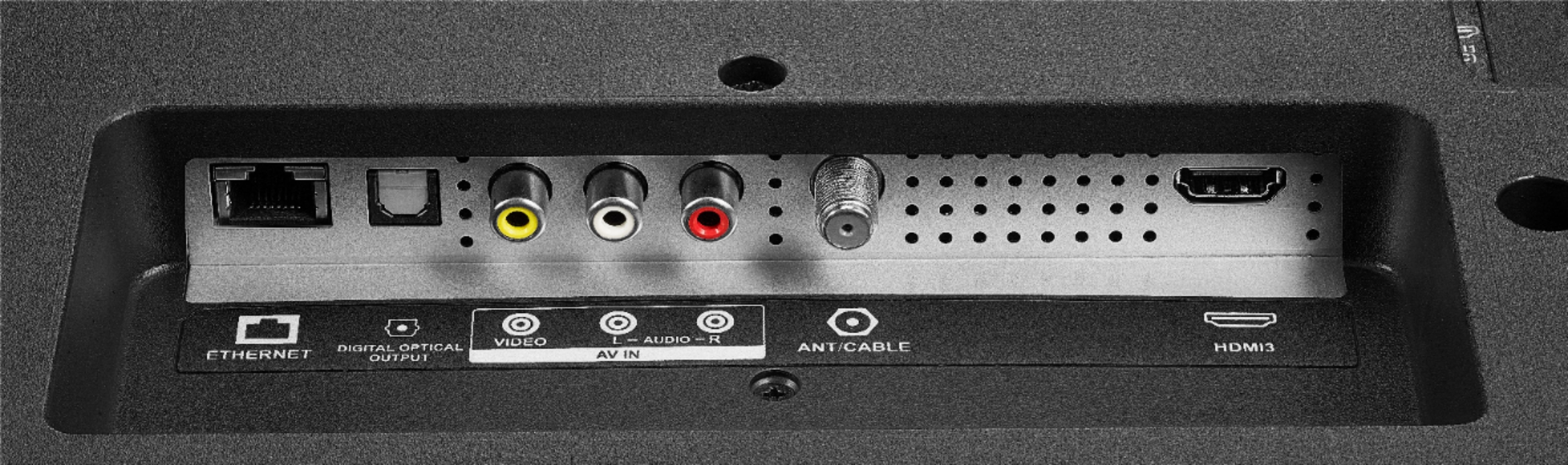
A:AnswerMobile devices and smartphones cannot be connected to your Fire TV Edition television via Bluetooth. You can connect your smartphone to the TV by connecting an Adapter or Streaming device using HDMI.
David M. - Insignia Support
A:AnswerWireless mouse devices and keyboards can only be used with supported games and apps.
To pair a Bluetooth device, go Home > Settings > Controllers & Bluetooth Devices.
For more information, please visit:
https://www.amazon.com/gp/help/customer/display.html?nodeId=GSBSBL44Y4QM59FV
David M. - Insignia Support
A:AnswerHi, OD.
Thank you for sharing this inquiry. You can try the following to enable the desired function (it is necessary to have the TV connected to internet and to have the latest update on the TV): SETTINGS>DISPLAY & SOUND>POWER ON>LAST INPUT. Nevertheless, if you ever require any further assistance, please reach us at https://www.insigniaproducts.com/contact-us. We will be more than happy to help you!
Alexander G. - Insignia Support
A:AnswerHi, Bigsky.
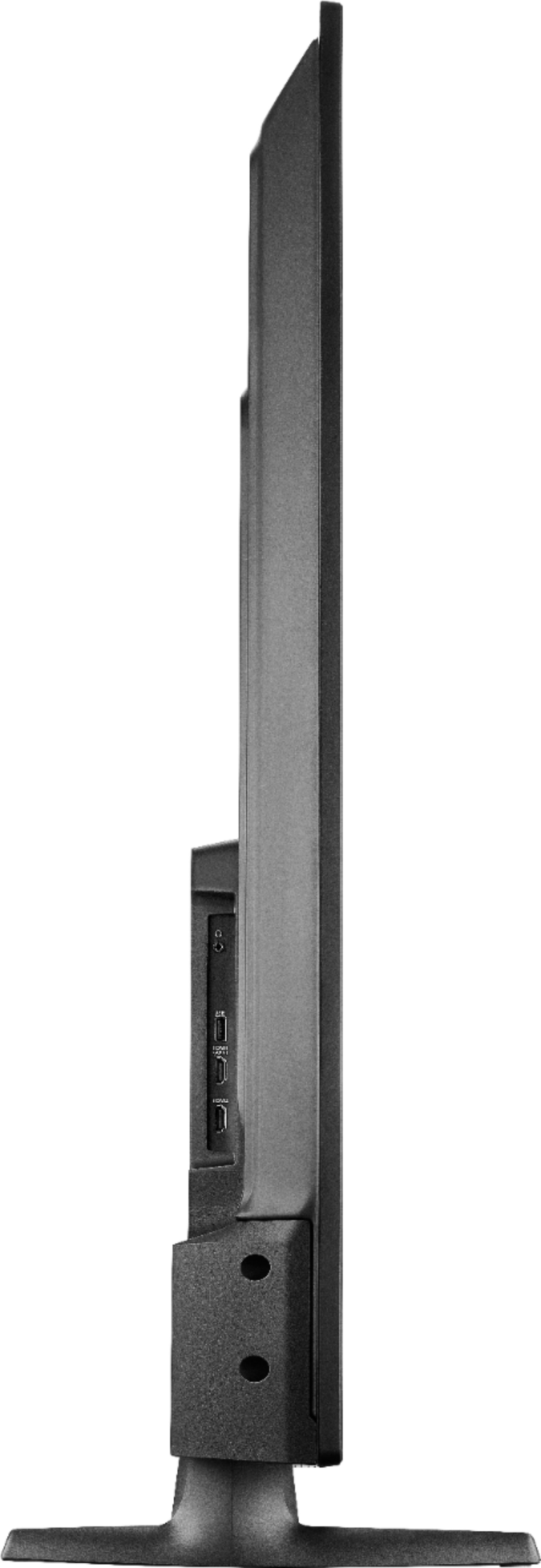
Thank you for taking a moment to share this inquiry with us. The dimensions of this TV are 48.9x30.3x10.4 inches (HeightxWidthxDepth).
Alexander G. - Insignia Support
A:AnswerHi.
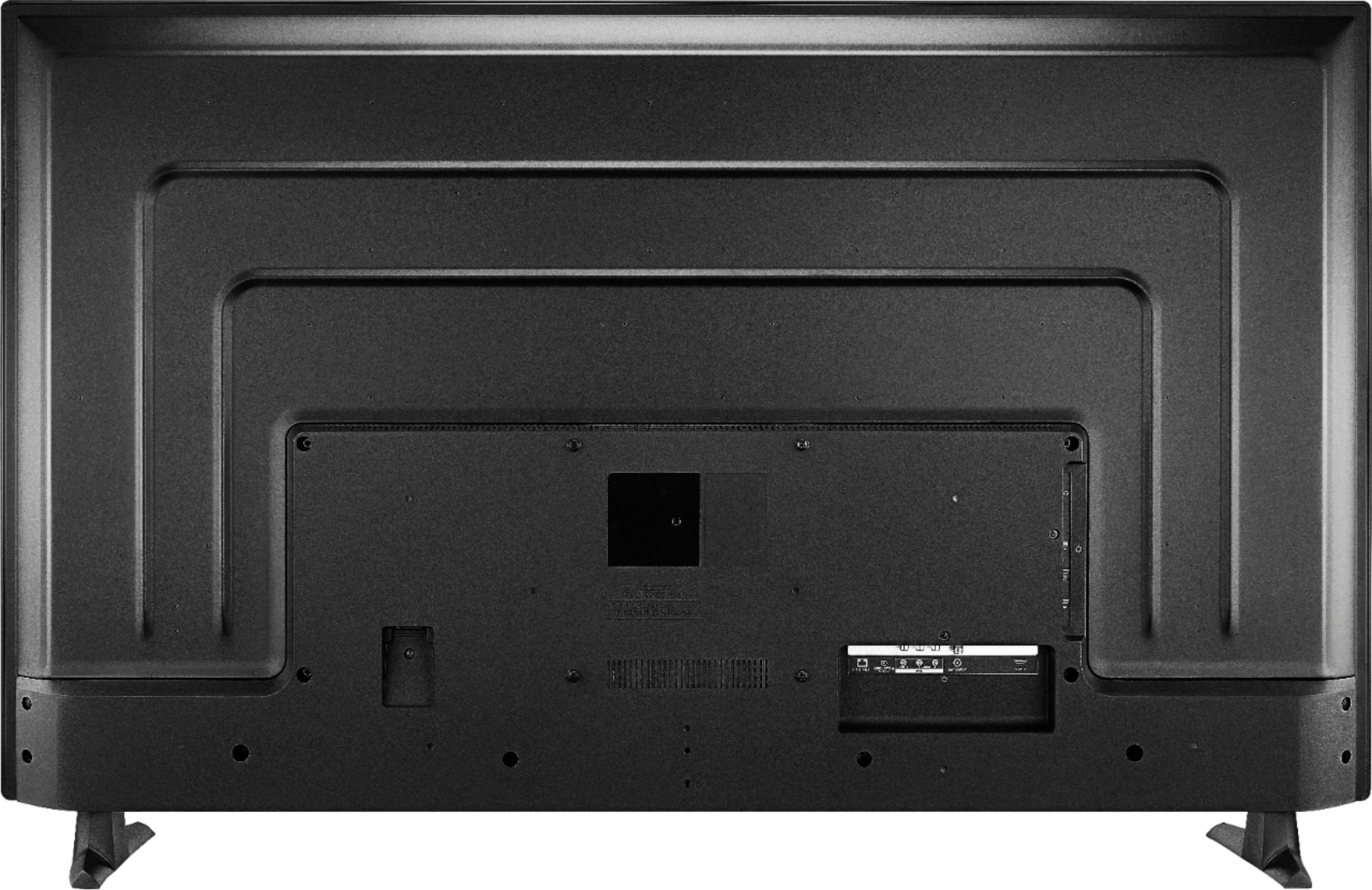
YES, correct. This TV has on the back a VESA Standard mount system of 4 holes on a square arrangement. Just make sure that your wall mounting system is compatible with VESA Standard and you should be good to go.
Charles V. - Insignia Support
https://www.insigniaproducts.com/contact-us
A:AnswerHi Jim.
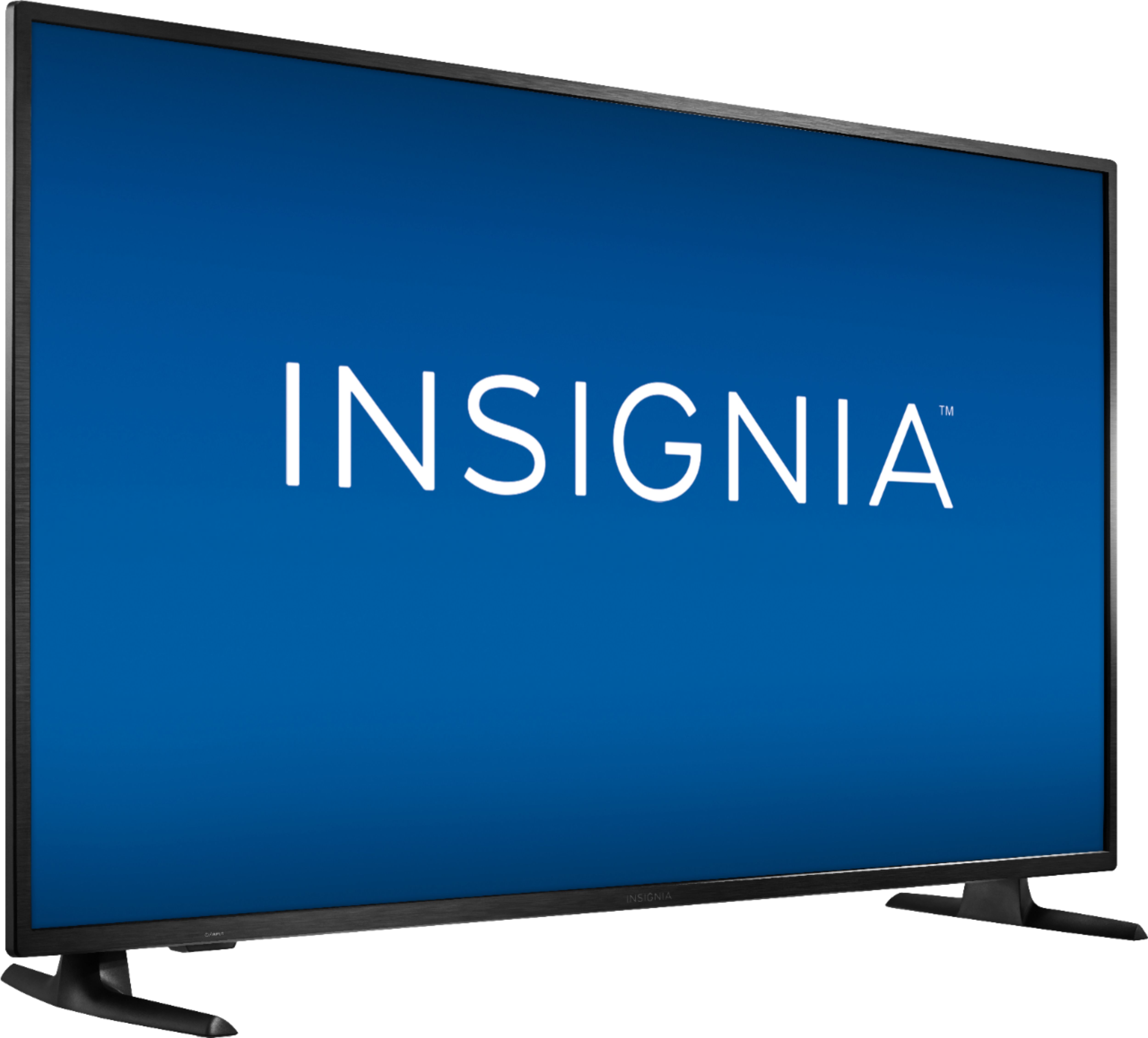
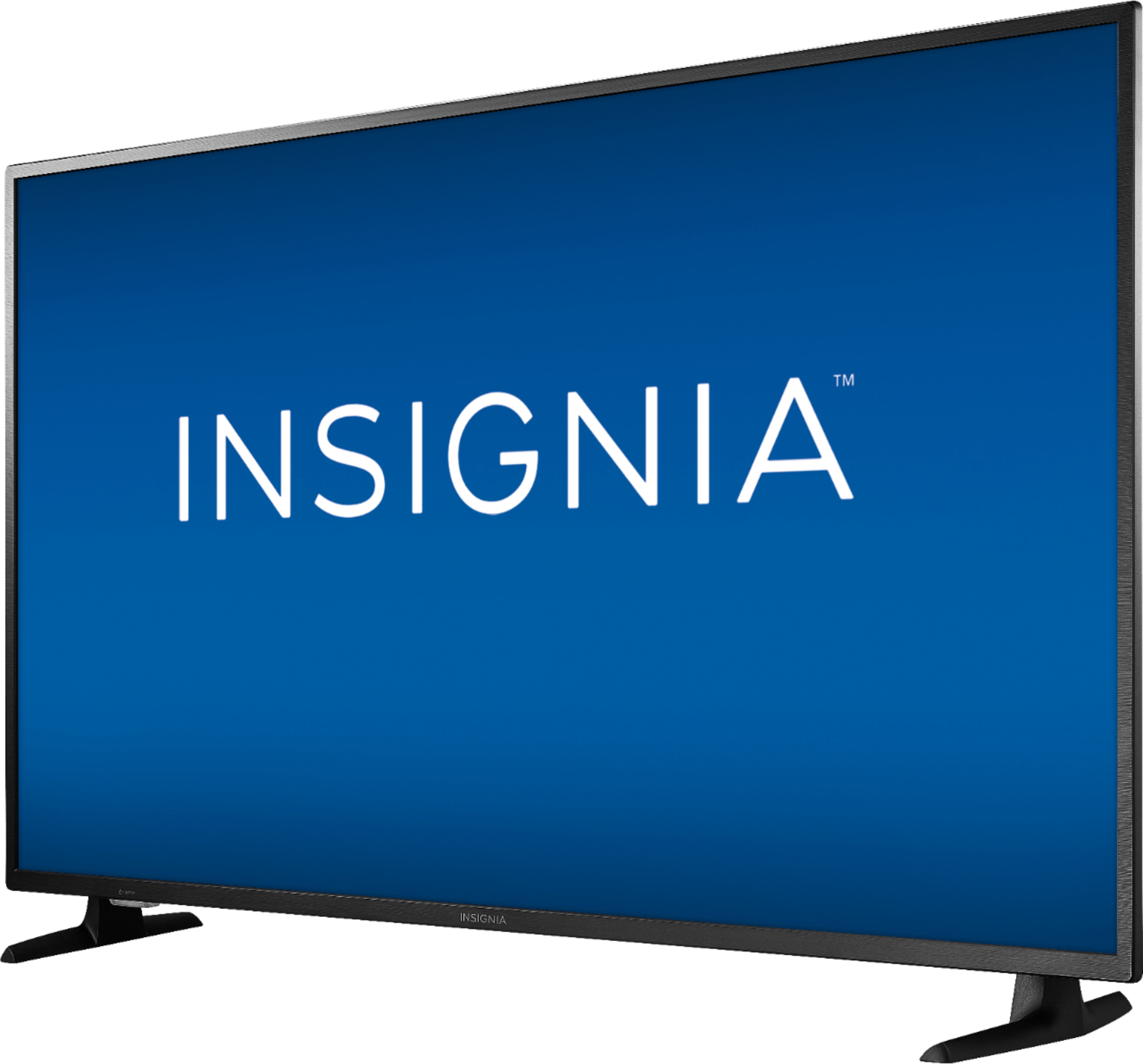
The stand on it's WIDEST part it totals at 43.25 inches. My suggestion is to use a much wider surface, or wall mounting to avoid any accidents.
Charles V. - Insignia Support
https://www.insigniaproducts.com/contact-u