A:AnswerHi.
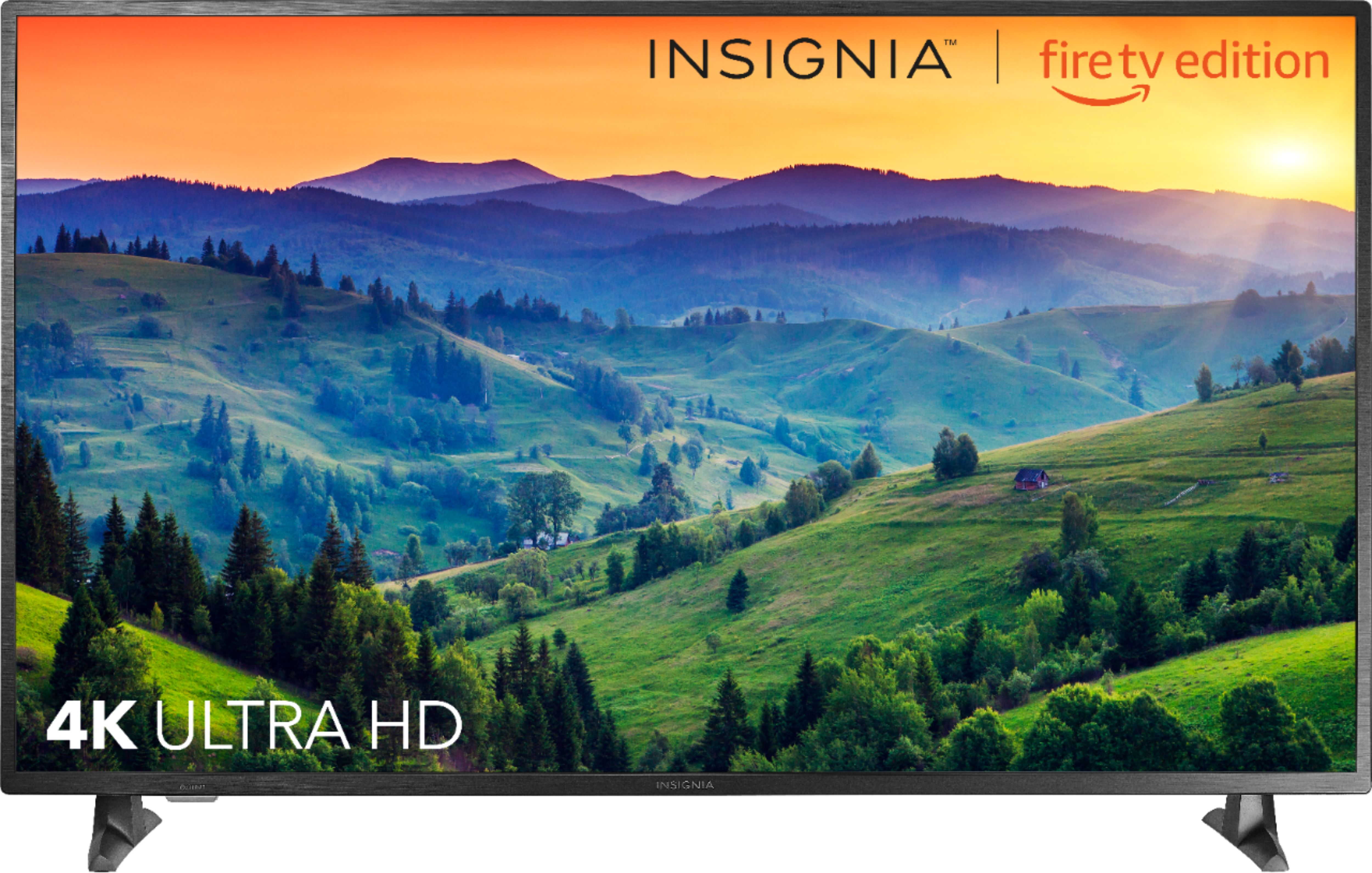
I appreciate your trust in that we will answer your question accurately. YES, your Apple TV will look amazing on this TV, specially if it is the 4K edition.
Charles V. - Insignia Support
https://www.insigniaproducts.com/contact-us
A:AnswerHi.
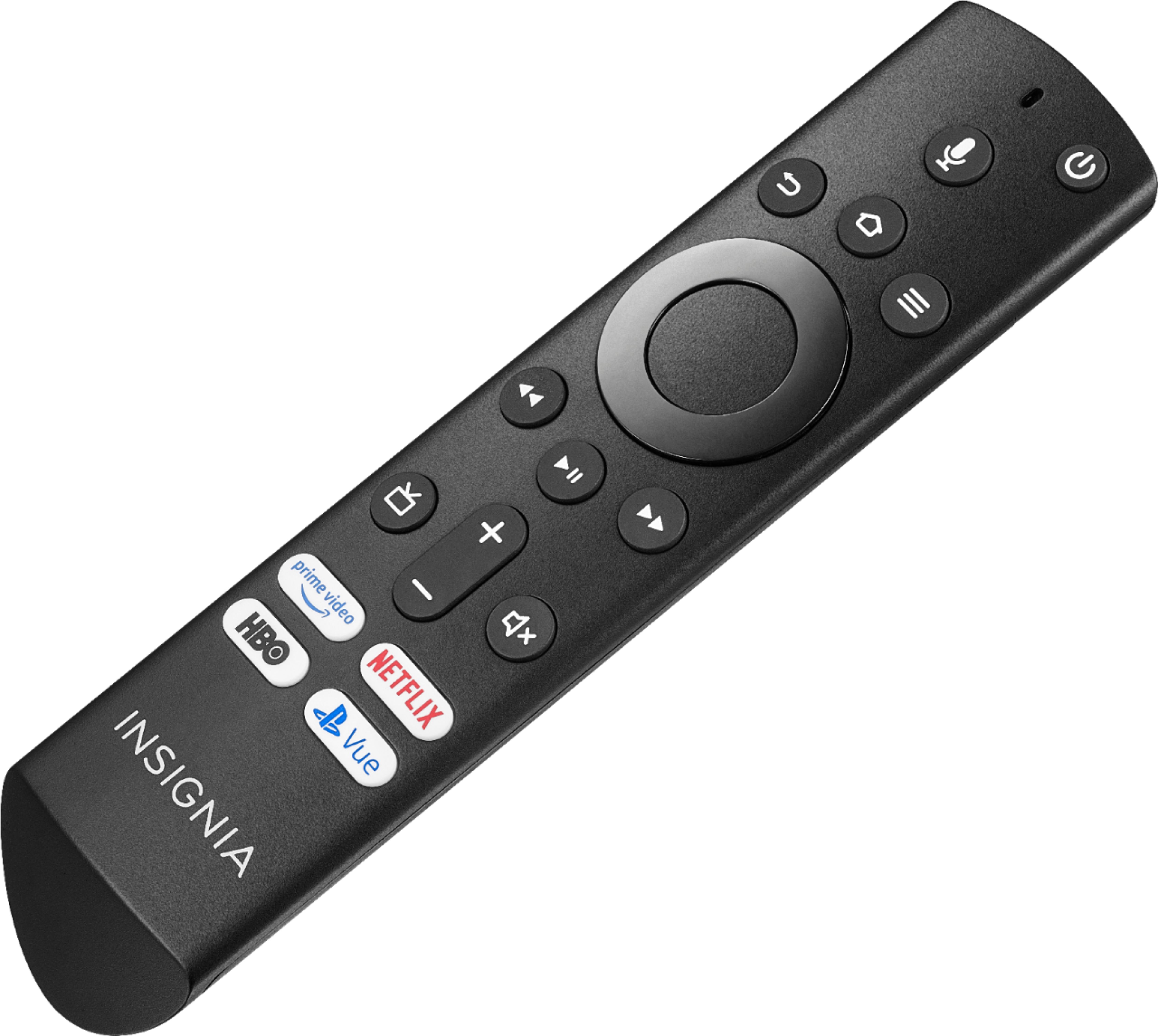
Reset the remote and try to pair it again, you can find the steps on the website of Amazon. If you feel like you required step-by-step guidance please, give us a call at 877-467-4289 for specific orientation on this.
Charles V. - Insignia Support
https://www.insigniaproducts.com/contact-us
A:AnswerHi Lee.
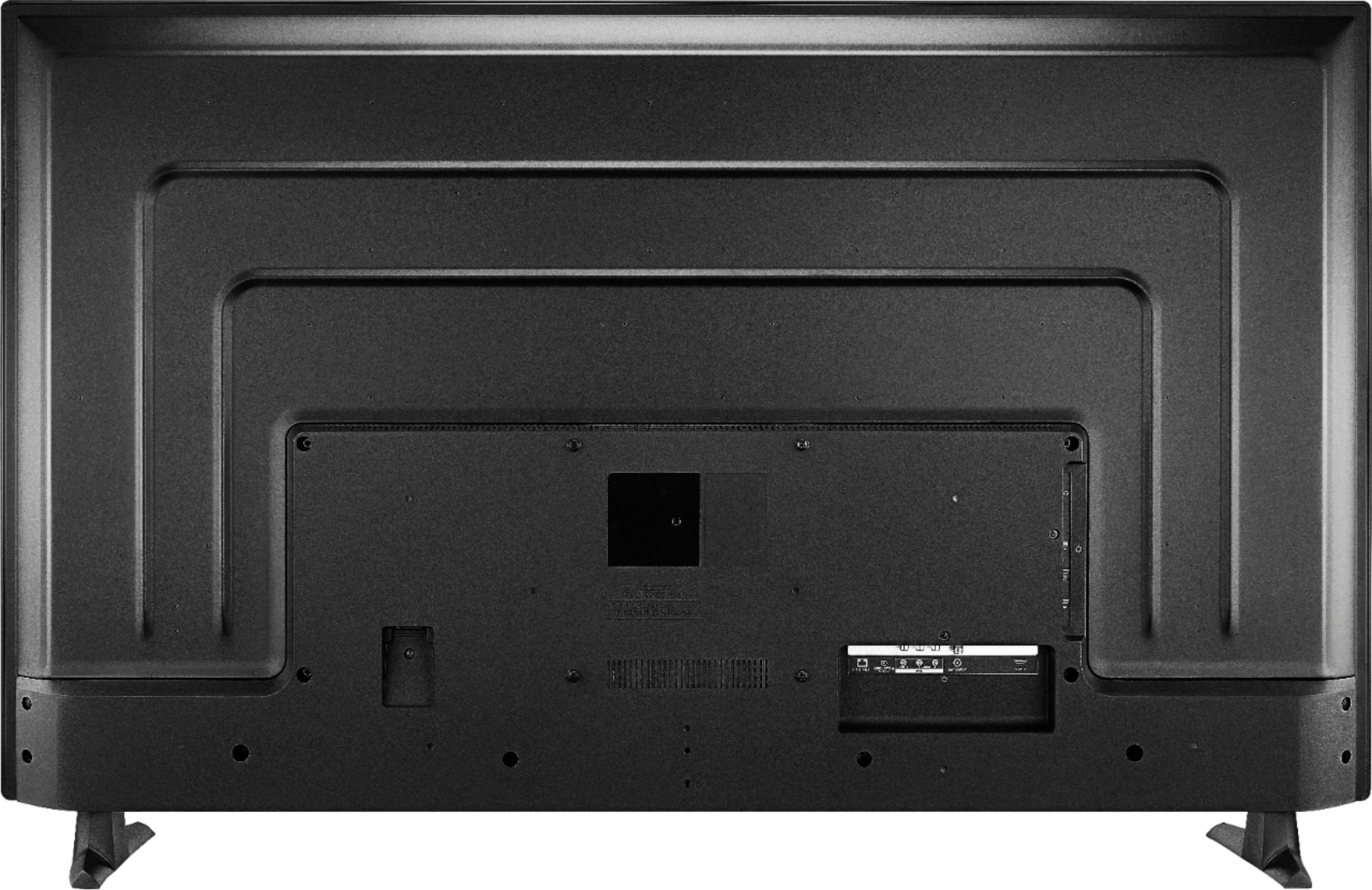
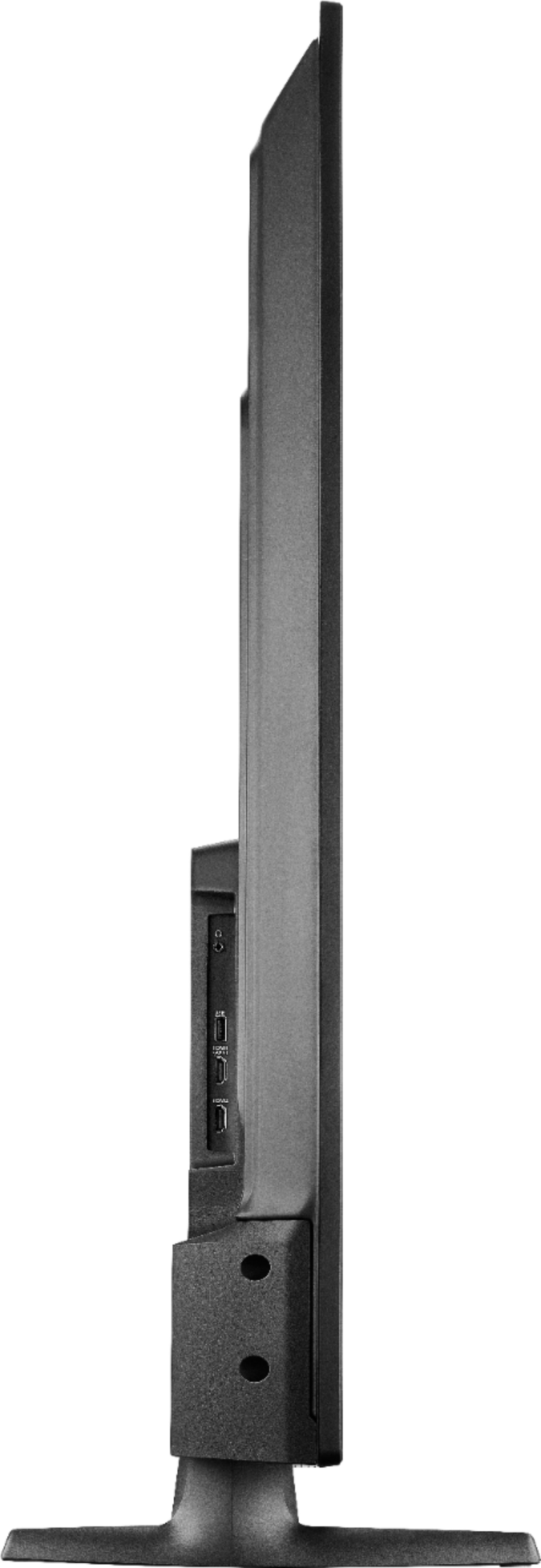
YES, it is. It has on the back a VESA standard mount system. You can use any VESA mounts to put it on TV stands or wall mounts.
Charles V. - Insignia Support
https://www.insigniaproducts.com/contact-us
A:AnswerYou can connect your camera to the Fire TV Edition television using HDMI.
For more information about GoPro HERO7, please visit:
https://gopro.com/content/dam/help/hero7-black/manuals/HERO7Black_UM_ENG_REVA.pdf
David M. - Insignia Support
A:AnswerHi, DB.
Thank you for sharing your inquiry with us. This TV does have a web browser (we recommend SILK) and it connects wirelessly to your home internet.
Alexander G. - Insignia Support
A:AnswerThe Fire TV Edition television supports 4K @ 60Hz + HDR10. Using the included Voice Remote, press and hold the Home button for 3 seconds to display the Quick Access menu, select Info to see the resolution of the video that's playing.
David M. - Insignia Support
A:AnswerHi.
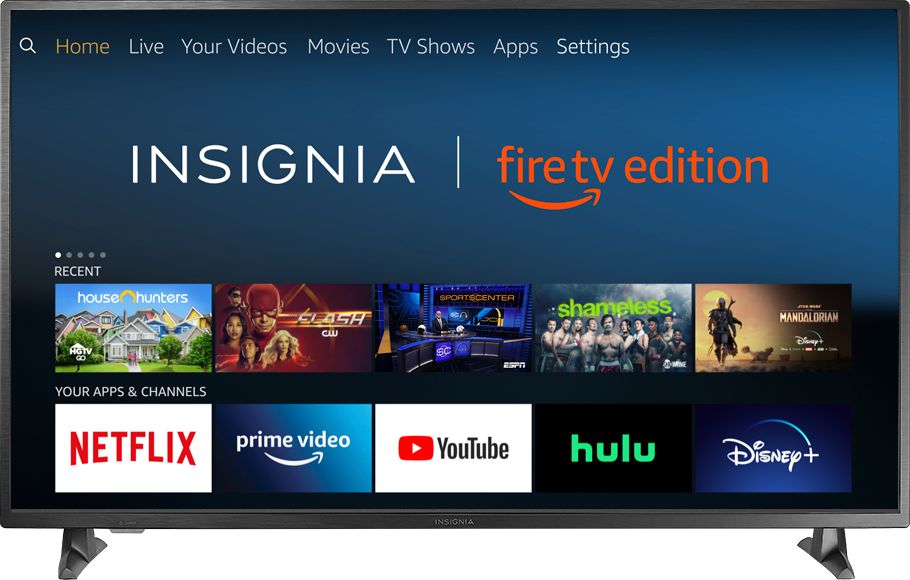
I understand that you left us this question because you are interested in this product. This TV has an Amazon's Fire TV built in. This means it has an internal platform that allows the TV to connect to the internet, watch movies online, and download applications on your TV directly.
Charles V. - Insignia Support
https://www.insigniaproducts.com/contact-us
A:AnswerAlexa is only activated by pressing the Mic button on the Voice Remote.
Also you can deregister your Account. Using the Voice Remote go Home > Settings > My Account. If you deregister your account, the Alexa feature will not be available.
David M. - Insignia Support
A:AnswerThe USB port supports 128 GB USB Flash Drive formatted FAT32.
You can try to use a different HDMI Mode. Using the included Voice Remote press and hold the home button for 3 seconds to launch the Quick Access menu, select Picture then Advanced Settings and select HDMI Mode, try Mode 1 or 2.
For product support please call 1-877-467-4289 available from 8am to 9pm CT daily
David M. - Insignia Support
A:AnswerThe included Voice Remote works using Bluetooth and IR. Each remote should be paired to a TV. You can download the Amazon Fire TV app on your smartphone and select which Fire TV Edition TV you want to control.
David M. - Insignia Support
A:AnswerThe Alexa commands to change channels are for Live TV from antenna.
For more information about the Alexa commands please visit:
https://www.amazon.com/gp/help/customer/display.html?nodeId=202174250
David M. - Insignia Support
A:AnswerFor the Insignia | Fire TV Edition television Model: NS-55DF710NA19:
The VESA Mounting Pattern: 200 x 200mm - 4 screws M6 x 14mm length* (*minimum 12mm / maximum 15mm)
David M. - Insignia Support
A:AnswerFor the Insignia | Fire TV Edition television Model: NS-55DF710NA19:
The VESA Mounting Pattern: 200 x 200mm - 4 screws M6 x 14mm length* (*minimum 12mm / maximum 15mm)
David M. - Insignia Support
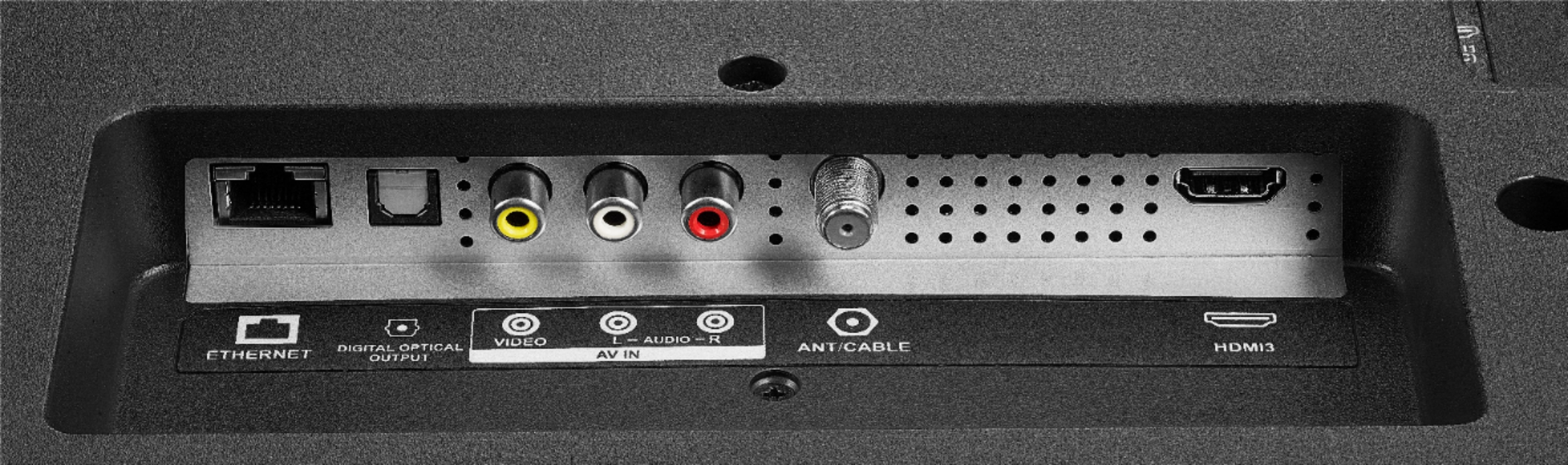
A:AnswerFor a direct and stable connection, connect to the internet using Ethernet.
For product support please call 1-877-467-4289 available from 8am to 9pm CT daily
David M. - Insignia Support
A:AnswerThe Fire TV Edition television has the app internet | Amazon Silk browser to surf the web and watch videos. To search for Fire TV Edition television apps, go to: amazon.com > Menu - Shop By Category > Fire TV > Fire TV Apps & Channels > Refine by Device Type select Fire TV Edition TV and search.
David M. - Insignia Support
A:AnswerHi, Biran.
i truly appreciate you taking some of your time to share your inquiry with us. The width of this TV is 48.9 inches. Anything longer than that you can get to set your TV.
Alexander G. - Insignia Support
A:AnswerHi! I am sorry to read that you are having some issues with the Xfinity box and your TV. To turn off the UHD resolution please press and hold the rewind and up buttons for more than 10 seconds on your fire remote control. It should change between Auto, 1080p and 2160p (select 1080p). If this does not help, please contact us so we can continue assisting you. Viri E. Insignia Support https://www.insigniaproducts.com/contact-us