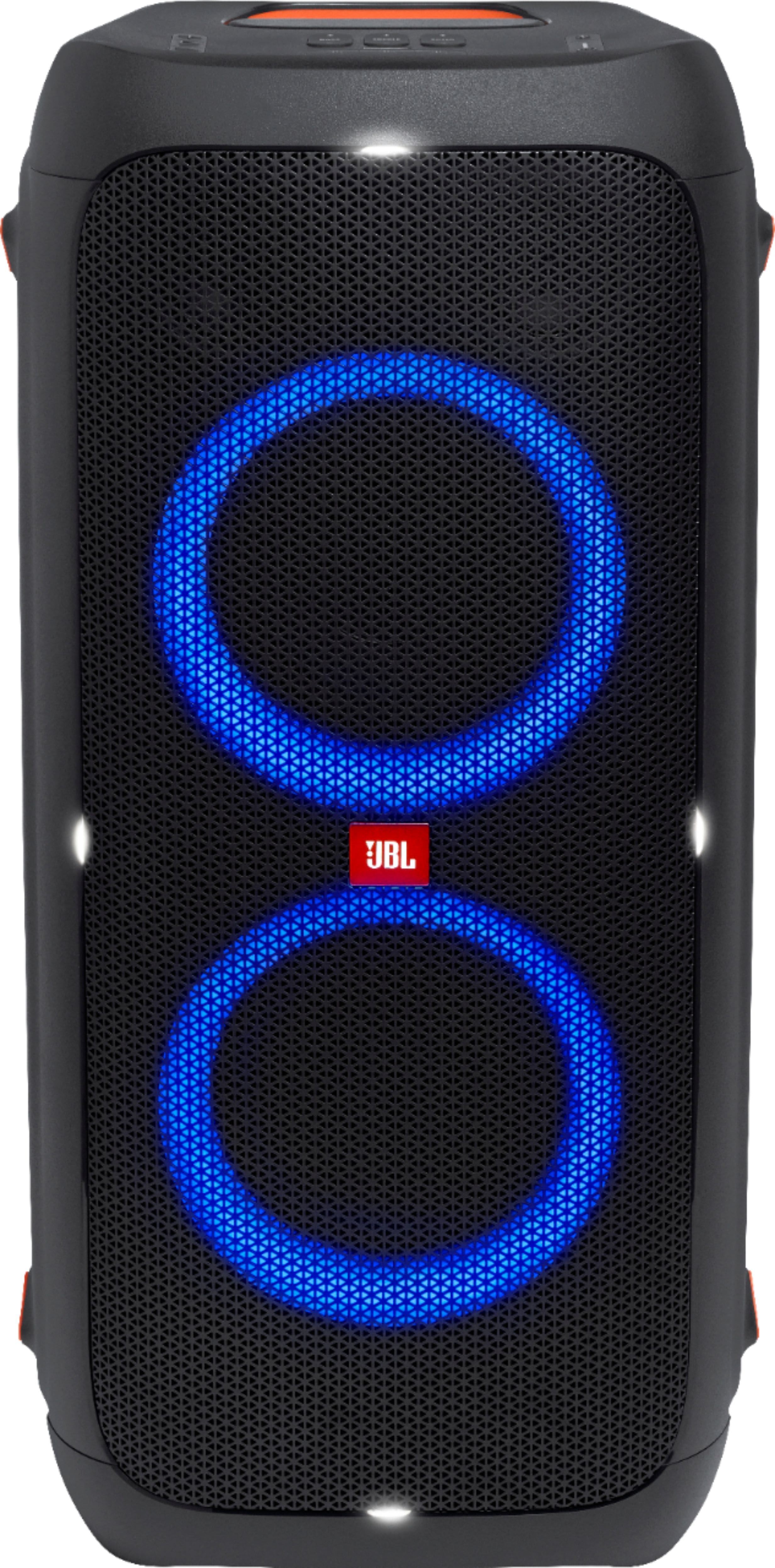
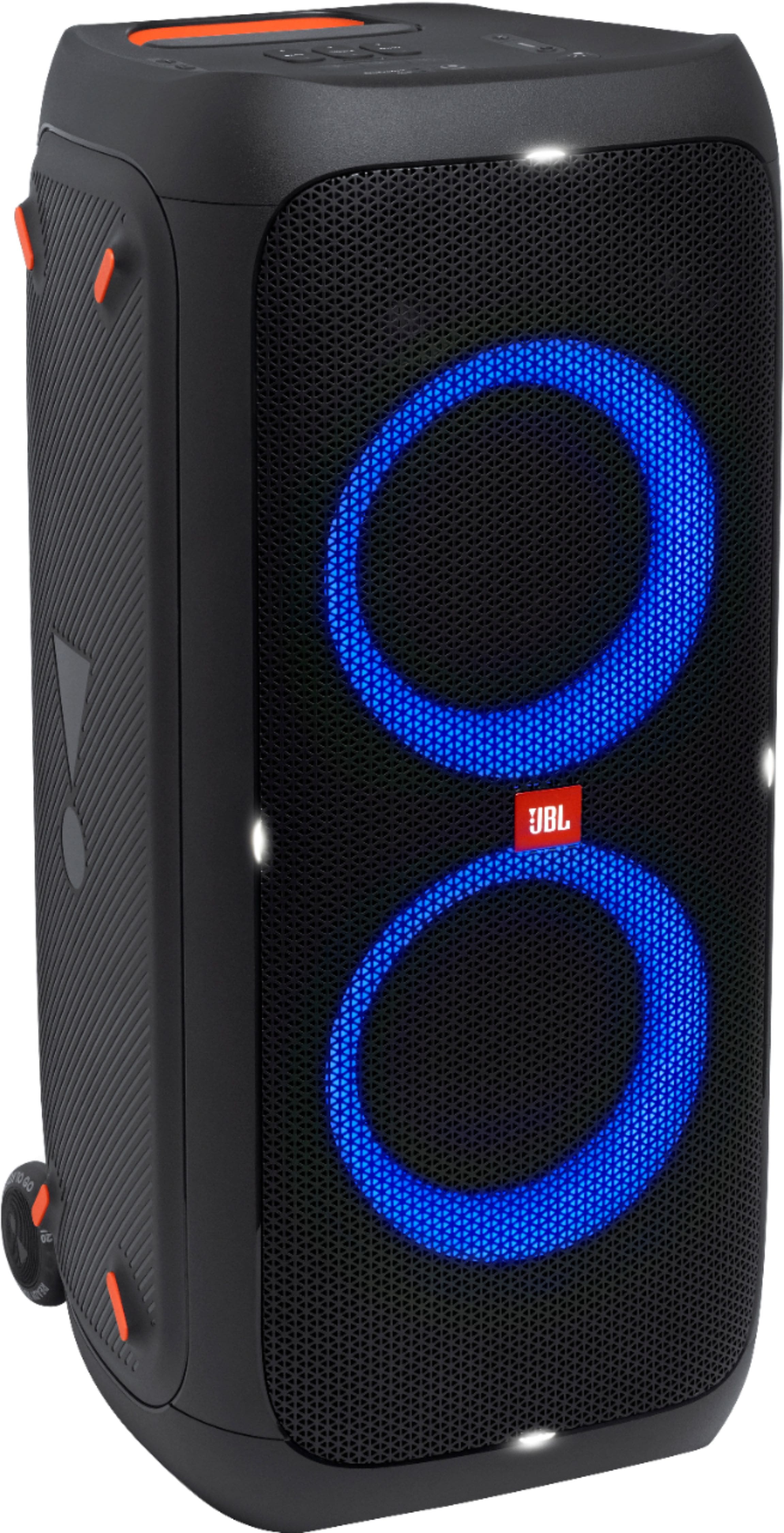
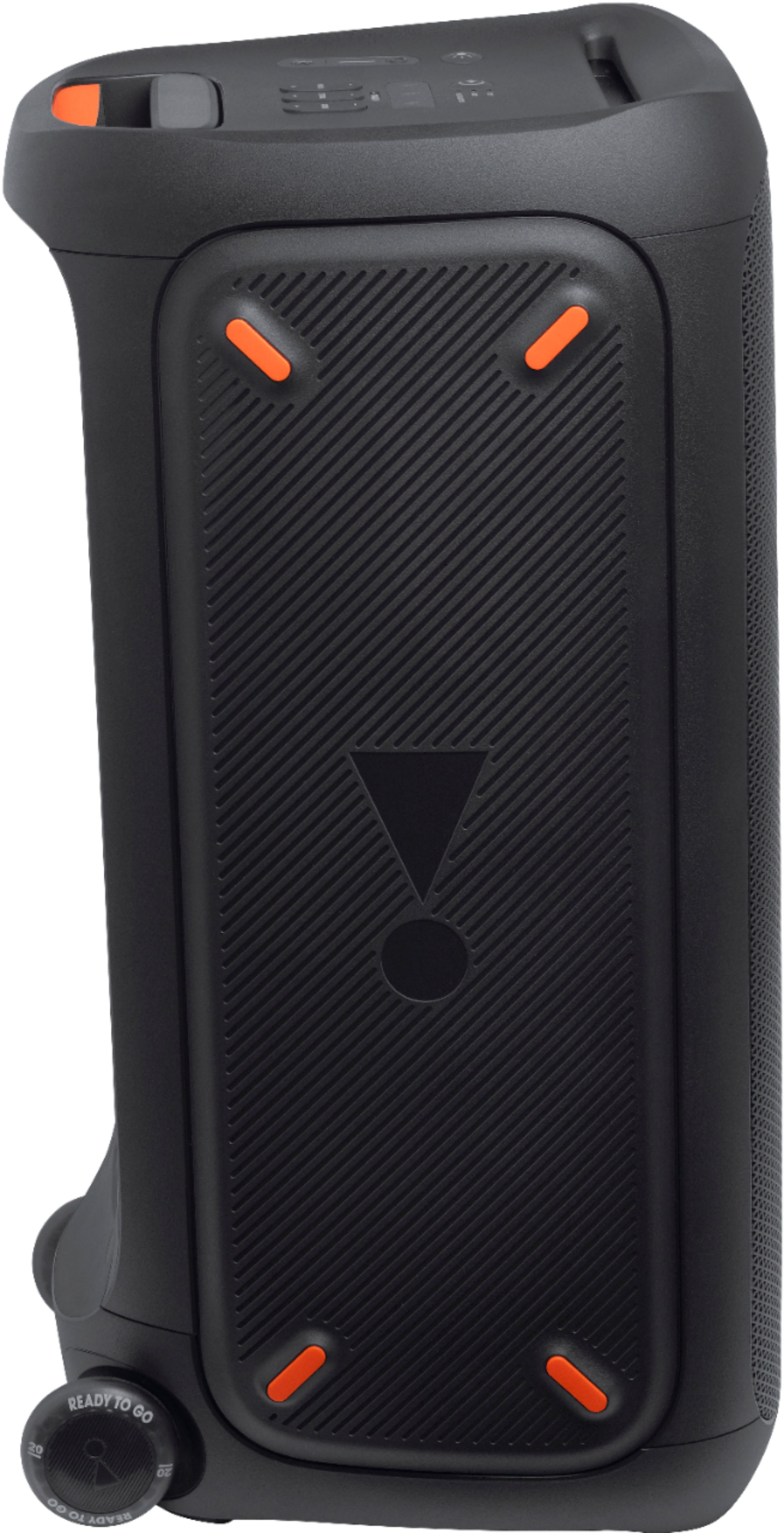
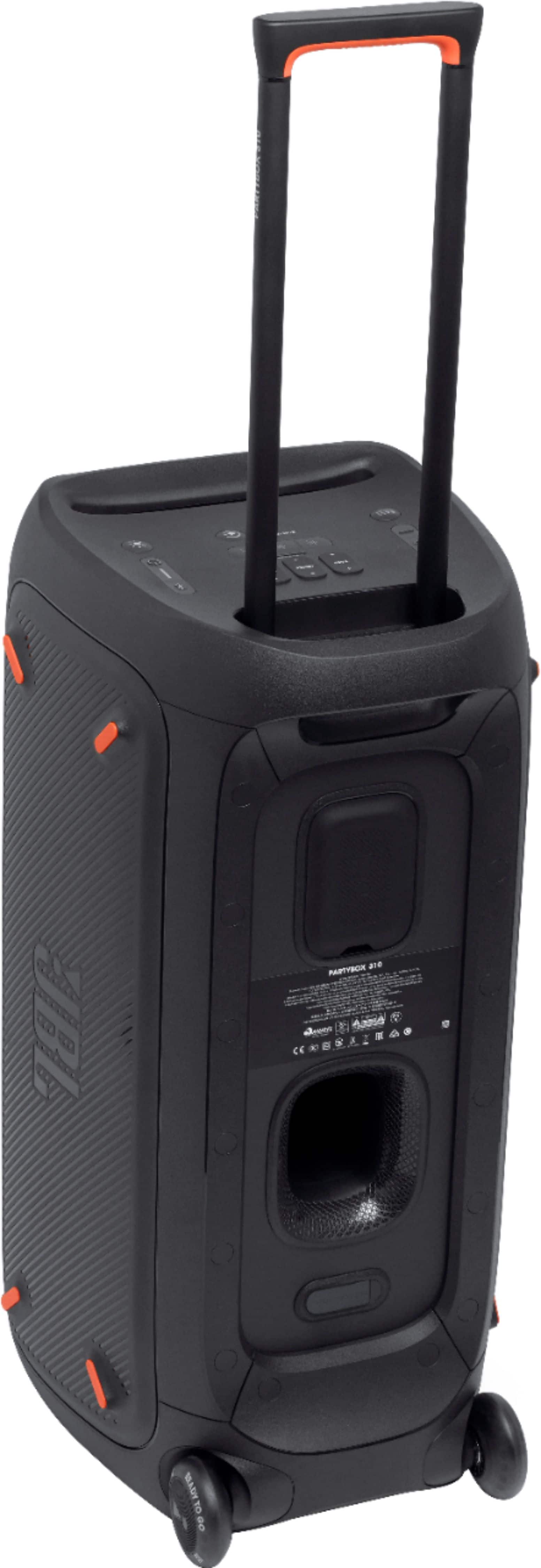
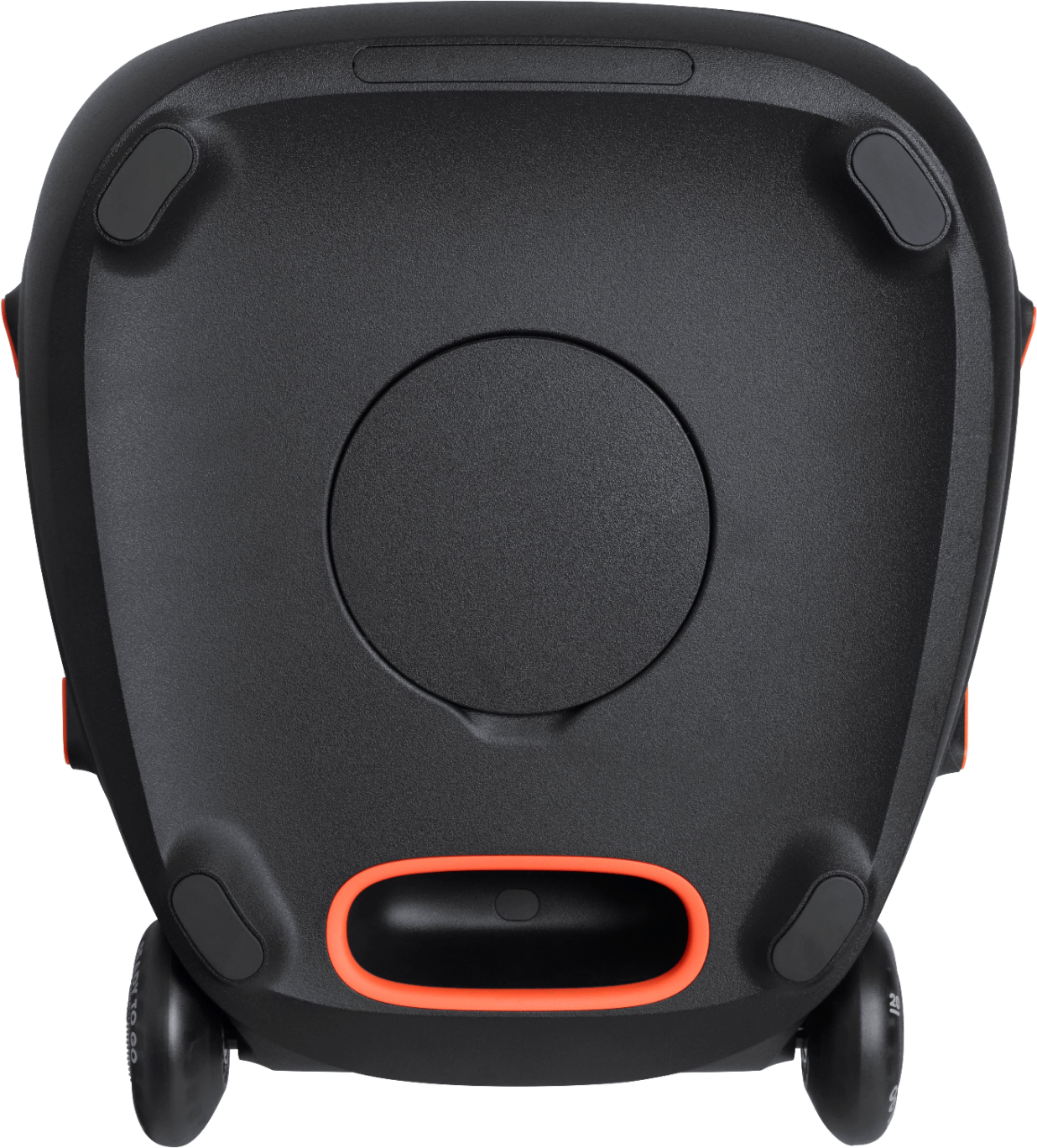
A:AnswerThe 310 Is The Best, Or The 1,000 Which I’m Not Paying $1200.00 For A 1,000, I’m Very Happy With My 310 Model, But For $500.00 I Think It Should Have More Bells & Whistles For The Money$$$&
A:AnswerOur JBL Boombox can't be paired with our PartyBox 310 because the two speakers have different features. Our JBL PartyBox 310 can only pair with another PartyBox 310 via TWS. In contrast, our JBL Boombox can only connect to Connect+-compatible speakers.
A:AnswerOur JBL Partybox 310 doesn't require a PIN code when connecting to a Bluetooth source device. If the following default PIN codes don't work, 0000, 1111, or 1234, please make sure that you have the updated Bluetooth driver. For assistance with updating the driver on your PC, please contact your PC manufacturer.
A:AnswerQuestion actually.
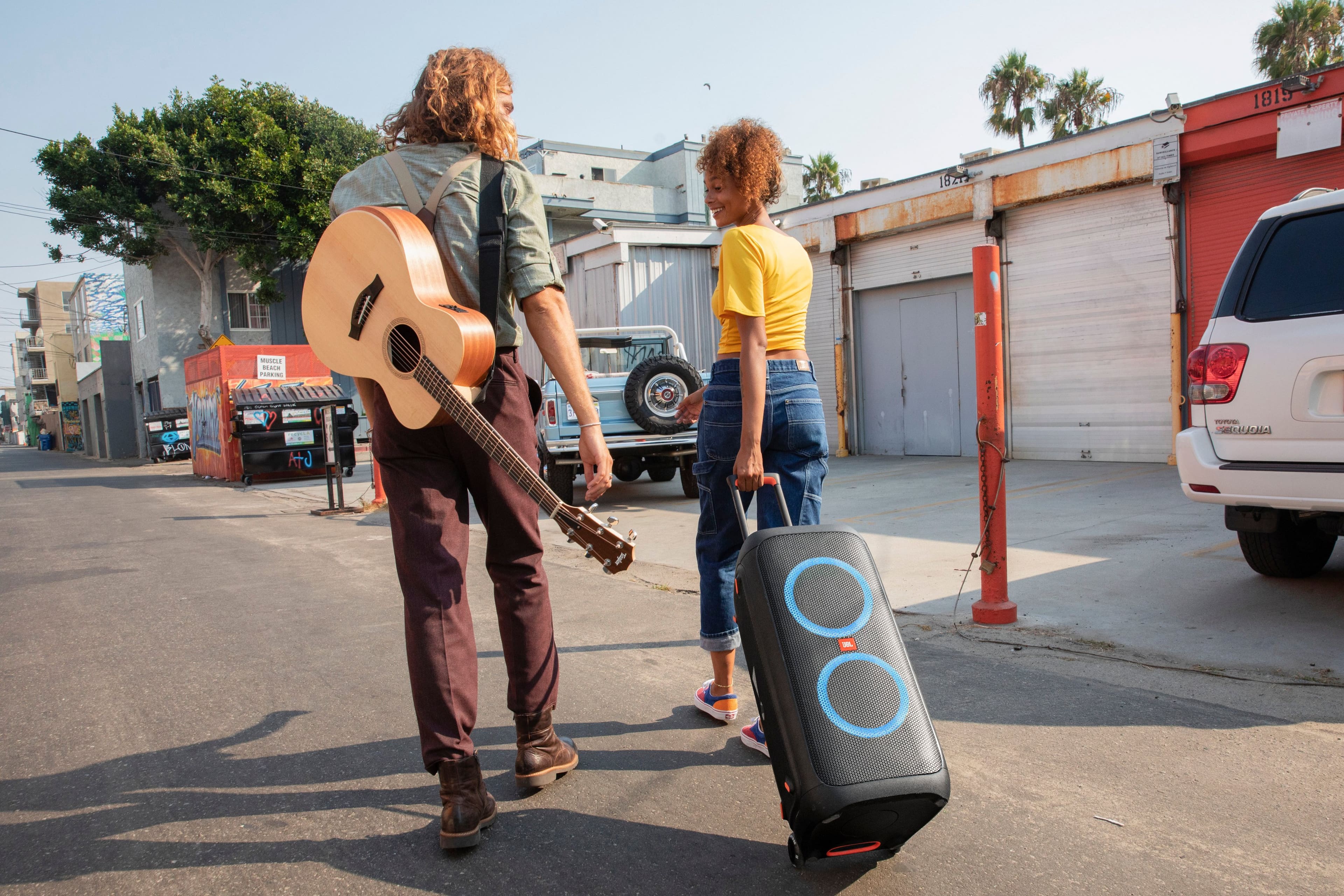
I want to use the JBL 310 for busking, which means having it outside, most likely in the sun? So should I make a cover for it? Place an umbrella over the top of it??
A:Answer2 possible solutions that I've discovered.
1. Connect your mic as an input to a mixer and then connect the speakers as your outputs speaker 1 as left and speaker 2 as right.
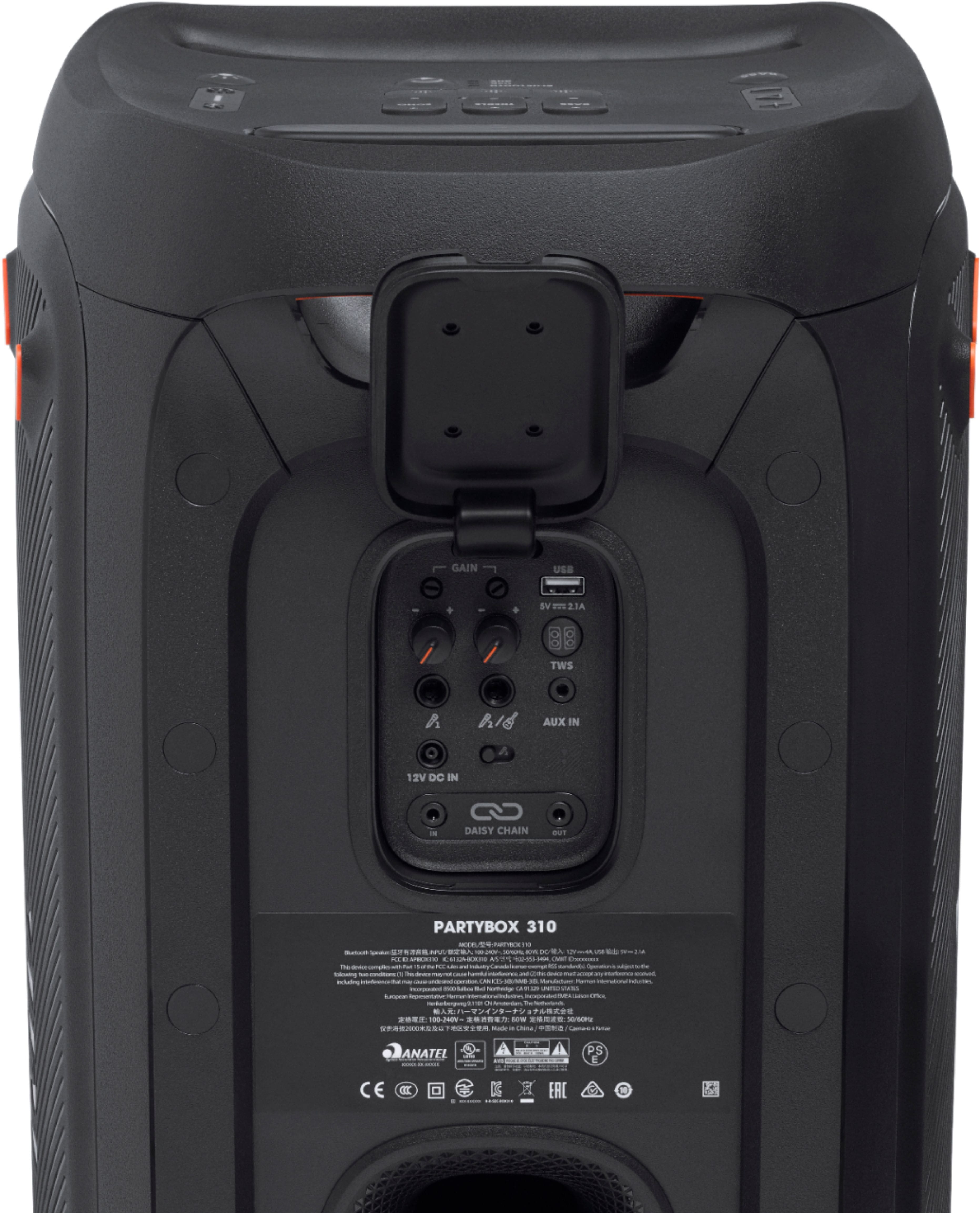
2. Use 1 speaker as your input for the mic and then daisy chain to your 2nd speaker via an AUX.
A:AnswerIts because its charged!!..now maybe after being not used for a while the indicator will show charging again!..
And the review of you should unplugged unit from wall to increase battery life.. that is False!..The PartyBox has a circuit that keeps it from over charging!! PCM= Protection Circuit Module!! Rhats in all models!
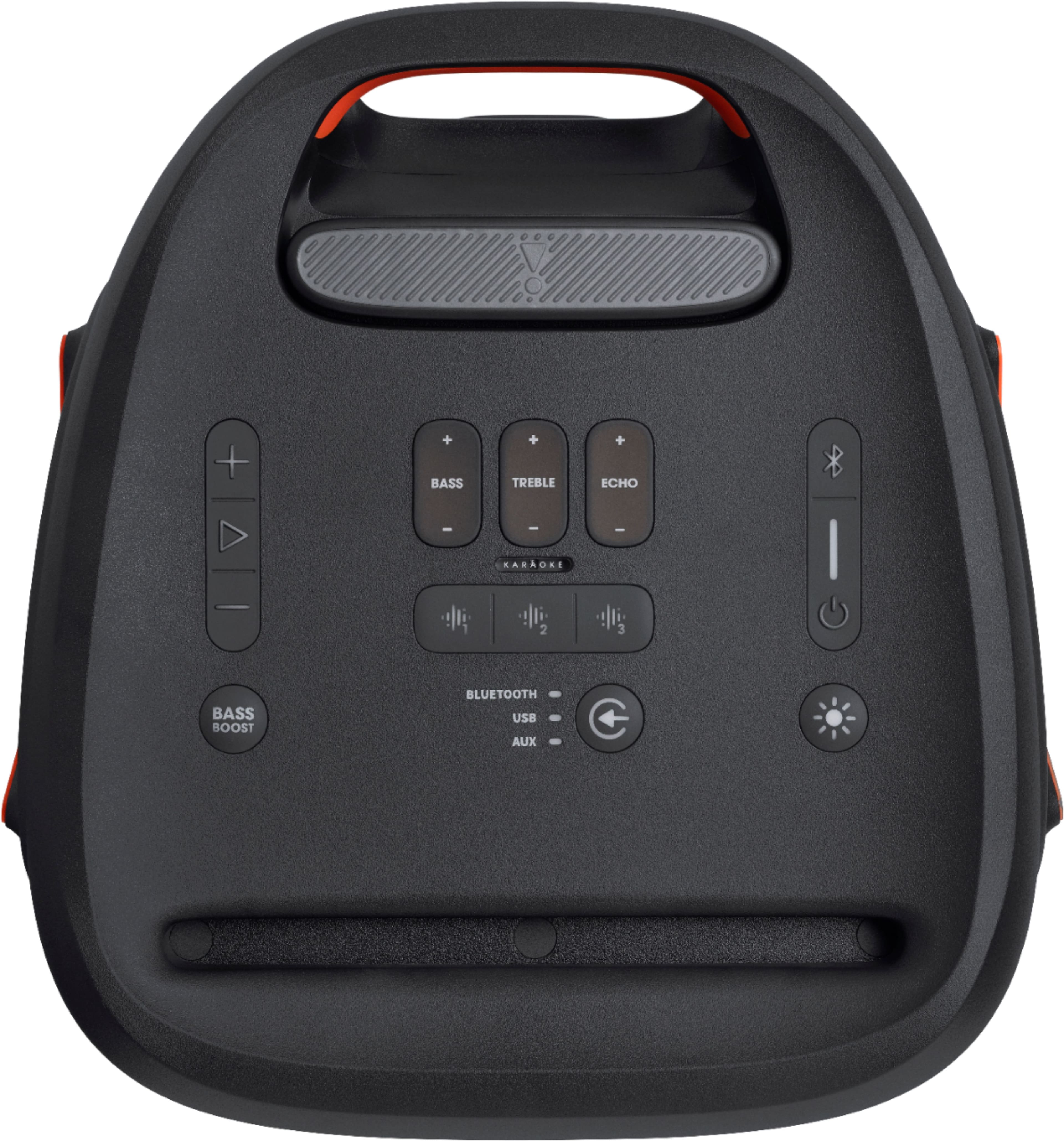
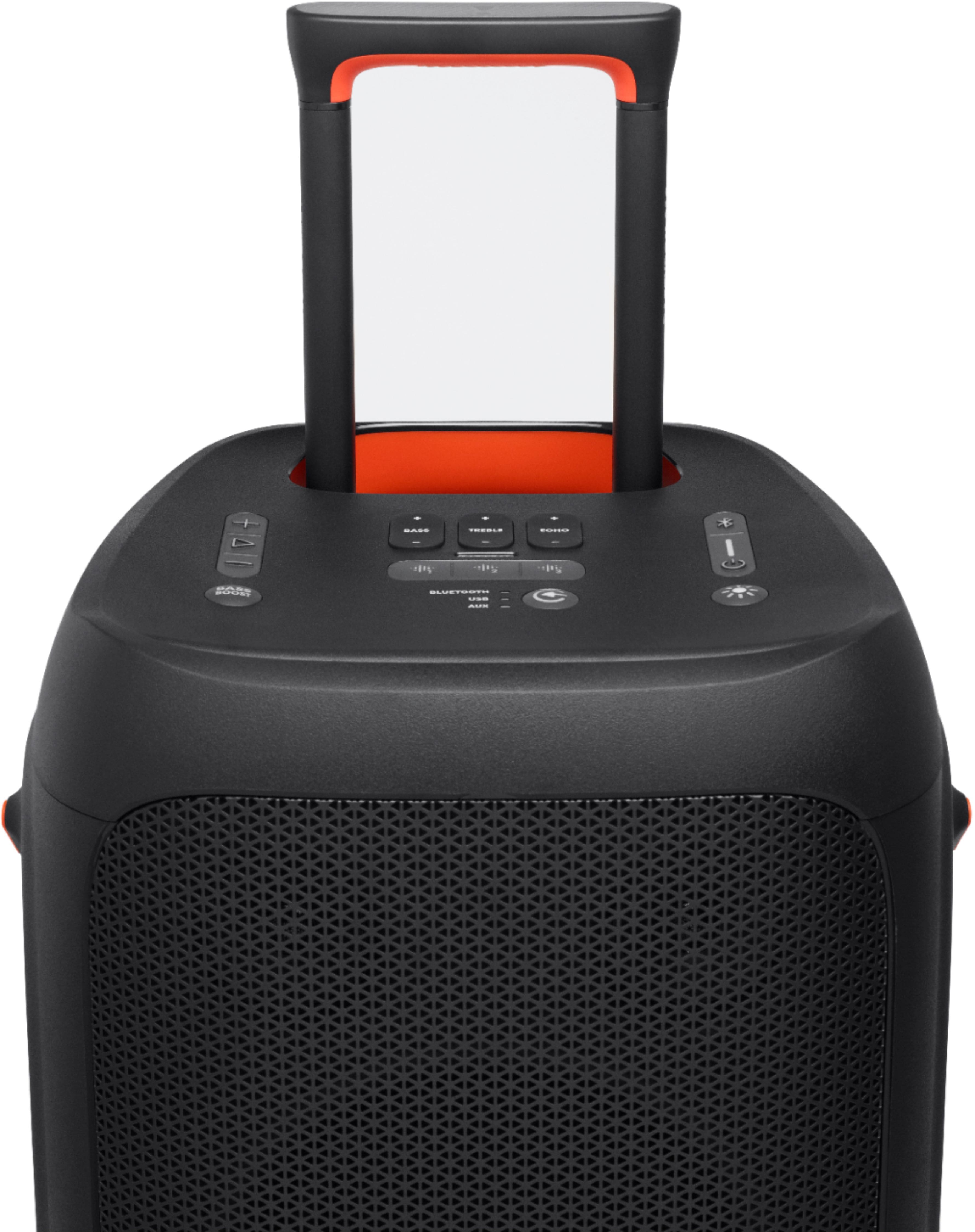
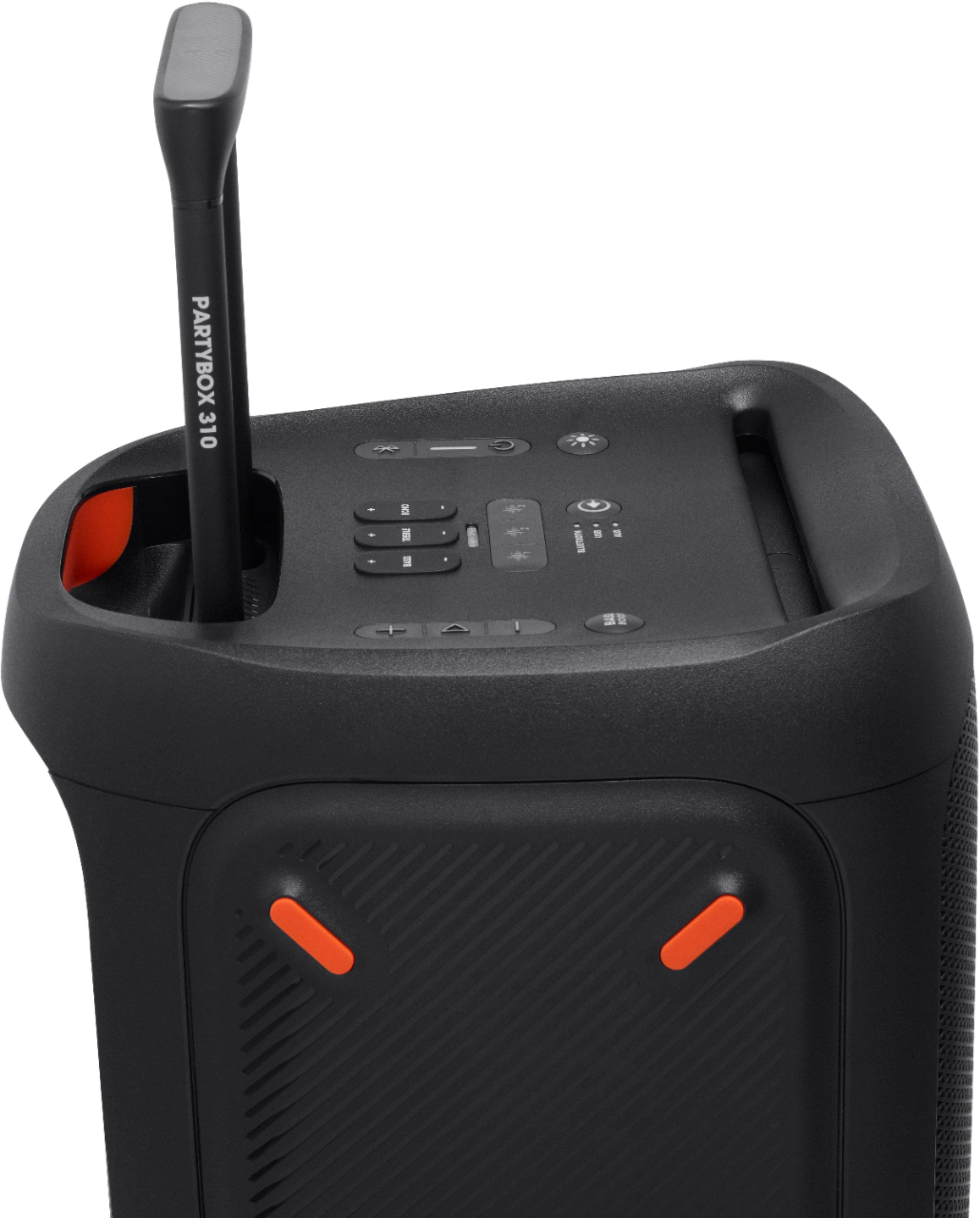
A:AnswerWe're here to help with your JBL Partybox 310. Check if the speaker is in pairing mode. A factory reset would also refresh the connectivity setting of your speaker. To restore the factory settings, press and hold the Volume + and Play buttons for more than 10 seconds. If the issue persists, please contact our Customer Support for further assistance.
A:AnswerIf our JBL Partybox 310 is connected to a source via Bluetooth and not in pairing mode, other source devices won't be able to connect. A reset can help to refresh the connectivity settings if another device was able to pair with the speaker before. Here's how: Press and hold "Play/Pause" and "Volume +" down for > 10 seconds. Make sure to remove/forget the JBL Partybox 310 on the Bluetooth list before pairing again.
A:AnswerPlease make sure that your phone where you installed the JBL PartyBox App is paired and connected to your PartyBox 310 with the GPS/location turned on. If you need more help, please reach out to our Customer Support at https://support.jbl.com/us/en/
A:AnswerYou can only pair JBL PartyBox 310 with the same model. In order to achieve TWS mode, the speaker must be the same model with the exception of the PartyBox 200 and PartyBox 300 which can be paired together via TWS.
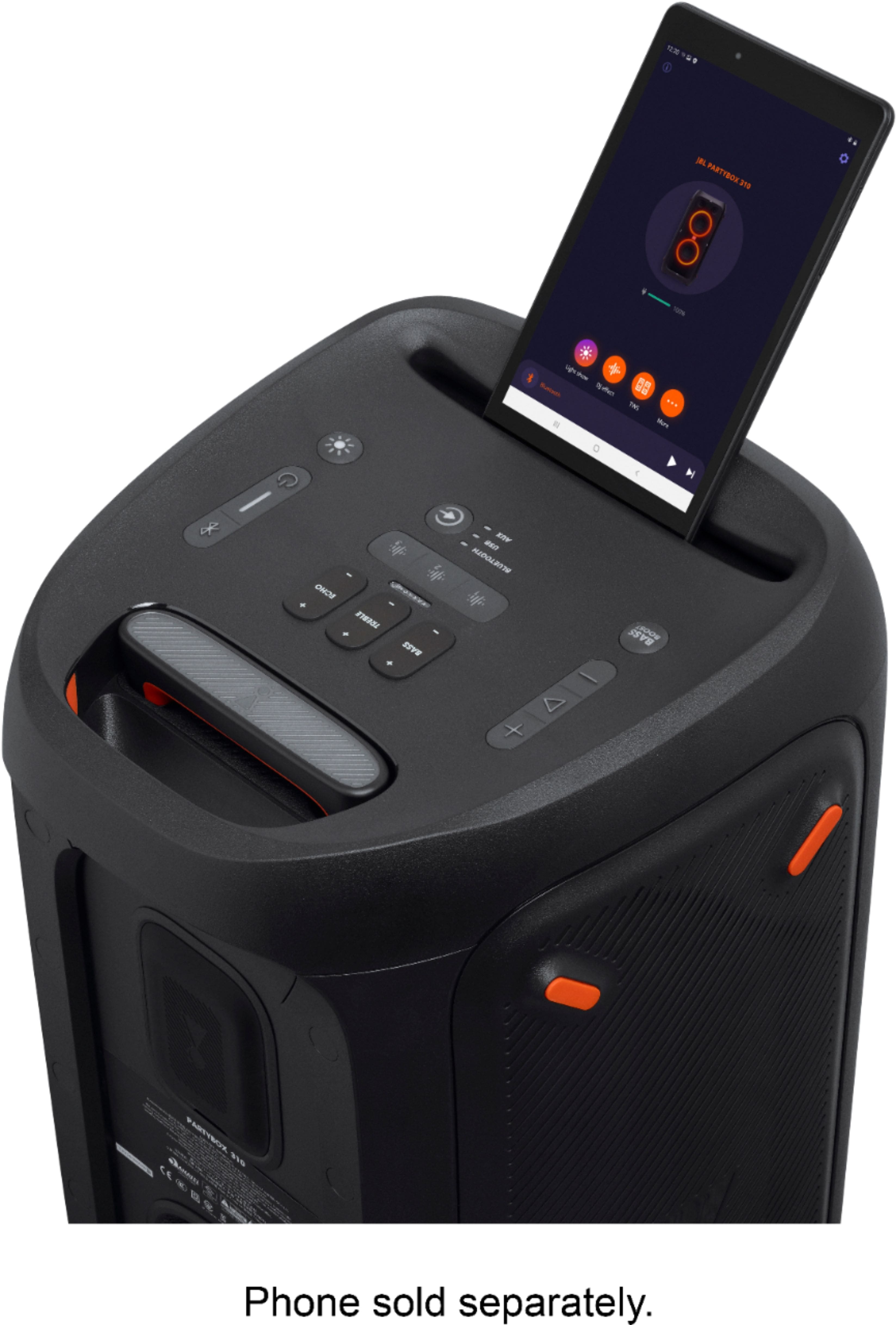
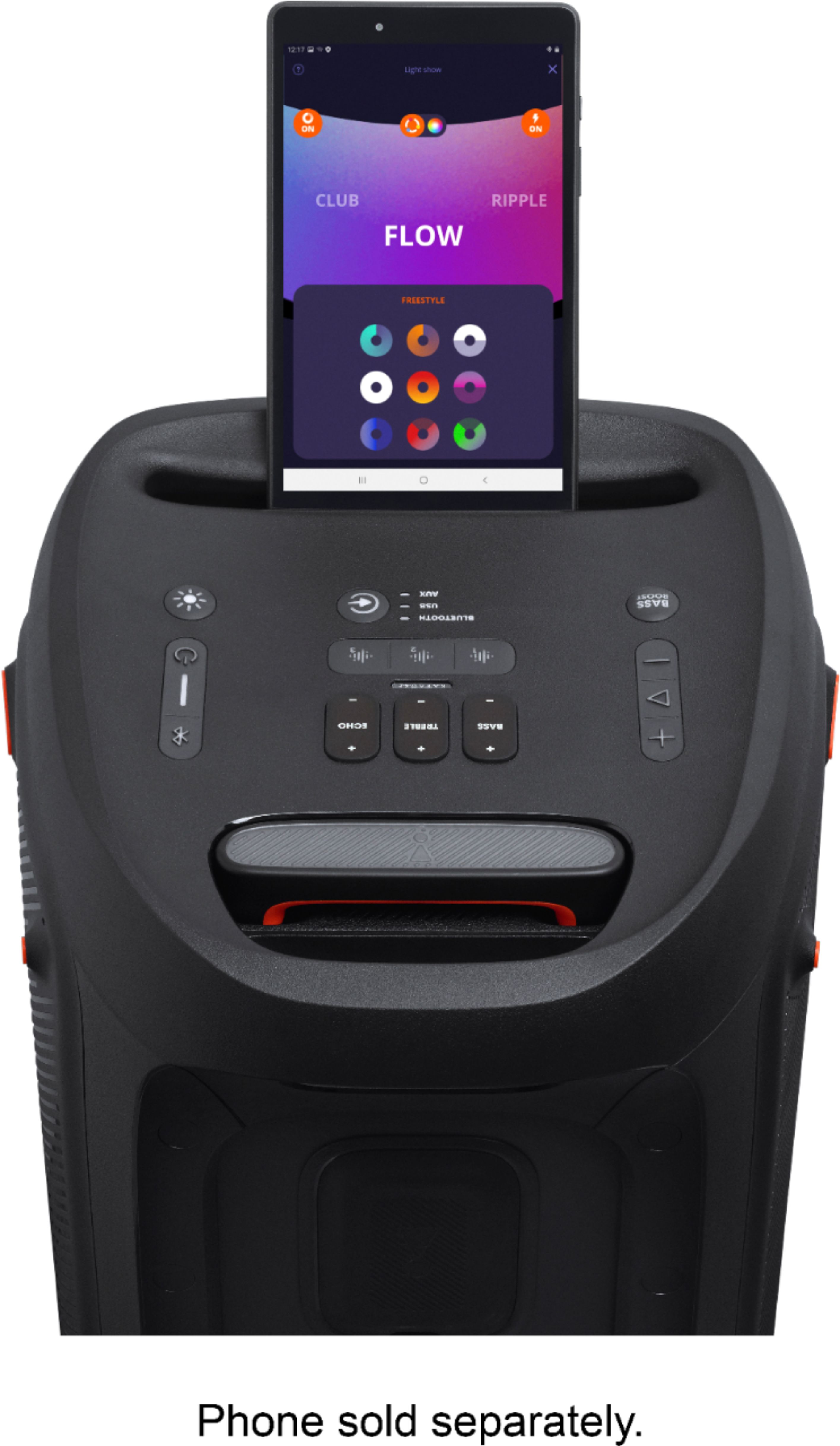
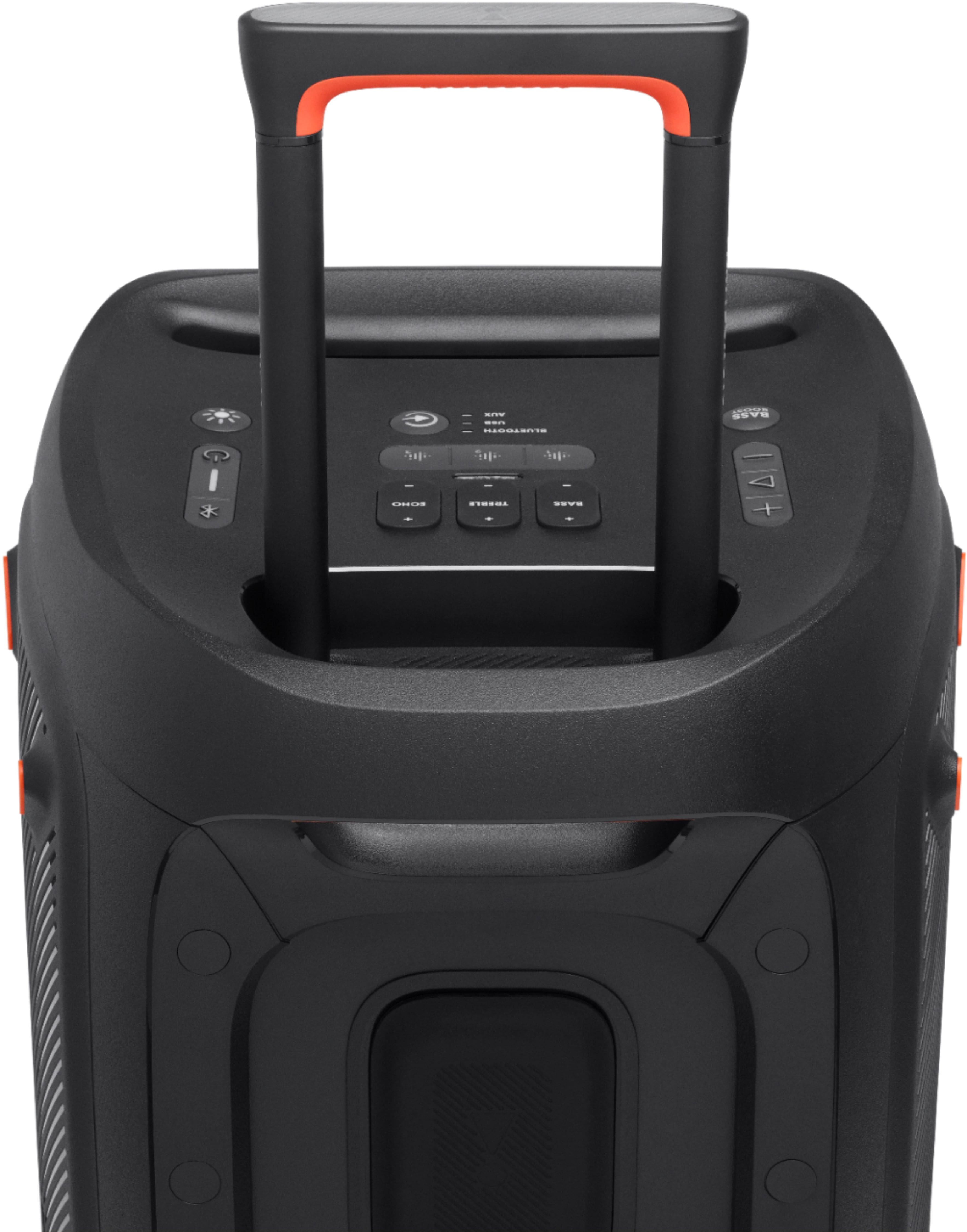
A:AnswerThanks for reaching out. For the light indicator to appear on your JBL PartyBox 310, please make sure to adjust the echo, bass, and treble buttons up. If you need more help, please get in touch with our customer support.