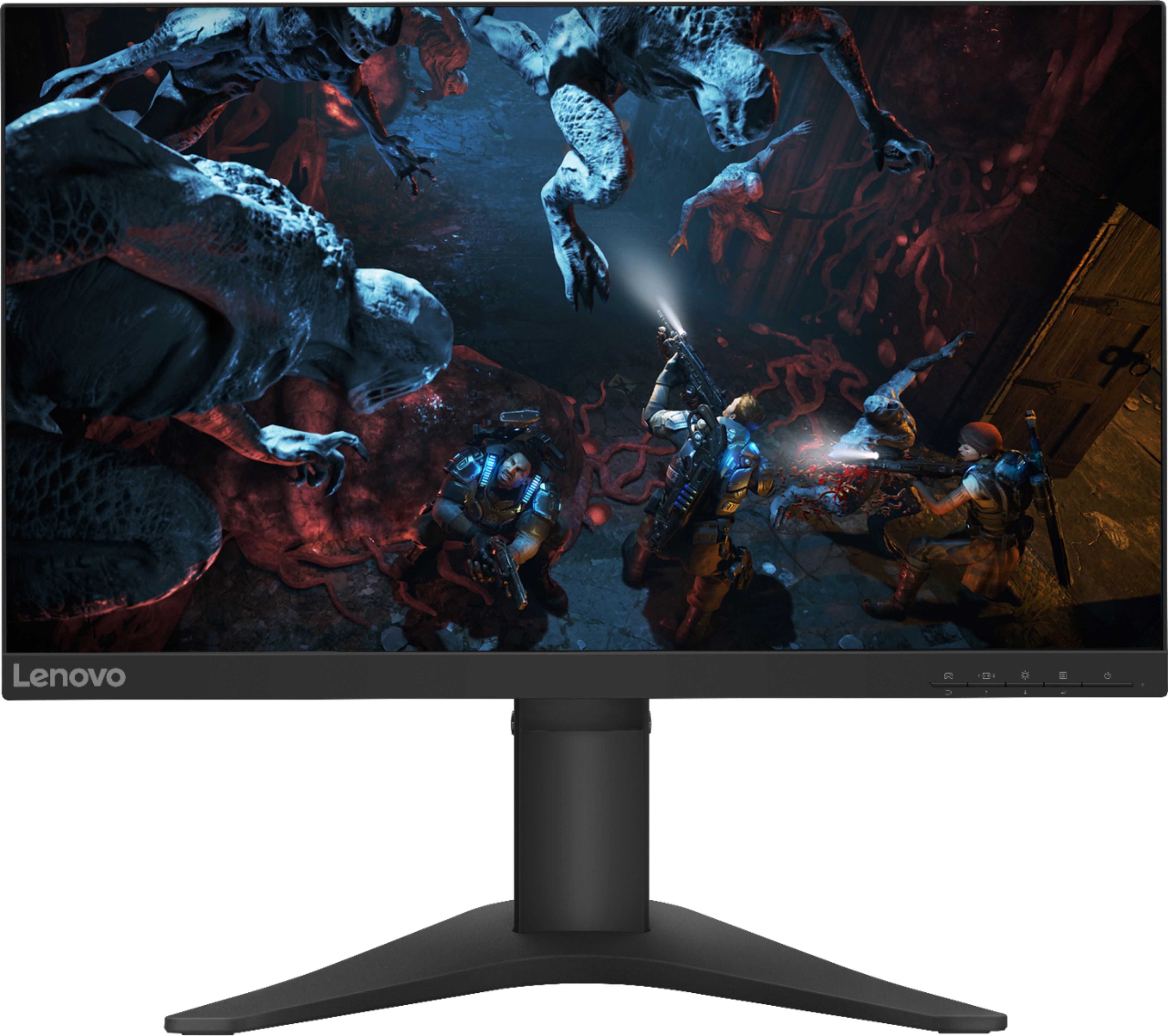
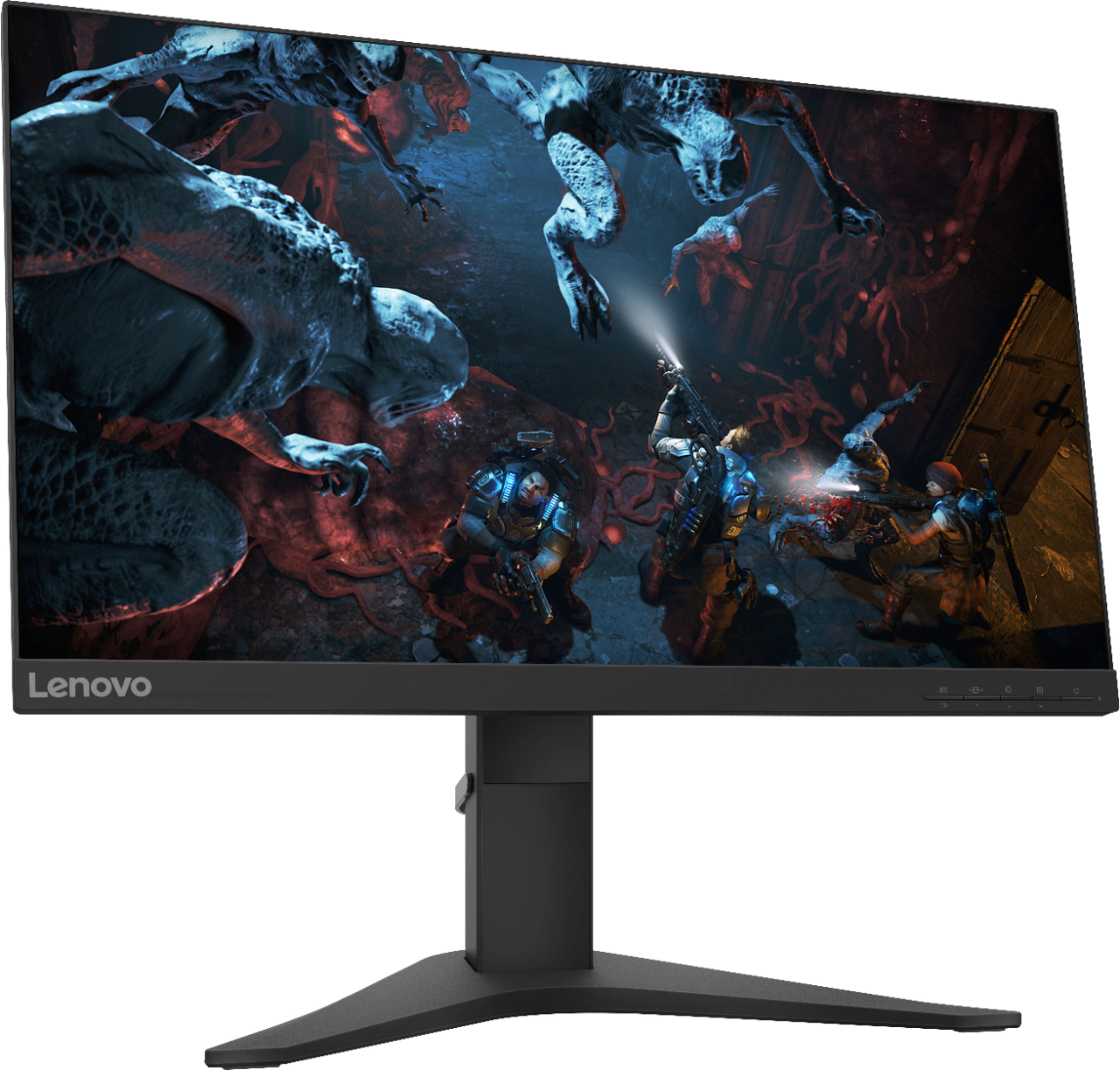
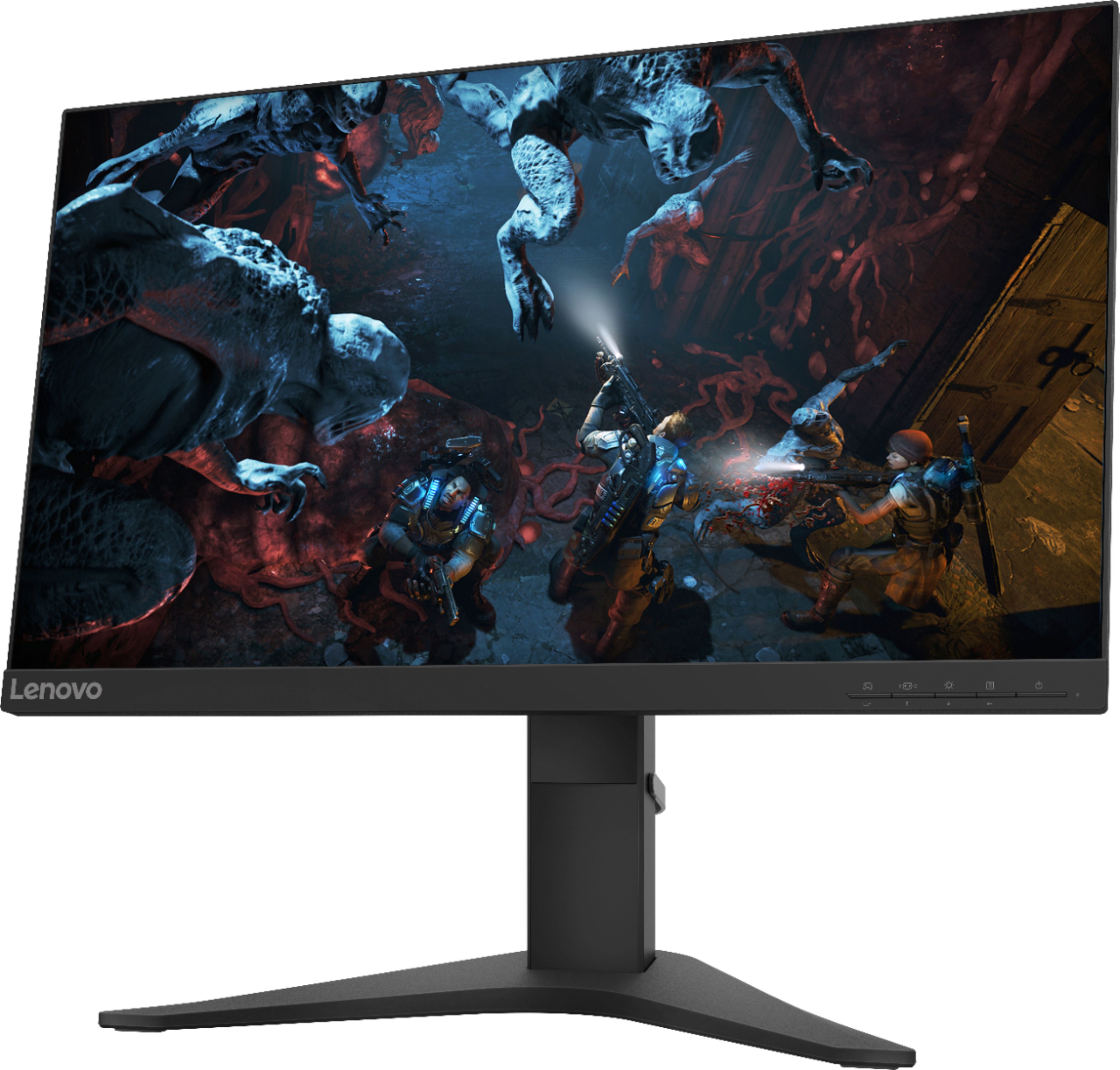
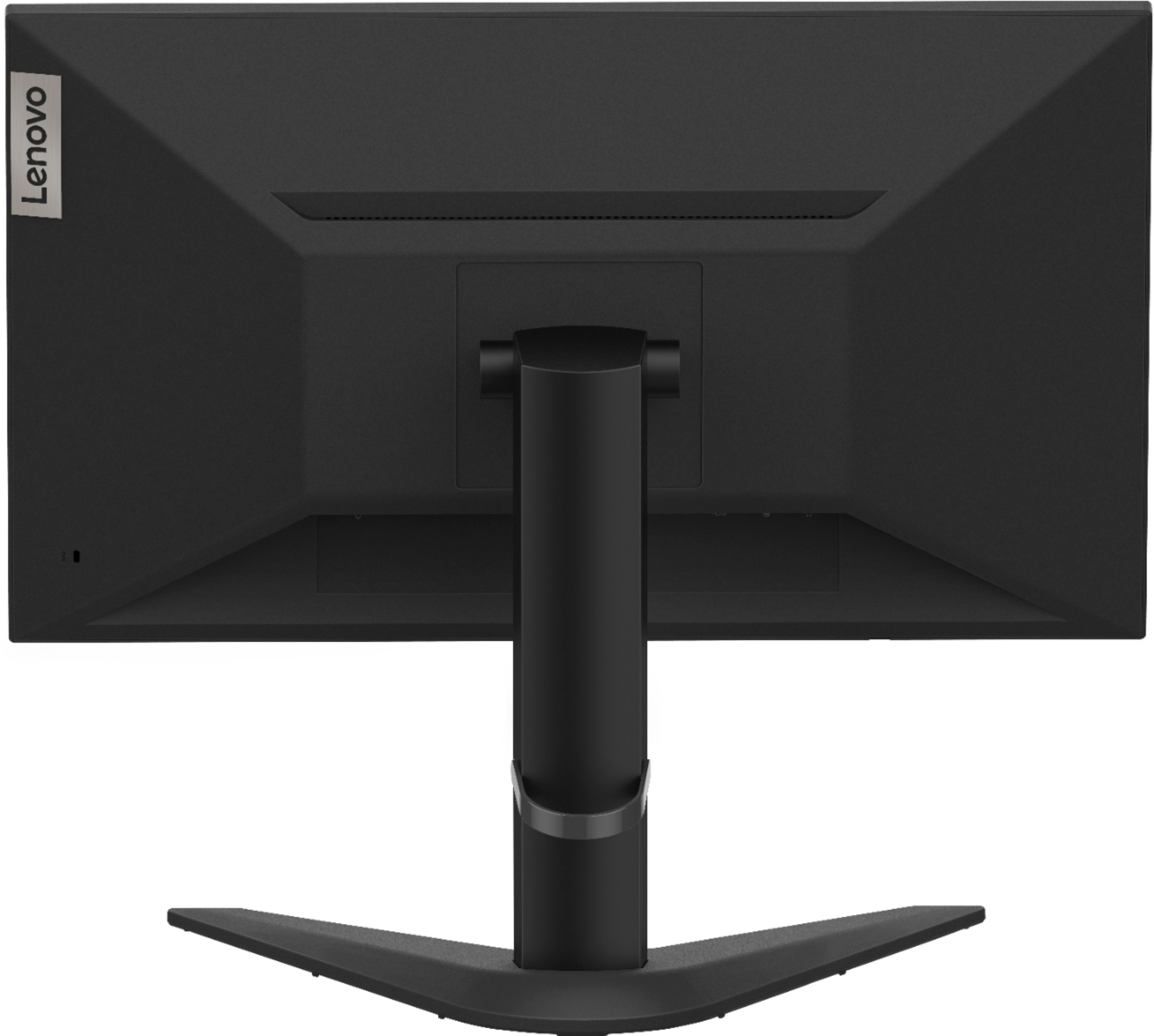
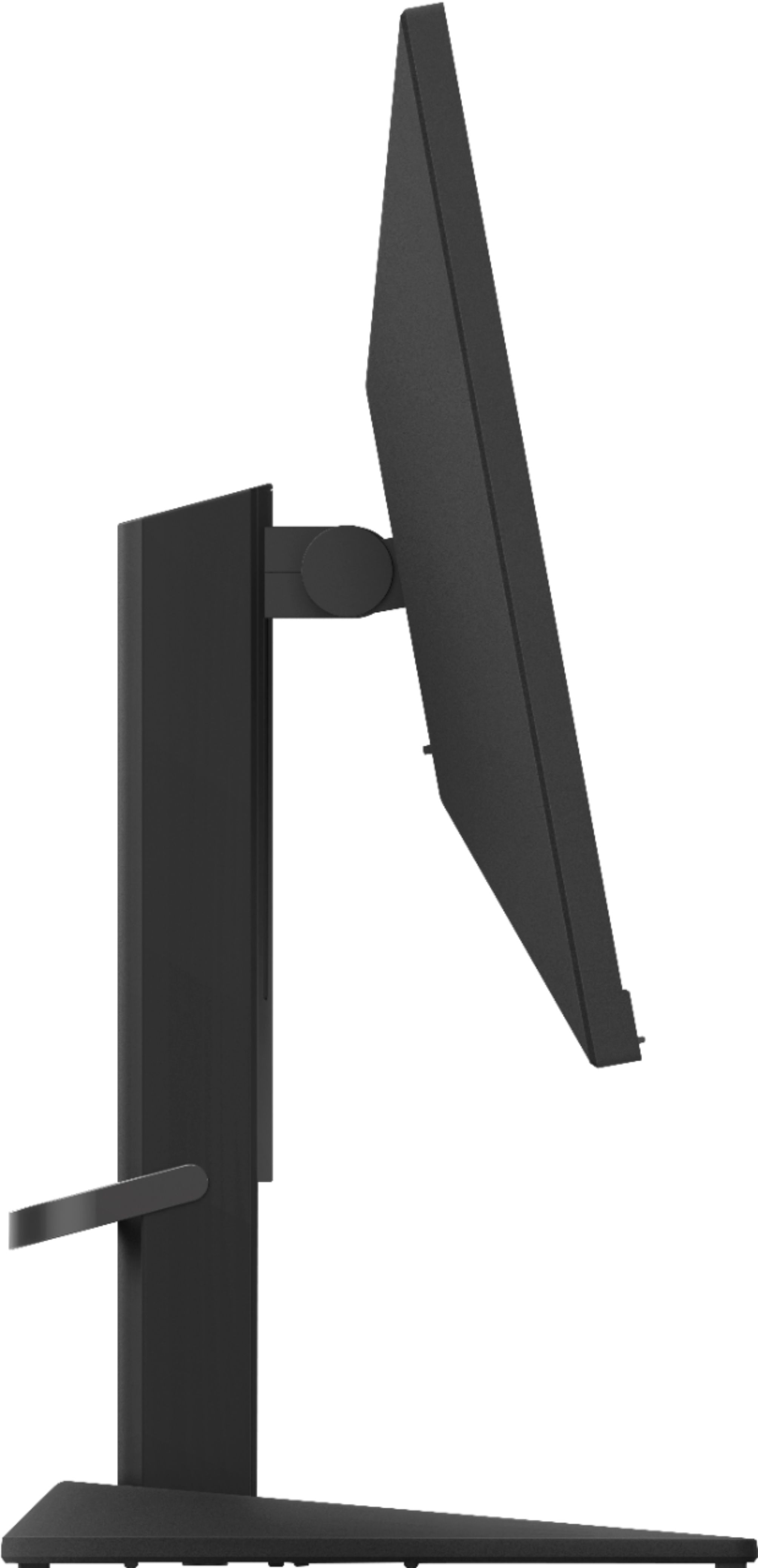
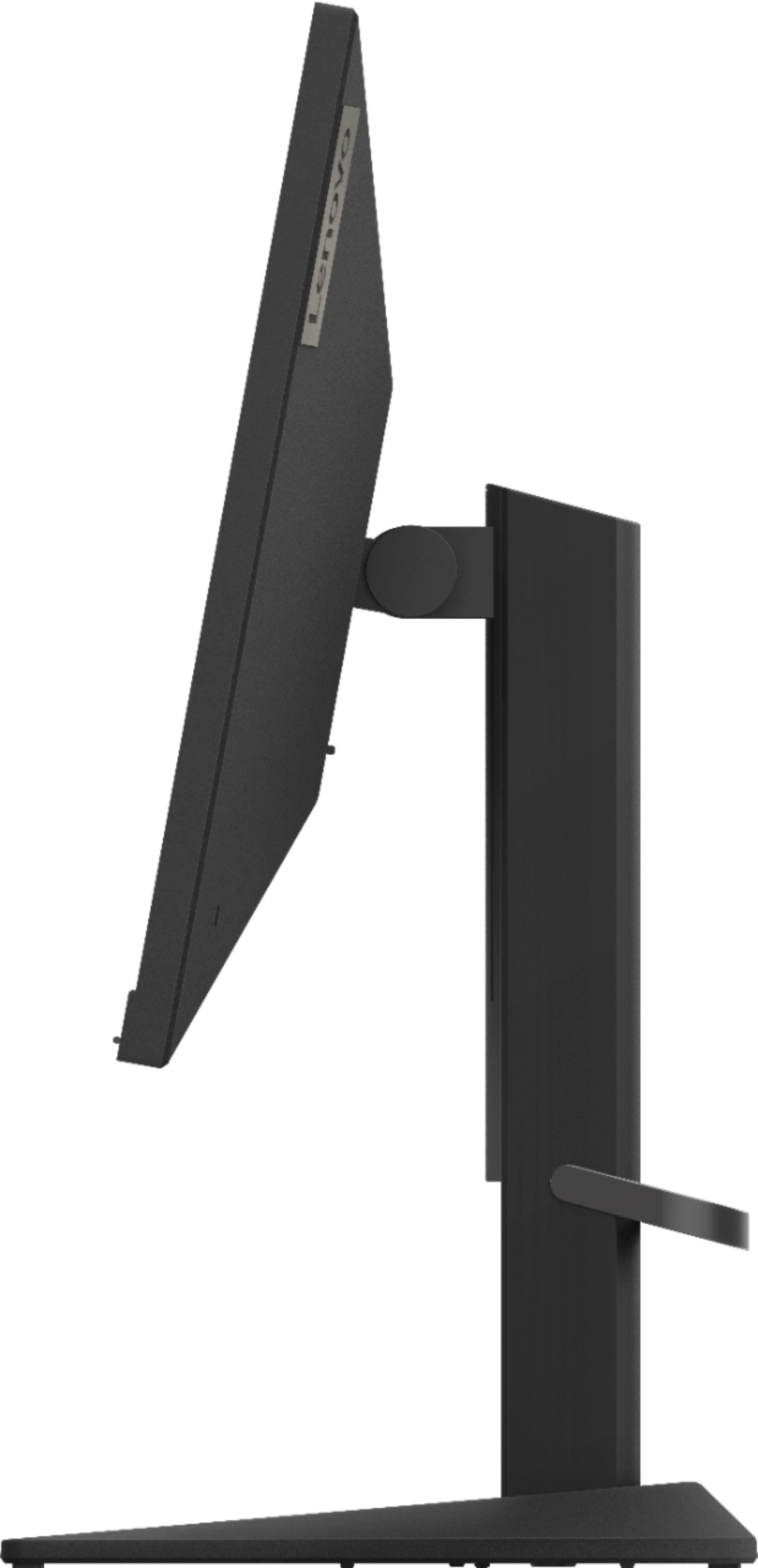
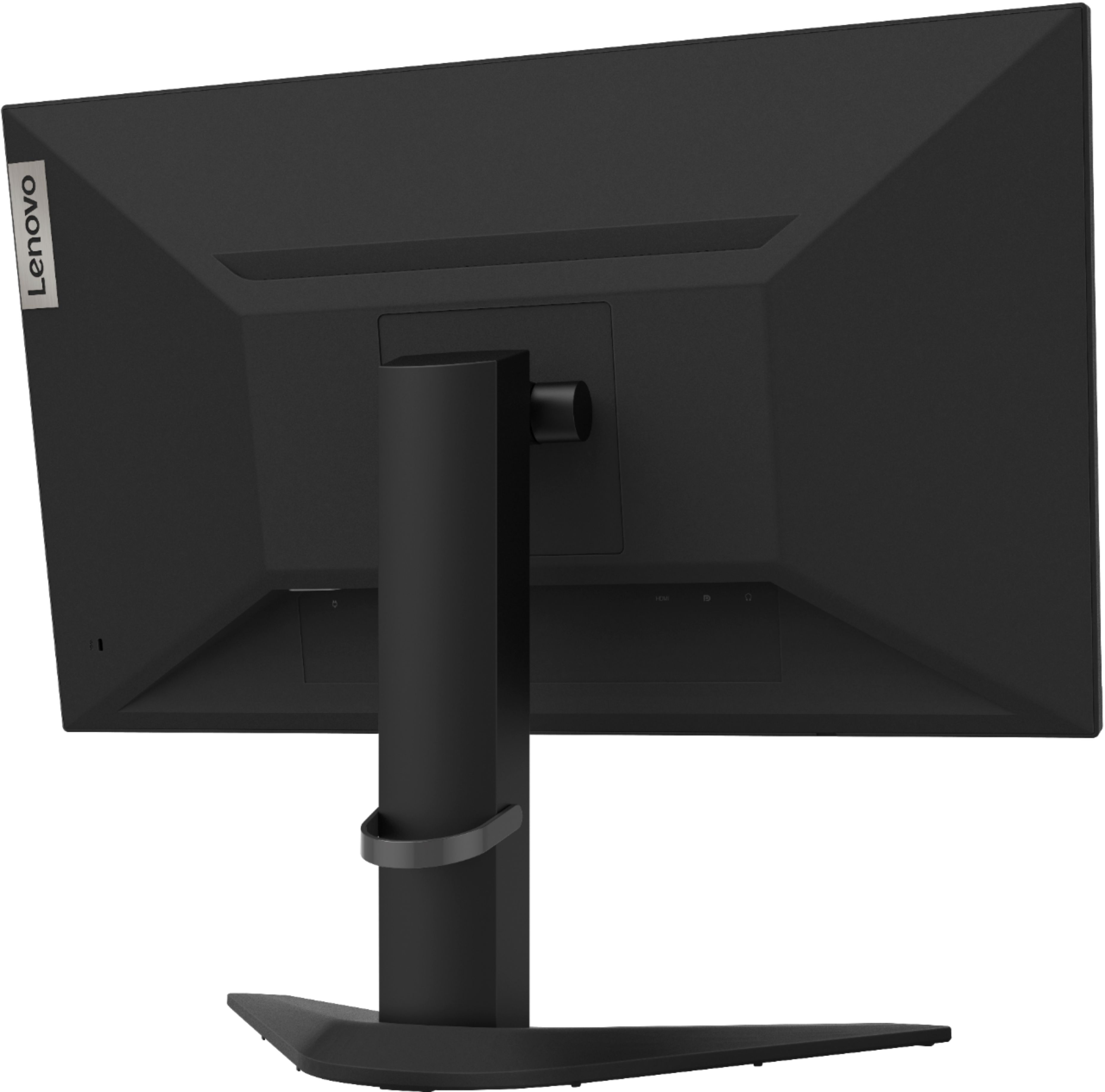
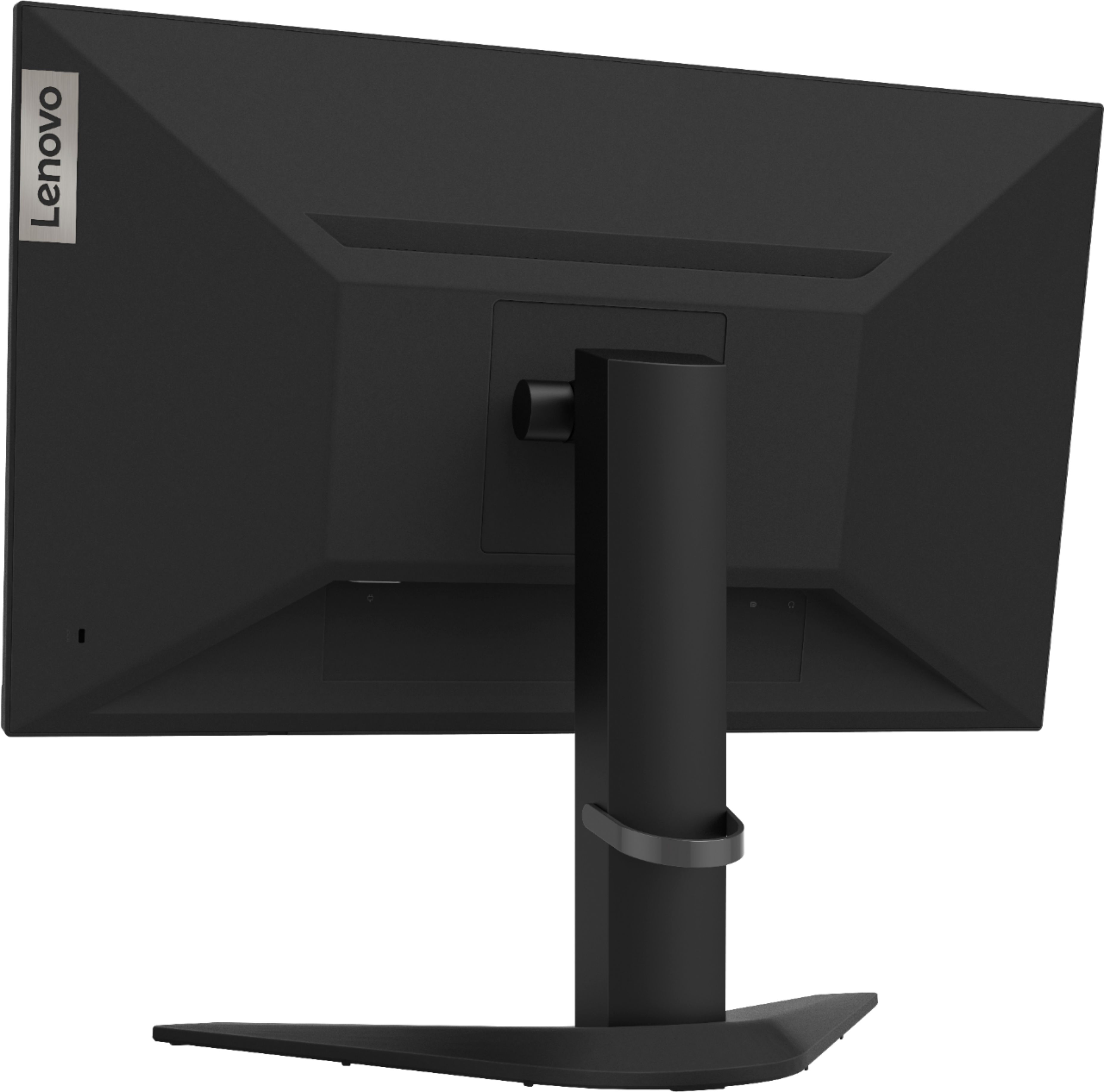
A:AnswerYes. The Lenovo G25-10 Monitor stand can be height adjusted by approximately 4-inches, up or down. The screen can tilt forward to a minus 5-degrees to a positive 22-degrees.
A:AnswerYes. With the release of the NVIDIA GeForce GTX 1660 Super graphics card, NVIDIA has also updated its list of FreeSync monitors that are G-Sync Compatible, including the Lenovo G25-10 Monitor.
A:AnswerTry doing a reset of all settings of the monitor within the on-screen display settings. Here is a link to the User's Guide for the G25-10 Monitor which will show you the on-screen display setting menu options: https://download.lenovo.com/consumer/monitor/lenovo_g25_10_ug_201910_en.pdf. If the issue continues, you can call Lenovo Tech Support for help with your specific issue at: 877-453-6686.
A:AnswerThe Lenovo G25-10 Monitor will work with any Windows based computer. The G25-10 Monitor has both HDMI and DisplayPort connectors for connecting a computer to this monitor. In the on-screen menu of the monitor, there is a section that has settings for Game Mode, Overdrive, HDR, Freesync, and displaying the Refresh Rate number. Here is a link to the User Guide for more detailed information: https://download.lenovo.com/consumer/monitor/lenovo_g25_10_ug_201910_en.pdf
A:AnswerWith the Lenovo G25-10 Monitor you can protect your eyes from harmful blue light with this TUV Rheinland Eye Comfort-certified monitor. The flicker-free technology reduces eye fatigue. There is no stopping you when gaming on the Lenovo G25-10 monitor. With a high frame rate and vibrant colors, the 24.5-inch Full-HD monitor is perfect for E-Sports enthusiasts. A faster refresh rate of 144 Hz and a quick response time of 1ms will allow you to enjoy seamless gameplay. Powered by AMD Radeon FreeSync, the monitor provides smooth visual delivery with virtually no screen tearing. Gaming for extended hours on the G25 is comfortable with its eye-care technology, anti-glare display, and 110 mm lift range stand.
A:AnswerThis monitor does support HDR. I know this question is a year old but I’ll try to help either way. Theres certain settings if you have on that will prevent you from turning HDR on. I’m not sure which ones they exactly are, but just factory reset settings by going to the tab above the monitor logo with “HZ” in it and factory reset from there. Then HDR will be available. (Sorry if this didn’t help you, also I’m on PS5 if that matters)
A:AnswerHere is a link to information about adjusting the refresh rate of your monitor: https://www.windowscentral.com/how-change-monitor-refresh-rate-windows-10