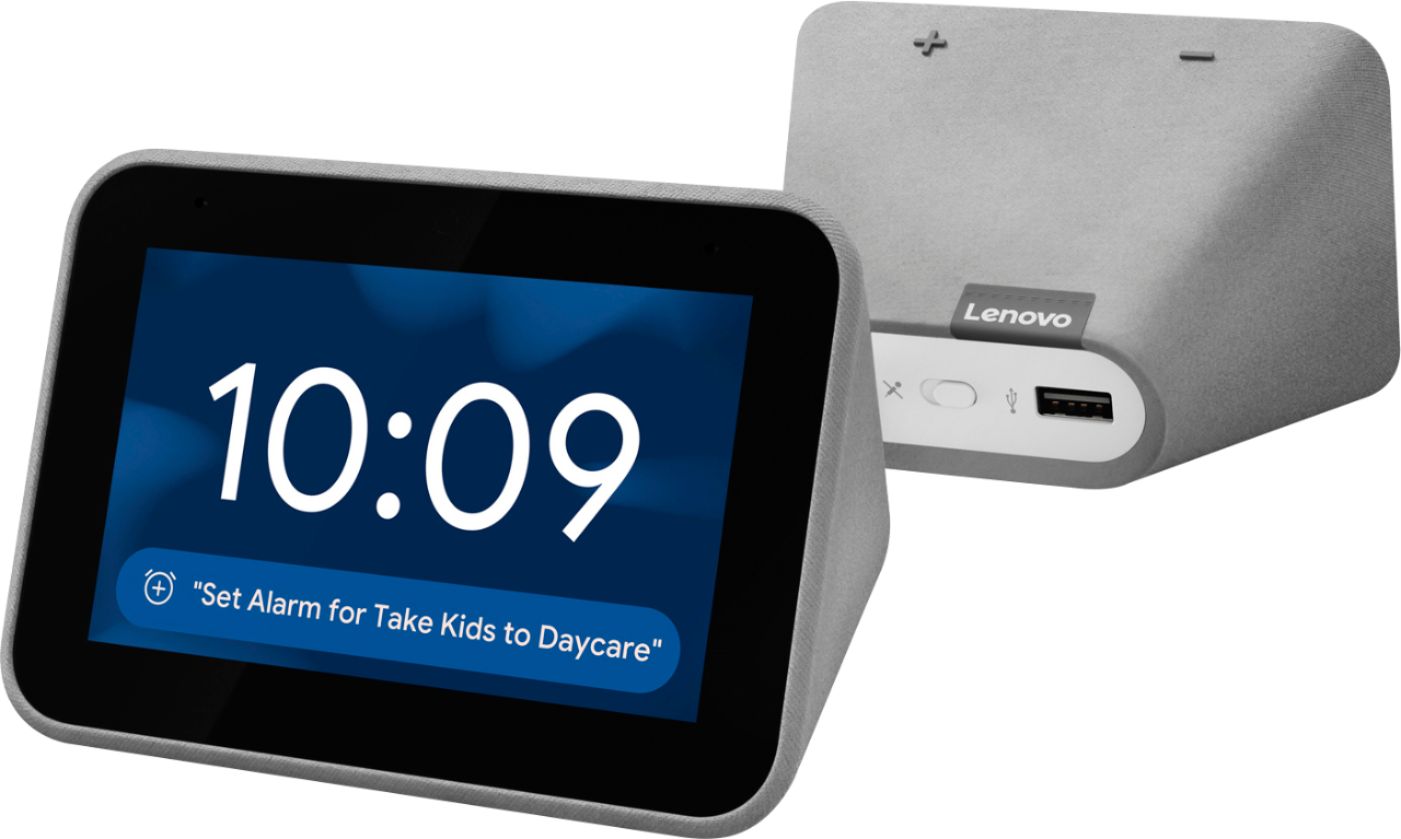
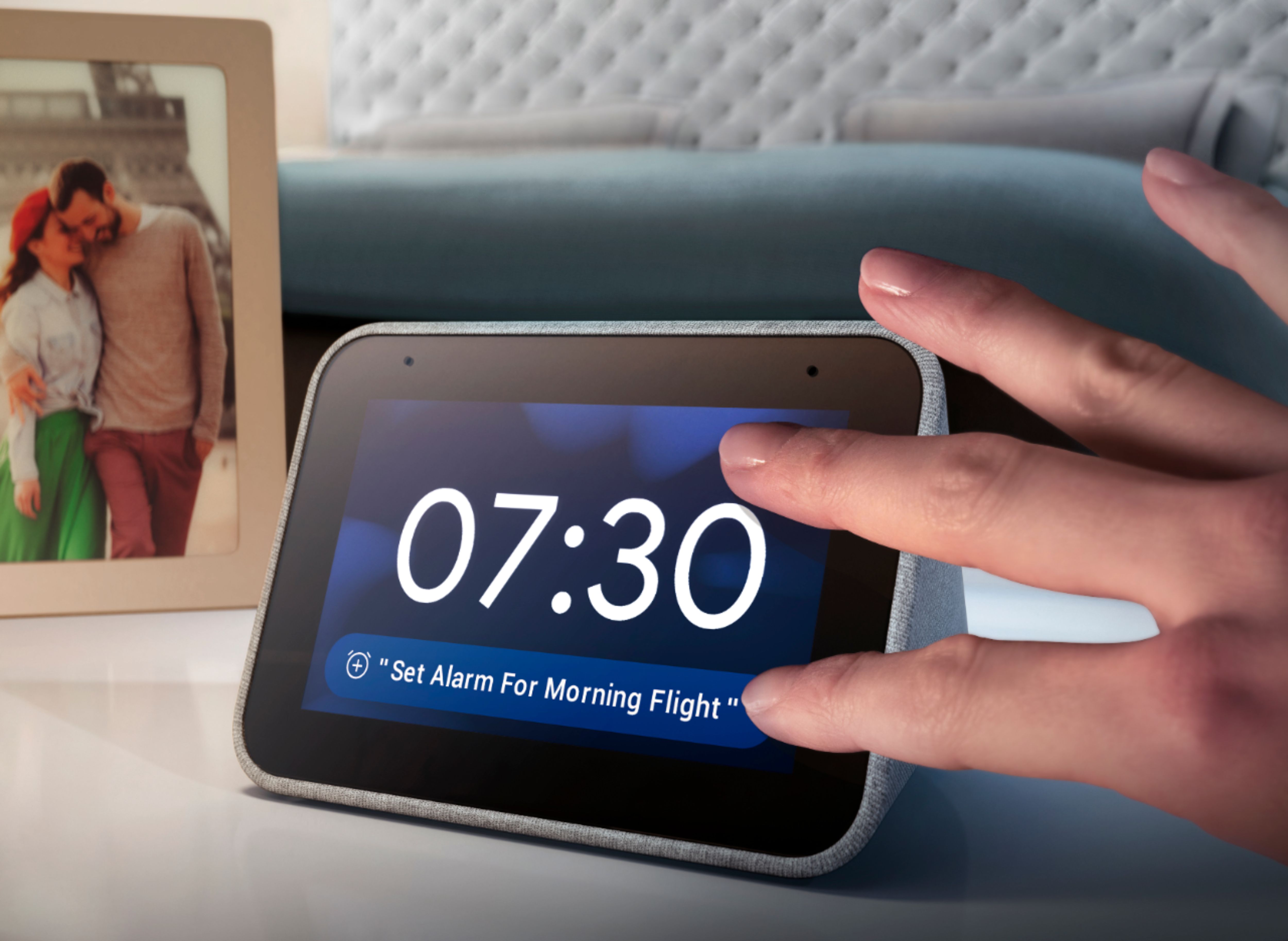
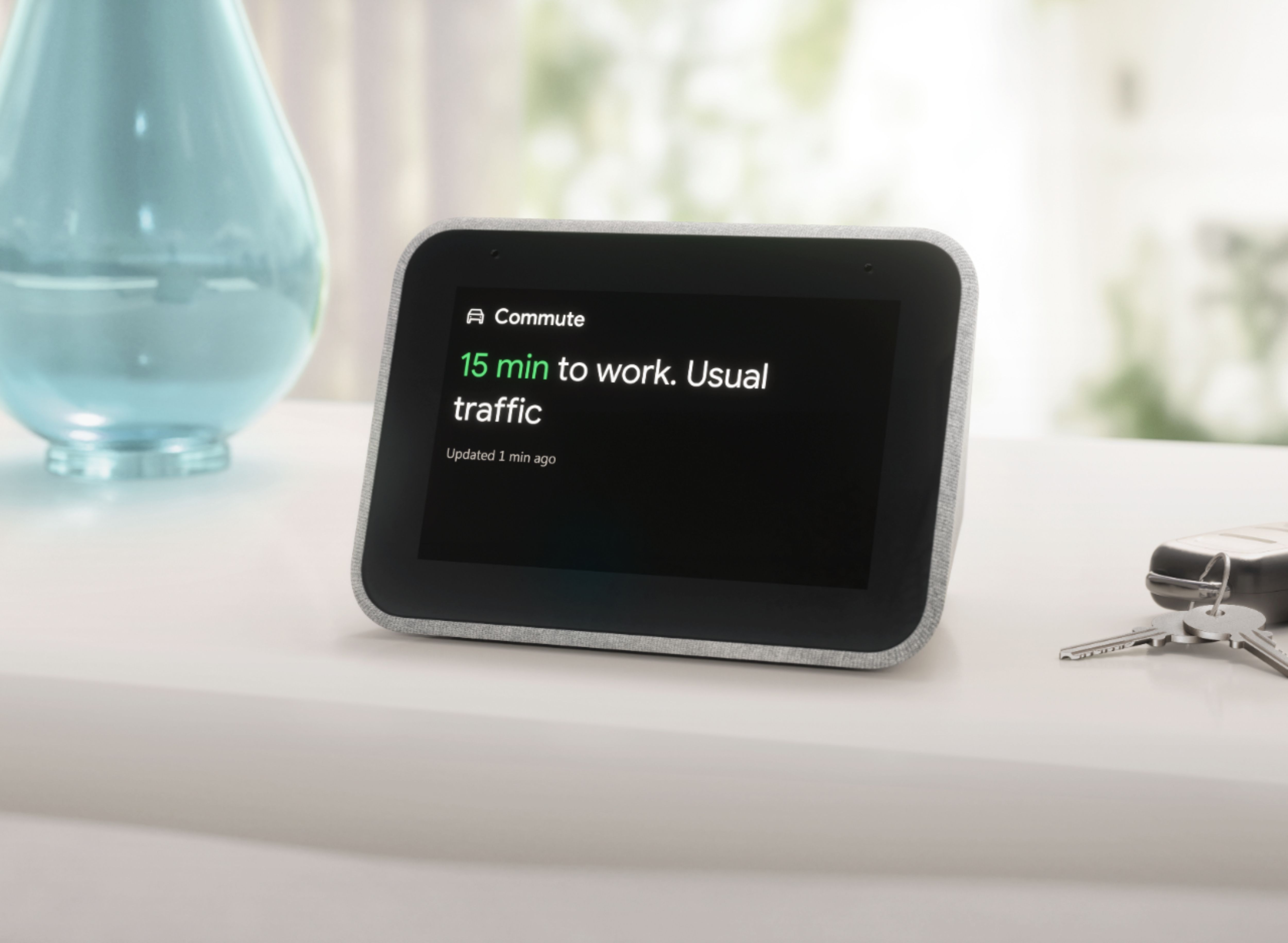
A:AnswerHello, The Lenovo Smart Clock works with devices that carry the "Google Assistant" Badge. We recommend checking the manufacturers website to ensure compatibility. If you need further assistance please don't hesitate to reach out to Lenovo Technical Support at 866-426-0911 or
support.lenovo.com
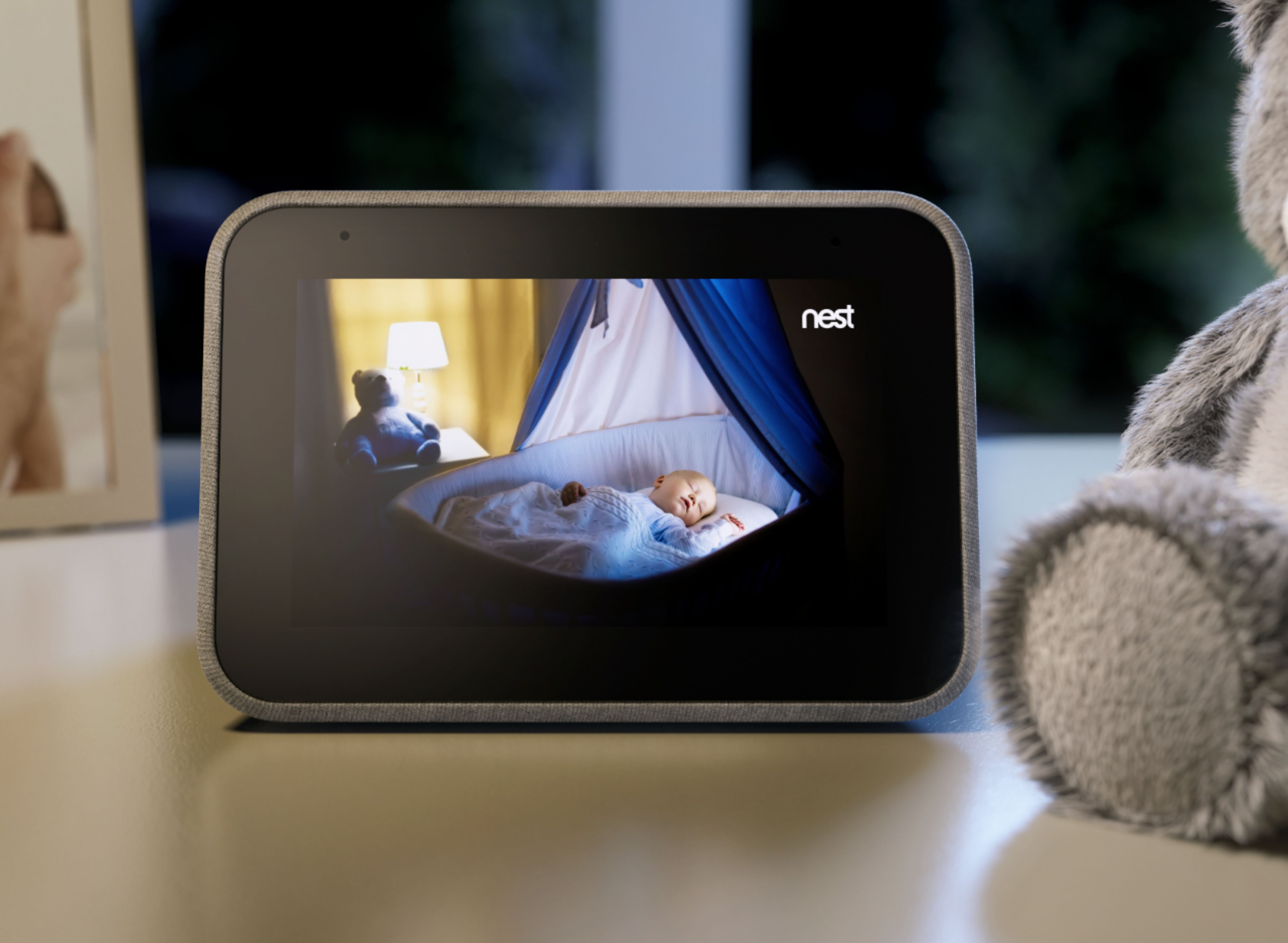
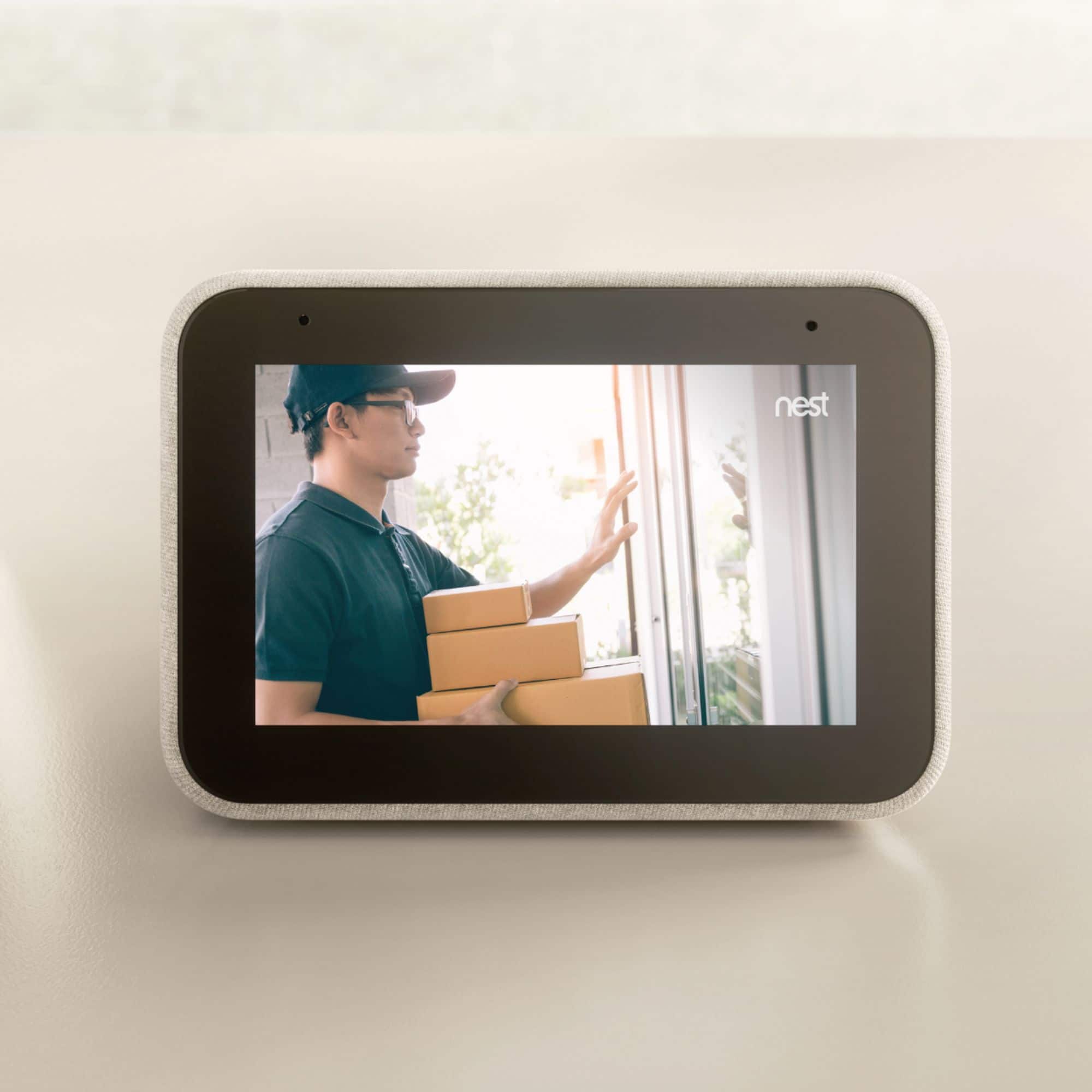
A:AnswerHello and thank you for your Question! The Lenovo Smart Clock with Google Assistant can stream your Nest camera video feeds no problem. For questions regarding the specific amount of time the video feed can be displayed please reach out to our customer support team at 866-426-0911
A:AnswerIf you tell Google to turn off the bedroom lights and the device is in the bedroom it will just make a low chime sound, if the device is in the bedroom and assigned to the bedroom in the Google home app and you tell it to do a command for something out of the bedroom such as turn the kitchen lights off it will repeat turning kitchen lights off. So if you are controlling lights that are assigned to the same room as the clock it will make the chime sound, devices assigned out side the room of the clock it will repeat what it is doing just like any other Google Home speaker.
A:AnswerYou can find the Lenovo Smart Clock with Google Assistant by: 1. Open Google Home app.
2. Click upper-left hamburger menu icon. 3. Click "Devices". 4. Click upper-right device dot menu for your device. 5. Select settings. 6. Find Information header (all the way down). 7. " MAC Address" should be listed here -- Includes letters A-F and numerals 0-9. If you continue to have issues finding the MAC address to the Lenovo Smart Clock with Google Assistant, we recommend you contact Lenovo Tech Support for Smart Devices at: 866-426-0911.