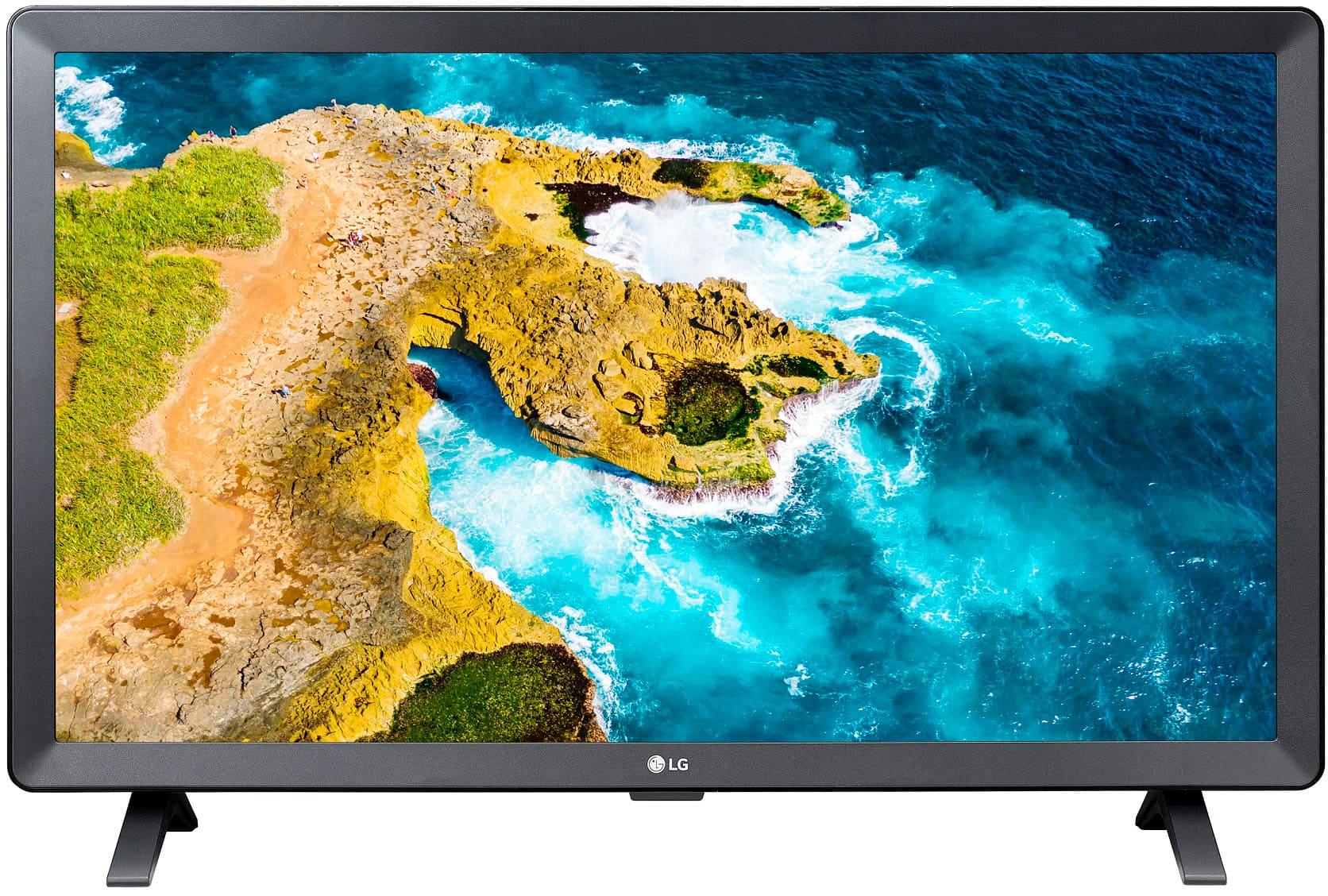
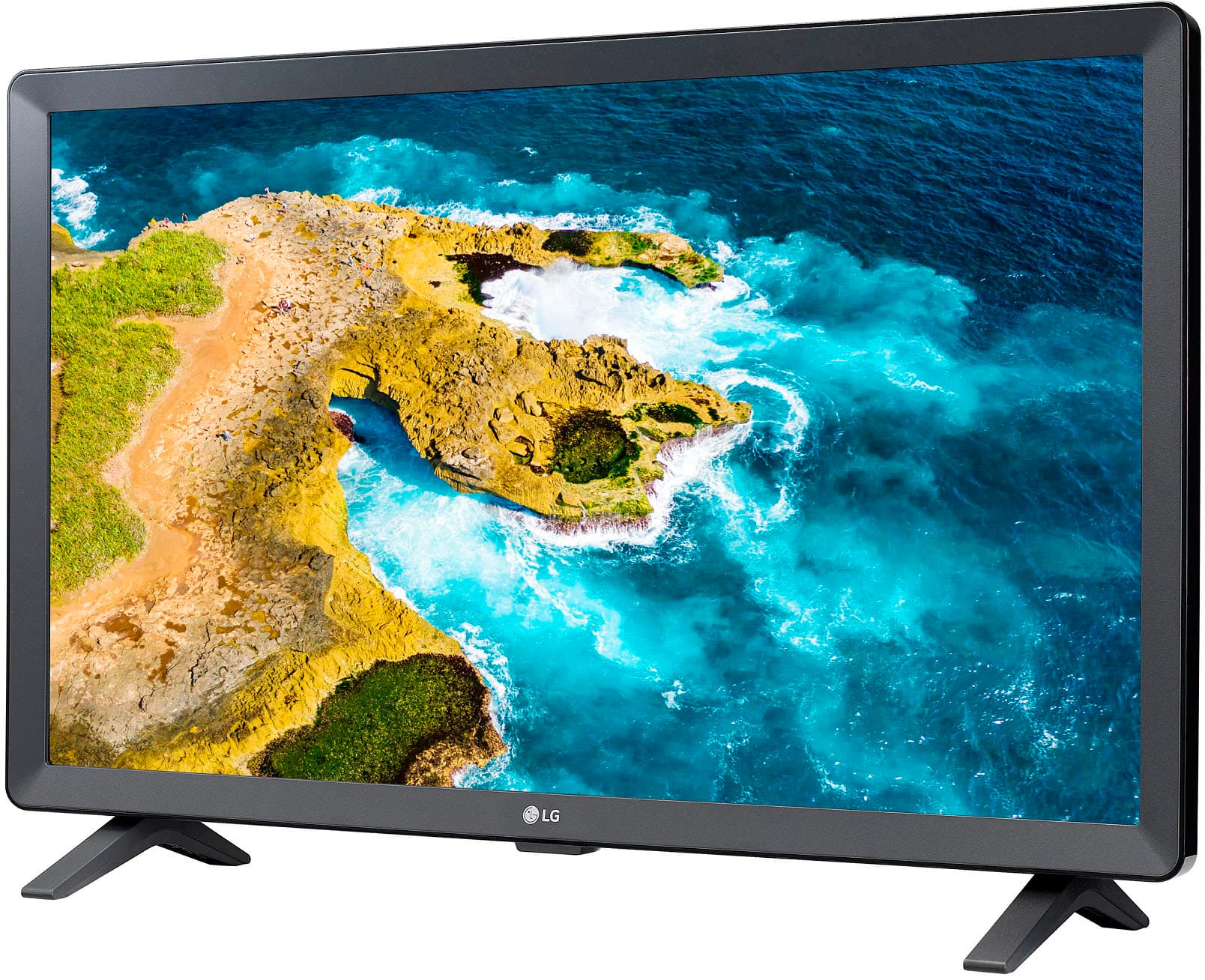
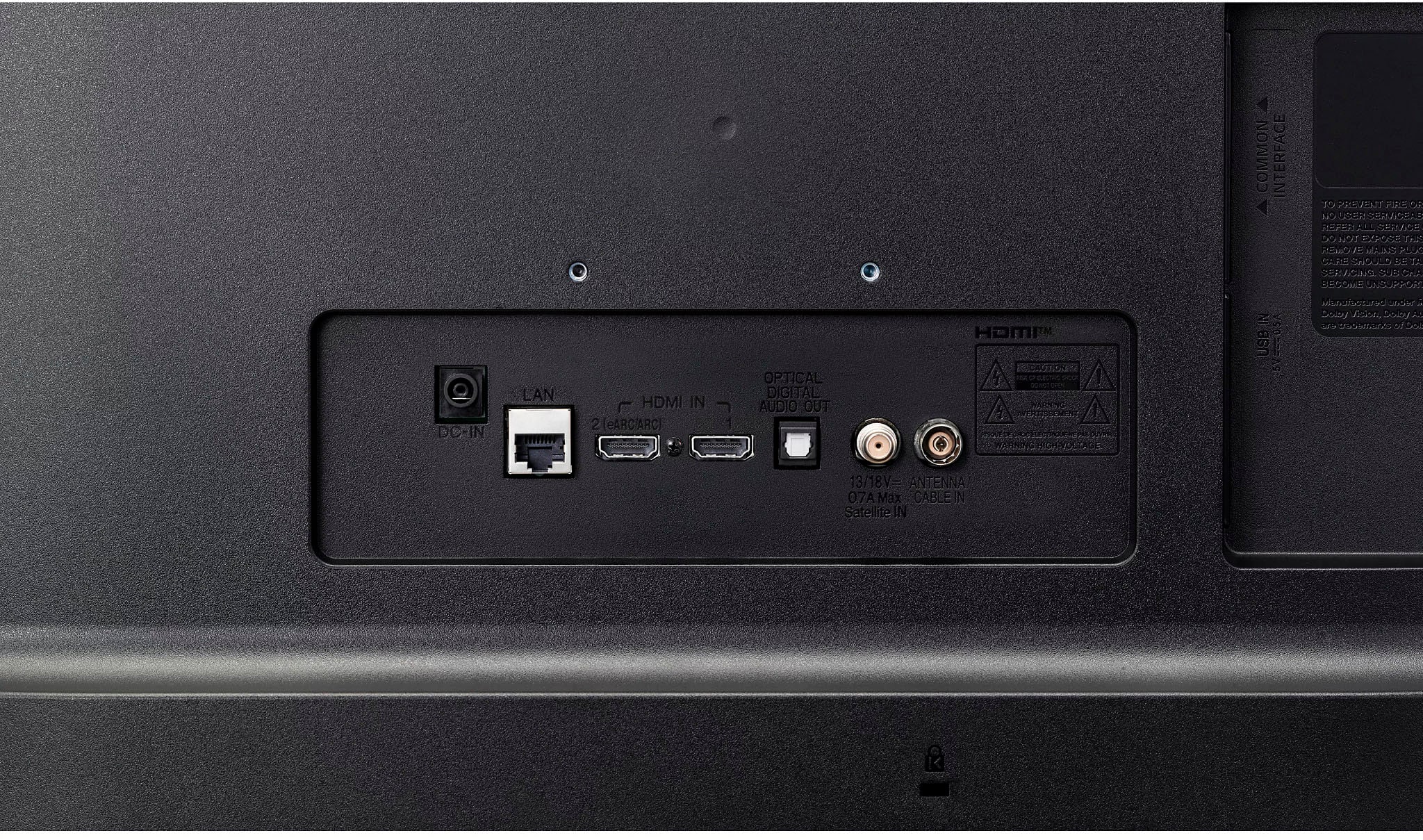
A:AnswerI don't know for certain, but my guess is that it could work as a computer monitor AS LONG AS it is connected to a graphics card with a spare HDMI output connector. Every monitor that is connected to a computer MUST be connected to graphics card. Most home computers have a built-in graphics card that only supports one monitor. However, if you have an additional graphics card installed for gaming that could give you a second HDMI connection. Talk to a computer savvy friend for how to configure this.
A:AnswerHello there. Thank you for sharing your experience with us. We understand your inquiry regarding the LG 24" Class LED HD Smart TV.
Yes, you can loop a video from a USB drive by selecting the Repeat option (three-dot icon) in the media player settings. This model supports various video formats, including .mp4, .mkv, .avi, and .mov, provided they use supported codecs like H.264 or MPEG-4.
https://www.bestbuy.com/product/lg-24-class-led-hd-smart-tv-with-webos-2022/JJ8VPZ6YTT
For further assistance and any specific concerns you may have, please contact us on [email protected]. —Renzo
A:AnswerHi there! Thank you for sharing your inquiry with us regarding the LG 24" Class LED HD Smart TV with webOS (2022).
https://www.bestbuy.com/product/lg-24-class-led-hd-smart-tv-with-webos-2022/JJ8VPZ6YTT
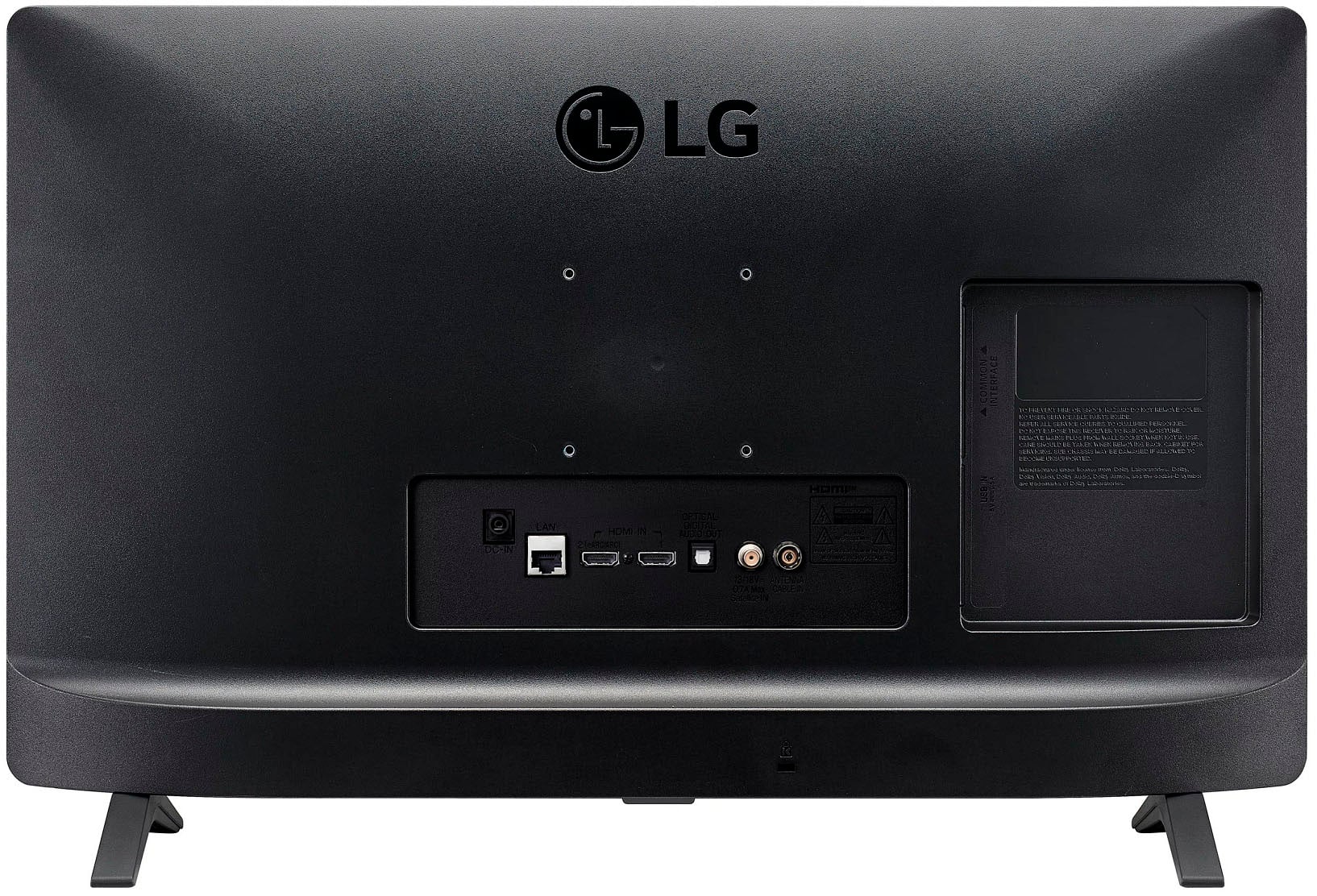
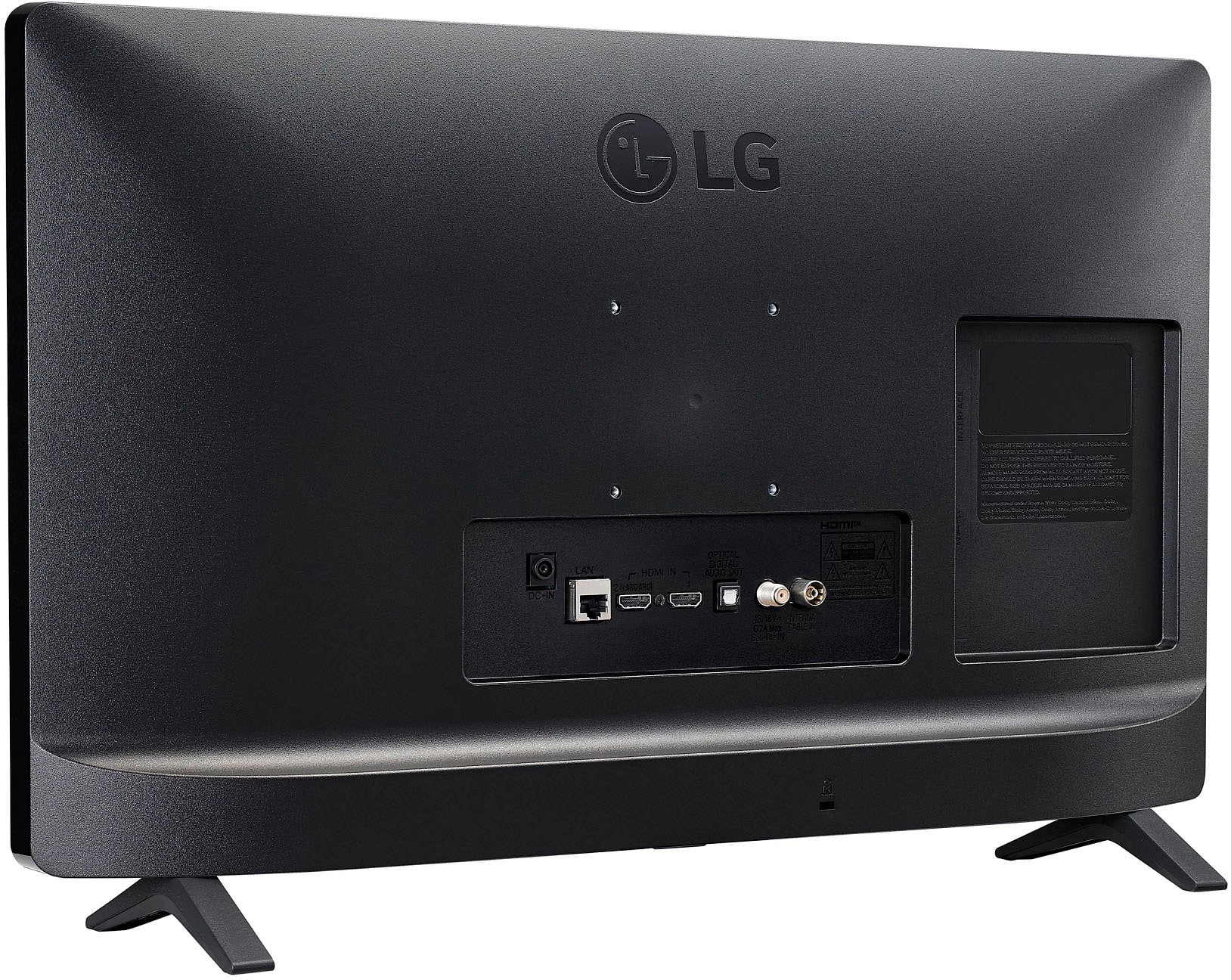
We understand your inquiry! This model features a built-in tuner and an F-Type 75-Ohm coaxial input on the back labeled "Antenna/Cable In," allowing you to connect directly to a cable line or an over-the-air antenna. Additionally, because it is a Smart TV with webOS, you also have the option to access cable-style content through internet-based streaming apps. For further assistance and any specific concerns you may have, please contact us on [email protected]. —Renzo
A:AnswerNot conveniently as it requires 1.5A at 19volts. Many laptop computers have a similar requirement; however, with the popularity of "Battery Banks" you can probably find a batttery bank that would output 19V. Otherwise, you could use a 12V cigarette to 120V AC inverter, then plug the power plug that comes with the TV into the inverter AC outlet.
A:AnswerHello there, No, Unfortunately this model does not have quantum digital technology. However, We do have a model that may interest you. LG QNED Real 4K Quantum dot technology color LED TV 65 inch QNED80 series. Please know that we're just a few clicks or phone call away, Customer Service 800-243-0000.~Tanisha
A:AnswerHello there. We understand your inquiry regarding the color options for the LG 24" Class LED HD Smart TV.
https://www.bestbuy.com/product/lg-24-class-led-hd-smart-tv-with-webos-2022/JJ8VPZ6YTT
While the primary model in the US is typically available in a black finish, we do offer a white version under model 24TQ510S-WZ in certain markets. We recommend checking with your local authorized retailers for current availability of specific color variants. For further assistance and any specific concerns you may have, please contact us on [email protected], and our team will be more than happy to assist you. —Renzo
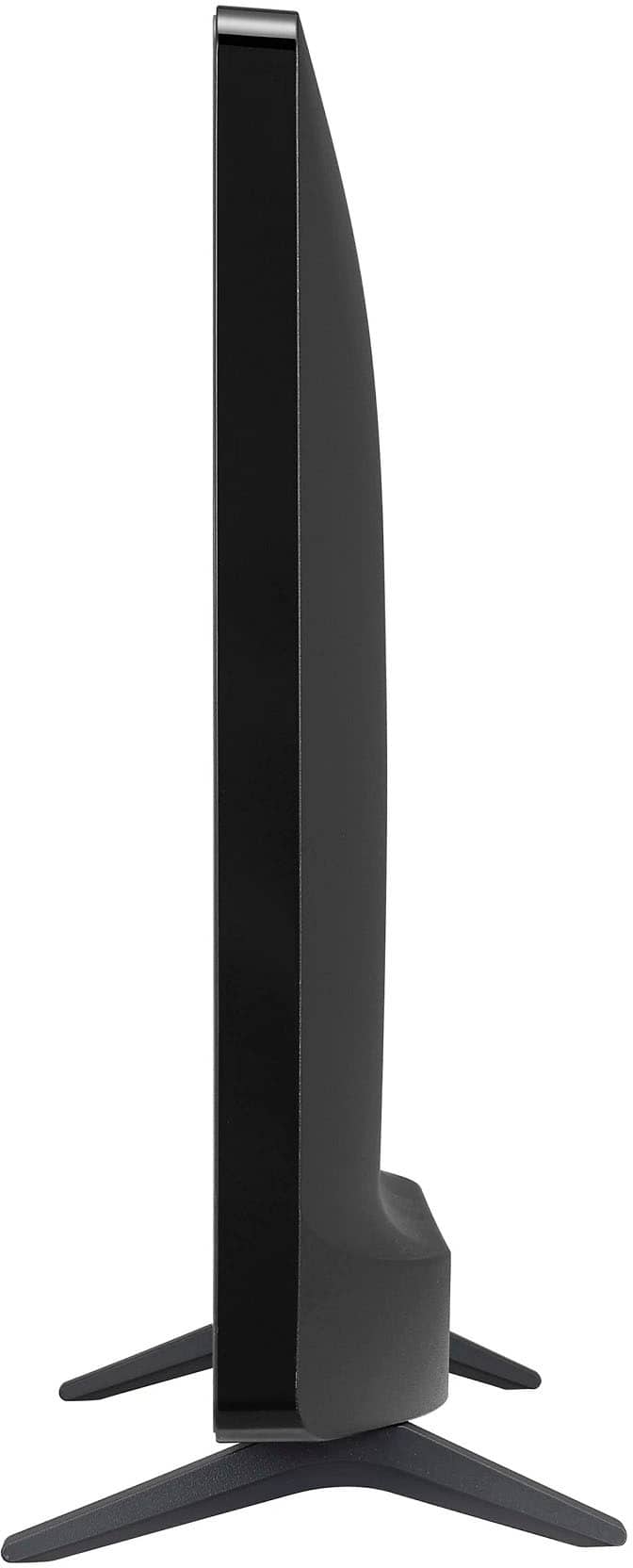
A:AnswerHi there, eddie. We understand your inquiry regarding the dimensions of the LG 24" Class LED HD Smart TV (2022). With the stand, the dimensions are approximately 22.2" x 14.4" x 5.8", and without the stand, they are 22.2" x 13.4" x 2.3".
https://www.bestbuy.com/product/lg-24-class-led-hd-smart-tv-with-webos-2022/JJ8VPZ6YTT
For further assistance and any specific concerns you may have, please contact us on [email protected]. —Renzo