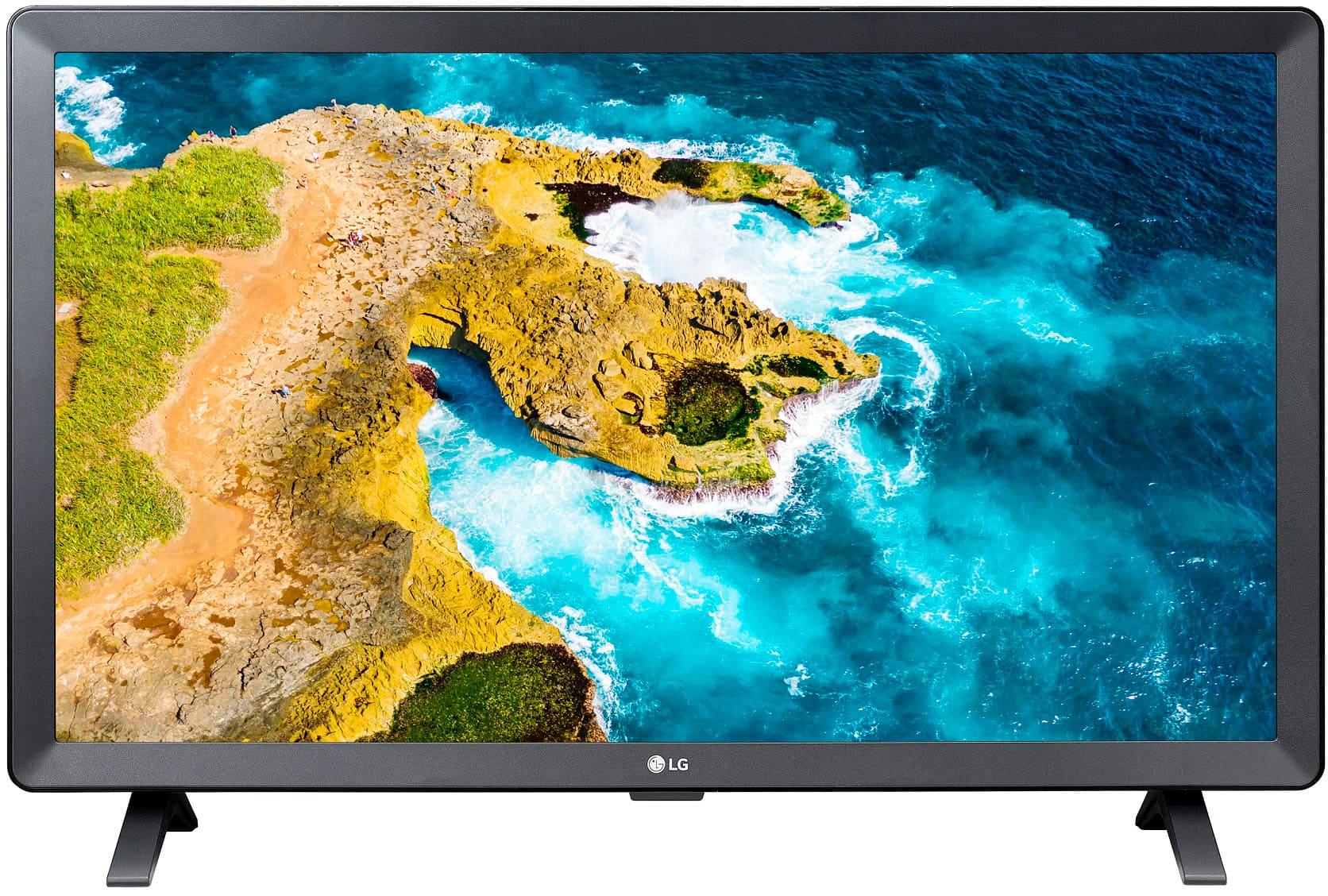
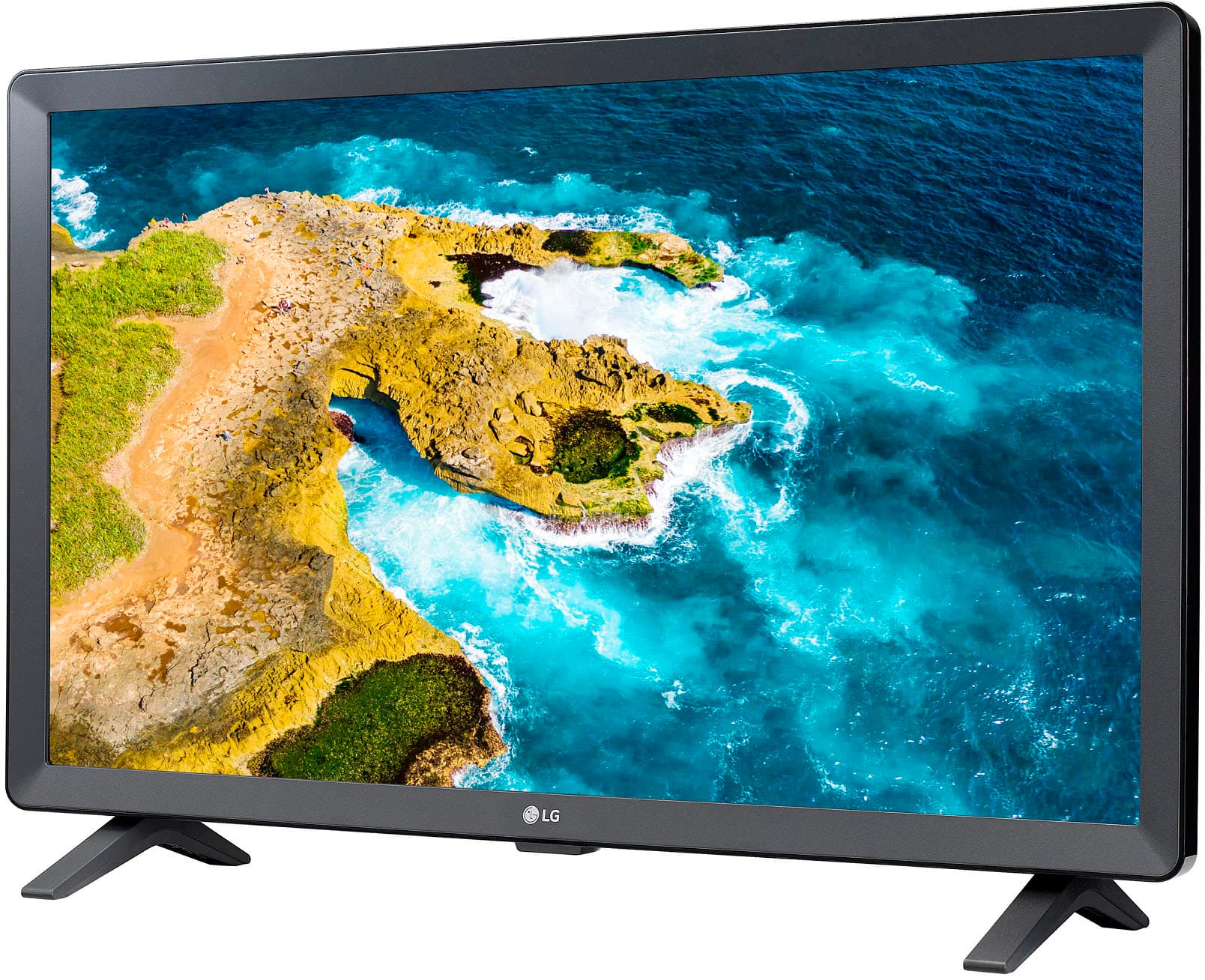
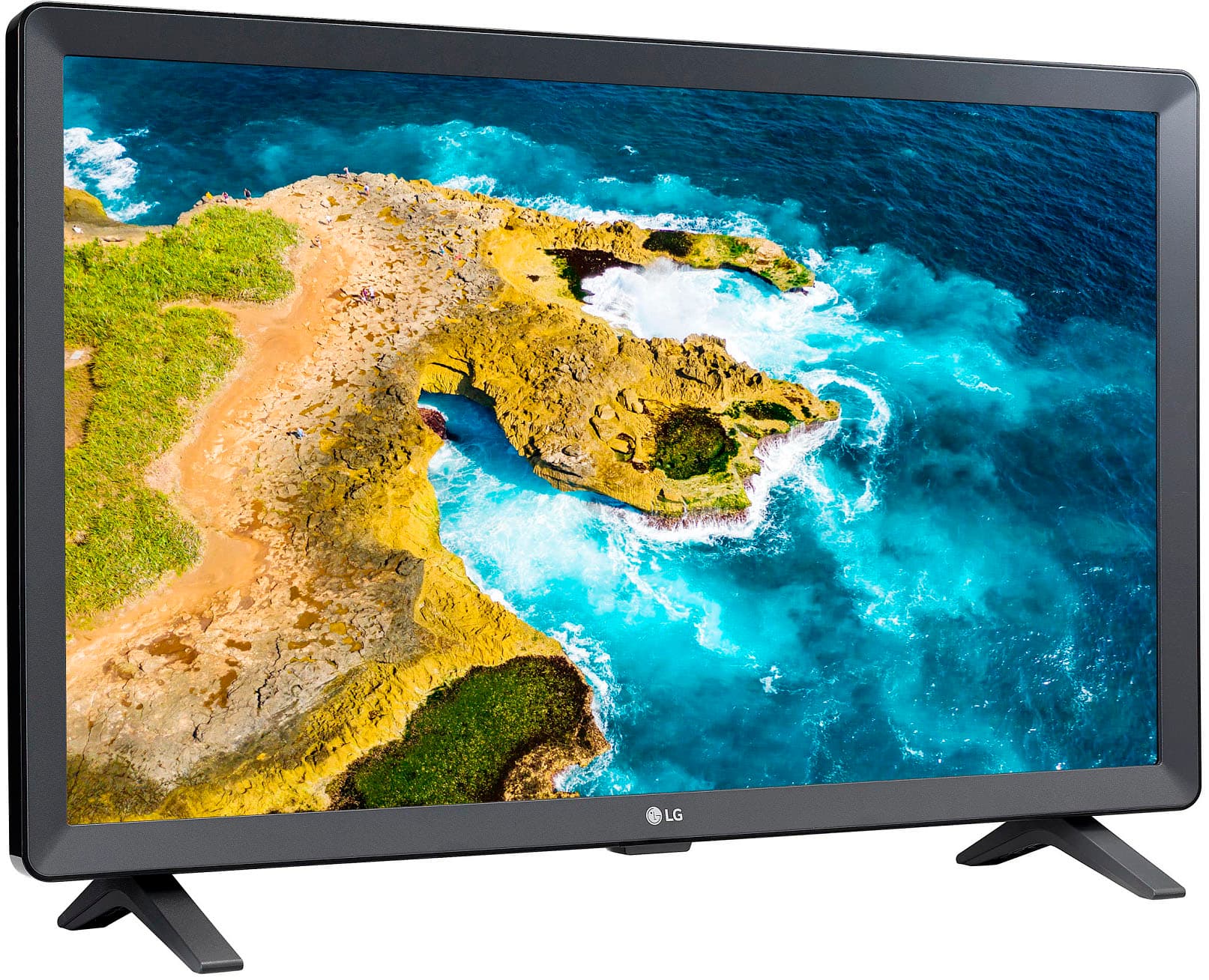
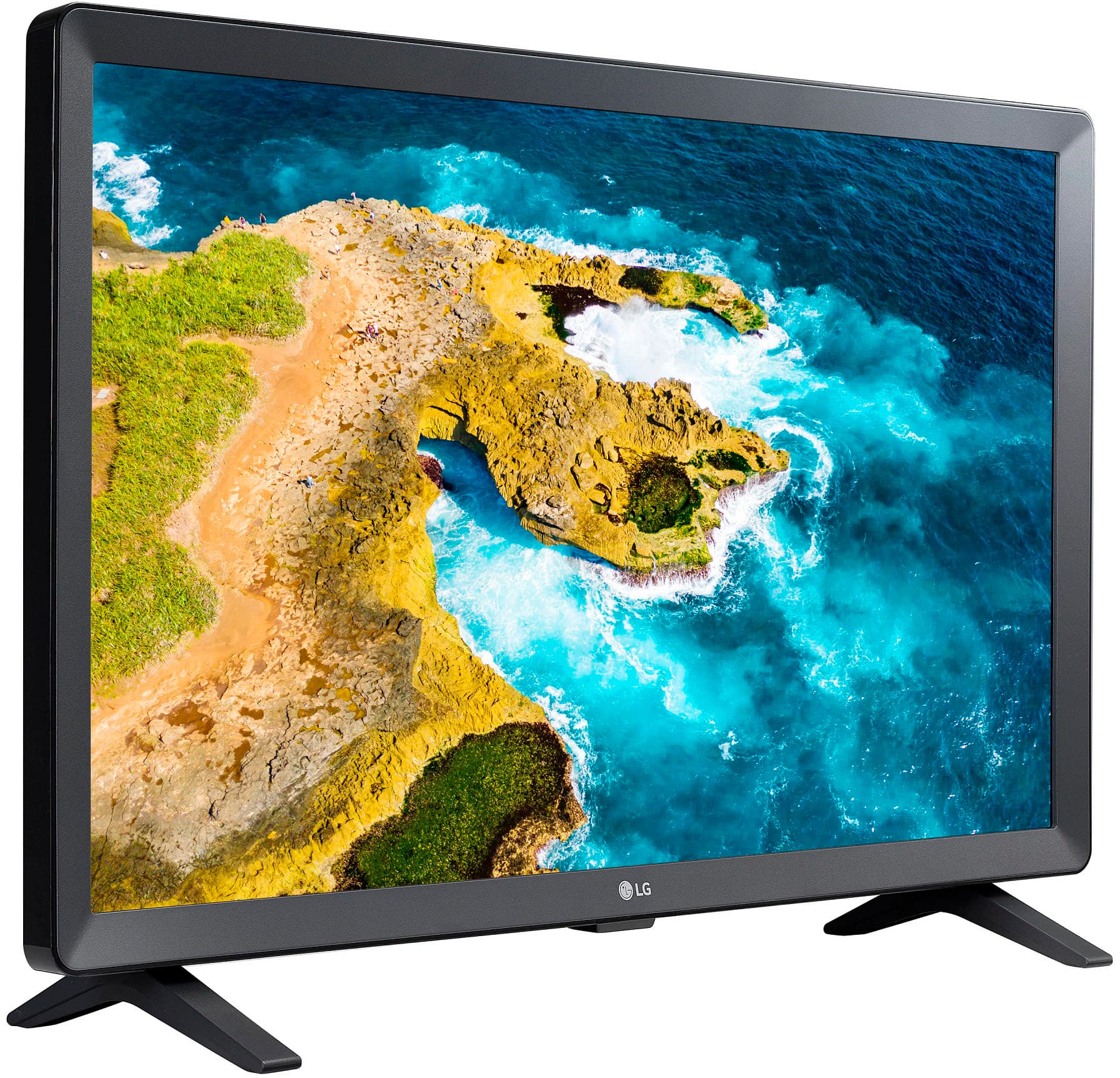
A:AnswerDefinitely! You can use Apple AirPods as a Bluetooth headset with a non-Apple device like the LG 24” Class LED HD Smart TV with webOS (24LQ520S-PU). -Cazz
A:AnswerHi, you cannot download the app. o use the app you will either have to use a streaming device like the Xbox One, Roku or Chromecast, or you could install an APK file and run the app. ^Vanessa
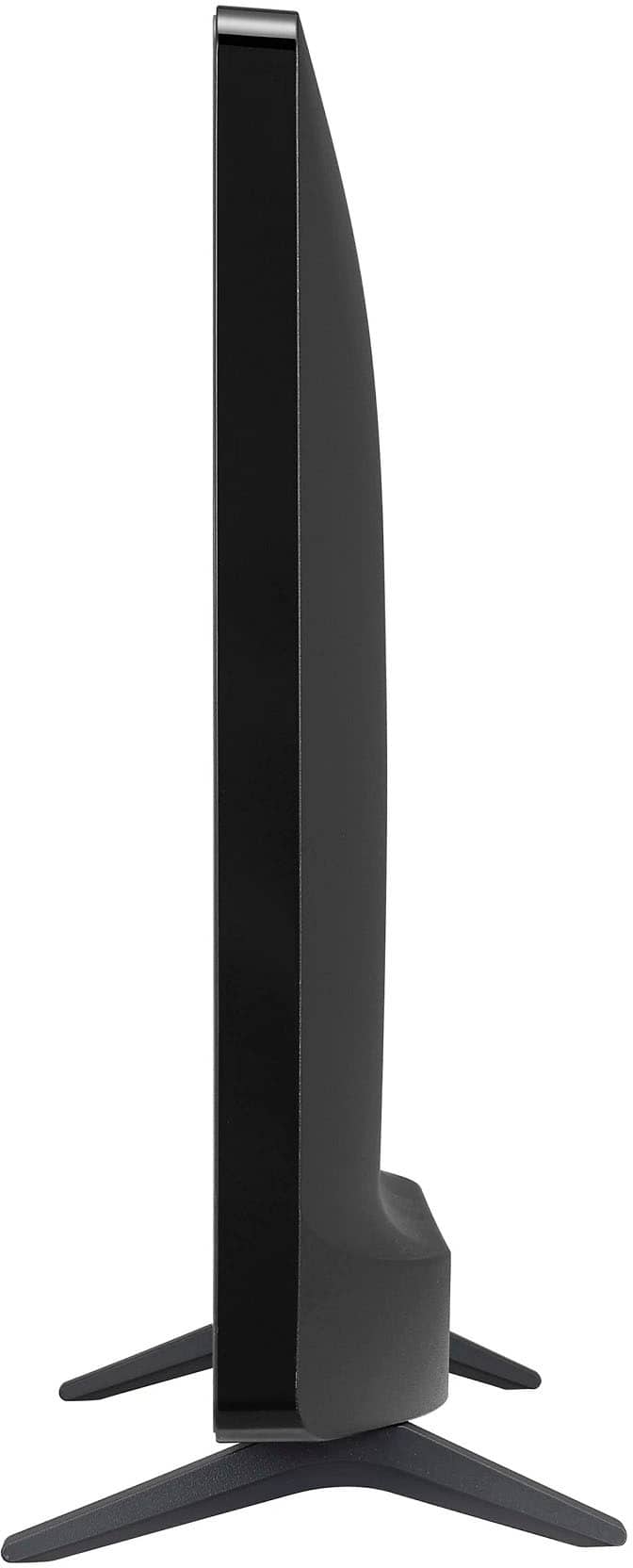
A:AnswerHi, the dimension for this model Product Height With Stand 14.4 inches, Product Width 22.2 inches
Product Depth With Stand 5.9 inches, Product Height Without Stand 13.4 inches. ^Vanessa
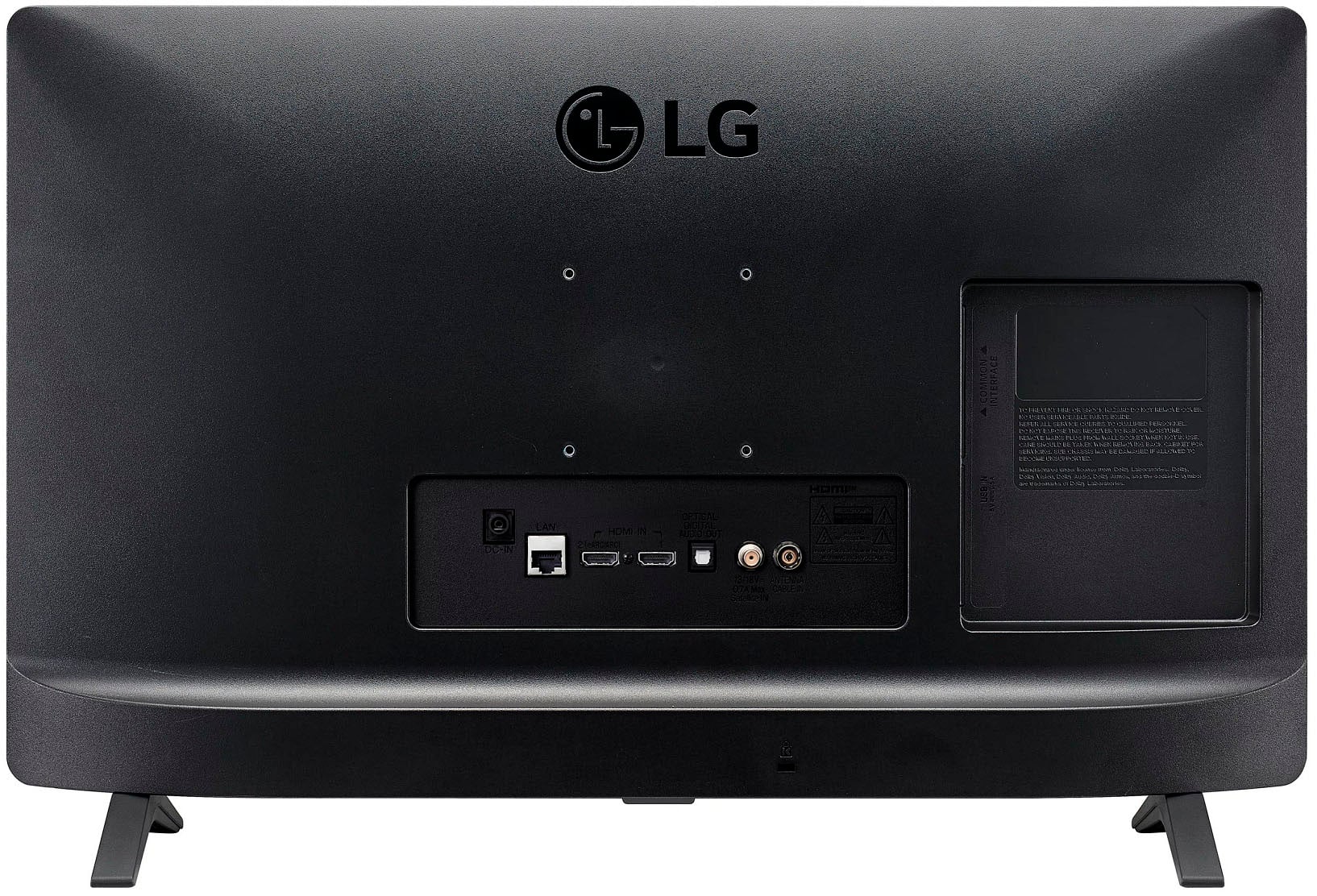
A:AnswerHi, Connect the AC-DC Adapter and Power Cord to a wall outlet.y Please be sure to connect the TV to the AC/DC power adapter before connecting the TV’s power plug to a wall power outlet. Here's the manual https://www.lg.com/us/support/product/lg-24LQ520S-PU.AUS. ^Vanessa
A:AnswerHello, Yes, You can down;load an app as this model has a web browser and you can check list of apps on our LG content store https://us.lgappstv.com/main/integrated/search?searchText=infinity, or you can connect a streaming devices/stick. ^Vanessa
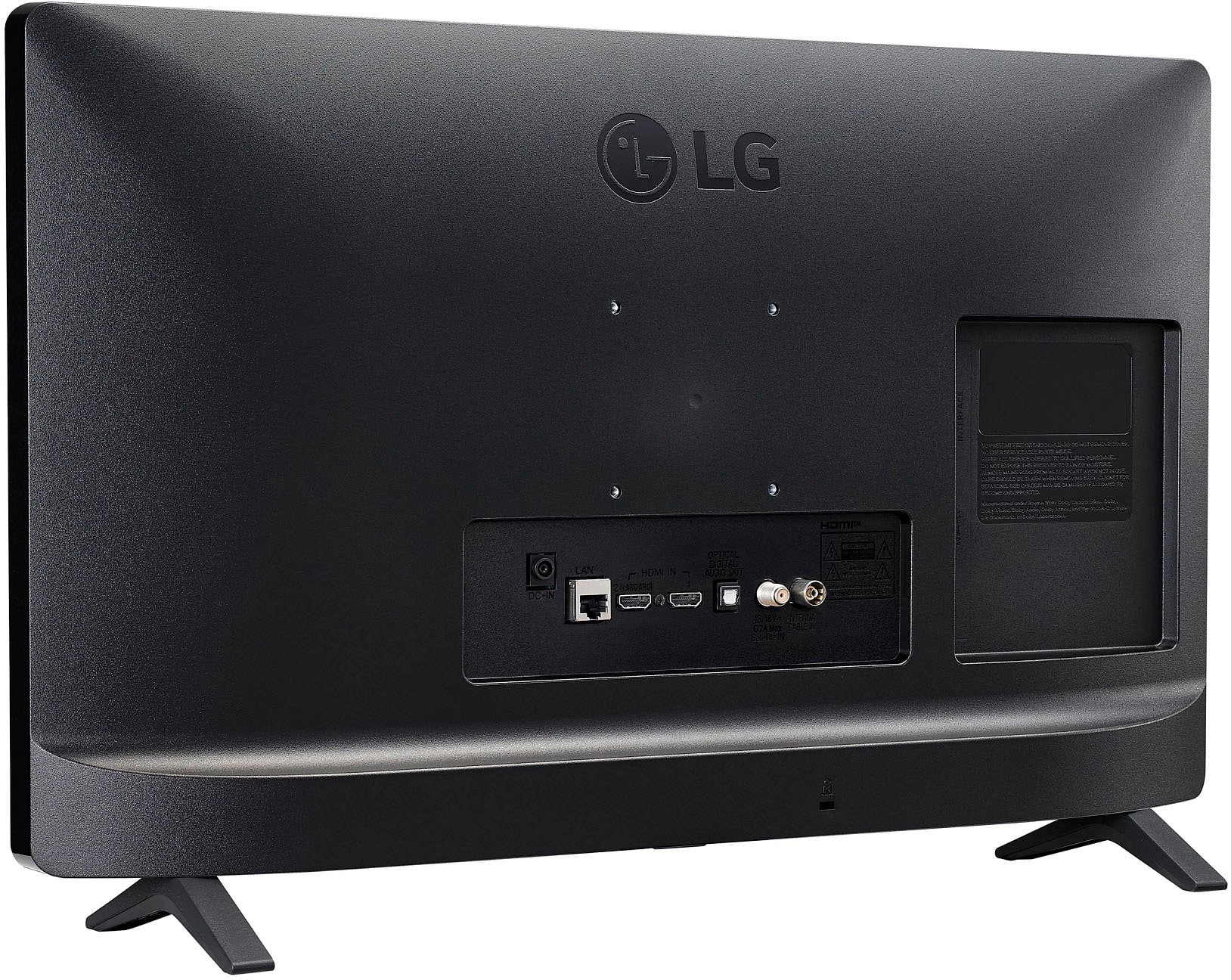
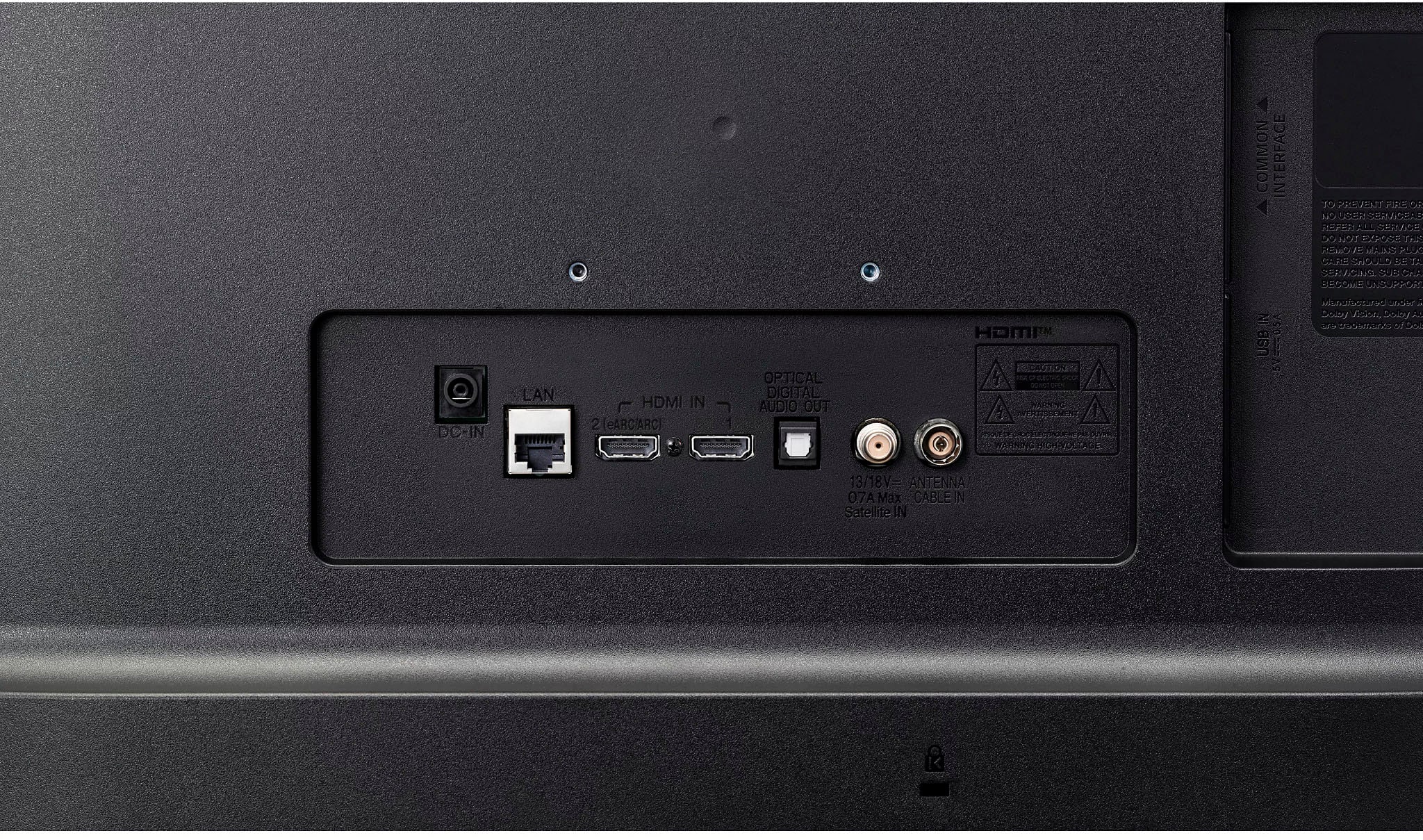
A:AnswerVanessa, please take more time to understand the questions you answer. Kitten123 didn't ask about a plug for the power cord. She said "plug in for an antenna". Best Buy website says it has no antenna connector but I find that hard to believe since without that you wouldn't be able to connect to an antenna or cable company. Is LG being stupid in its design or is Best Buy poorly representing an LG product?
A:AnswerHi,you can set the picture to movie, or cinema. Here's a link for Lg TV picture settings https://www.lg.com/us/support/help-library/lg-tv-picture-menu-settings-CT10000018-1374855198623. ^Vanessa
A:AnswerHi, Connect your laptop, media player, or gaming console to a display that’s smart enough that it can be used as a TV and monitor. You can download the app as this model has a web browser. ^Vanessa
A:AnswerHi, One 24" HD display to rule them all! Connect your laptop, media player, or gaming console to a display that’s smart enough that it can be used as a TV and monitor.^Vanessa
A:AnswerHi, You can connect a gaming console on this monitor but you have to check the Specs of the device if will be compatible for the port/cable. ^Vanessa
A:AnswerTry downloading the app from the LG Content Store (App Store). Press the Home button on the Remote control. Select the LG Content Store from the home page. Then choose the app you want to download to go to its dedicated screen. For a complete listing of available apps, please visit: https://us.lgappstv.com/main/tvapp. For further assistance, please reach out to our support team via private message on Facebook @LGUSSupport and use #VOC in your first message to our social media support team or call at 800-243-0000.^Venette
A:AnswerTry downloading the app from the LG Content Store (App Store). Press the Home button on the Remote control. Select the LG Content Store from the home page. Then choose the app you want to download to go to its dedicated screen. For a complete listing of available apps, please visit: https://us.lgappstv.com/main/tvapp. For further assistance, please reach out to our support team via private message on Facebook @LGUSSupport and use #VOC in your first message to our social media support team or call at 800-243-0000. ^Venette