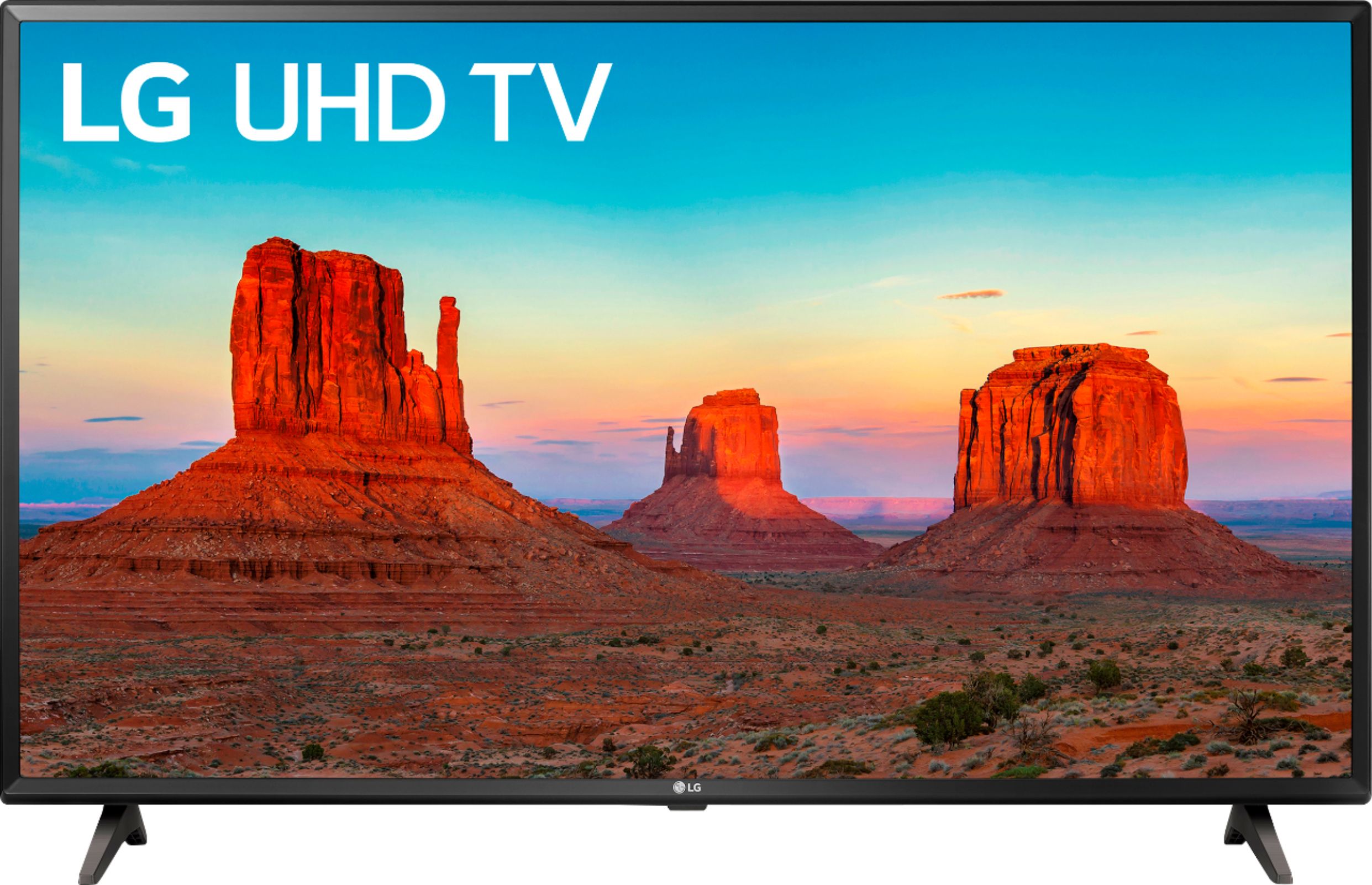
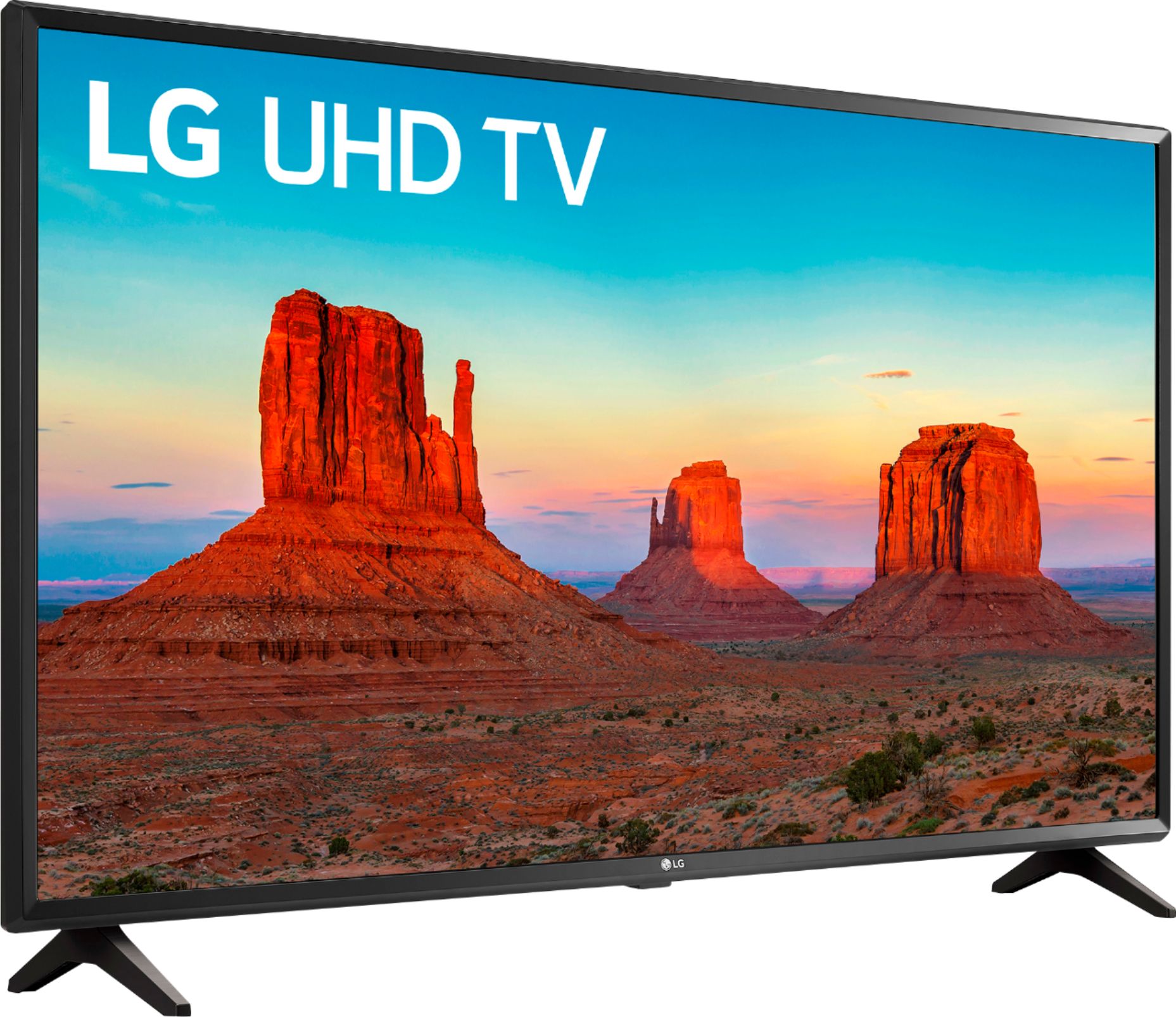
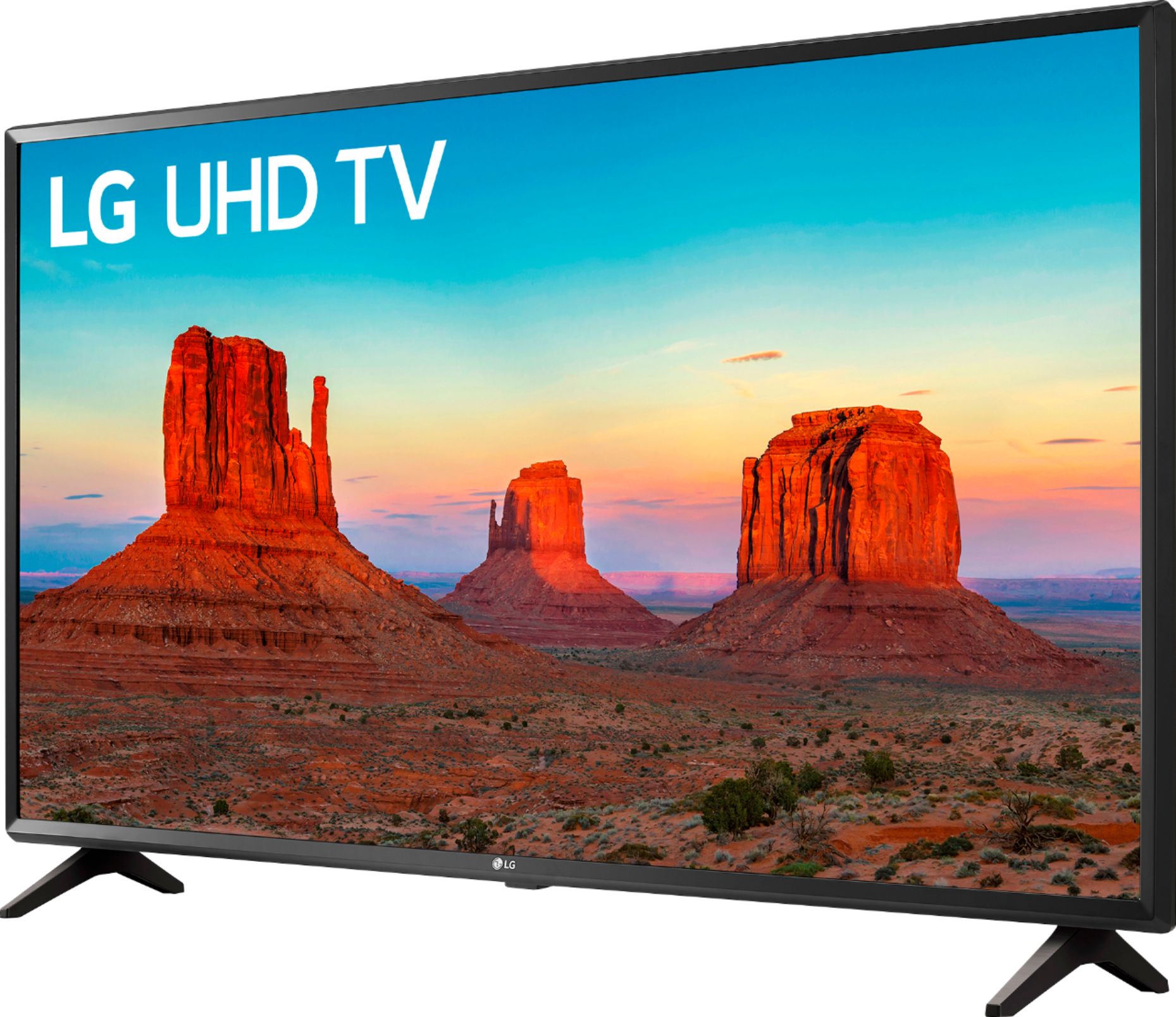
A:AnswerHi Dread. How do you have the Xbox One X connected to the LG UK6090PUA 4K HDR Smart LED UHD TV - 43" Class (42.5" Diag), Model # 43UK6090PUA? Does the purple screen on the TV only appear when the gaming console is turned on. There are reports of people getting a pink screen with other brands of TV and the issue sometimes is caused by either the cables of splitters etc., Trying changing the HDMI cable or connect the gaming console directly to the TV if it isn't connected directly. If the issue persists, please contact our Support Center, (800) 243-0000 for assistance...^IFV
A:AnswerI use the direct tv remote for everything except apps. It will turn tv on/off and control volume if you have programmed direct tv remote correctly.
A:AnswerNo, you would have to buy a streaming device like ROKU Express ($30), attach it to one of the HDMI's on the TV, and add the Xfinity TV app to the ROKU. That's what I did.
A:AnswerTo properly answer this question, we will need the model number of your LG soundbar. We would be happy to look into this further for you. Our support team is available via Twitter @LGUSSupport, Facebook https://www.facebook.com/LGUSA/ or you can give us a call at 800-243-0000. ^CP
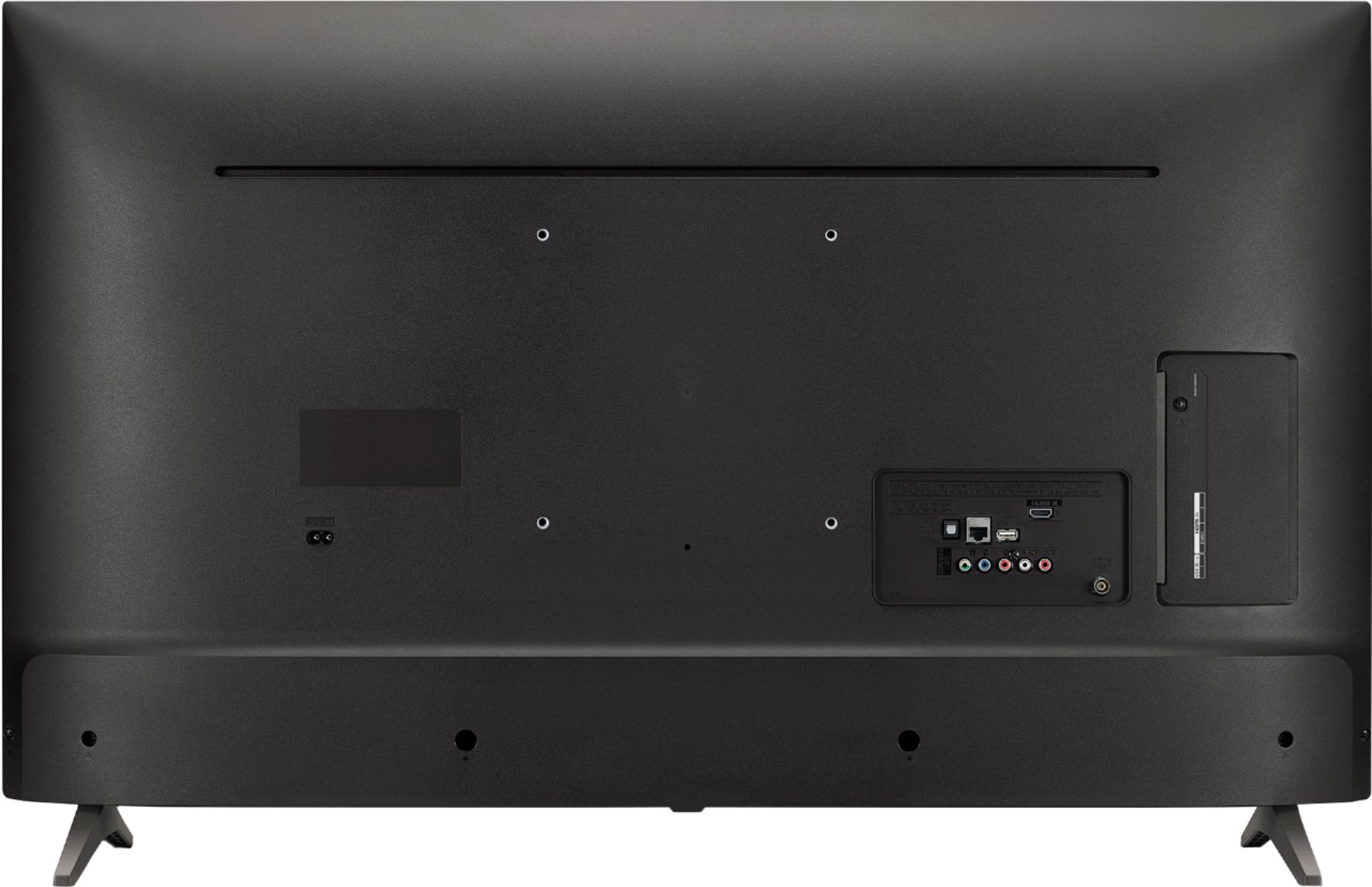
A:AnswerThe 43UK6090 is able to connect to external devices using the following methods: HDMI (HDCP 2.2), Audio Return Channel Support (via HDMI), USB v 2.0, RF In (Antenna/Cable), Composite In, Ethernet, Digital Audio Out (Optical). ^CP
A:AnswerTo connect the LG UK6090PUA 4K HDR Smart LED UHD TV - 43" Class (42.5" Diag), Model # 43UK6090PUA to Amazon Alexa devices, you will first need to download the LG SmartThinQ and Amazon Alexa App for the Google Play Store to your android device or from the ITunes App Store for iOS devices. YOu will then need to register or sign-into LG SmartThinQ and Amazon Alexa and follow the steps in LG SmartThinQ. To register and setup your Amazon Alexa, you will need to visit Amazon's Help Content. You will then need to add the TV to the LG SmartThinQ App. From the LG SmartThinQ app, you will need to choose the + button to add the TV and select it from a list of products. It will not be listed on the dashboard of your LG SmartThinQ app. That's normal. Then you will need to press the Home button on the remote control and launch 'Setup TV for Amazon Alexa' app on the TV. Follow the setup guide to complete the TV registration. Then you will need to set up your Amazon Alexa device. Again, you will need to go to Amazon's page for Amazon Alexa's Support. Once done, turn on your Amazon Alexa device, the light ring turns blue, and then orange. When the light turns orange, Amazon Alexa device greets you. Follow the guided instructions in the app to connect your Amazon Echo to your Wi-Fi network. Then you will need to link Amazon Alexa and LG SmartThinQ together in the Amazon Alexa settings. LG supports both Smart Home Skill and Custom Skill. You can choose to enable Smart Home Skill (LG SmartThinQ – Basic), Custom Skill (LG SmartThinQ - Complete (Smart Appliance and TV)), or both to control LG SmartThinQ appliances. Open the Alexa app, select skills from the menu, search for "LG SmartThinQ", then select the skill you would like to enable. For SMART HOME SKILL, select "LG SmartThinQ – Basic". For CUSTOM SKILL, select "LG SmartThinQ - Complete (Smart Appliance and TV)". Select enable and the sign in with your LG account. There are two ways to continue discover your device. Using the Alexa App, you can open the Alexa App and select "Smart Home" from the Menu. Using the Amazon Echo, you can say Alexa, Discover devices" to Echo. After the discovery, you can control LG appliances with your voice...^IFV
A:AnswerI have this tv and it continuously resizes the windows in programs/games in win10 even with the newest graphic drivers and setting my resolutions to default... its getting to the point I might just return it and use my old TV... there were never any issues.