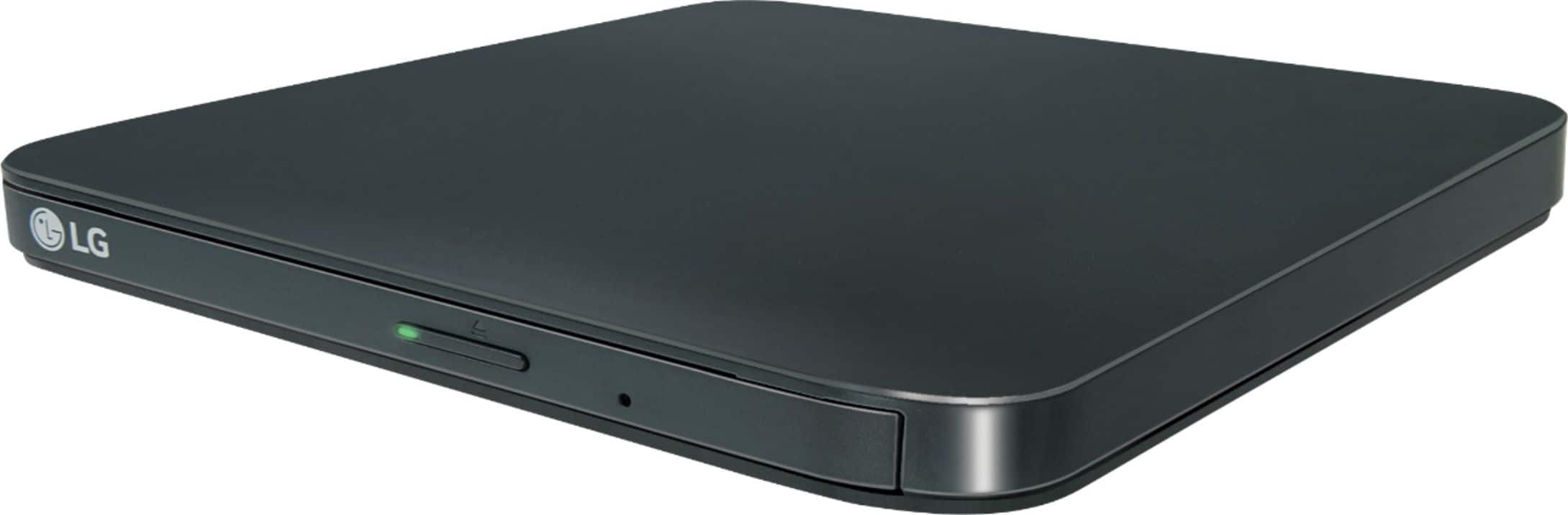
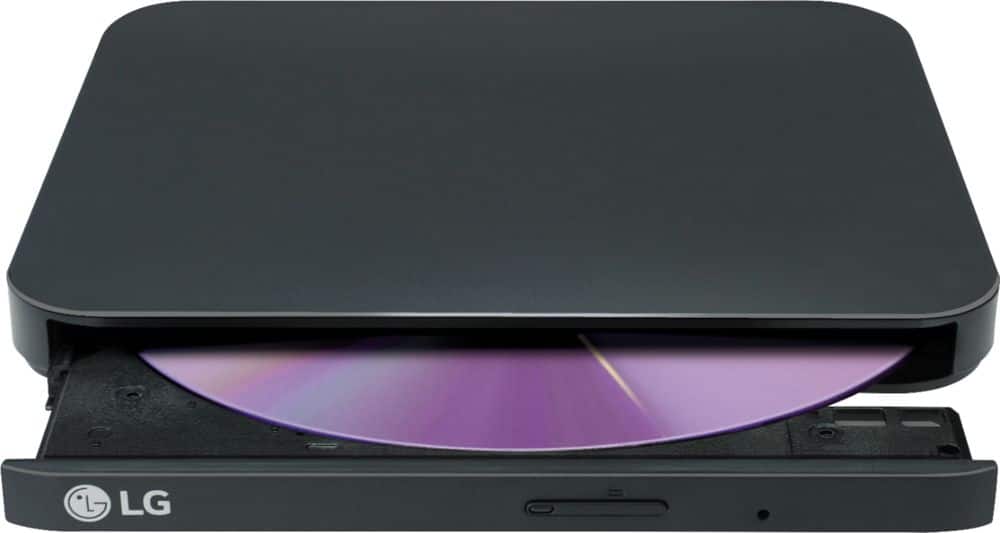
A:AnswerThe LG - 8x External USB Double-Layer DVD±RW/CD-RW Drive - Black, Model # SP80NB80 is compatible with the Mac OS X v.10.7.5 or Higher Operating Systems...^IFV
A:AnswerHi bozo. Regrettably, the product that is showing on your inquiry is not a TV model, it is the LG - 8x External USB Double-Layer DVD±RW/CD-RW Drive - Black, Model # SP80NB80. Unfortunately, the TV is not the only part of your entertainment system that can affect the aspect ratio. The cable set-top box, your DVD or Blu-ray DVD player or gaming system and other source components likely all have their own aspect ratio settings. Although most new programming is in HD with a 16:9 aspect ratio, a significant number of TV broadcasts are still shown in 4:3 aspect ratio. The difference in shape can result in a "pillarbox" picture - black columns standing to the left and right of the image when you watch a 4:3 program on a widescreen TV. Depending on which LG TV model you have, search for Picture Settings, Display Settings or a similar option. An additional sub-menu may contain settings for aspect ratio, such as Picture Size or Screen Aspect Ratio. The specific terms used in these menus differ, but on a widescreen TV, you will likely see Widescreen or 16:9. The TV remote should have a button dedicated to changing the aspect ratio and is often labeled as Aspect, Zoom, Format, Picture Size or Picture Mode. Because programming can be displayed in a different aspect ratio between channels, or even on the same channel from one show to the next, this button can be very useful. For Letterbox (black bars on top and bottom), the set-top box is outputting a 16:9 image, but the TV is displaying it in a 4:3 aspect ratio. For the whole picture to be shown horizontally, black bars are inserted at the top and bottom, making it smaller vertically. The aspect ratio can be adjusted using the remote as described above to zoom in on the picture. This will allow the picture to fill the screen from top to bottom but may cut off a portion of the picture to the left and right. Check to ensure that both the TV and your set-top box are set to output a 16:9 aspect ratio, but keep in mind that not all the programming is in a 16:9 aspect ratio as described above...^IFV
A:AnswerAs long as that model has a USB port it should be. While the DVD burner is only rated at USB 2.0, any USB 3.x ports on your laptop would be backwards compatible.
A:AnswerCD, DVD, and Blu-ray DVD technologies are backward compatible which means that each technology can play all the other technologies that preceded it. The LG - 8x External USB Double-Layer DVD±RW/CD-RW Drive - Black, Model # SP80NB80 can play CDs but cannot play Blu-ray DVDs...^IFV
A:AnswerTry tech support. I had a similar issue. they recommended using a movie DVD first as my body camera videos would not play. Not sure why this worked except they told me DVDs are the best test. You may need to exchange it for another player.
A:AnswerI bought this unit a couple weeks ago and simply plugged it in through USB, inserted a CD and iTunes instantly went to work. It was the perfect choice for loading my music from CDs into iTunes.
A:AnswerThis external hard drive plugs directly into a standard USB port on the computer. If you have a wireless network set up your iPhone and wireless printer can connect to that and no cable is needed for the iPhone or printer. I have an iPhone and a wireless printer and do not have a cable to my PC or MAC from them, only the standard USB cable from my external hard drive and CD/DVD connect to the computer.