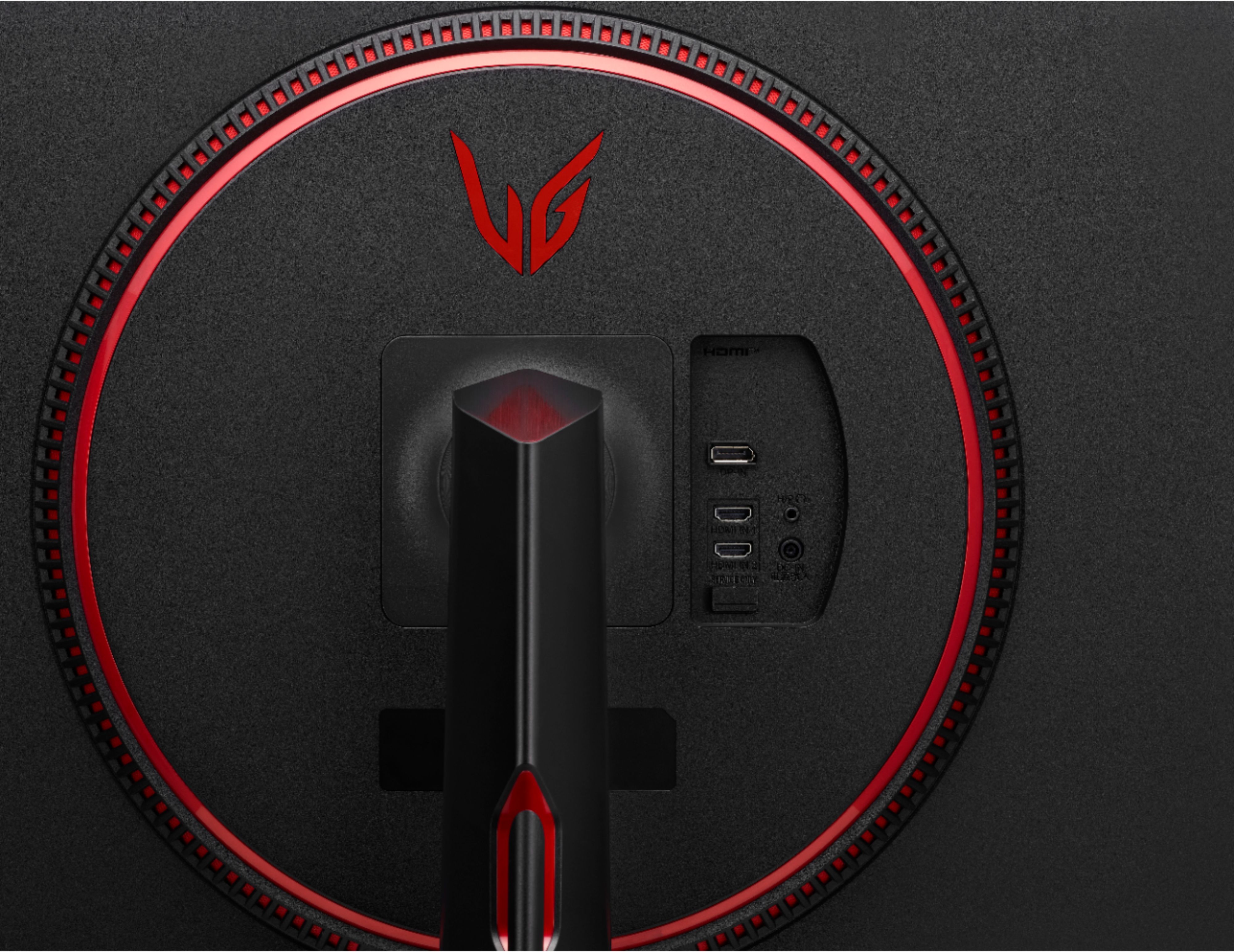
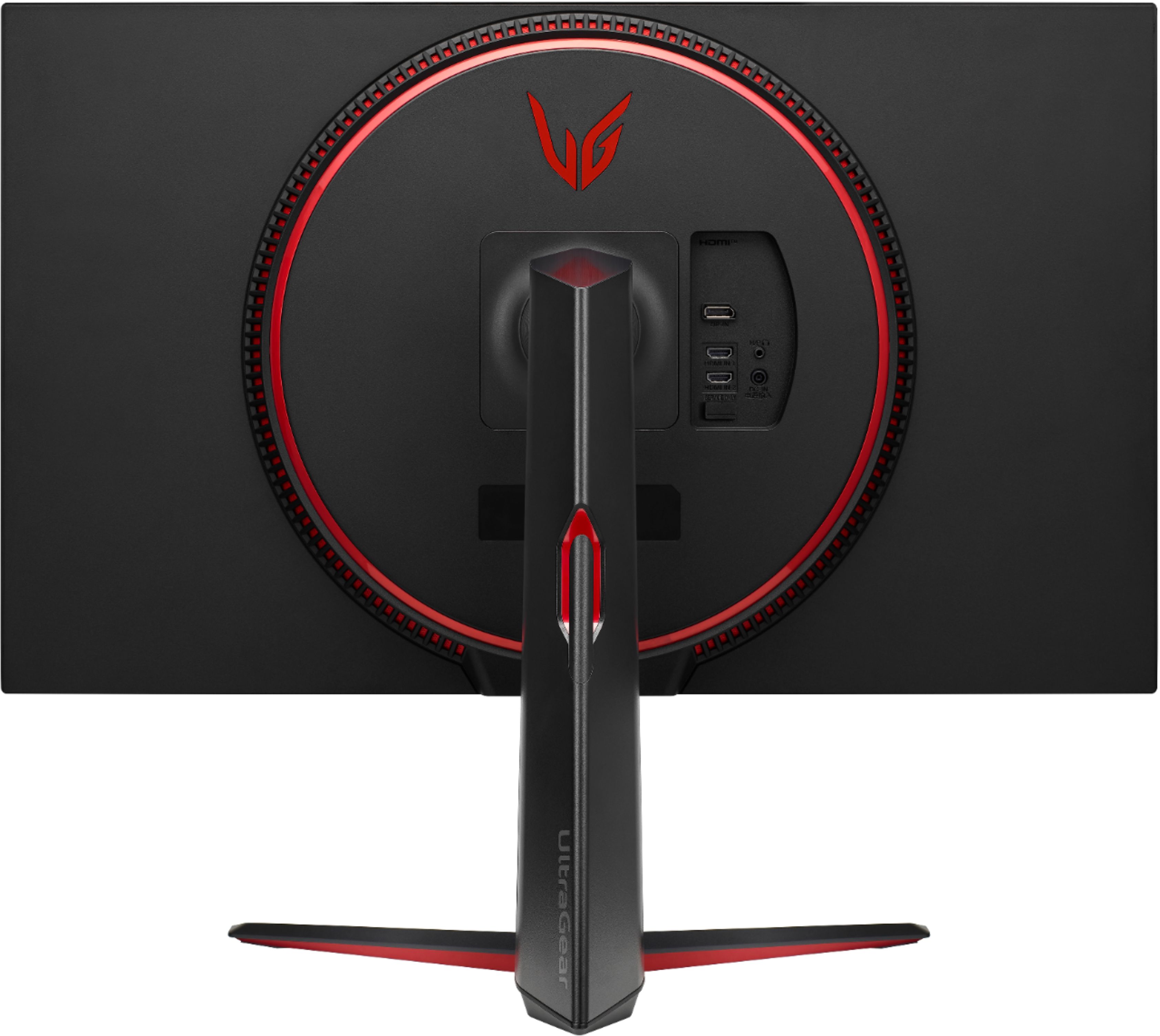
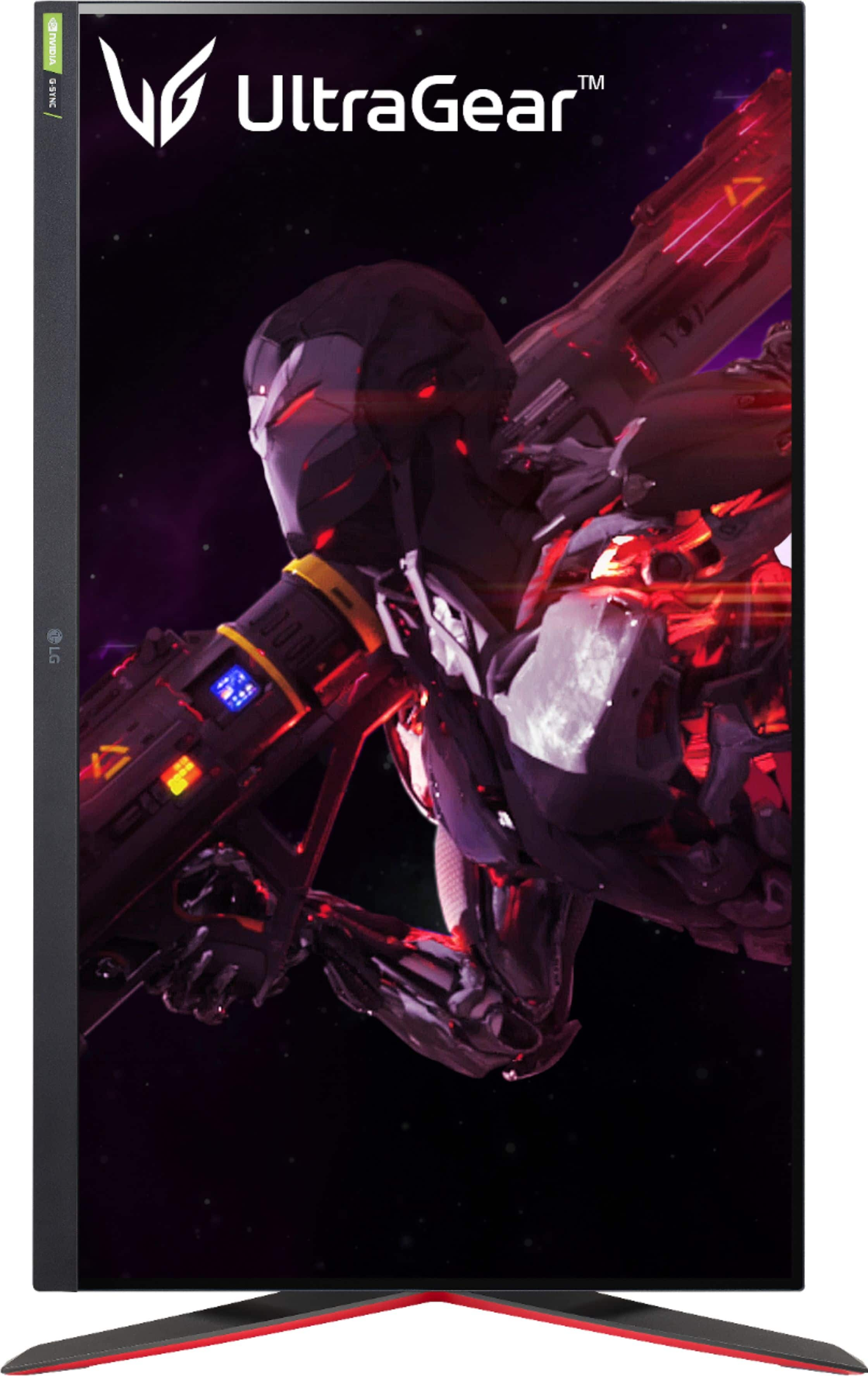
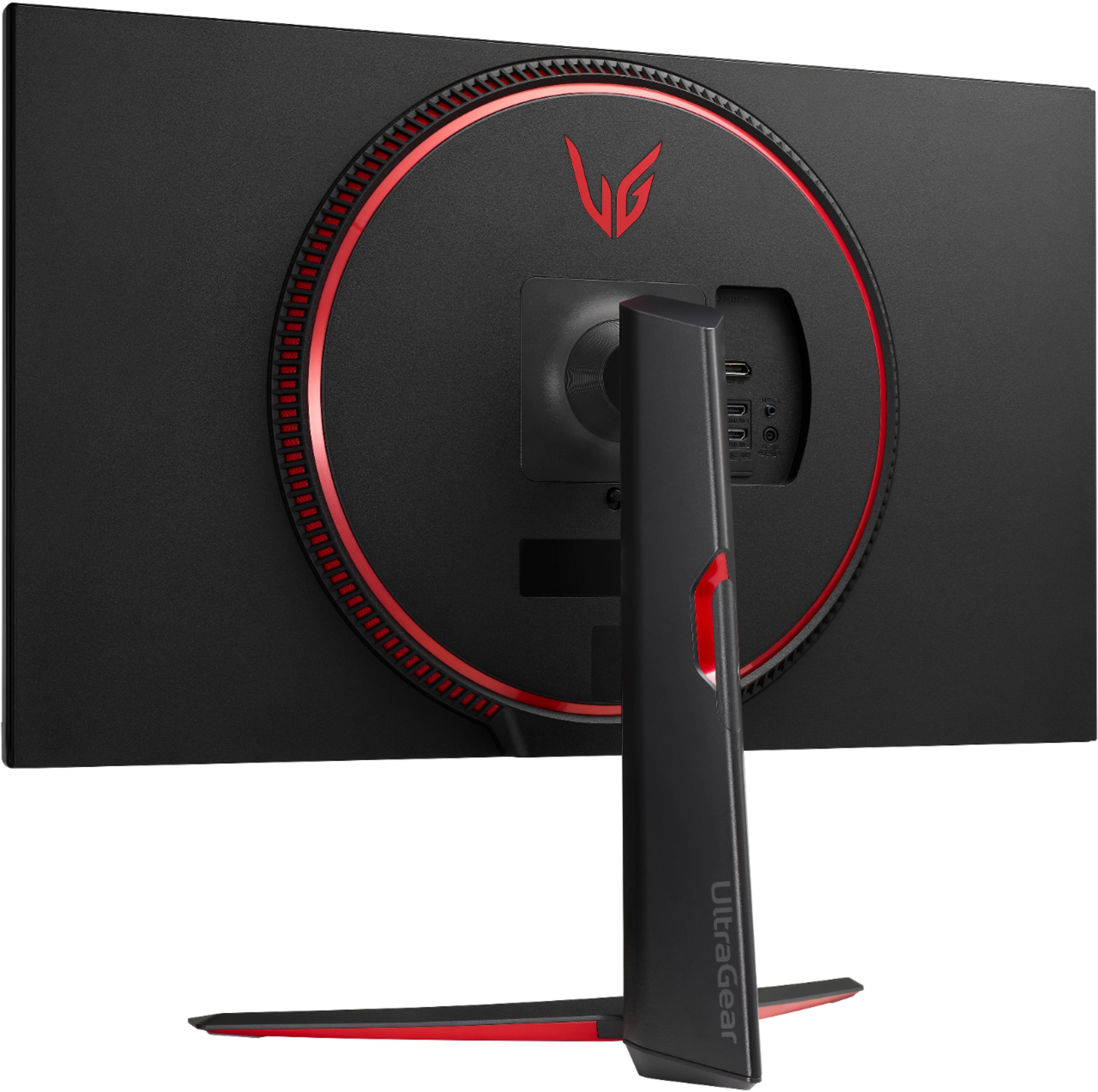
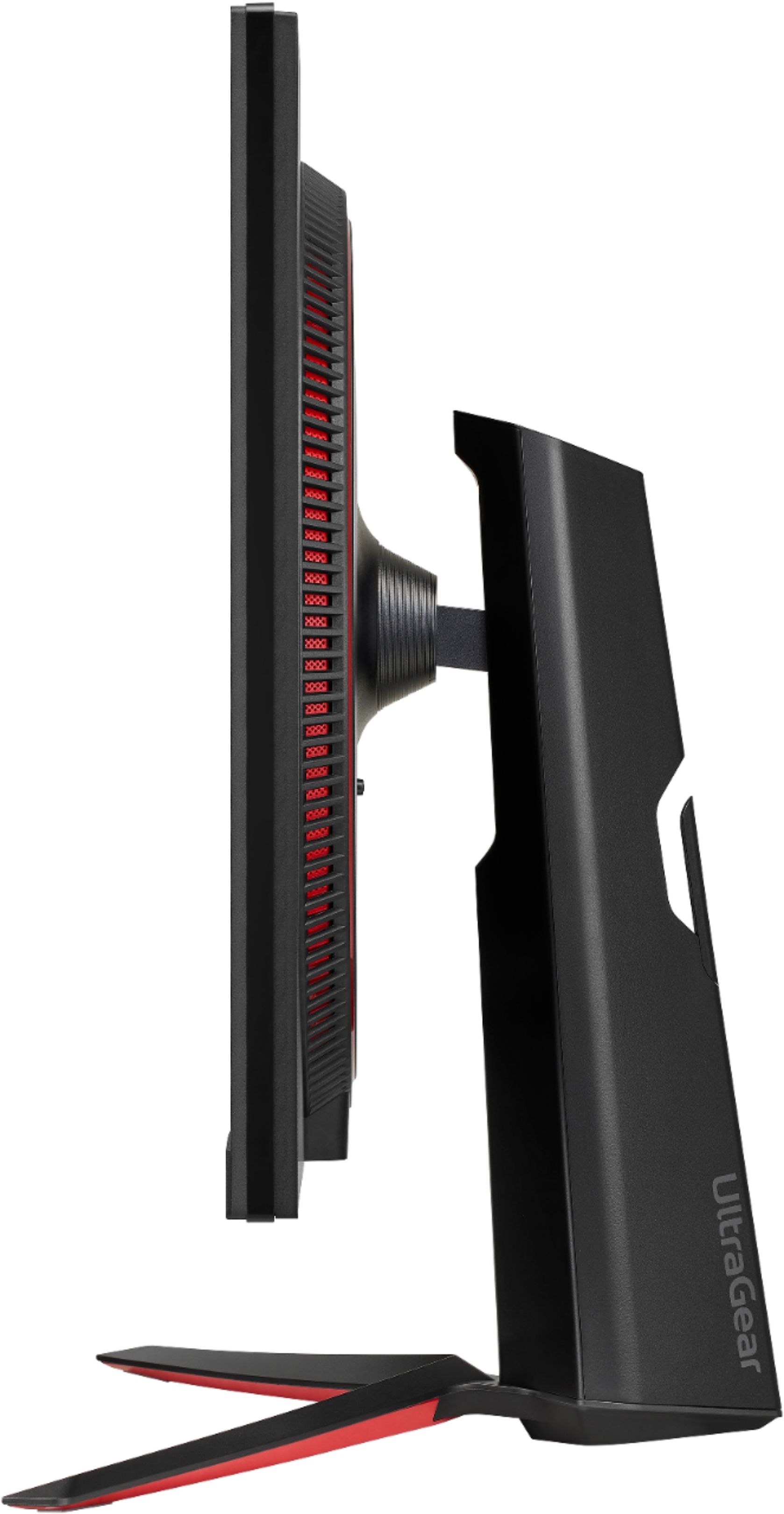
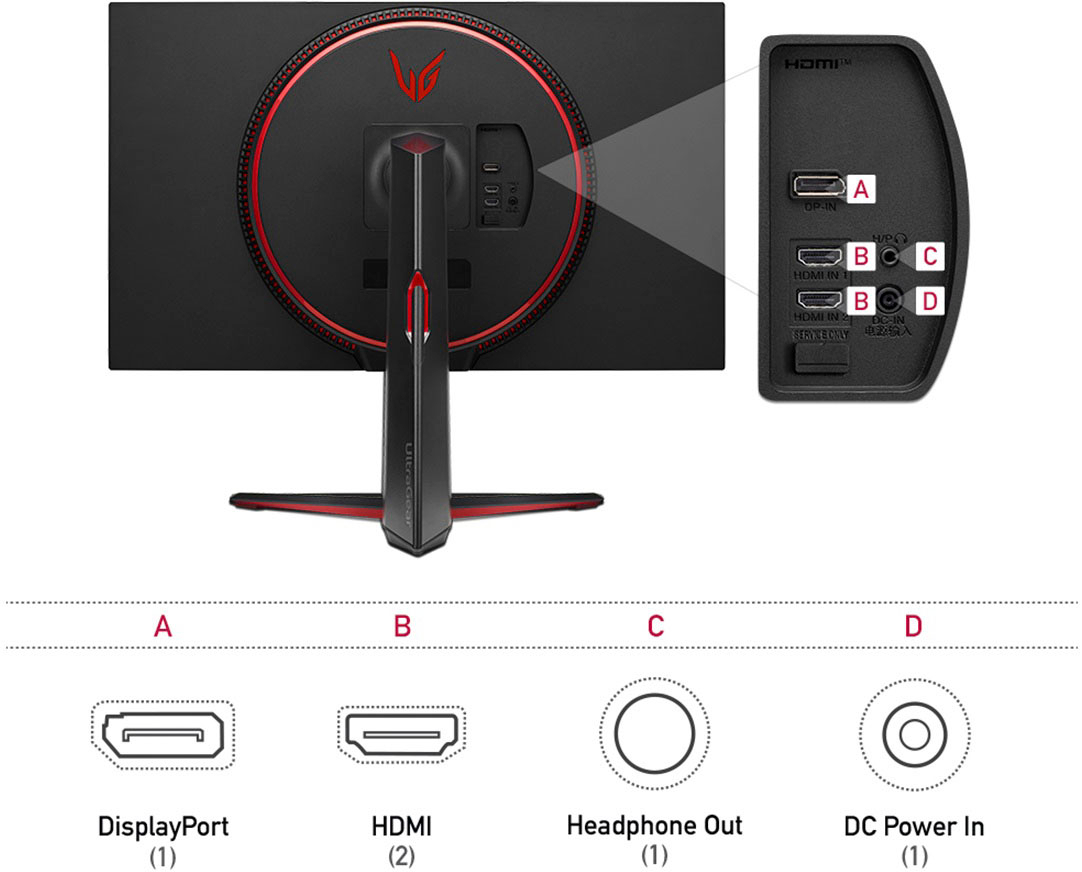
A:AnswerIf an iMac has HDMI or DP out then yes. Not the ideal resolution for higher quality work but if you're starting out, wouldn't be a bad start given the quality.
A:AnswerDon't think there is with inbuilt software and it'd more be graphics settings in the program and windows that'd you would need to use to mess with these features.
A:AnswerThank you for reaching us regarding LG Monitor. No, The LG 32GP83B-B.AUS monitor does not come with a remote control. You can download its owner's manual through this link for more information: https://www.lg.com/us/support/product/lg-32GP83B-B.AUS. For additional assistance, please reach out to us on social media @LGUSSupport so we can help you further. ^Cris
A:AnswerHello there. Thank you for reaching out about the LG 32GP83B-B.AUS monitor. We understand that HDR can sometimes cause screen dimness issues, especially with your PS5.
When HDR is turned on, it adjusts the brightness and contrast to enhance the color range and detail. If the screen appears too dark, it might be due to a few reasons:
HDR Calibration: Ensure that both your monitor and PS5 HDR settings are correctly calibrated. On the PS5, go to Settings > Screen and Video > Video Output > Adjust HDR to adjust the brightness settings.
Monitor Settings: Check the monitor’s OSD (On-Screen Display) settings. You might need to adjust the Brightness, Contrast, or Gamma settings for better HDR performance. Look for HDR-specific settings in the monitor menu.
Firmware Update: Make sure your monitor has the latest firmware update. Manufacturers often release updates to improve HDR performance and compatibility.
If you’re still having issues after these adjustments, please send us a private message on social media @LGUSSupport. We’d be happy to help you further!
—Renzo
A:AnswerYeah thanks...i had figured that out myself, the problem is that earlier models you could just quickly adjust by pushing the joystick thing forwards and backwards, now it's a whole process, but i guess this means there is no way to chg those short cuts.
at least i can adjust the volume for the headphone jack i will never use (seriously, who actually uses this??) and an accessibility setting i do not care about or need. Thanks LG ! your settings menus on your products are already annoying, but thanks to the genius who came up with this 'upgrade'.
A:AnswerPlease pardon us, but we are not clear on your inquiry and will need some clarification. Which newer model bezel and bottom border dimensions are you referring to? Are you inquiring about Model # 32GP83B-B? or are you comparing that monitor to another monitor.? ^James.