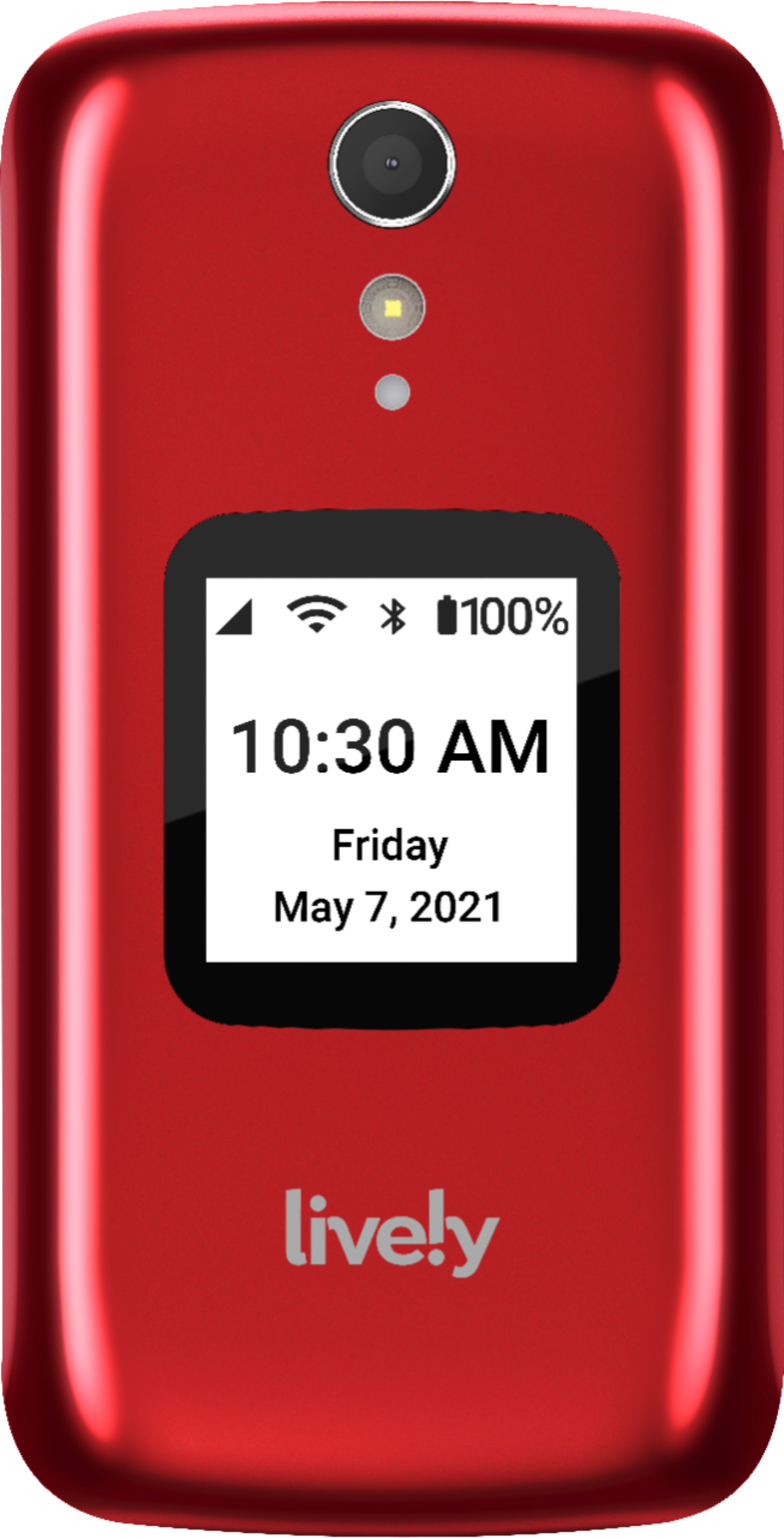
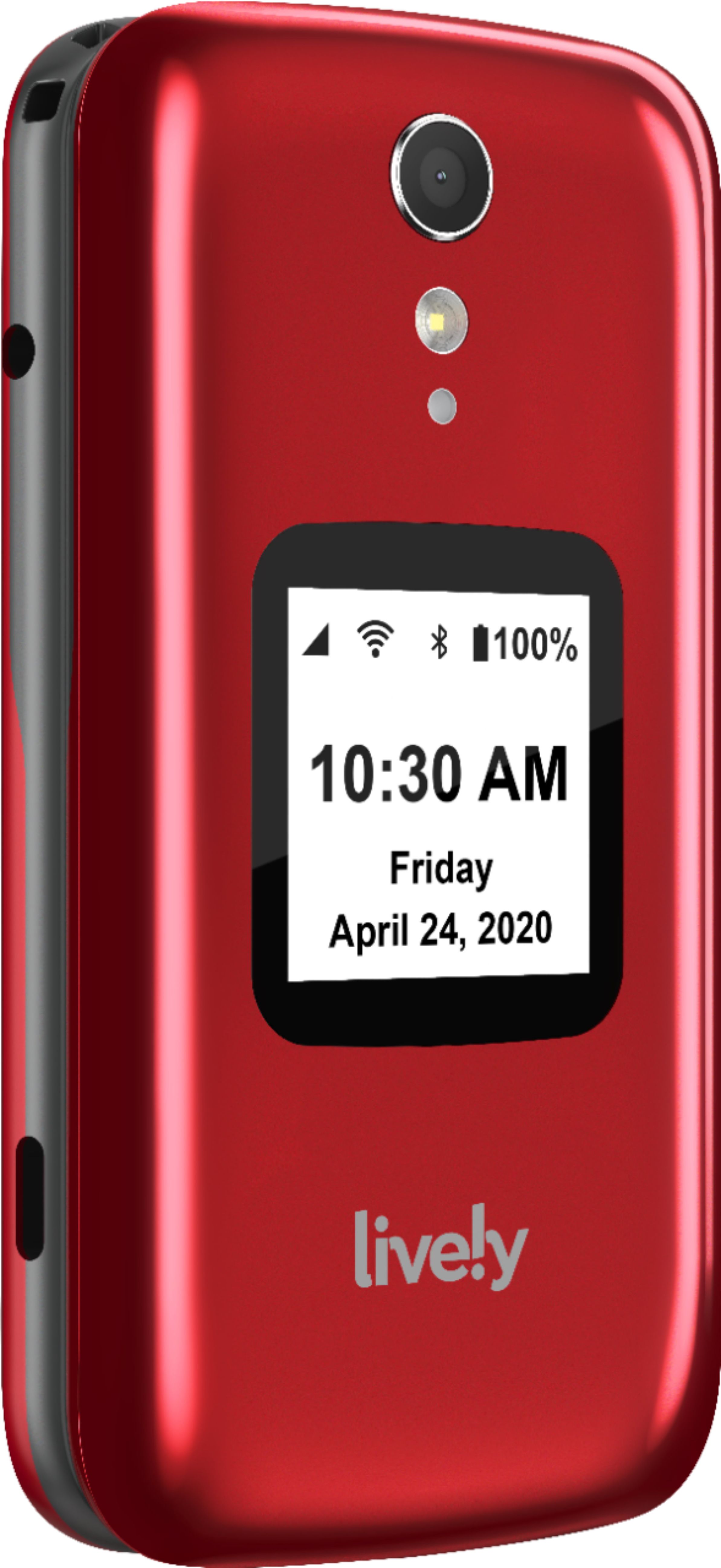
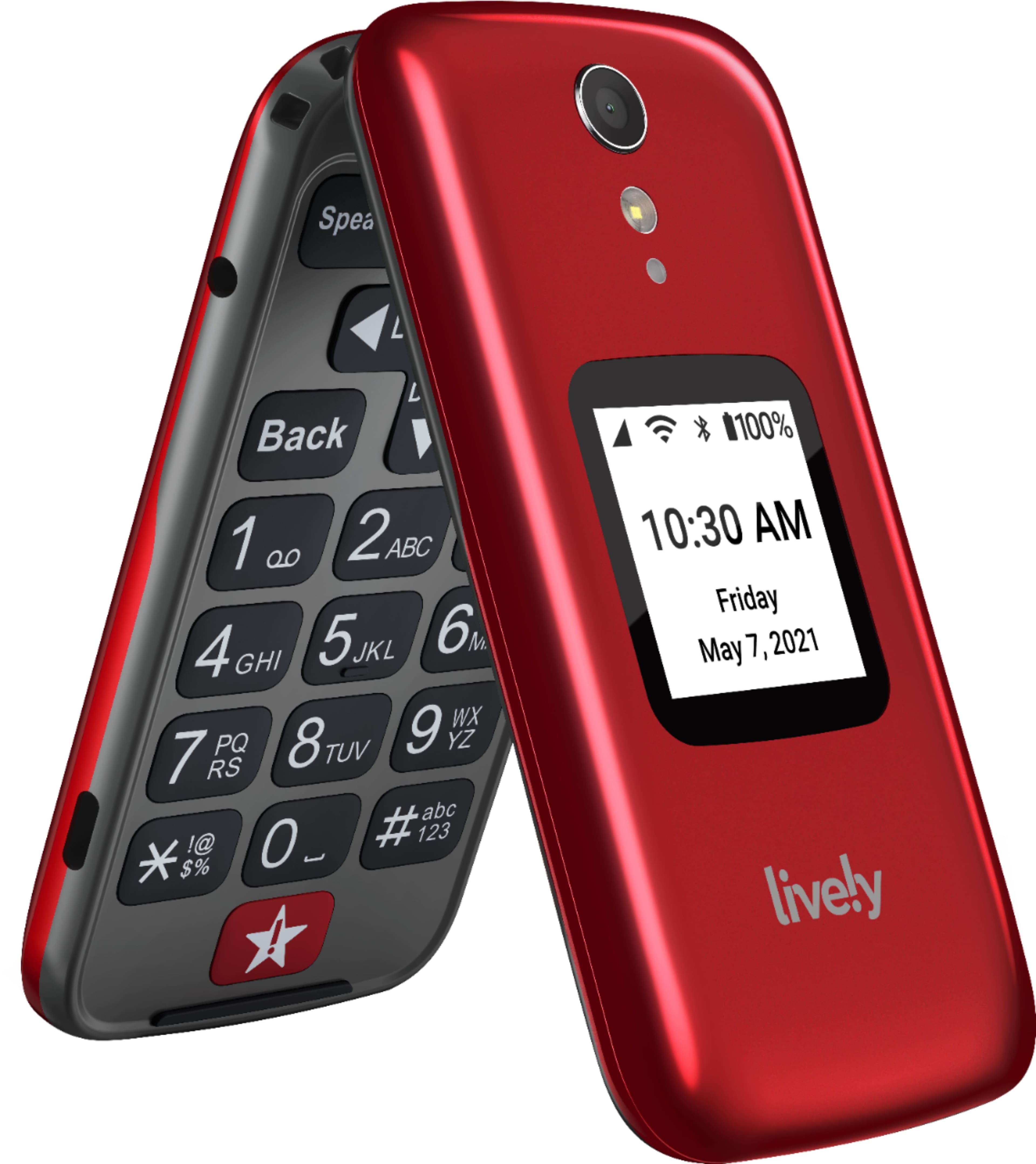
A:AnswerI was just on the phone with Q link wireless tonight because my current android phone with them is damaged they said they could not send their phone out until July 31 so I looked up Q link wireless compatible phones this is one of the options that came up, I gave Q link wireless the model number and they in fact verified that this phone will be compatible
A:AnswerWe are sorry to hear about your cousin’s situation and the issue with the batter on her phone. Perhaps the staff could assist her with checking the outlet she is using to charge her phone and to make sure the cord is properly connected to the charging cradle. If she is using the charging cradle, the phone has to be securely set so that it will receive the charge. She can also bypass the charging cradle and plug the USB cord directly into the phone to see if it will receive a charge. Or if the staff can call us from another phone, at (800) 733-6632, between the hours of 5am and 7pm Pacific Time, we would be able to troubleshoot the issue.
A:AnswerHello Lulu, GreatCall may be able to port in a phone number from another current carrier. Port-in requests may occur immediately or may take 1 to 3 business days (5 to 7 business days if porting a landline). Once the phone is activated please call our Customer Service to transfer the number. We can be reached at 1-800-733-6632, between 5 a.m. and 7 p.m. Pacific Time, seven days a week.
A:AnswerHello Derek, thank you for your interest in our Lively Flip phone. Yes, you will have the ability to connect the Lively Flip phone to your personal computer and transfer the photos. For more information about the Lively Flip phone please see the Product Support page of our website.
A:AnswerHello, thank you for your interest in our GreatCall products. All Jitterbug cell phones are unlocked per nationwide standards, but we cannot control which carriers choose to accept or activate our phones, nor do we guarantee our phones are compatible with other networks. Jitterbug phones were specifically designed to work on the GreatCall network which is powered by the nation’s largest and most dependable wireless network. GreatCall’s award winning U.S. based support and 5Star emergency response service is only available on the GreatCall network. GreatCall offers a variety of affordable plans for as low as $14.99/month and can be viewed on our website, www.greatcall.com
A:AnswerHello, thank you for your interest in the Lively Flip phone. The Lively Flip phone does not have access to the internet and can not have apps downloaded.
A:AnswerHello, our phones are designed to be used within the USA. We do not guarantee the phone will work outside of the country and if the phone does connect outside of the country, international charges will apply.
A:AnswerThe Lively Flip phones are unlocked per nationwide standards, but we cannot control which carriers choose to accept or activate our phones. Jitterbug phones were specifically designed to work on the GreatCall network which is powered by the nation’s largest and most dependable wireless network. GreatCall’s award winning U.S. based support and 5Star emergency response service is only available on the GreatCall network. GreatCall offers a variety of affordable plans which can be viewed at our webpage.
A:AnswerWe are sorry to hear you are unable to receive incoming calls. Please call our Customer Service at 1-800-733-6632 between 5am and 8pm Pacific time from a different phone for troubleshooting.
A:AnswerThe Lively Flip phones are unlocked per nationwide standards, but we cannot control which carriers choose to accept or activate our phones. Jitterbug phones were specifically designed to work on the GreatCall network which is powered by the nation’s largest and most dependable wireless network. GreatCall’s award winning U.S. based support and 5Star emergency response service is only available on the GreatCall network. GreatCall offers a variety of affordable plans which can be viewed at our webpage.
A:AnswerHello, the Lively Flip phone does have the Bluetooth feature available however, we do not guarantee it will be compatible with all Bluetooth devices.
A:AnswerThank you for your interest in our products and services. All Jitterbug cell phones are unlocked per nationwide standards, but we cannot control which carriers choose to accept or activate our phones, nor do we guarantee our phones are compatible with other networks. Jitterbug phones were specifically designed to work on the GreatCall network which is powered by the nation’s largest and most dependable wireless network. GreatCall’s award winning U.S. based support and 5Star emergency response service is only available on the GreatCall network. GreatCall offers a variety of affordable plans for as low as $14.99/month and can be viewed on our website.
A:AnswerAll Jitterbug cell phones are unlocked per nationwide standards, but we cannot control which carriers choose to accept or activate our phones, nor do we guarantee our phones are compatible with other networks. Jitterbug phones were specifically designed to work on the GreatCall network which is powered by the nation’s largest and most dependable wireless network. GreatCall’s award winning U.S. based support and 5Star emergency response service is only available on the GreatCall network. GreatCall offers a variety of affordable plans for as low as $14.99/month and can be viewed on our website.