A:AnswerGreat question! Please contact our Customer Service at 1(800)733-6632 7 days a week. They will be able to assist you with saving photos to your computer..
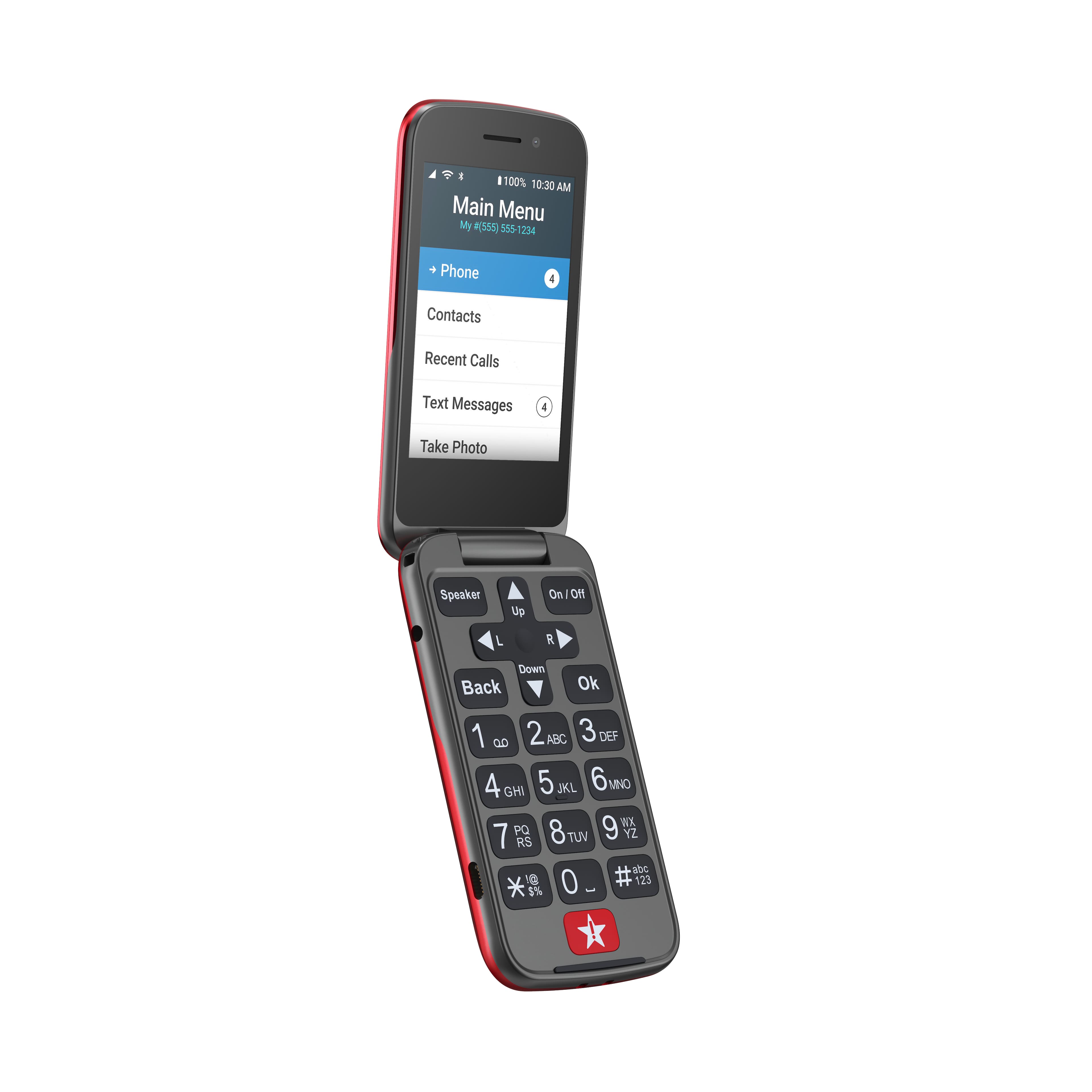
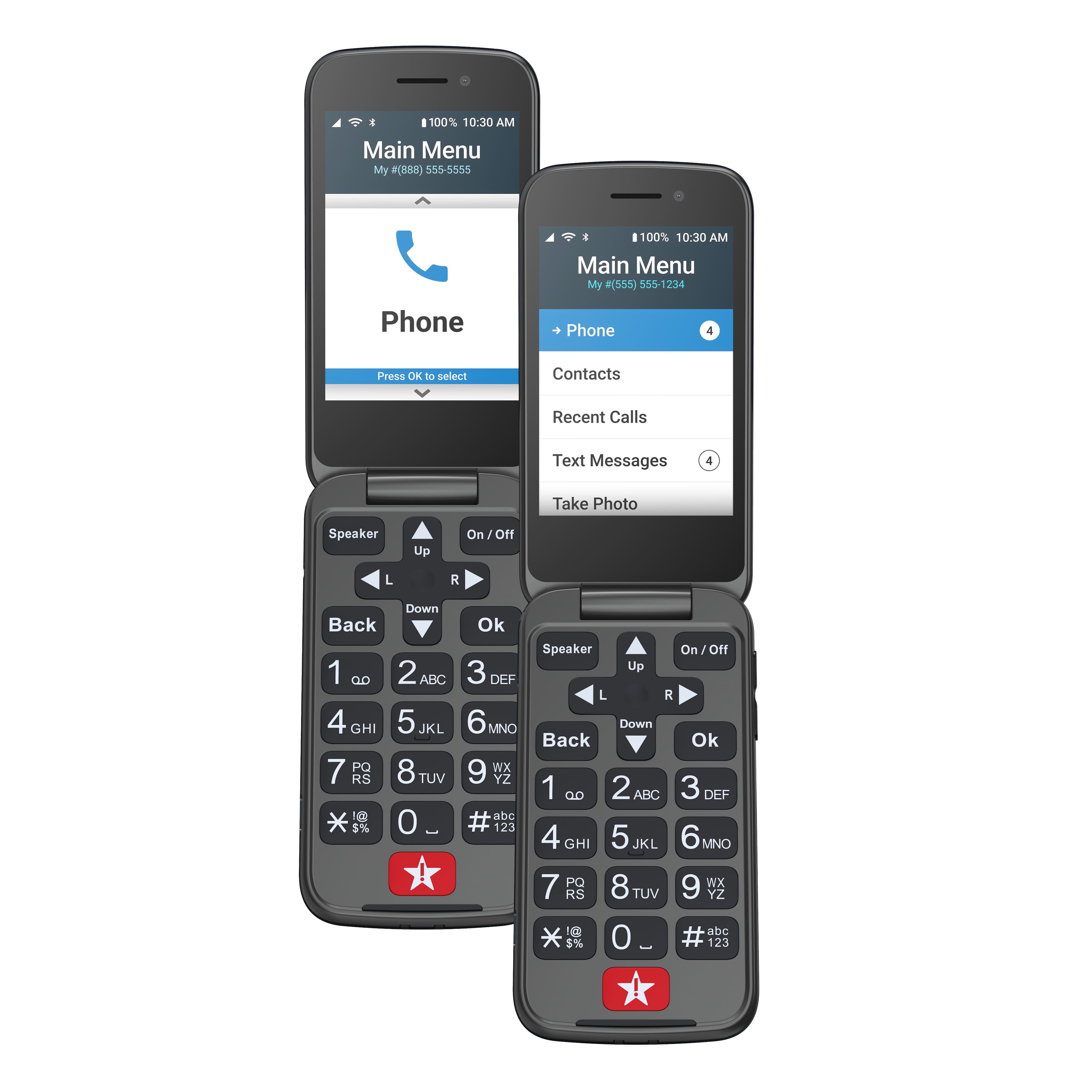
A:AnswerClick on phone at the top of your menu list,click on it,then click on missed ca
lls,and locate your missed call,then click on it,which will bring up the option( dial call),but do not click on dial call,instead,click your back button,you will see,that the missed call has been deleted,and if you had only the one missed call,then your inside screen will say,you have no more missed calls.
A:AnswerHello, great question! The Jitterbug Flip2 phone has two different methods to control the ringtone settings. On the top right side of the phone you are able to control the level of sound using the top button to go higher in volume or the bottom button to lower the sound and set the ringtone to silent, to adjust the volume back to ring mode just raise the volume by pushing the top button on the top right side of your phone. You can also access the main menue>settings>sound>Select preference for ringer volume.
A:AnswerGreat Question! Yes meeting the correct requirements you are able to transfer your number from you current carrier to Lively.com please contact our customer service at 1(800) 733-6632
A:AnswerLively cell phones and smartphones are unlocked per nationwide standards, but we cannot control which carriers choose to accept or activate our phones, nor do we guarantee our phones are compatible with other networks.
A:AnswerHello, great question! Lively phones were specifically designed to work on the Lively network which is powered by the nation’s largest and most reliable wireless network. Your Lively phone will come with a charger and all of the components needed to get started with service. To enjoy exclusive features that are only available on the Lively network, activate with Lively by phone or on the Lively website. Lively has a variety of plans so you can choose the one that works best for you.
A:AnswerHello, we apologize for your recent experience. For prompt assistance, please contact our friendly Customer Service team for additional support.