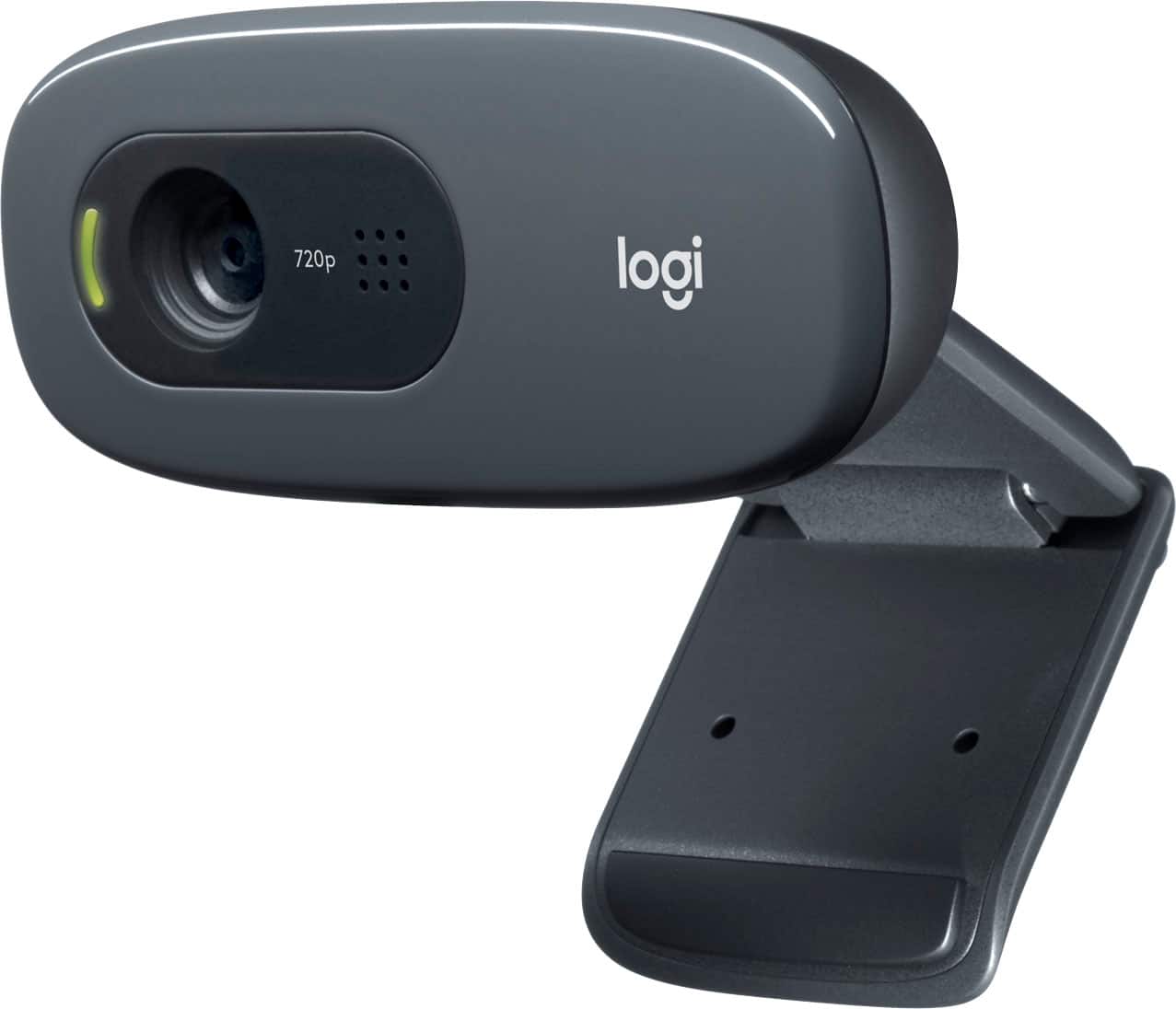
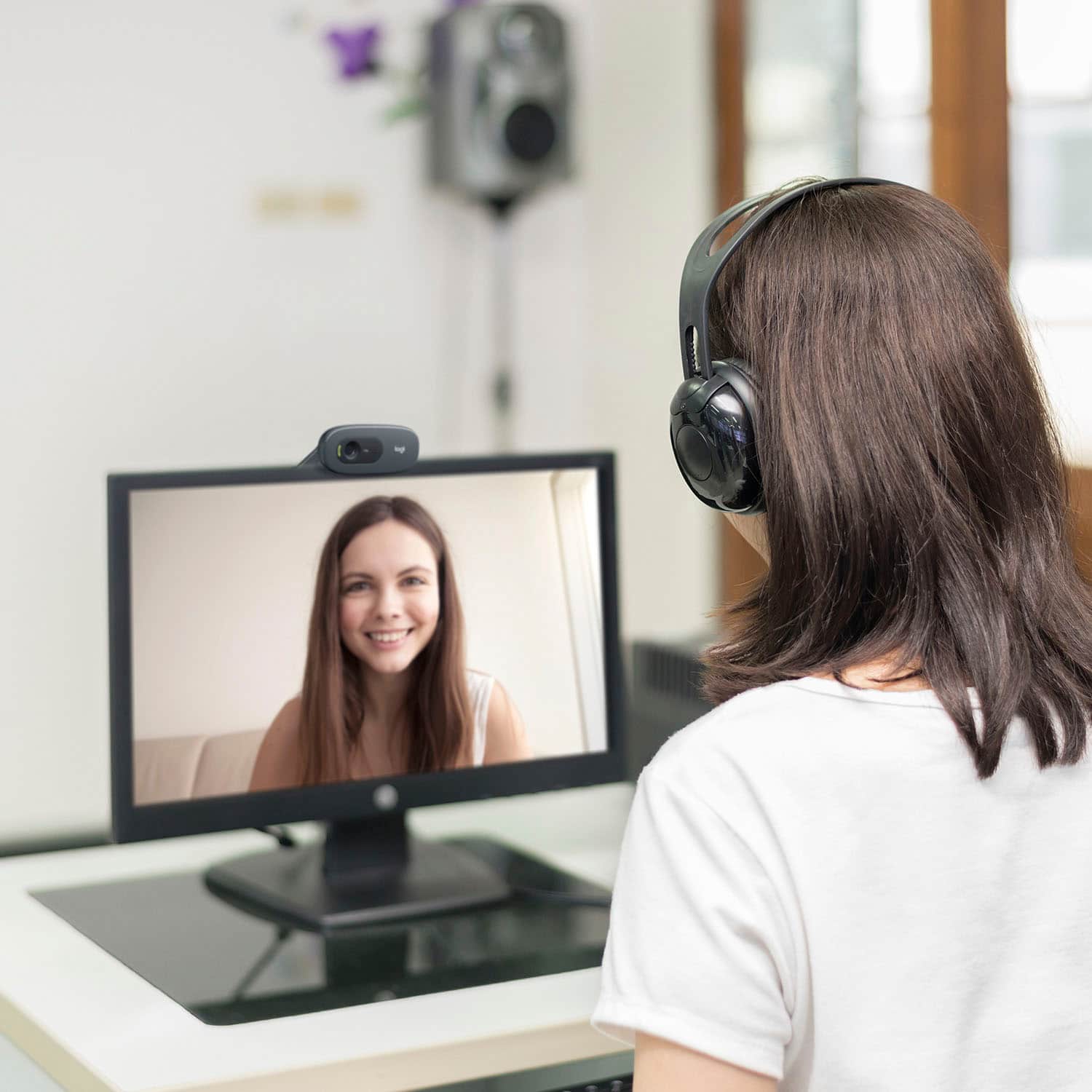
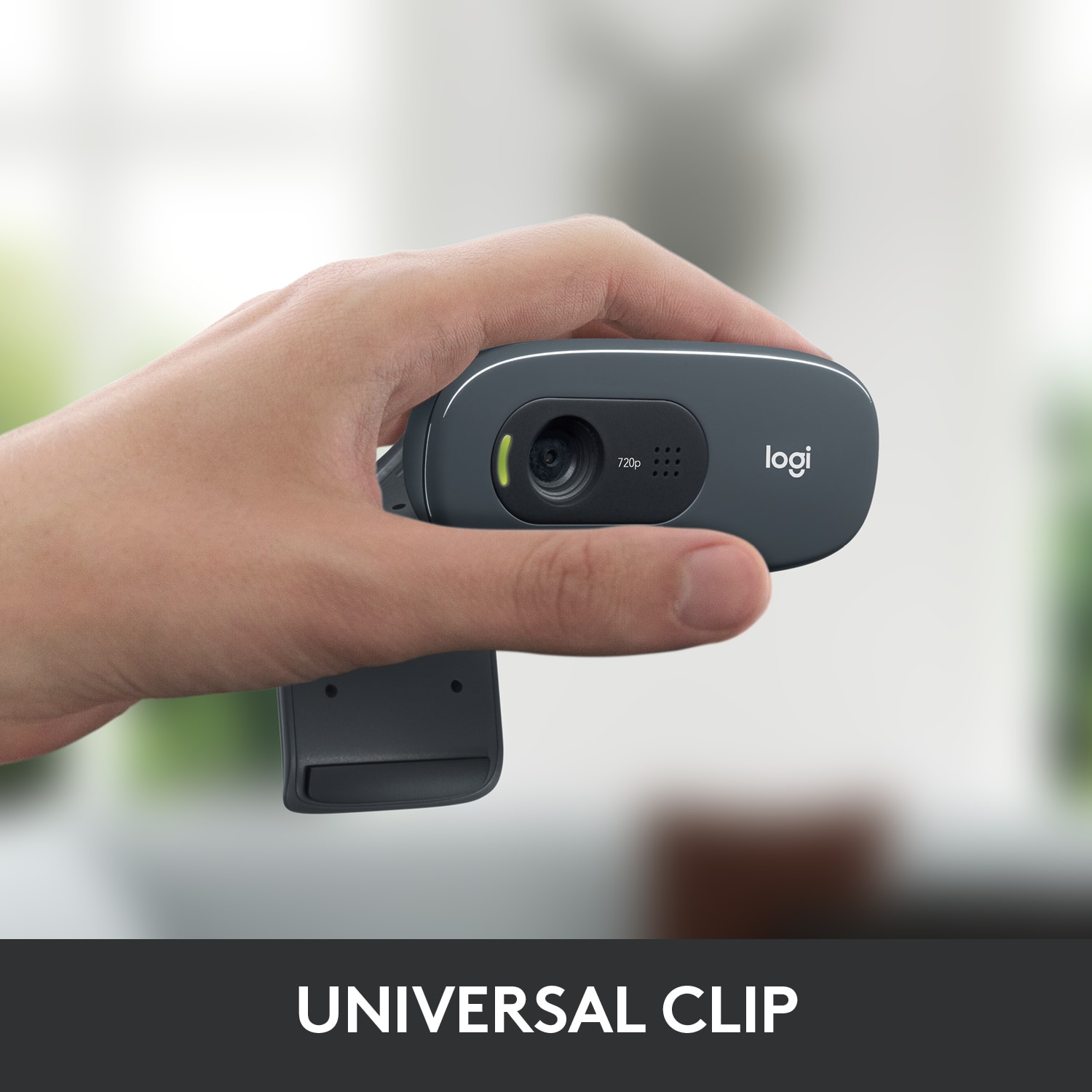
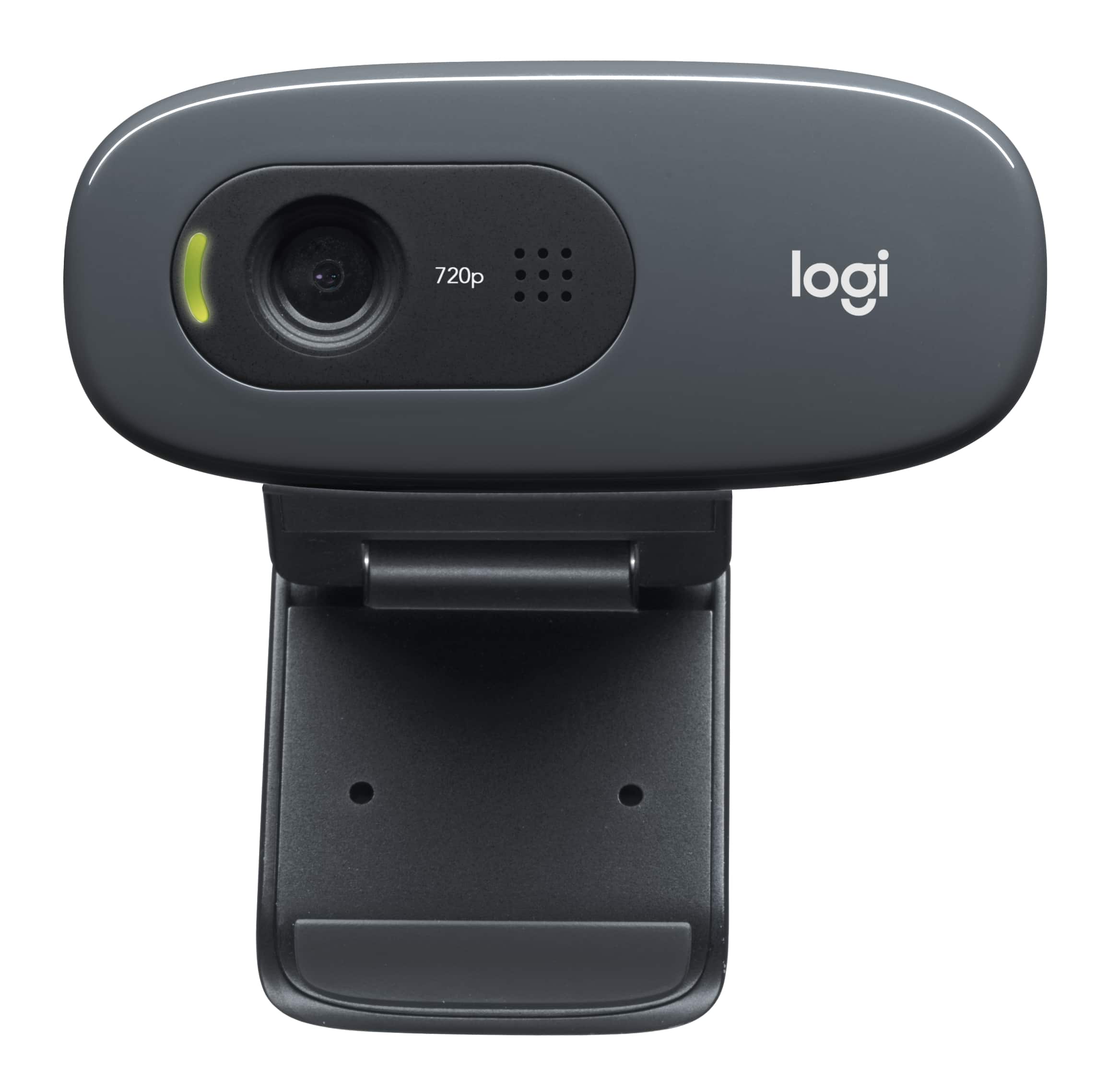
A:AnswerAttach the webcam to your computer monitor and plug it in, with its wired USB connection and you are good to go. Please refer to your store, for their in-stock availability.
A:AnswerHello, Lynn.
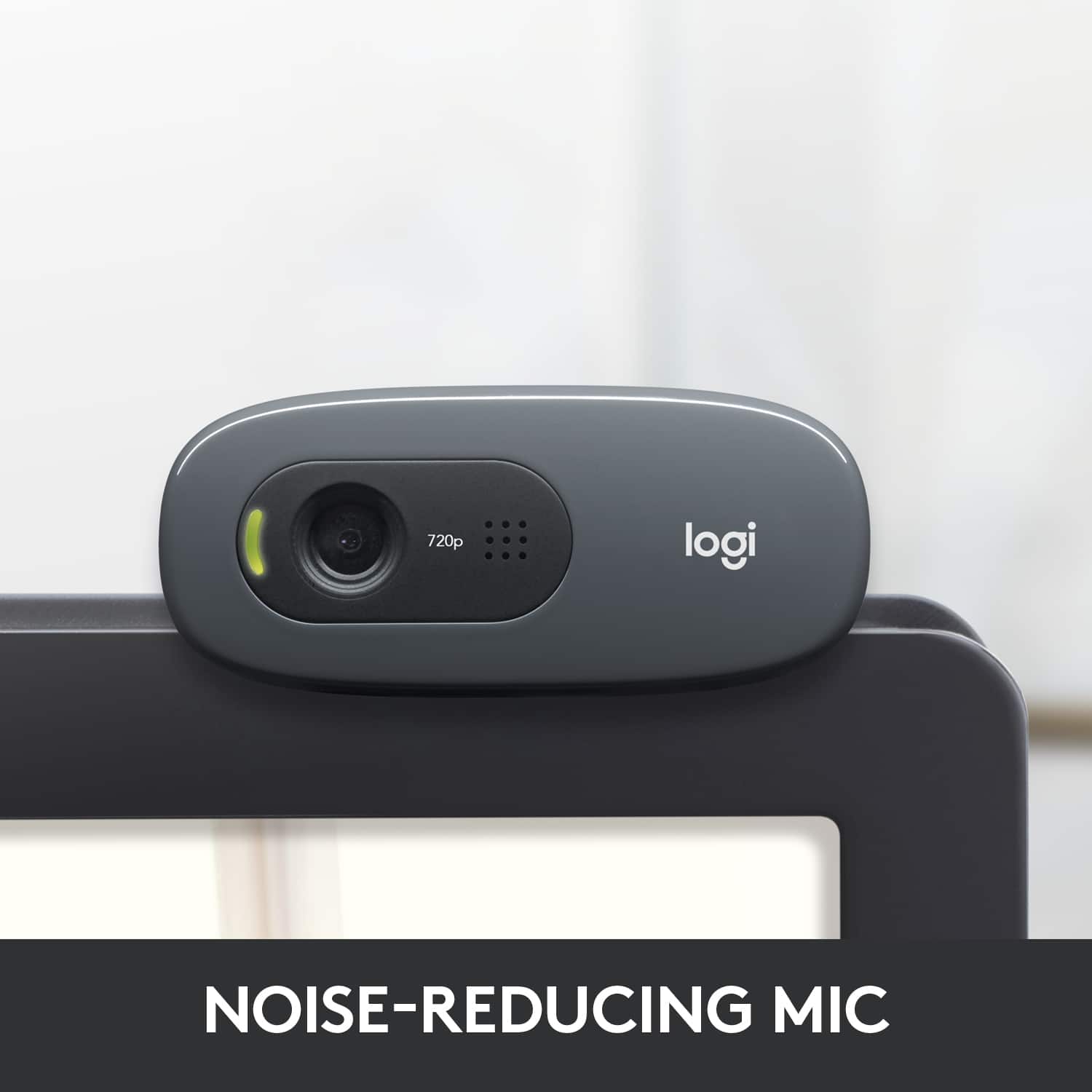
The Logitech C270 webcam offers 720p/30fps video, and a built in noise reduction mic. Sound does not come out of the webcam. Some monitors have built in speakers, so that could be possible with what you currently have. If you are having trouble with getting sound from your current PC, check the sound settings on your computer and WebEx settings.
Thank you for choosing Logitech, enjoy your webcam.
-Best regards, John
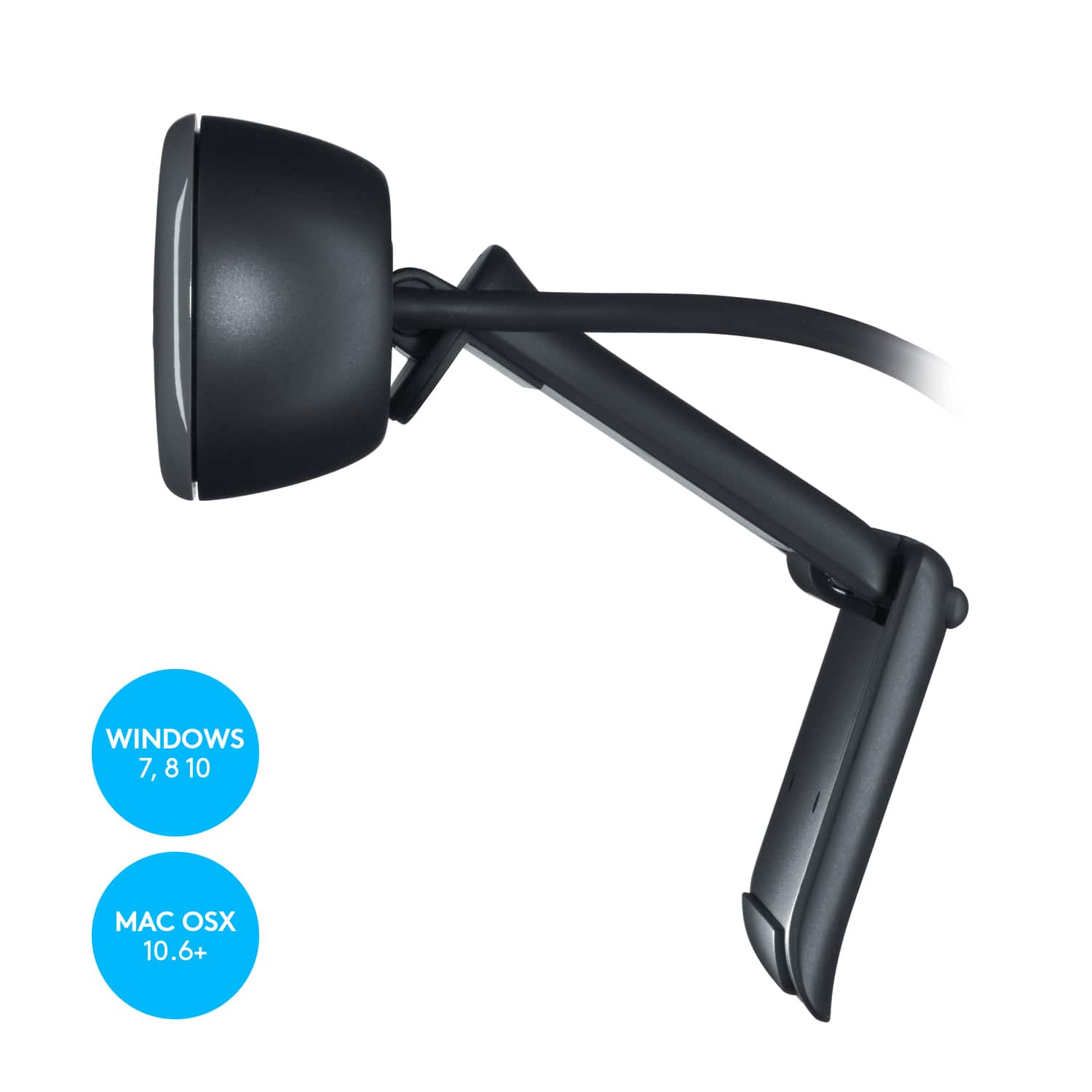
A:AnswerHello, the c270 webcam can be stood up on the stand that is connected and placed on the table. Logitech does not offer any accessories for alternative mounting for this model.
A:AnswerHello, double check to see what your system preferences are. Make sure that for the Audio input, you have the C270 webcam selected. That should sort out the microphone issue you are having.
A:AnswerThe built-in noise-reducing mic makes sure your voice comes across clearly, even if you’re in busy surroundings. If you are referring to distance, It is designed for closer use.
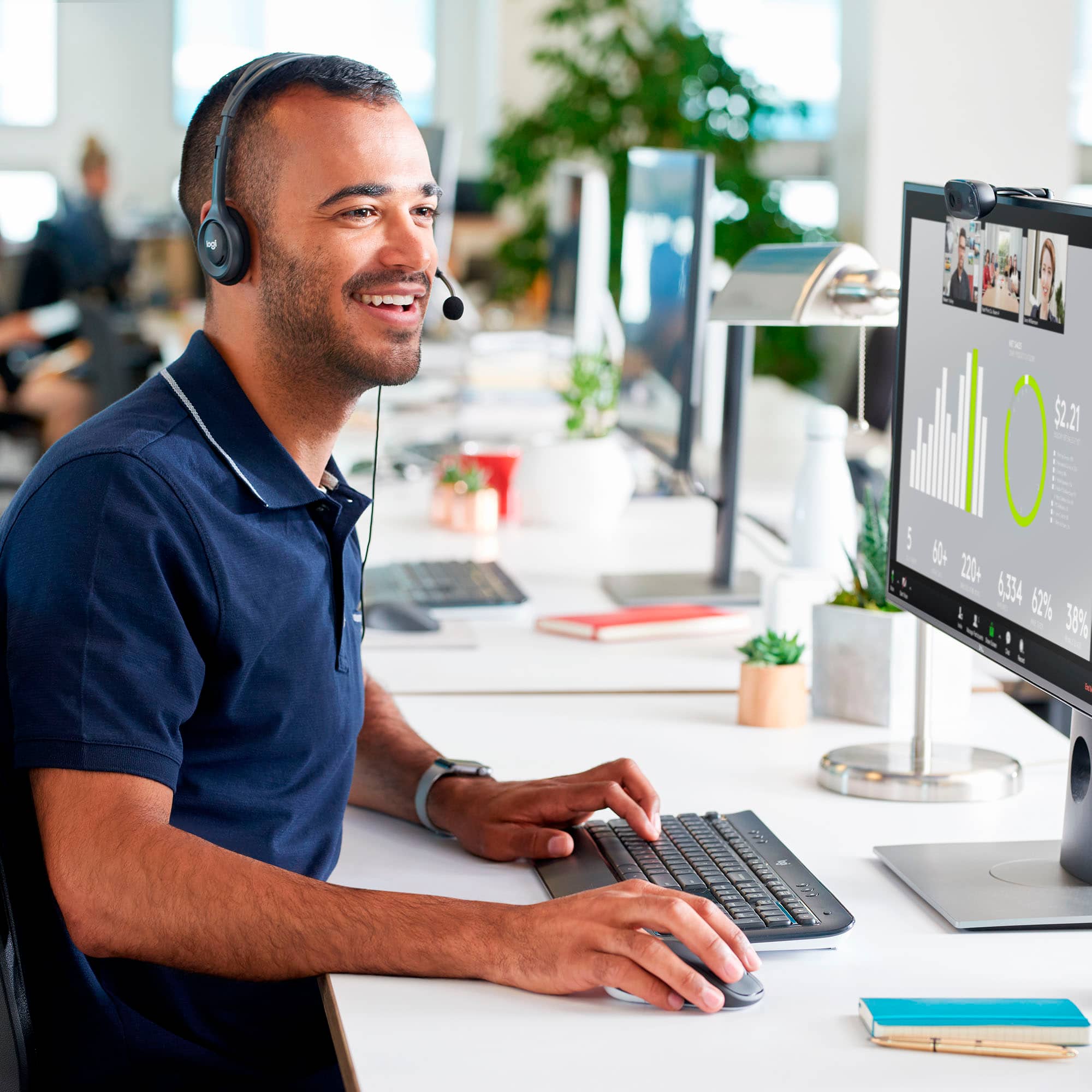
A:AnswerThe C270 will not show up under the device manager, but that doesn't mean it won't work with your Dell laptop (It does show up in "Sound, video and game controllers"). I highly recommend using the Logitech Capture software because it will really enhance the camera and keep it up to date. The camera should continue working when you plug in a microphone headset. Check the input and output settings for the platform you're using---i.e. Zoom, Microsoft Teams, Facebook---and you should be able to set up what device you want to use for each.
A:AnswerThe enclosed instructions show how to do so, but if that is too hard to understand, here's a link illustrating how to do so. https://www.youtube.com/watch?v=VLt_HC2vH88