A:AnswerSet up an account with Best Buy. One of the features of having an actual account is that you can request notification when the product is next available.
A:AnswerHello bpac, yes, this camera will work with Chromebooks and various video conferencing platforms. In the video conferencing program, make sure to adjust your settings to have the C920S webcam selected as your source for video.
A:AnswerYes, try using Logitech's G HUB software, or Logitech Capture to configure the auto-focus setting
https://www.logitechg.com/en-roeu/innovation/g-hub.html
https://www.logitech.com/en-ca/product/capture
A:AnswerYou will have to check with the TV manufacturer. A Webcam may need a very specific driver and SmartTVs provide very little options in adding peripherals. So, unless it is already supported by the TV, it may be very hard to connect it. Of course, the TV must also have built-in Apps to do something with the camera, say, use it it in a video conference. So, always check with the TV's user manual (or with the manufacturer's Web site) to see what is supported.
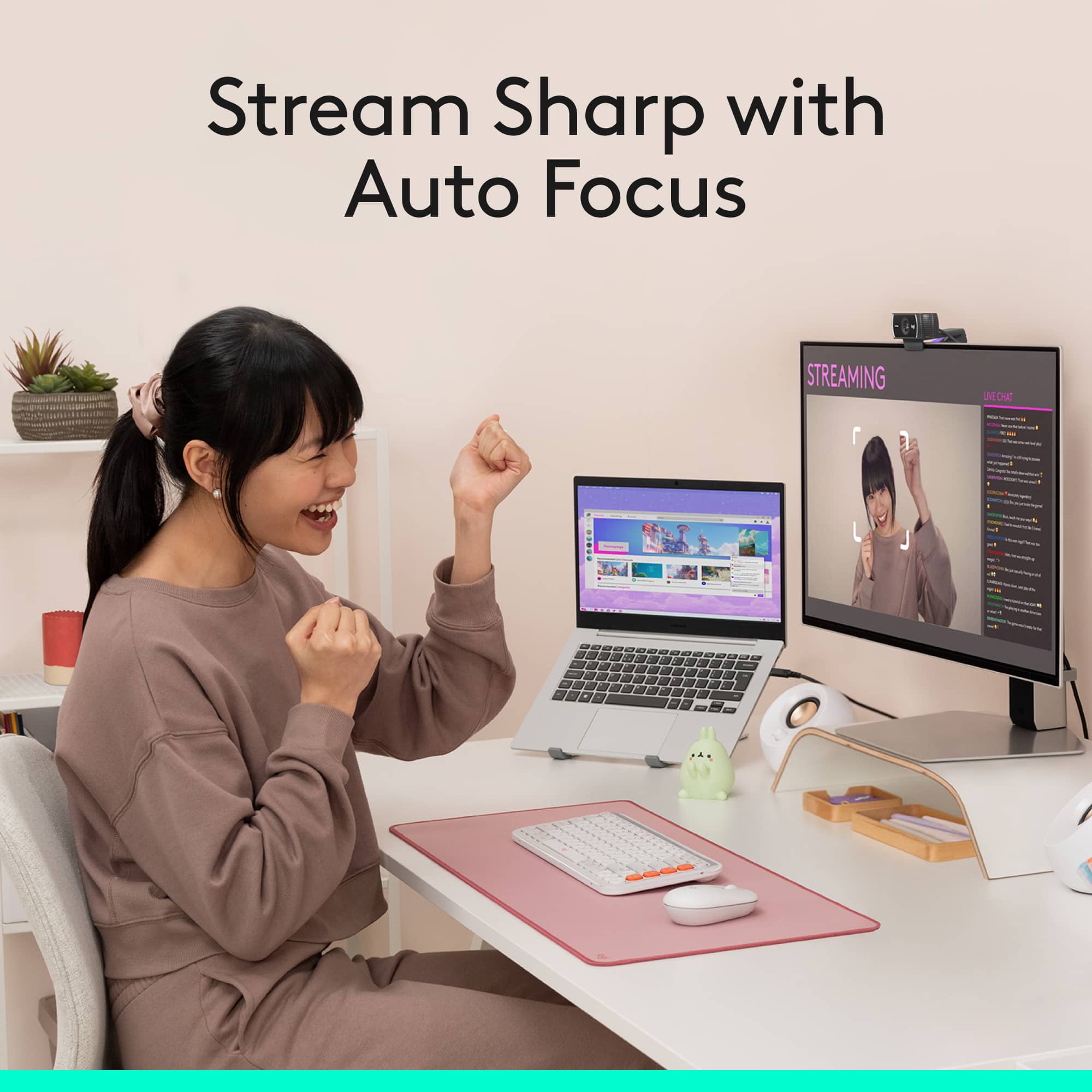
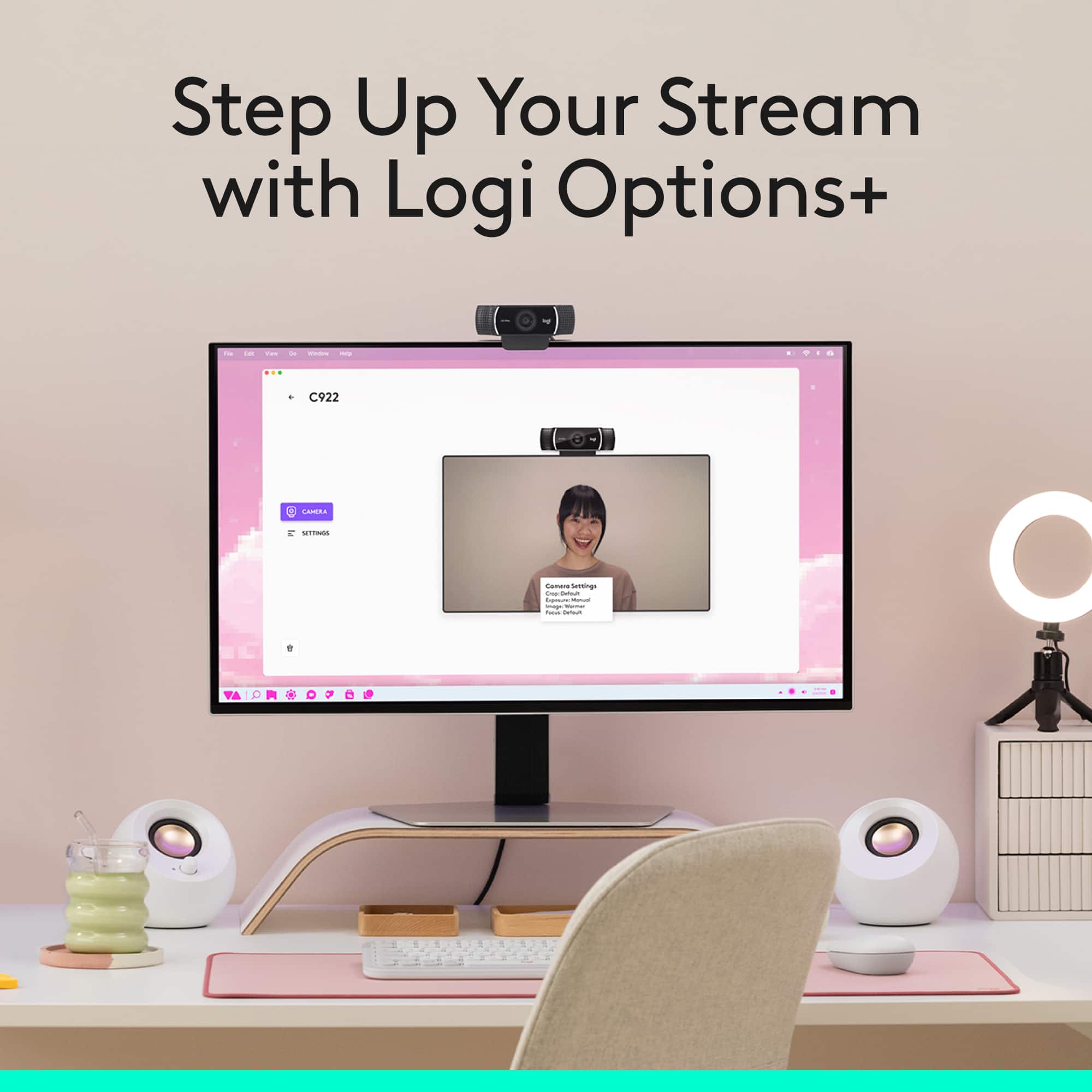
A:AnswerThe camera should Auto-focus by default but in case it doesn't, if you download the free Logi Capture software onto your computer, that will give you additional options for your webcam.
A:AnswerYes, it does. You should also download the Logitech Capture software. You can start recording high-quality video content the second you plug in your new webcam. It will enable you to customize recordings, adjust your camera settings, and even create vertical video all with one intuitive interface.
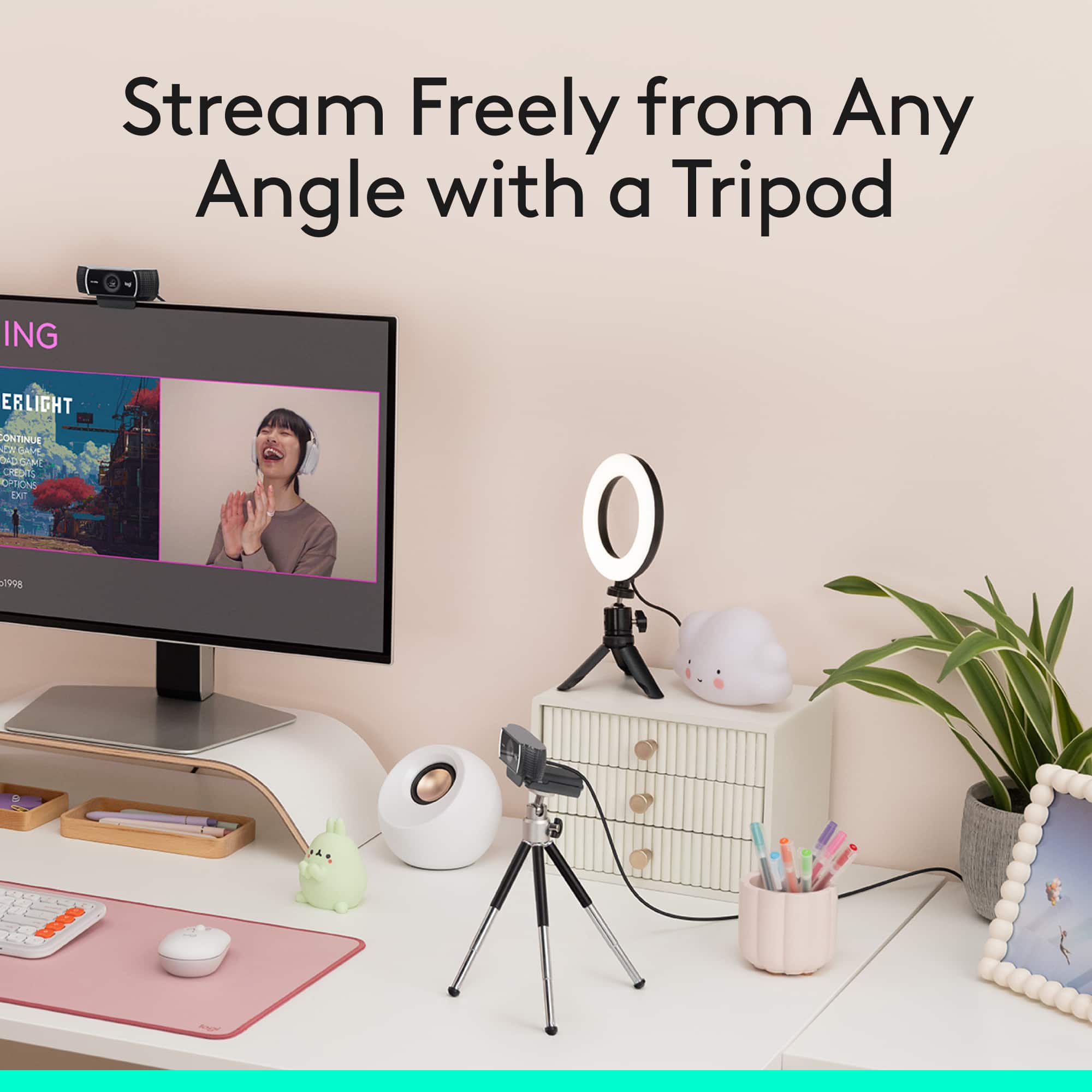
A:AnswerThe maximum height of the tripod---fully extended---is just over 7" and the minimum is about 4.5". The thread is standard 1/4" thread and should work with your Bower.