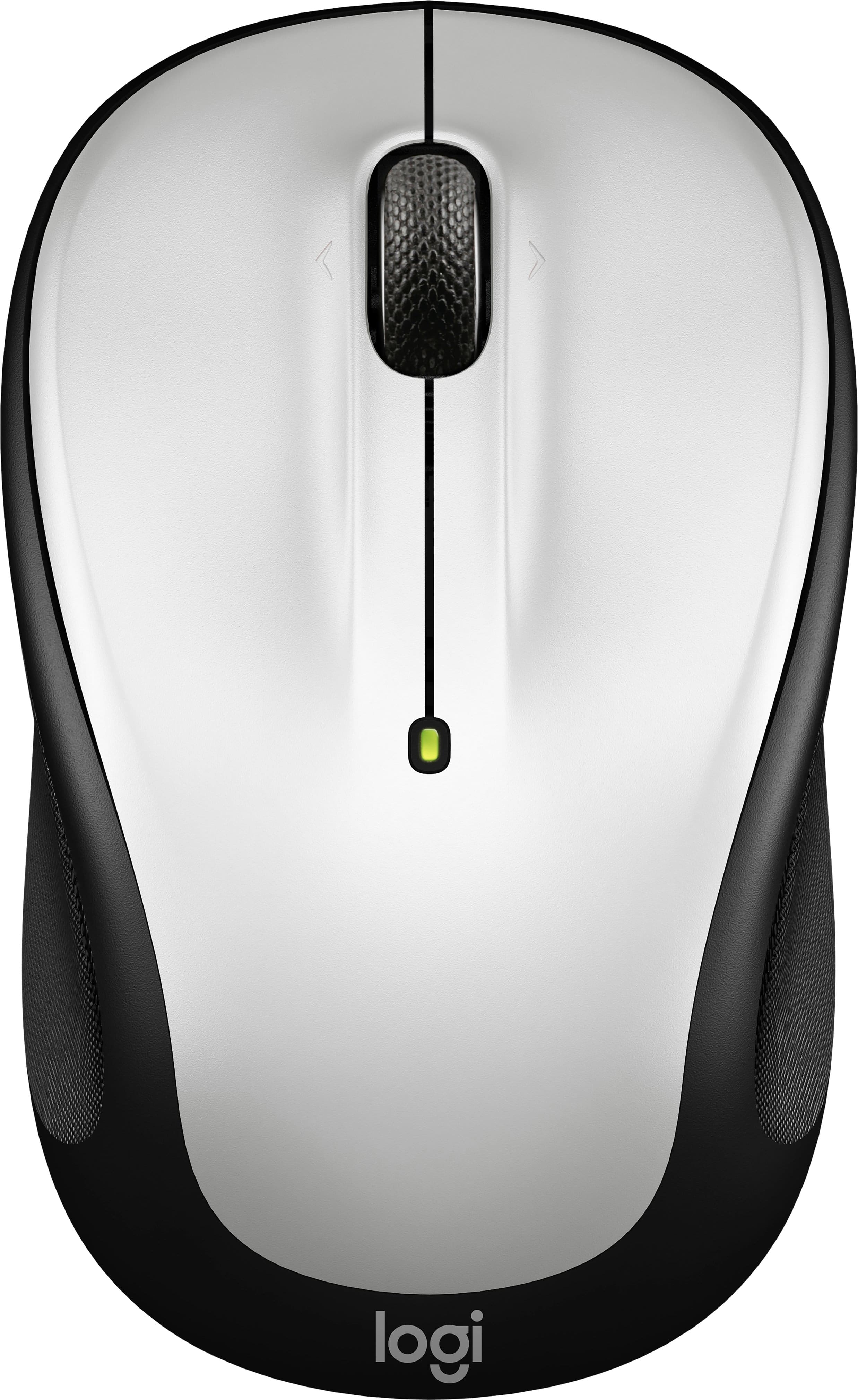
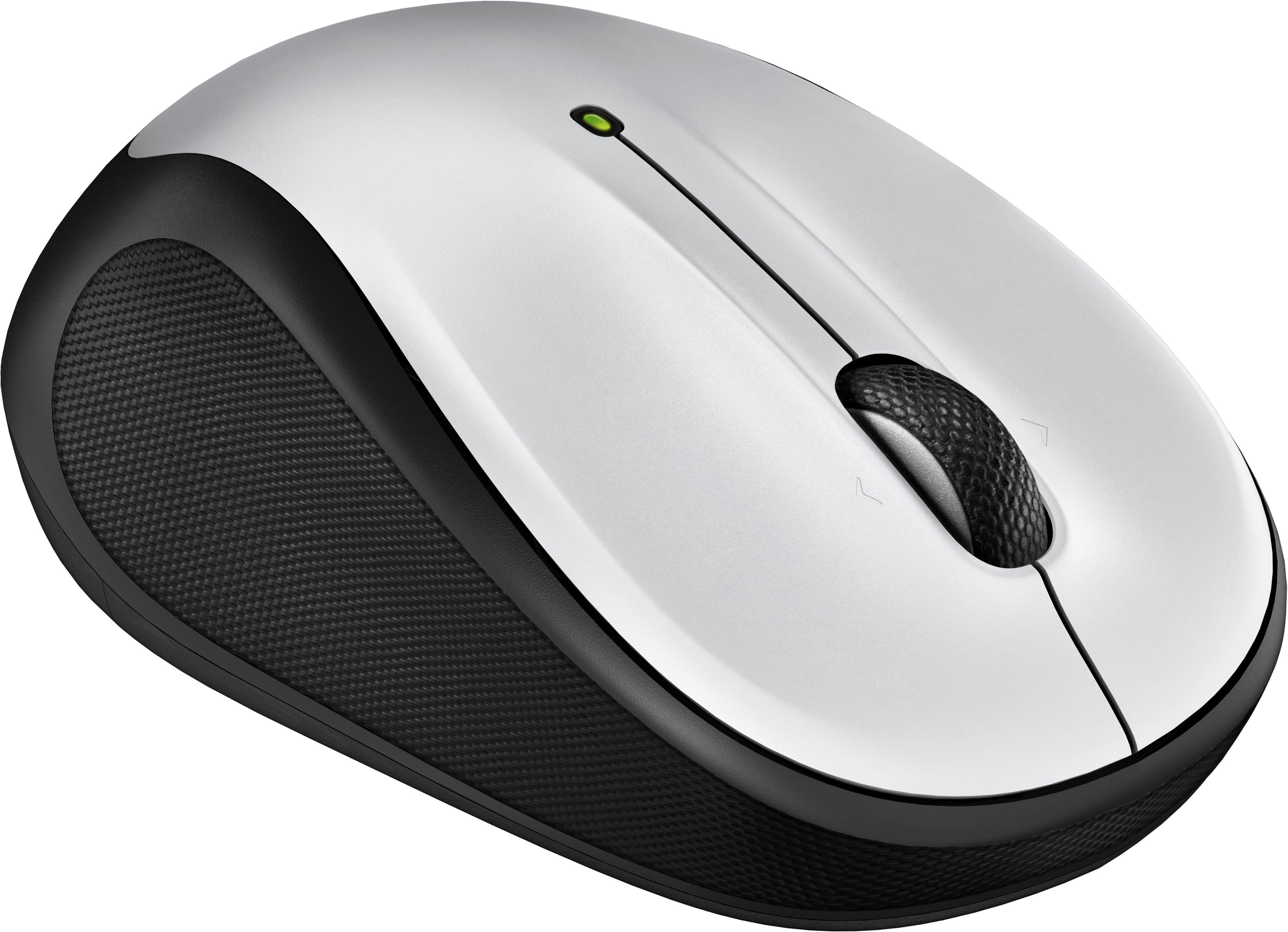
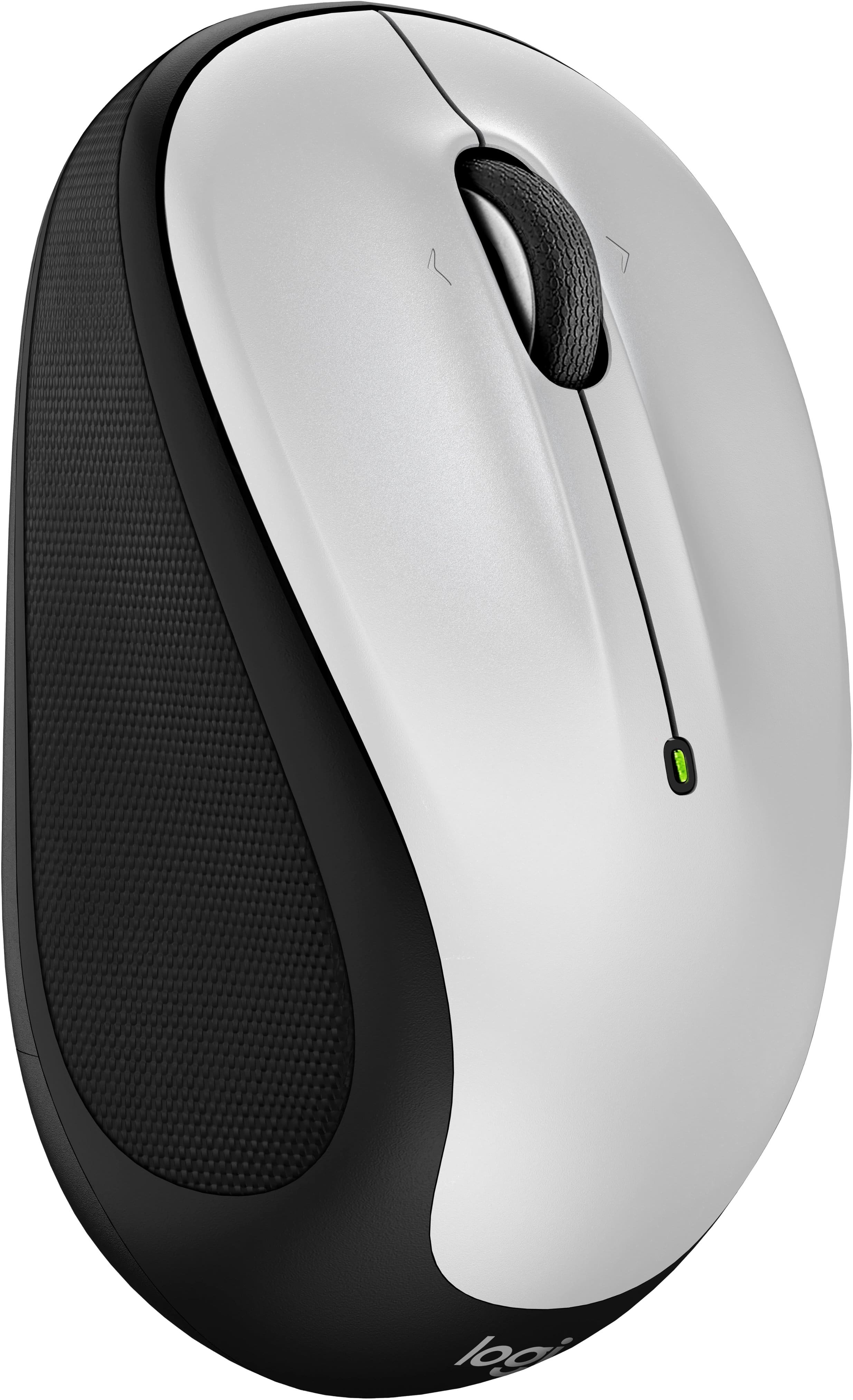
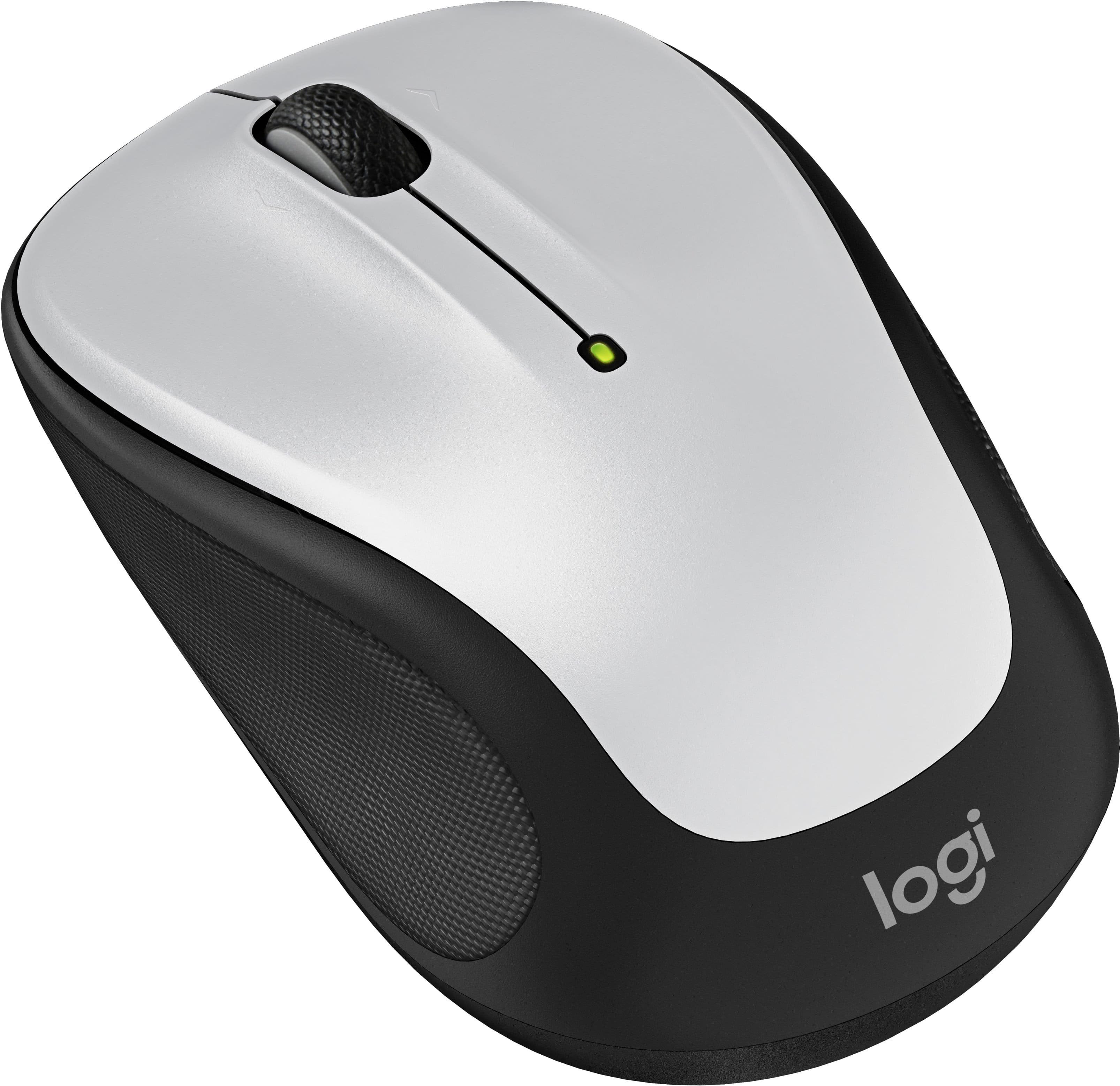
A:AnswerThe M325s does work with a Logitech unifying receiver. I used the unifying software from Logitech to pair it. However, the mouse does not come with a unifying receiver. It comes with a Logi receiver, which only works with the M325s mouse.
A:AnswerUnfortunately, no - this Logitech M325s doesn't have silent clicks. It sounds like you don't want silent clicking anyway? This model is not the silent click model.
I own this exact mouse, in this same color, and I can confirm it does not have silent clicking. I do have the Logitech mouse M220 in Rose Pink which is a silent click mouse.
Hope that helps!
A:AnswerYou open up the battery compartment and take out the USB plugin held inside. Take that small pulgin and plug it in to on of your computers USB ports. Make sure your mouse has a battery in it and switch the mouse to on. It should automatically connect to your computer.
A:AnswerI am not sure if this is a question, but I will try to help you so you have the correct answer. I personally own this same mouse in many colors.
You asked >>I'd leave a review but can't figure out how and I'm not spending my life looking.<<
All you need to do is go to your "Purchases", click on your purchases and next to the item ordered it says "Write a Review"
All wireless mice come with the dongle in the battery compartment. This is how the mouse communicates with the computer. By the manufacturer placing the dongle in this area in the packaging, it also shows you that you can store the dongle in this compartment if you use a laptop and have to travel with the laptop. It mentions this on the back of the box and in the pamphlet.
All you need to do is open the compartment, pull out the dongle and plug it into your computer's USB port. It is plug and play with no software install needed.
Hope that helps.
A:AnswerI have this Logitech M325s mouse in many colors, including Graphite like yours. The receiver for this mouse is a USB-A. You can buy a converter dongle if you need a USB-C.
A:AnswerYes, I own this exact Logitech M325s mouse in Lilac and I can confirm that this mouse can be used with either button as the main button. I have done this change myself.
To do this for any mouse - go to your Start button on your computer type in "Control Panel" - then click "Mouse" - in these settings on your computer you can setup your mouse very easily to be left click or right click and you can change it back and forth as often as you like. Your computer will remember these settings each time you reboot. You only need to do it once no matter how many different mice you use.
A:AnswerI have this Logitech M325s mouse in many colors, including Darker Red like shown.
I can confirm that this mouse will absolutely work with your Lenovo Yoga Laptop since your laptop has a USB-A port. The mouse is plug and play. You plug in the USB-A dongle and you are all ready to go. No need to install any software.
I have a 15 year old Gateway computer that runs Windows 7 and two brand new HP laptops that run Windows 11 and this mouse works on all 3 computers with no issues. It also works on my Apple computer (Mac book). This mouse is compatible with both Windows and Mac operating systems.
A:AnswerI have this Logitech M325s mouse in many colors, including Light Silver like shown.
I can confirm that this mouse will absolutely with both Windows or Apple Operating systems. I have used mine on both with no issues.
All you need is a USB-A port. You plug in the USB-A dongle and you are all ready to go. No need to install any software. The mouse is plug and play.
A:AnswerYes, this Logitech M325s comes with a manufacturer's warranty. The warranty period is calculated from your original date of purchase. To know about the warranty period, please check with the below link
https://www.logitech.com/products/mice/m325s-wireless-mouse
A:AnswerI have this Logitech M325s mouse in many colors, including Darker Black like shown.
I can confirm that this mouse will absolutely work with your Panasonic cf-53 tough book laptop since your laptop has a USB-A port. The mouse is plug and play. You plug in the USB-A dongle and you are all ready to go. No need to install any software.
I have a 15 year old Gateway computer that runs Windows 7 and two brand new HP laptops that run Windows 11 and this mouse works on all 3 computers with no issues.