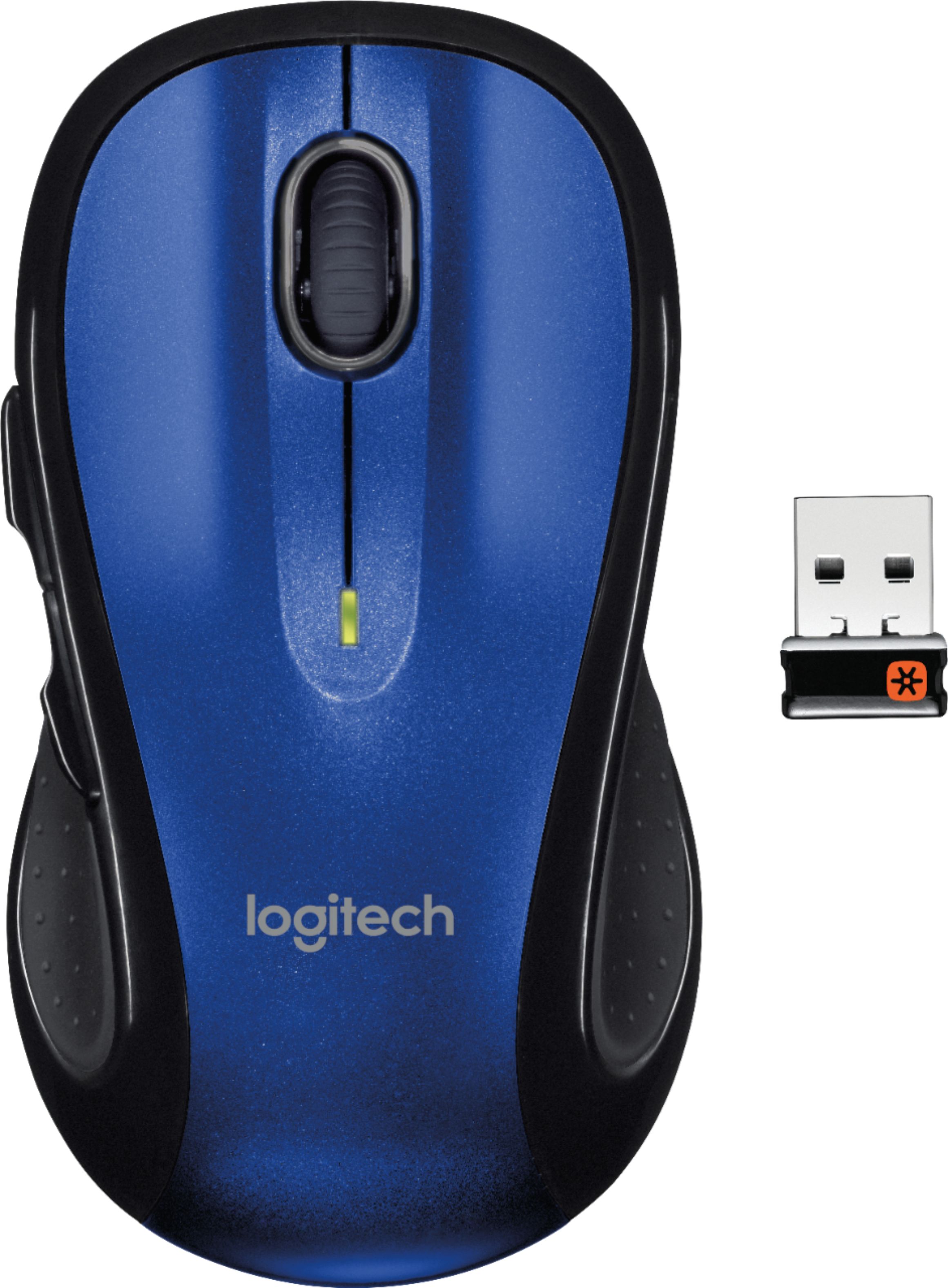
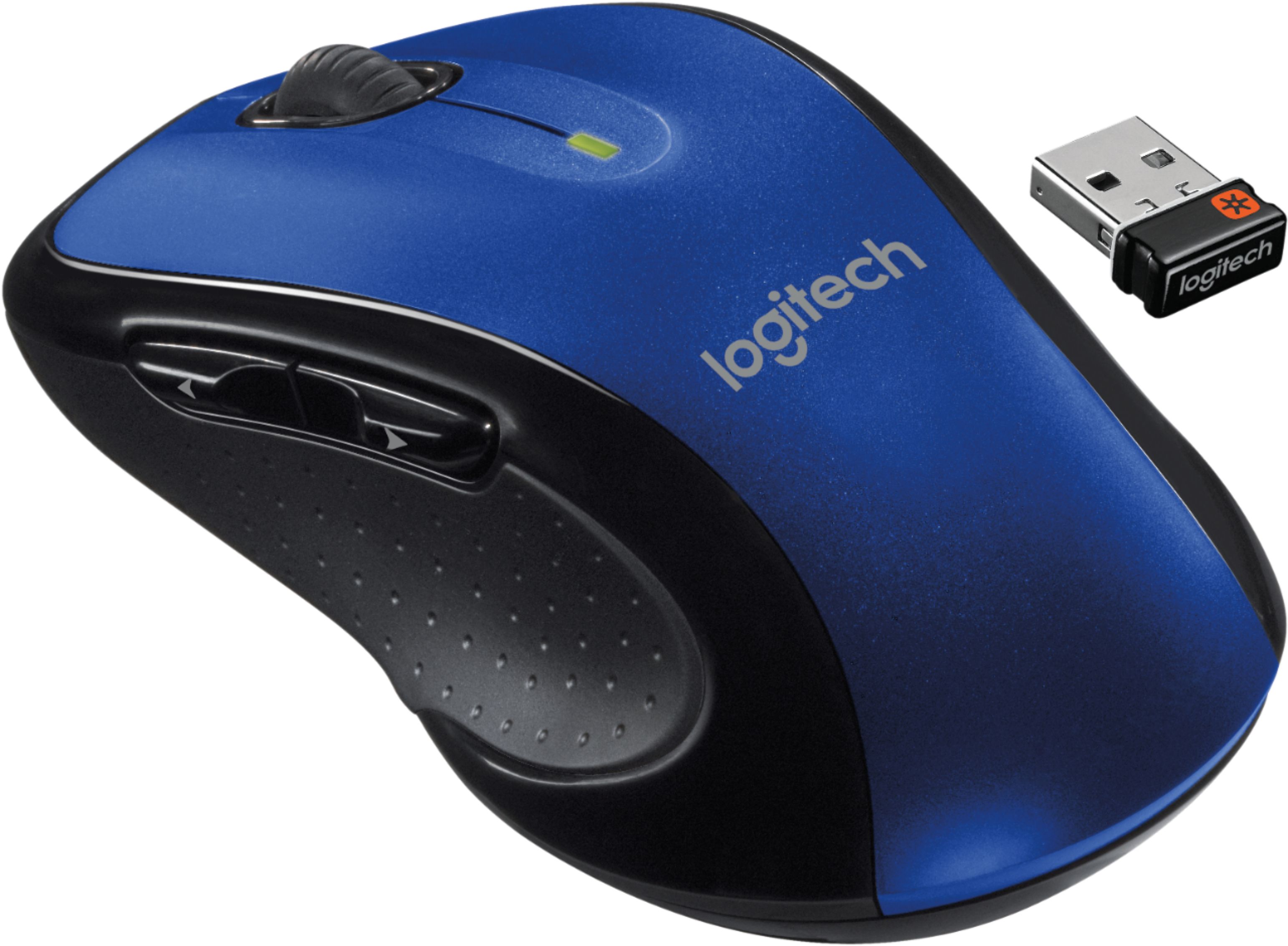
A:AnswerIt’s very easy. Open up the bottom of the mouse and remove tiny key (plug) inside. Plug it into a USB port on your laptop or computer. Turn the on/off switch to on (on the bottom of the mouse) and it’s ready to go!
A:AnswerTo answer your second question. All mice use a an electric light to track surfaces, but standard mice use an LED for it, while laser mice use an actual laser for it. Laser is generally more accurate and usable on more surfaces.
The M510 "appears" to come in both varieties. I have two of them and one clearly has a laser module and is marked as such. However, a different M510 that I have is NOT marked as having laser capability and has a different style lens assembly.
More confusing, the package for the second one says that it has "laser grade" capability, not that it is actually a laser mouse.
A:AnswerTry downloading the Logitech Unifying Software. It's easy to follow the directions. Bring up the Unifying software, turn the mouse off and on, and that should do it.
A:AnswerProbably . Each one comes with it's own USB receiver and each has a separate frequency. I don't know how many frequencies are used for all their mice; but if you did have an interference problem I'll bet Logitech (or the seller) would exchange it for another that would work (wining the warranty period of coursa).
A:AnswerI wouldn't know if they have hose in the Whitehall locations i purchased mine at Best Buy along with the laptop and printer. Grate deal at least 10 feet of range which is as big as my home office, and works with my lap on fabric (leg with Slacks or Weatherproof poly fabric
A:AnswerYou can with the scroll wheel between the Left and Right buttons, however, you may need to make a selection on a webpage or program for it to work, e.g. within the google chrome browser you have to hold down the CTRL key and on google maps you need to click on the map and then you can scroll in/ out using the scroll wheel.