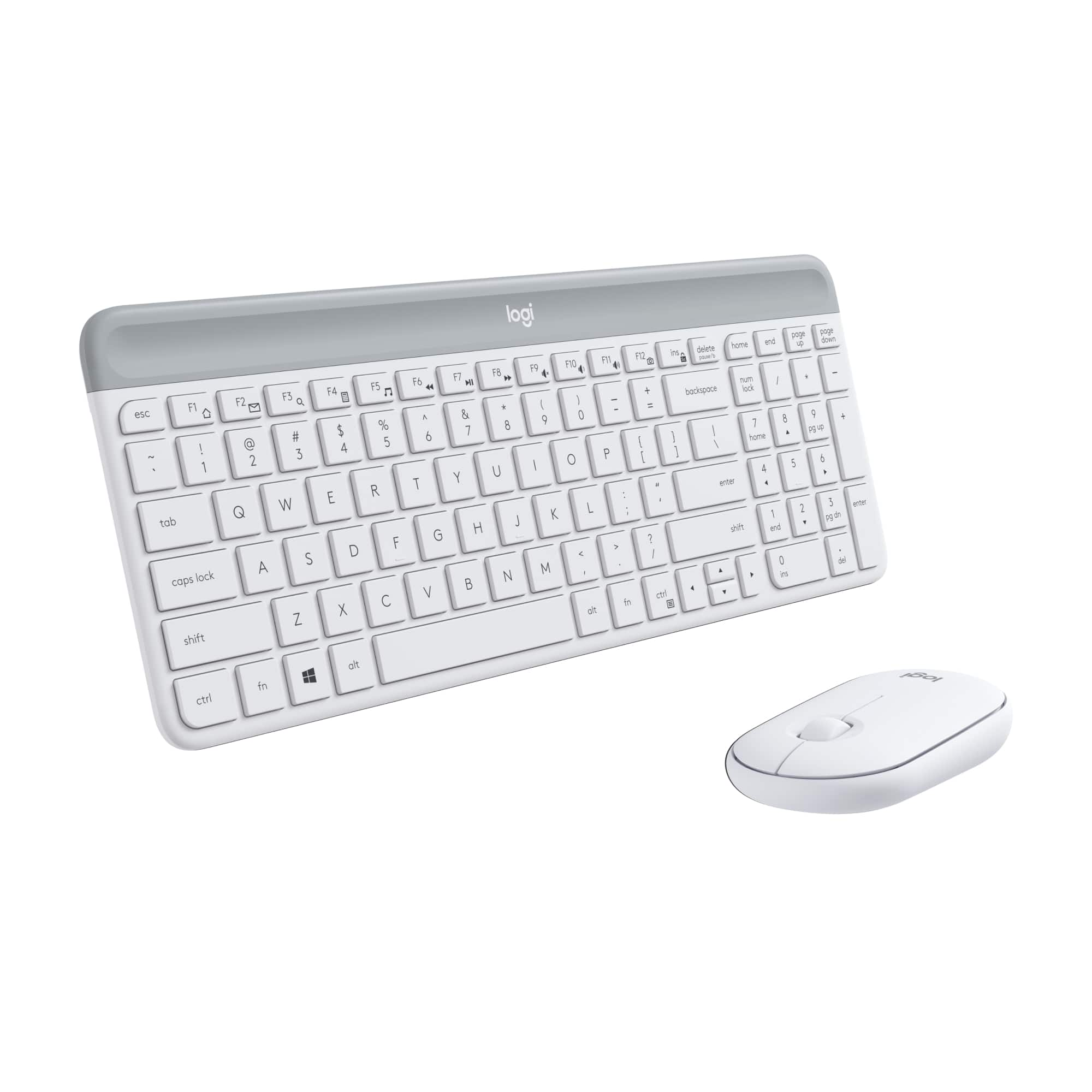
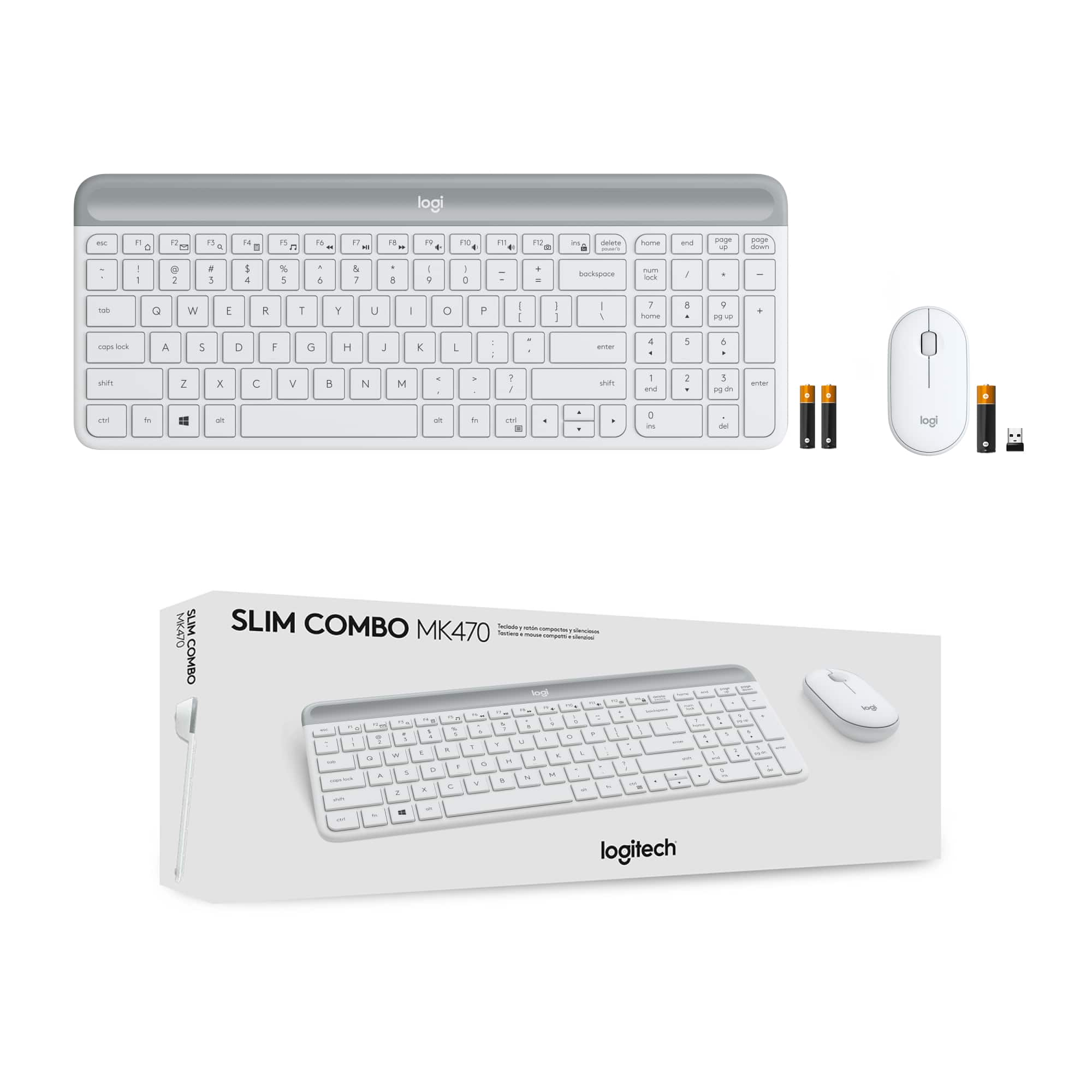
A:AnswerThe Logitech MK470 uses a specific type of USB receiver called a "Nano receiver" that is paired to the keyboard and mouse at the factory. To check what best can be done, we recommend reaching out to our social care team via email at socialcare@logitech.com with your
- Name:
- Email Address:
- Country:
- Product Name:
- Brief description of issue:
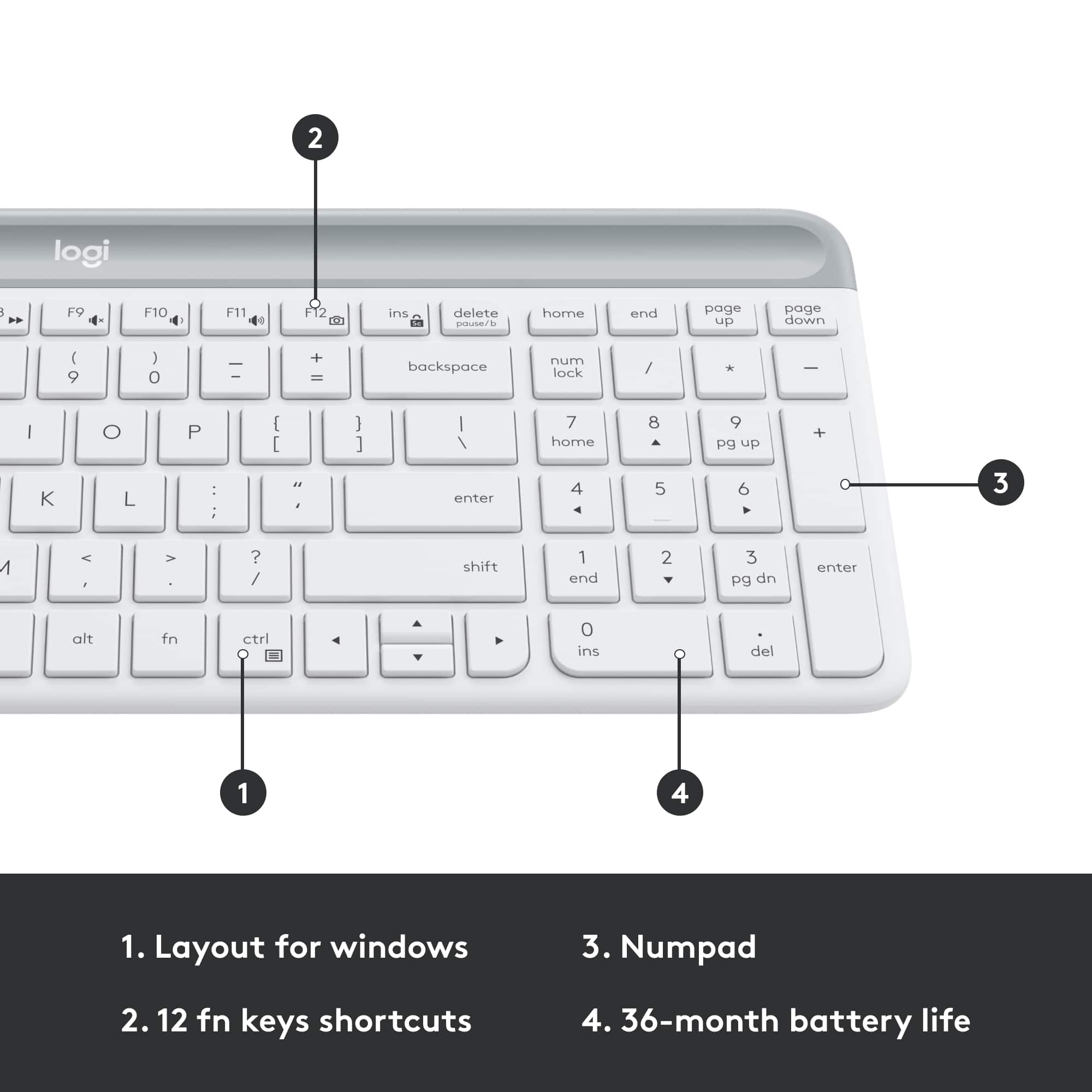
A:AnswerThank you for your interest in the Logitech MK470. While it's a great slim and stylish keyboard, it's primarily designed for compatibility with Windows 7, 8, 10 or later, ChromeOS, and Surface devices. It's not officially supported for macOS or other Apple products.
A:AnswerWhile the Logitech MK470 doesn't have dedicated DPI buttons for on-the-fly adjustments, you can effectively adjust the pointer speed, which achieves a similar result.
A:AnswerThat's unexpected! In order to help you effectively, please provide your information to our support team via email at socialcare@logitech.com with your
- Name:
- Email Address:
- Country:
- Product Name:
- Brief description of issue:
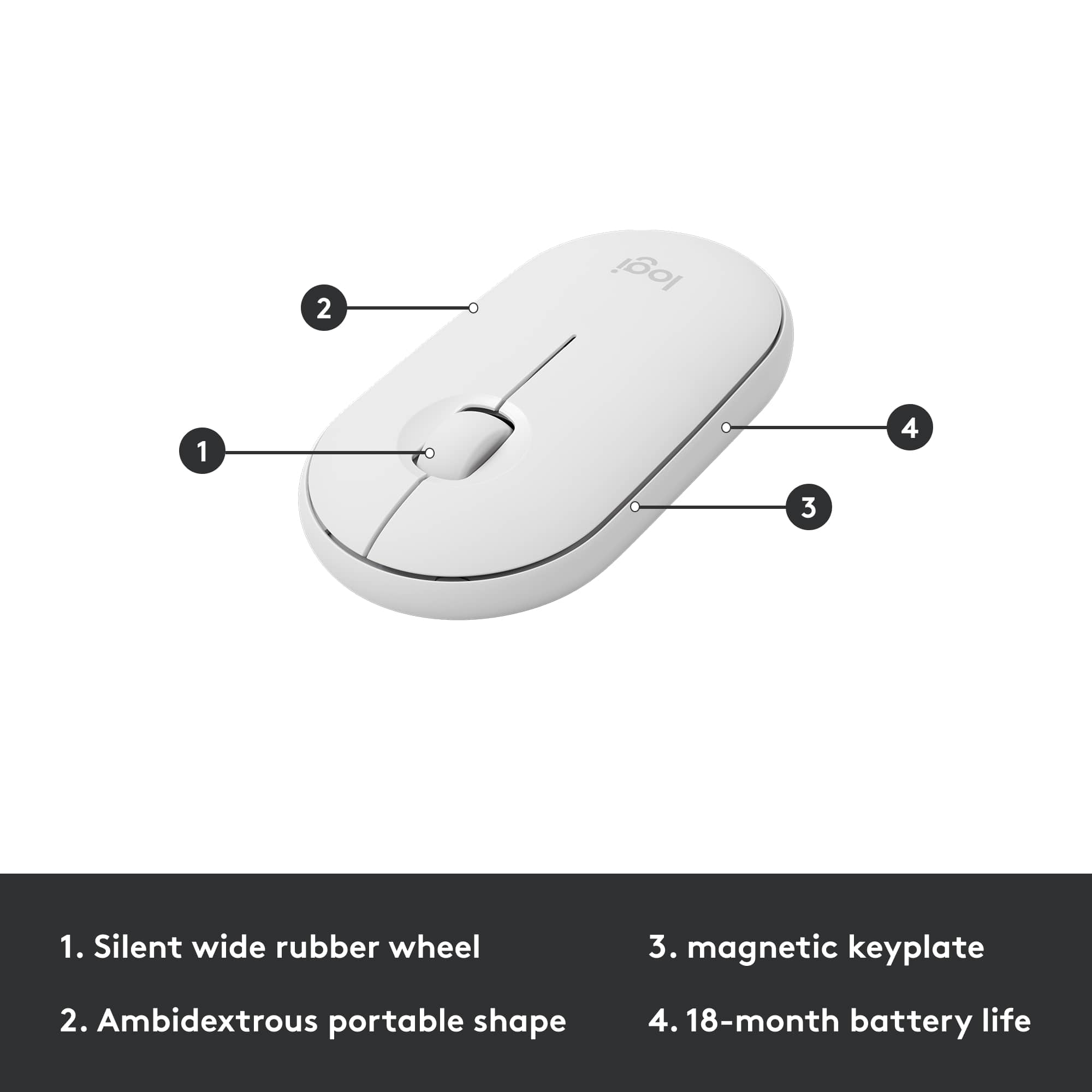
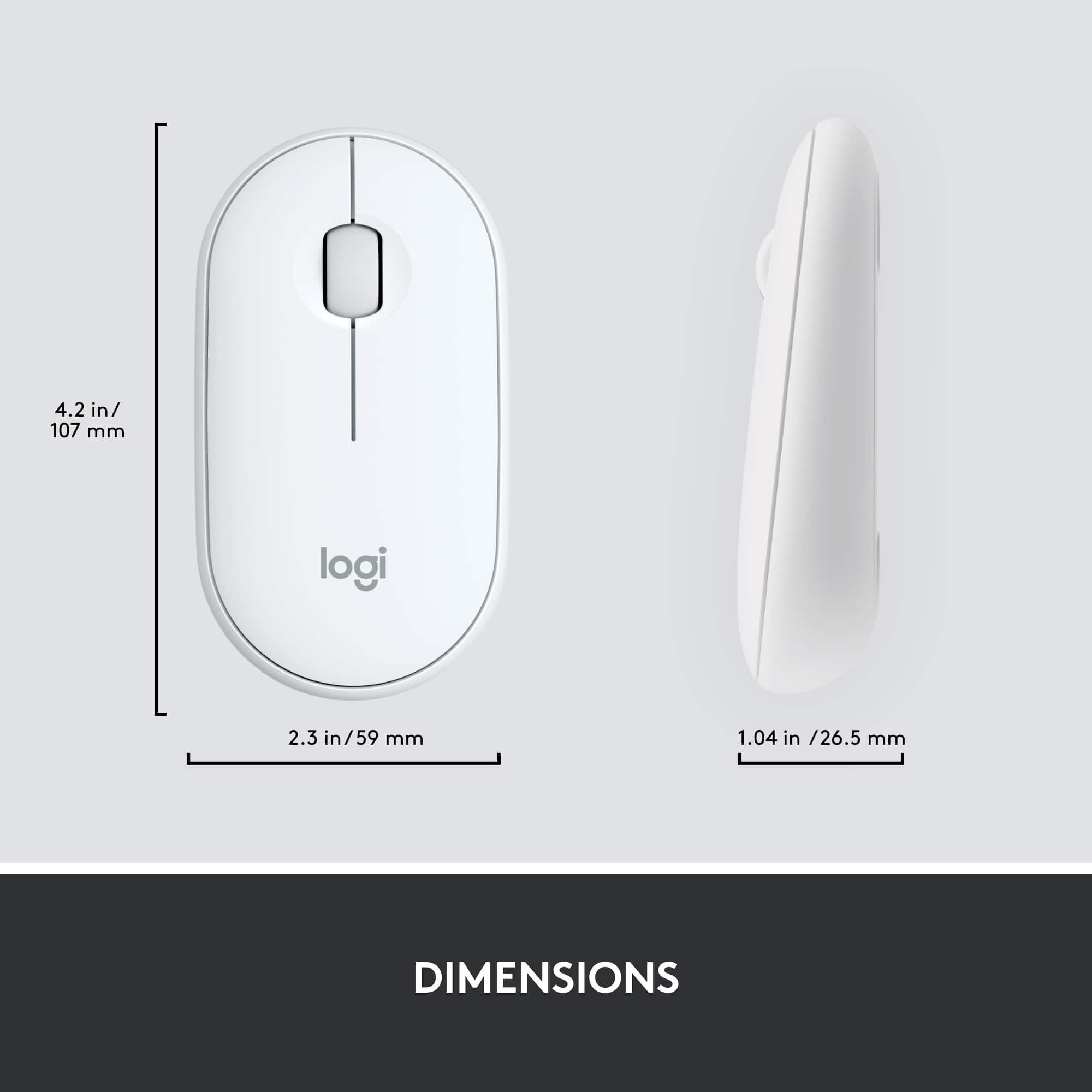
A:AnswerNo, you can pair a different mouse if you would like. You need to make sure though that you have the extra space for the little piece that comes with the mouse.
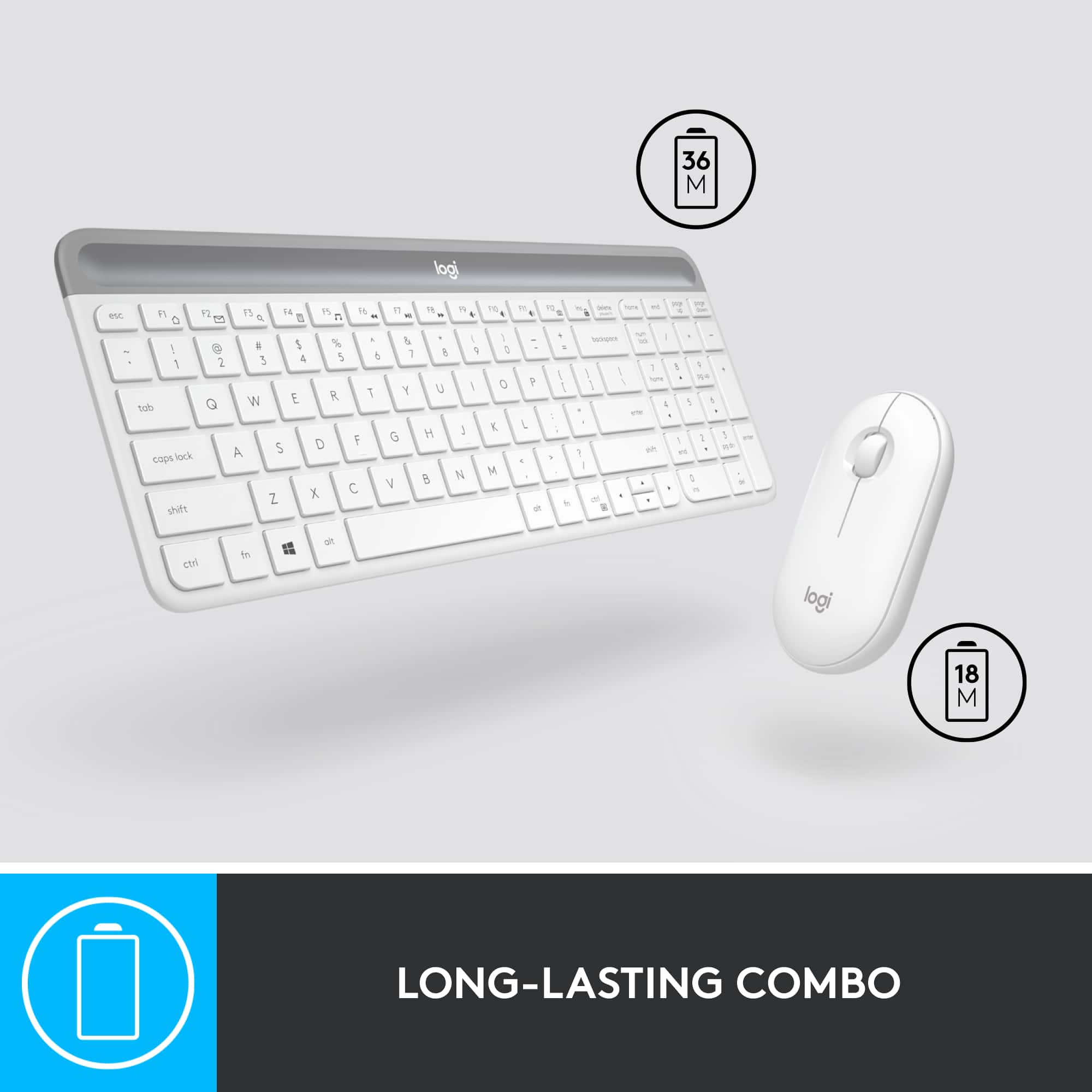
A:AnswerBest you can do is remove the batteries for travel. There isn't an off switch, as you know. I would even bet frequent battery removal and replacement will lead to the flimsy cover to break sooner than it should. Best of luck, I just ordered a better set.
A:AnswerBe sure the dongle is fully installed and the batteries in the keyboard are connected properly. (My came with a battery protector strip to keep the batteries from discharging). I needed an adapter (female USB to USB C) to use with my Macbook Pro, but have had no problem with it identifying the keyboard.
A:AnswerHello there! For the keyboard, make sure you have enabled number lock key, If pressing the key once doesn’t enable NumLock, press and hold the key for five seconds. and have the keyboard in mac layout (Hold down key combination FN+O for 3 seconds). For the mouse, you can make the necessary changes to inverse the scrolling direction in the mac general settings.