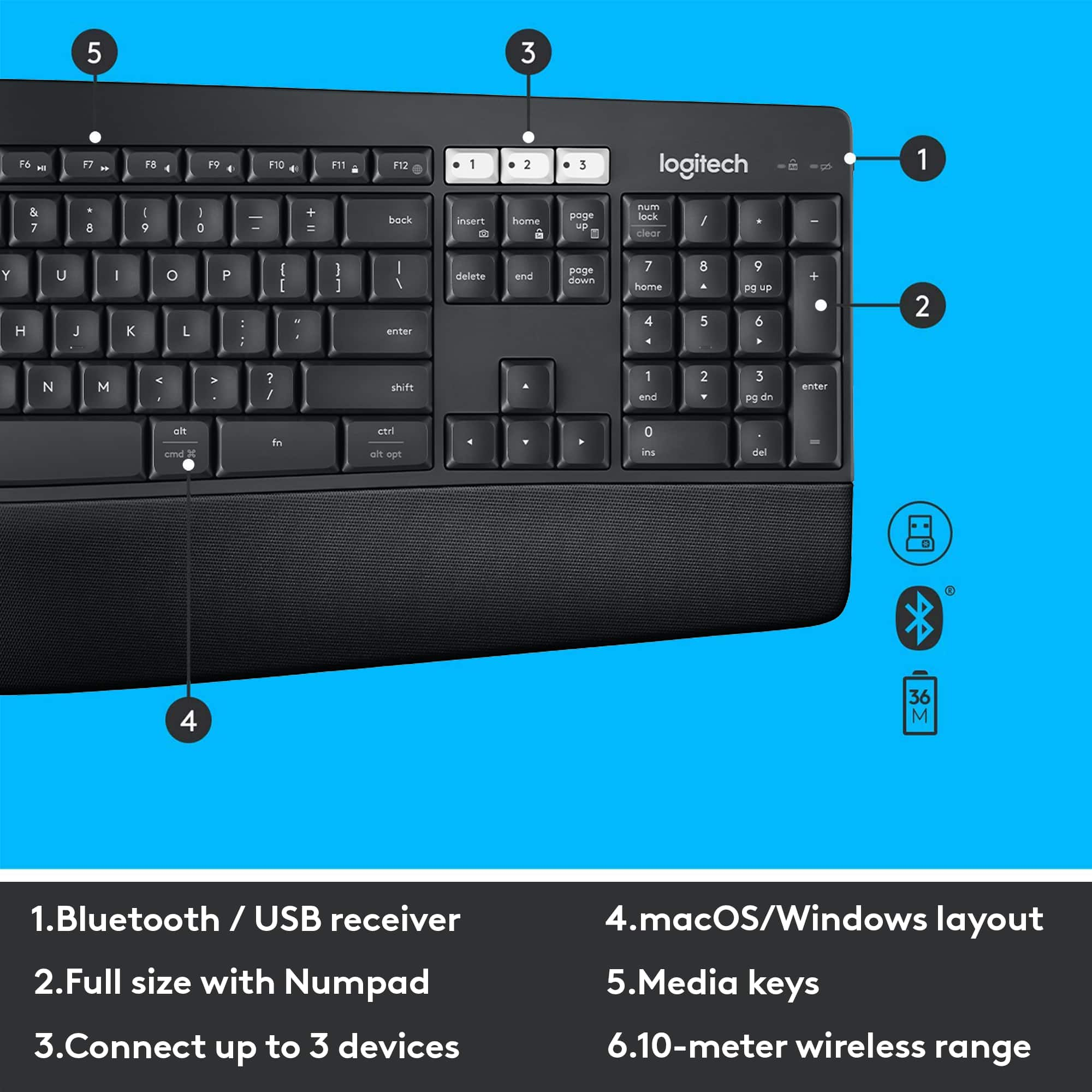
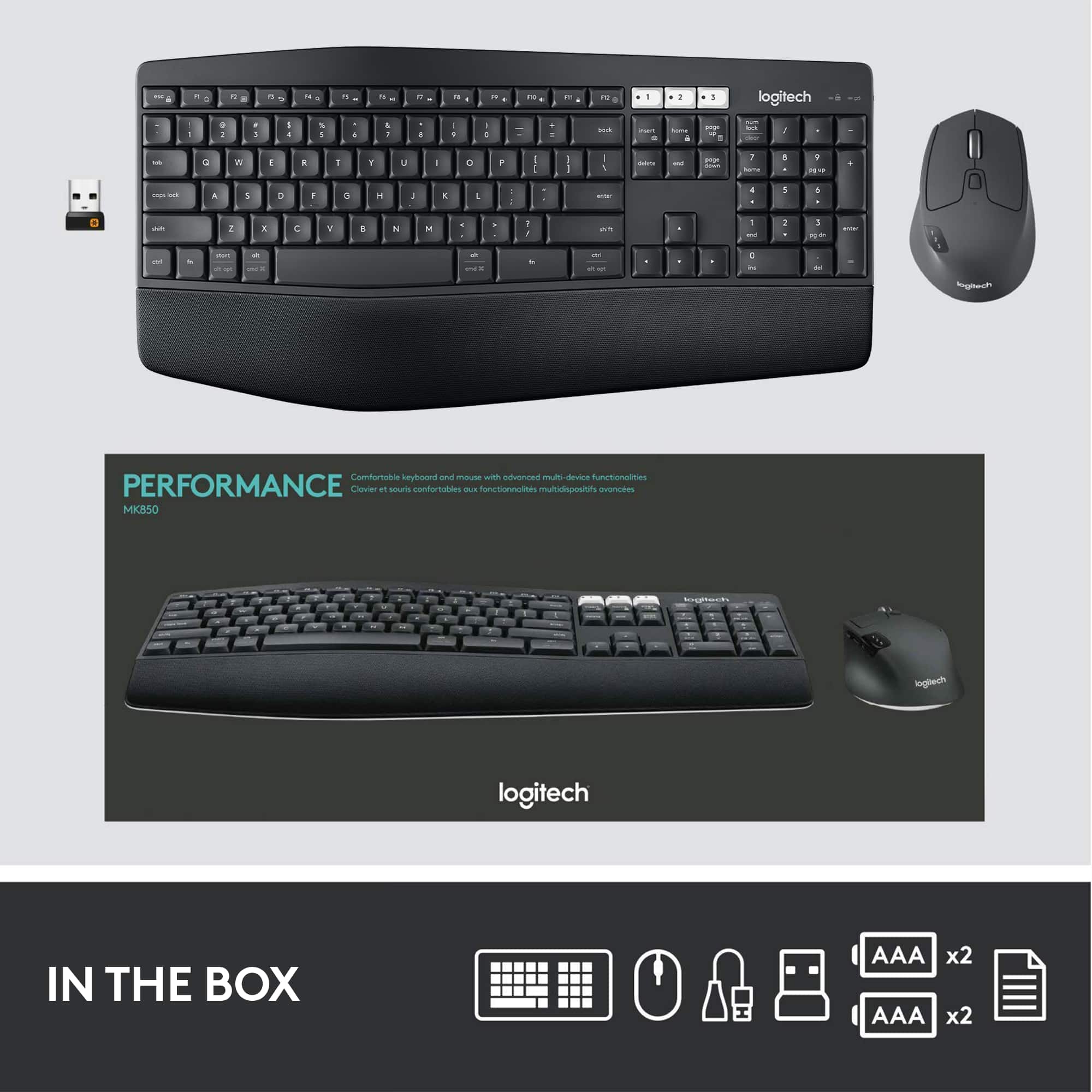
A:AnswerHello! To do a Print Screen with the MK850 Performance Full-size Wireless Optical Keyboard and Mouse, proceed as follows:
-Press "FN + Insert" to do the print screen
-Open the "Paint" software
-Press "Ctrl + V" to paste the image of your print screen
-Click File and then Print, or save the image and insert it into a document like Word in example, and print from there.
Mathieu from Logitech
A:AnswerTo the best of my knowledge the device buttons cannot be disable per se, however since it is a true bluetooth connection you can disable the bluetooth connection on the other PC's.
A:AnswerHello,
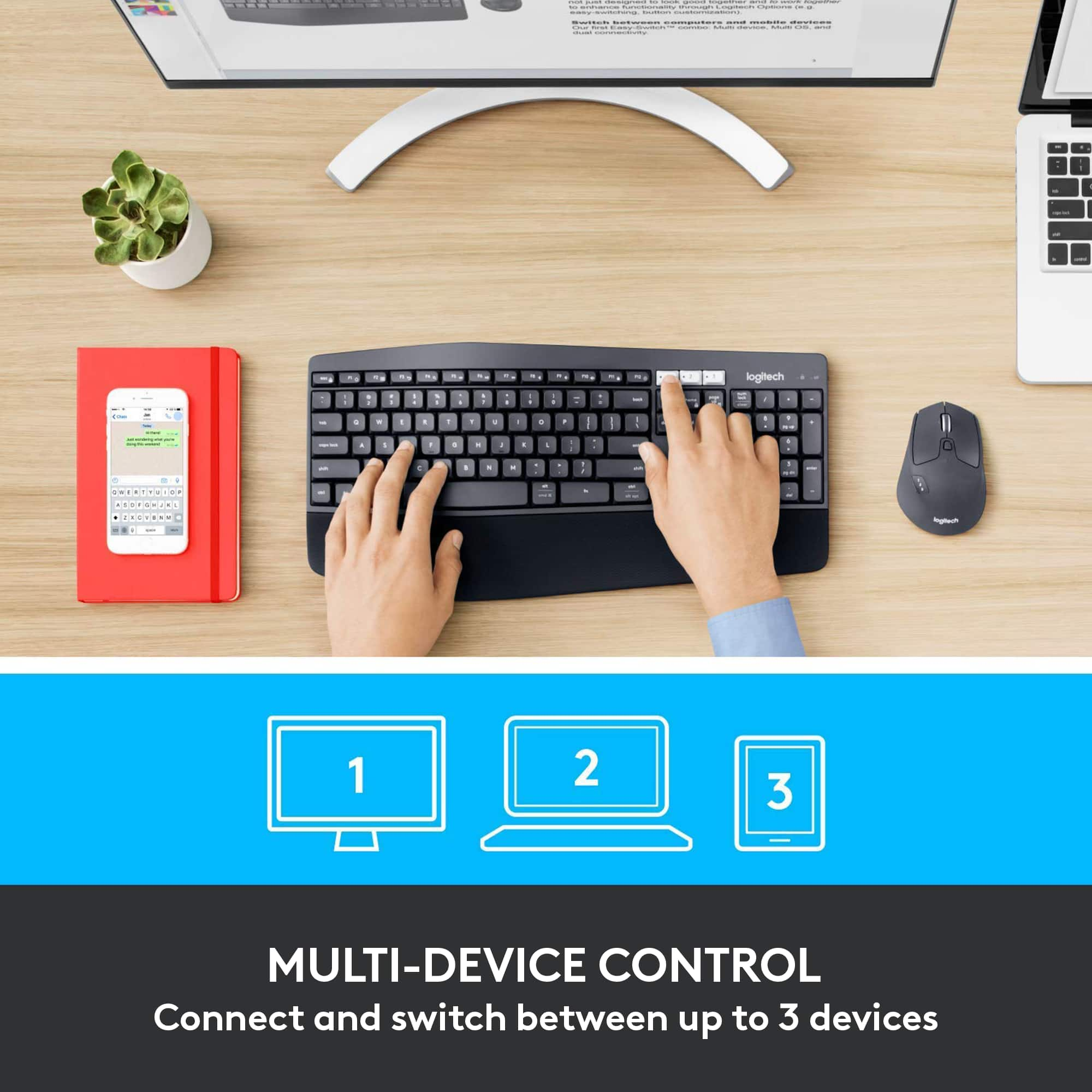
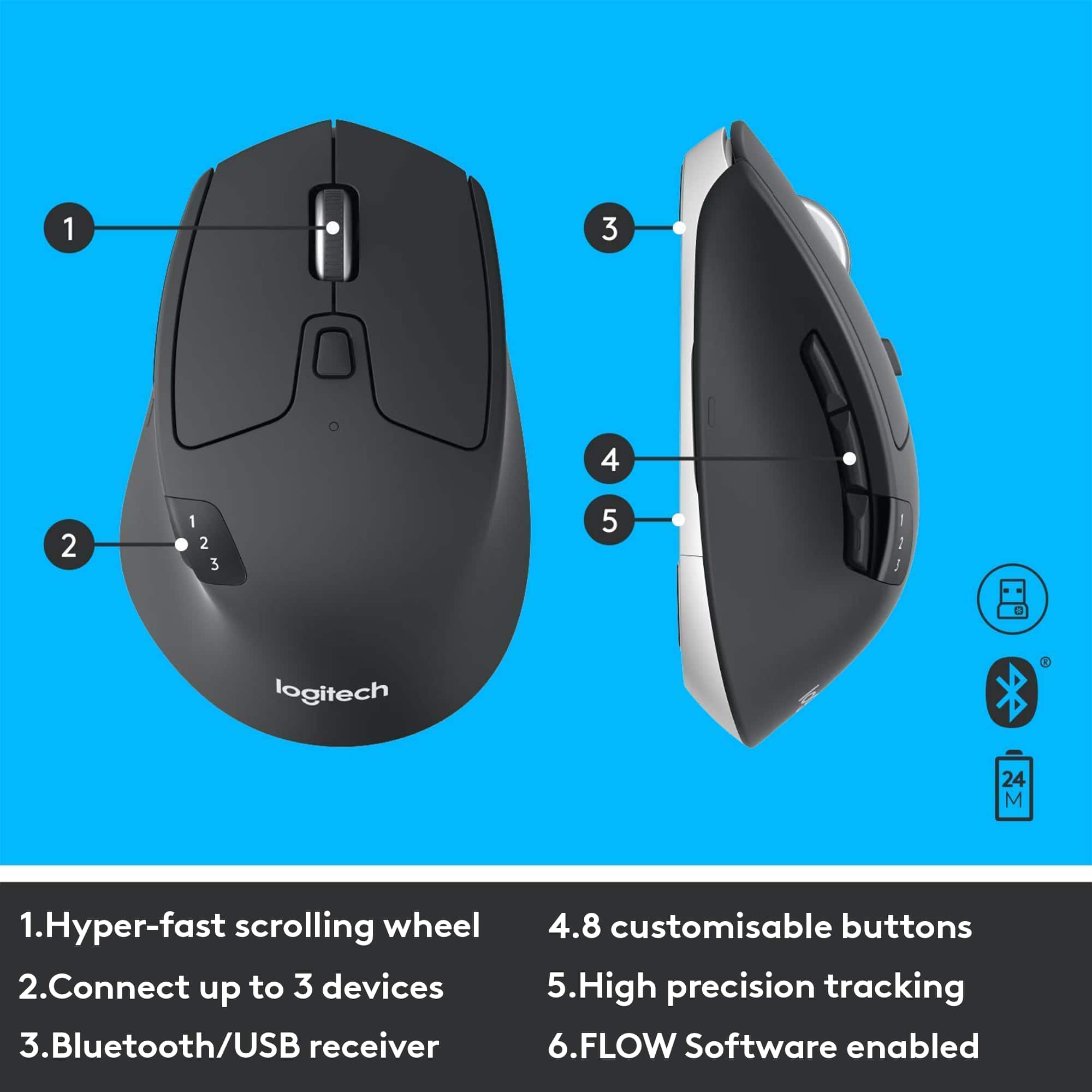
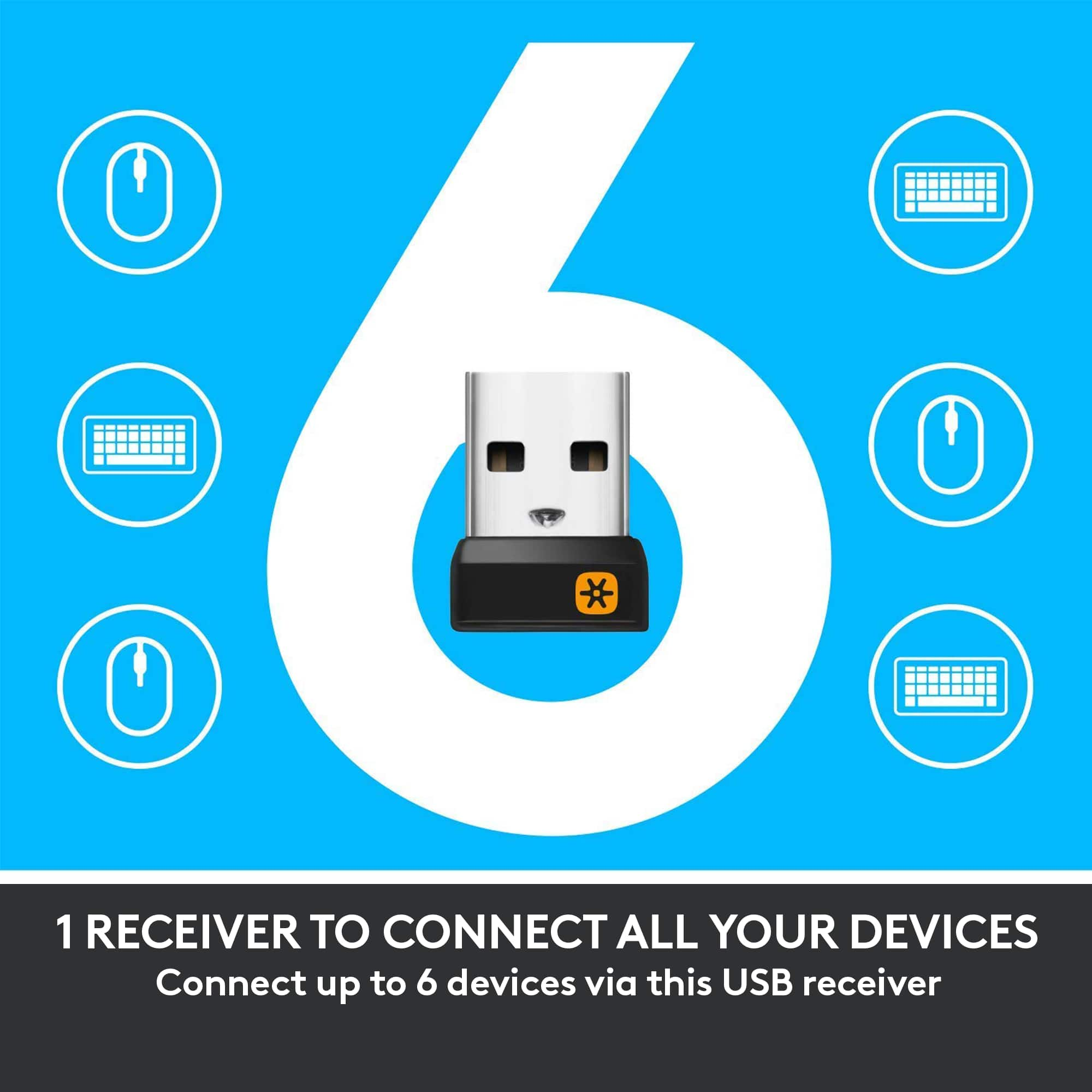
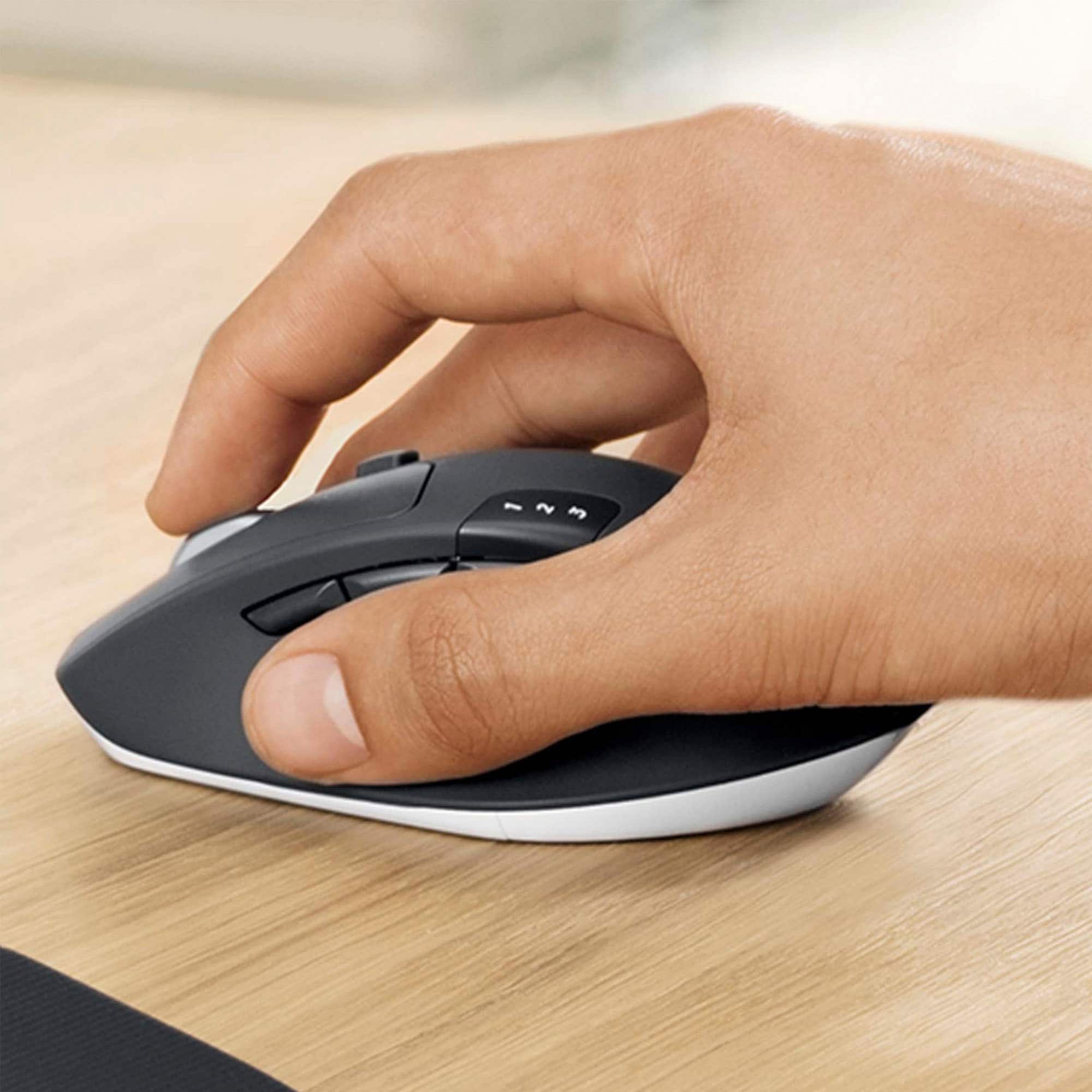
The Logitech MK850 mouse and keyboard combo can pair to up to 3 devices vis Bluetooth or Unifying USB receiver. Pressing the white #1,2 or 3 keys will switch between the three inputes. If the #1 key is blinking, it is in pairing mode. Holding down one of these keys sets the keyboard into pairing mode, you will want to either go to your device's Bluetooth settings to connect the keyboard via Bluetooth, or connect to the Unifying receiver through Logitech "Options" or "Unifying" software. I have attached a link to the "Getting Started" support page for your reference. Please feel welcome to visit the Logitech website for further support.
Best regards,
John at Logitech
https://support.logi.com/hc/en-ch/articles/360023300114-Getting-started-MK850-Performance-Wireless-Keyboard-and-Mouse-Combo
A:AnswerIn Windows 10, FN+Insert copies screen to clipboard. To capture screenshot to screenshot folder press and hold FN, then press and hold "Start" key, then hit Insert key.
![Sure, here is the corrected and grouped text:
```
ESC F1 F2 F3 F4 F5 F6 F7 F8 F9 F10 F11 F12 1 2 3 logitech - - 1 2 # $ 4 % 5 6 & 7 8 9 0 - - back insert home page up num lock clear / . tab Q W E R T Y U I O P { [ } ] / delete end page down 7 home 8 A 9 P9 up + caps lock A S D F G H J K L : ; a enter 4 5 6 shift Z X C V B N M < > ? shift 1 end 2 3 pg dn enter ctrl fn start alt opt alt crnd x alt cmd x fn ctrl alt opt 0 ins del 1 logitech
```](https://pisces.bbystatic.com/image2/BestBuy_US/images/products/5761/5761911_sd.jpg)