A:AnswerYes, though the installation process is a little different. Open the Google Play Store and search for the Microsoft 365 apps you want to install.
Click Install.
Once your app(s) are installed, launch the app you want to open.
Sign in with your personal Microsoft Account or your account associated with your Office 365 subscription.
A:AnswerYes, you can install it on all your devices.
For PCs follow the instructions here: https://aka.ms/AA4rq32
For Chromebook and Android devices follow the instructions here: https://aka.ms/AA4rinm
For iPad and iPhone follow the instructions here: https://aka.ms/AA4rinc
A:AnswerIf you are looking to share Microsoft 365 Family with her all you need to do is log into your Microsoft account here: https://account.microsoft.com/services/office/sharing and send her an invitation. She can then accept the invitation you sent and create a Microsoft account and install Microsoft 365 Family on her device.
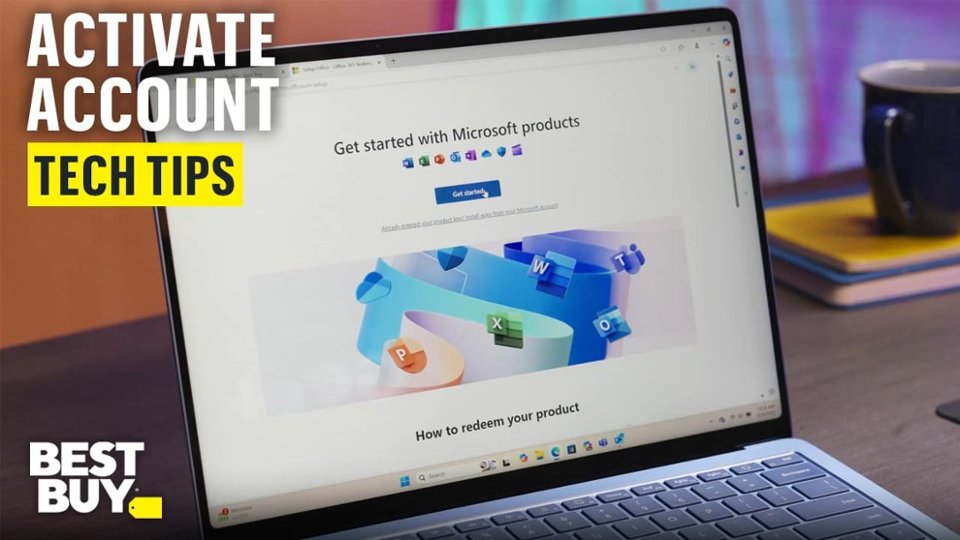
A:AnswerMike, once you activate Office 365 Home, you no longer need the activation code. From that point on you'll install on new devices and share your subscription with others through your Microsoft Account. Simply log into the Microsoft Account that is connected to Office 365 Home on the new device at Office.com and you should see an install Office button in your account.
A:AnswerYou can purchase Office 365 and redeem it to your own Microsoft Account, and then log into that account with the Office apps you have on your device and it will sync them up to your Microsoft Account that has the purchase on it.
A:AnswerYes, you can. However for each installation after the first you don't use the product key, instead you log into Office.com, with the Microsoft account you redeemed Office 365 Home to, on the new device. Then click install Office.
A:AnswerNo, if you only want one user then Office 365 Personal will work for you since it allows you to install Office 365 on all your devices. Just note that for each installation after the first, you don't use the product key, instead, you log into Office.com with the Microsoft account you redeemed Office 365 Home to, on the new device. Then click install Office.
A:AnswerYes, it does. Once you redeem Office 365 Home to your Microsoft account you then will log into your account and share it with the people you choose by entering their email address. You can learn about the process here: https://aka.ms/AA4rino.
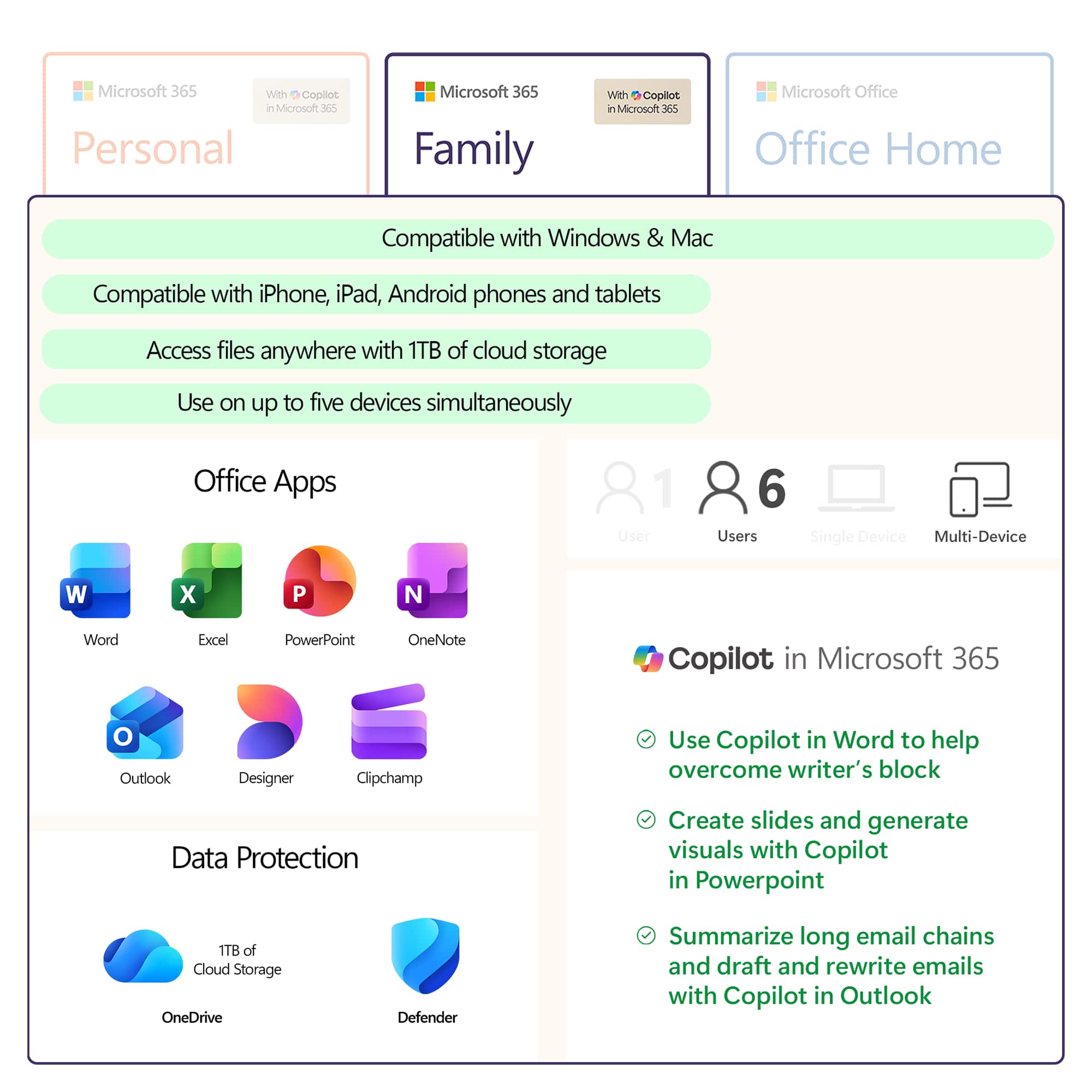
A:AnswerThis is for 6 different people, each of which can then install Office 365 Home on all of their devices. If you are one person with 6 devices then we recommend Office 365 Personal.